
Beginner Guide: Create Your First Customization Feature Step by Step
Customization feature: image upload + text engraving
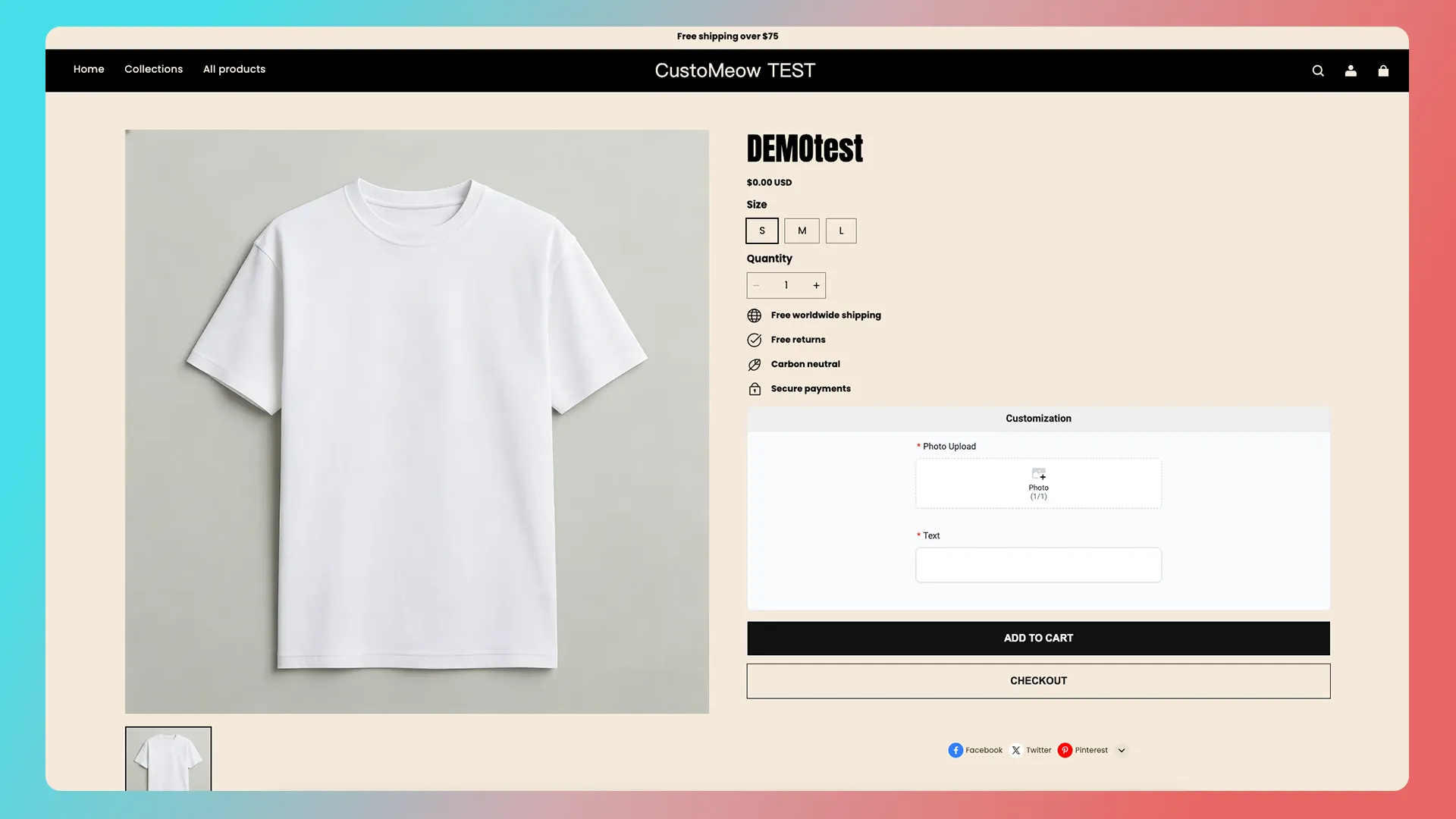
Note: The labels “1” and “2” in the tutorial images only indicate the click order in that screenshot.
1. Create a customization feature
1. Create a blank feature set
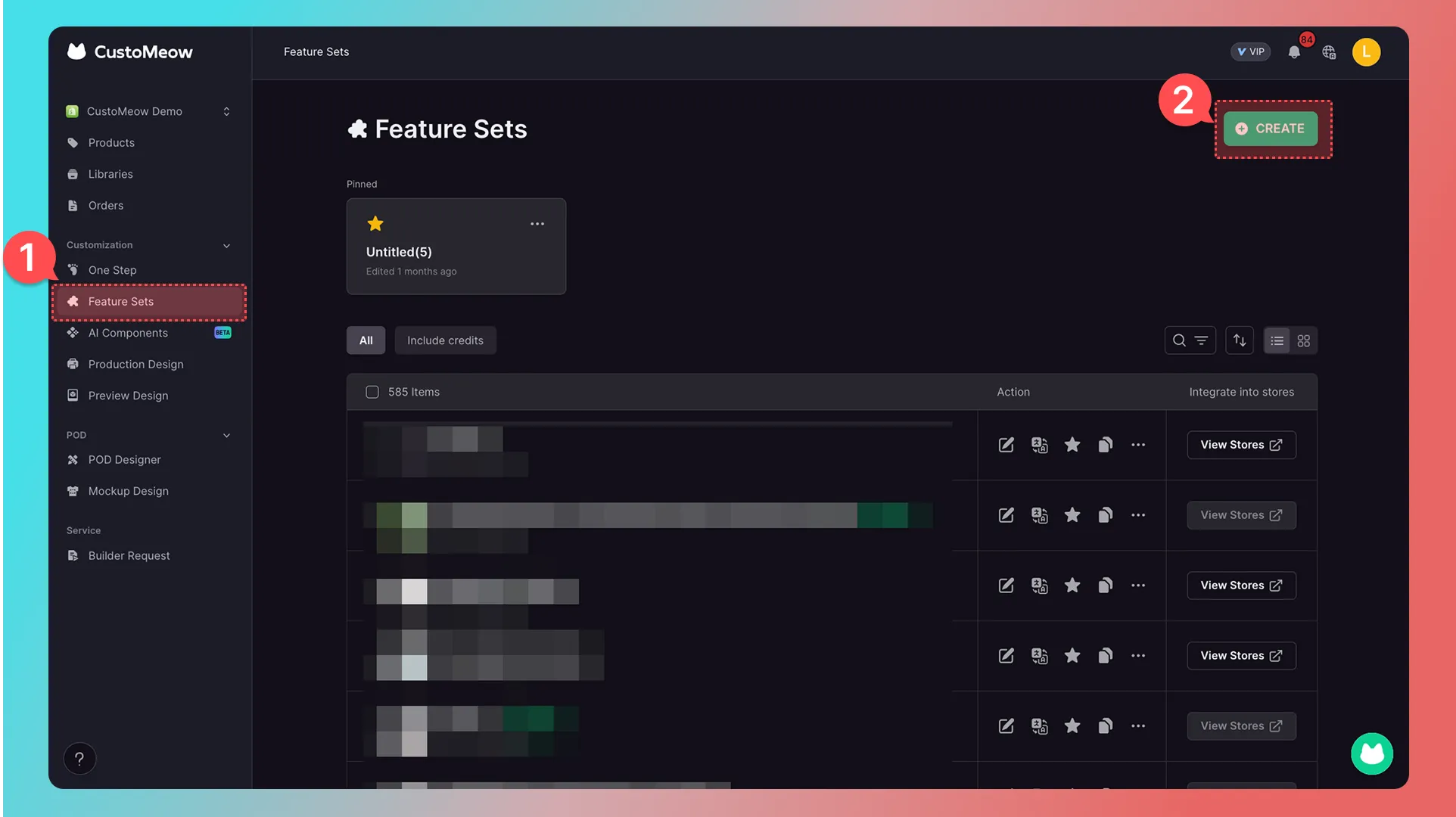
Click Feature Set in the left-hand menu, then click Create in the upper-right corner.
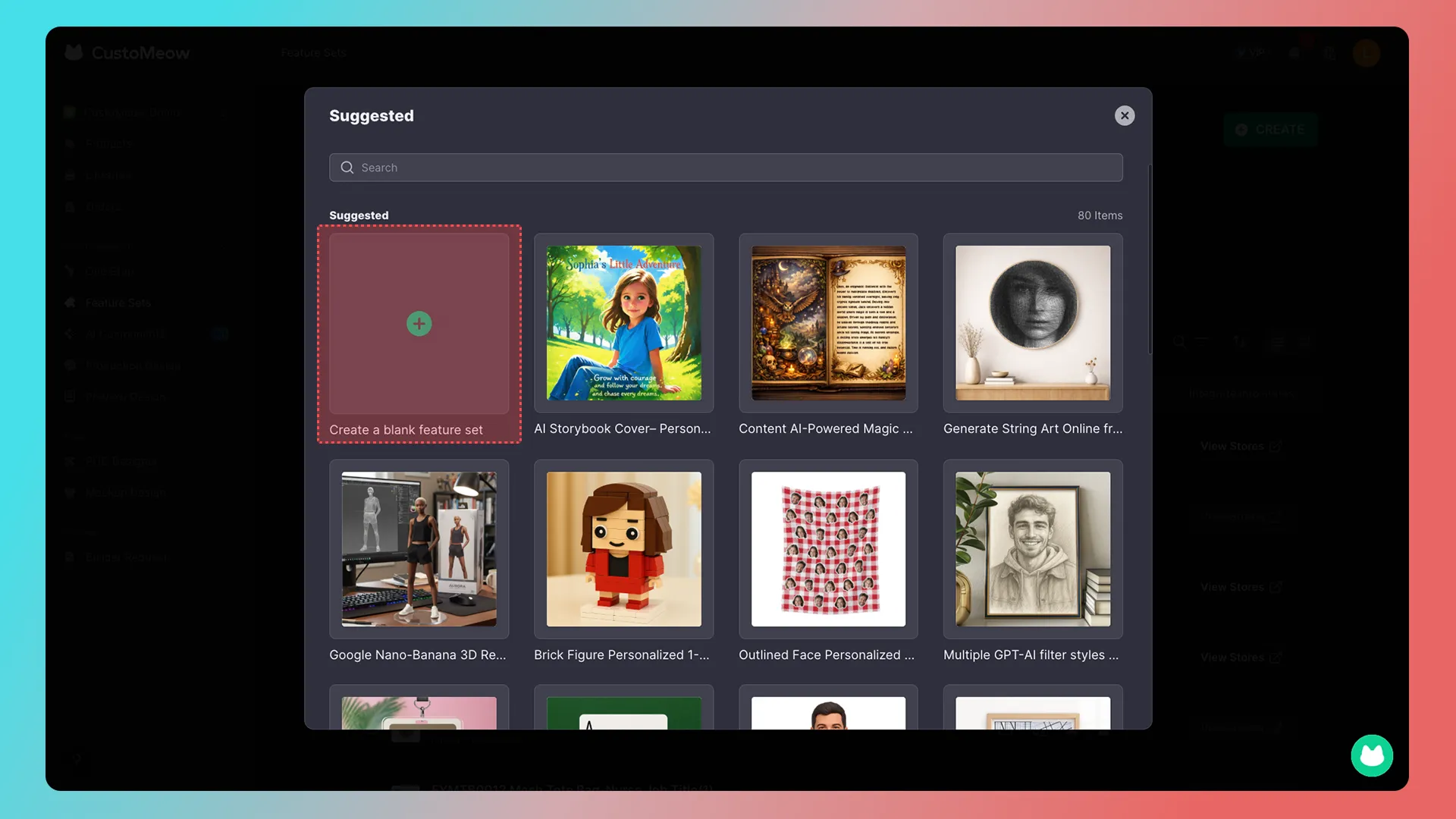
Click Create a blank feature set.
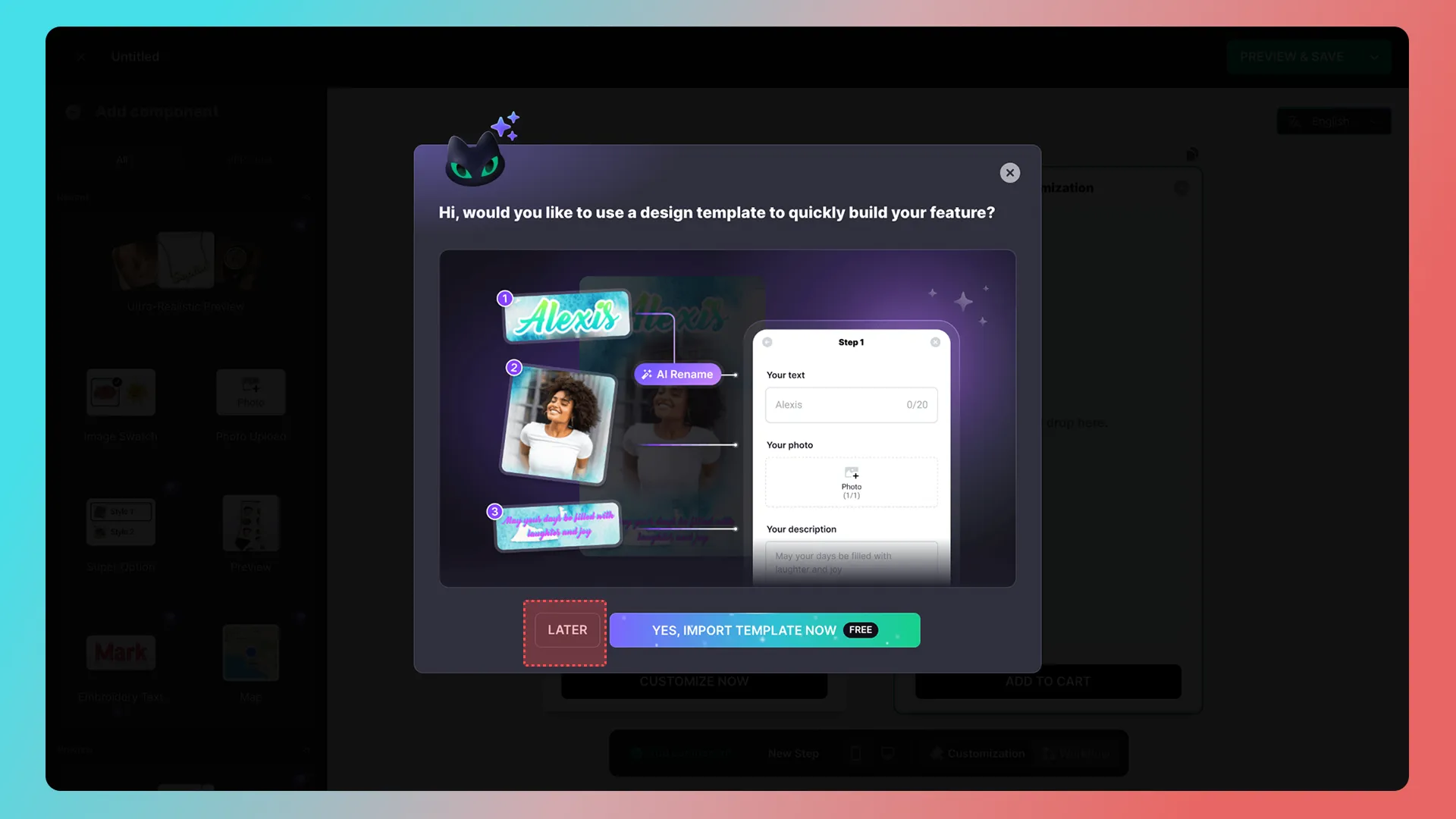
Click Skip.
2. Explore the builder and rename your feature
You are now on the customization-feature builder page.
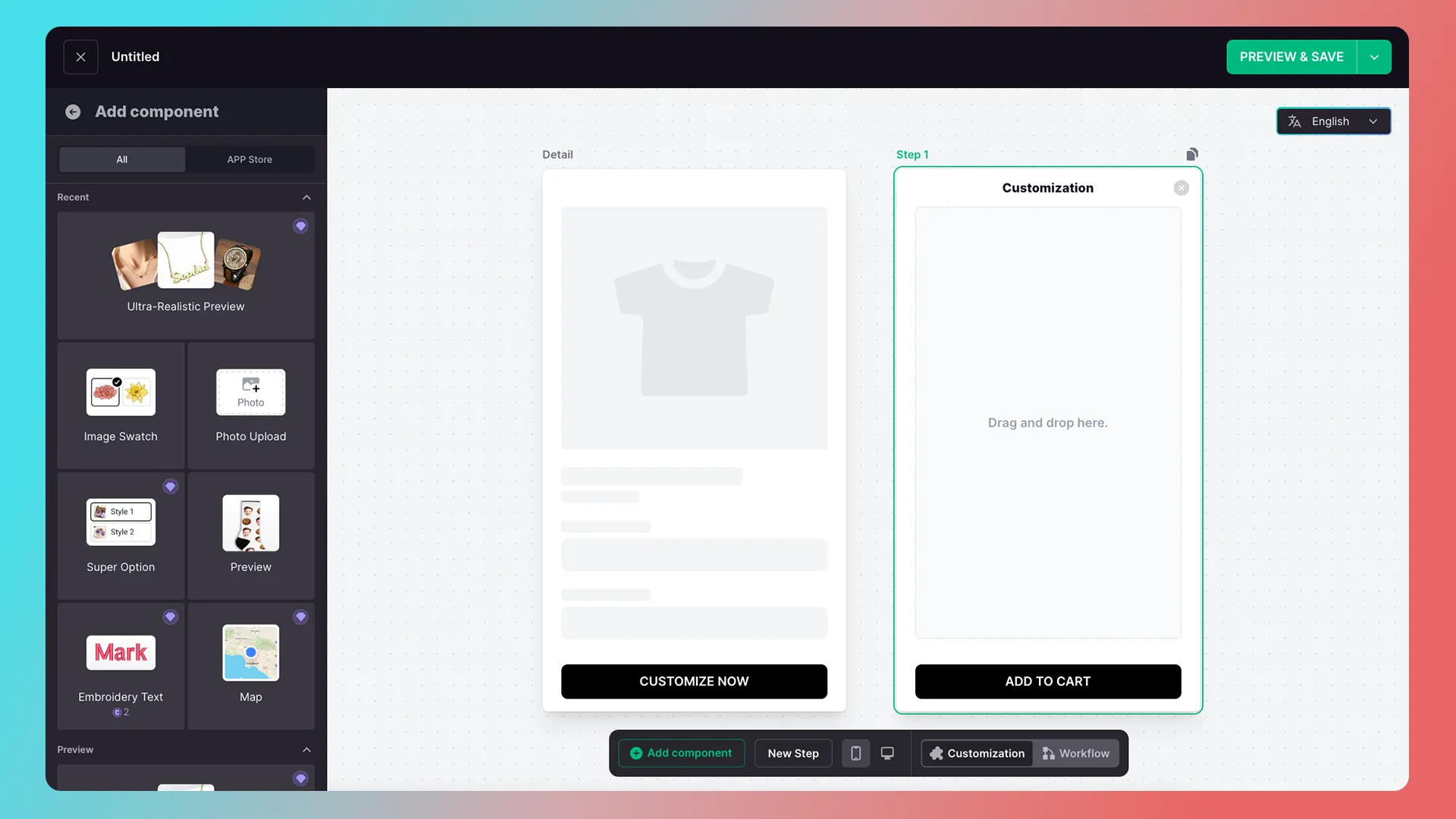
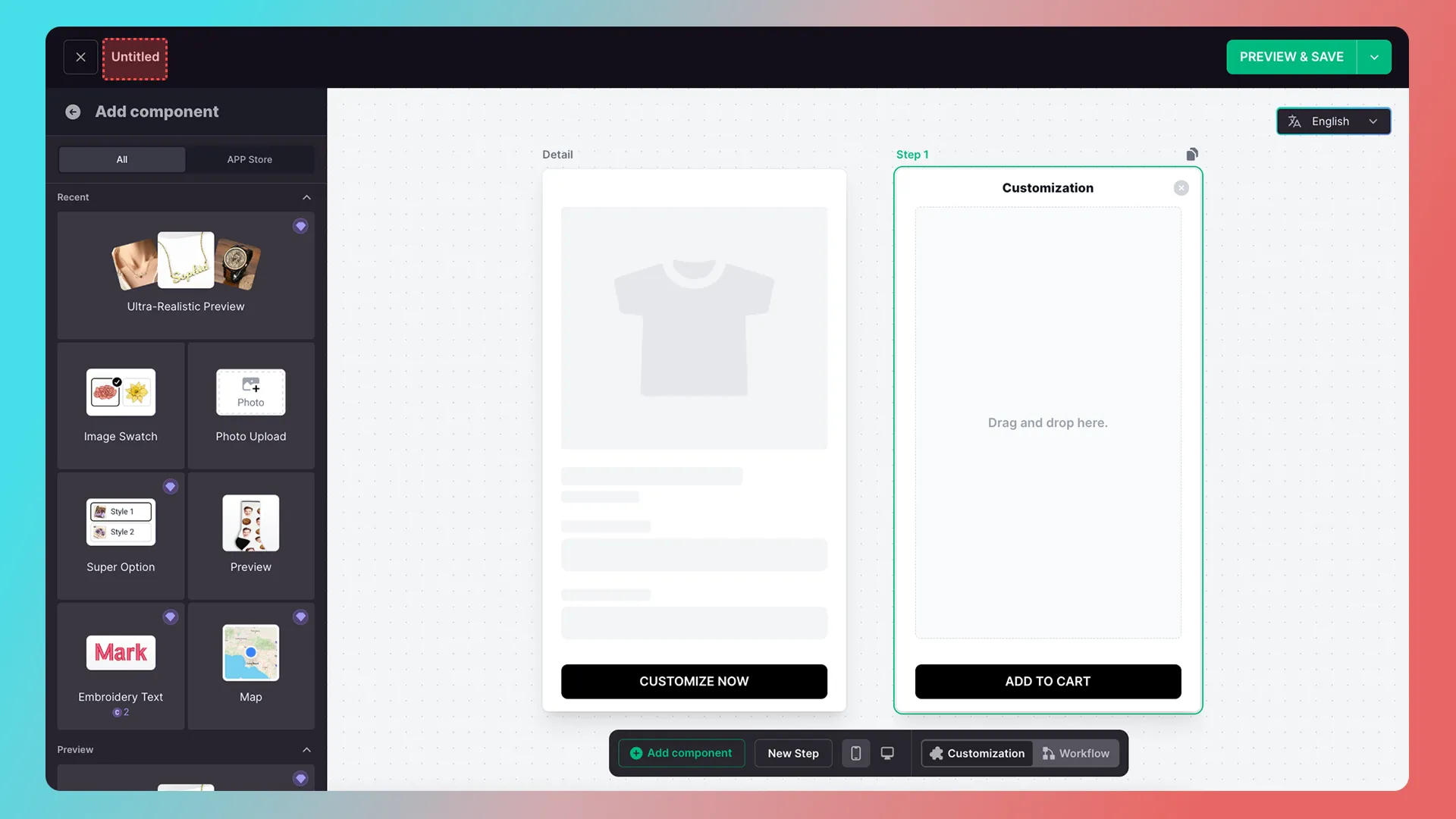
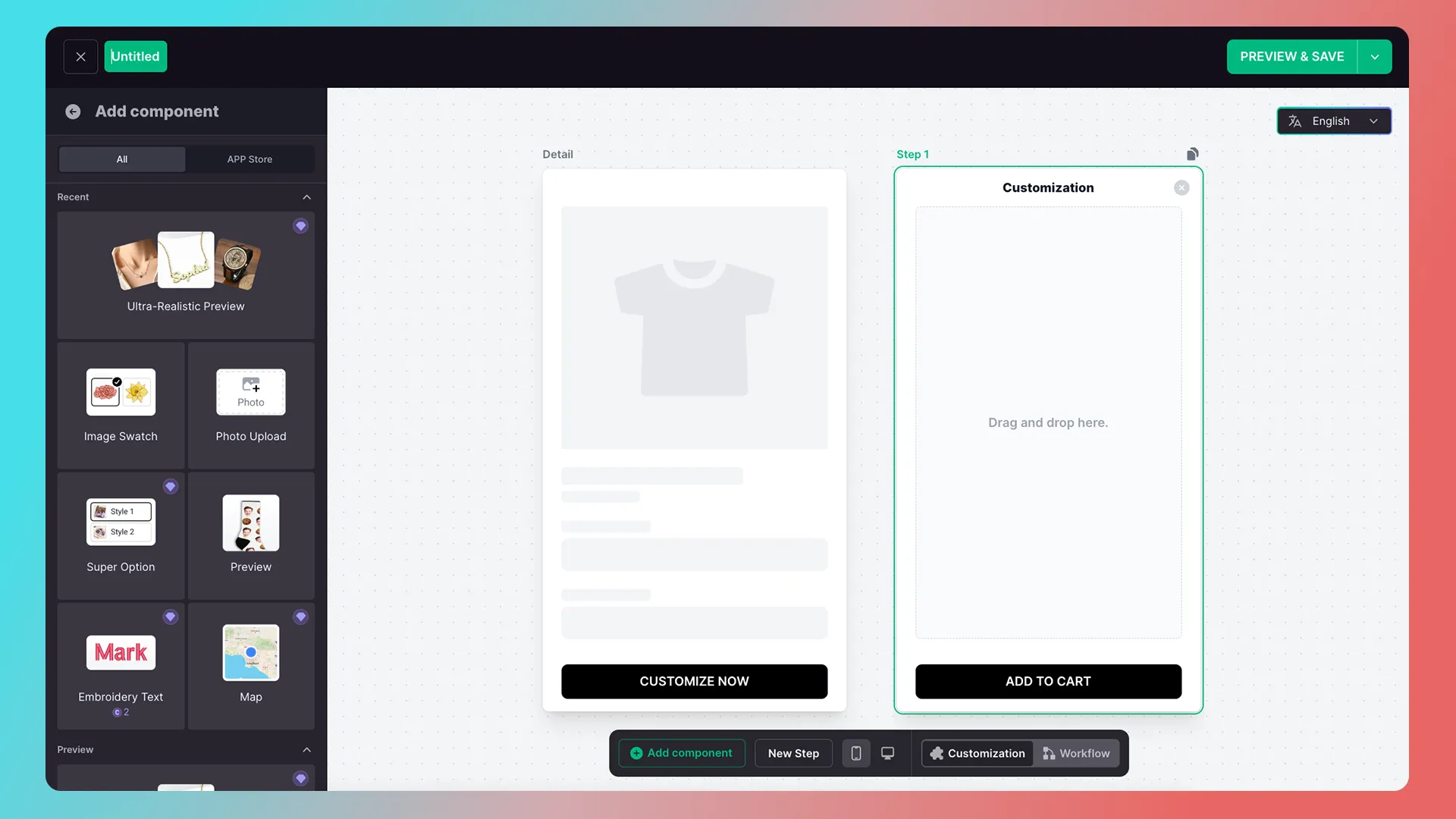
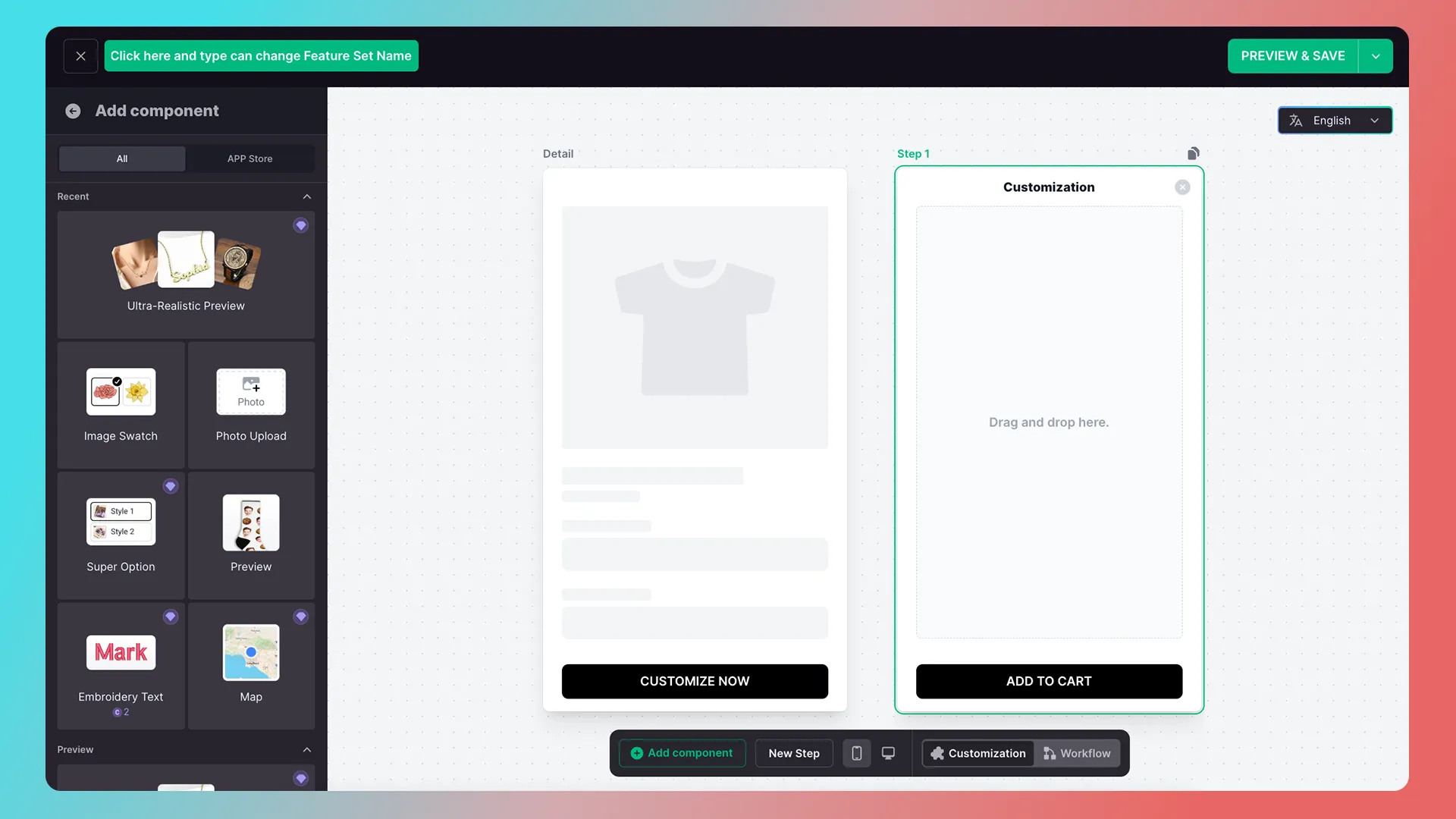
Click the upper-left corner to rename the customization feature. Press Enter when you are done.
2. Add image-upload and text components
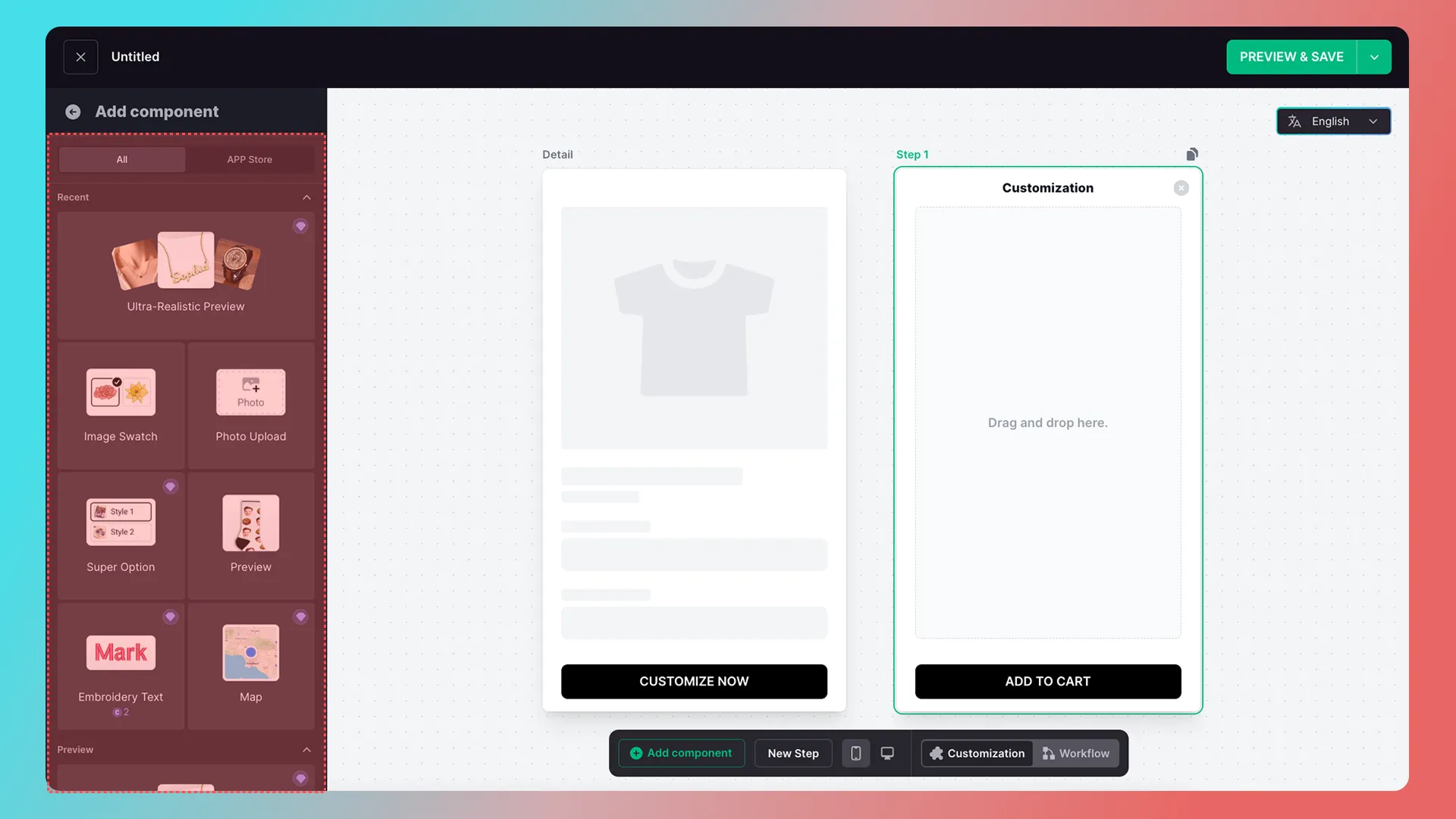
1. Find and add components
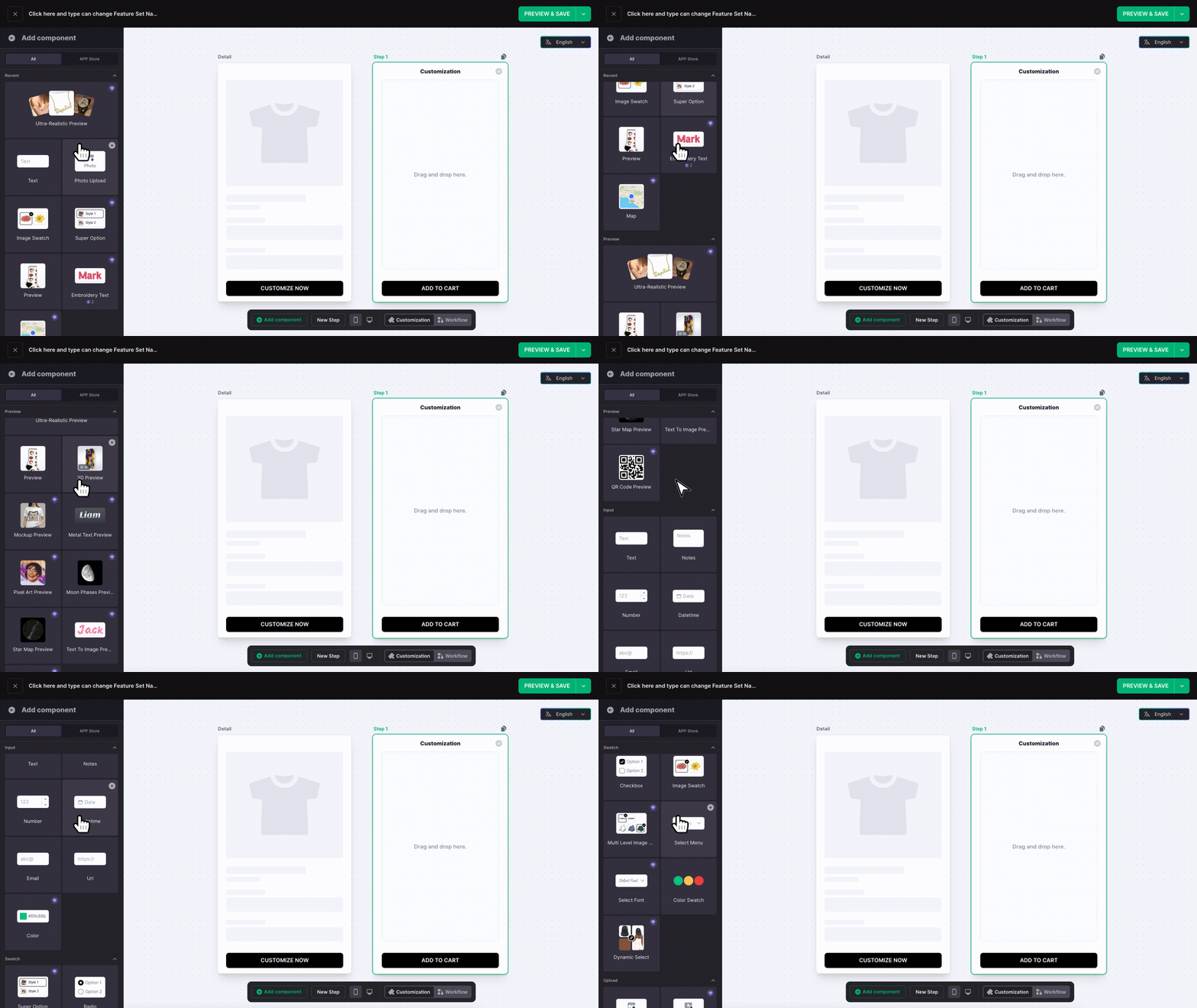
The panel on the left is the component library. Merchants can build a customization feature by adding components to the workspace on the right.
Scroll down to view more components.
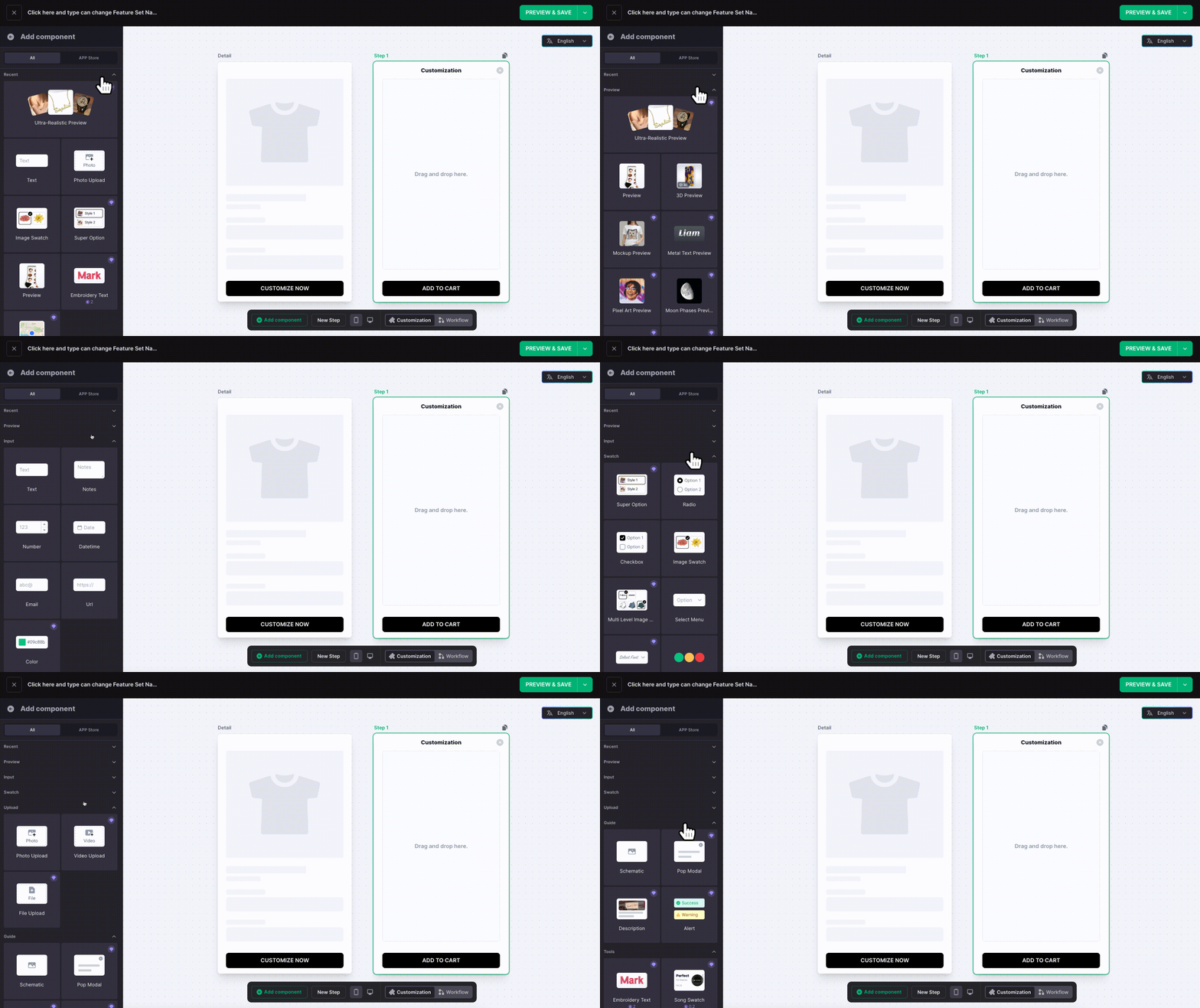
Click a component category.
Once you find the component you want, drag it to the workspace on the right, or click the + icon that appears when you hover over the component.
Drag and drop

Click the Add button
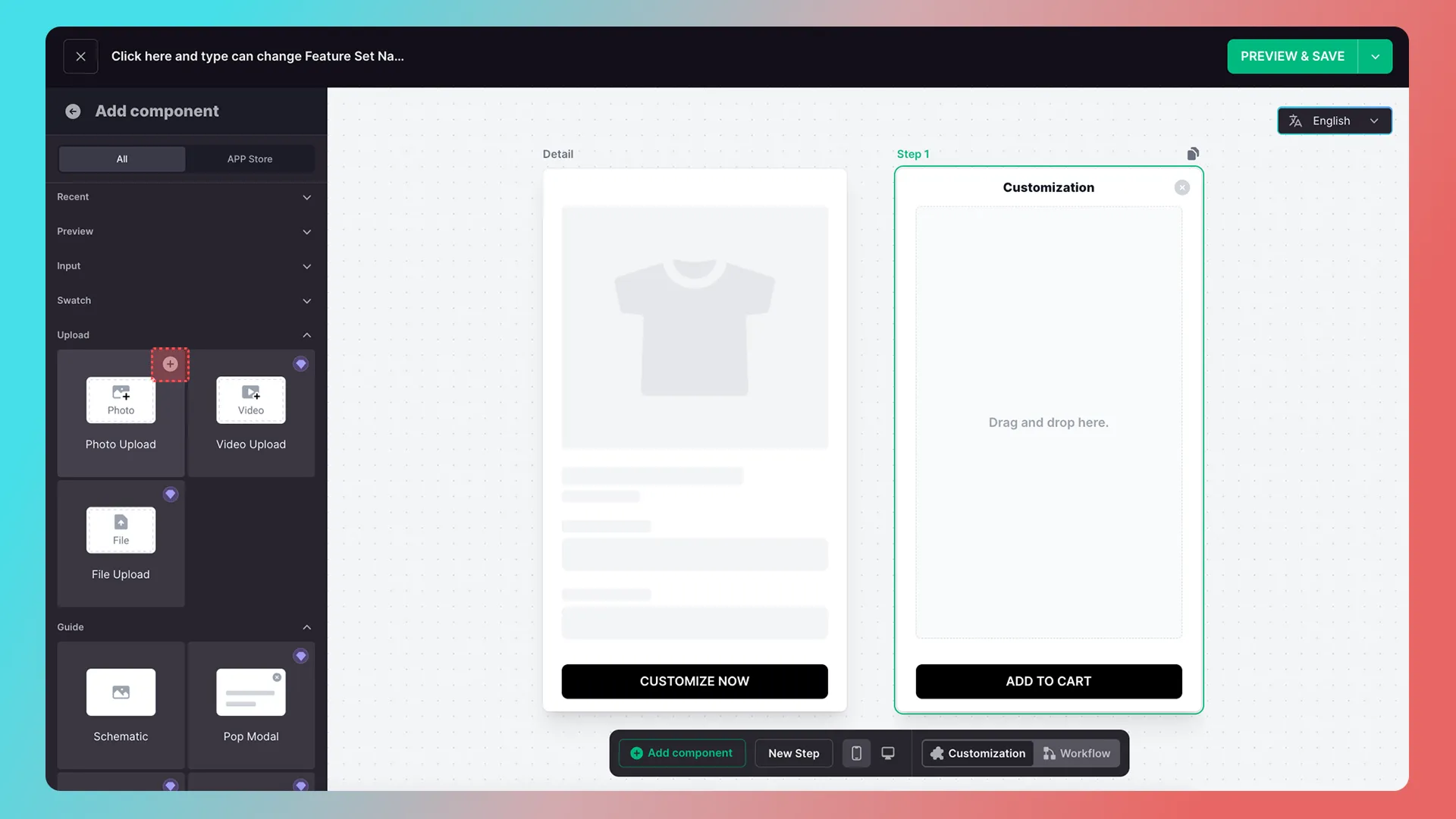
2. Add an image-upload component
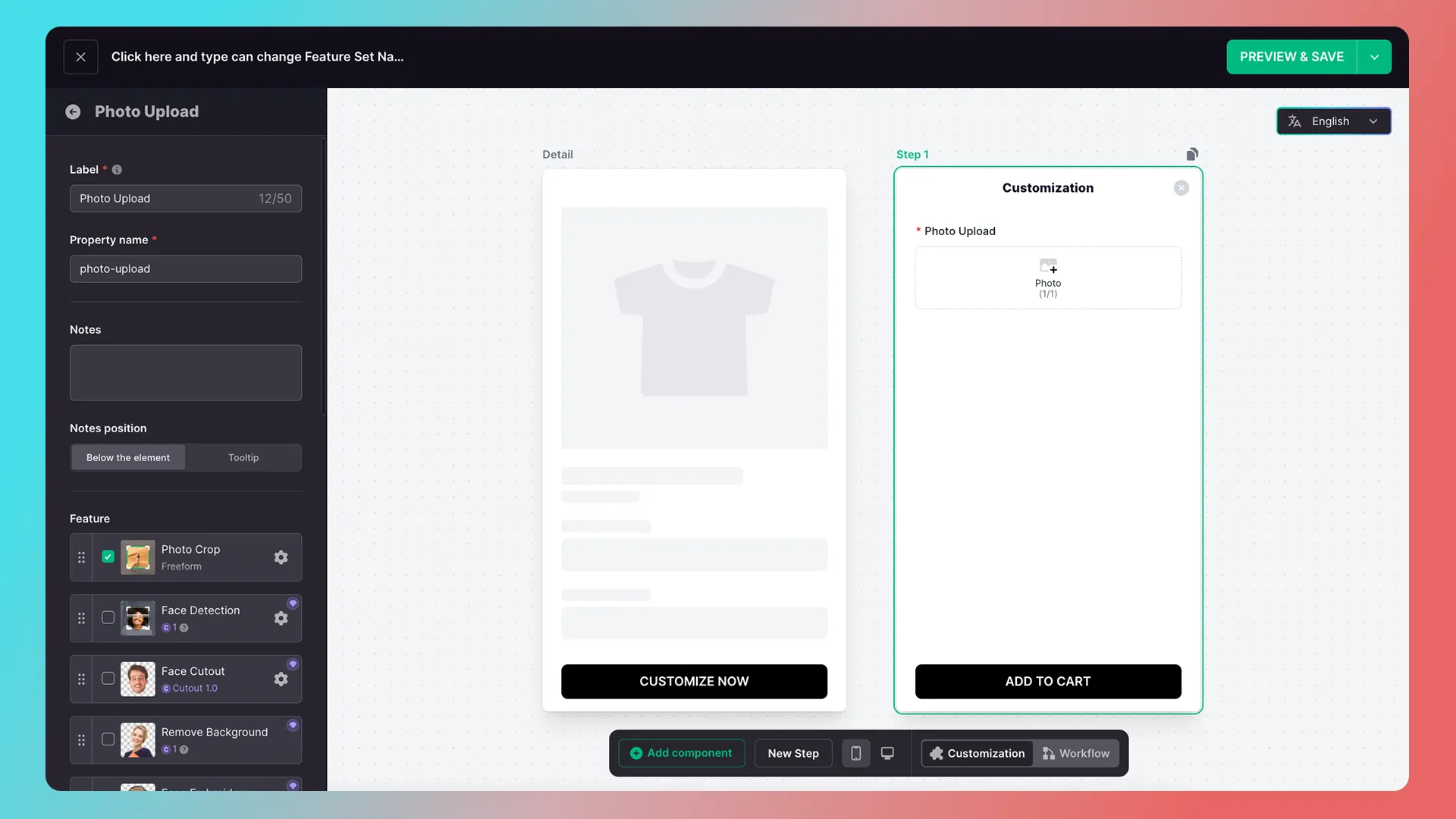
Now, add an image-upload component.
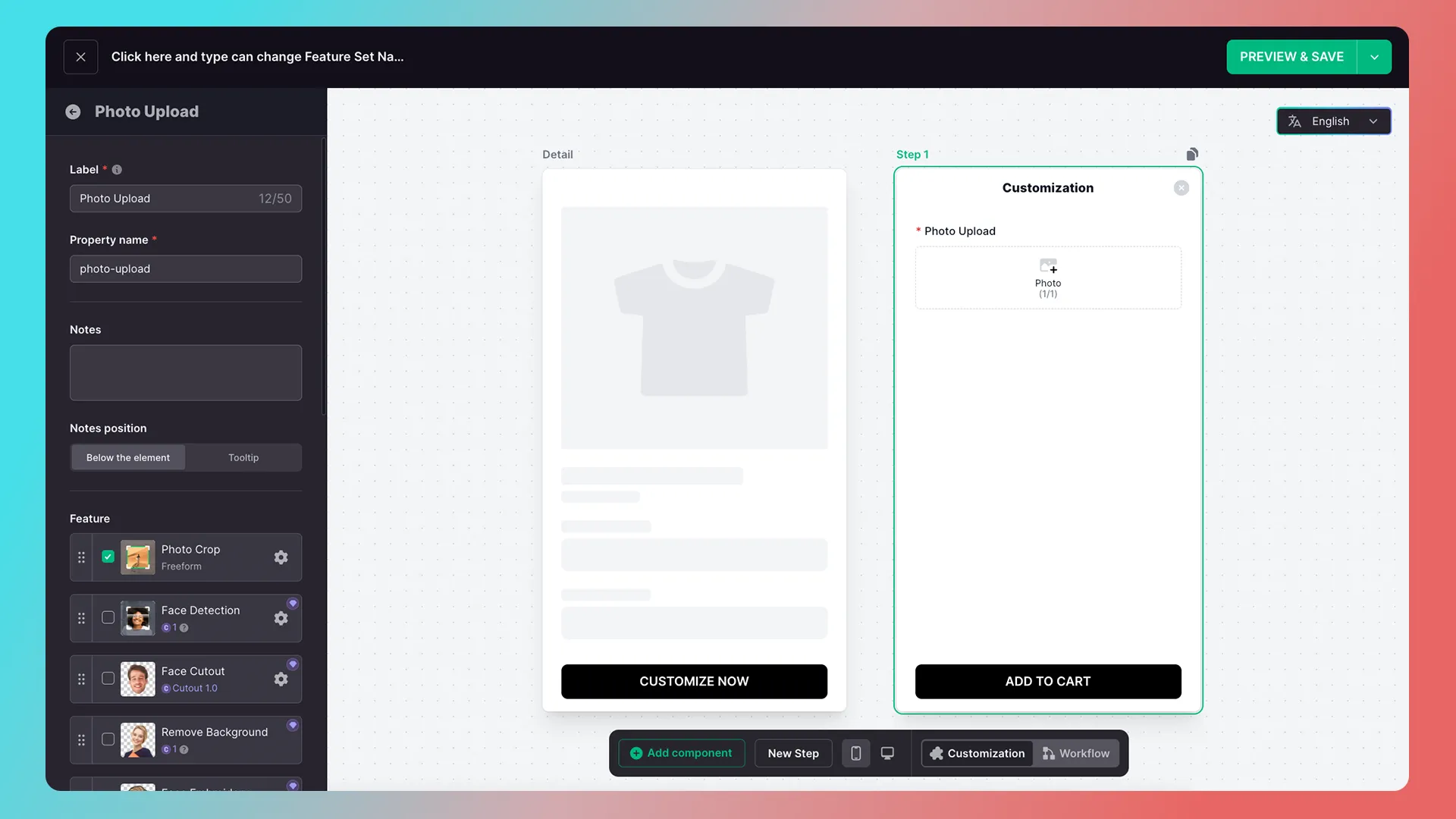
After adding a component, its configuration options automatically expand on the left. You can enter a component title (Label), among other settings.
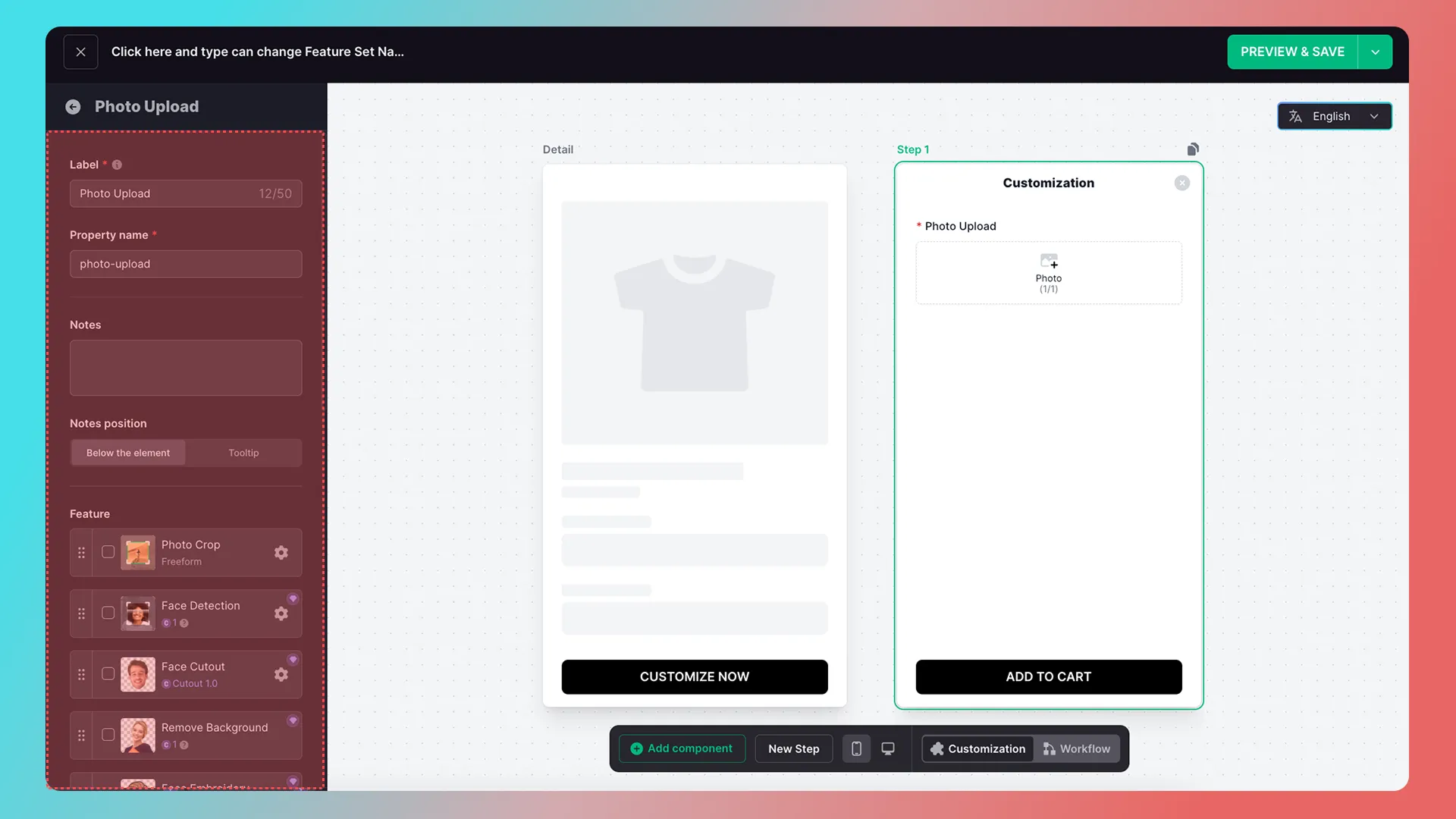
3. Configure image cropping
Add an image-cropping feature to the image-upload component.
1. Configure the crop ratio
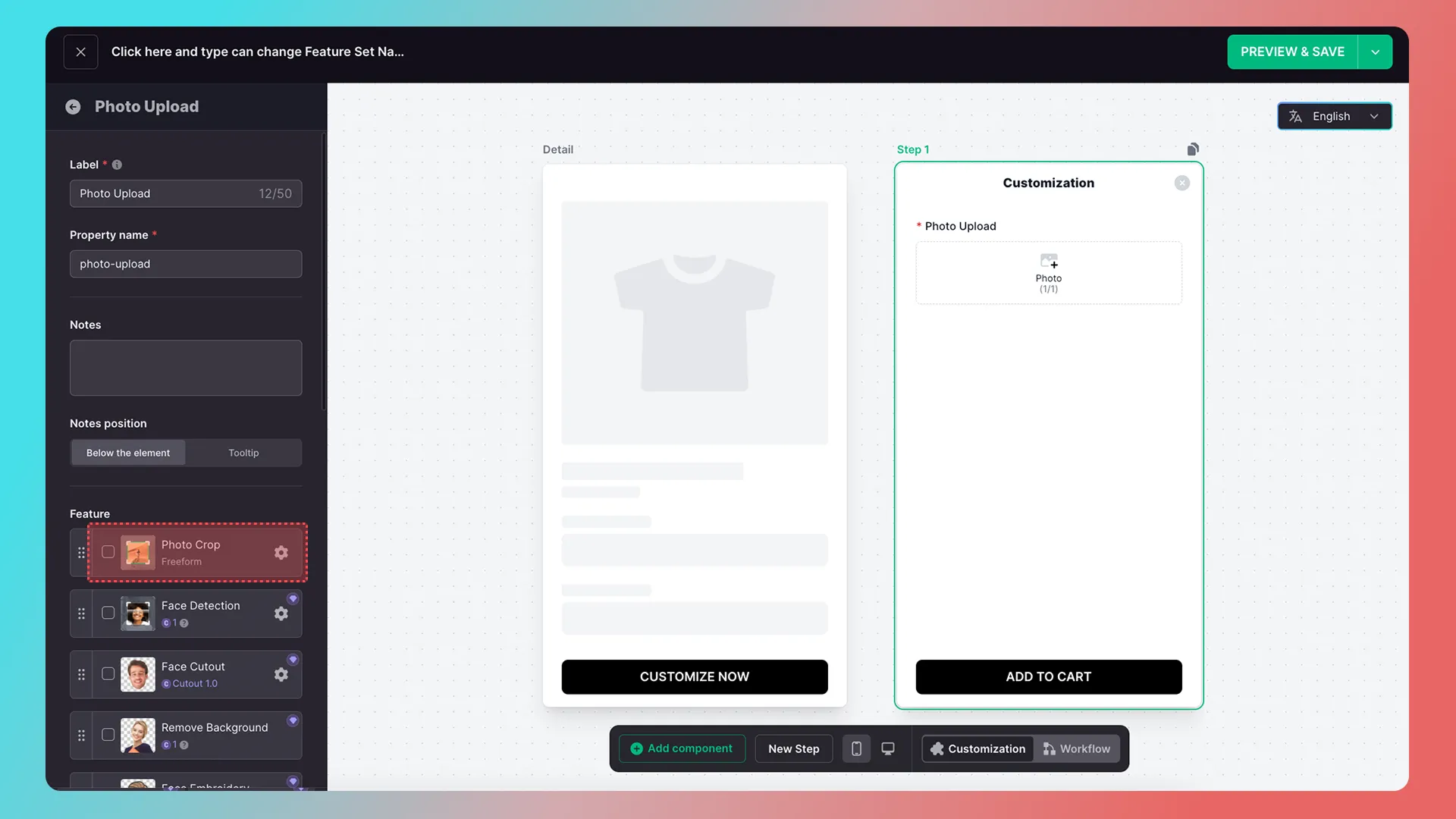
2. Select Set crop ratio, then click Done
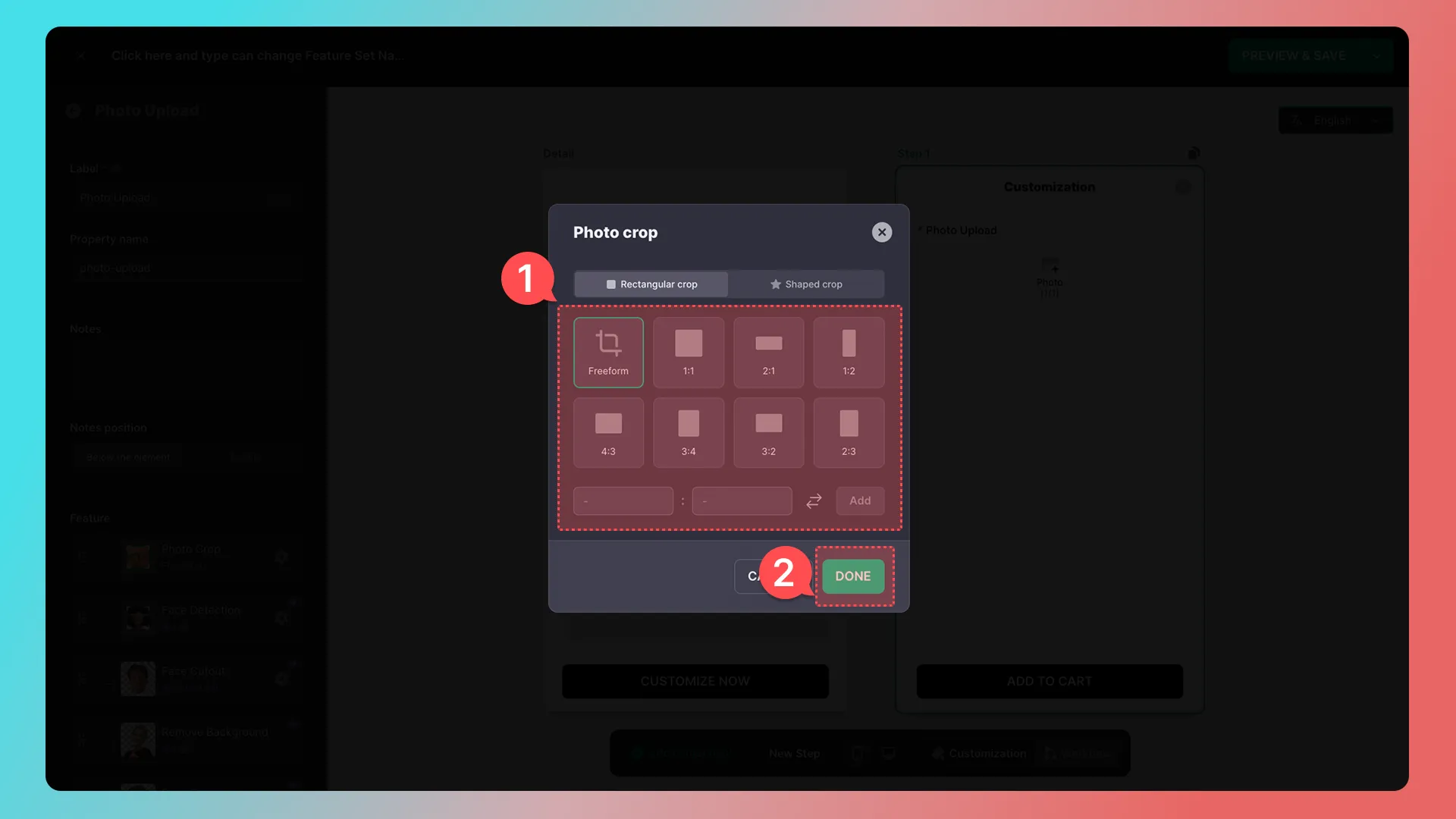
After configuration, you can see that the crop feature is enabled.
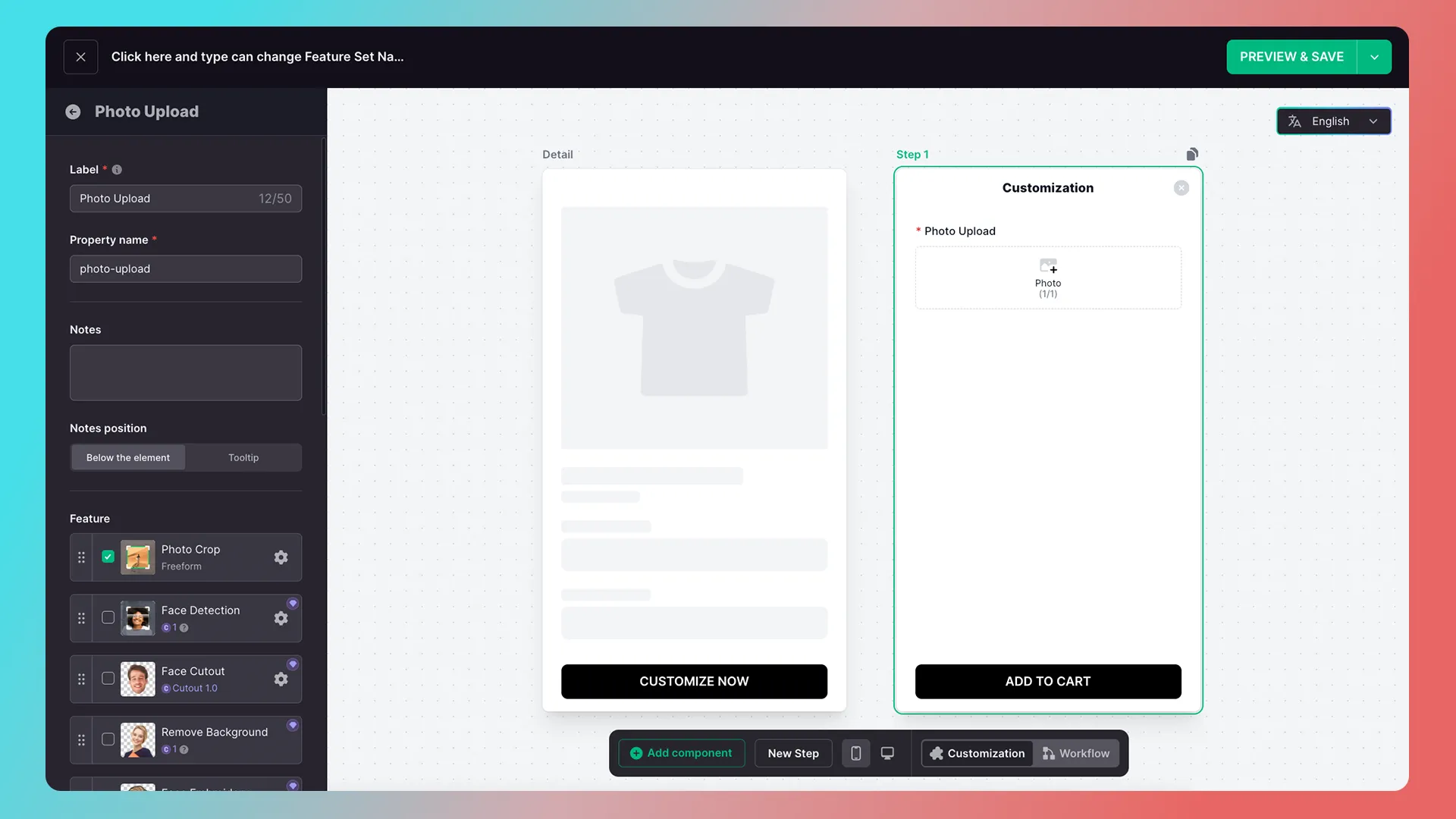
4. Add a text component
Click the small Back button in the upper-left corner.
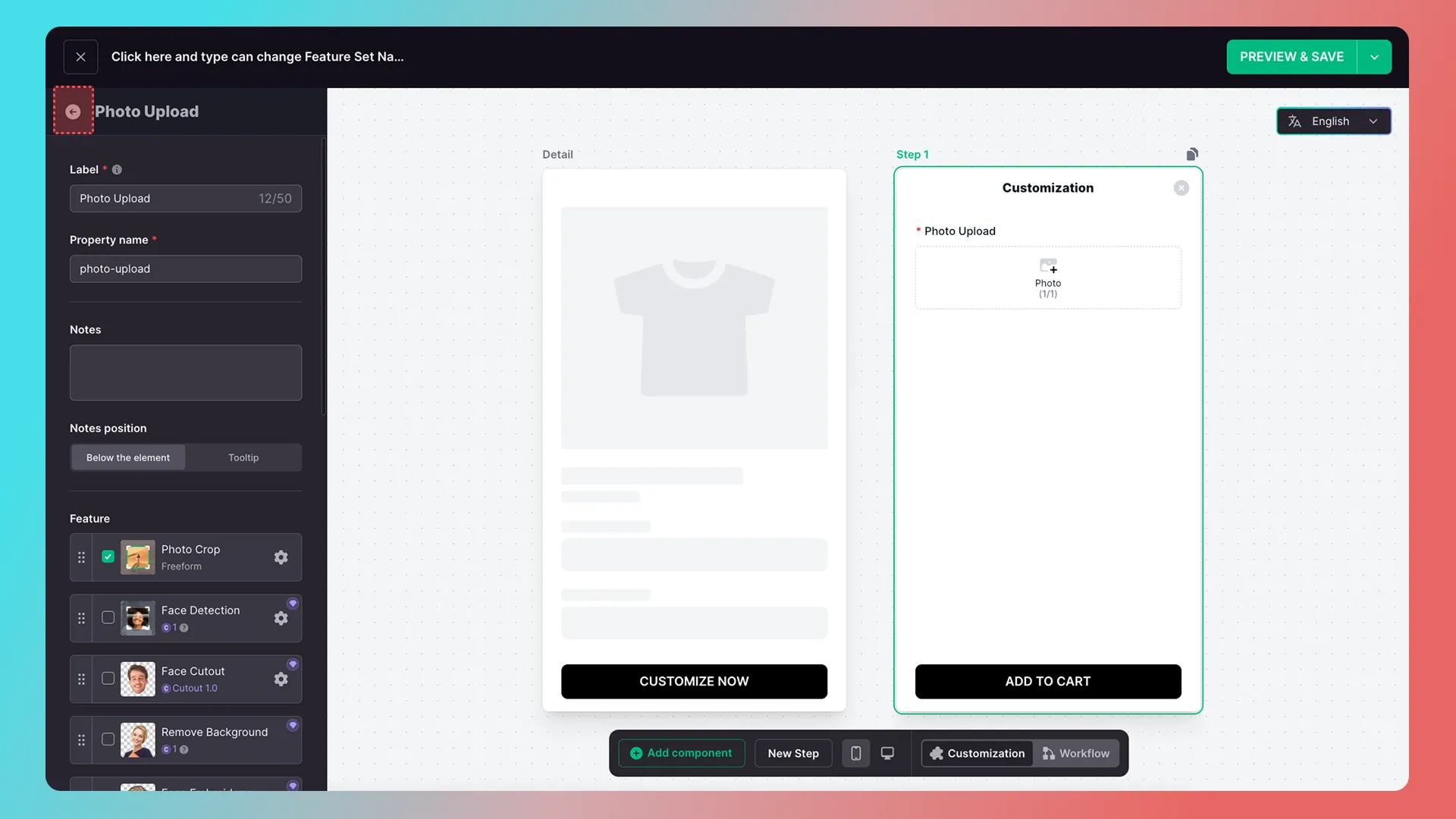
Click Add Component.
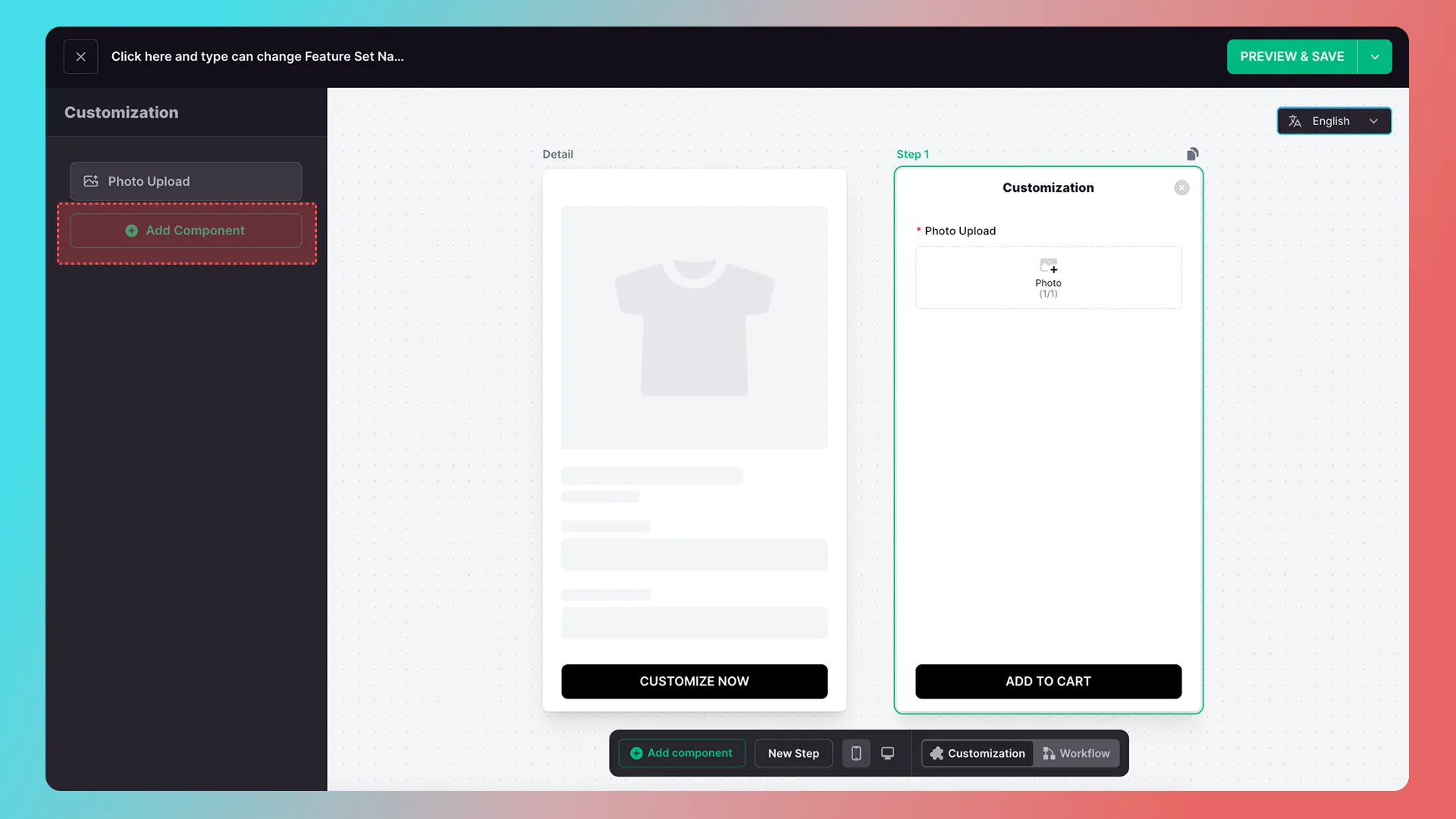
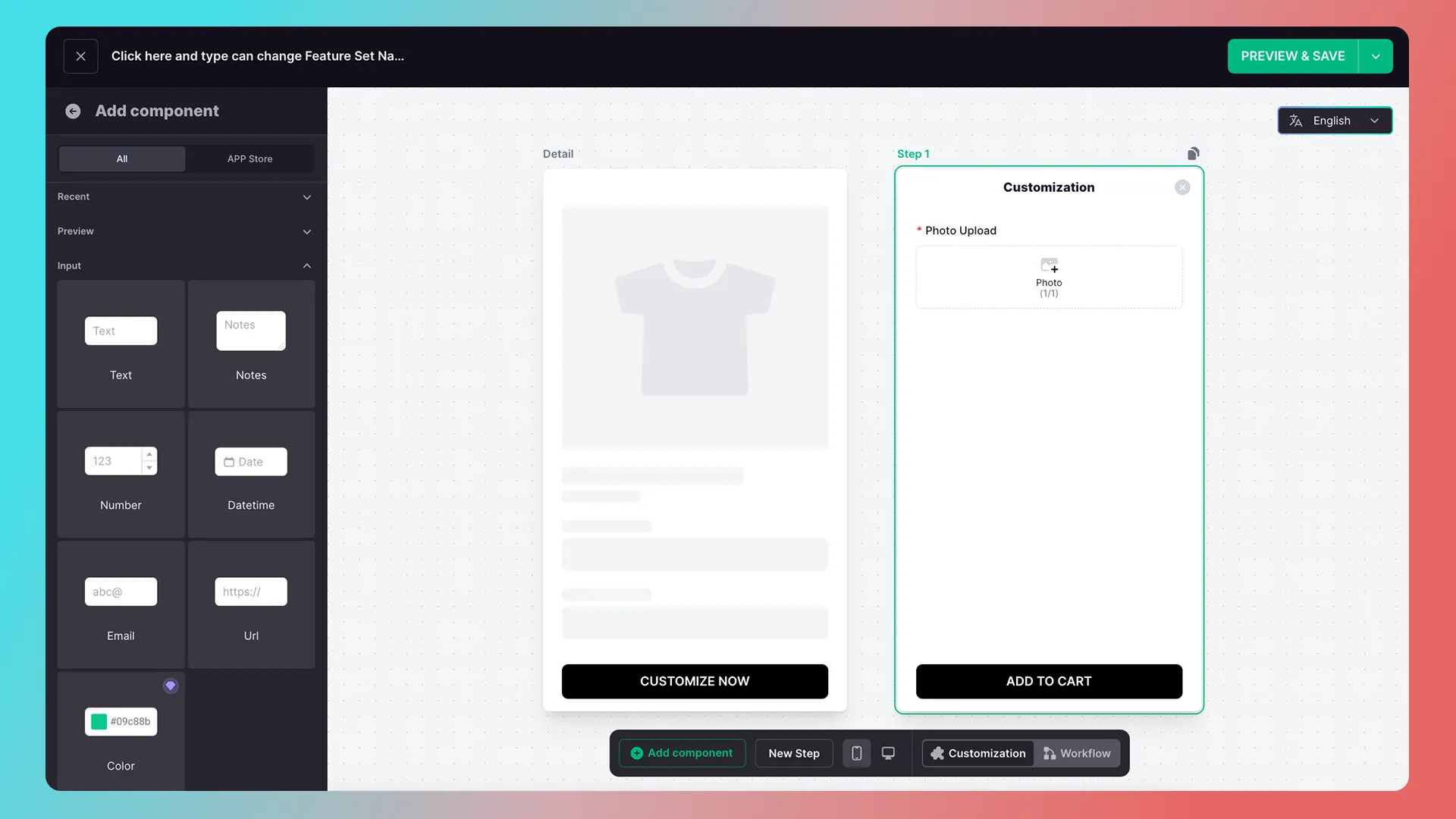
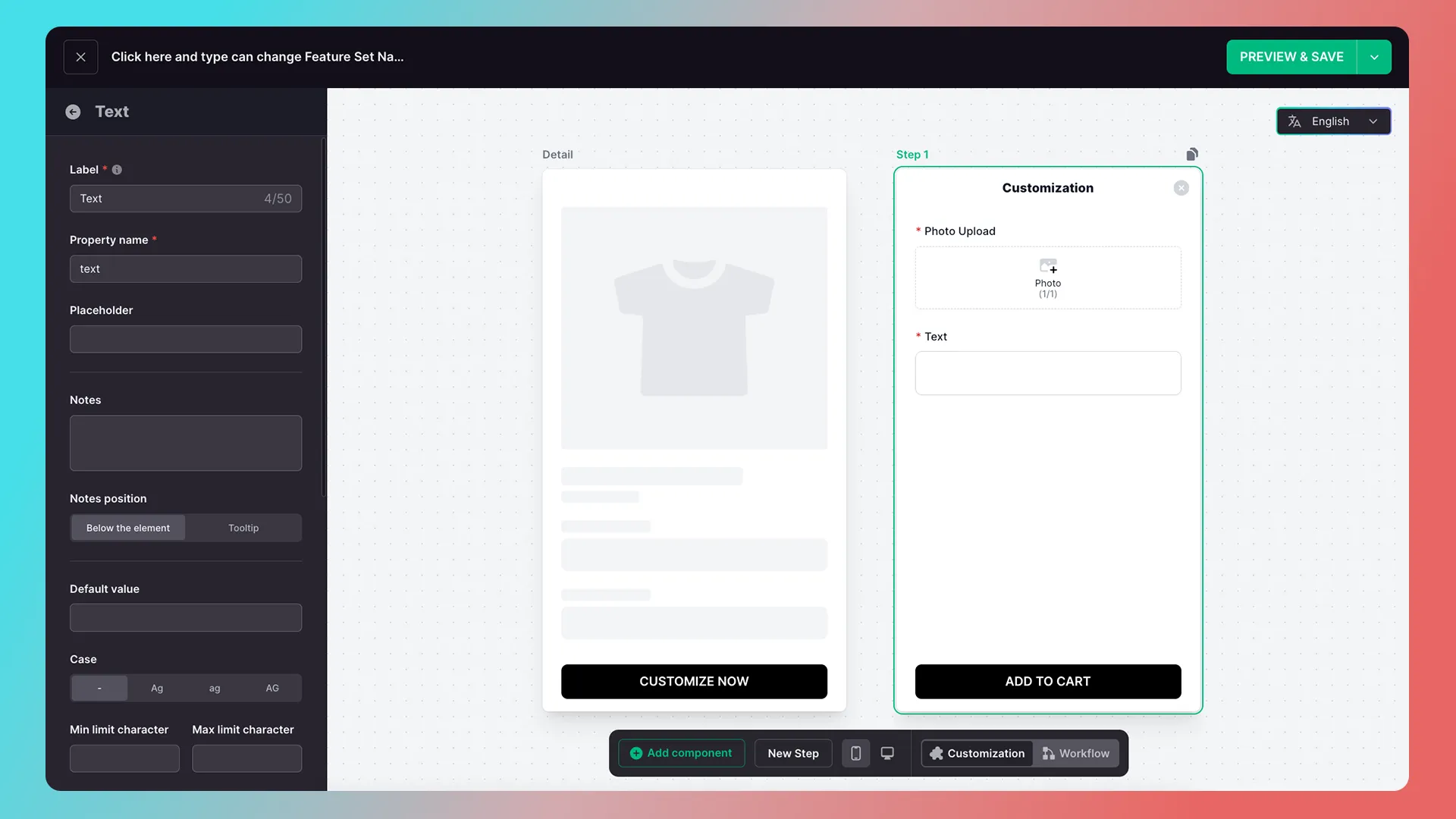
Add a Text component.
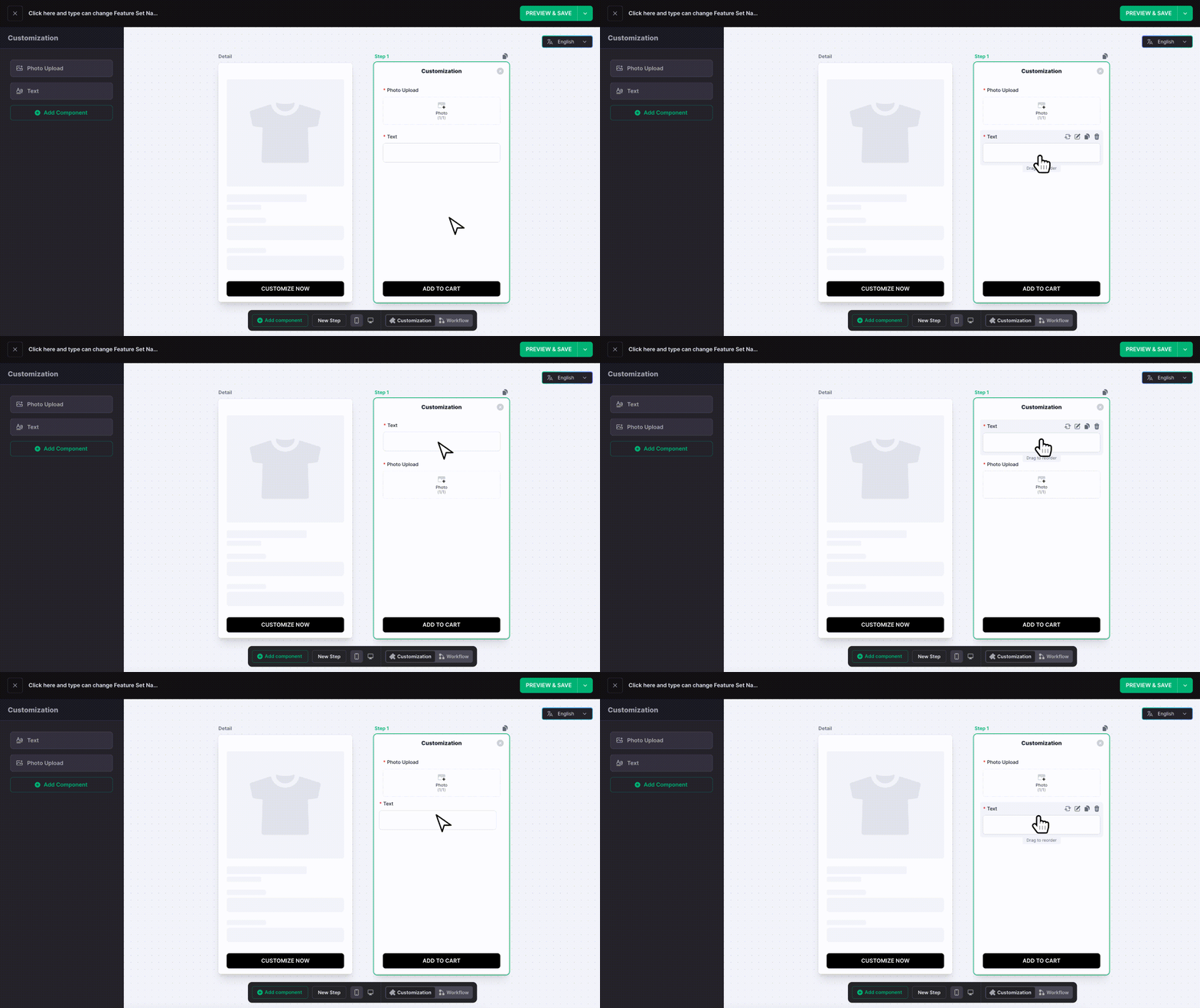
5. Reorder components
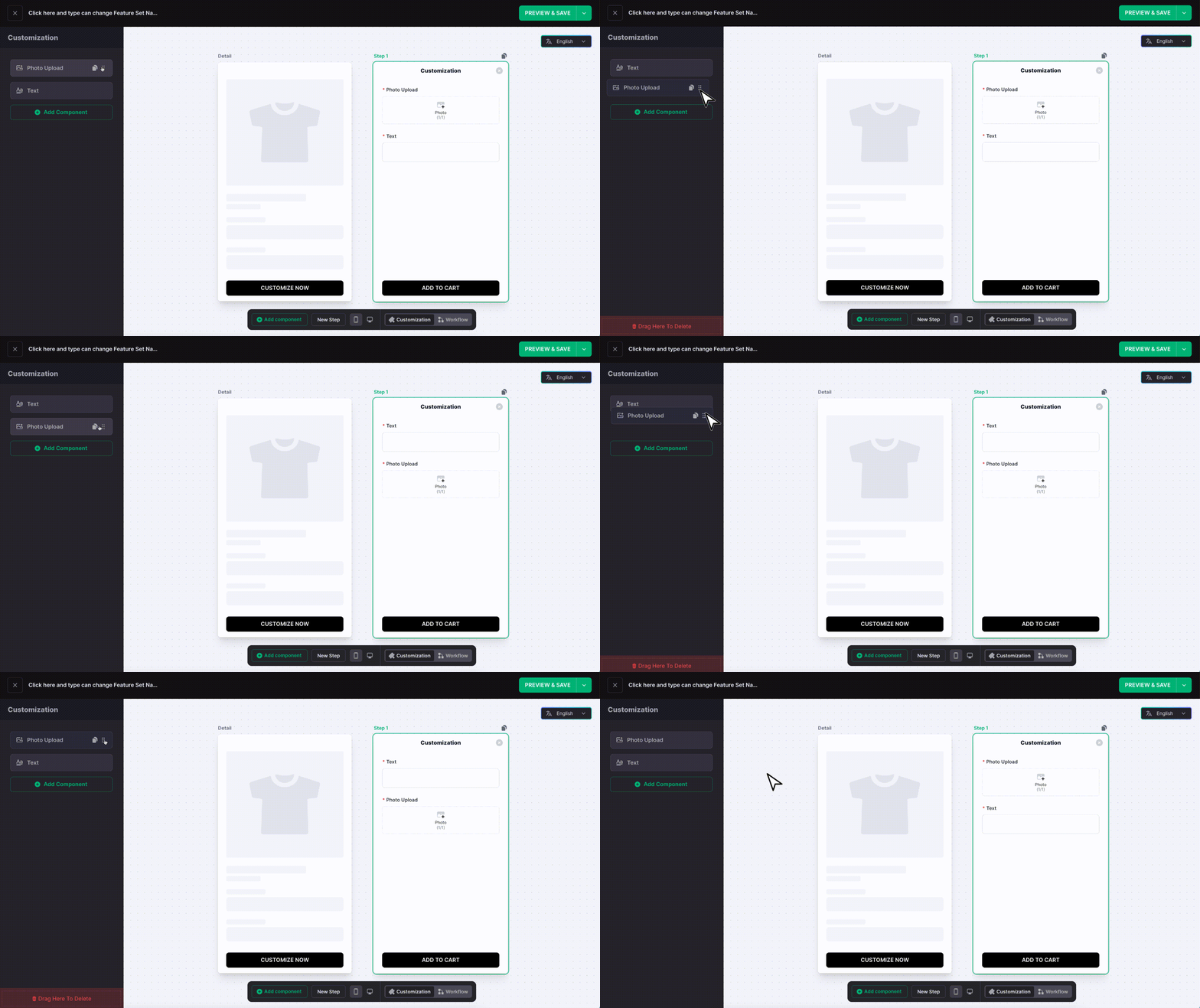
To change the component order, drag and drop the components.
or
3. Preview, test, and save
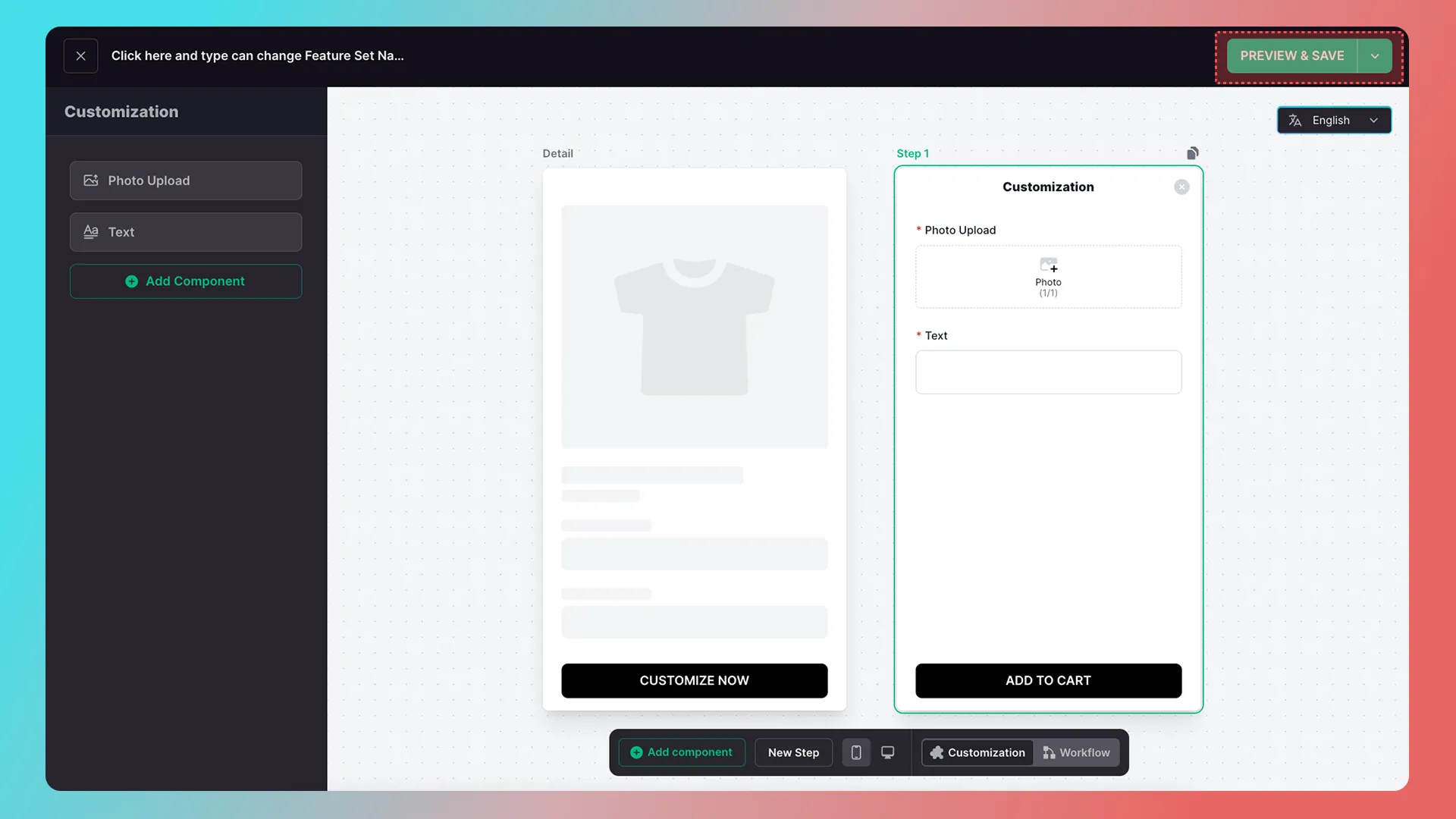
When you finish building the feature, click Preview & Save in the upper-right corner to enter the customization-feature preview.
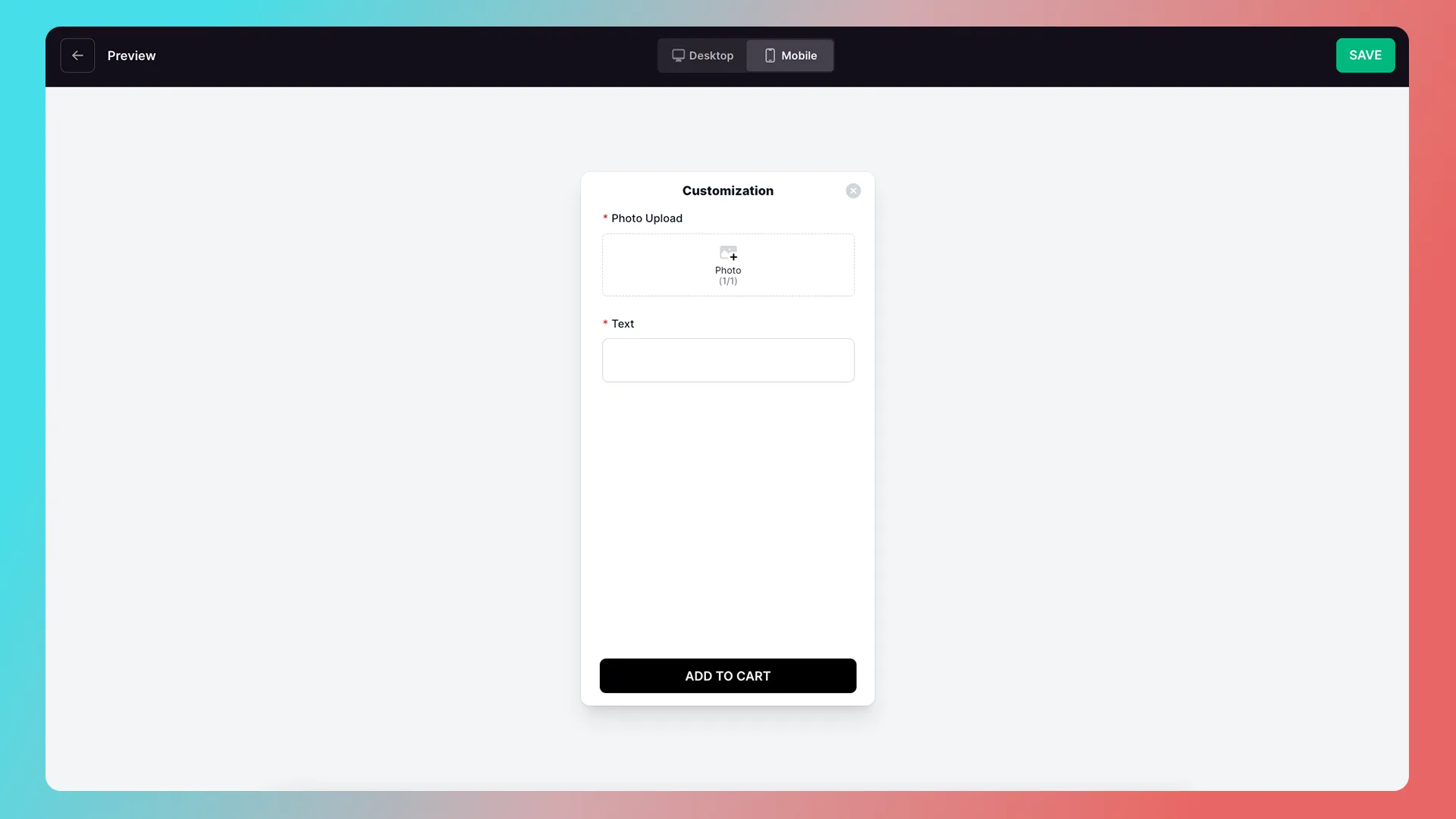
Mobile modal-style preview
Desktop modal-style preview
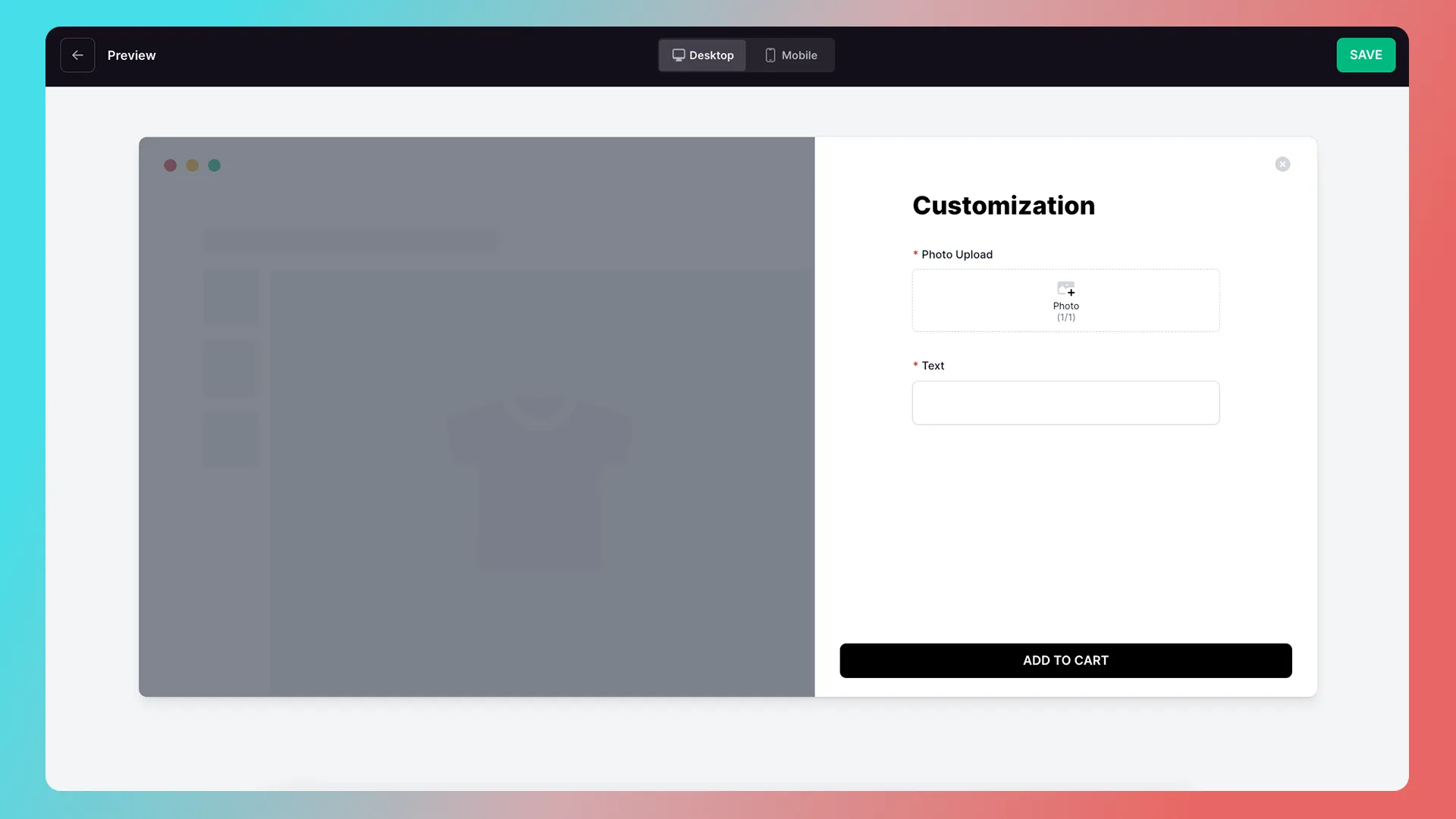
On this page, you can test the customization feature by uploading images, entering text, and more.
Once everything looks correct, click Save in the upper-right corner.
Integrate with your product detail page
Once the customization feature is built, the next step is integration.
How to Integrate a Customization Feature into a Product Landing Page (Product Detail Page)
4. Add a preview to your customization feature
Next, add a preview to your customization feature.
Merchants need to complete the following:
- Create the design template.
- Connect the component data with the design-template layers.
1. Create a preview design template
Create a 2D preview
First, create the design template.
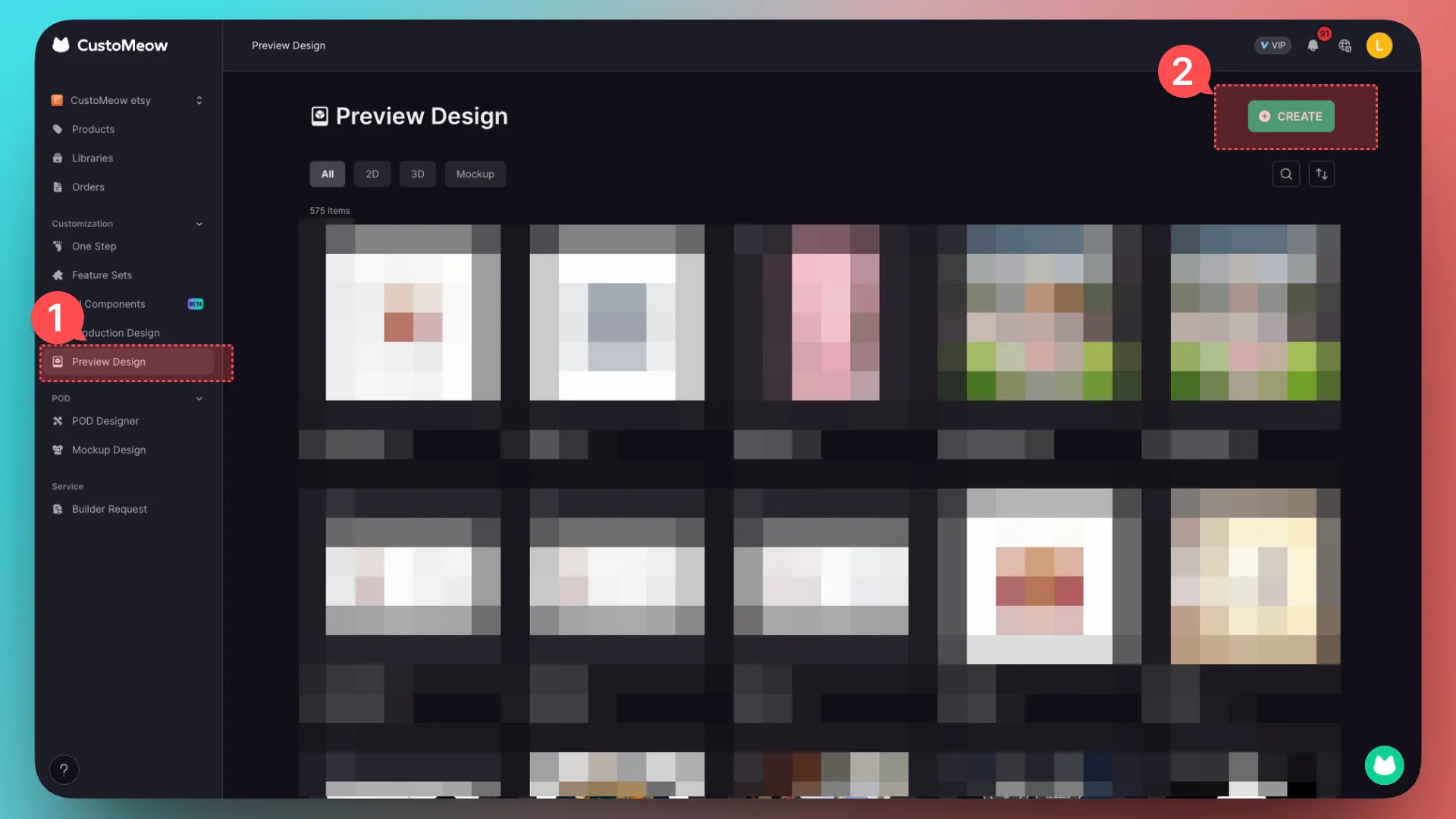
- Click Preview Design in the left navigation.
- Click Create in the upper-right corner.
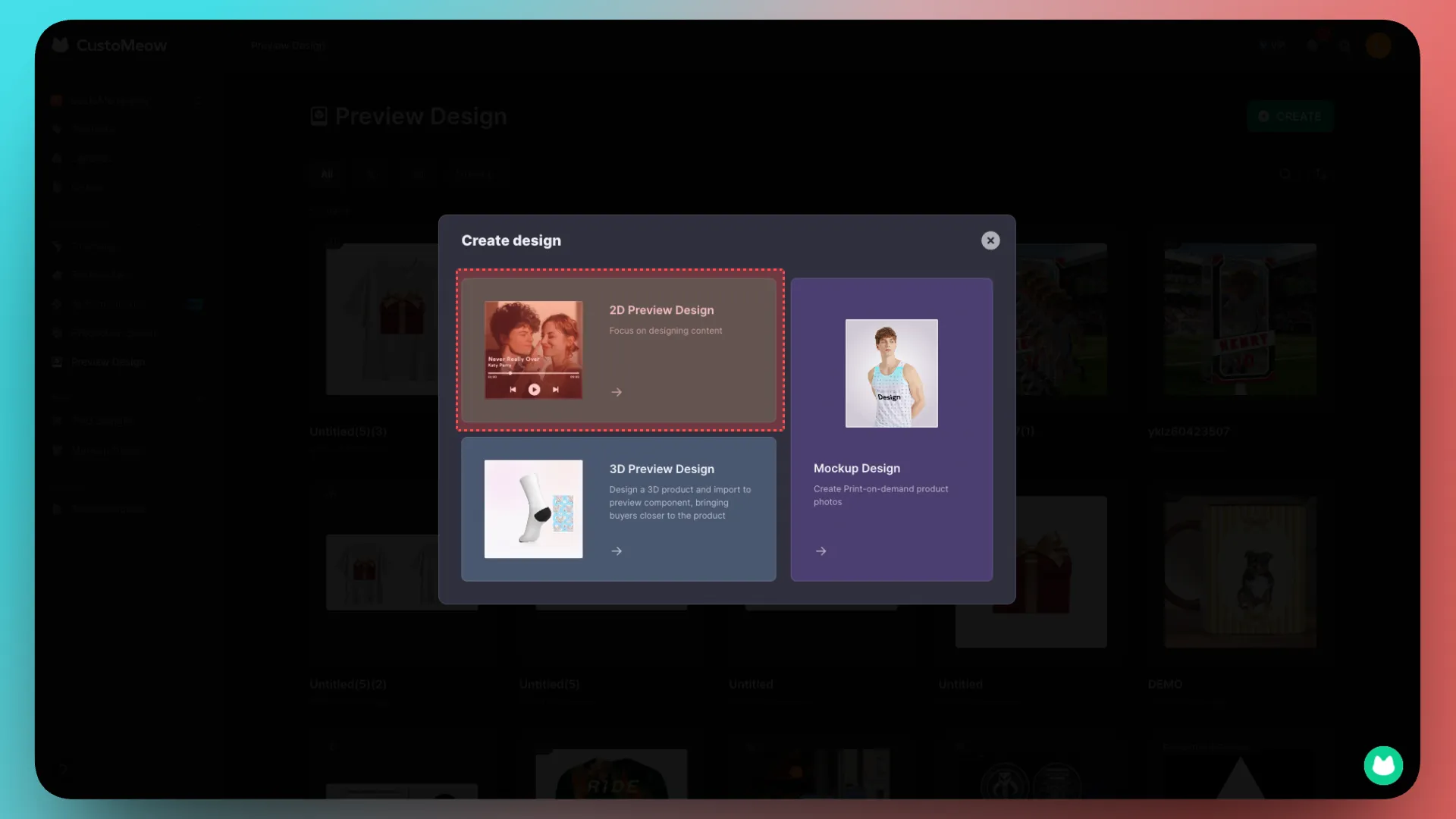
Choose 2D Preview.
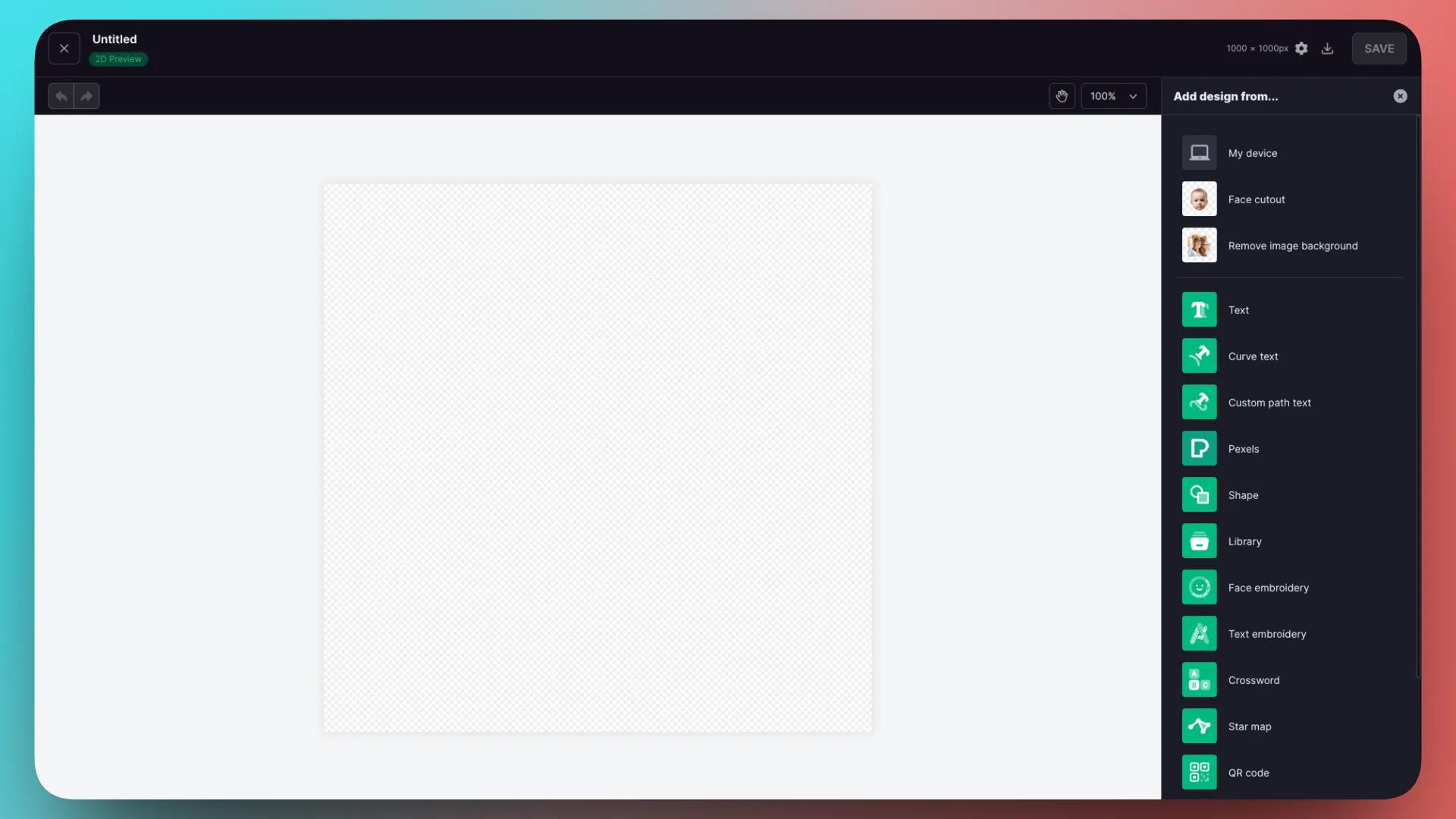
You are now in the Preview Design canvas. You can still double-click the upper-left corner to rename the preview design template; this is not demonstrated here.
Add the product mockup and preset image
Try dragging assets from a local folder onto the canvas. First, upload a blank product mockup.
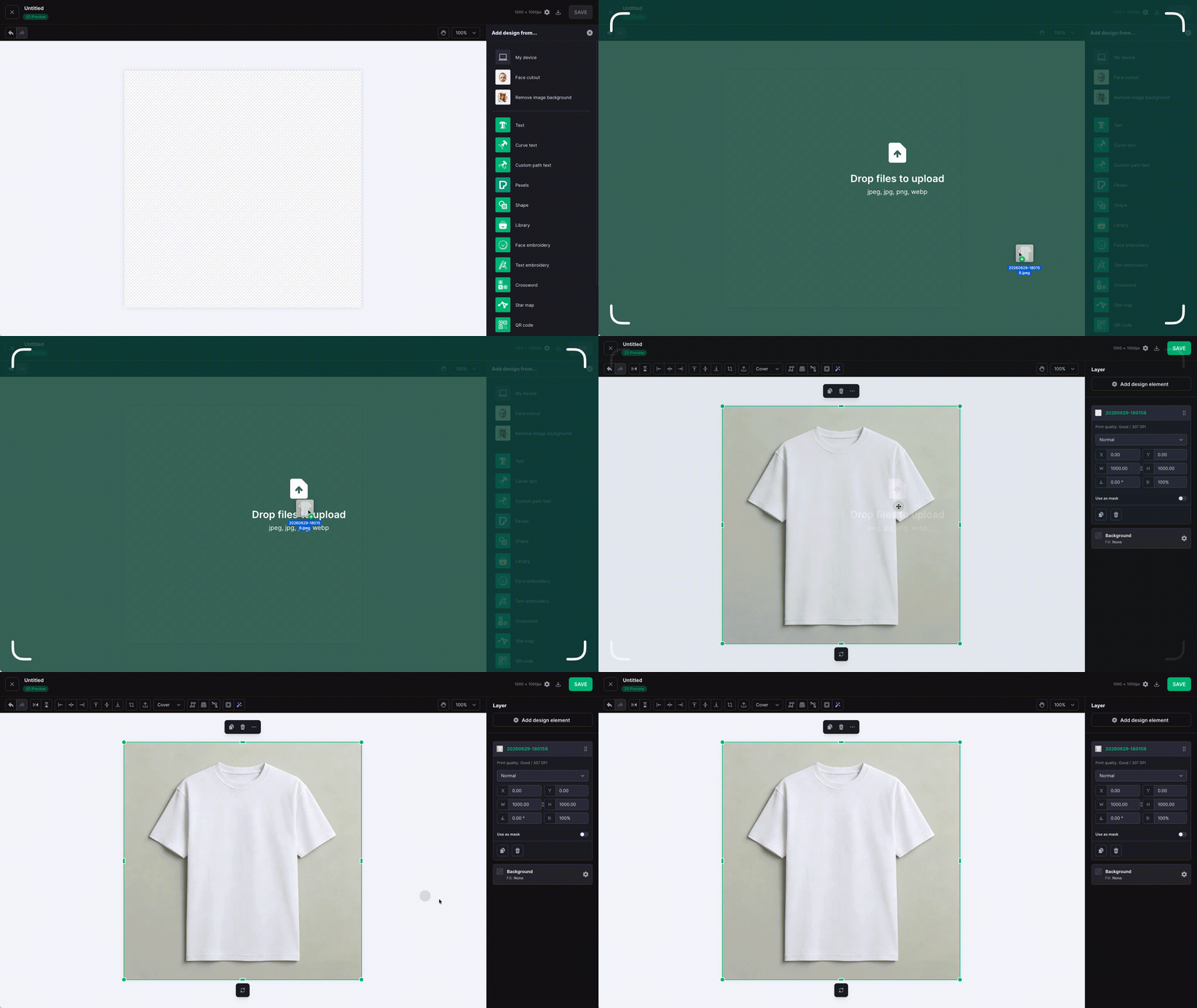
This product supports image upload and text engraving, so first add the preset image for the image-upload position to the preview design.
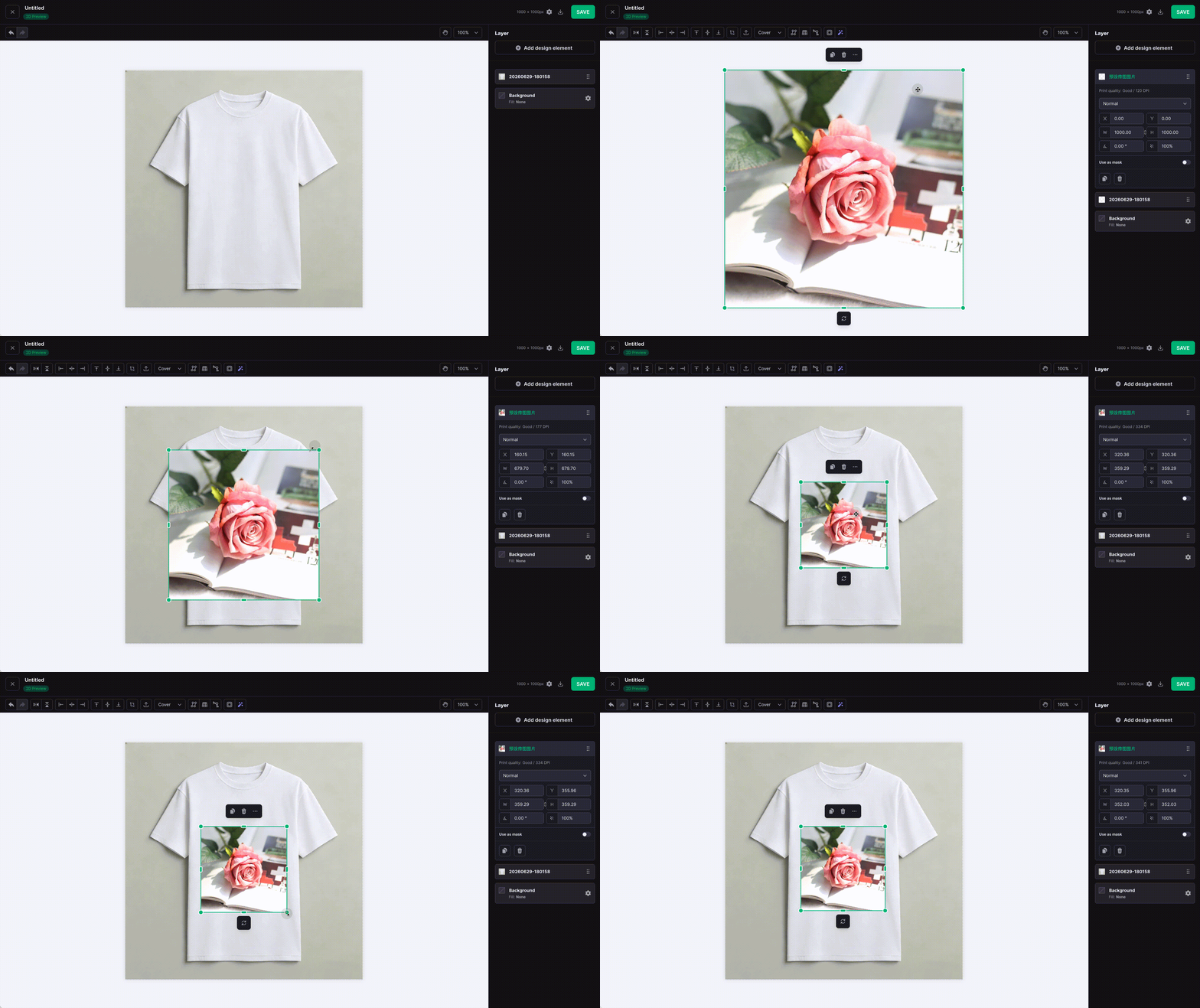
After adjusting it, click an empty area of the canvas.
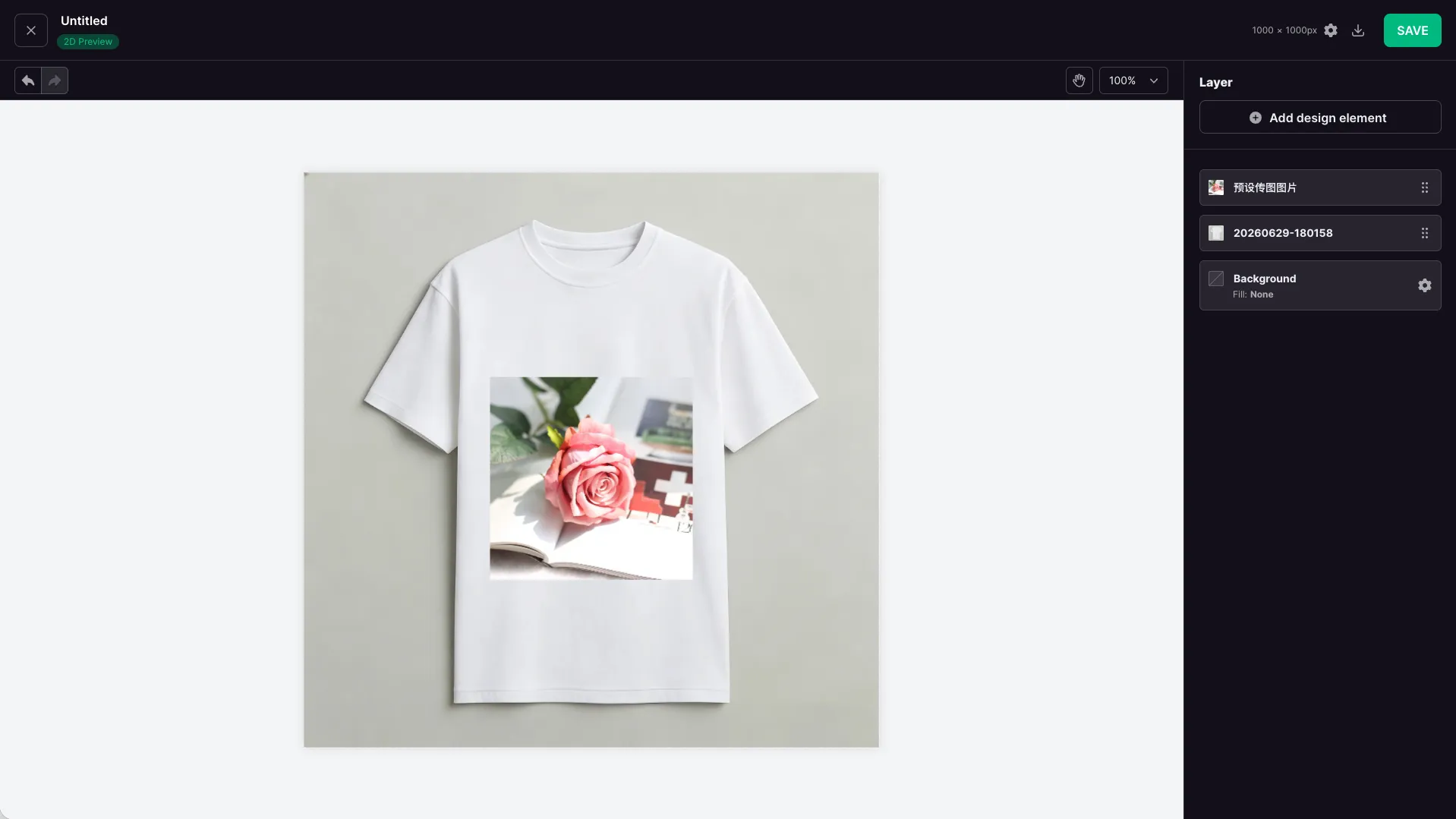
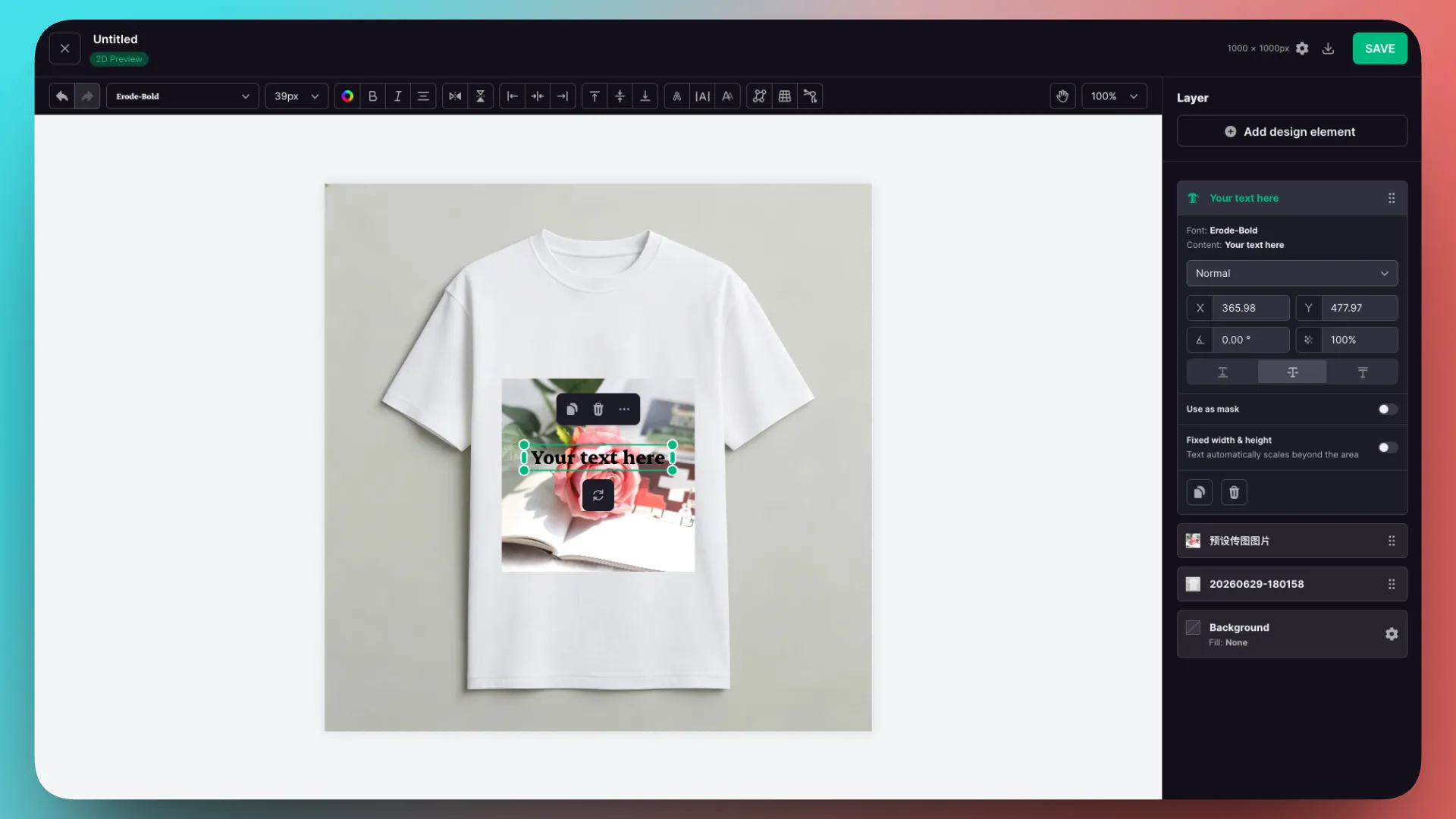
Add a text layer
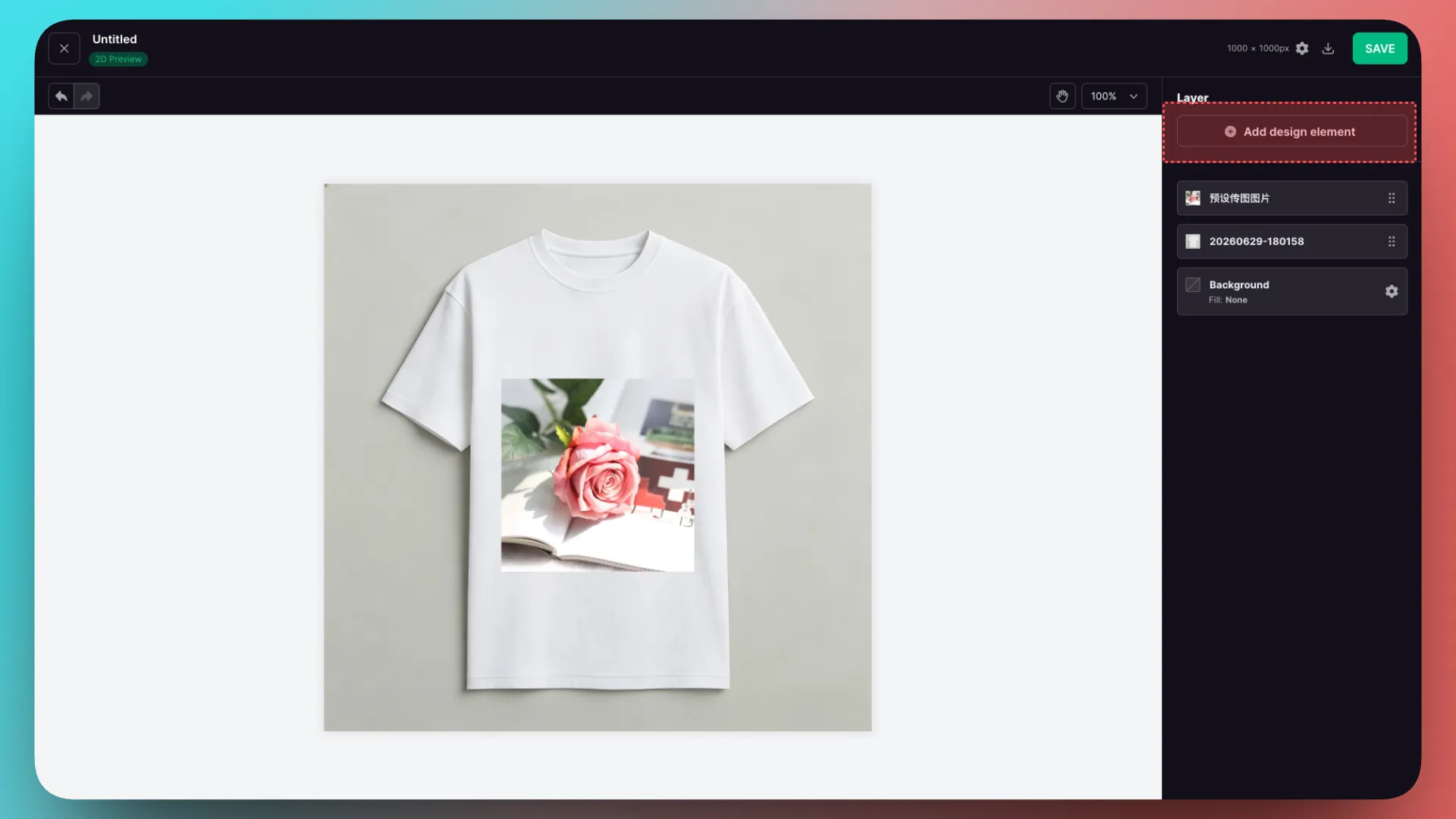
Click Add Design Element.
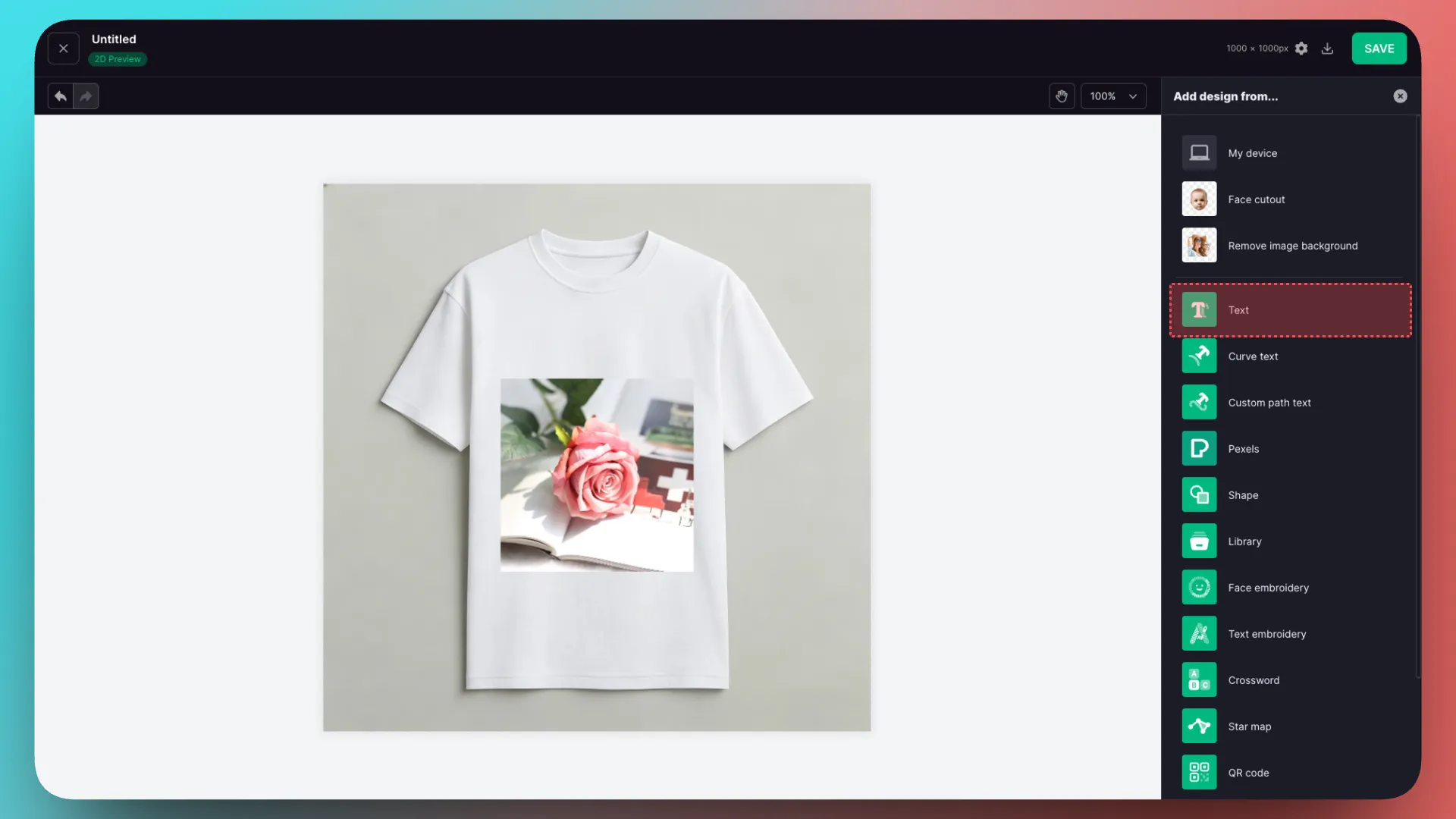
- There are many types of design-element layers, including text, shape, image, and calendar layers.
Click Add Text Layer.
Adjust the position and save
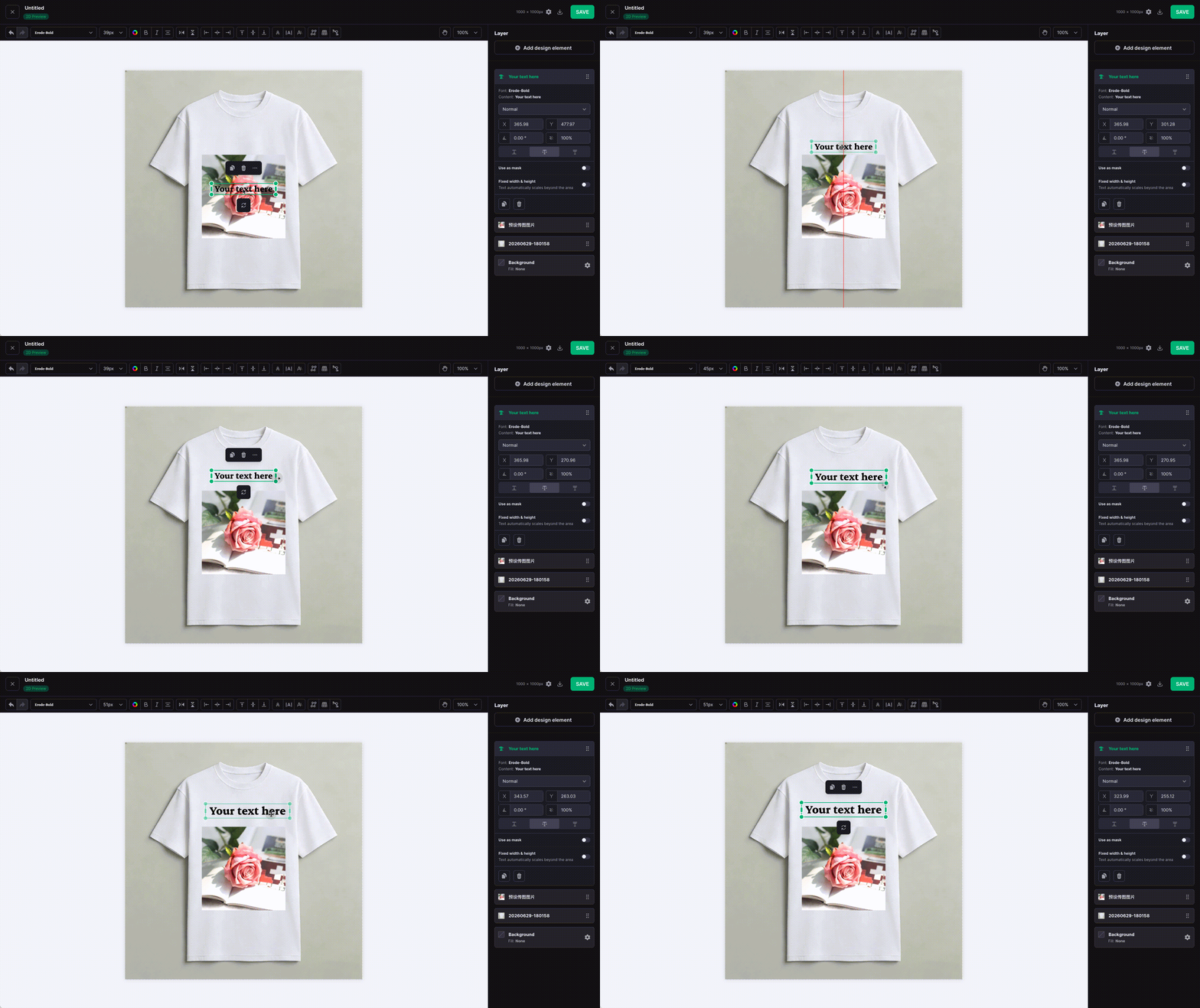
Drag the text layer on the canvas to adjust its position. When finished, click Save in the upper-right corner to complete the preview design template.
2. Connect components to design layers
Import the preview design template
Return to the customization-feature page and click Add Component.
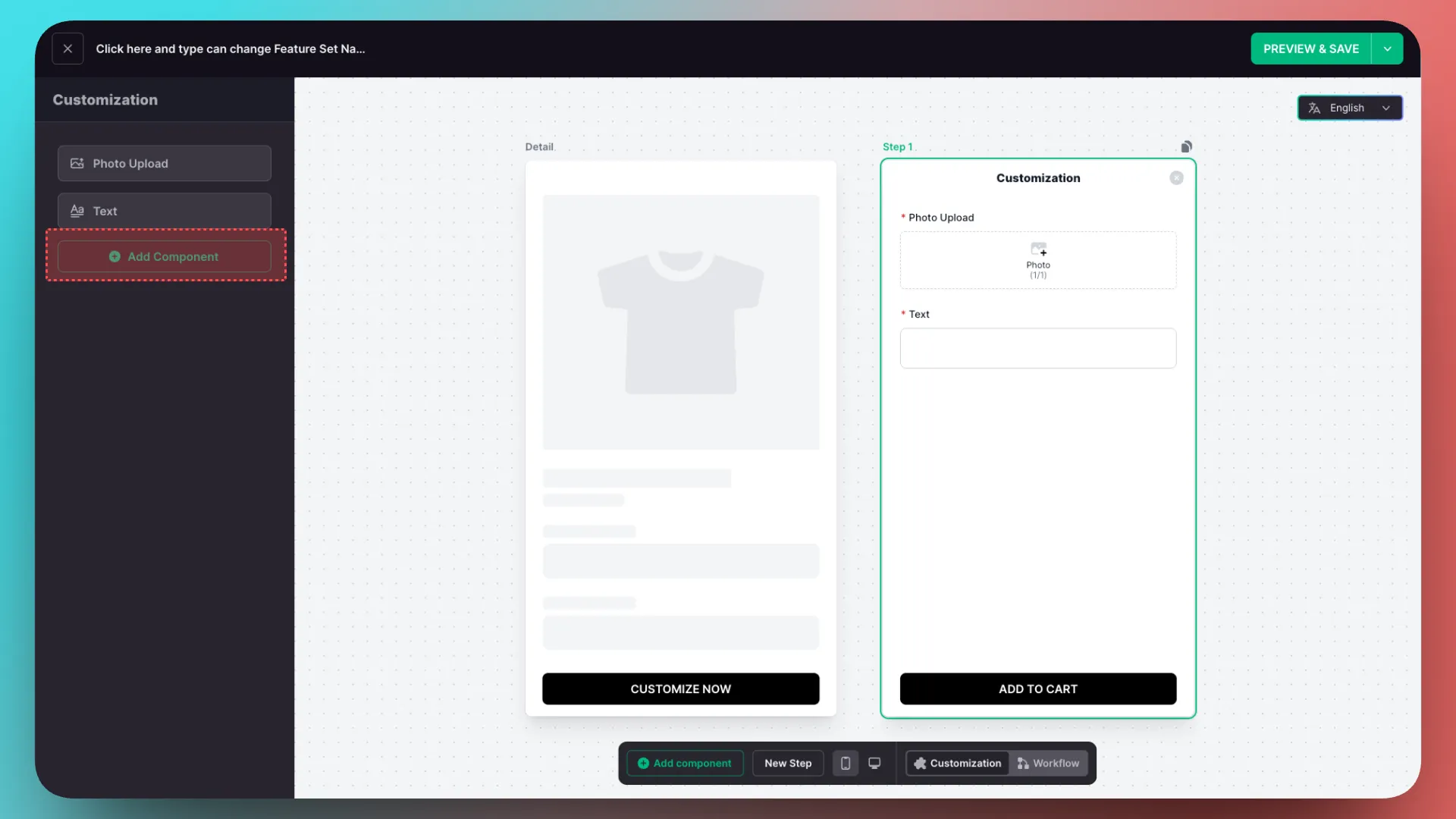
Add a Preview component.
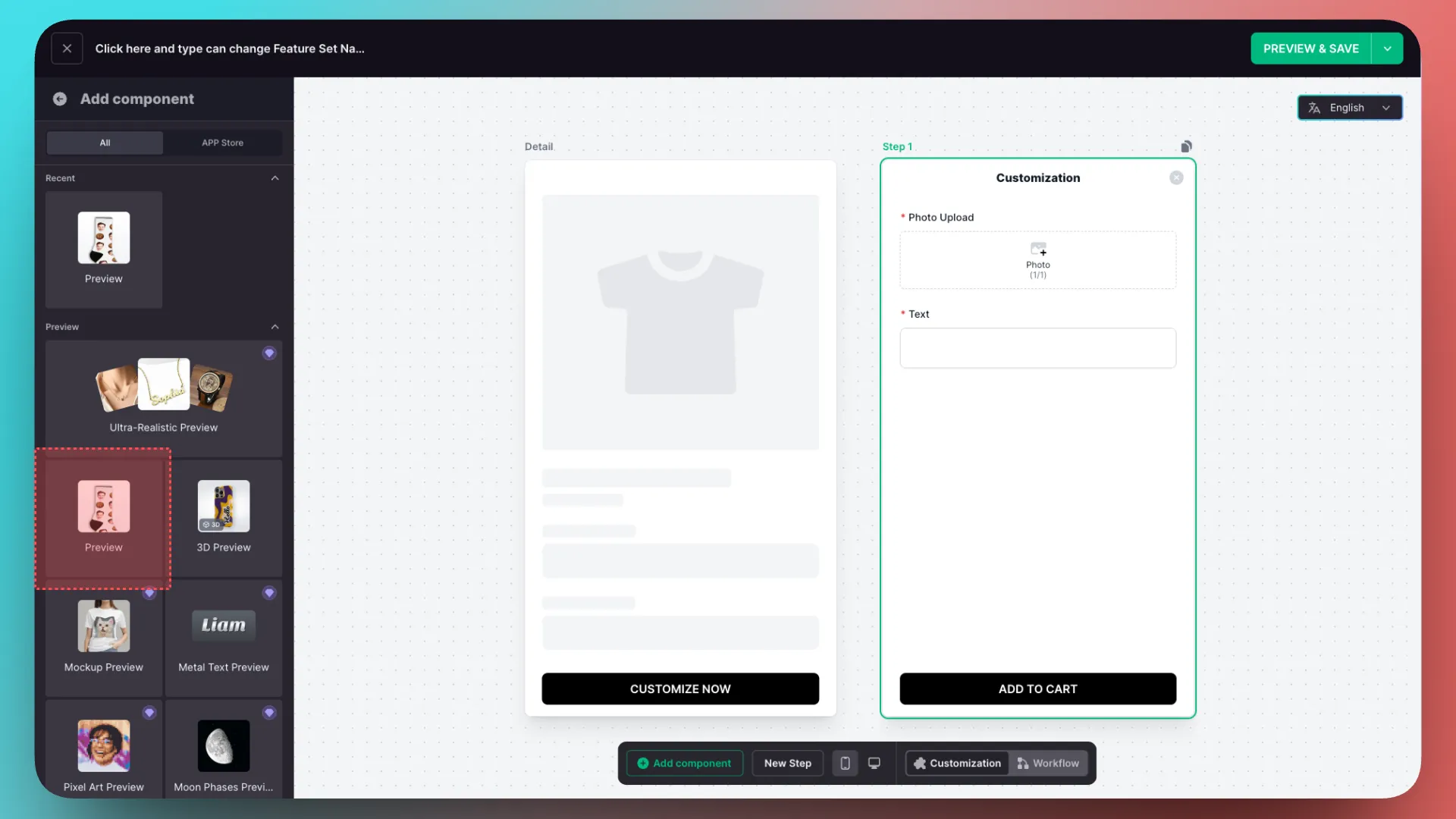
Click Import, then select the preview design template you just created.
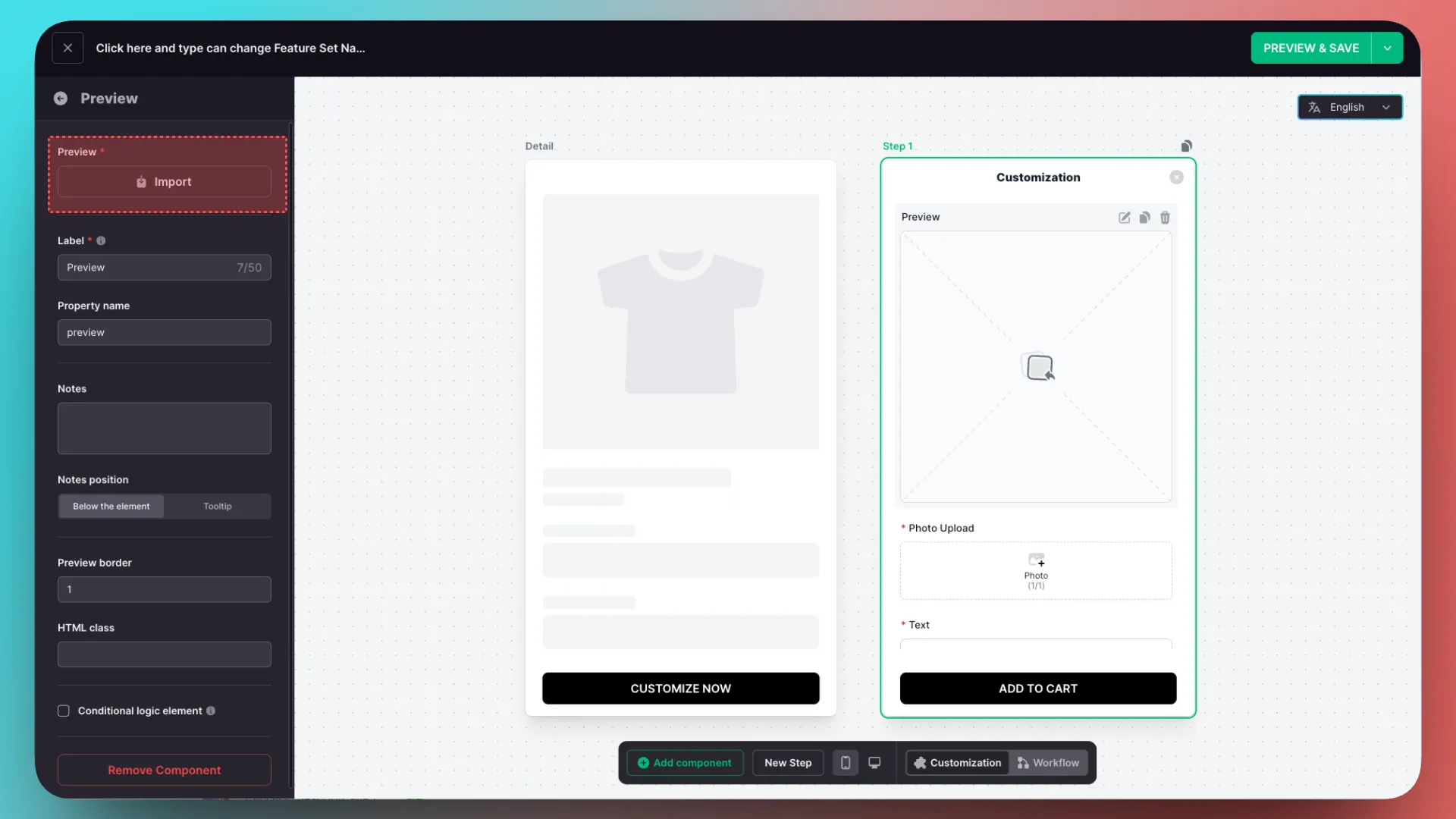
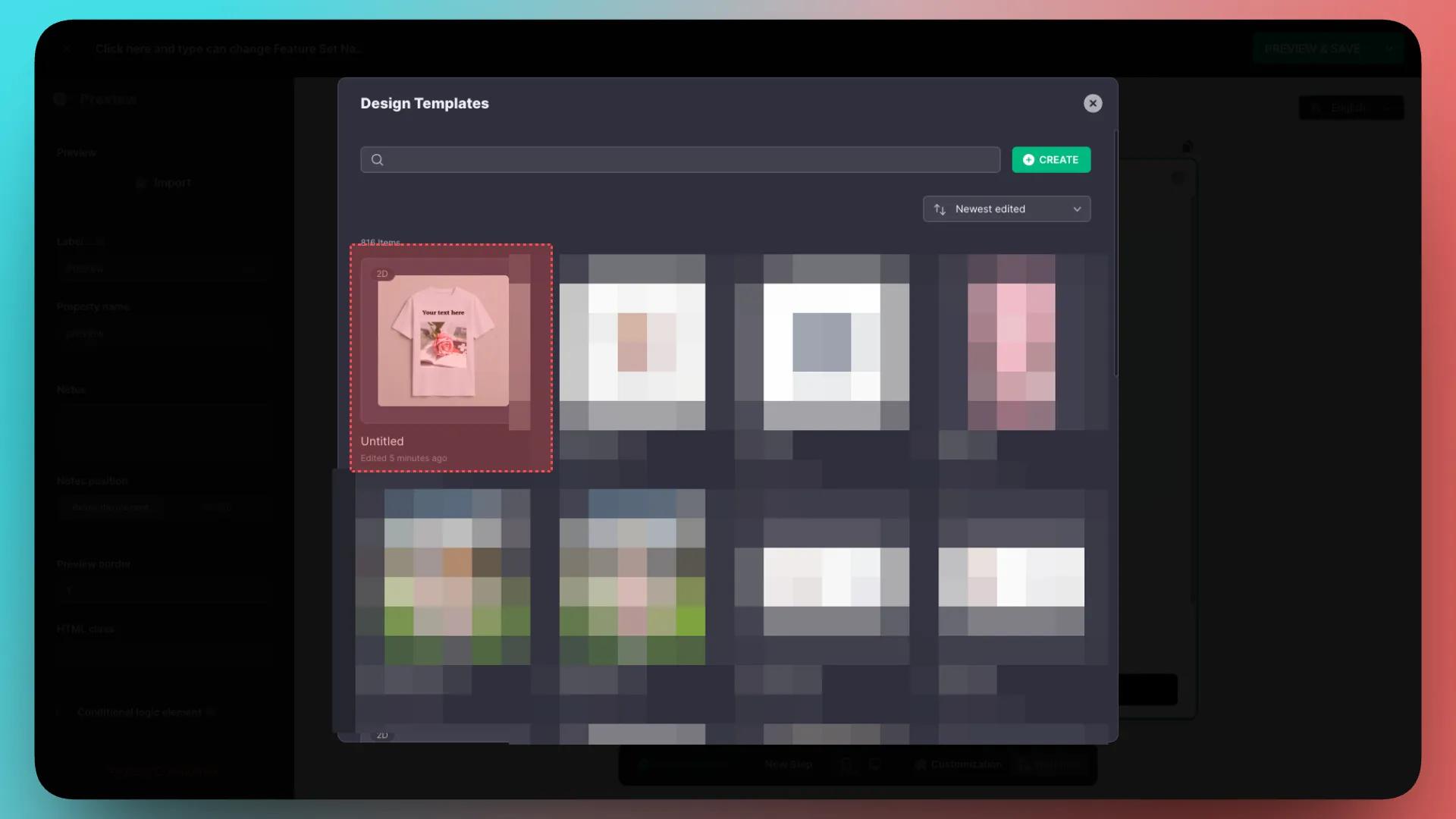
At this step, AI can recognize layers and create components automatically, but this tutorial skips that step.
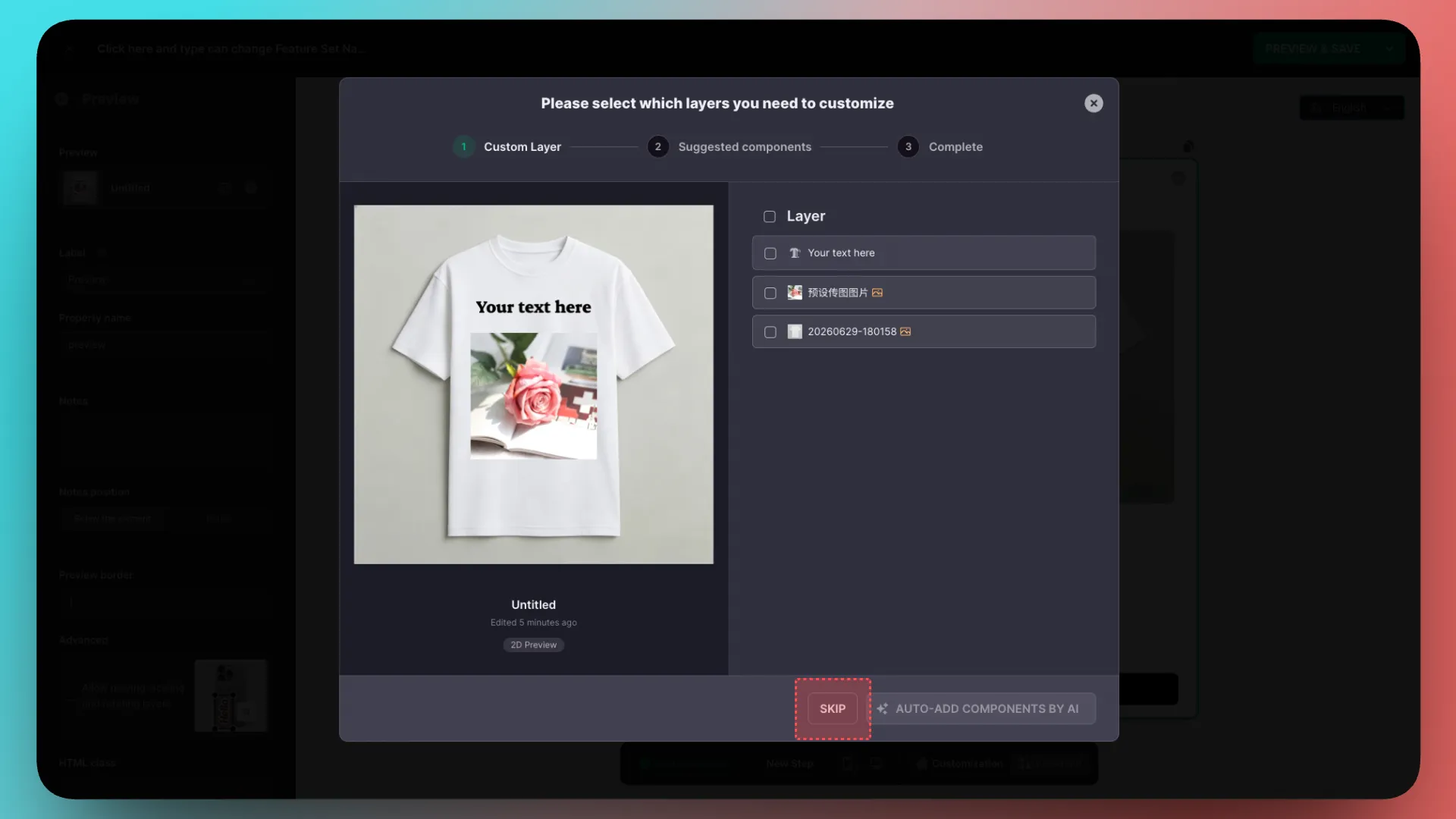
Add custom layers
After adding the component, click the Workflow panel at the bottom to connect component data with design layers.
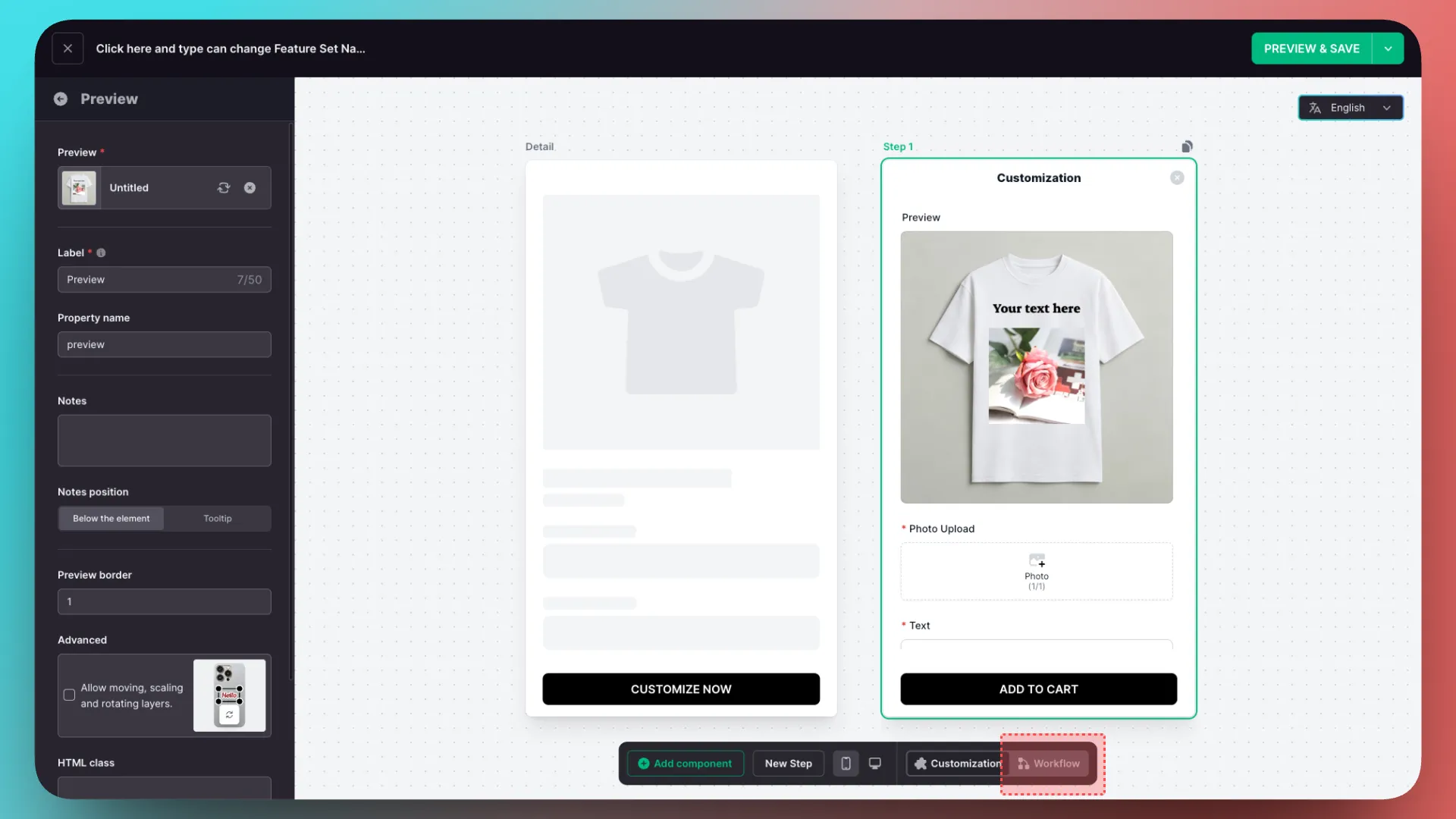
Click Add Custom Layer in the Preview component.
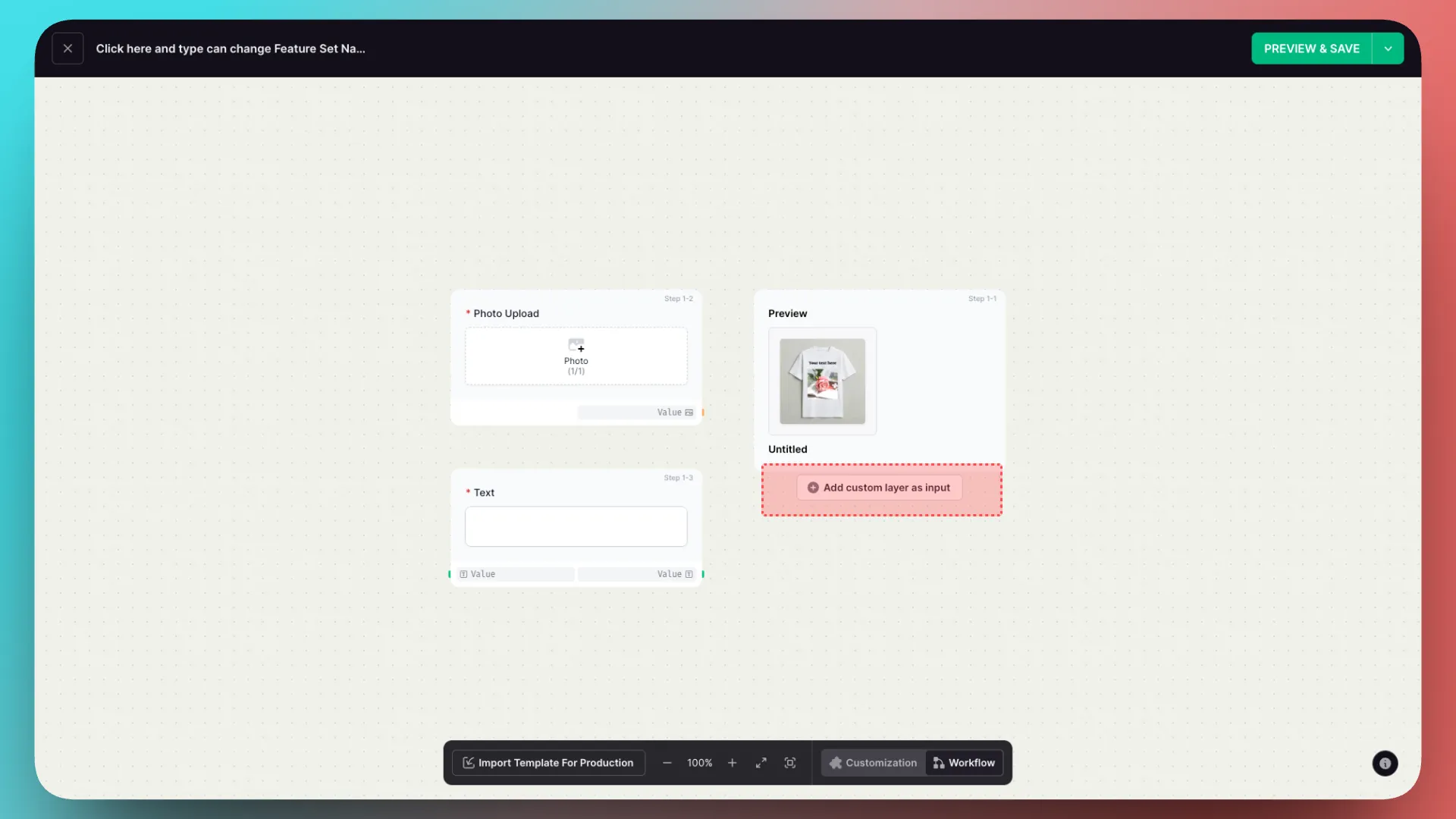
After opening it, first expand the text layer.
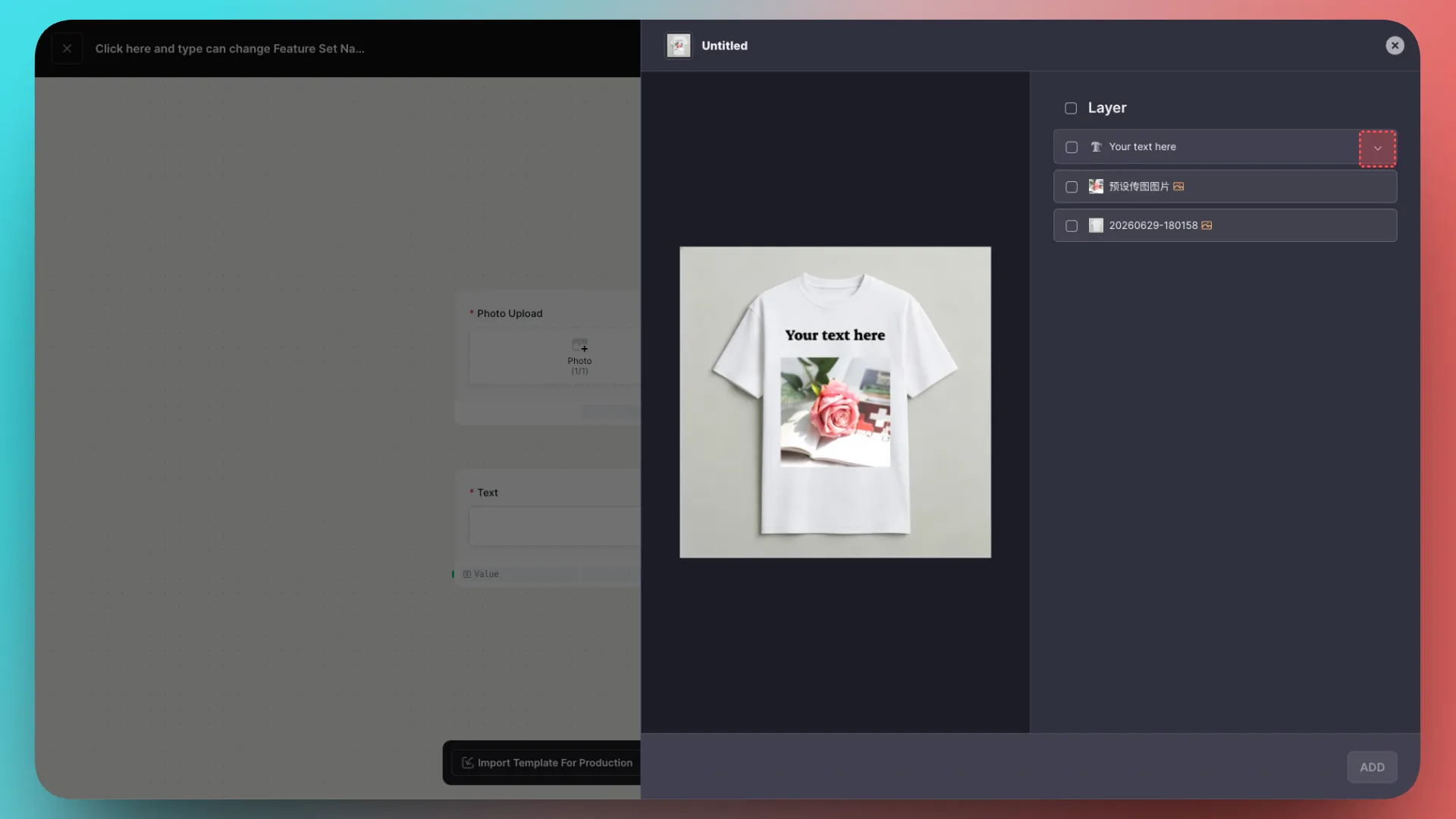
After expanding it, you will find options such as content, color, outline color, font, and size.
Select the appropriate layer, set it as a Custom Layer, then click Add.
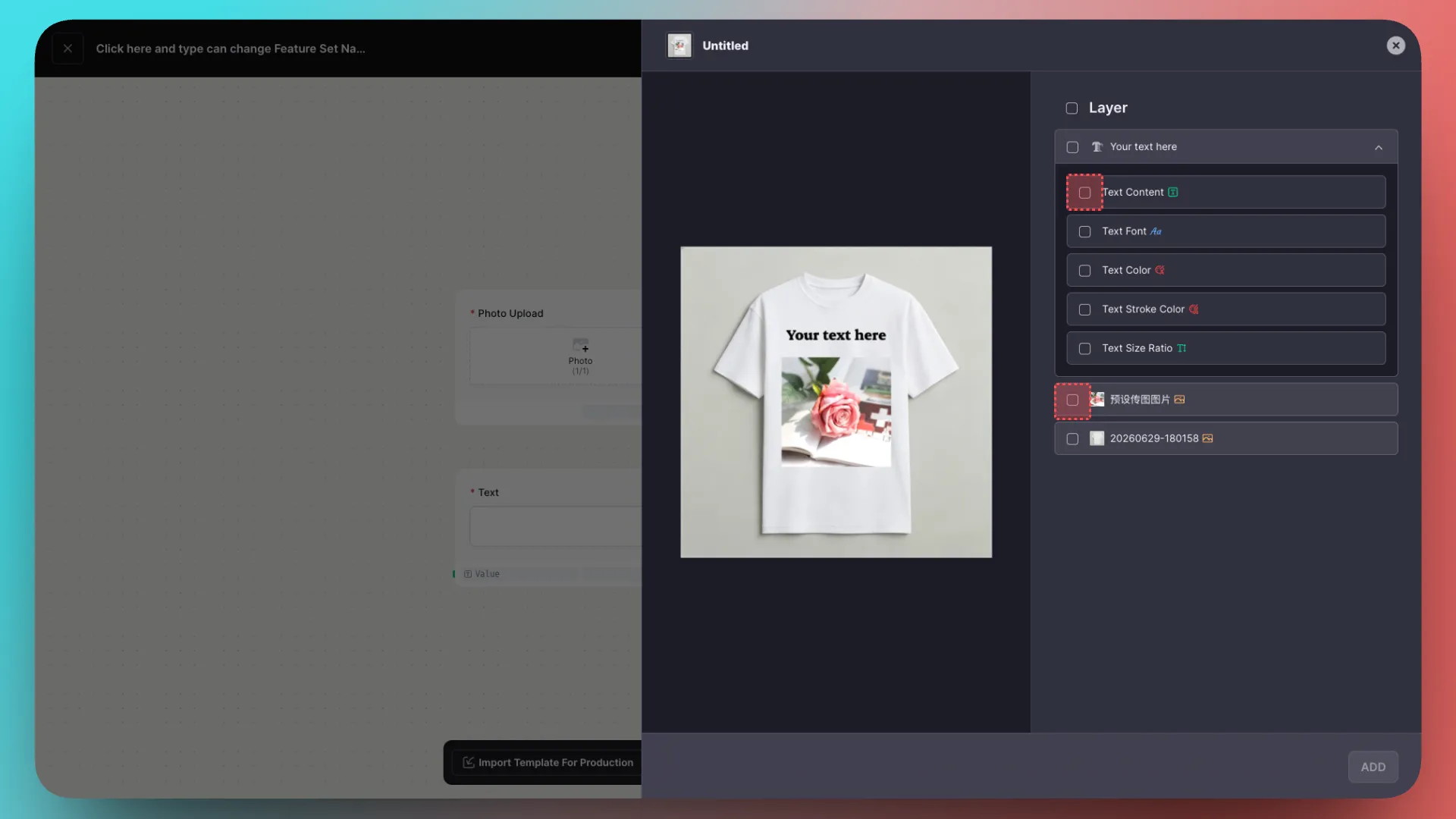
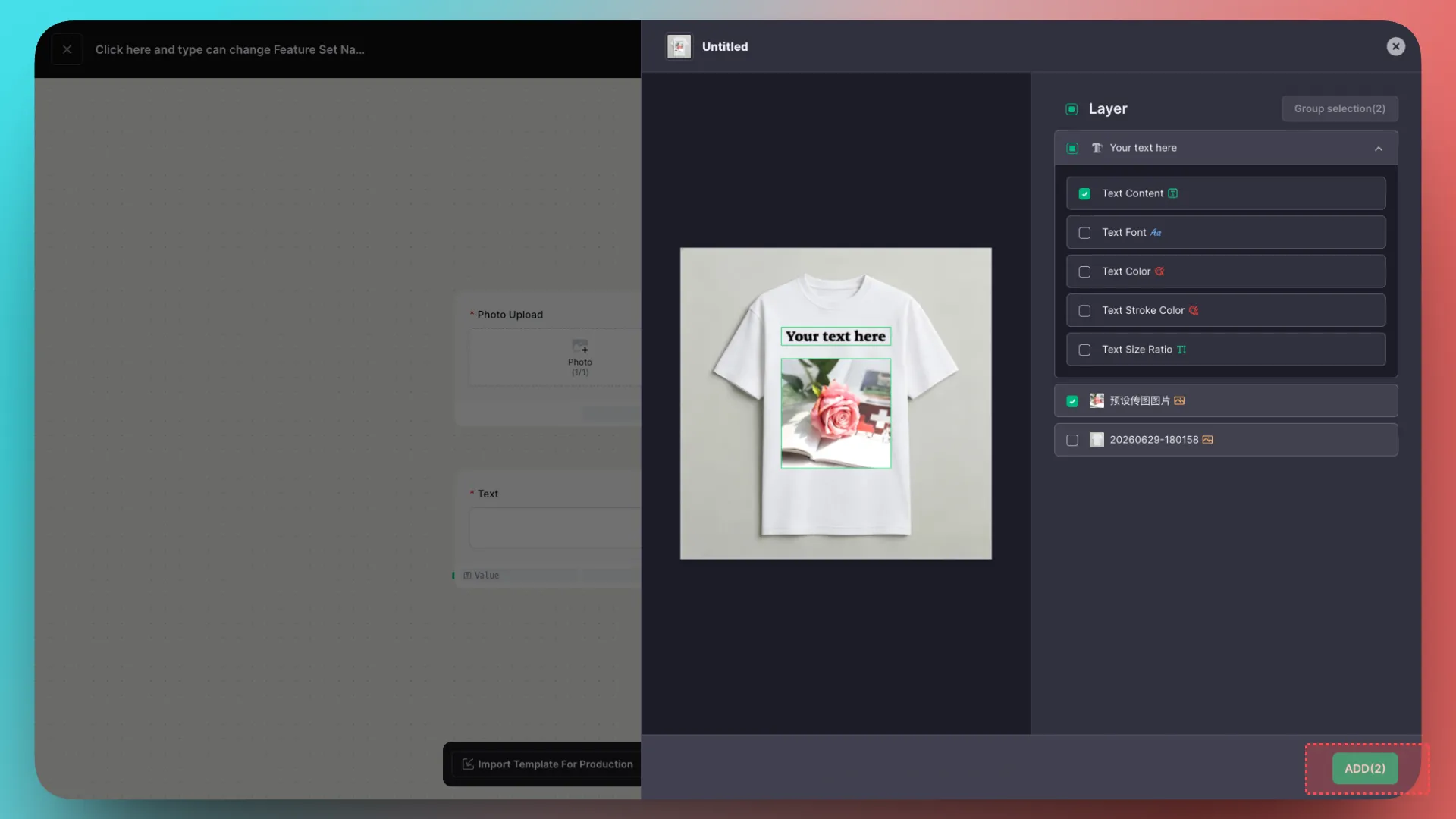
Return to the WorkFlow page, where you can see that the custom layer has been added.
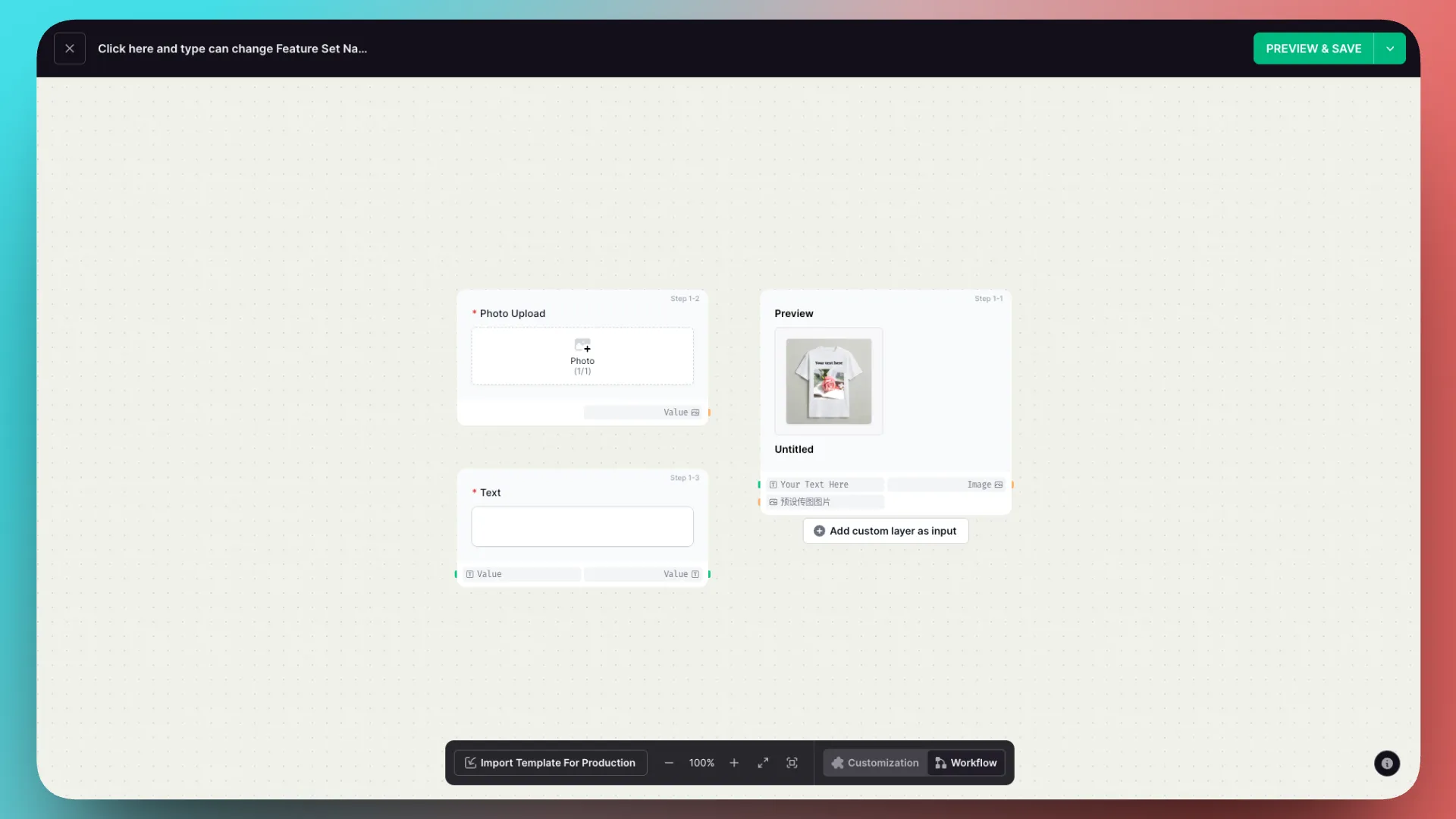
Connect components to custom layers
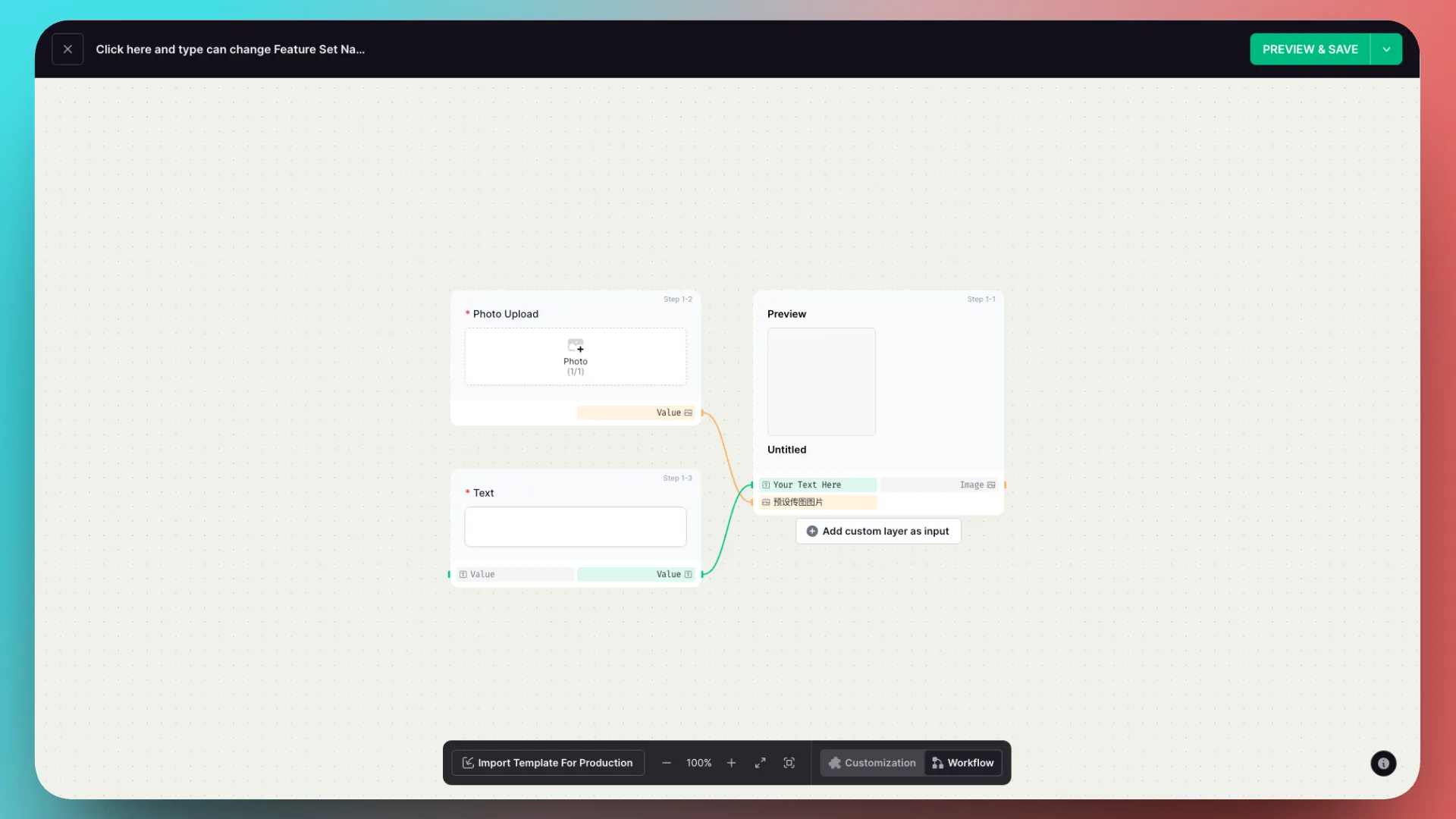
Next, connect the nodes.
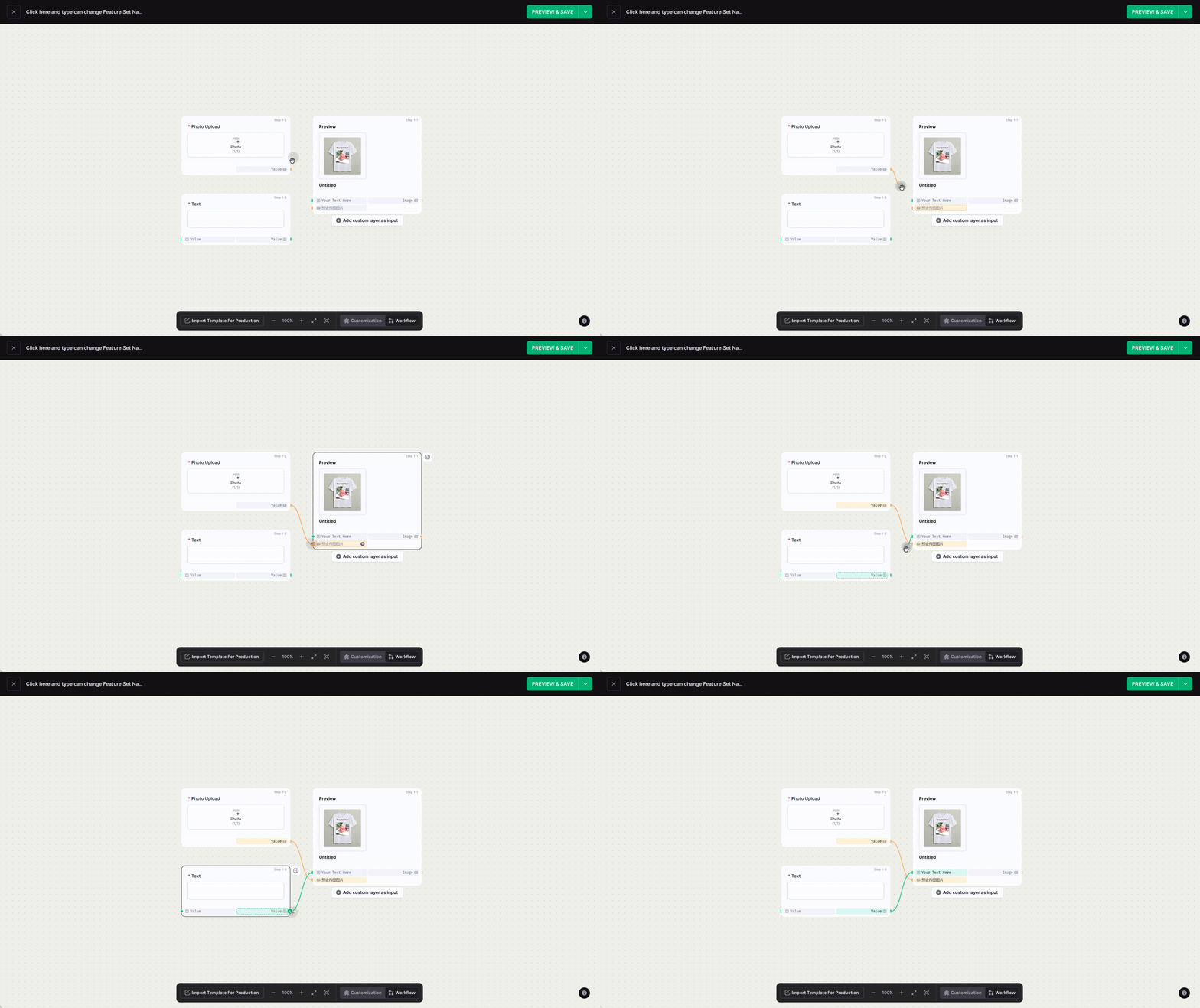
The connections are complete.
Preview the final result
Click Preview in the upper-right corner to see the result.
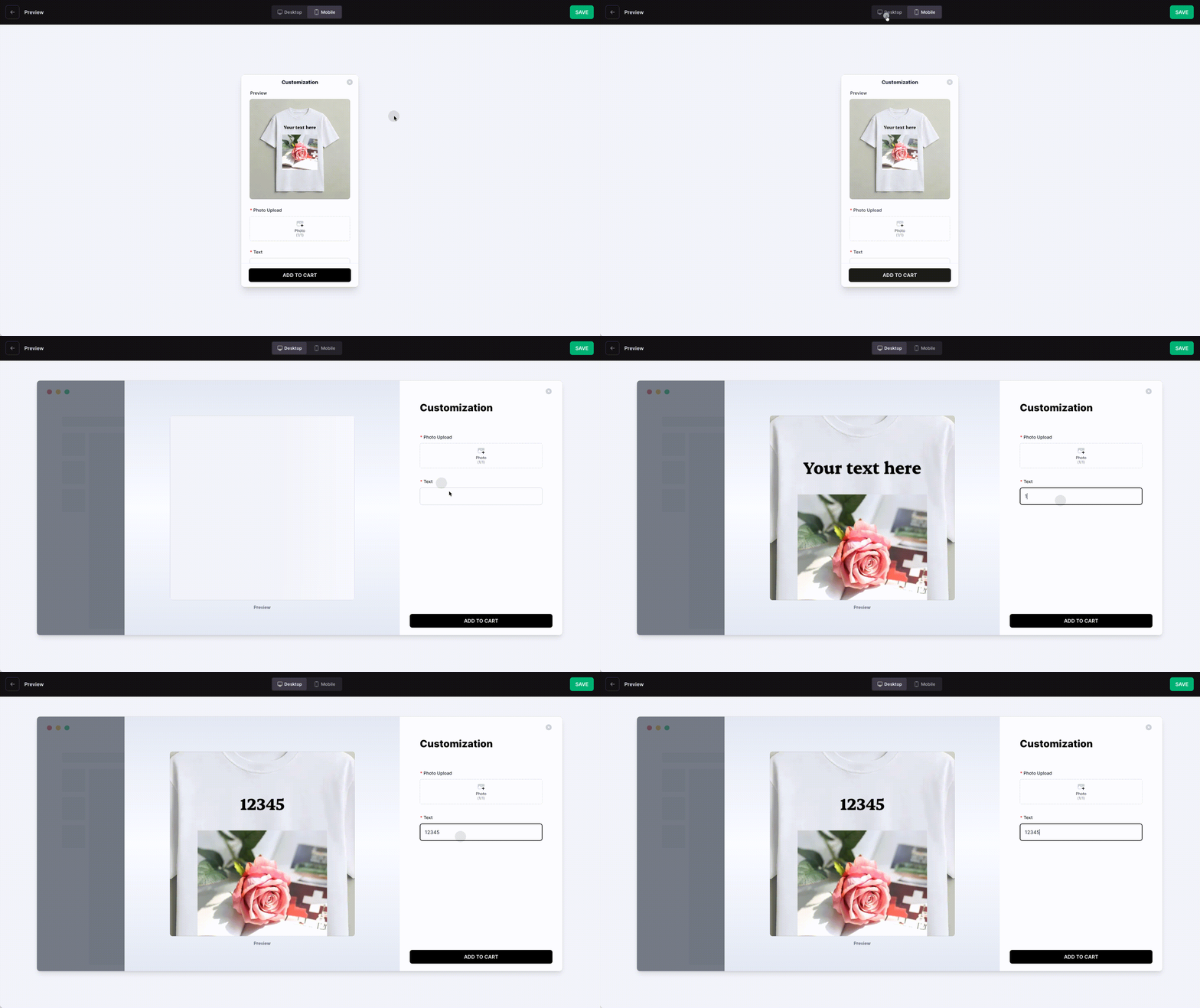
Further Reading
Getting Started
- Connect Your Store
- How to Integrate a Customization Feature into a Product Landing Page (Product Detail Page)
Advanced Features
- Templates in CustoMeow
- Use Component Conditions to Control Whether Components Are Shown or Hidden
- What Can Workflow Do?
Add-on Pricing and Upselling
- What Is an Add-on Price Product?
- What Is an Upsell Product?
- Cart Binding for Add-Price and Upsell Products
Updated on: 27/10/2026
Thank you!