
What Can Workflow Do?
How it works

Workflow connects component data to template layers with links, turning static layers into dynamic ones.
What can it do?
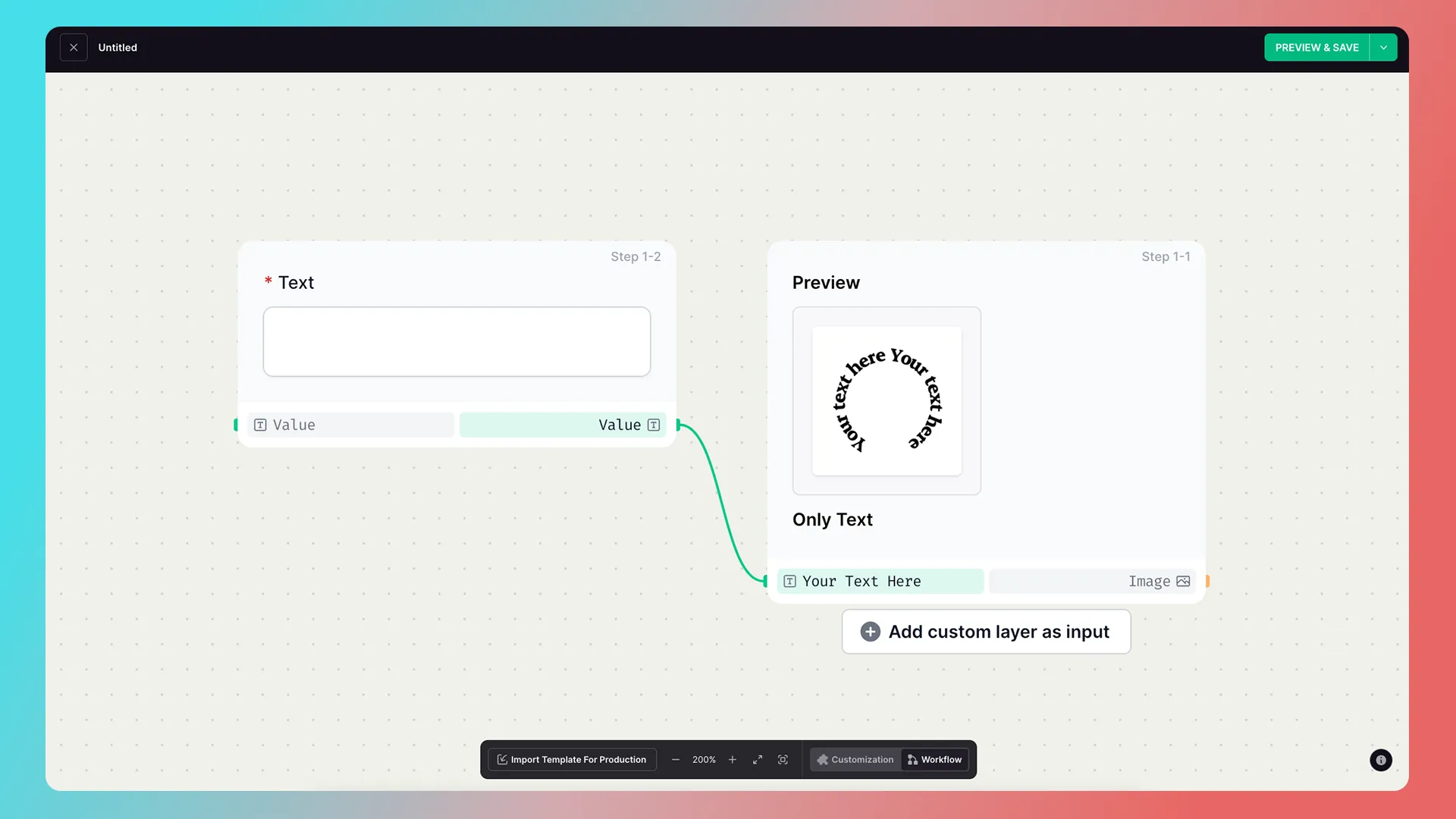
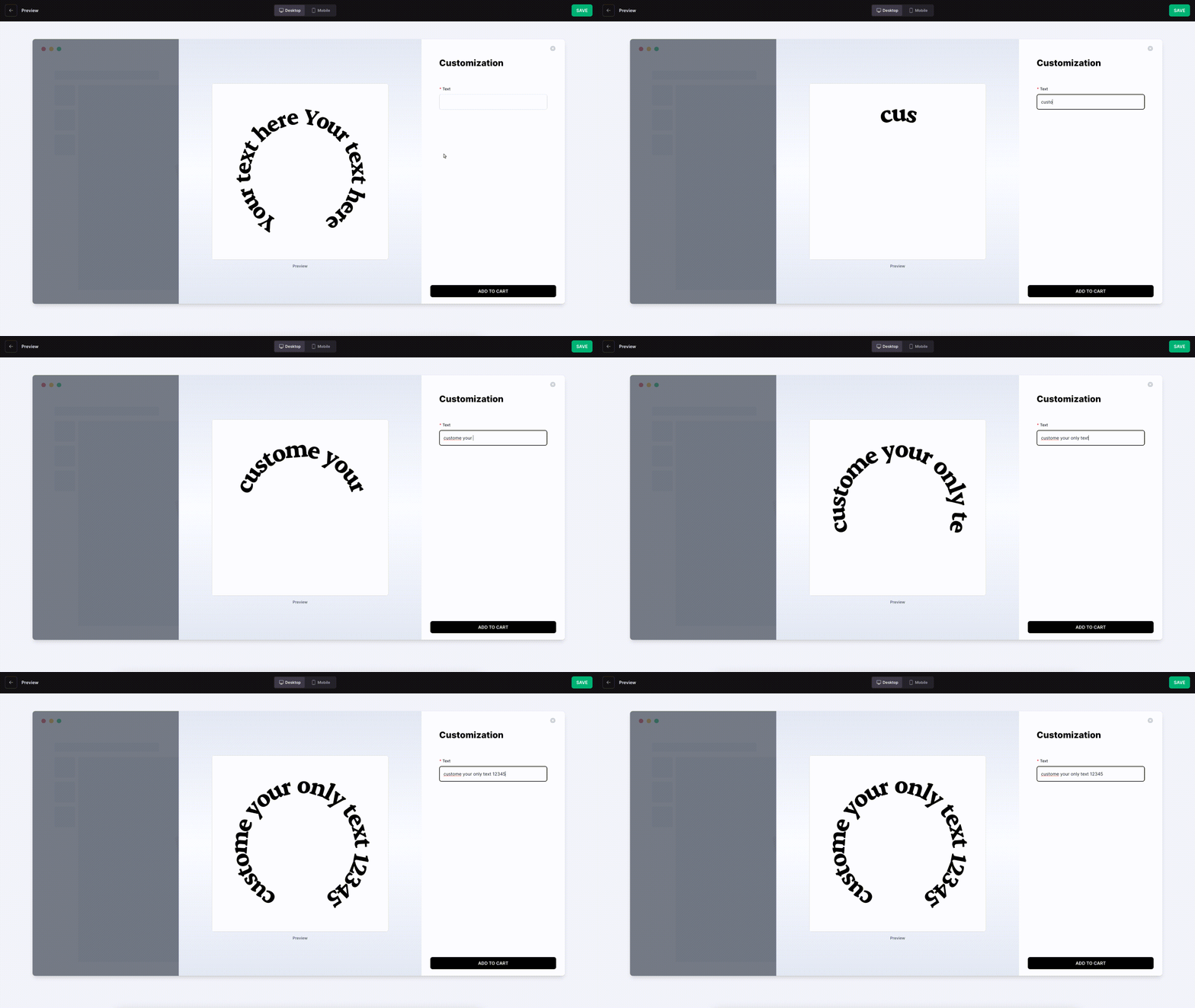
Display entered text in a preview
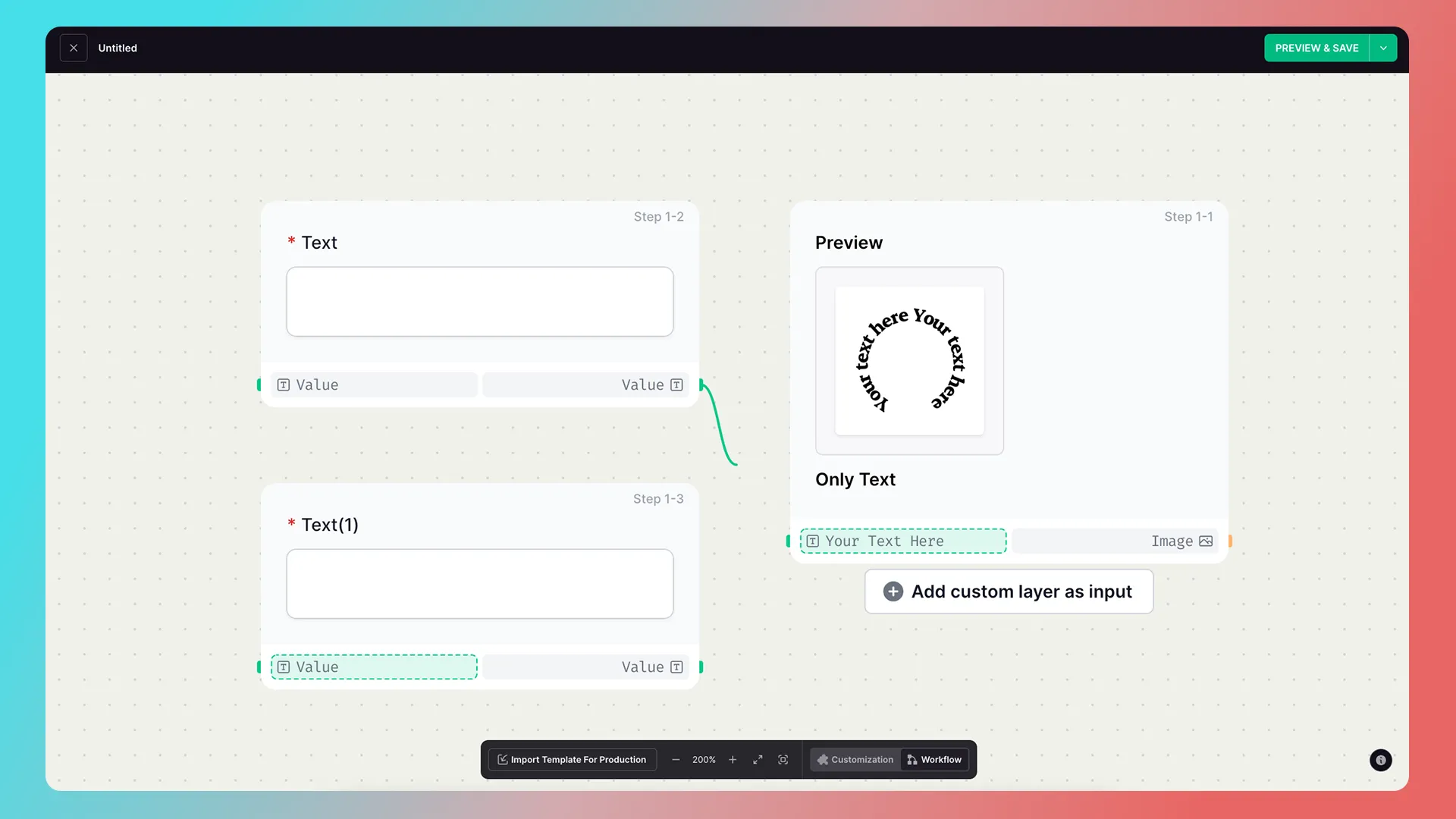
When an engraving component is connected to a text layer in a Preview template, entered text appears in the preview.
Connect a multiline-text component
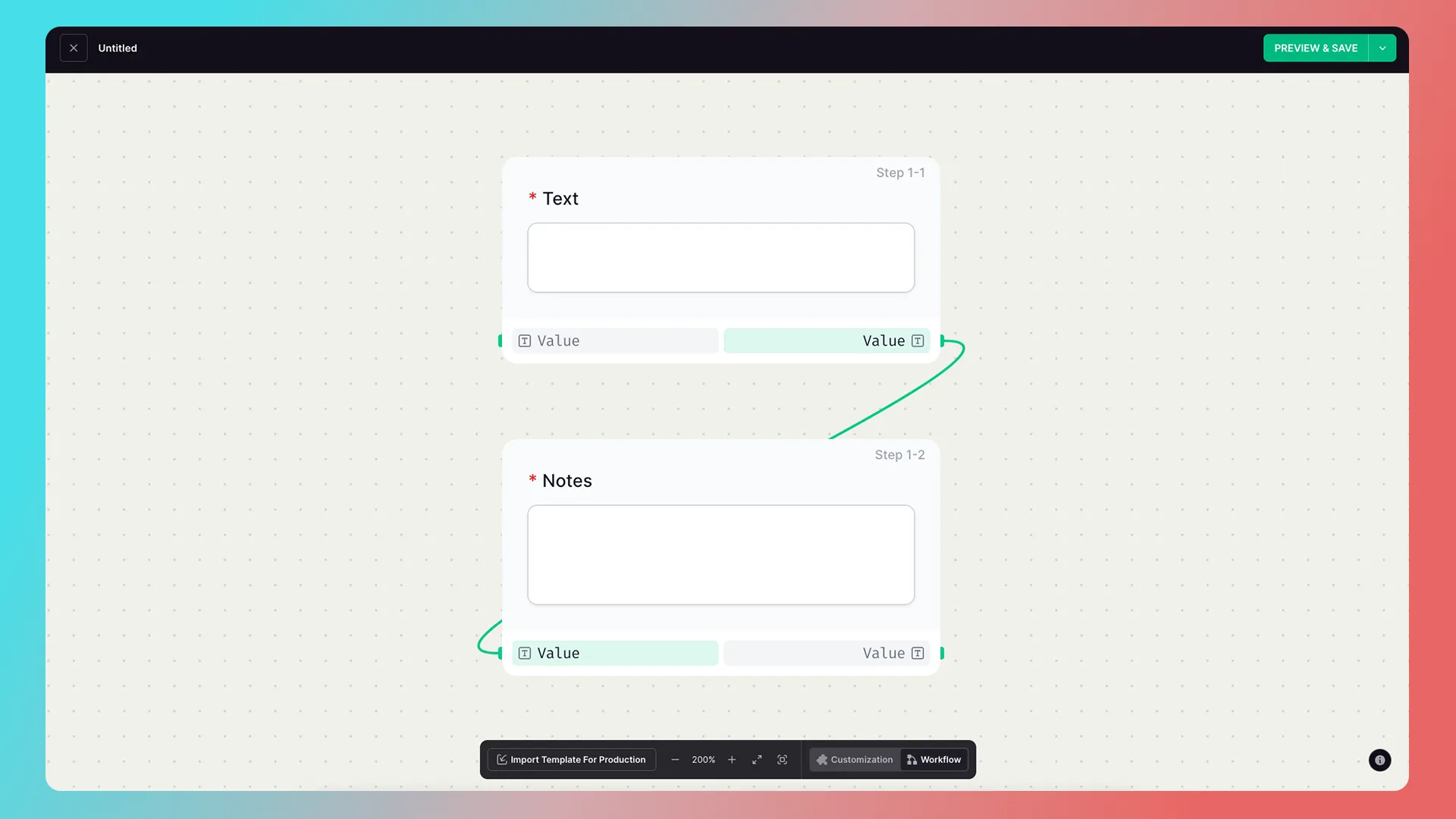
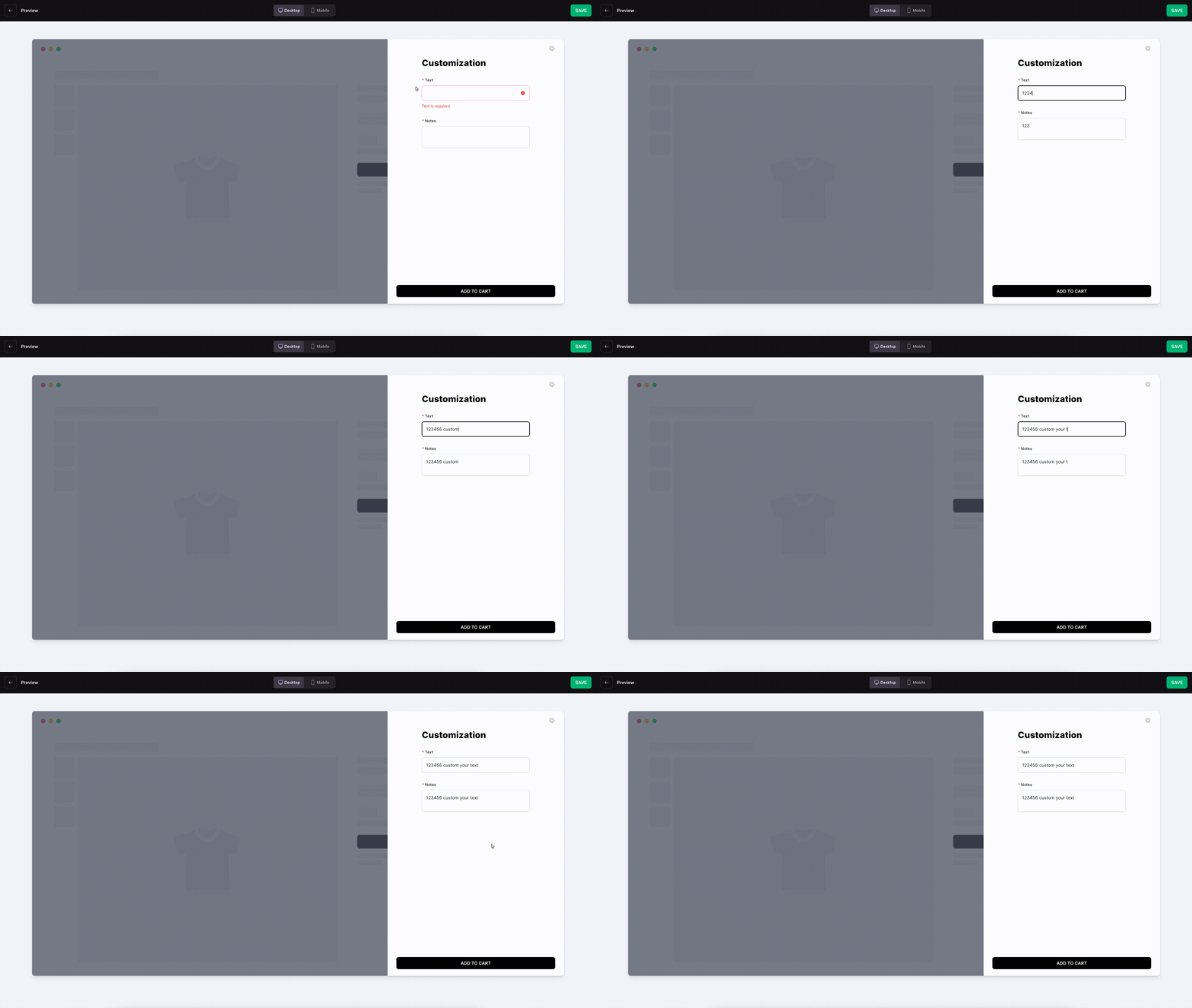
It can also connect to a multiline-text component.
Change the text font and color
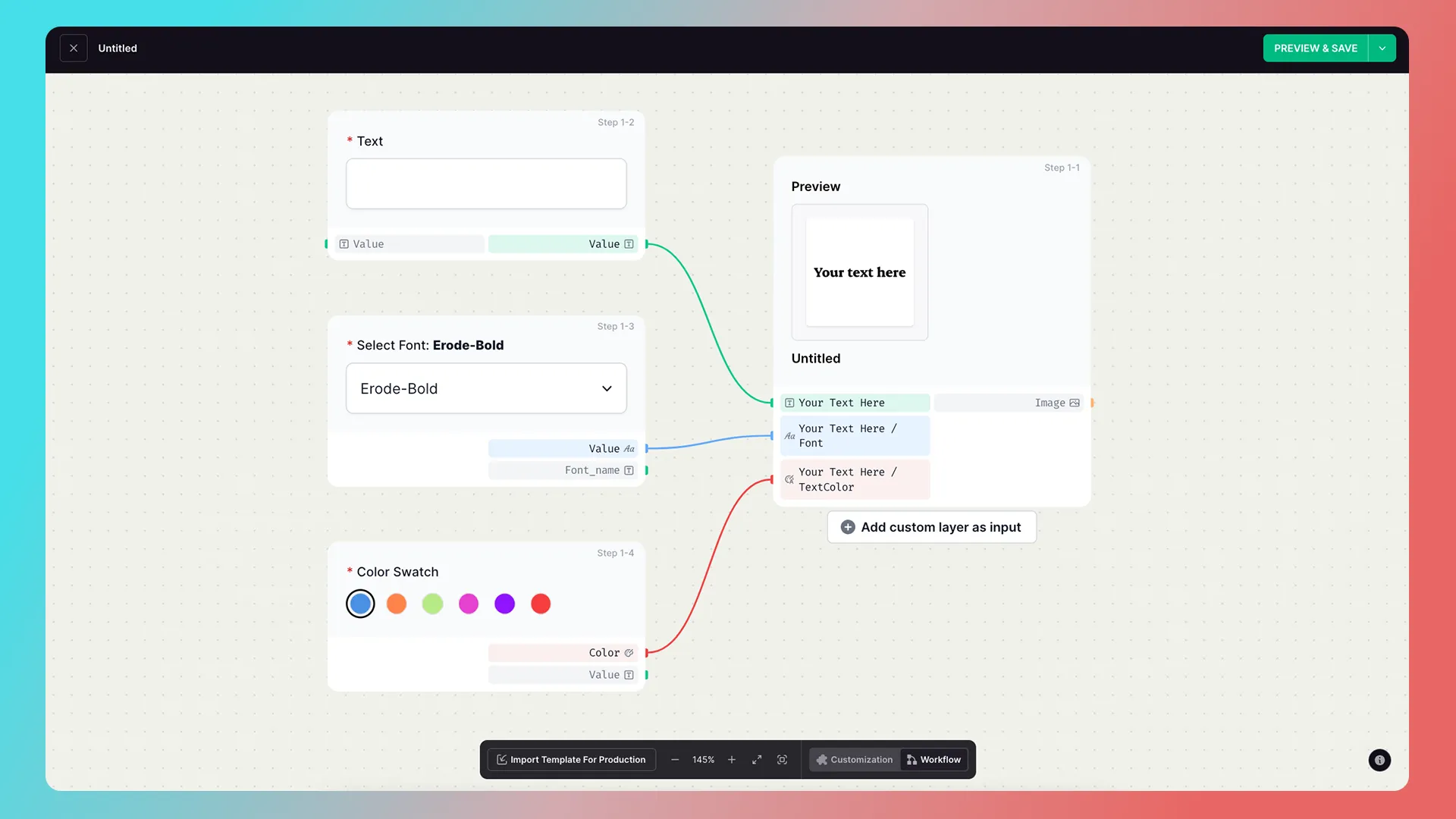

Let customers upload photos
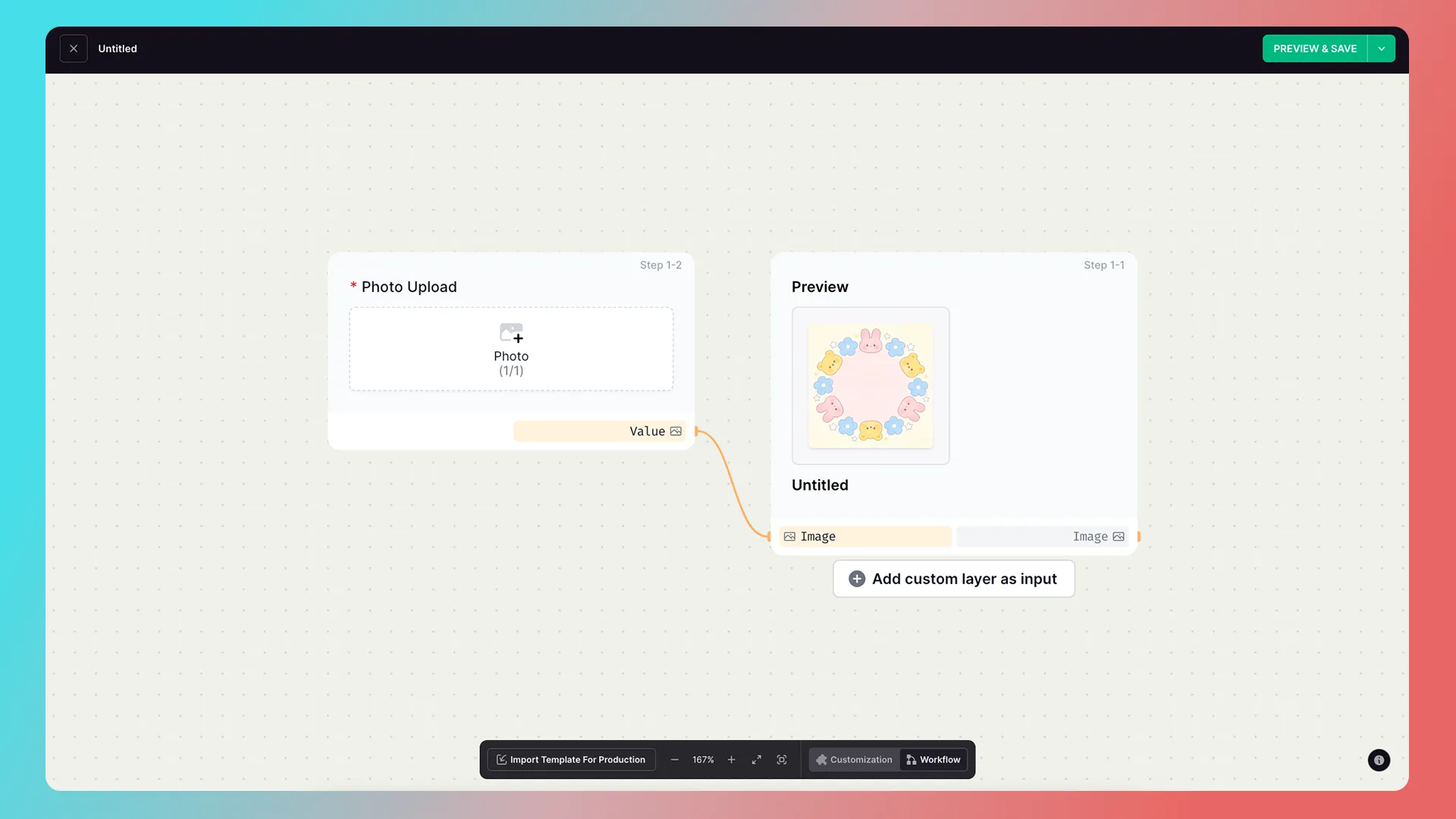
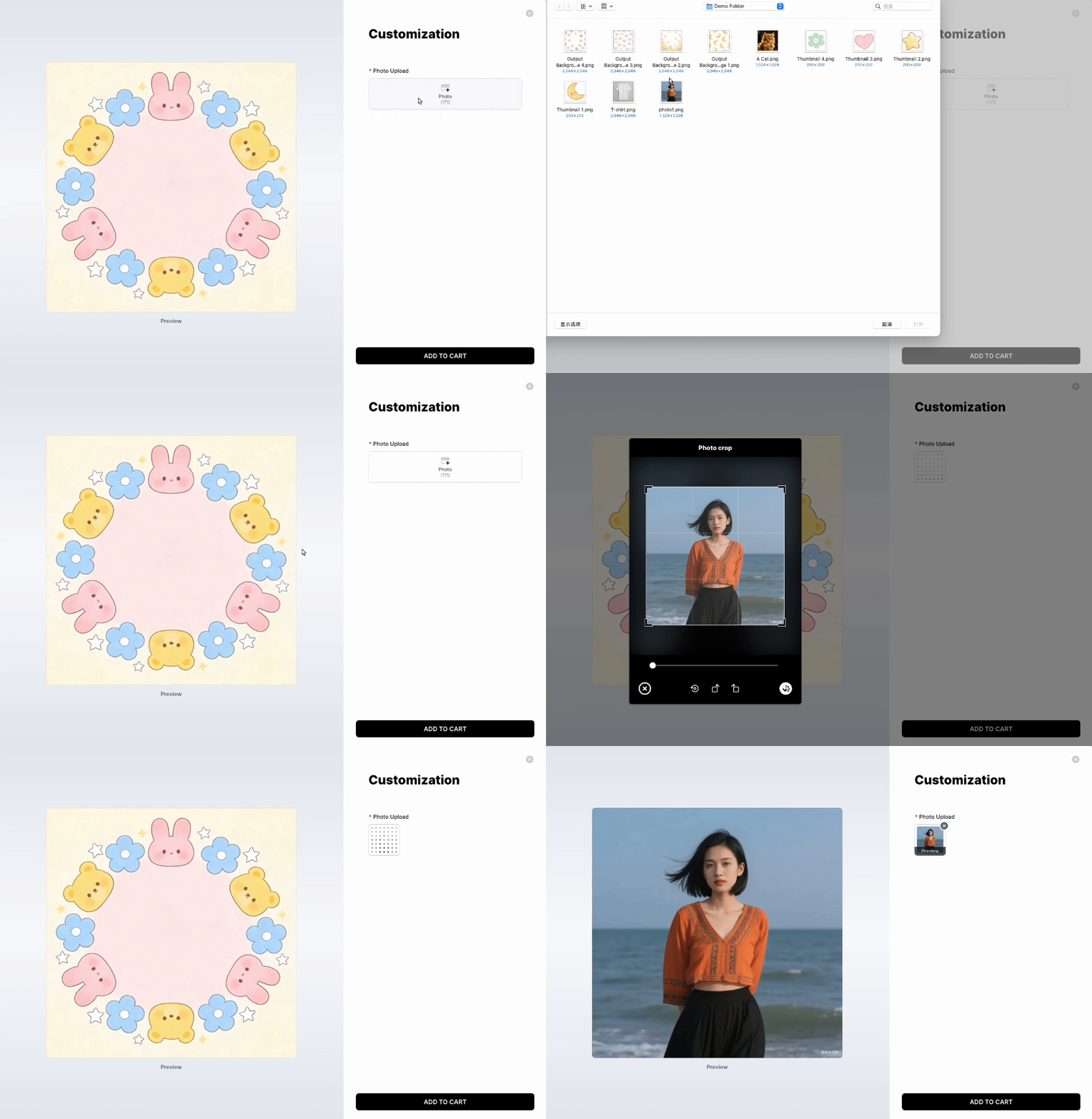
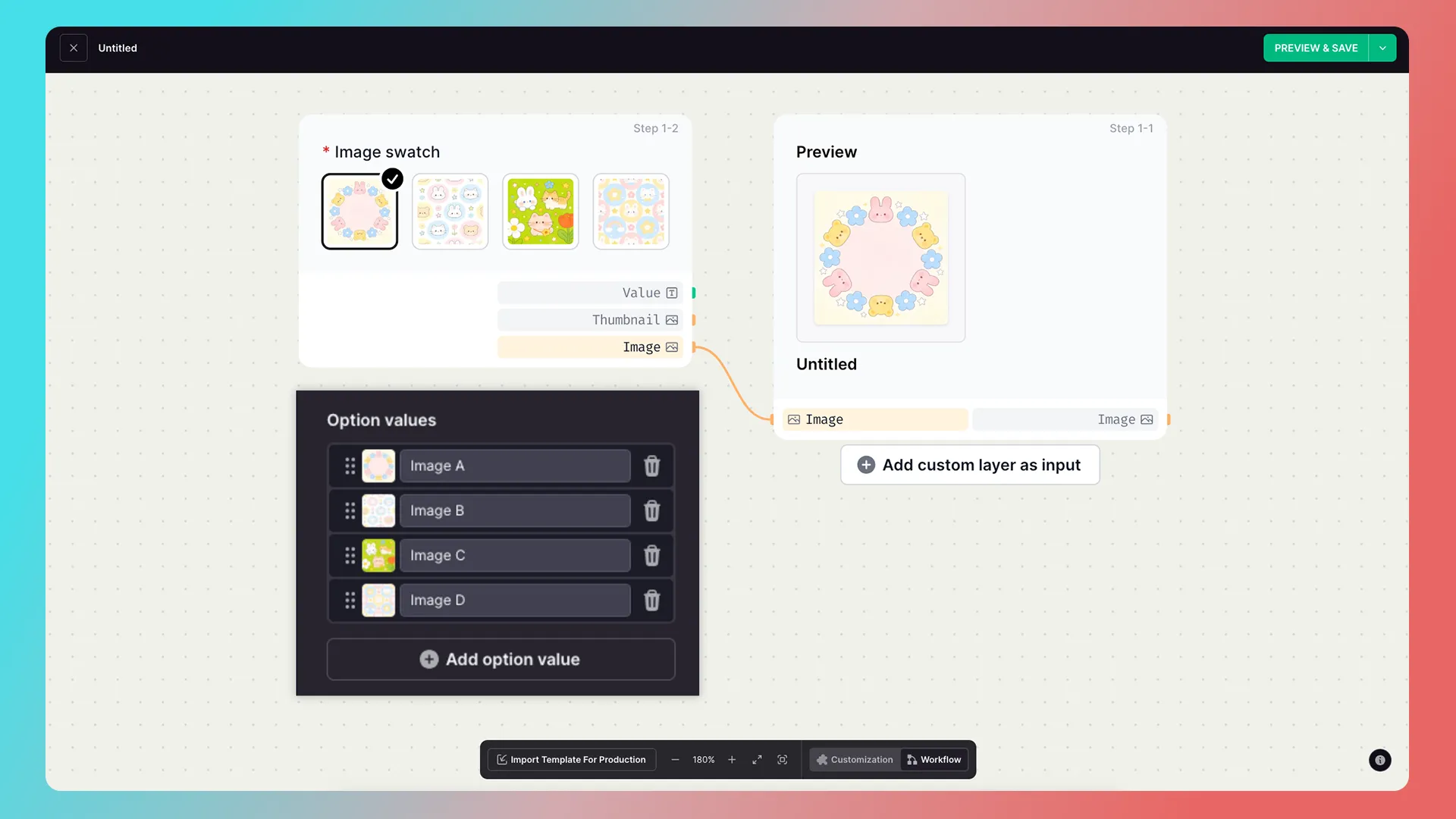

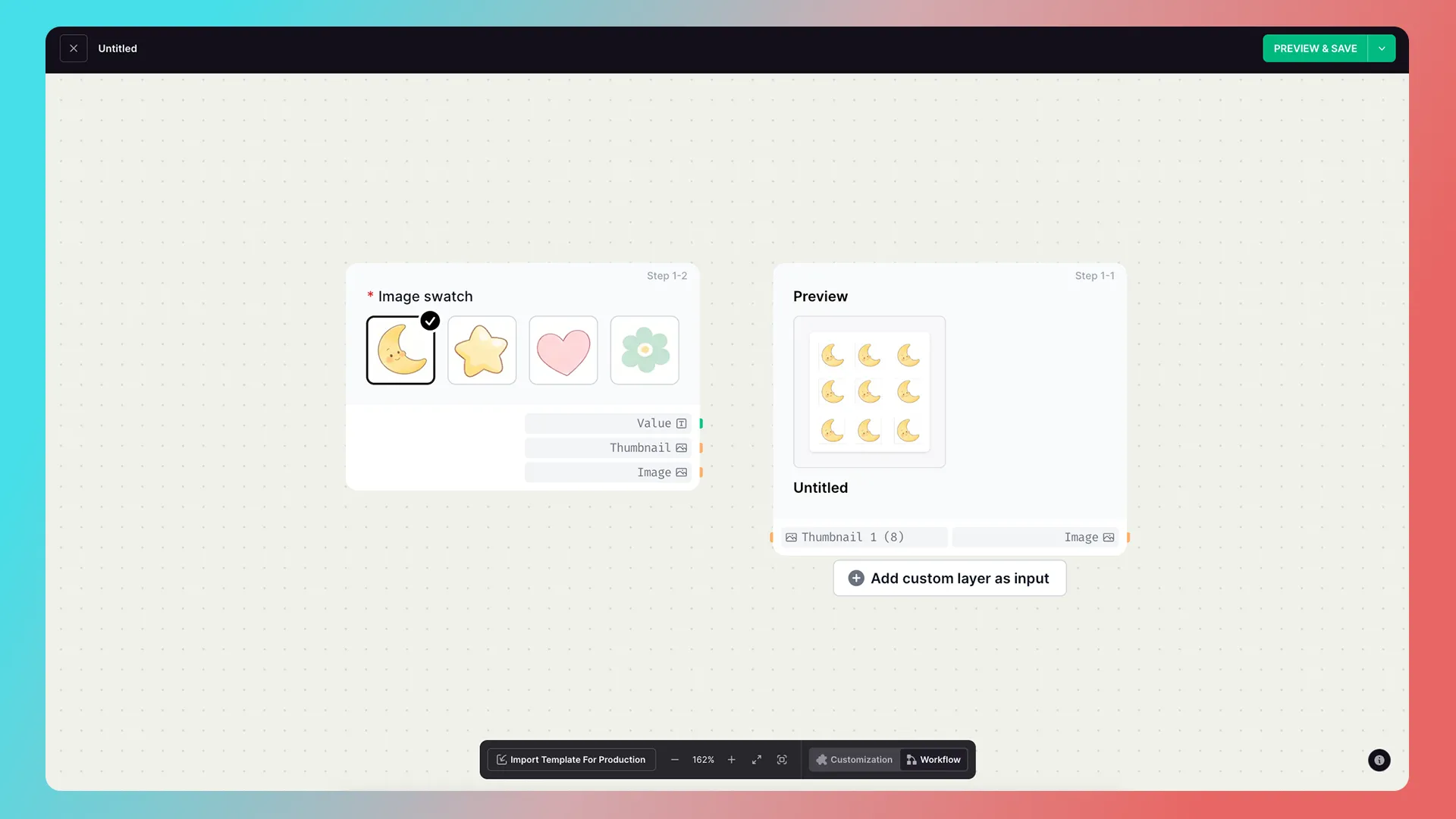
Change the preview image
Connect an image-picker component to an image layer in a template to switch the preview image based on the selected option.
Connect one output to multiple inputs
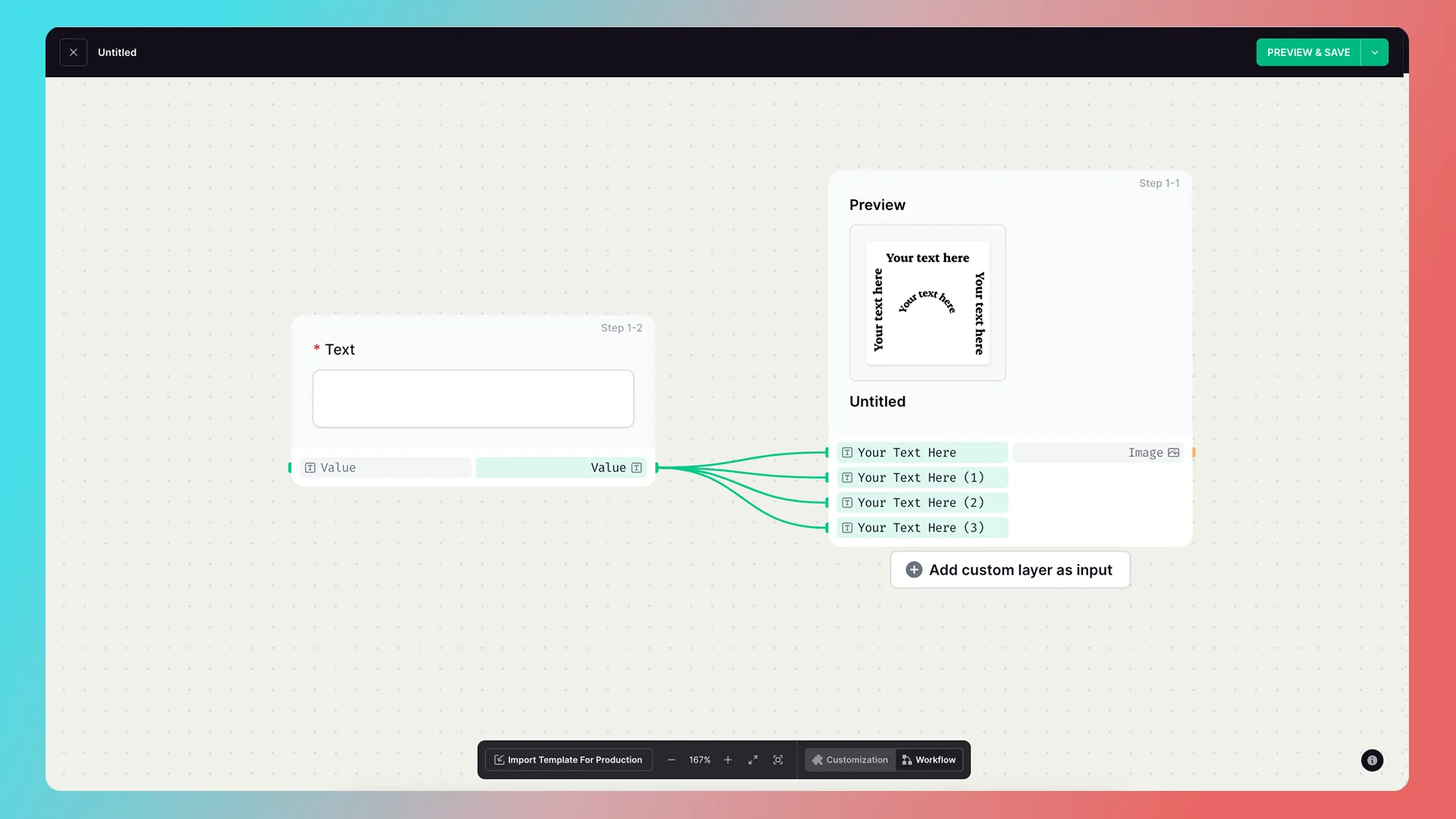

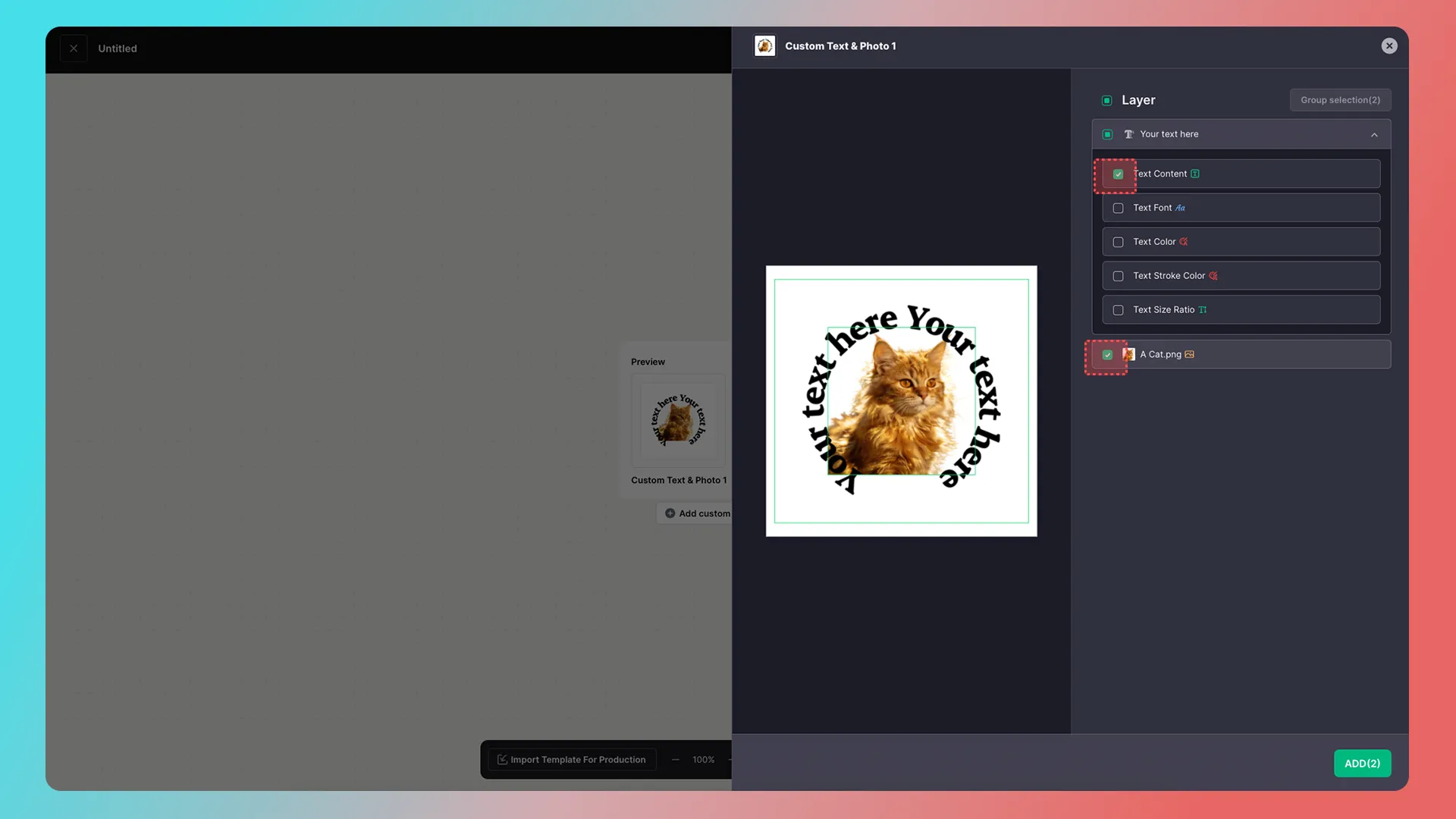
Tip: Group multiple layers to simplify your workflow. For text layers, make sure to select the checkbox.
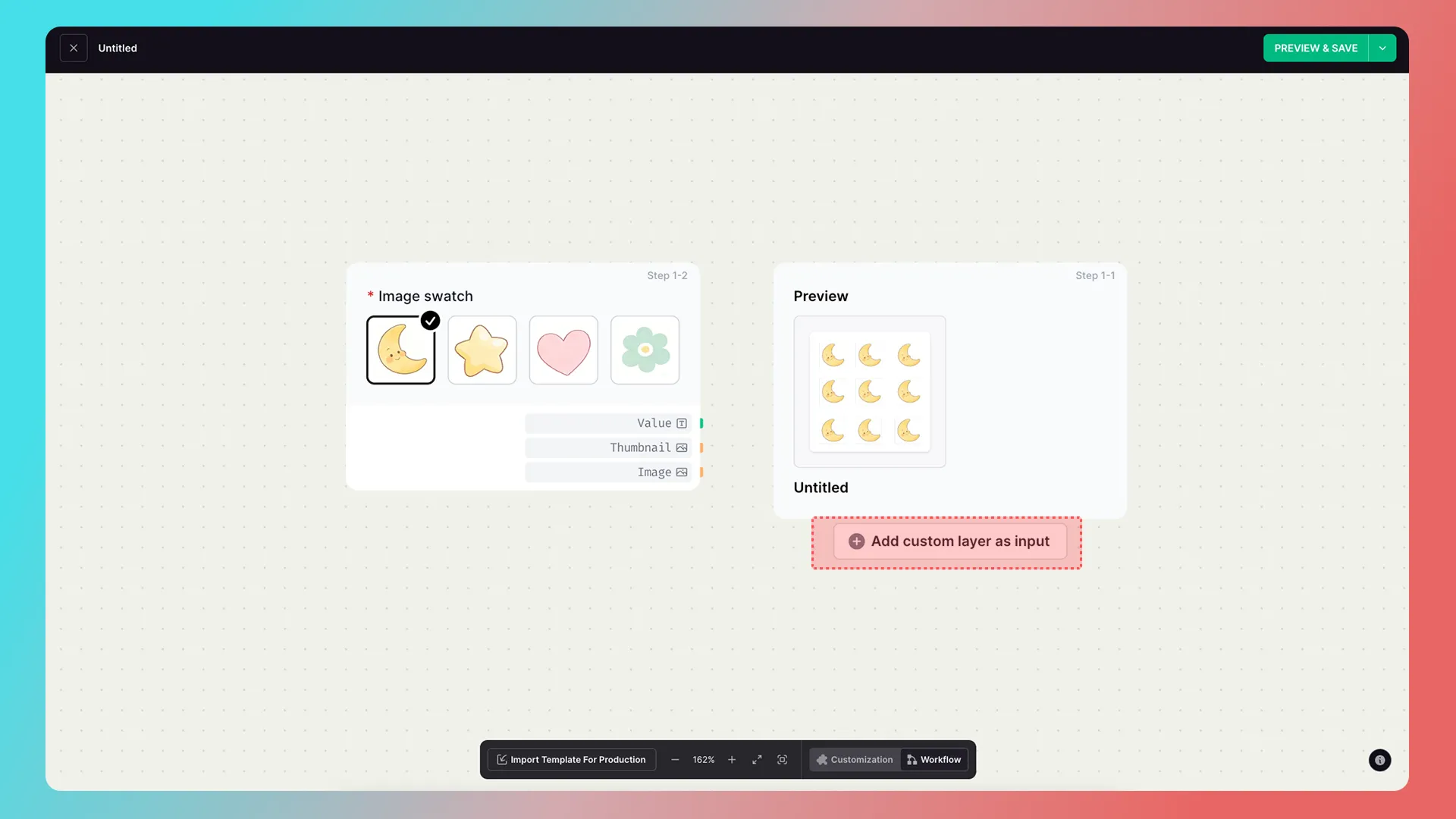
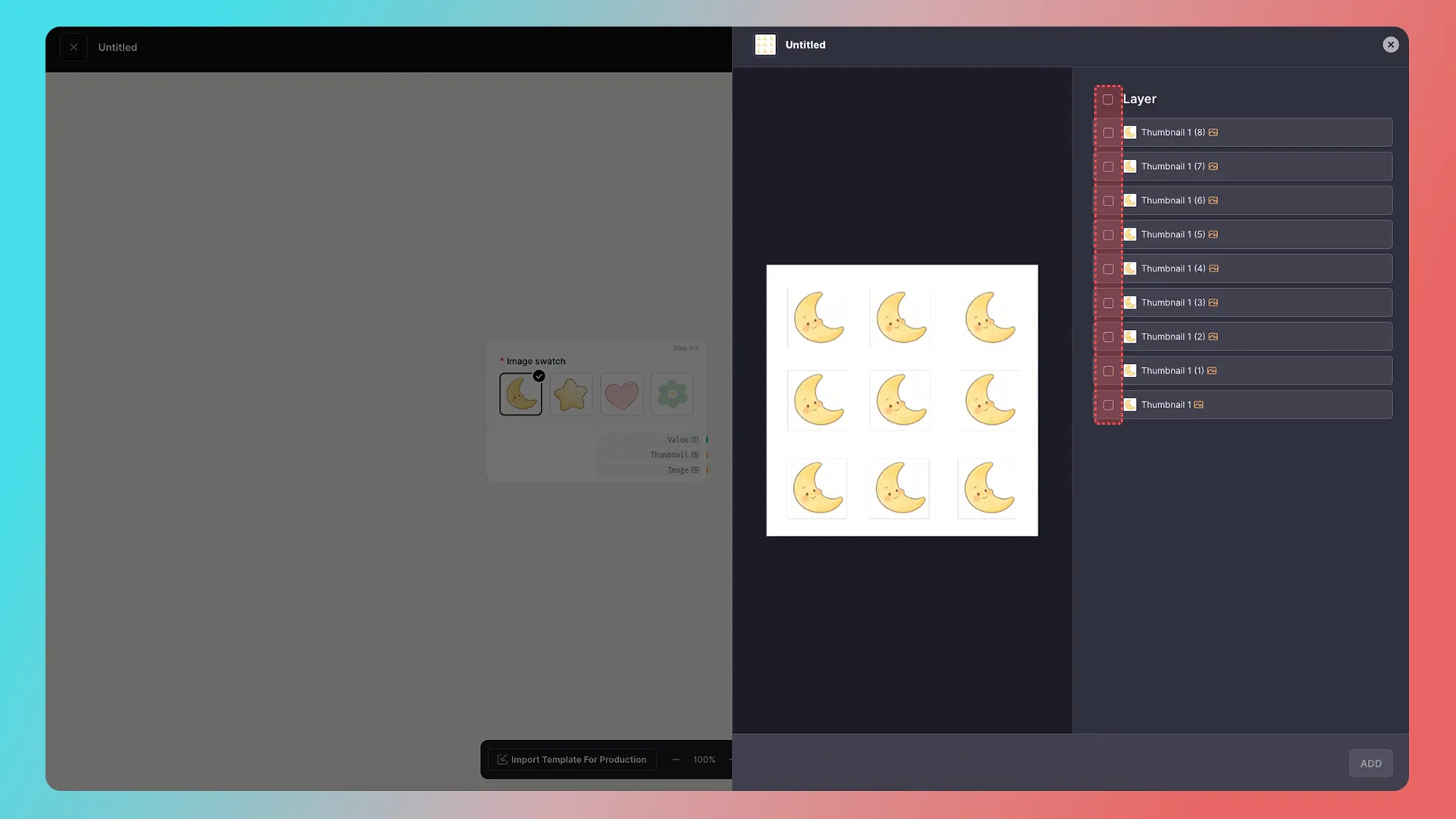
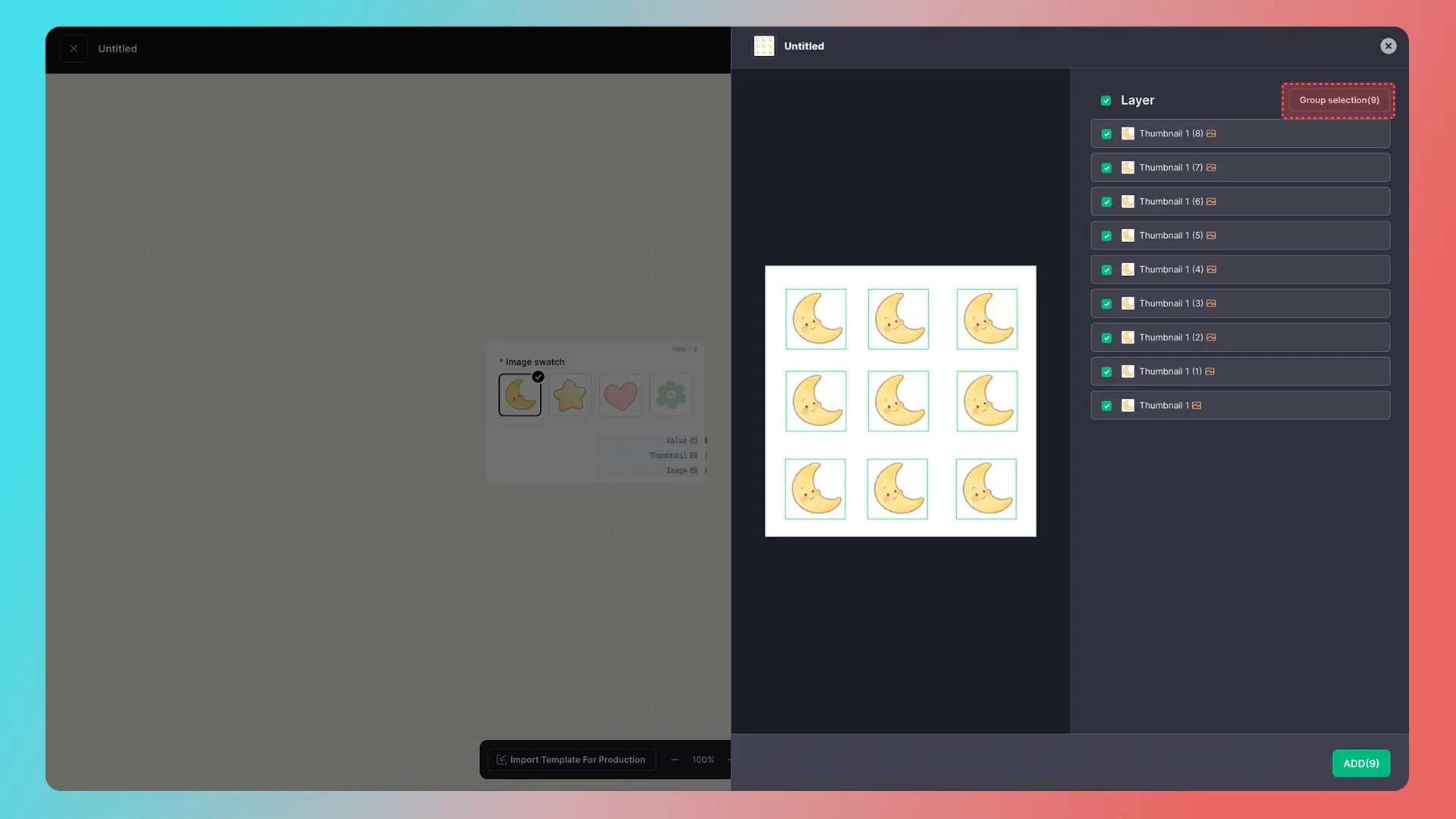
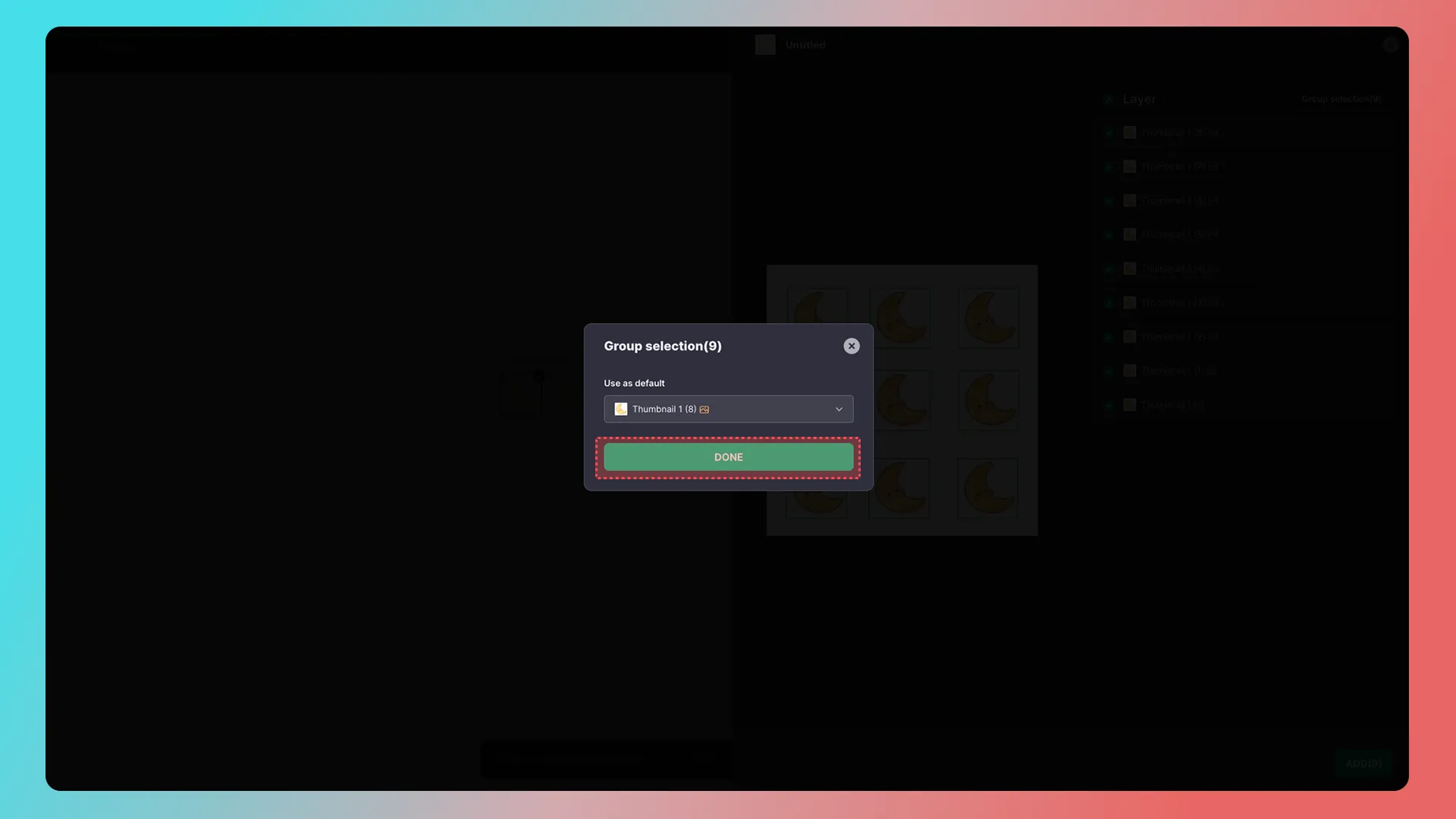
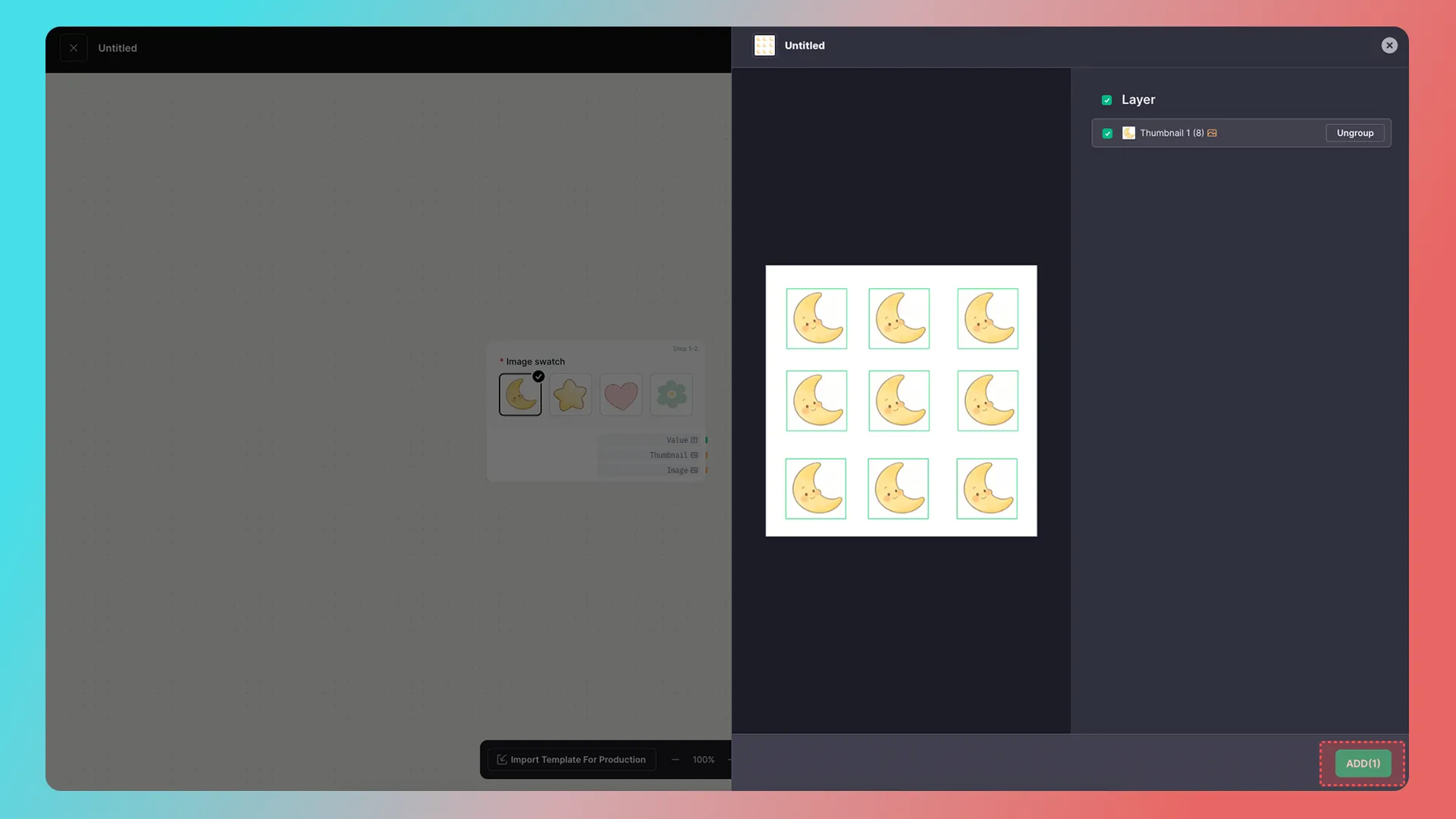
Multiple outputs connected to one input
- Coming soon.
Process data with functions and conditions
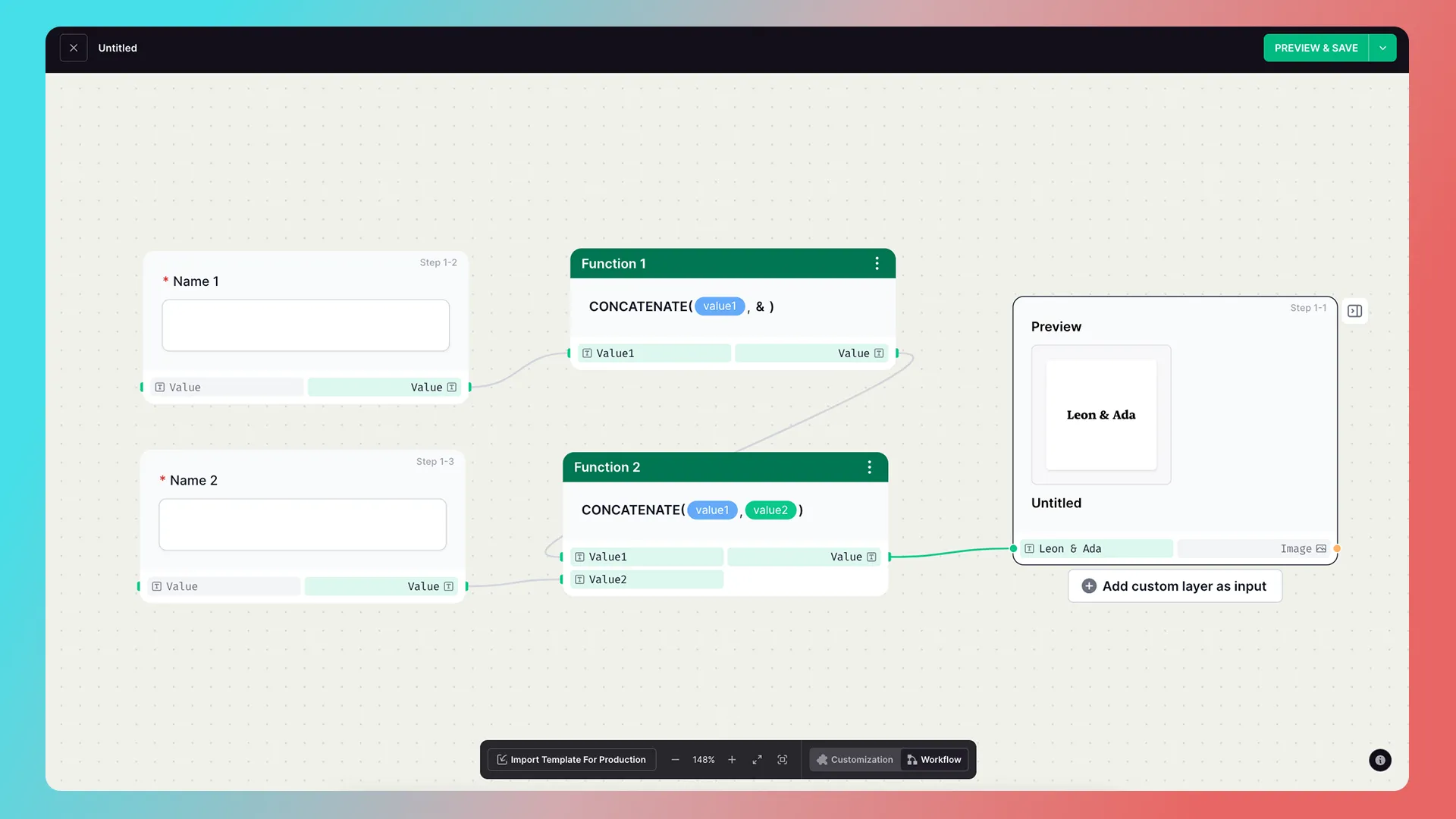
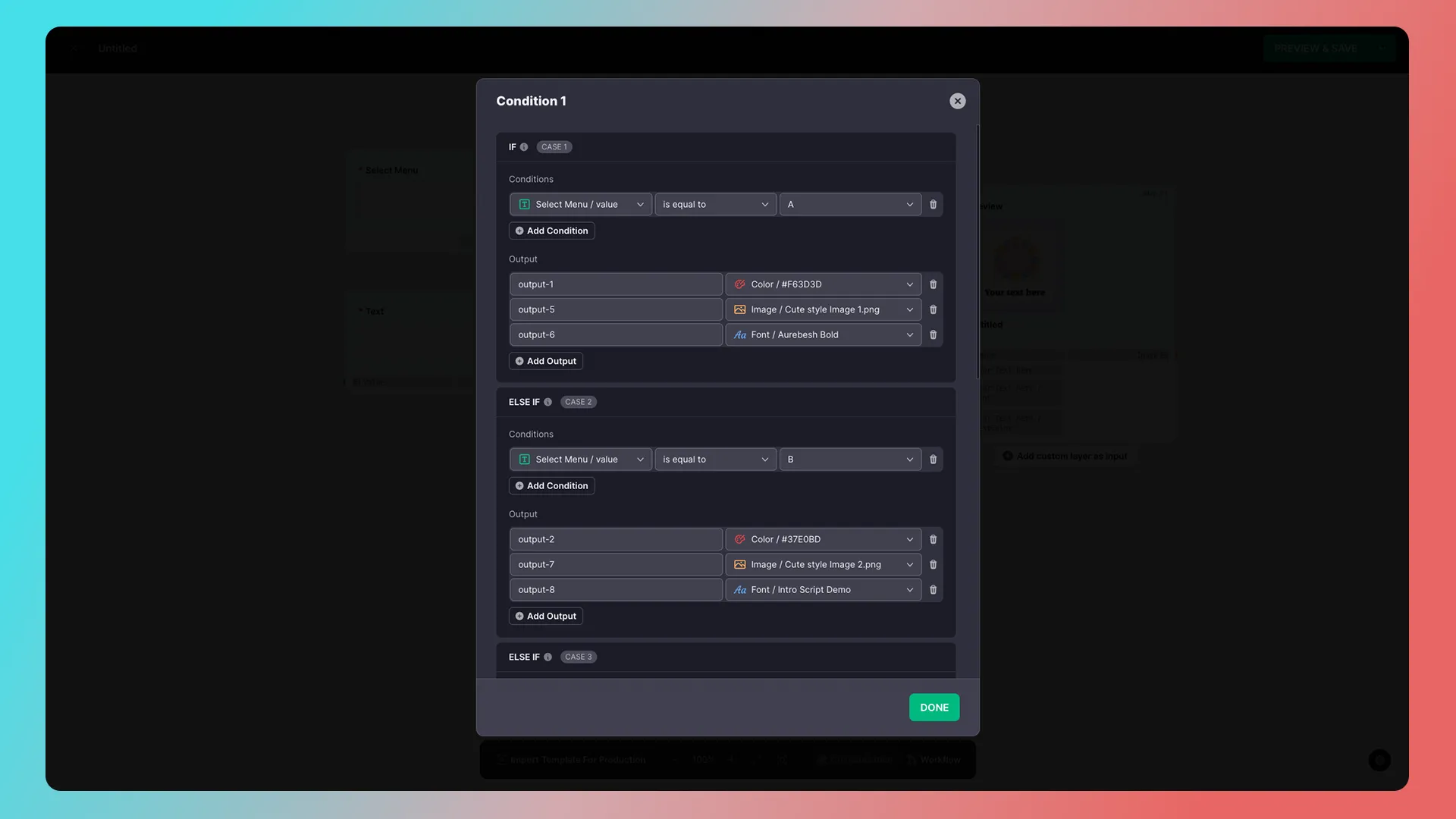
In addition to direct connections, right-click the Workflow panel to add Condition and Function nodes for data processing.
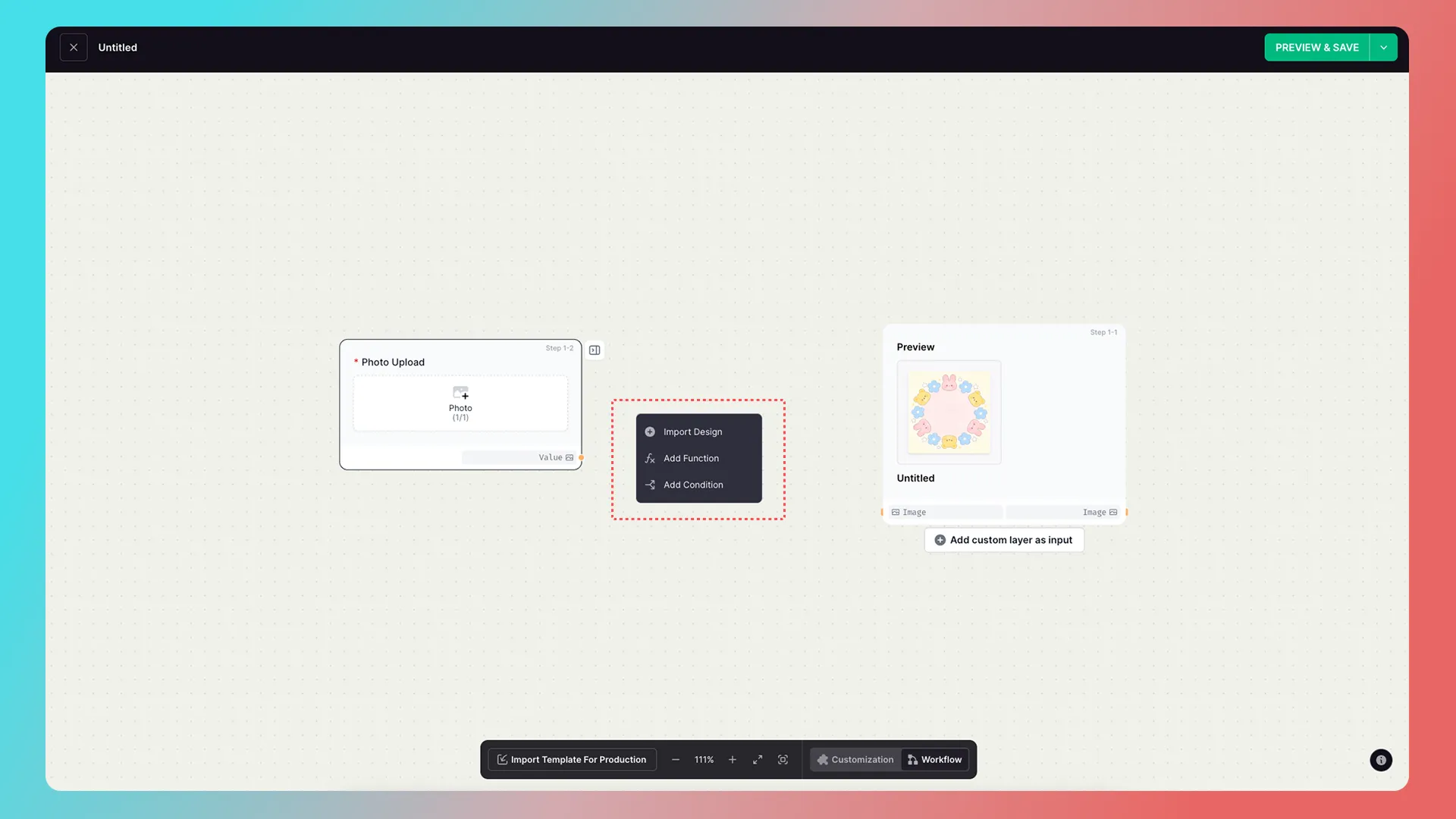
For example:
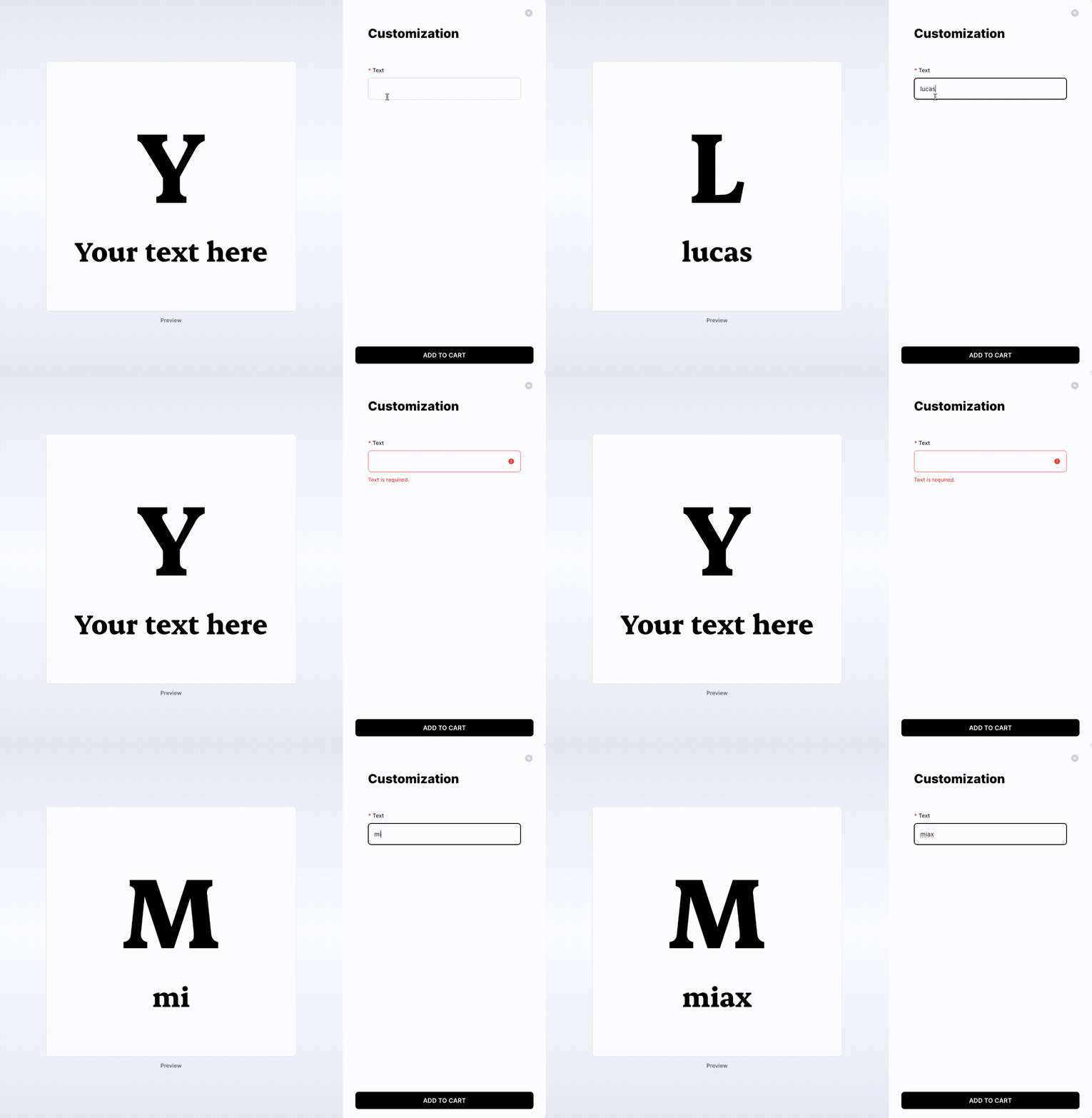
Function — Extract Initials
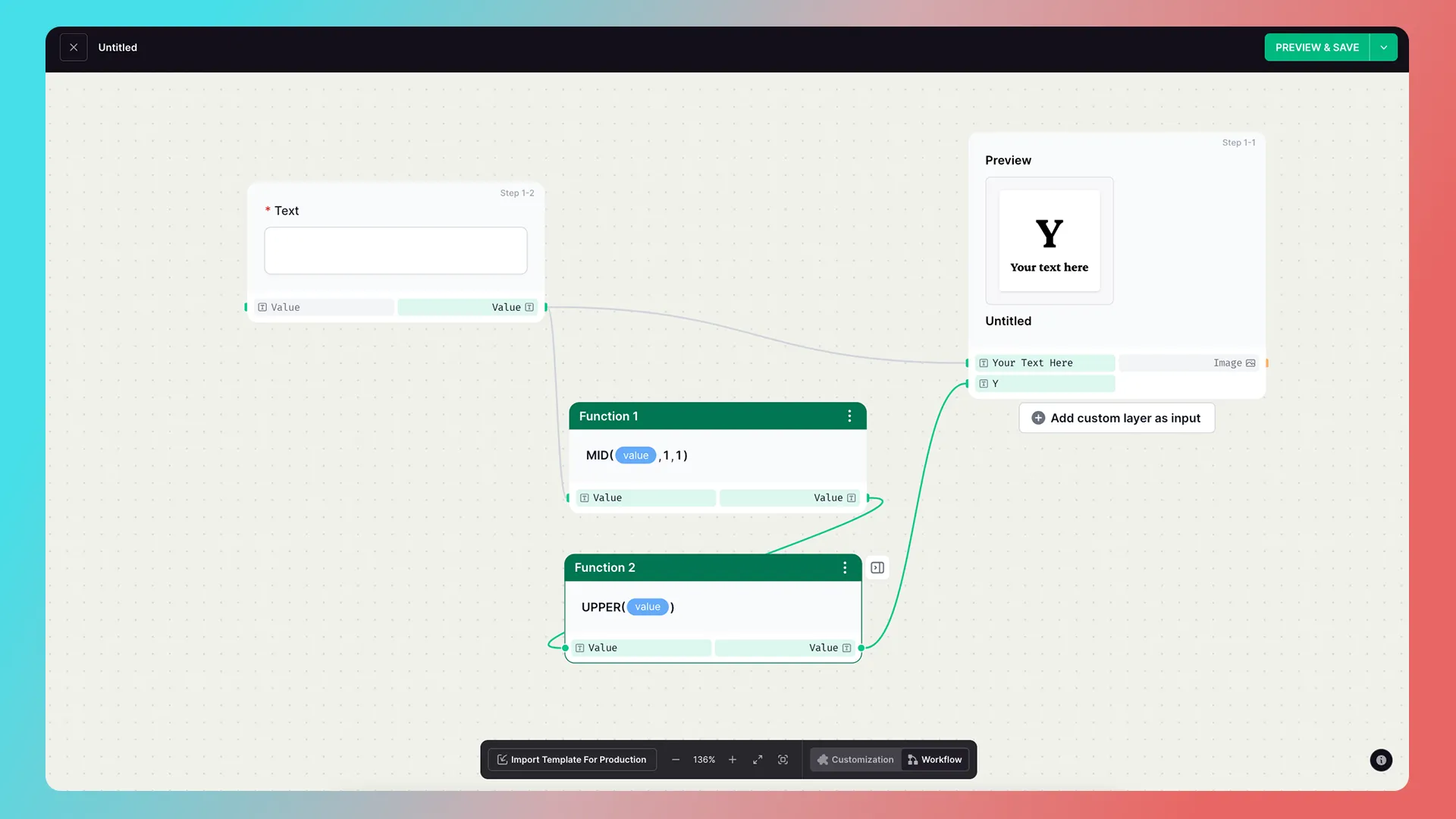

Function — Combine Content from Two Single-Line Text Fields
Condition — Set Output Based on User Selection
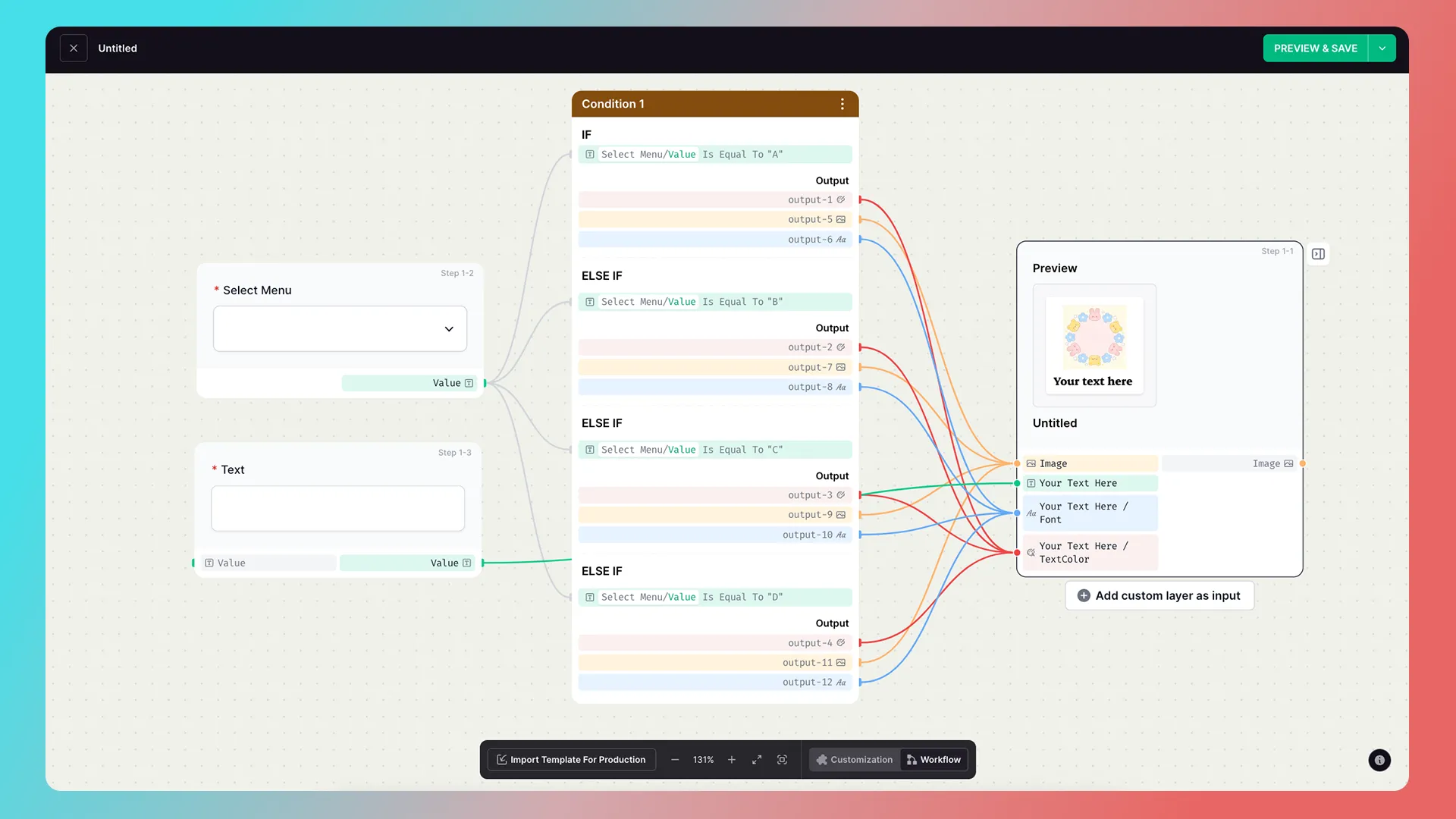

More functions and conditions are available to explore.
Entry points
One-step customization
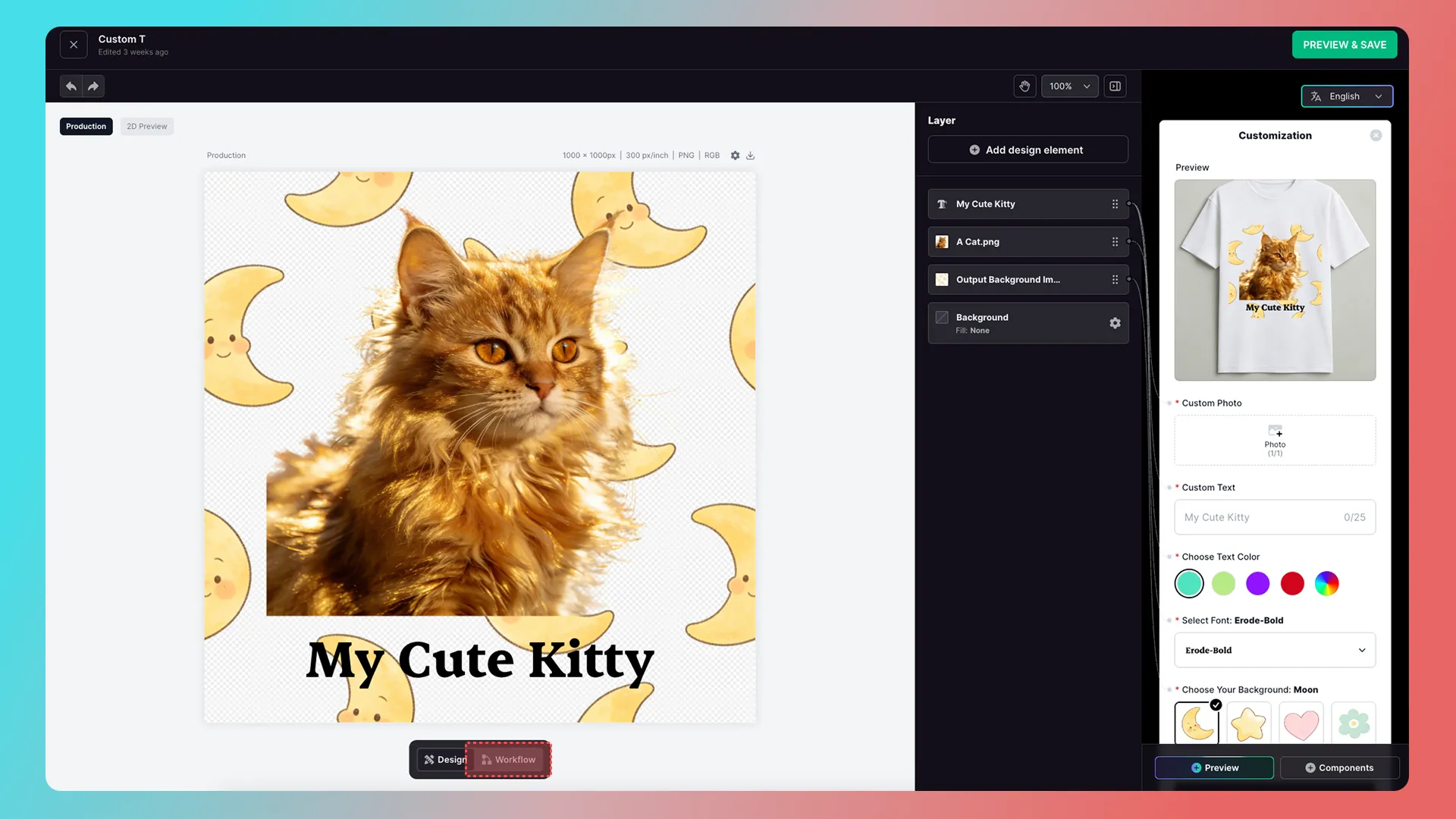
Feature sets
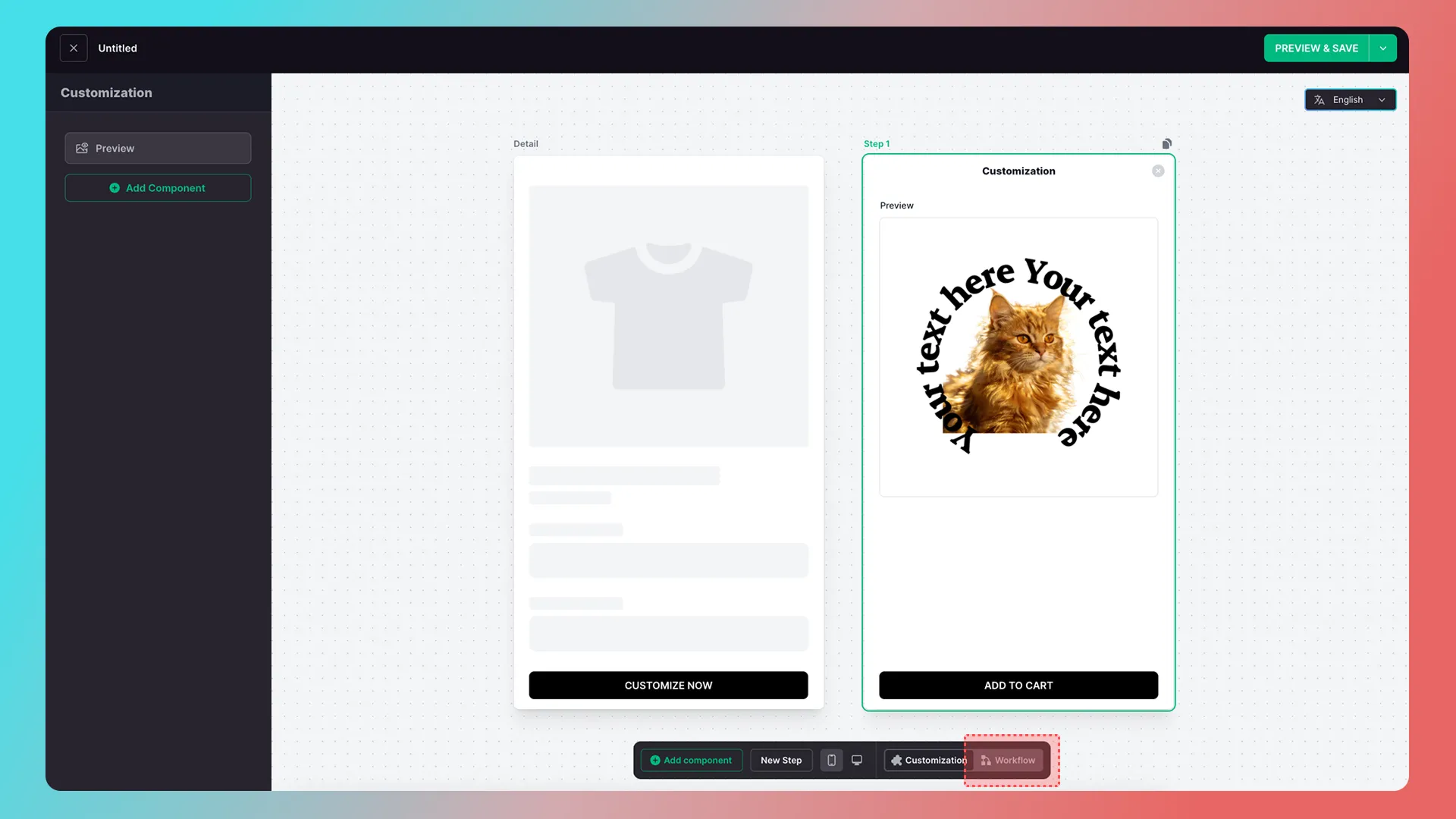
How to use it
To connect nodes, click and hold an output, then drag it to an input.

Move around the interface
Cards
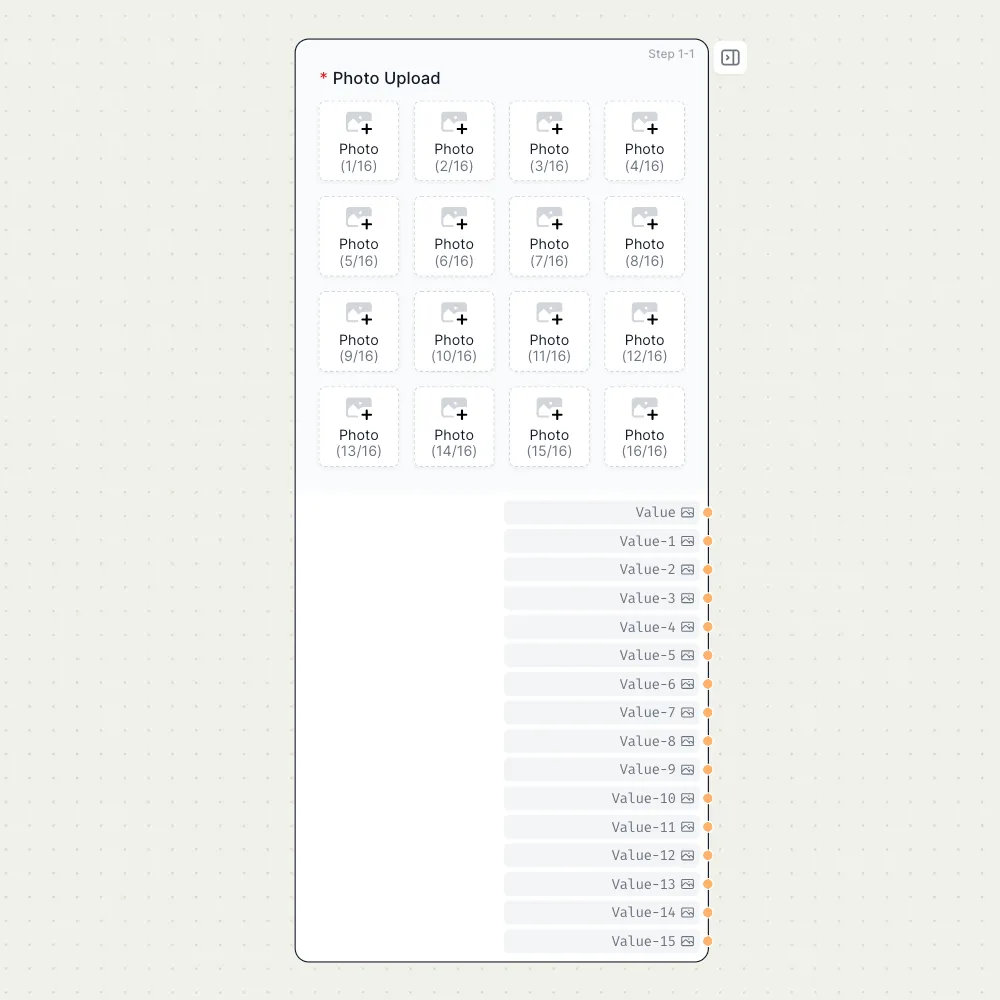
Components appear in Workflow as cards that show inputs and outputs; some components have no inputs. Card inputs are on the left and outputs are on the right.
Text components
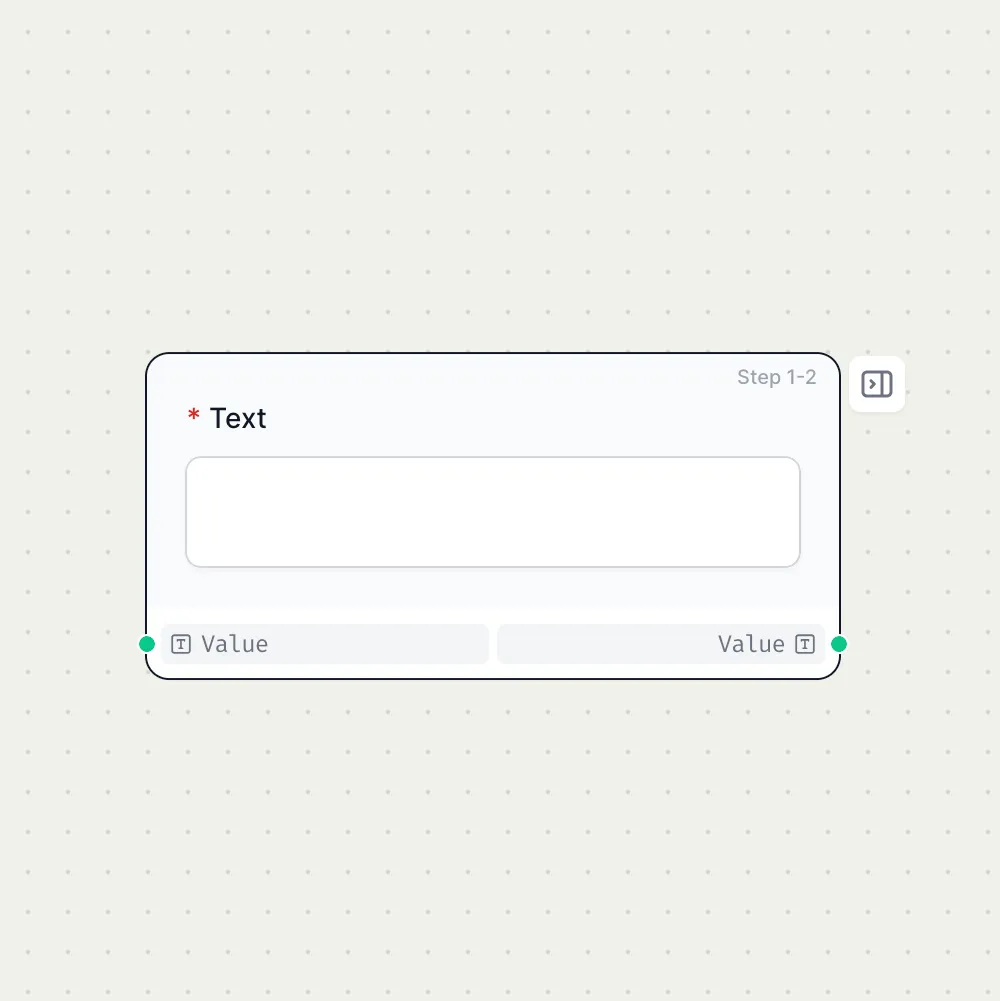
Photo upload components (one image)
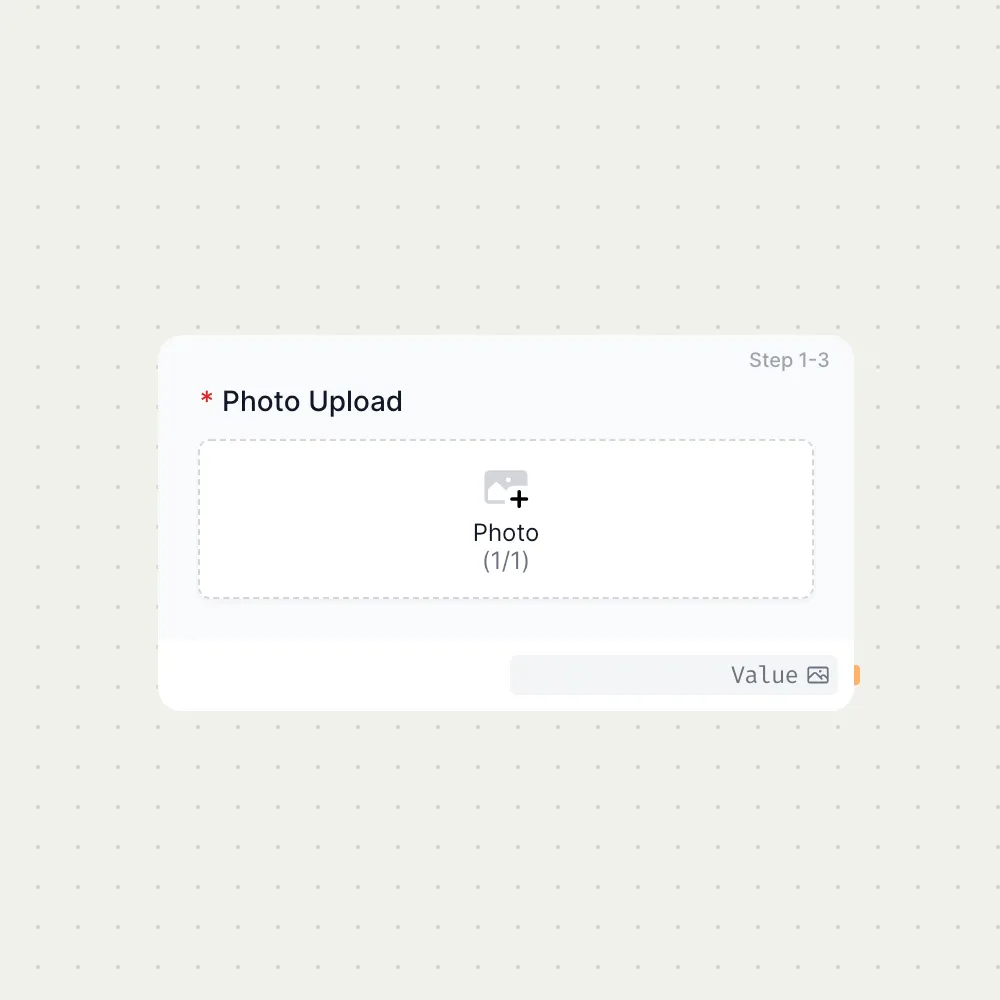
Photo upload components (sixteen images)
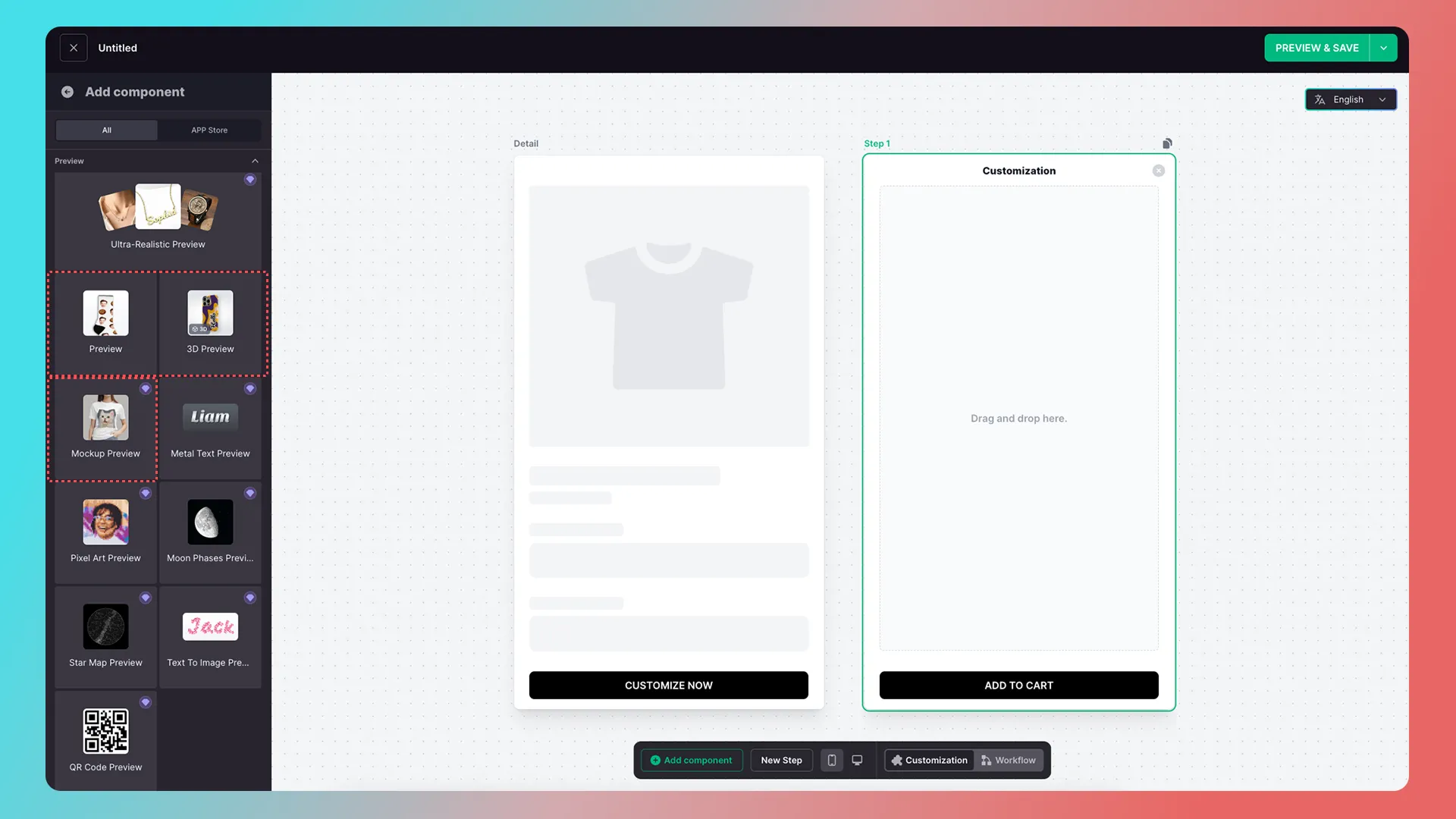
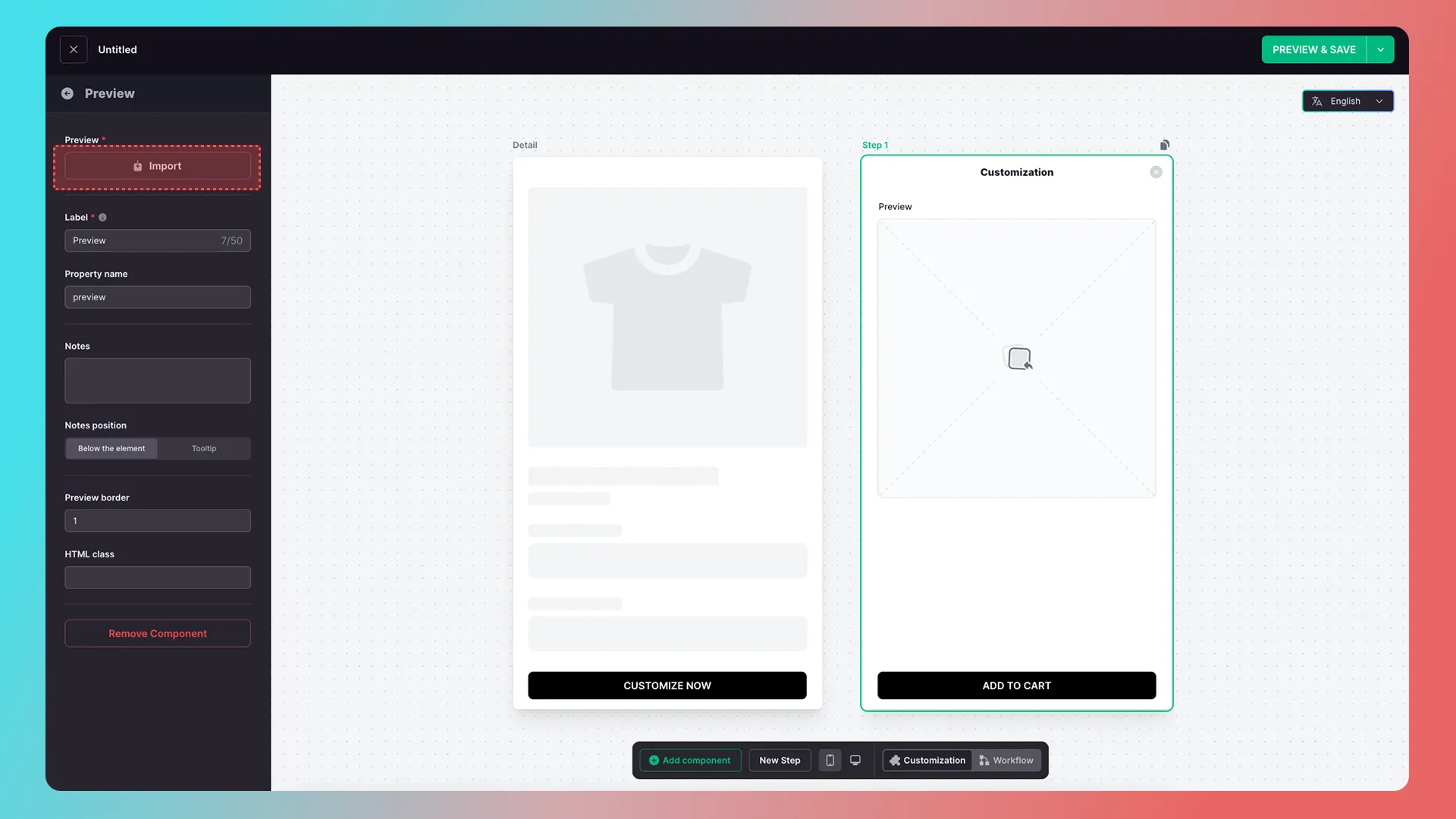
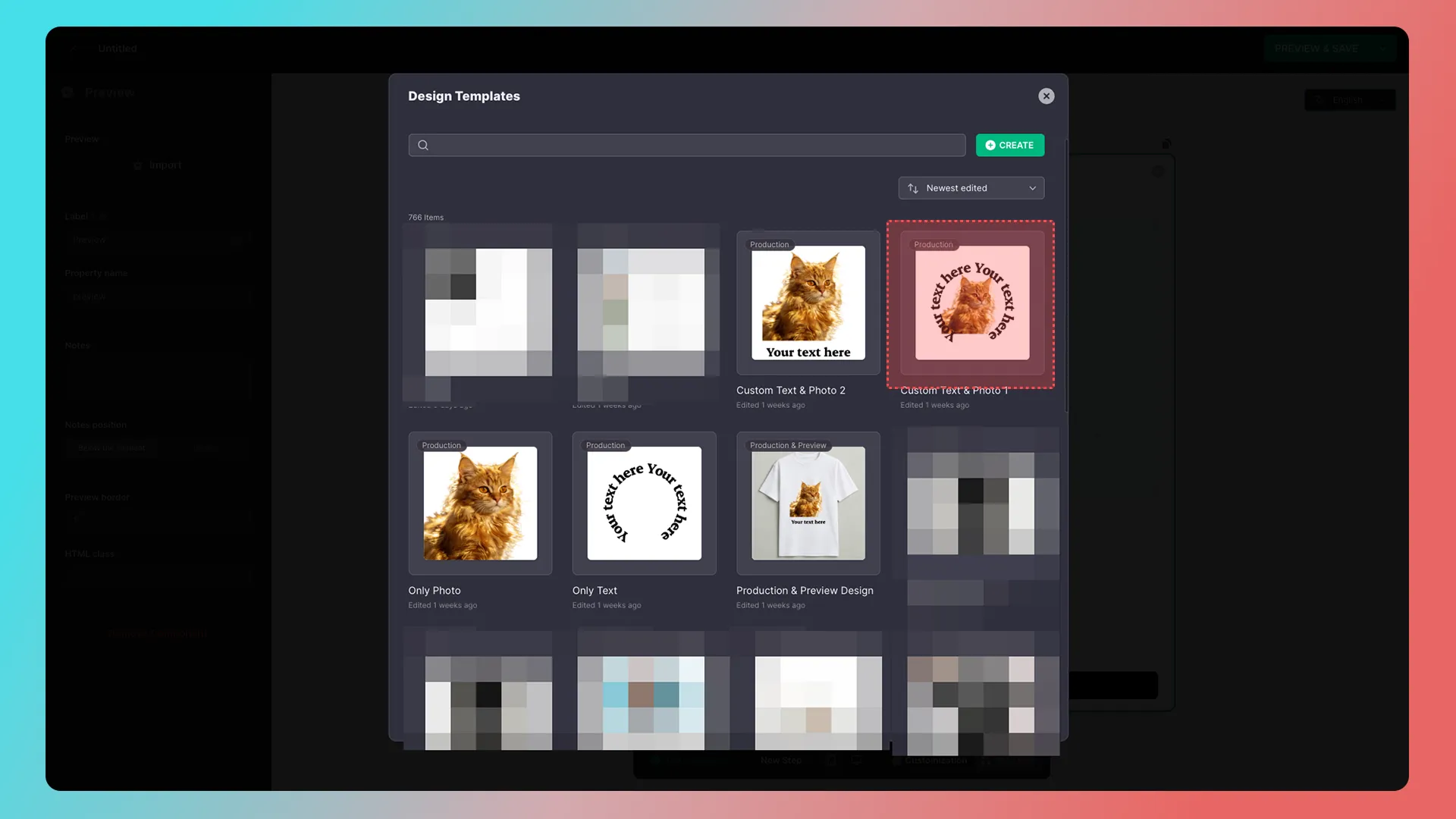
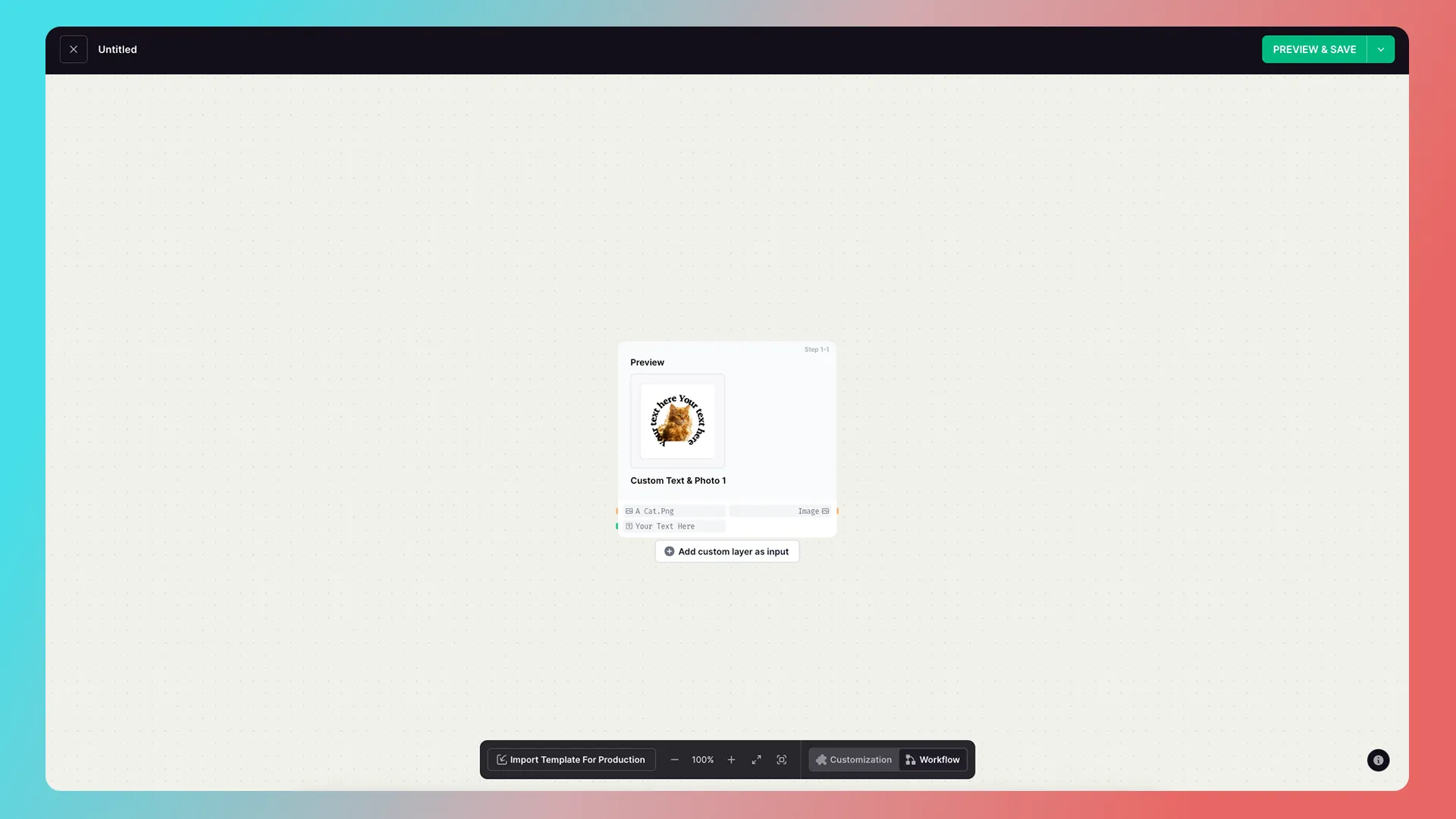
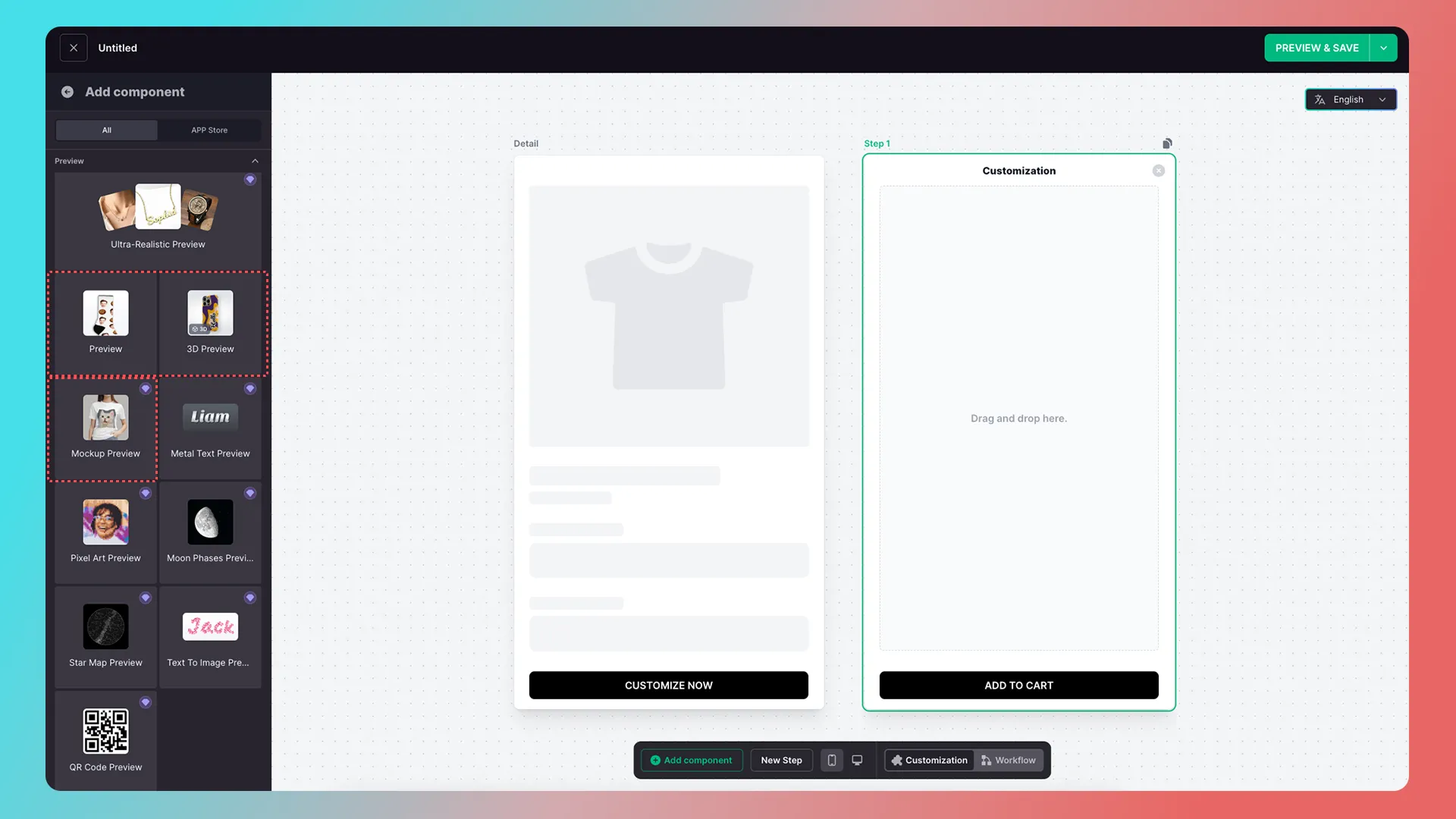
Note: Preview, Mockup Preview, and 3D Preview display cards in Workflow only after importing a template. Inputs appear only after adding custom layers.
Preview component example
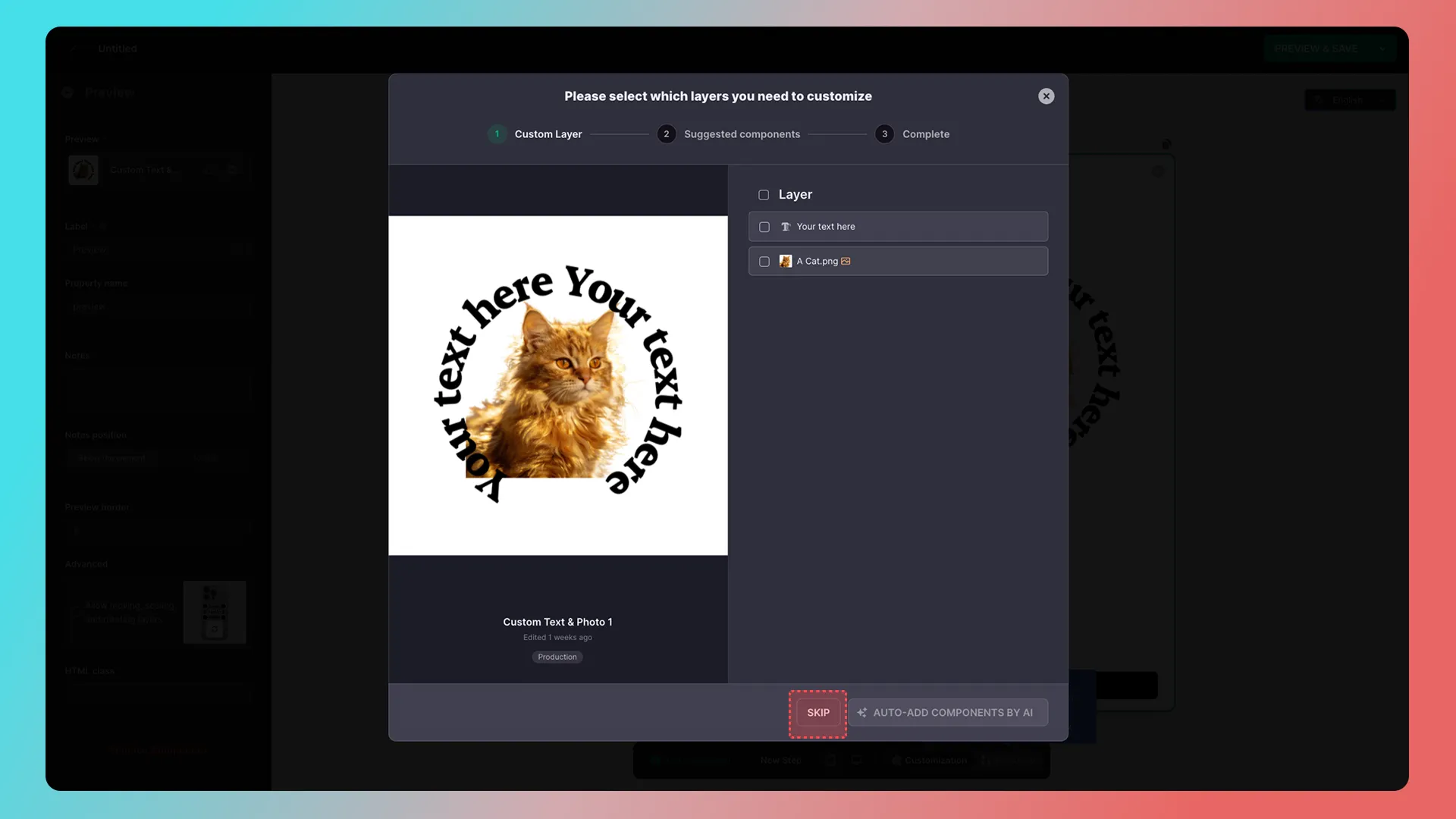
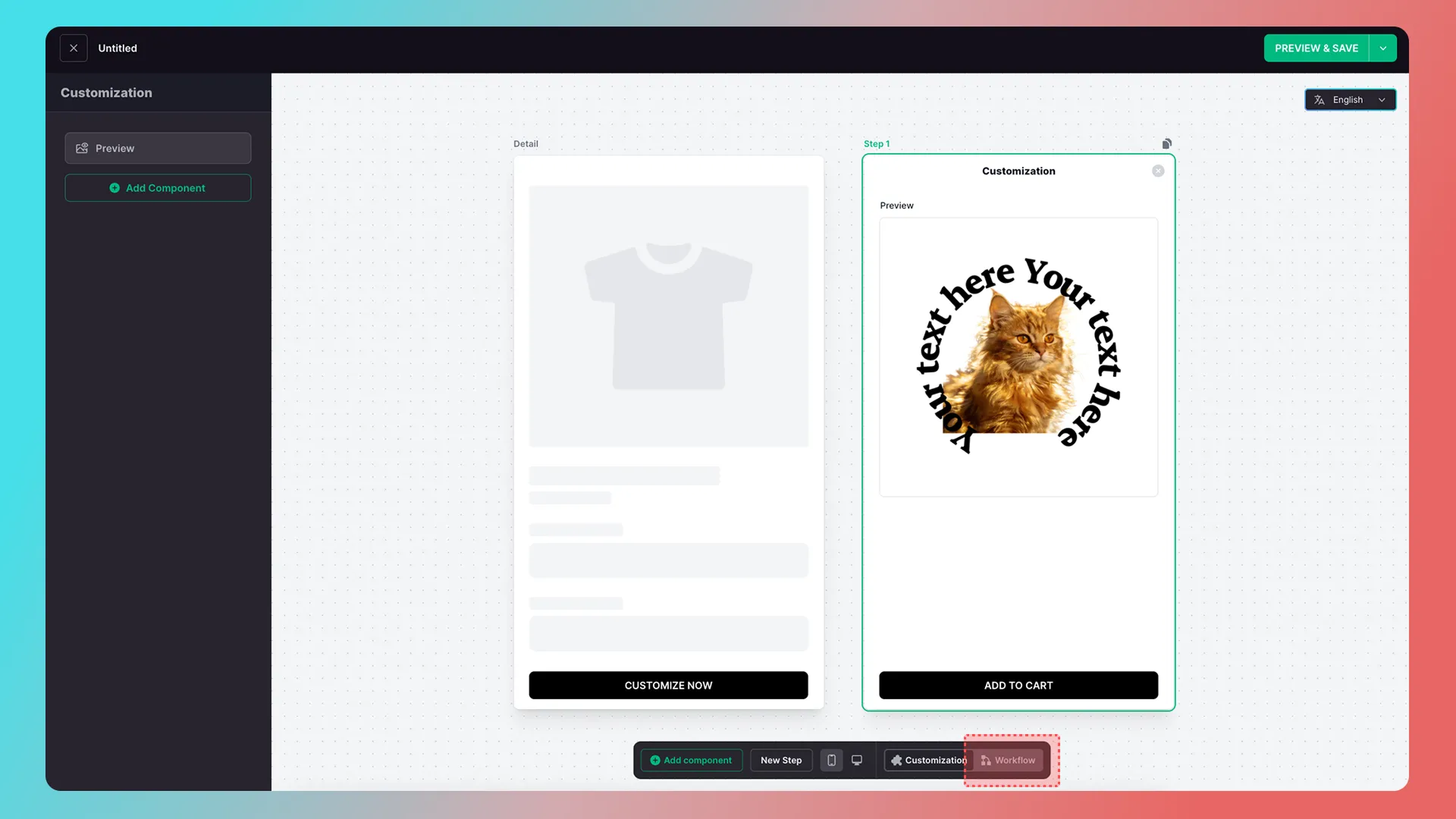
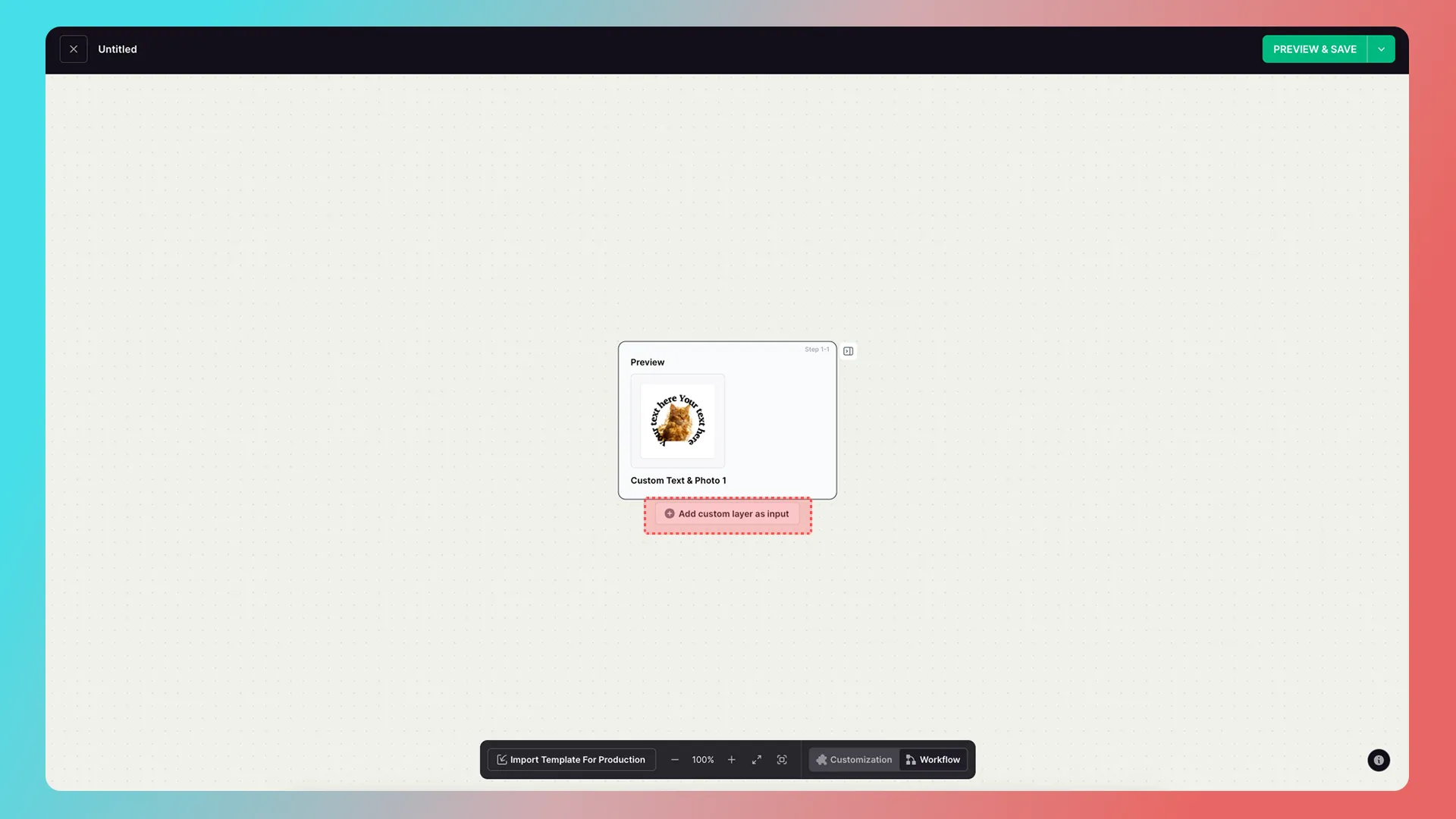
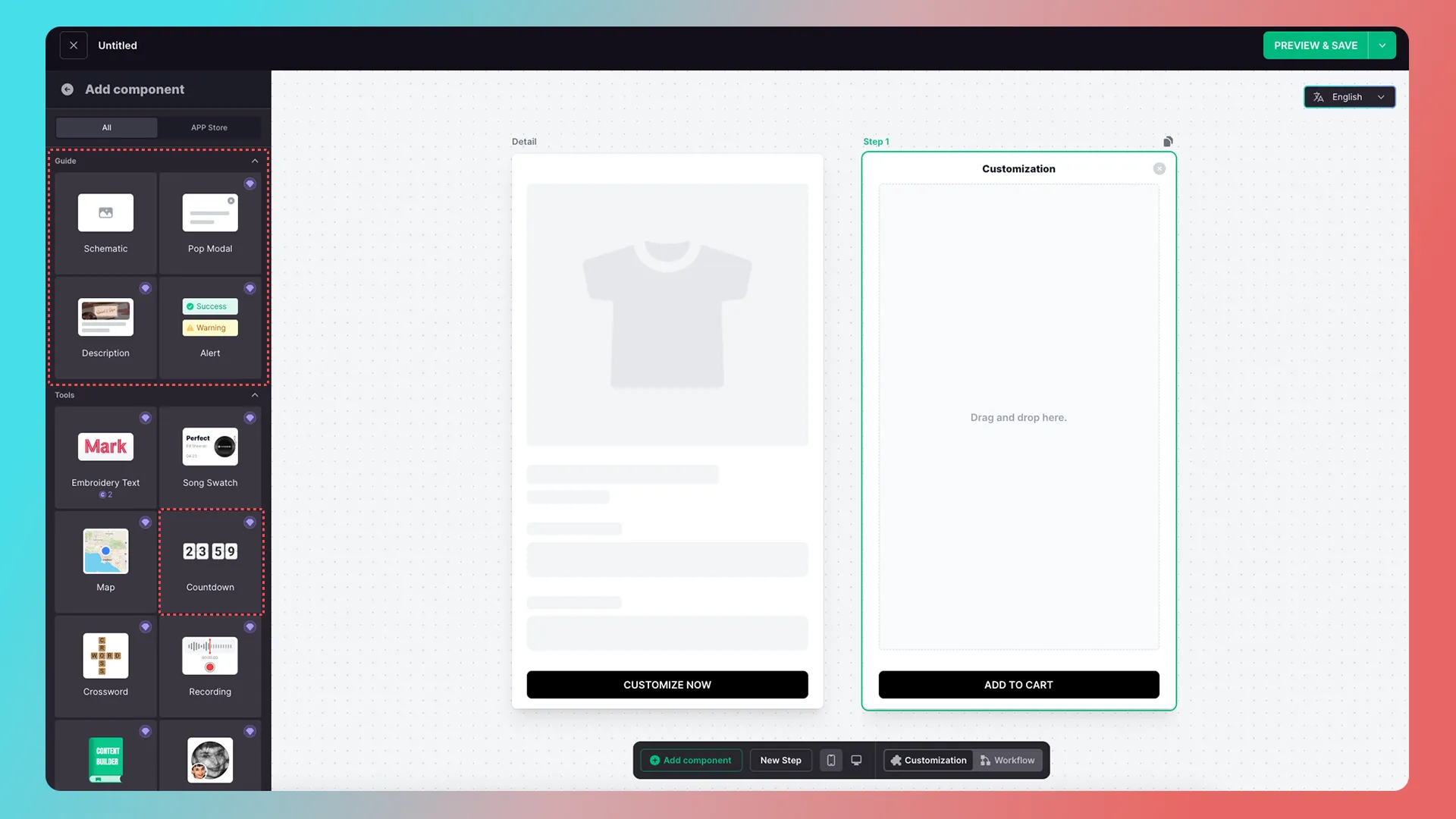
Note: Schematic, Pop Modal, Description, Alert, and Countdown components have no inputs or outputs, so they do not appear as cards in Workflow.
Data types
Inputs and outputs can connect only when they have the same data type. Dashed-line effects indicate compatible connection points while dragging.
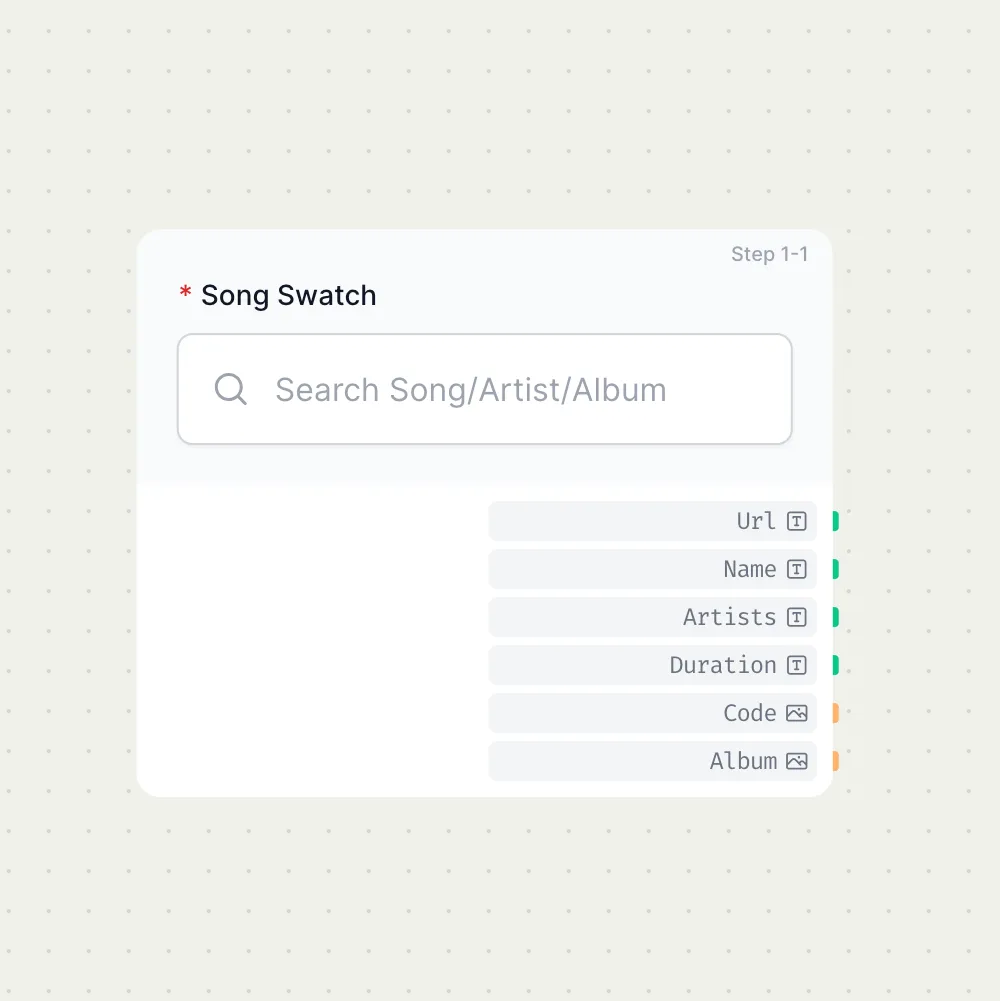
The Value next to a data type is the name of the component input or output and is unrelated to its type.
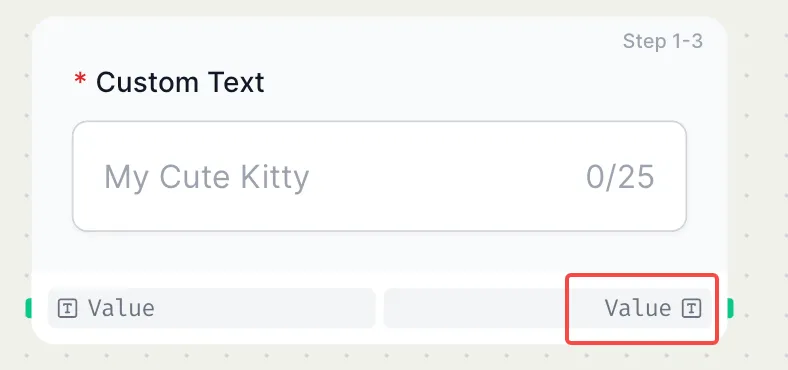
For example, in a music-selection component, Name is the song chosen by the customer, while the data type is text.
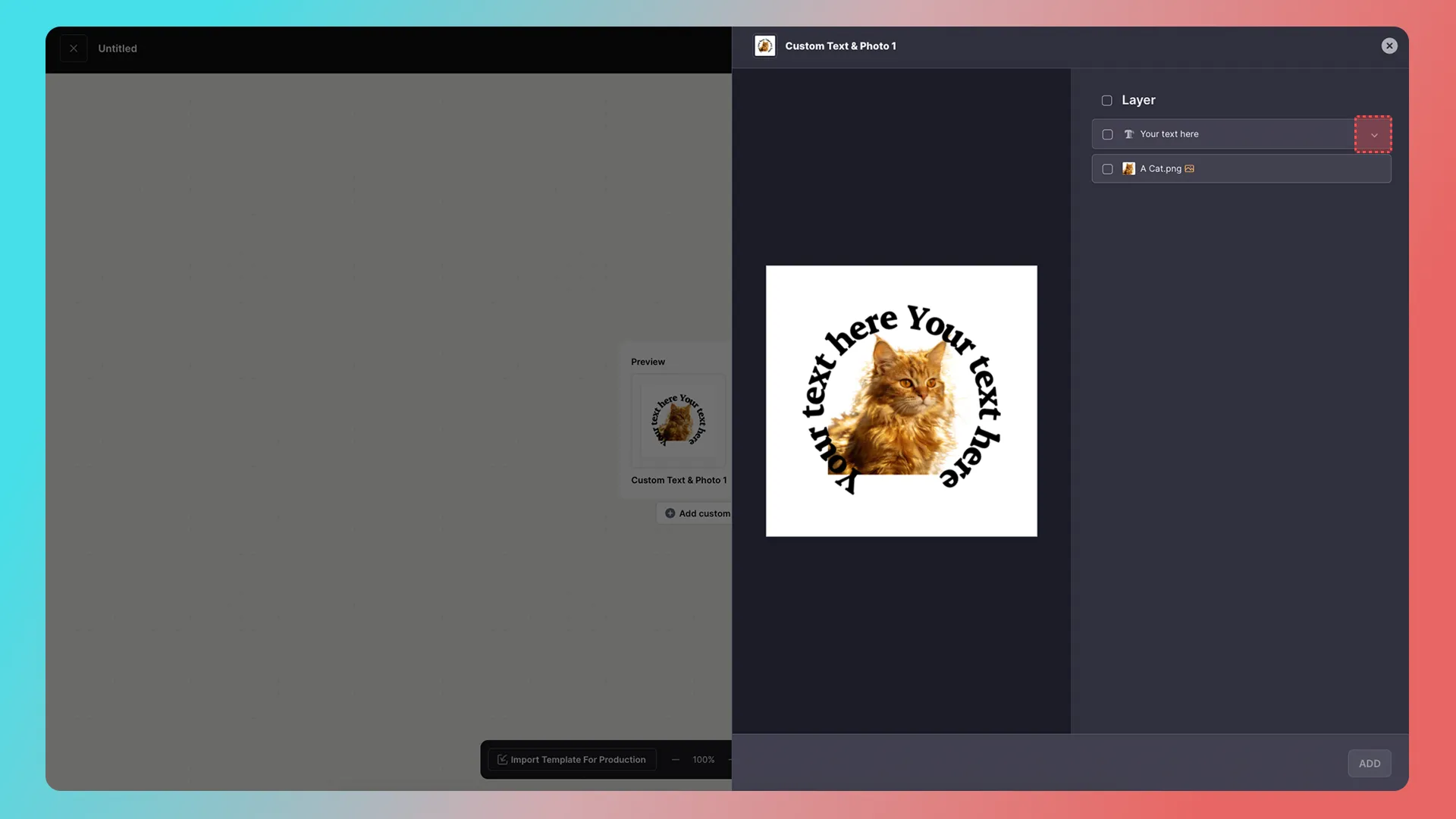
Tip: Expand a text layer using the arrow on the right to select more data types.
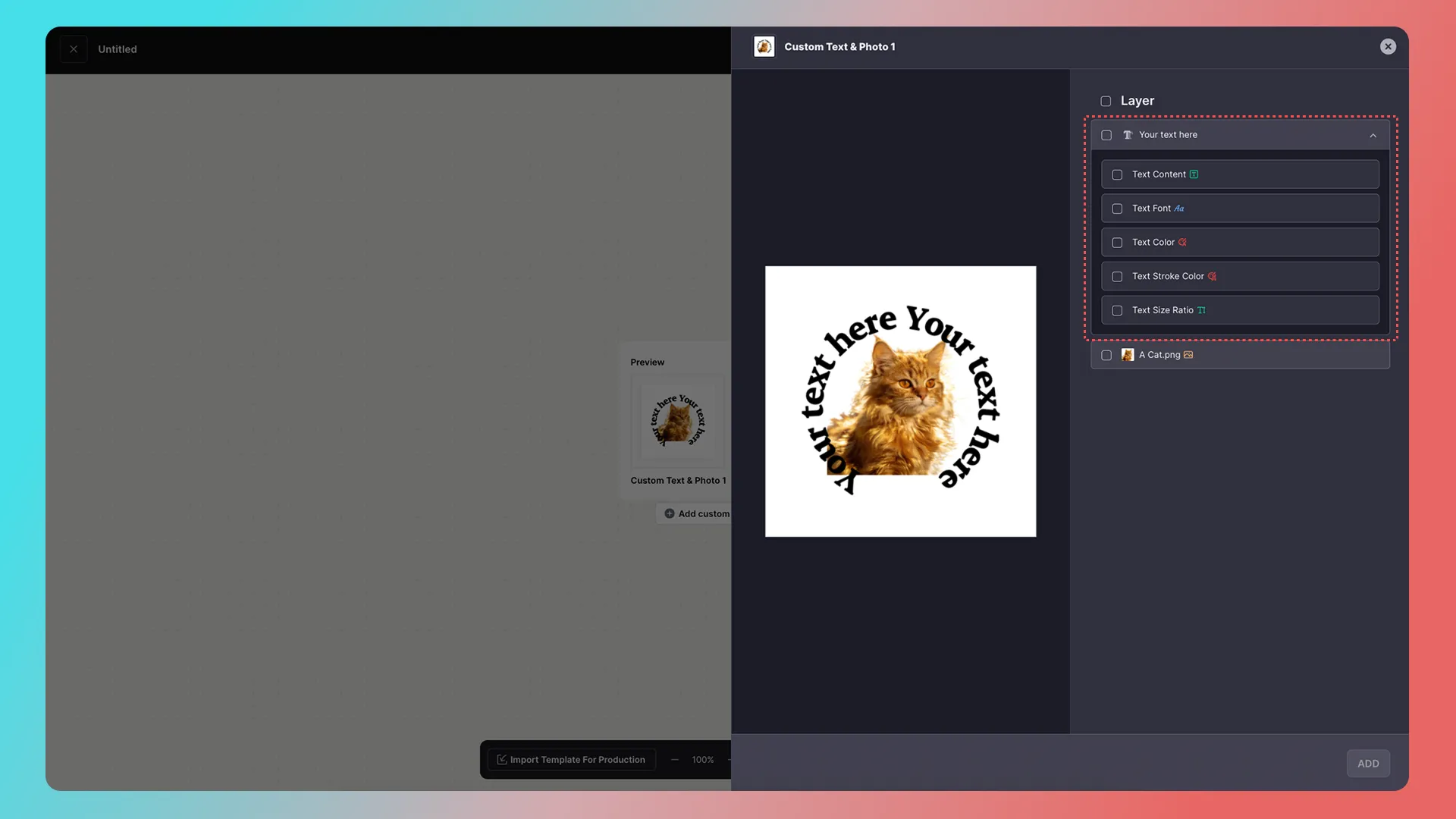
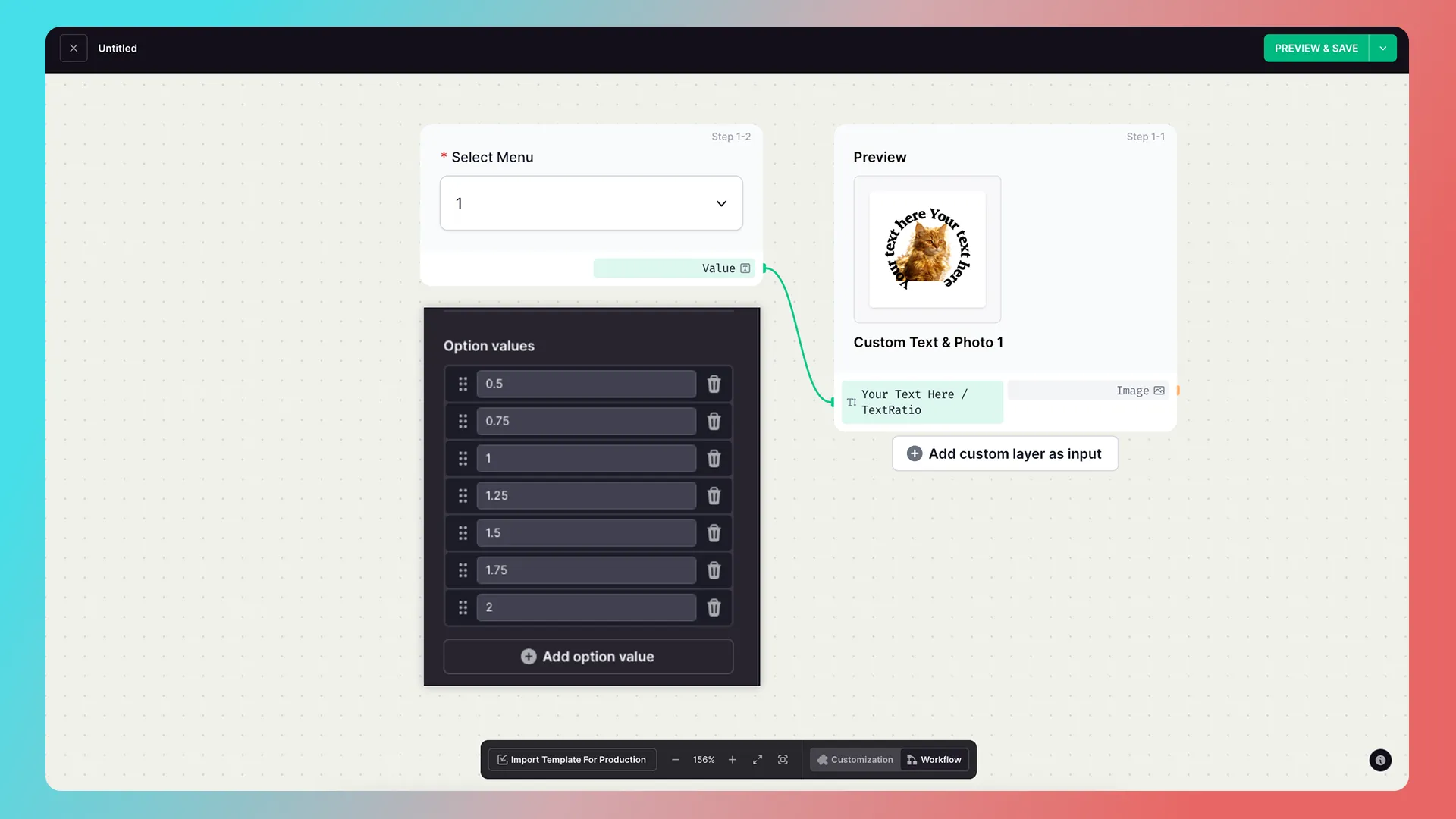
Text ratio must connect to text content and is commonly used with a menu-selector component whose values are numbers.
Further Reading
Getting Started
- Connect Your Store
- Beginner Guide: Create Your First Customization Feature Step by Step
- How to Integrate a Customization Feature into a Product Landing Page (Product Detail Page)
Advanced Features
Add-on Pricing and Upselling
- What Is an Add-on Price Product?
- What Is an Upsell Product?
- Cart Binding for Add-Price and Upsell Products
Updated on: 27/10/2026
Thank you!