
Use Component Conditions to Control Whether Components Are Shown or Hidden
Principle
This feature uses one component’s value to control whether other components are shown or hidden.
When a controlled component is hidden, it produces no output.
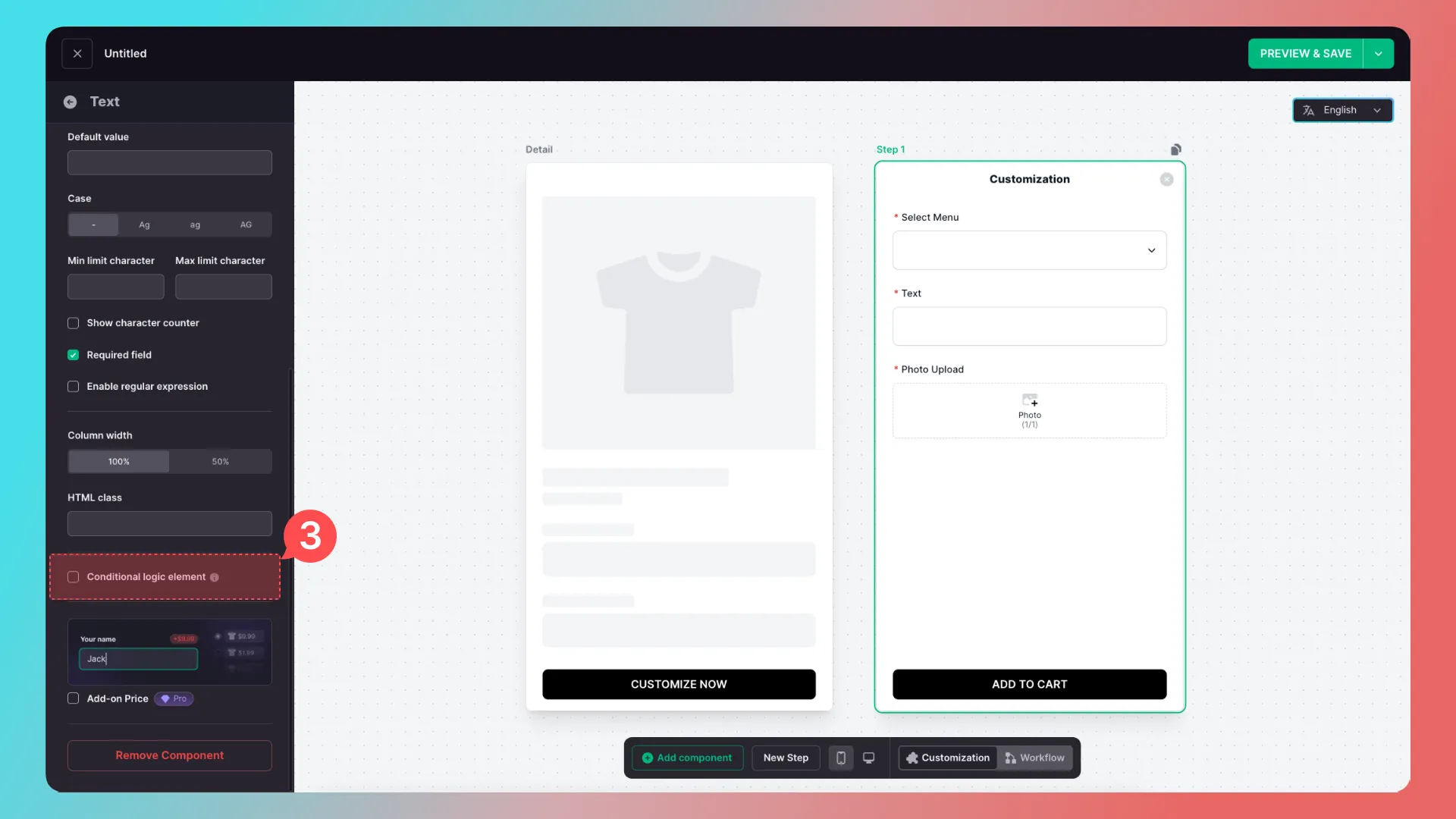
Conditional logic is not a component itself; it is a component setting that can be found by scrolling down on the component configuration page.

In the following example, a menu selector is the controlling component, while image-upload and text components are controlled components.
Goal: Let users choose either photo upload or text engraving from the menu.
Walkthrough
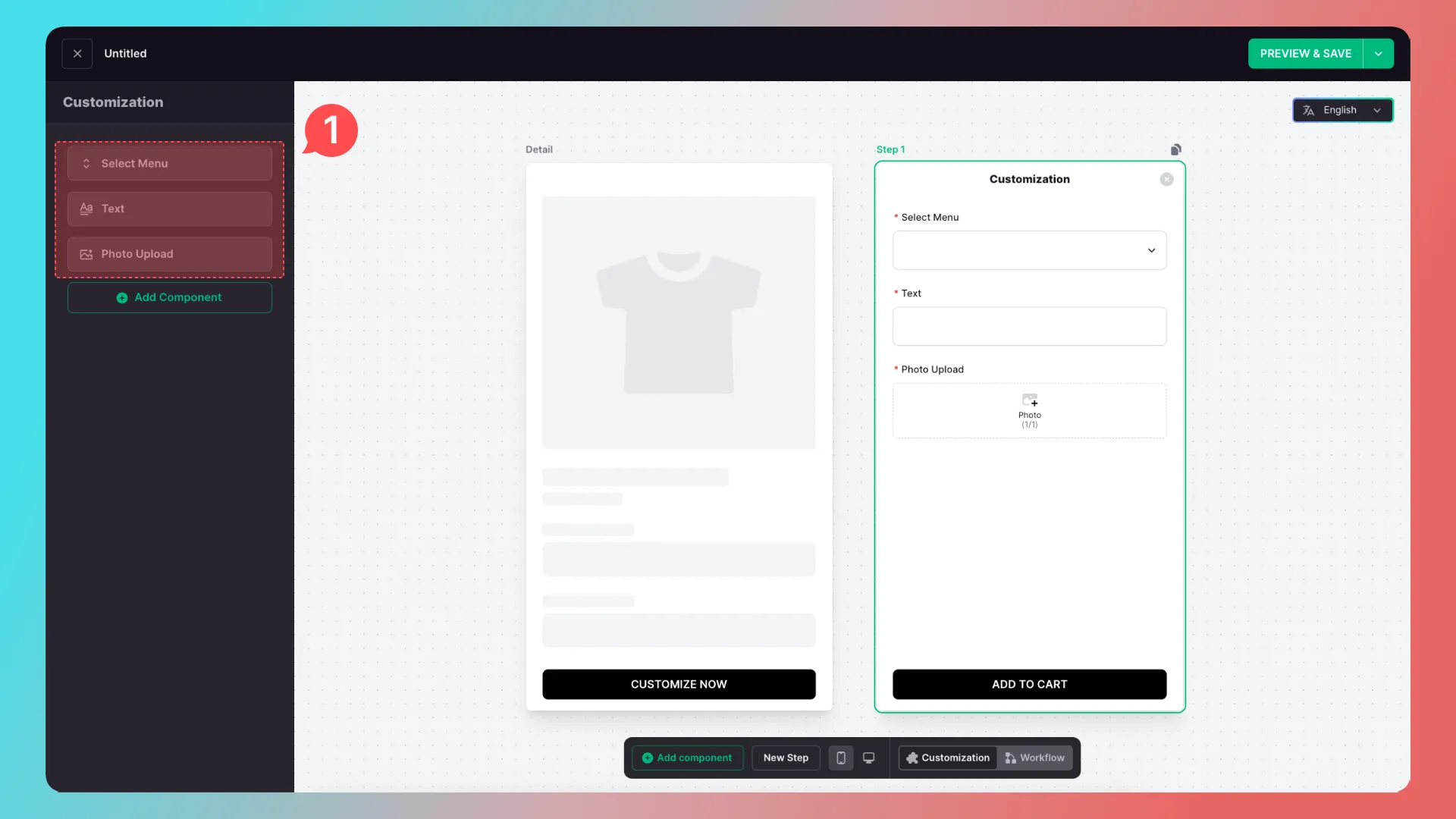
1. Add controlling and controlled components
Add a controlling component (menu selector) and controlled components (image-upload and engraving components).
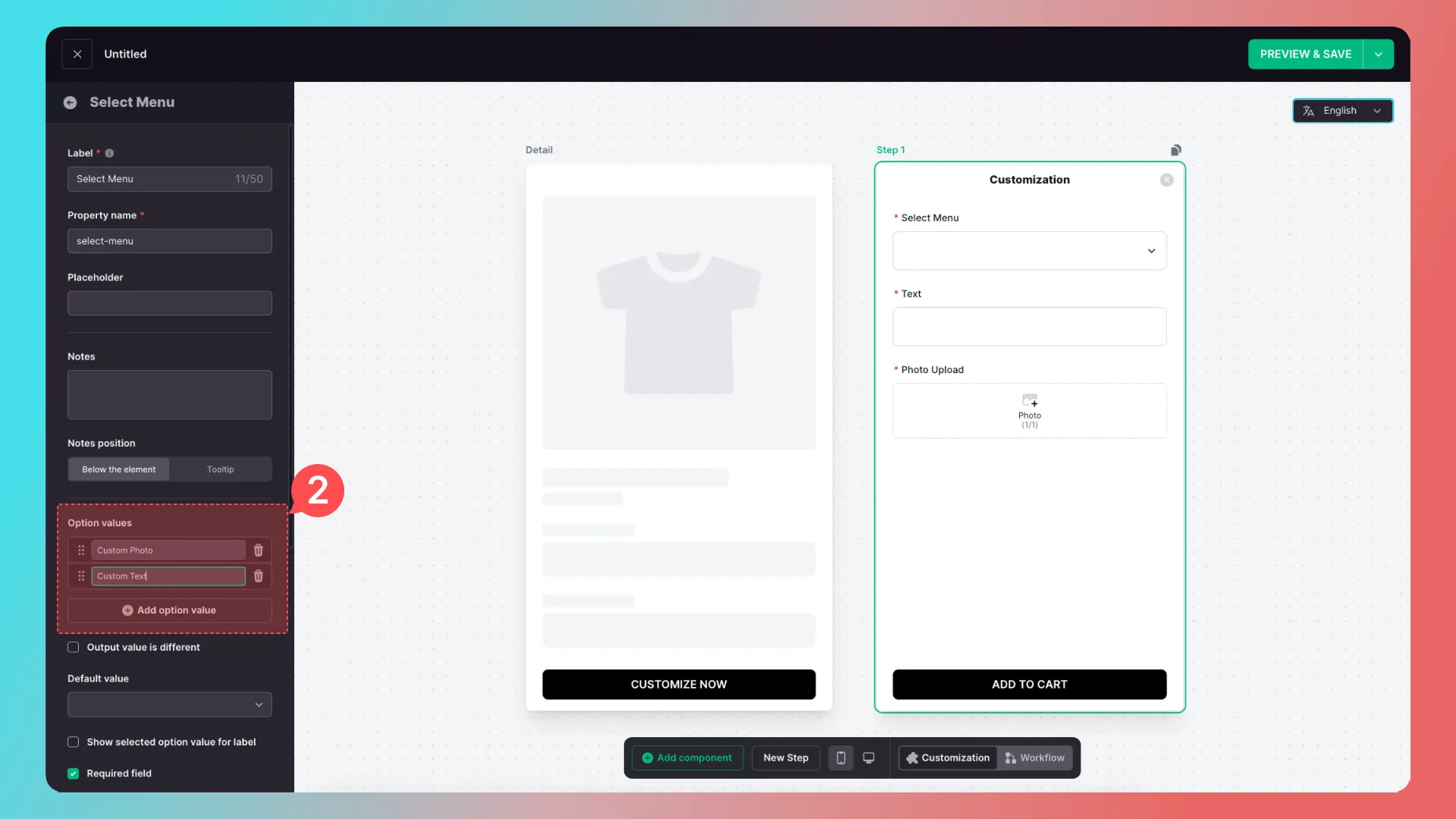
2. Add menu option values
Add the values Custom Photo and Custom Text to the menu selector.
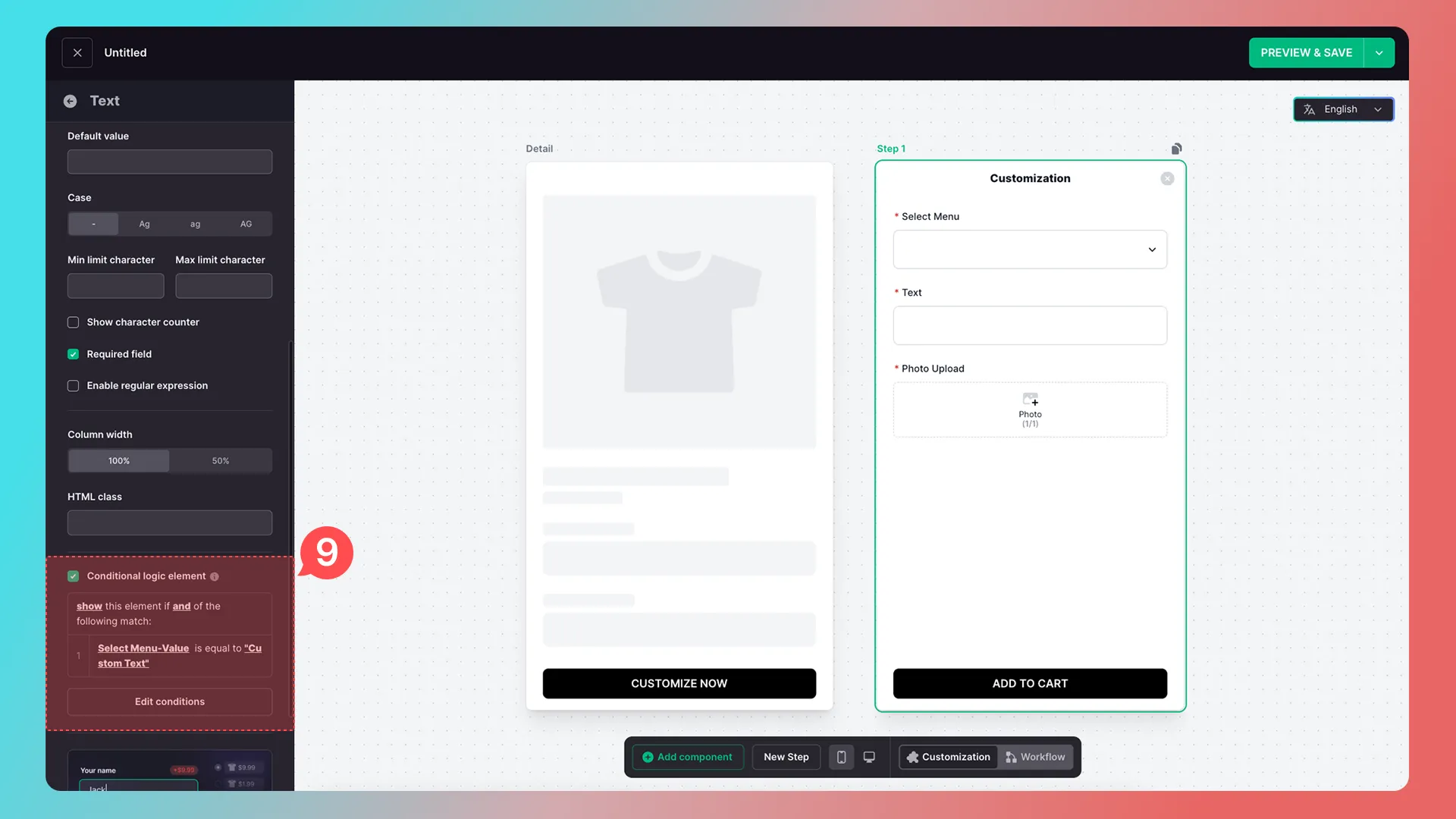
3. Add conditional logic to the engraving component
Add conditional logic to the engraving component:
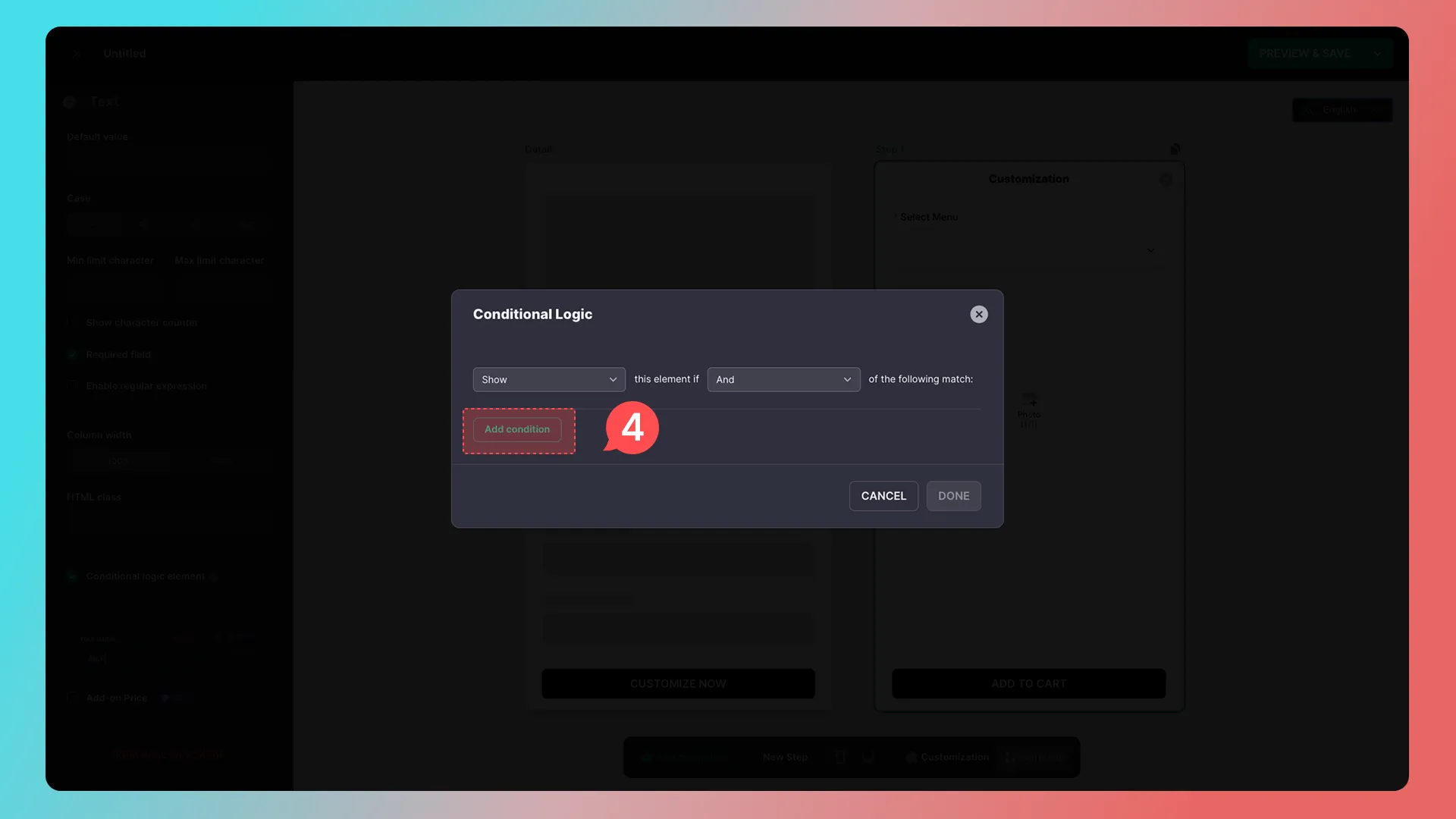
4. Add a condition
Add a condition.
5. Select the condition source
Choose the menu selector as the condition source.
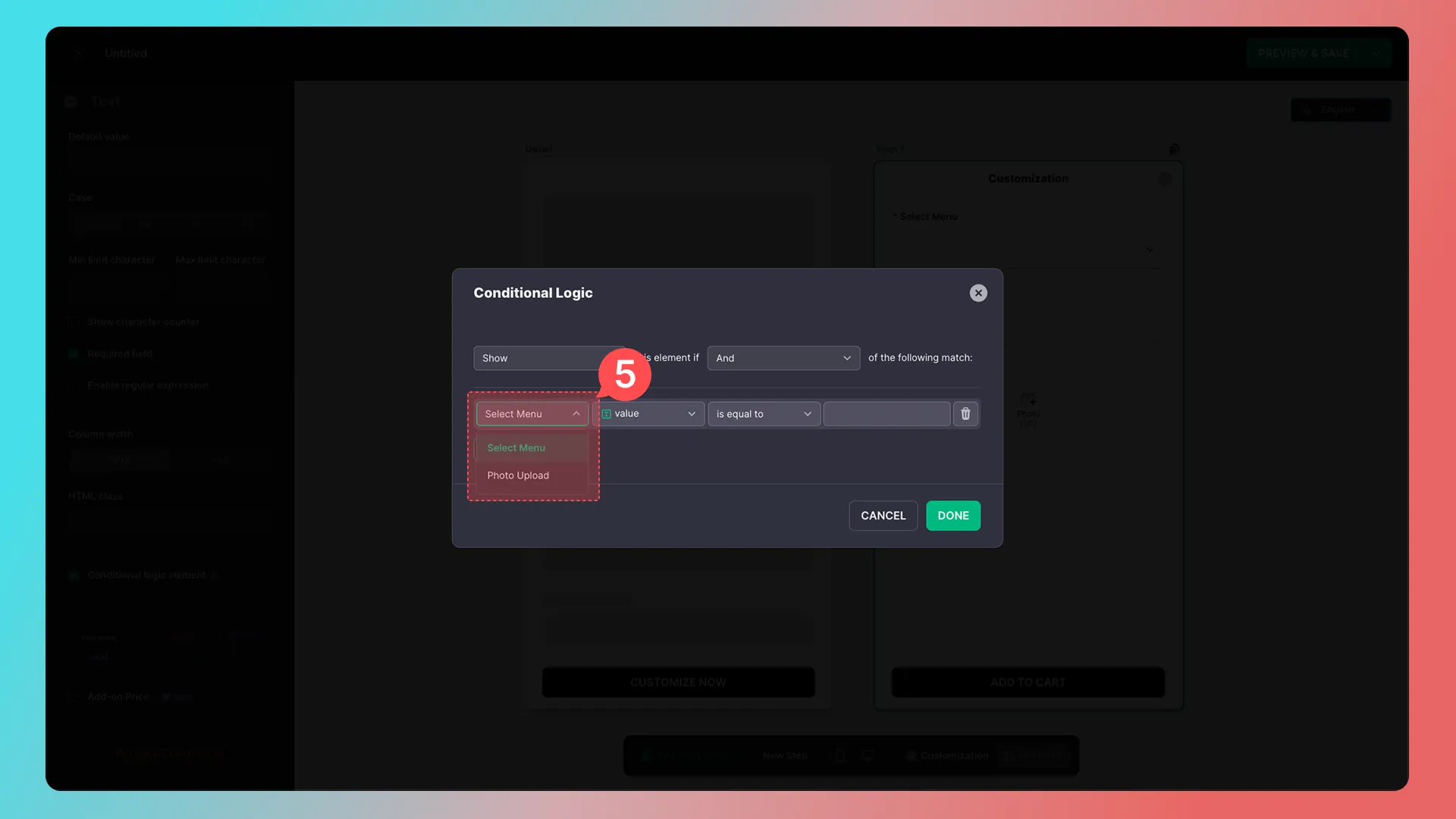
6. Select the value type
Choose its value type.
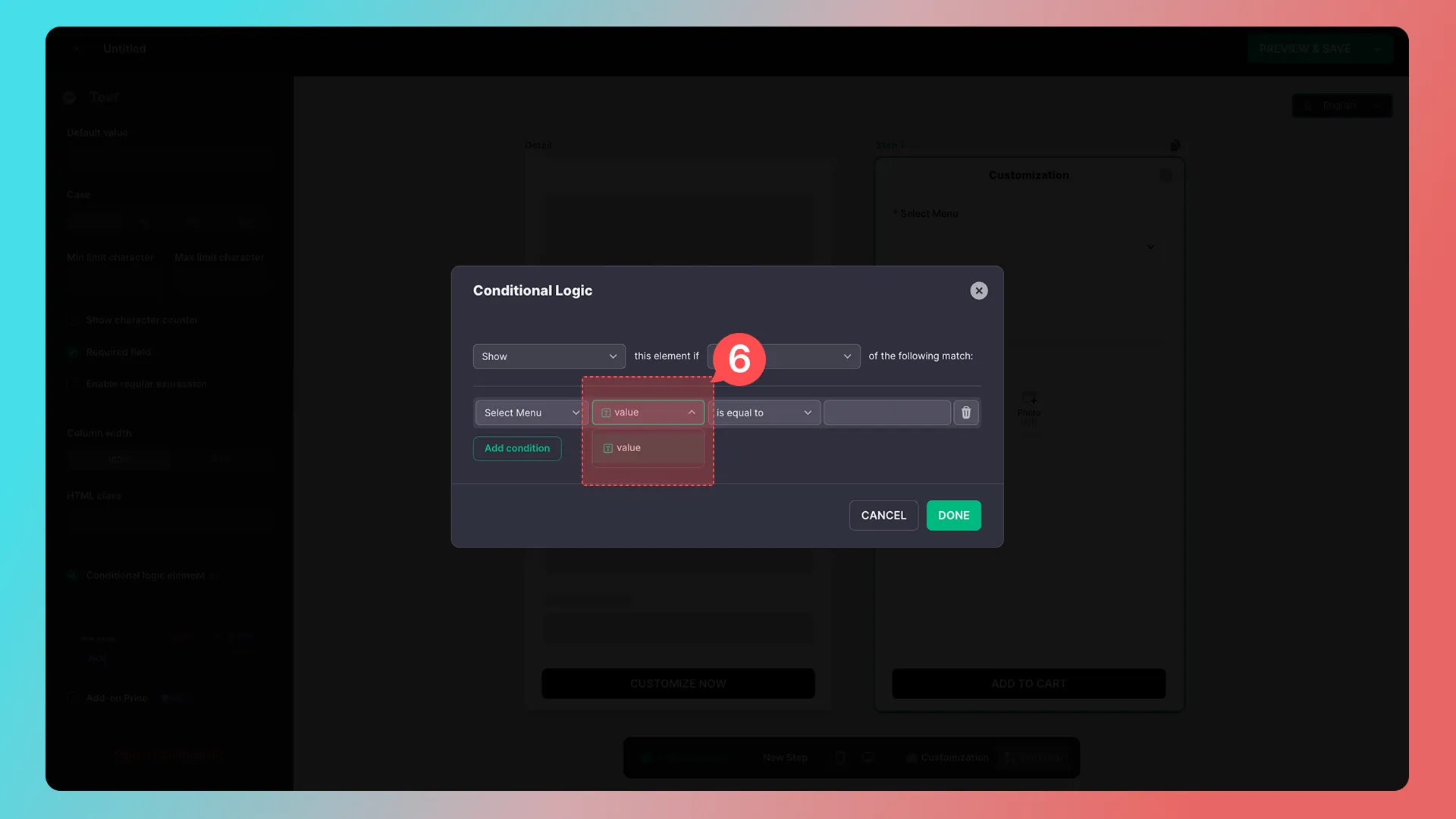
7. Select the comparison operator
Select the comparison operator.
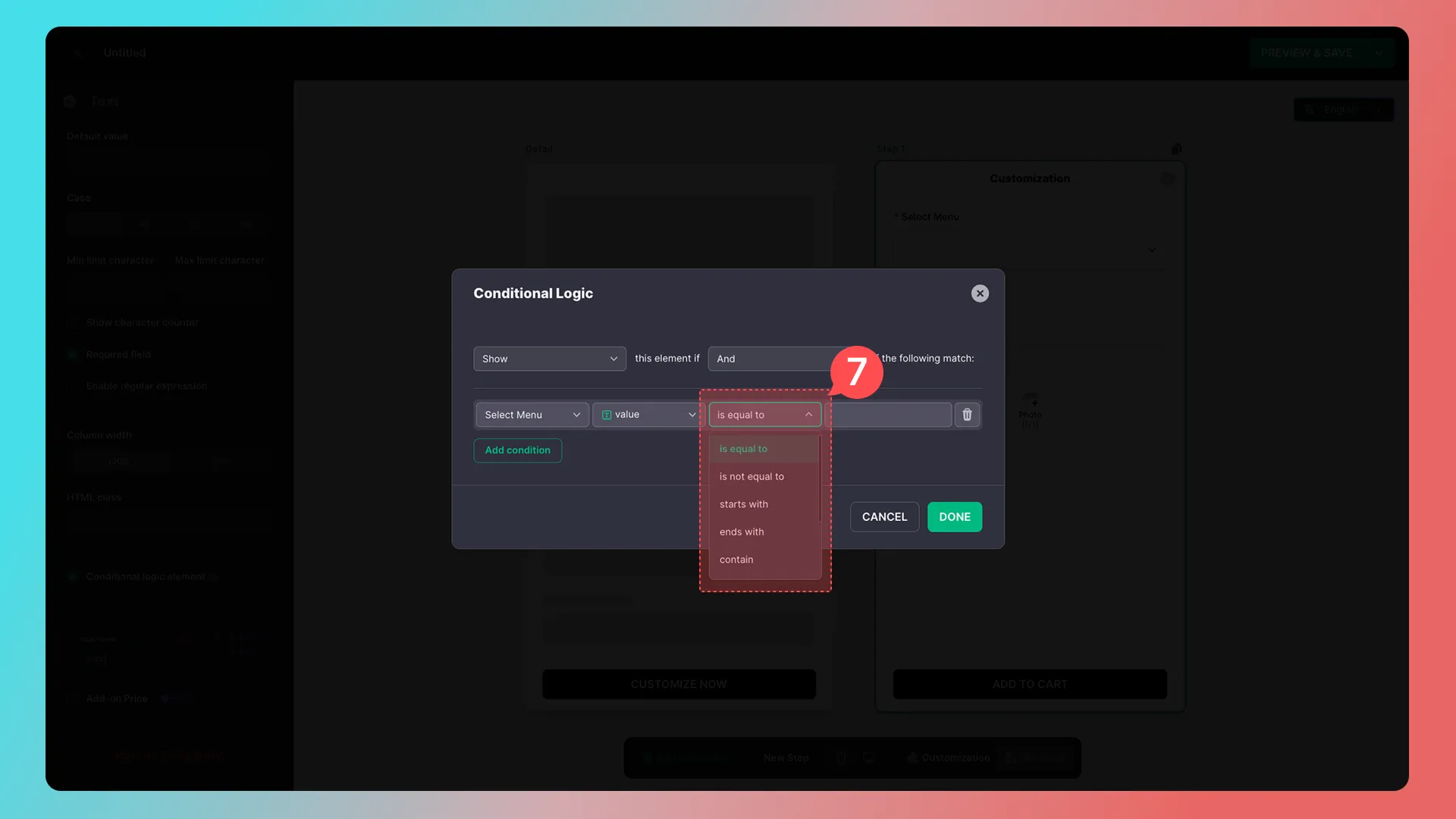
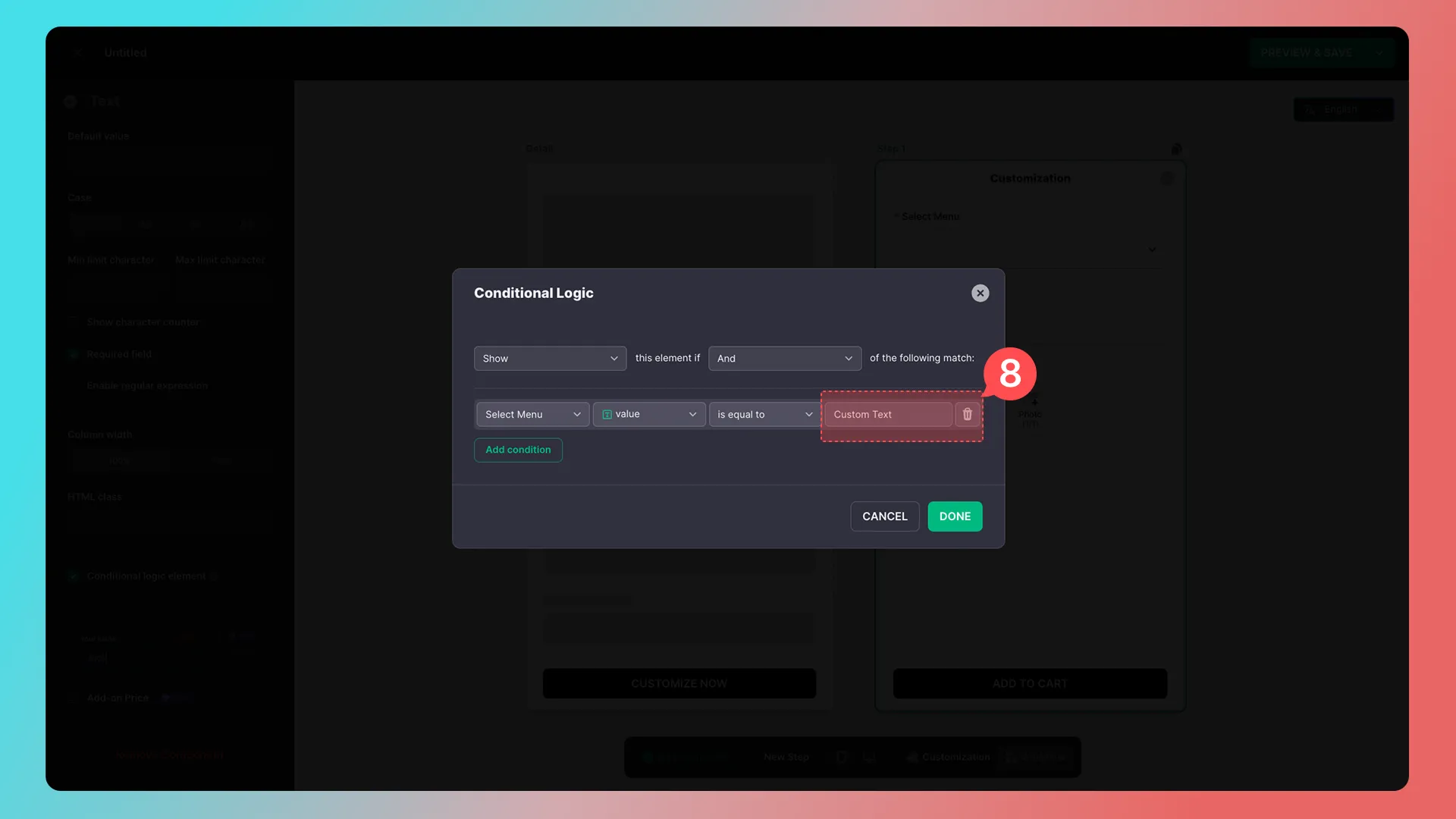
8. Enter the comparison value
Enter the menu selector’s value to compare against. Since the engraving component should appear when a user selects Custom Text, enter Custom Text here.
Note: This value must exactly match the value entered in the menu selector, including capitalization.
9. Save the condition
After entering the value, click Done. The engraving component is now configured with a condition.
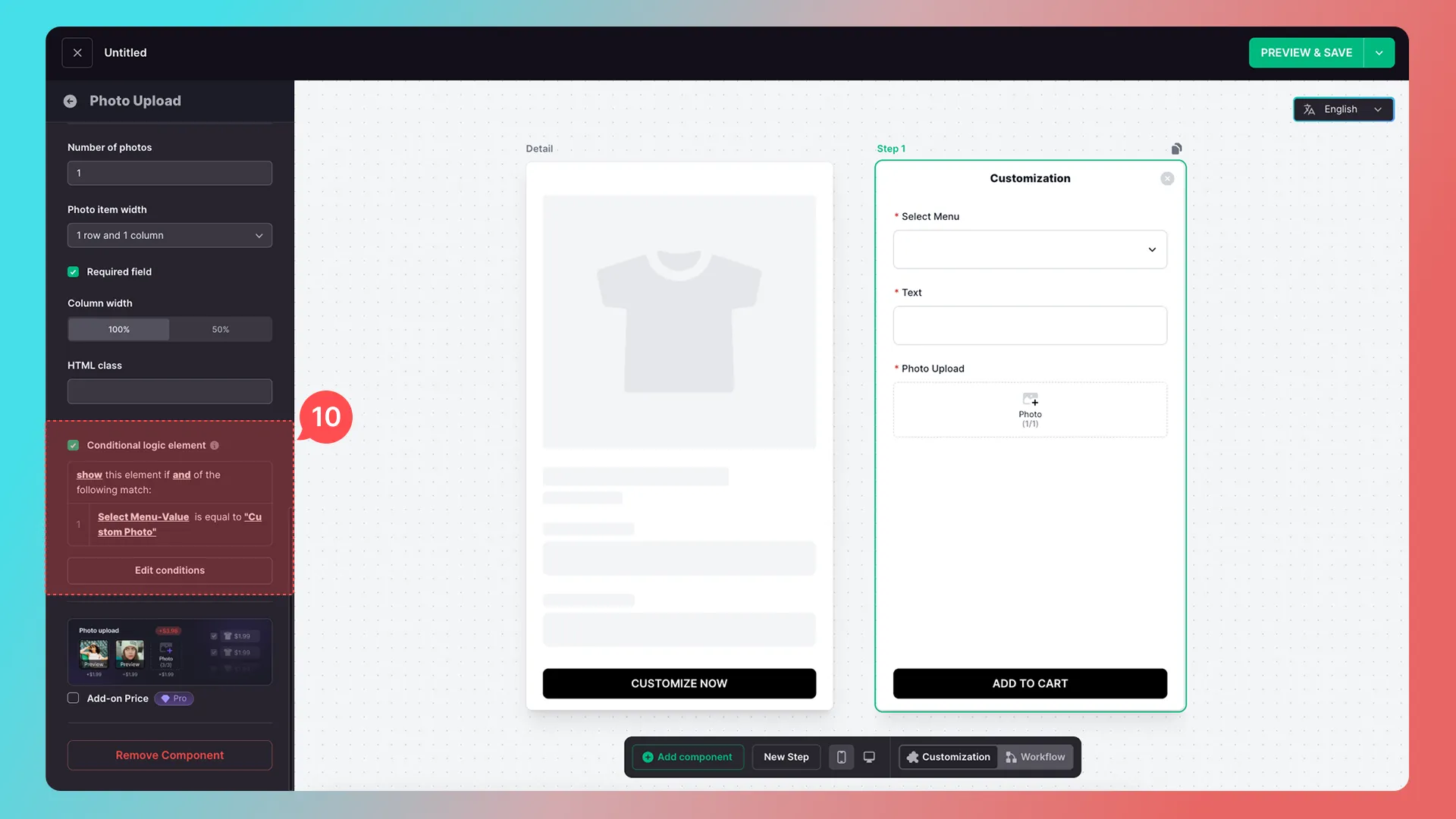
10. Configure the image-upload component
Configure the image-upload component the same way.
11. Preview the result
Click Preview to check the result.
Advanced use
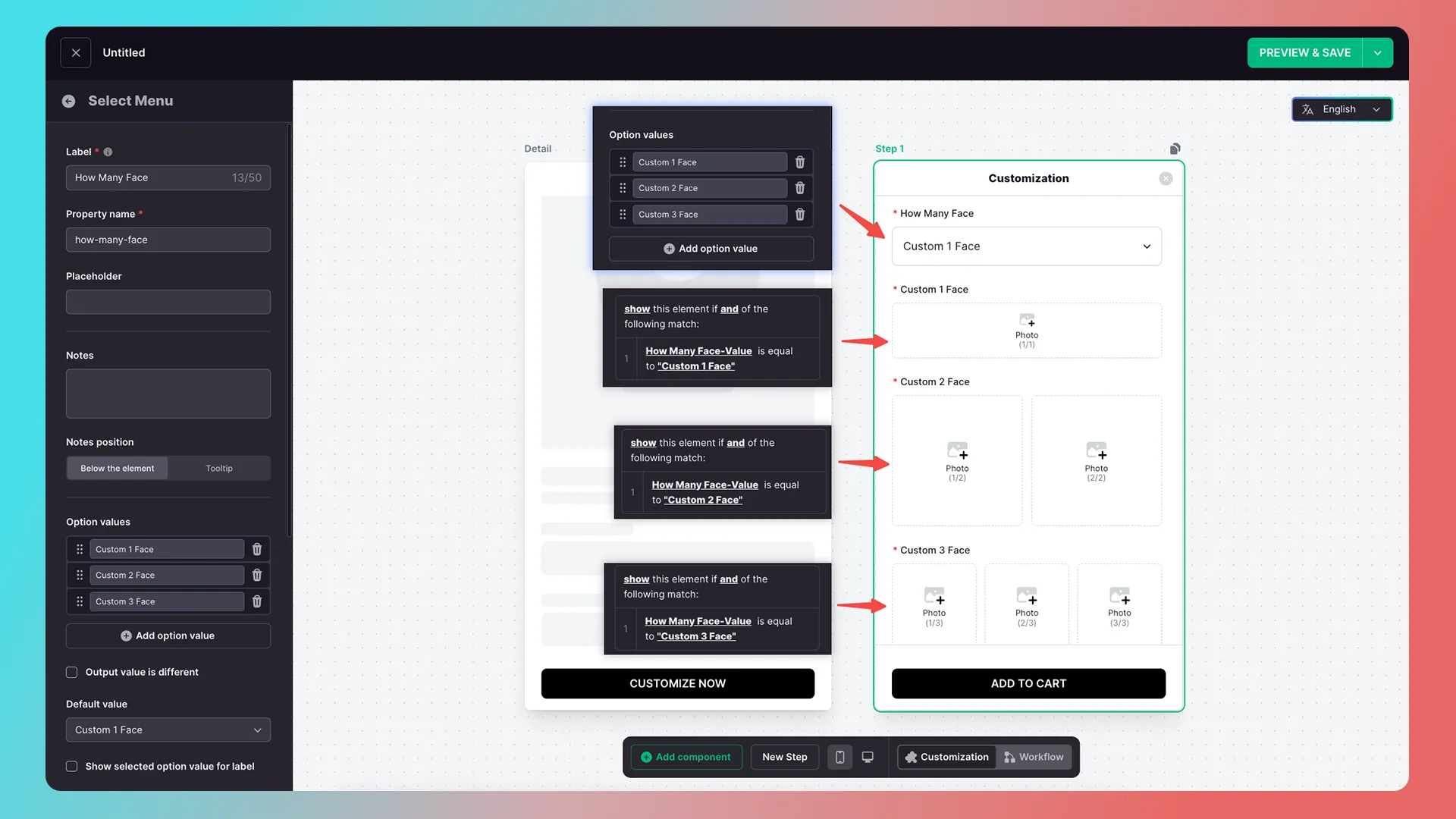
Choose the number of uploaded images


Choose the number of engravings
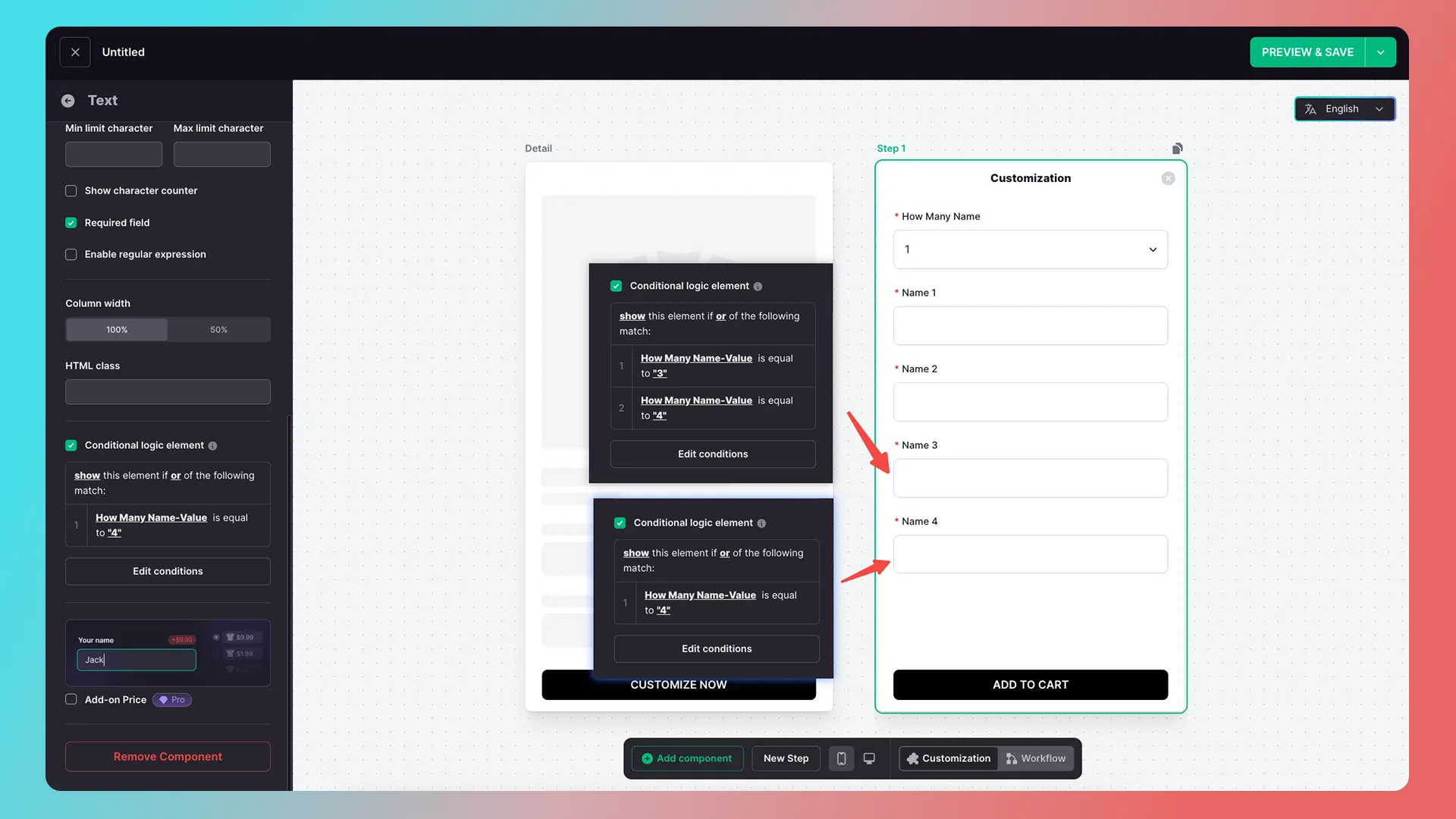
How the conditions work
Using Name 3 as an example: when a customer chooses three or four names, Name 3 must be shown. Add two conditions (menu selector = 3 and menu selector = 4), joined by or, not and.
- Name 1 needs no condition because it is always shown, regardless of the customer’s selection.
- Name 2 needs three conditions (menu selector = 2, 3, or 4).
- Name 4 needs one condition (menu selector = 4).
Further Reading
Getting Started
- Connect Your Store
- Beginner Guide: Create Your First Customization Feature Step by Step
- How to Integrate a Customization Feature into a Product Landing Page (Product Detail Page)
Advanced Features
Add-on Pricing and Upselling
- What Is an Add-on Price Product?
- What Is an Upsell Product?
- Cart Binding for Add-Price and Upsell Products
Updated on: 27/10/2026
Thank you!