
Templates in CustoMeow
Template types
CustoMeow currently provides five template types:
- 2D Preview Design
- 3D Preview Design
- Mockup Design
- Production Design
- Production & Preview Design
Why are there so many templates?
The templates support different use cases:
Template | When to use it |
|---|---|
2D Preview Design | Customers only need a customization preview. |
Production Design | Only a production print is needed. |
Production & Preview Design | You need a flat preview plus a 300-DPI JPG production print. |
Mockup Design | You need both production artwork and a non-flat preview. |
3D Preview Design | You have uploaded a 3D model to Sketchfab. |
Choose the template that best fits your business needs.
Why are both preview components and design templates needed?
Relationship between preview components and templates:
A painting must have both a canvas and a frame before it can be displayed on a wall.
- The painting is the preview.
- The canvas is the template.
- The frame is the preview component.
- The wall is the customization feature on the product detail page.
How do I choose a preview component and template?
All production depends on the factory. Before creating a template, confirm the required production file with the factory to avoid wasted work.
- Format: PNG or JPG?
- Parameters: what aspect ratio, dimensions, and DPI are required?
- Is the color mode RGB or CMYK?
- Does the image need to include the product?
Preview components for each template
Different templates work with different preview components, and their capabilities vary.
1. Preview
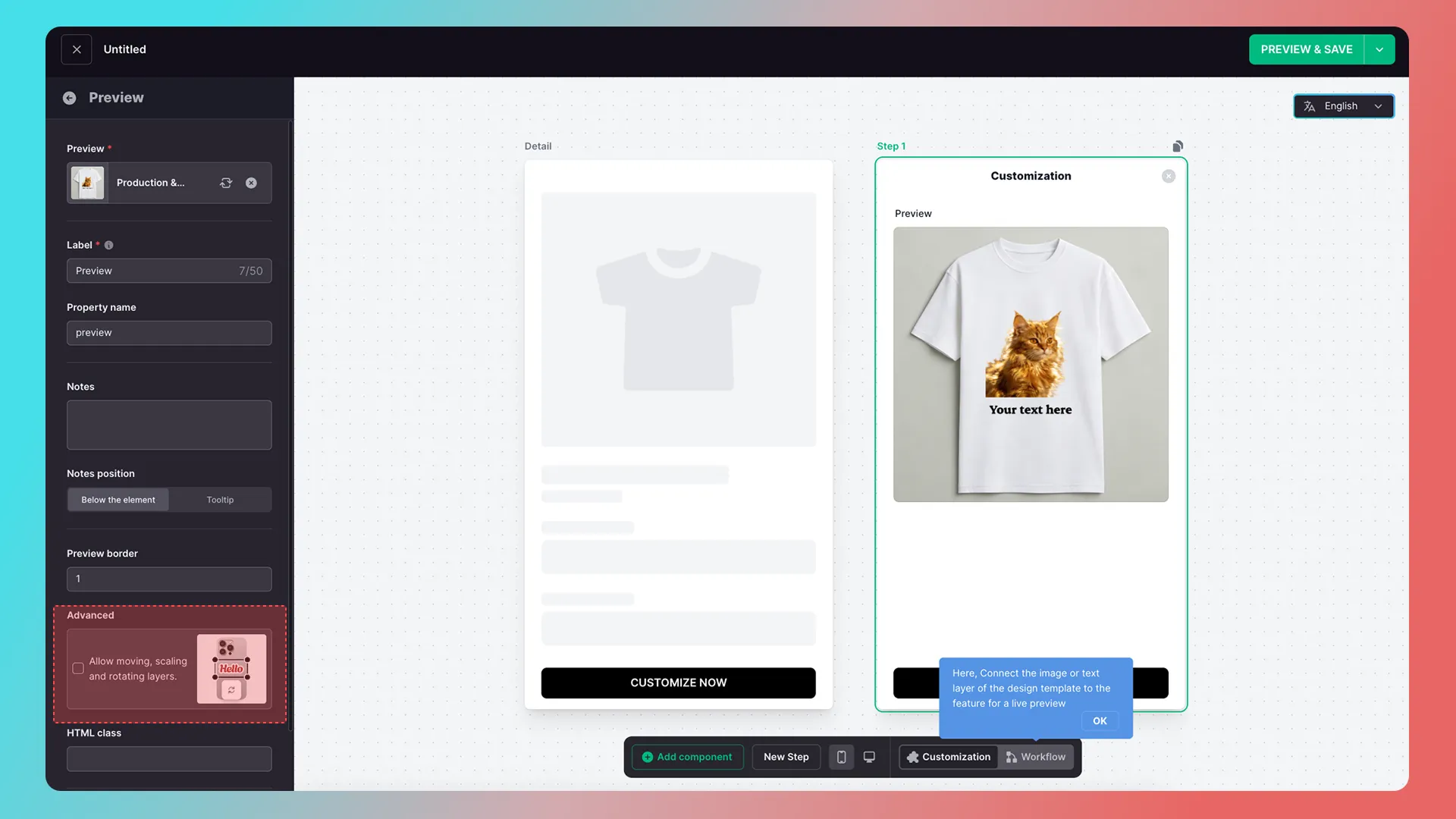
This component can import 2D Preview Design, Production Design, and Production & Preview Design templates, and can enable moving and scaling of custom layers.
Important: Do not enable moving and scaling of custom layers for Production & Preview Design, which does not fully support it.
2. 3D Preview
It only imports 3D Preview Design and does not support moving or scaling custom layers.
3. Mockup Preview
It requires both Mockup Design and Production Design, and does not support moving or scaling custom layers.
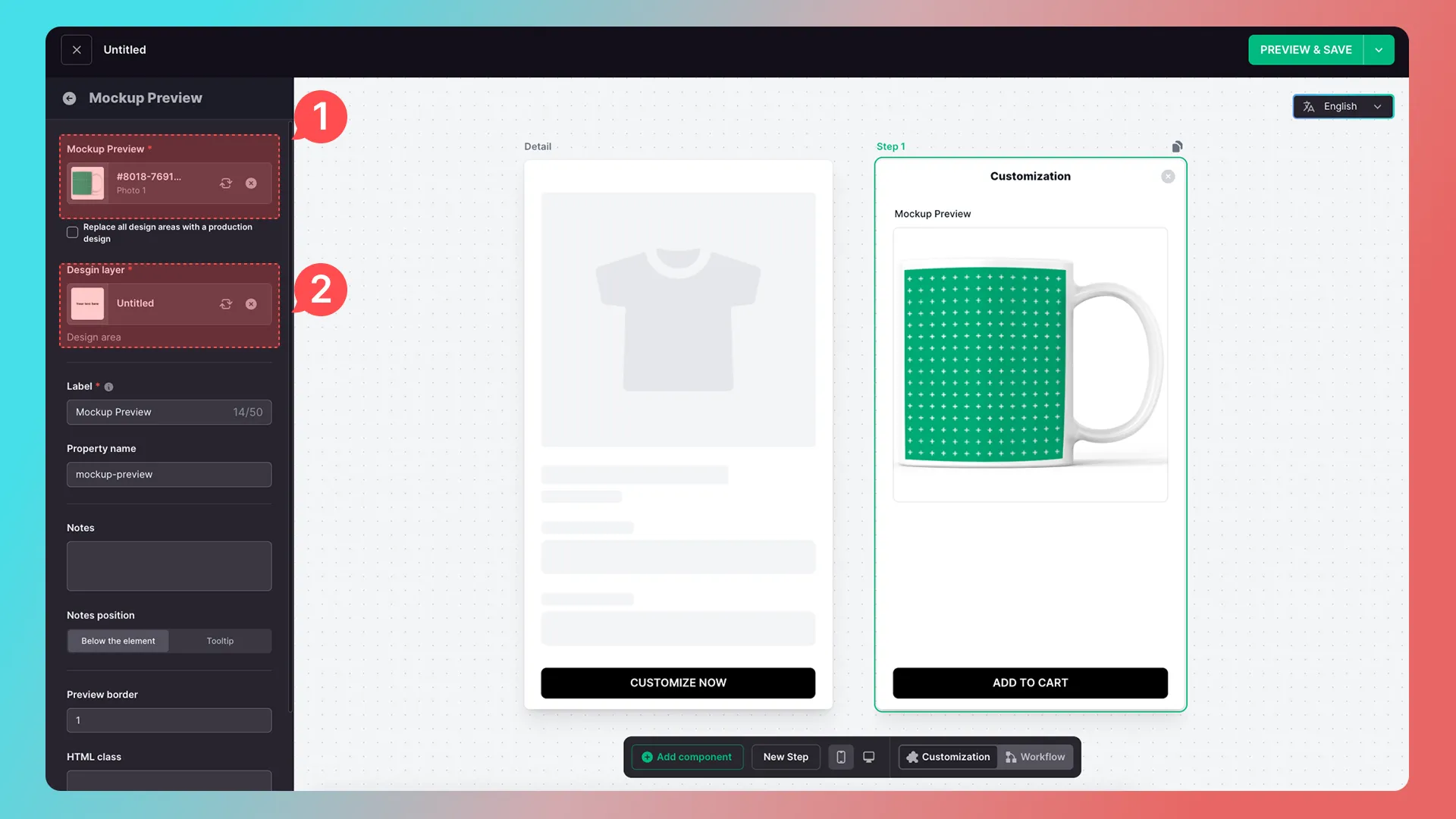
In the screenshot, 1 is Mockup Design, and 2 is Production Design.
Features of each template type
2D Preview Design
Create it in the Preview Design menu.
It cannot be referenced as Production Design in Workflow, generates only 72-DPI PNG files at the selected size, and does not support warp or perspective effects.
Production Design
Create it in the Production Design menu.
It can be referenced as Production Design in Workflow. Its output format, color mode, aspect ratio, and DPI match the settings used at creation, and it does not support warp or perspective effects.
Production & Preview Design
Enable Include preview design (Production & Preview) when creating a Production Design.
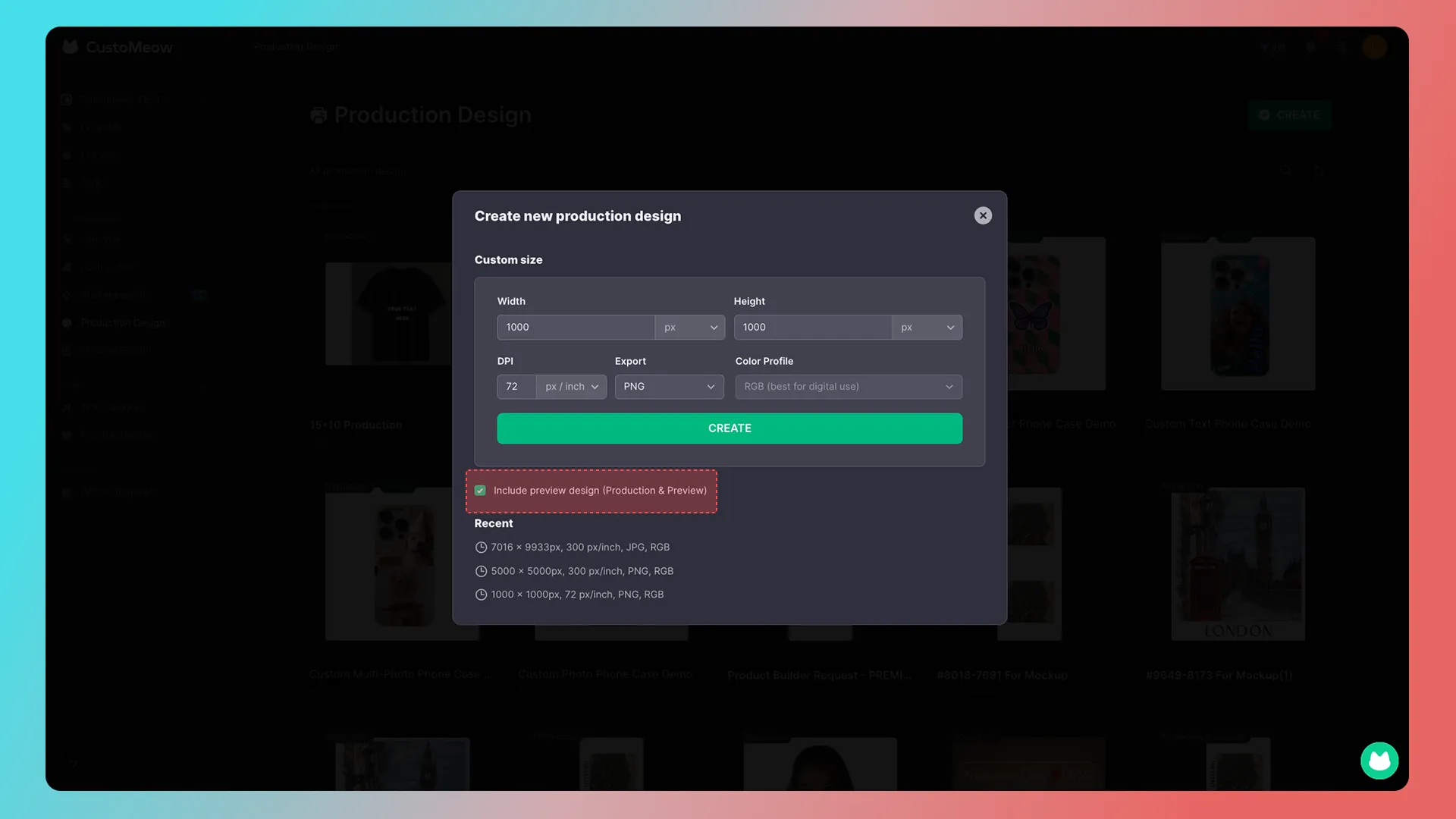
Usage details
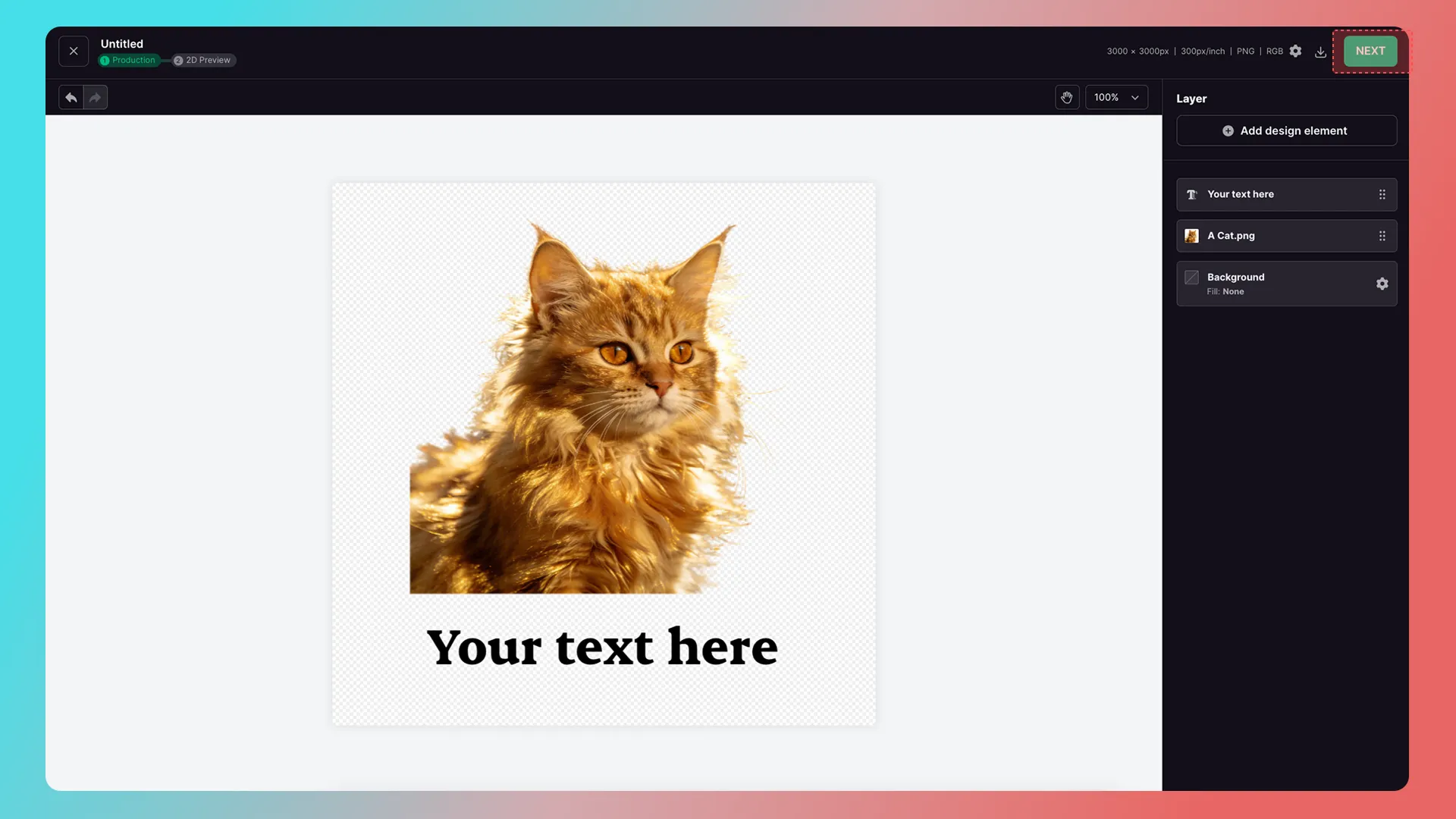
After creating it, first design the Production section. Once finished, click Next in the upper-right corner to start designing the Preview section.
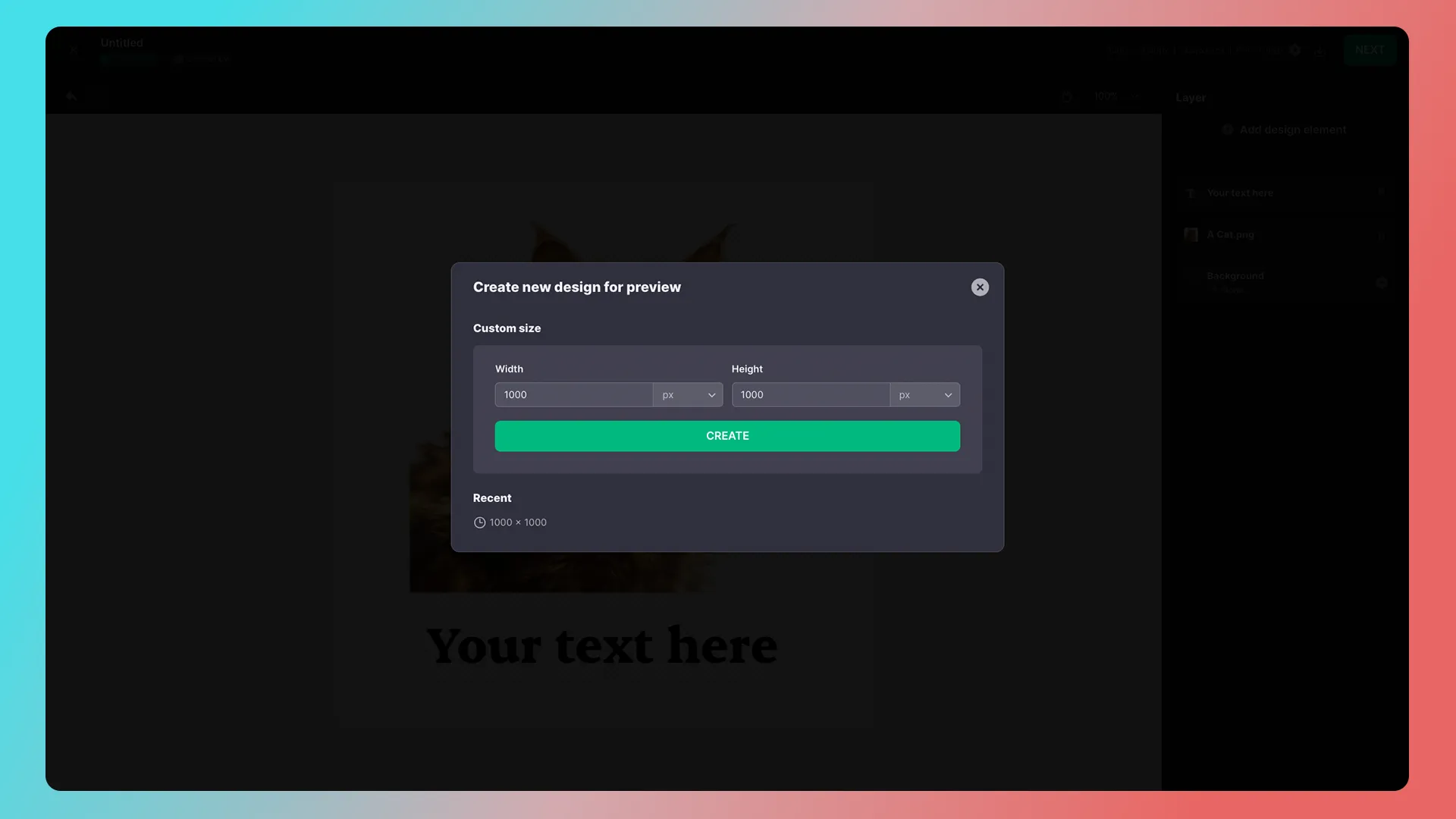
Before designing the Preview section, set its aspect ratio.
Once inside, the layers in the Production section are automatically grouped. You can only move or scale the group as a whole, or hide individual layers within it; no other edits are available.
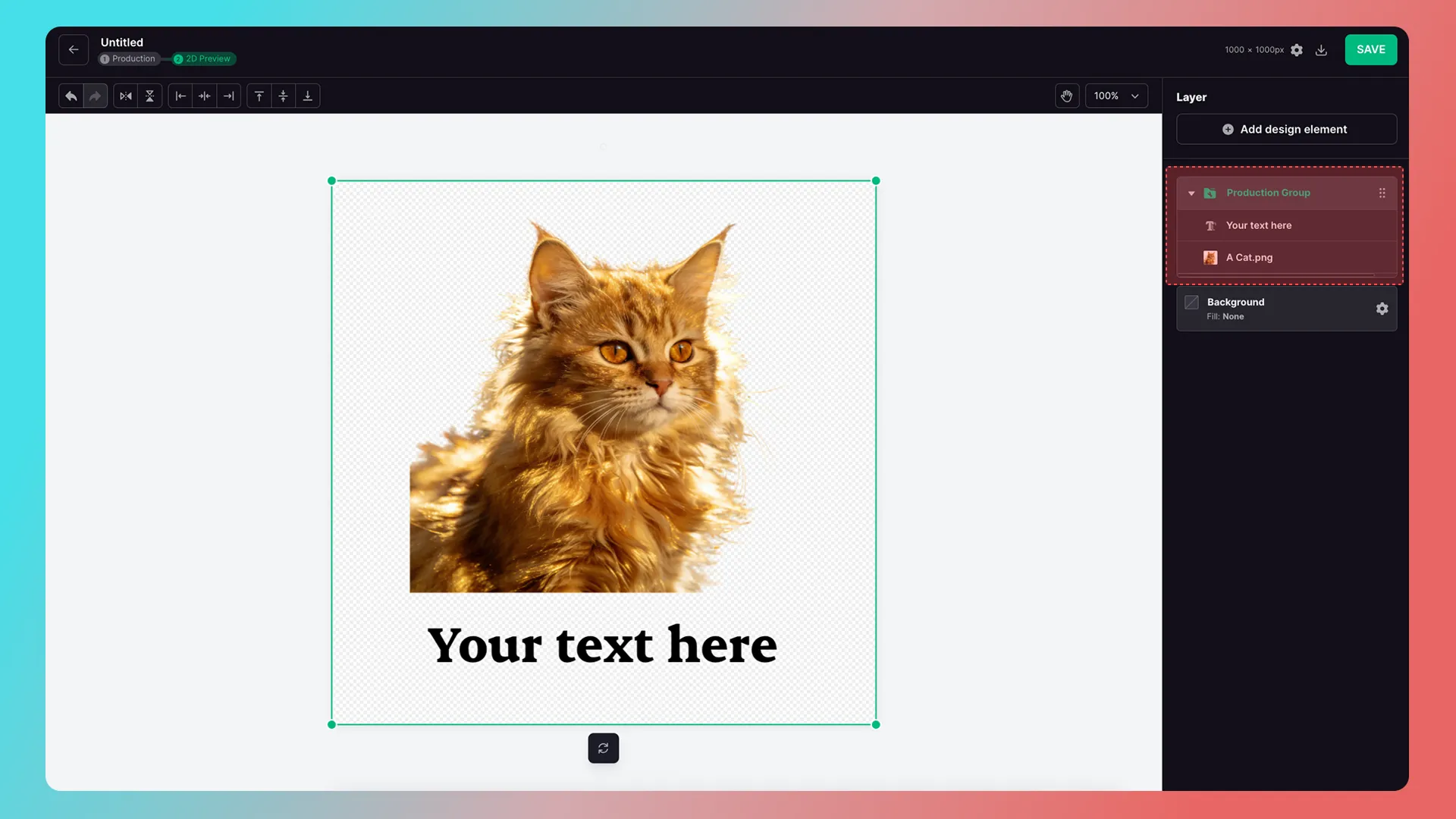
Once you’ve finished designing the Preview section, click Save in the upper-right corner.
To edit the Production section, click Back in the upper-left corner. Do not use your browser’s built-in Back button.
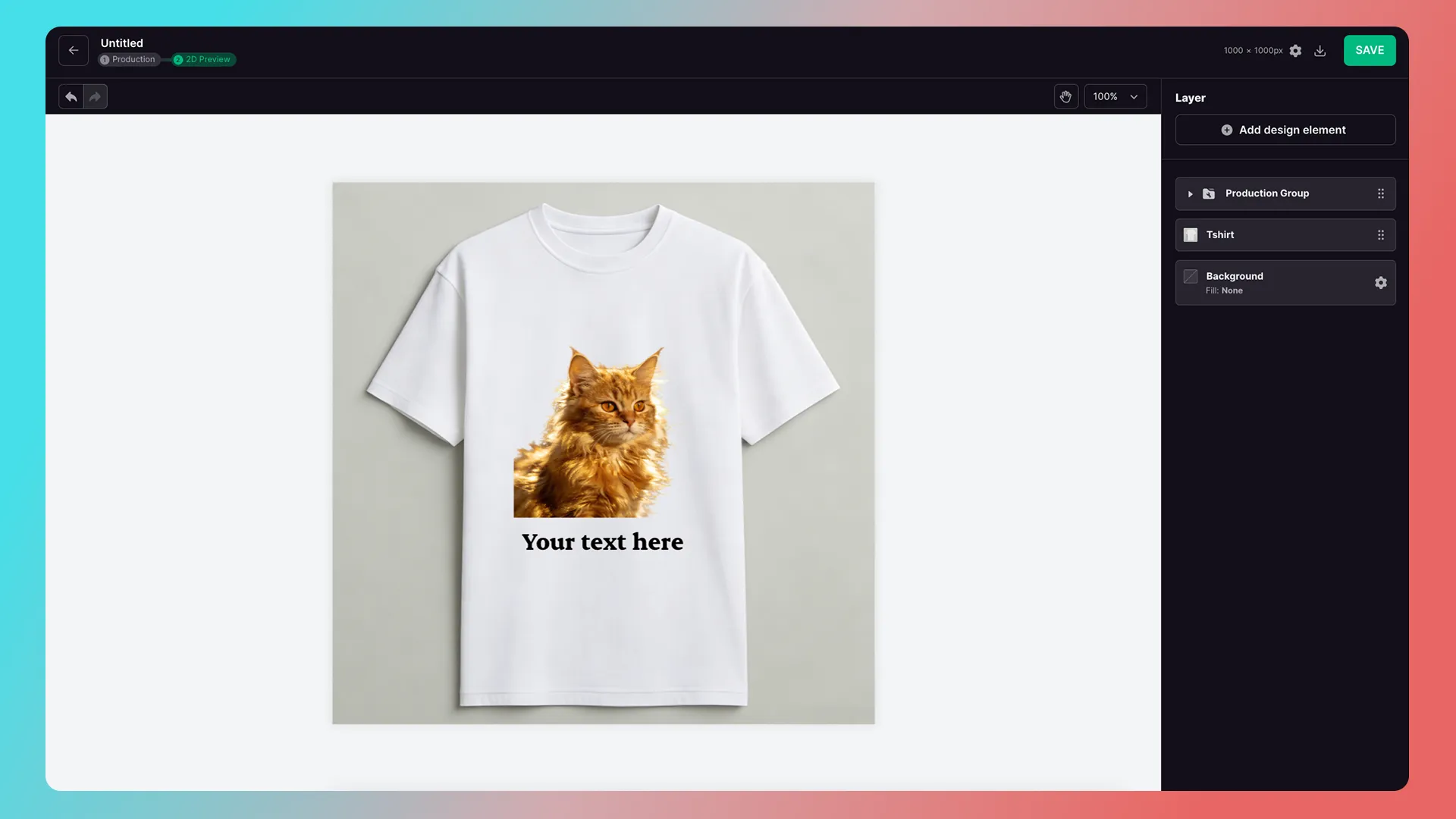
Customers see only the preview section.
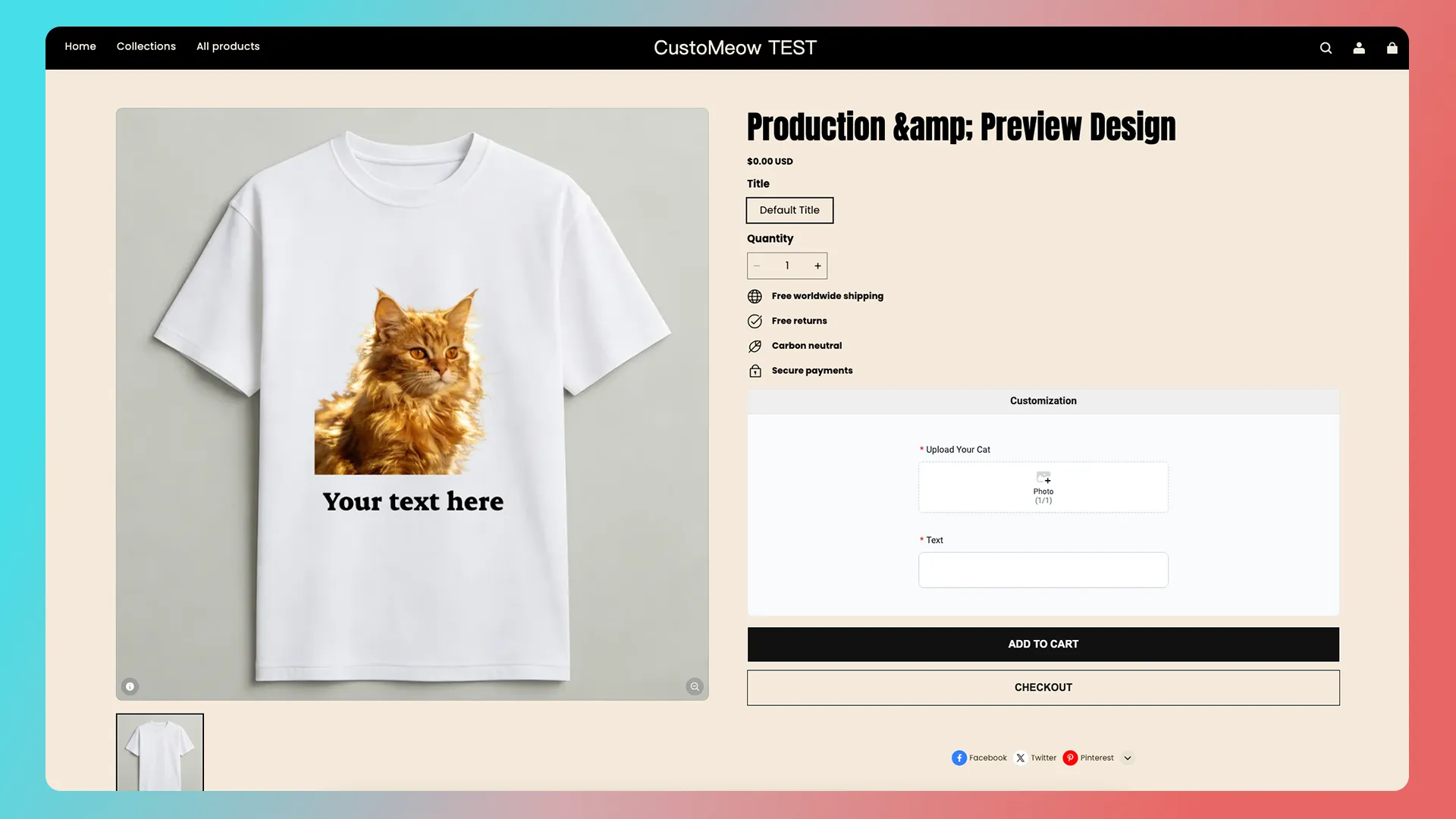
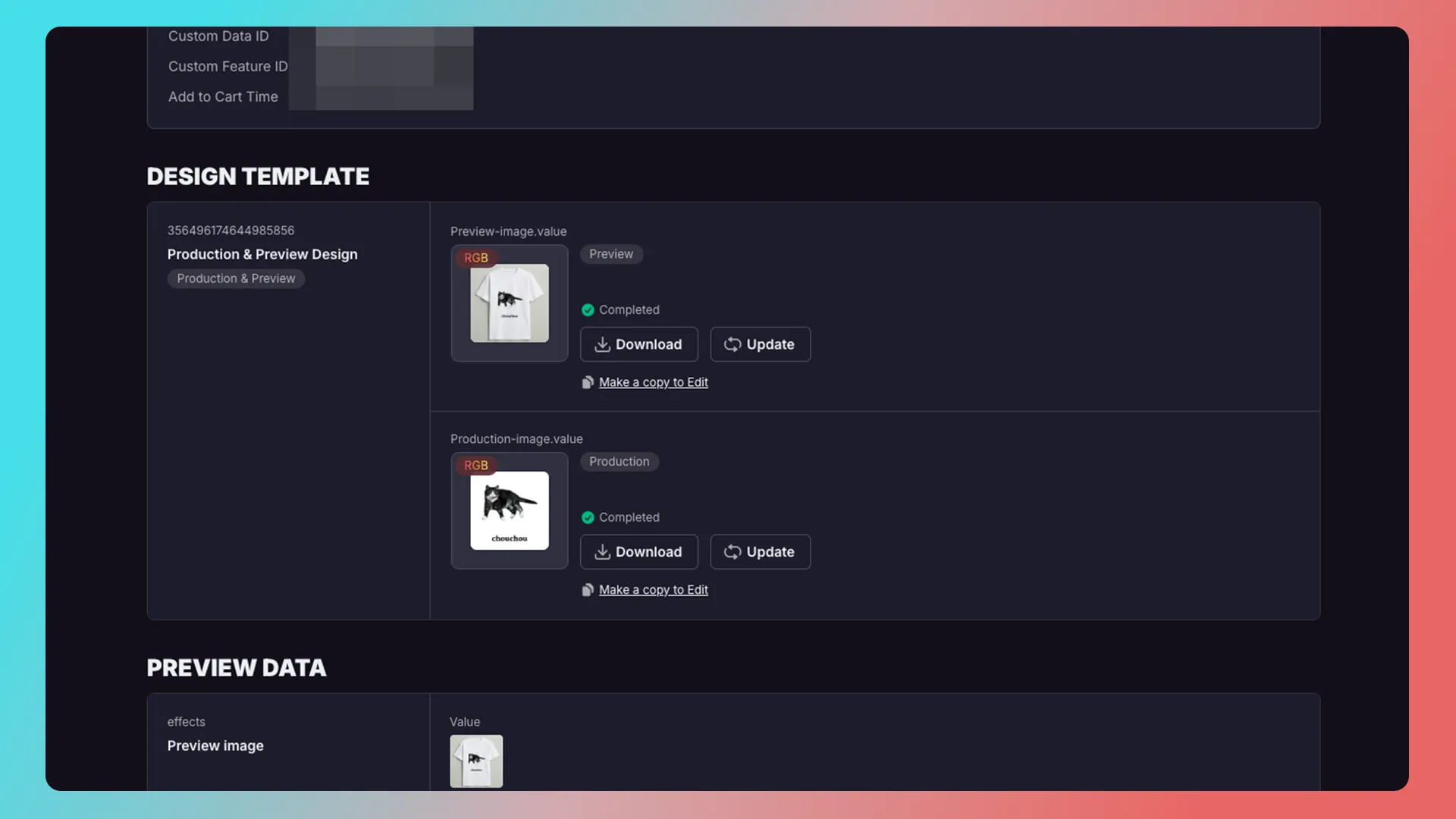
Once an order is submitted, separate images are generated for preview and production.
Mockup Design
It can be used for online customization and POD, supports warp and perspective effects, and must be used with Production Design in online-customization mode.
Think of it as a display model of a mug and a transparent sticker.
- The Mockup is like a mug model in a display case. It is used to show customers how the customized product will look, rather than for production.
- The design area is like a transparent sticker on the mug. The customer’s text, uploaded images, and selected graphics are placed on this sticker and then displayed on the mug.
The Mockup is the product model used to preview the result; the design area is the part of that model that holds the custom content.
Mockup’s product image
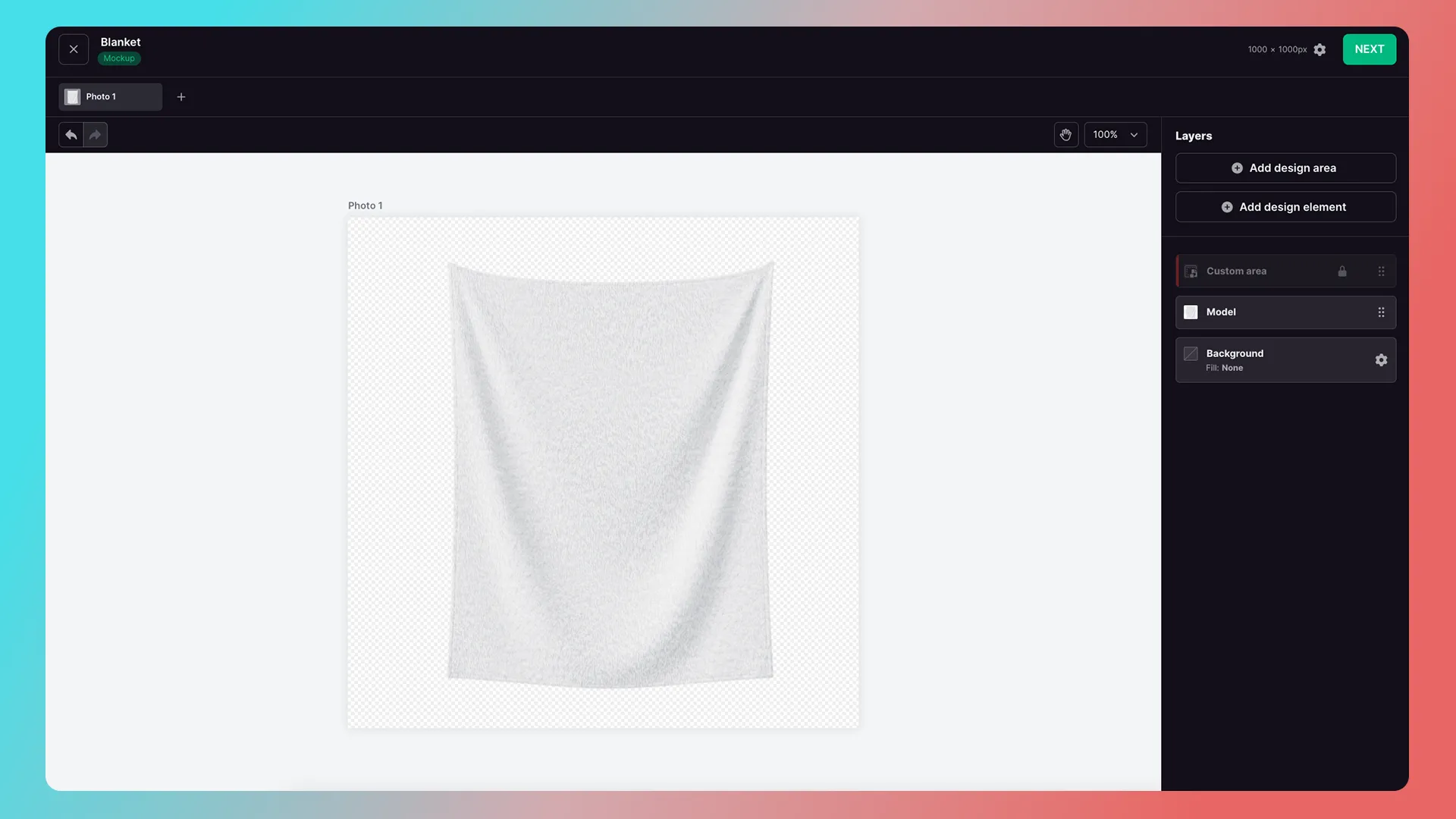
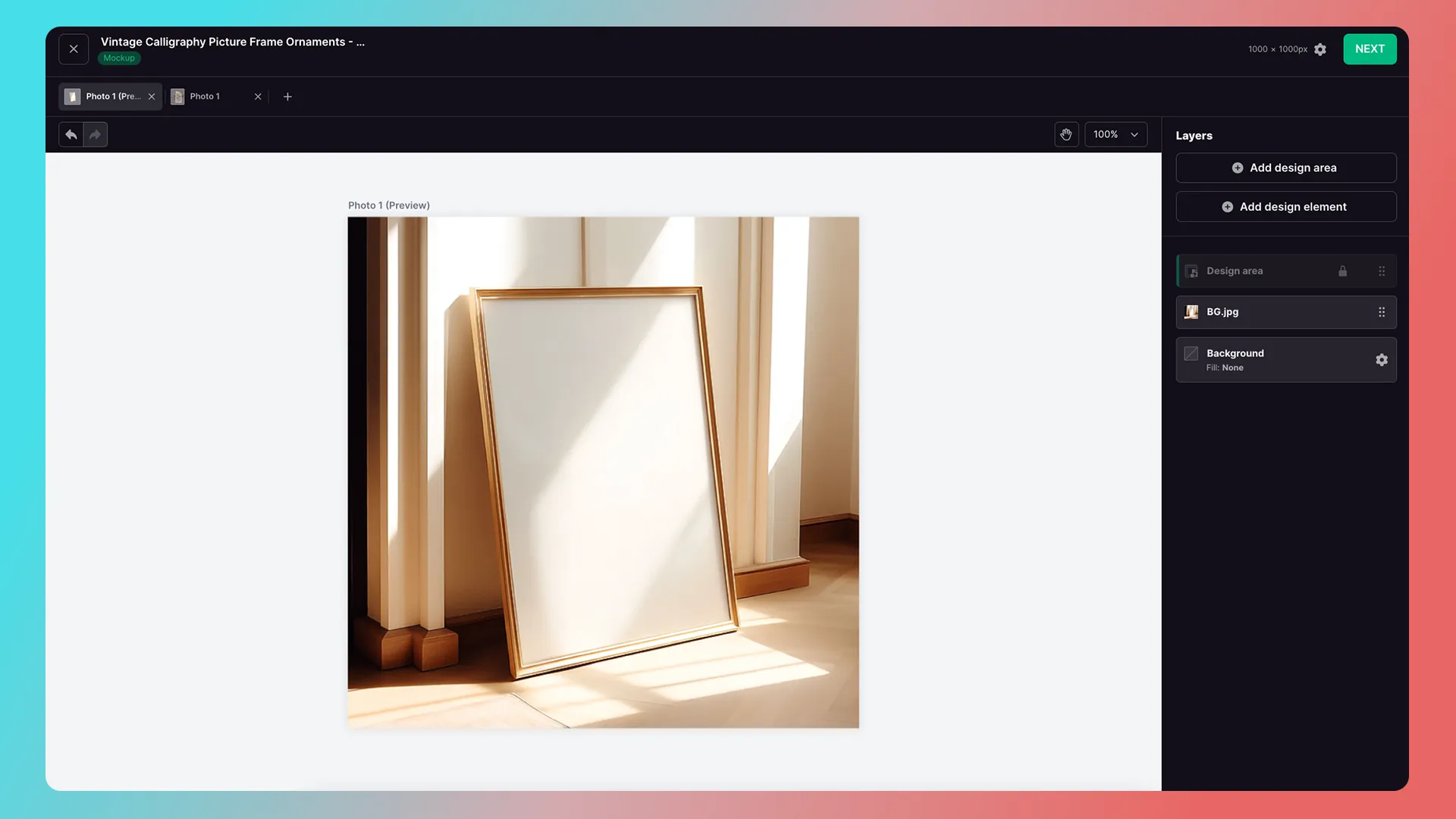
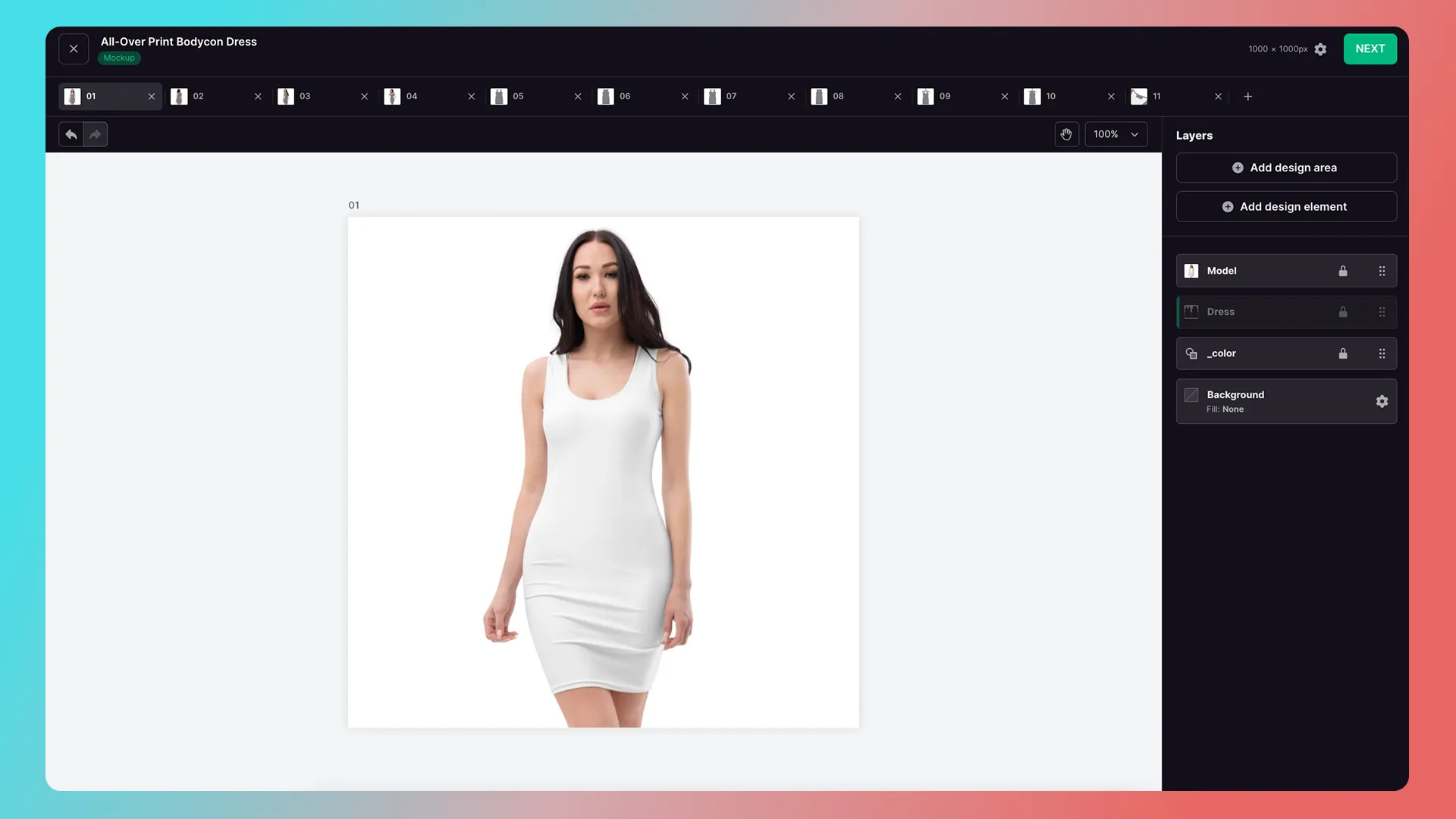
The Mockup product image should show an uncustomized product on a white background. For example:
Blanket
Picture frame ornament
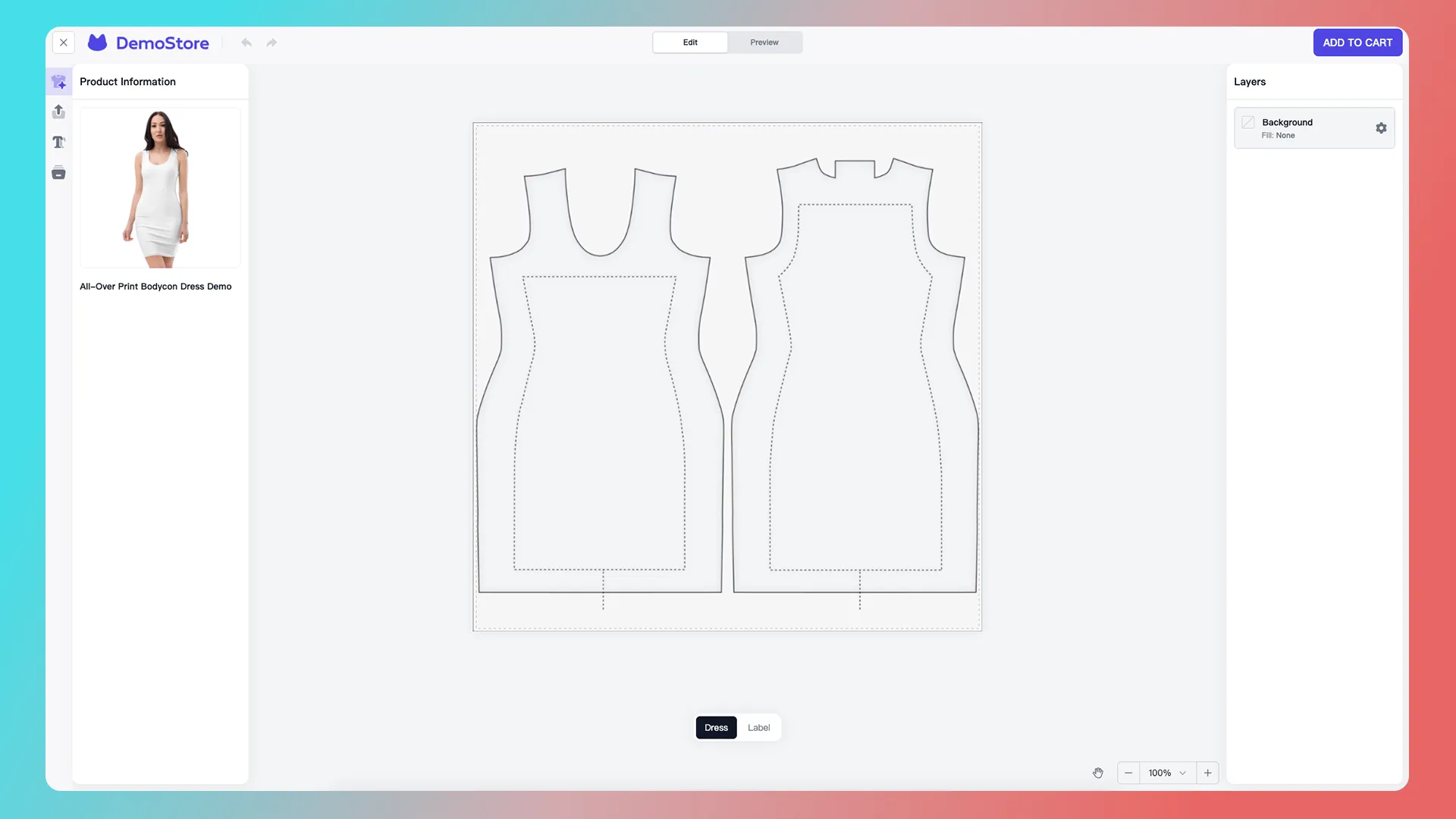
Dress
What is a design area?
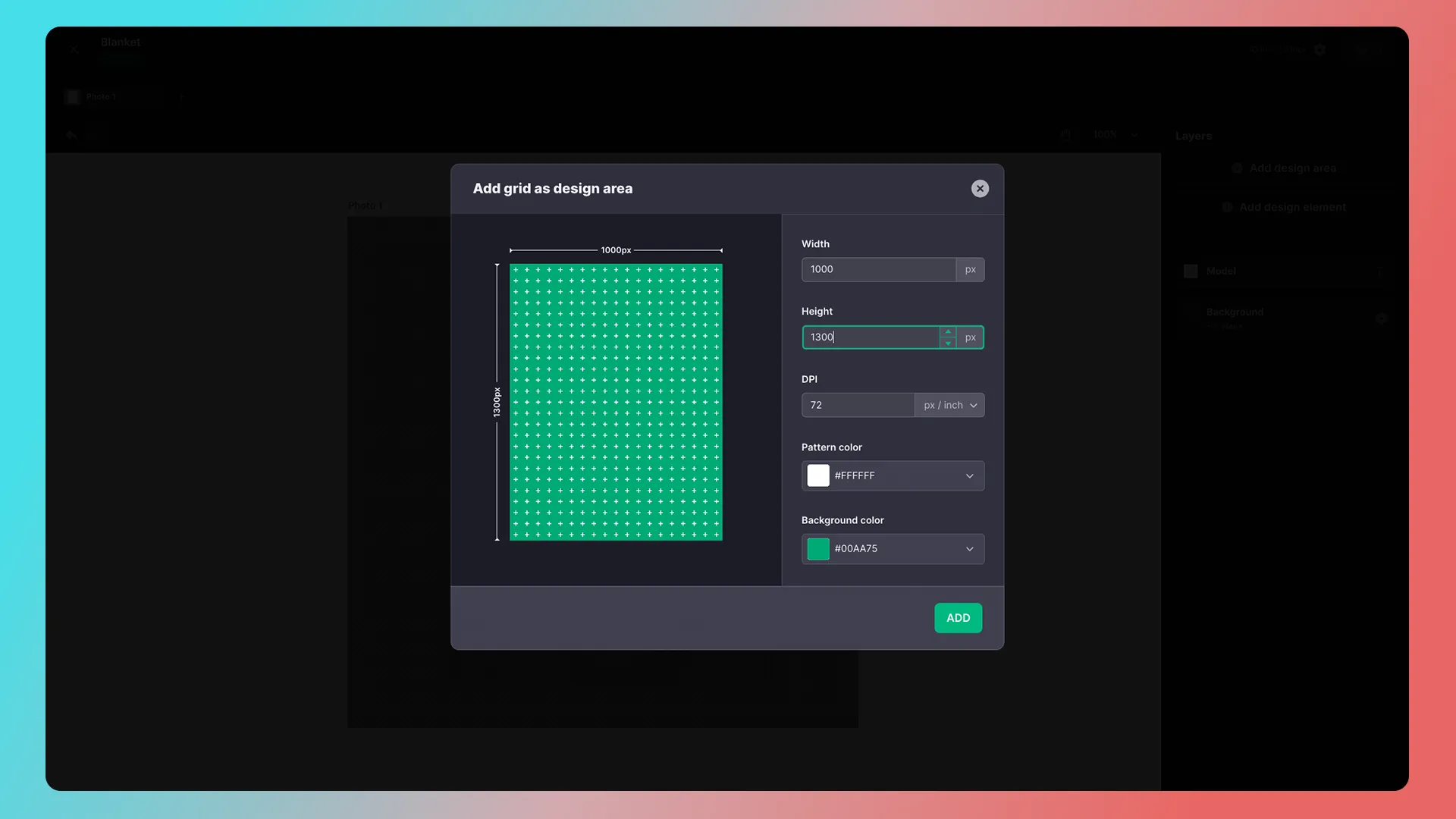
A design area should be created based on the product’s production artwork specifications, which should be confirmed with the actual manufacturer. For example, if a blanket’s production file is 1000 × 1300 px, 72 DPI, PNG, use the following settings when creating the design area.
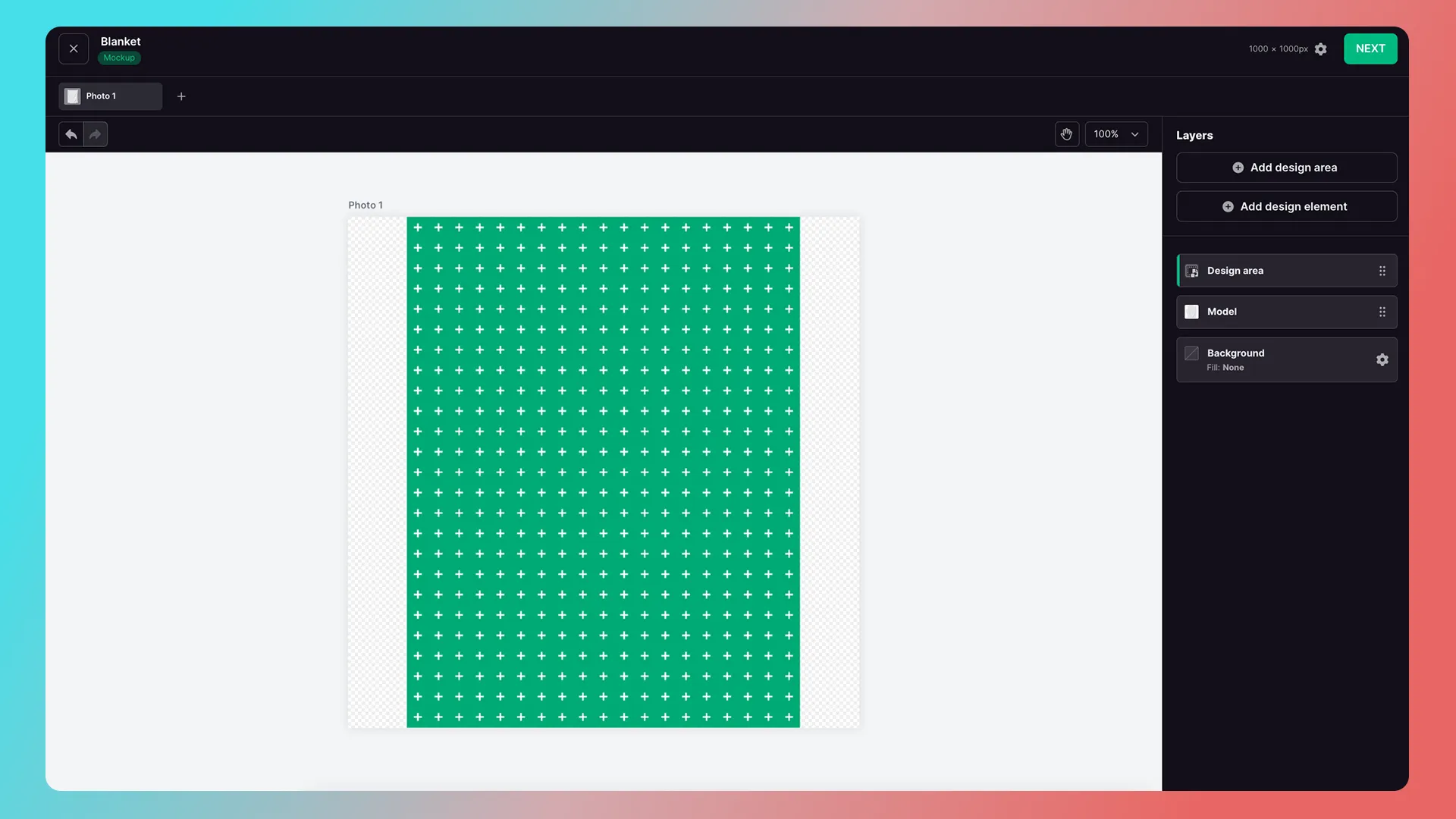
How do I fit the design area to the product image?
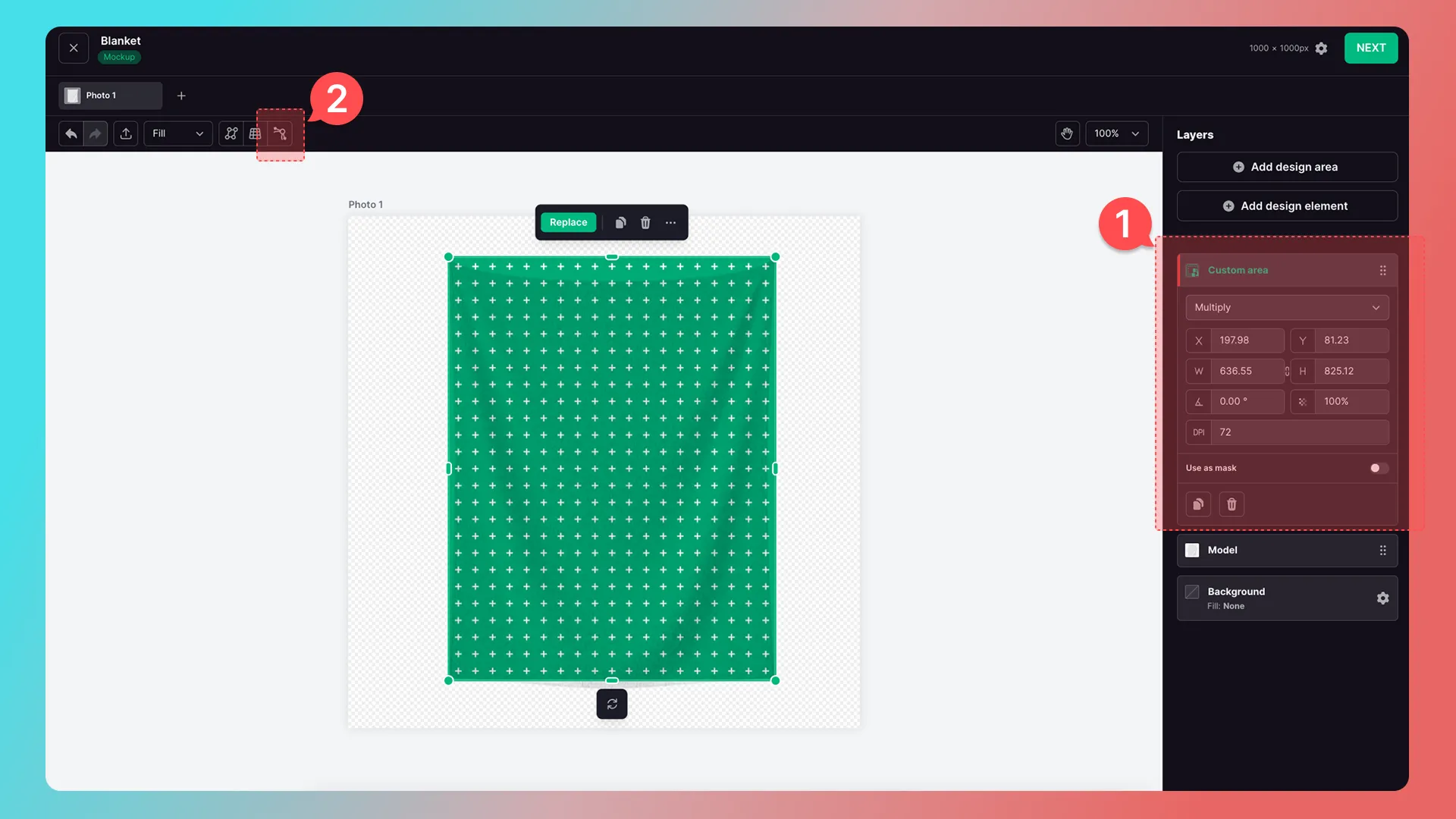
You can then adjust the design area’s visible range and apply distortion to make it fit the product image. Changing the visible range will not affect the settings configured in the previous step.
1. Adjust the Visible Range
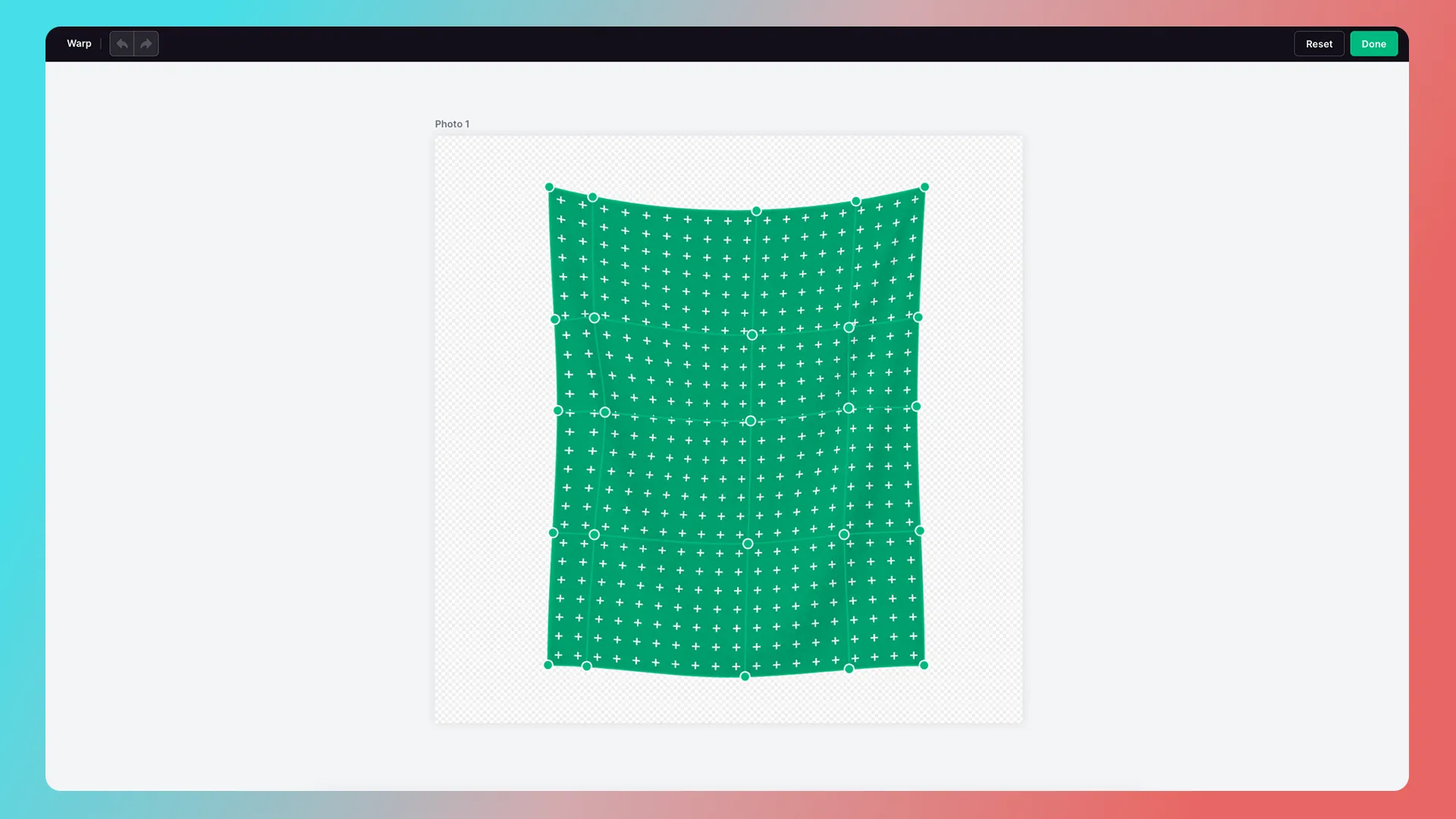
2. Warp
Warp demonstration: https://youtu.be/Px853BnNOOg
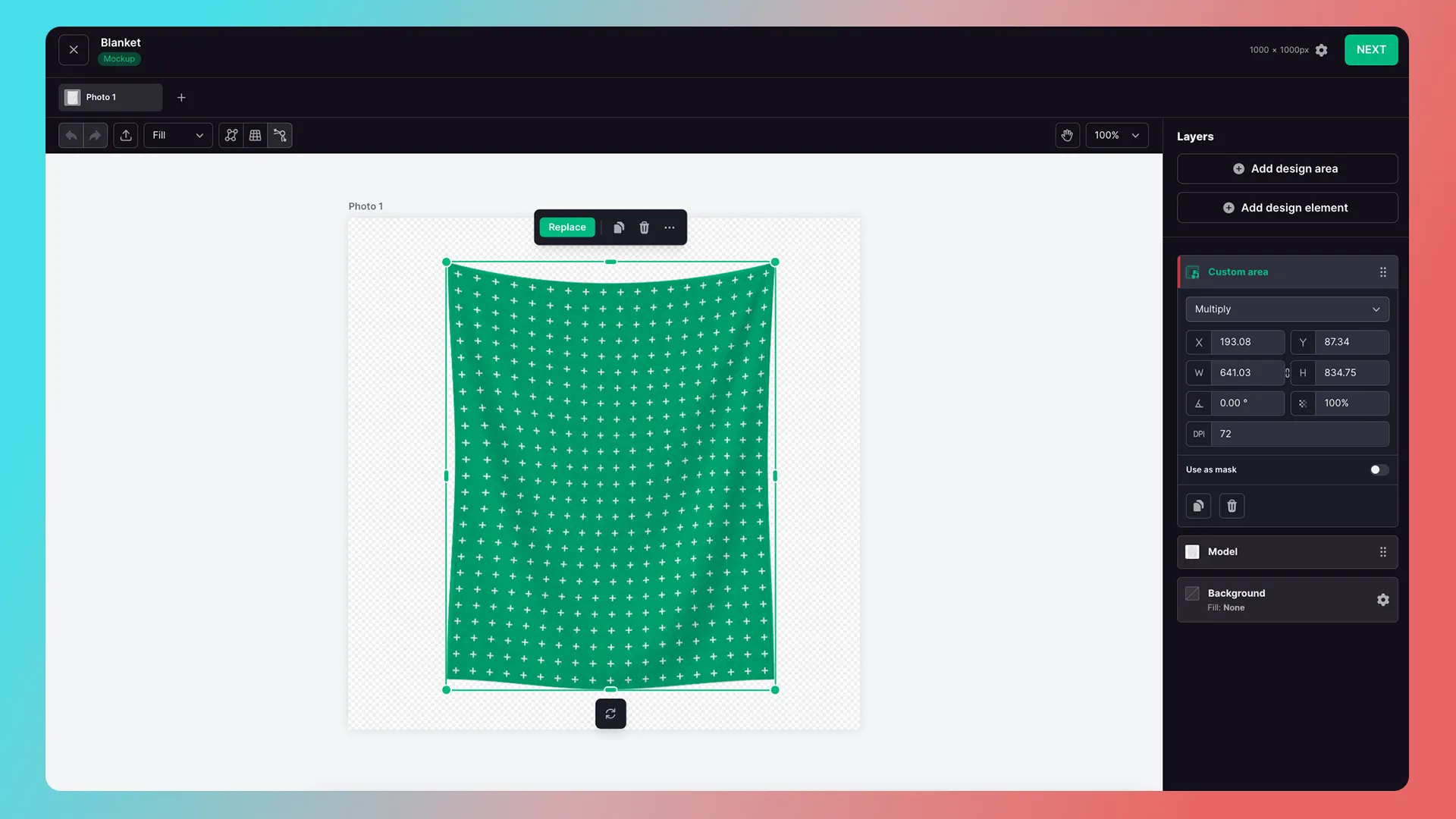
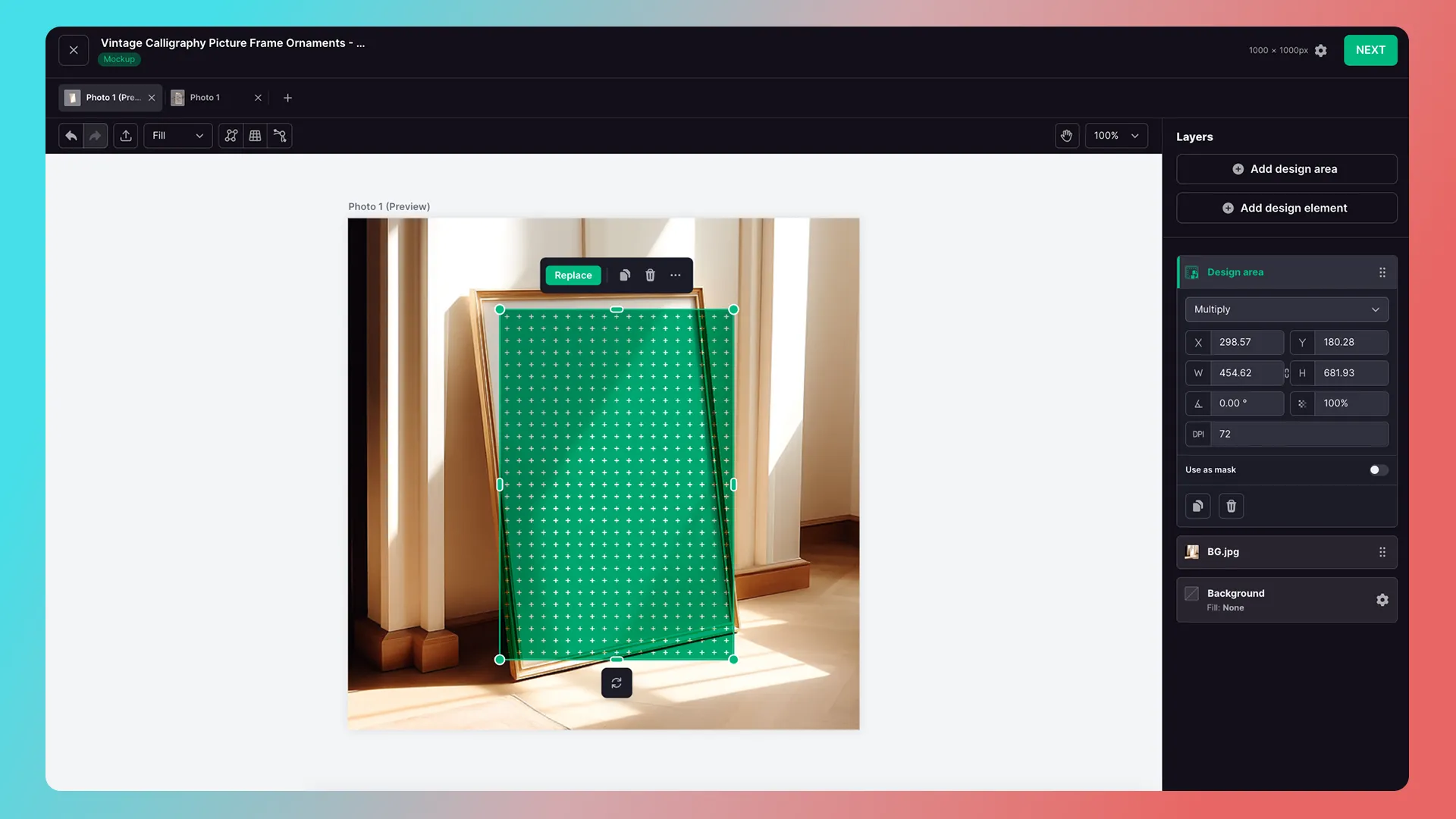
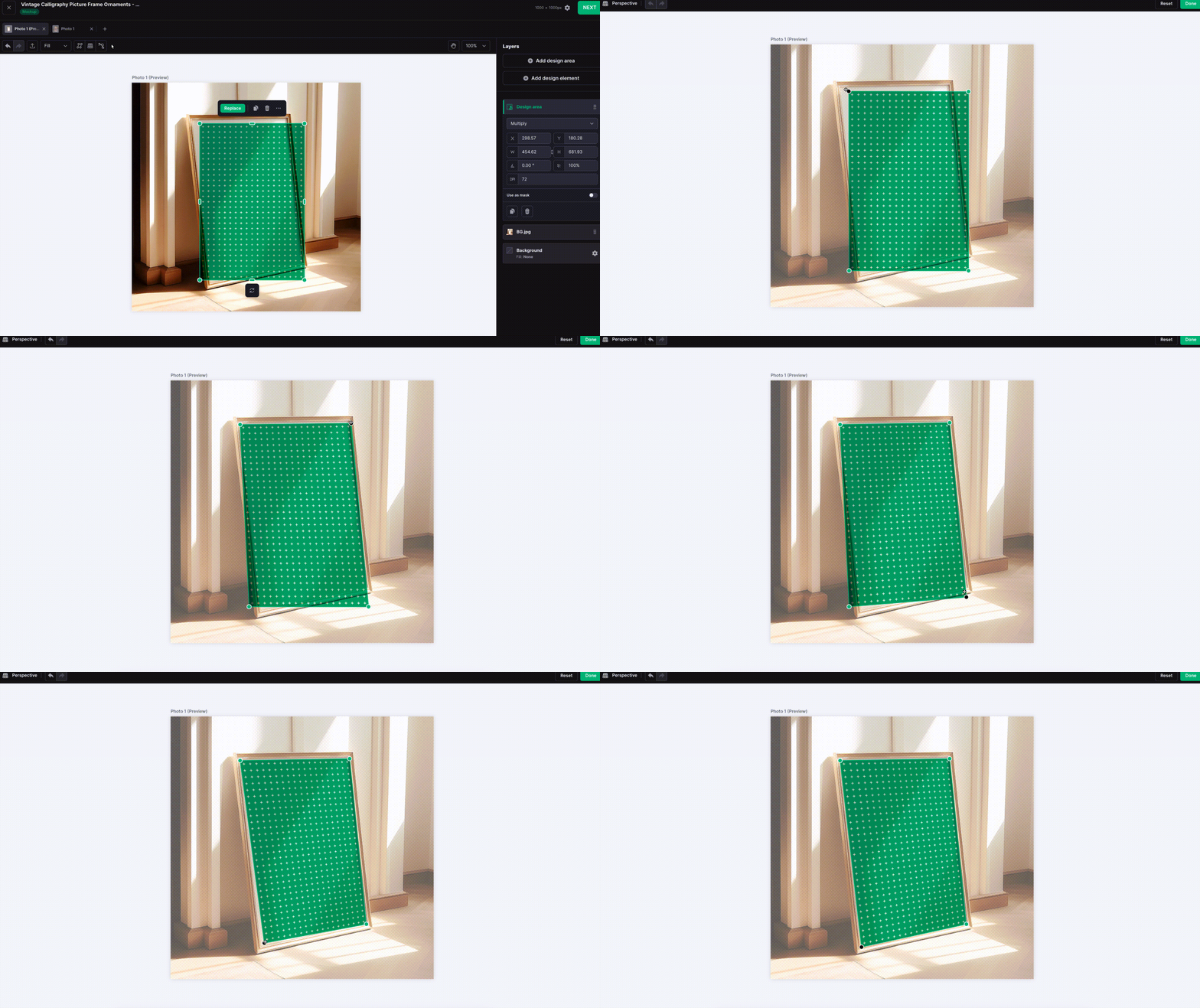
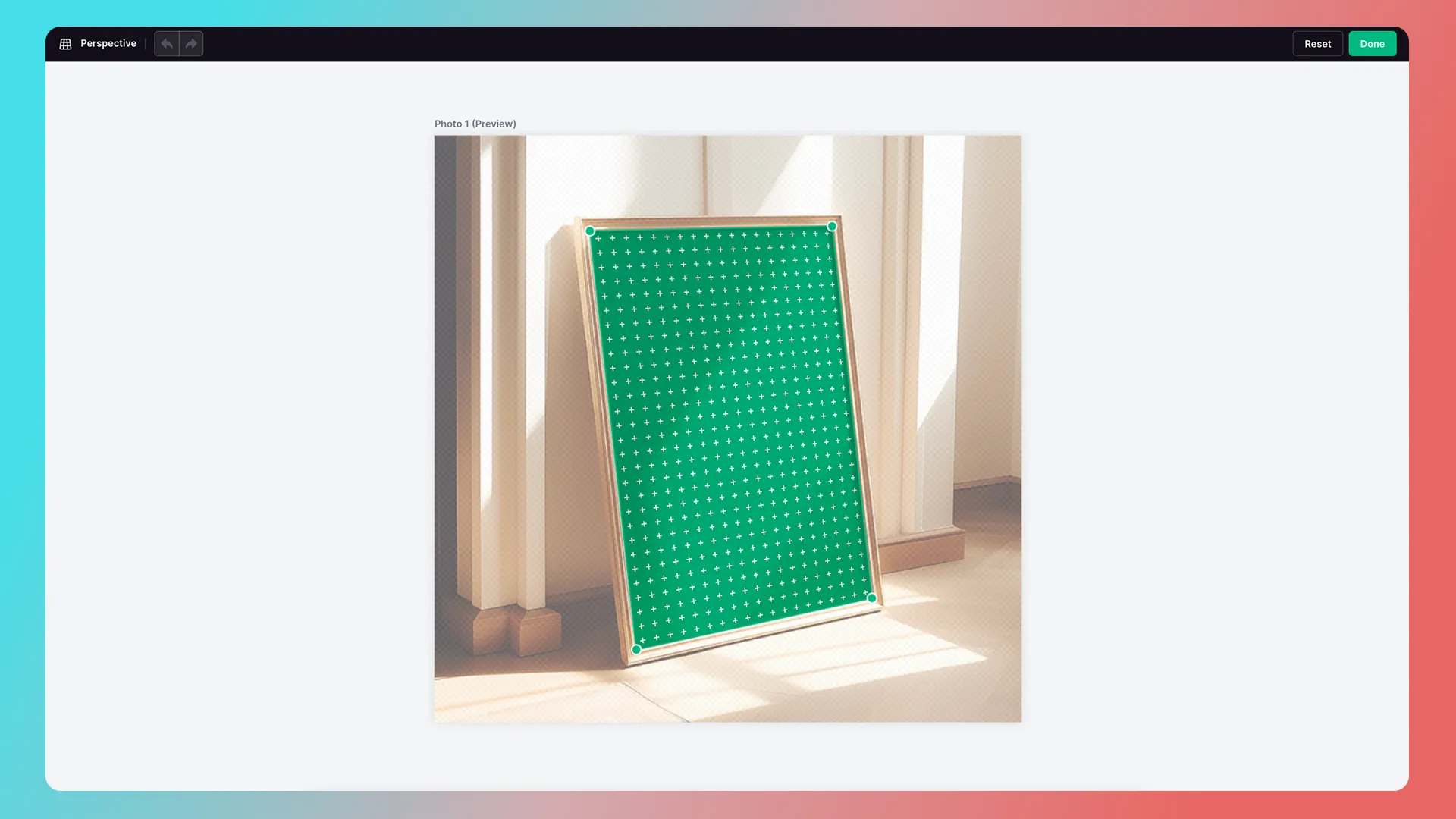
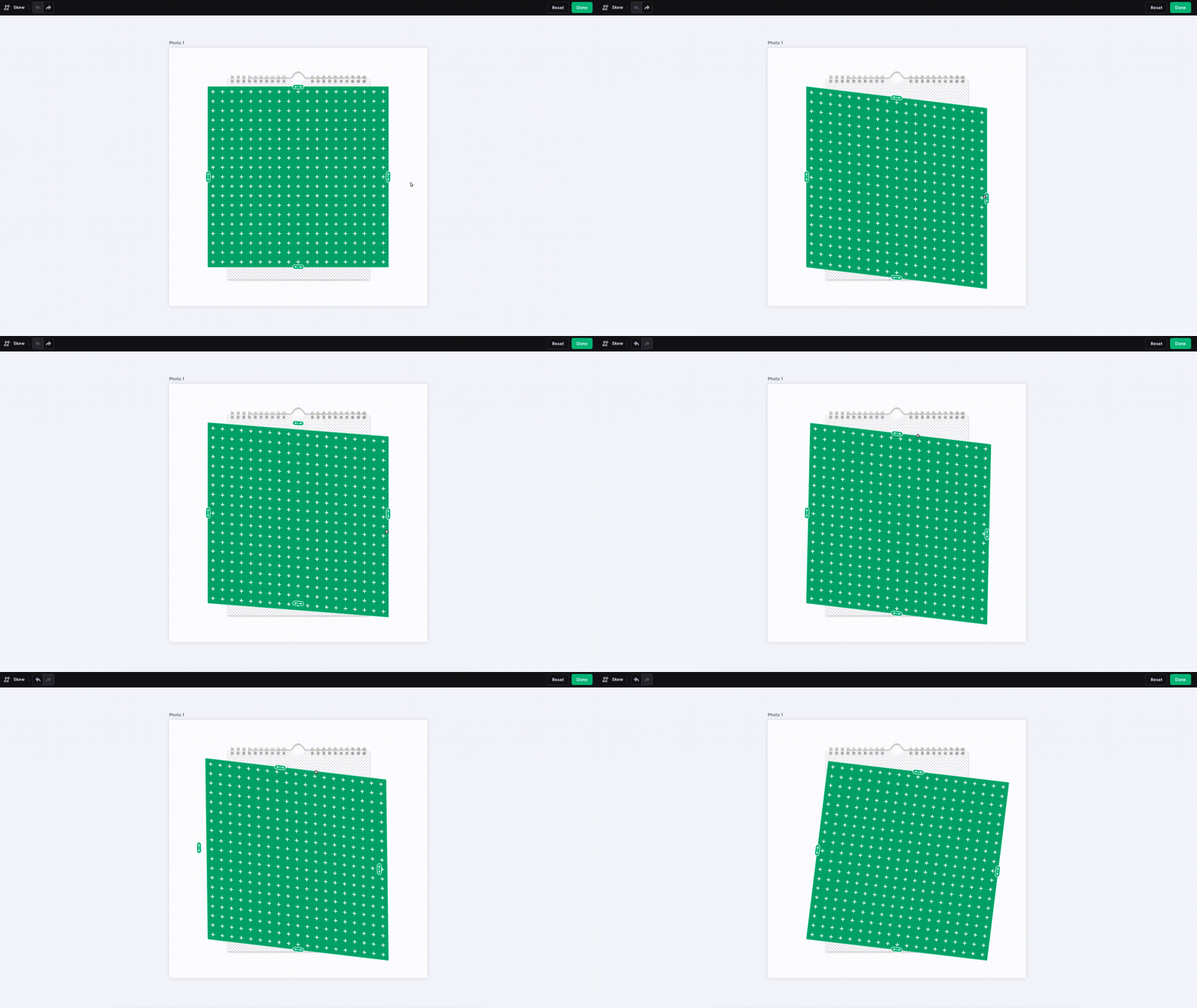
In addition to Warp, there are also Perspective and Skew.
Perspective
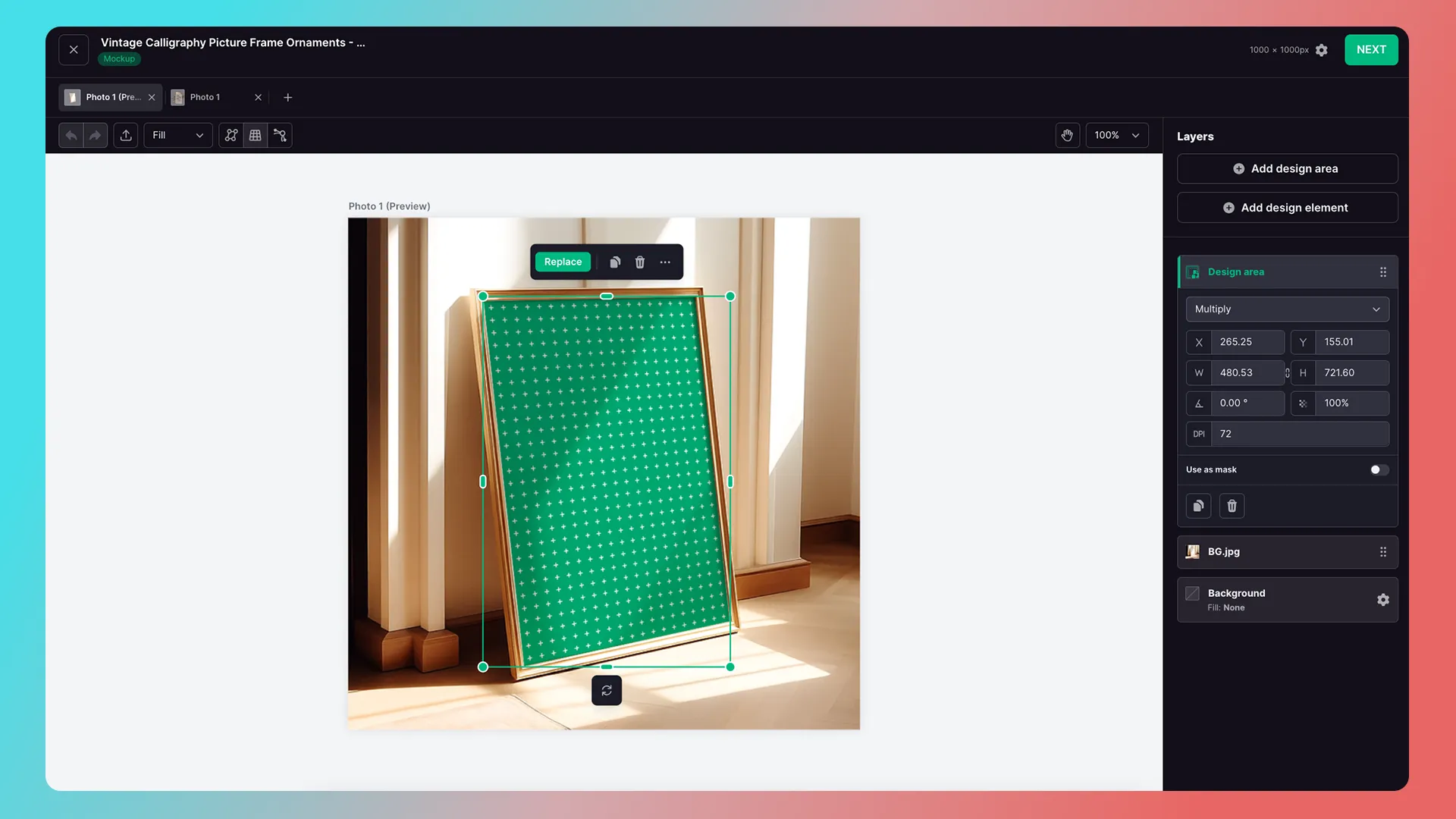
Skew
Replace the Design Area’s Display Image
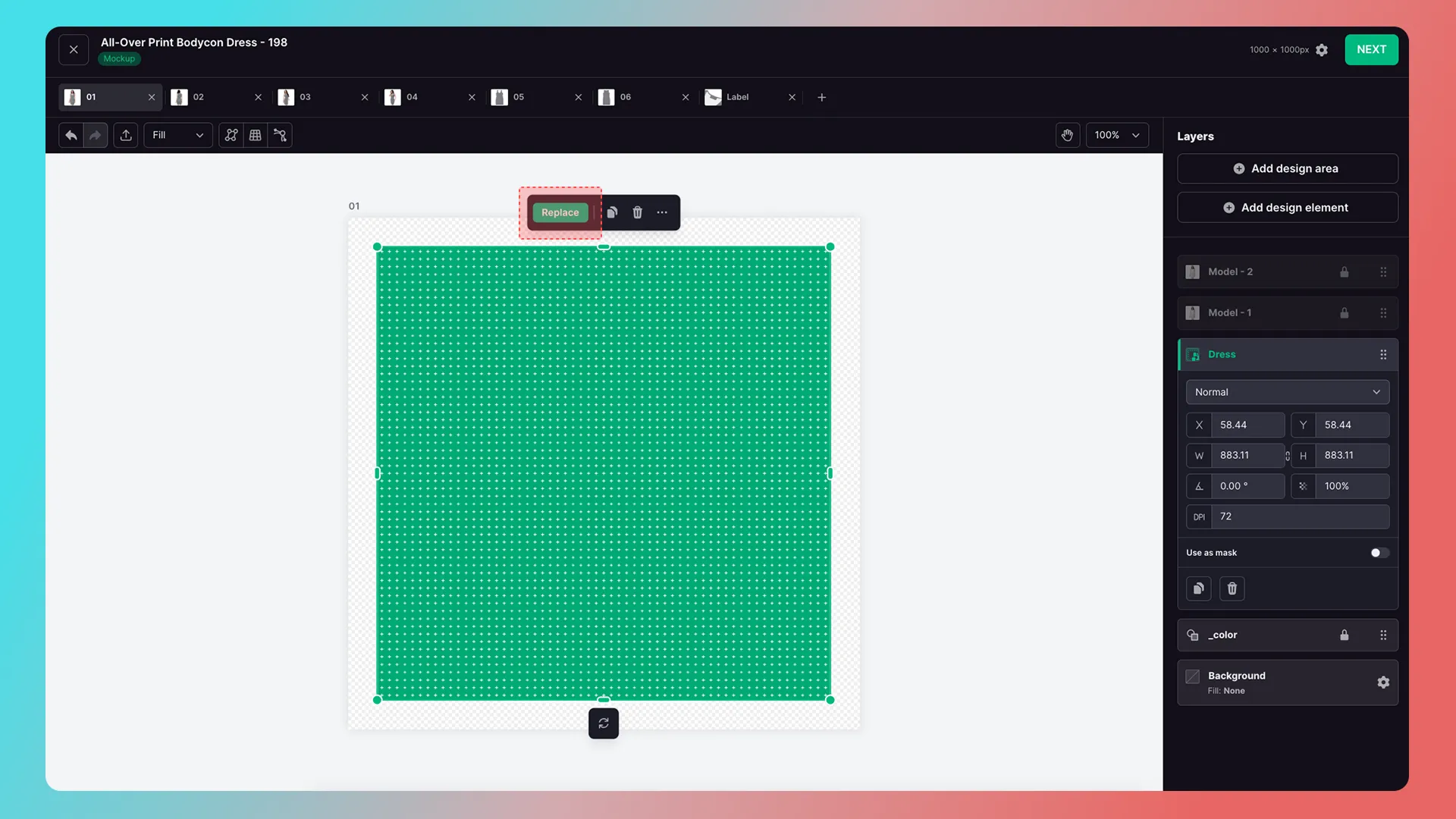
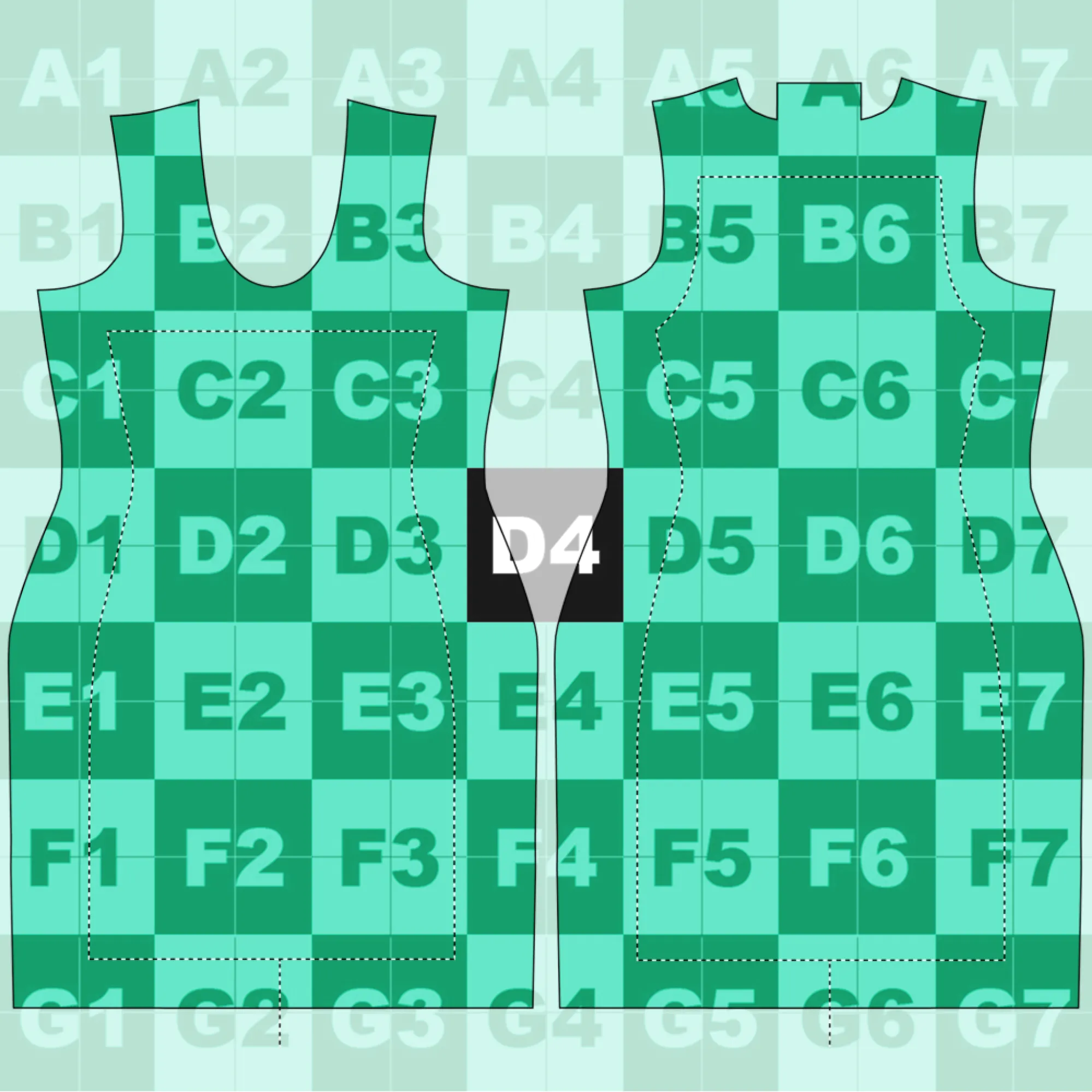
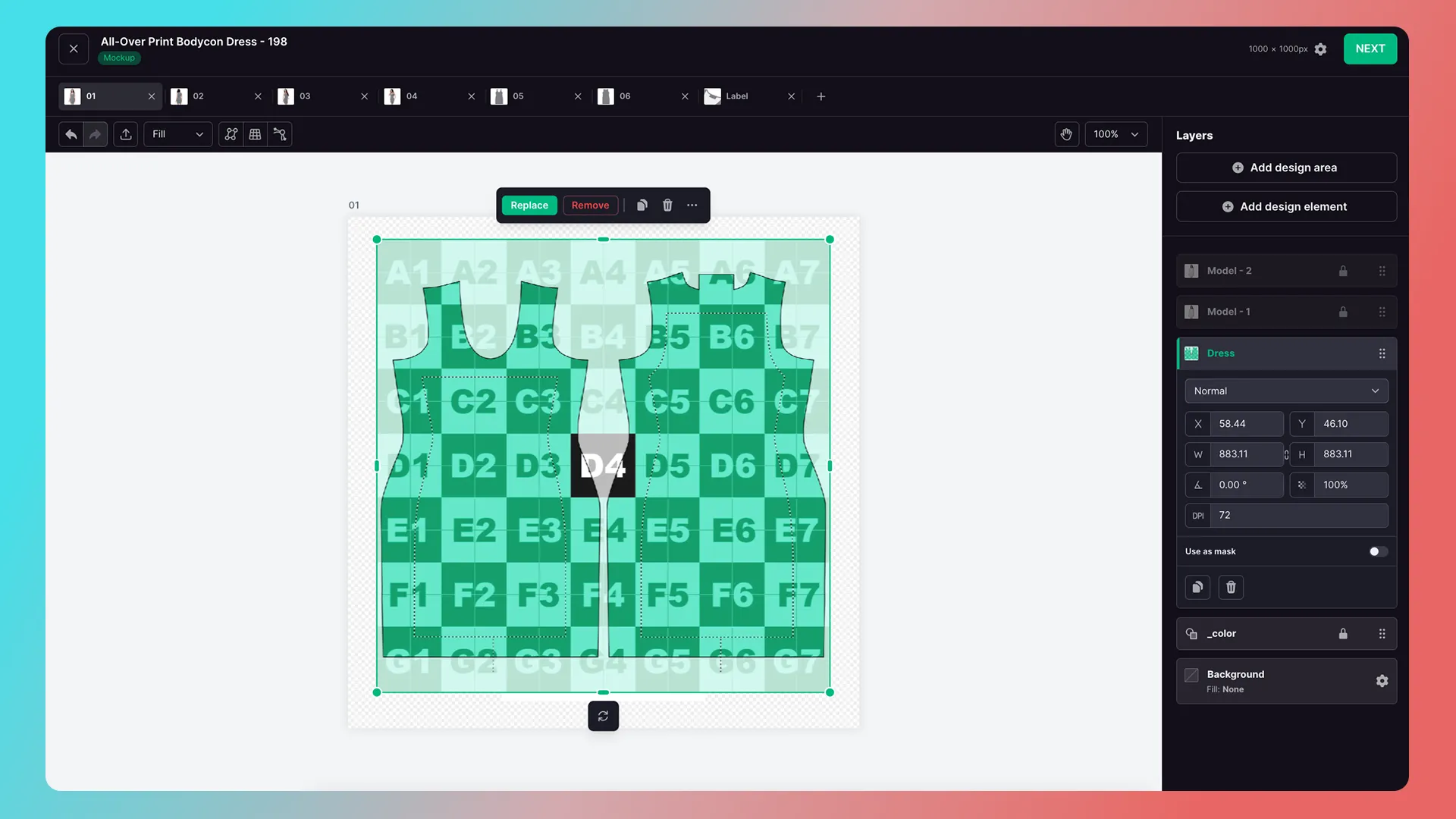
If it is difficult to adjust the Warp or Perspective angle during editing, you can manually upload the production image to replace the content displayed in the design area.
Before replacement
Production image
After replacement
Start warping
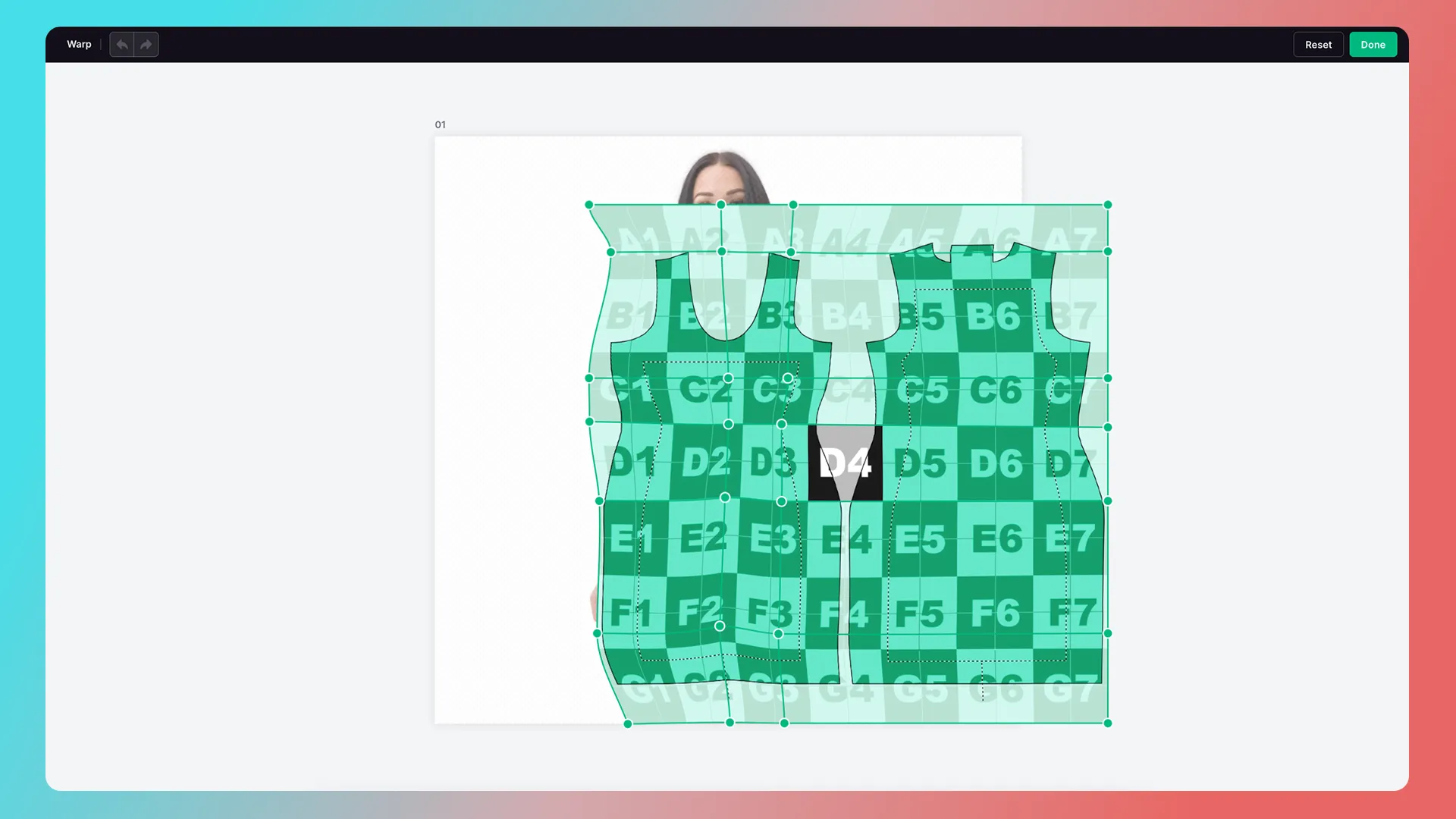
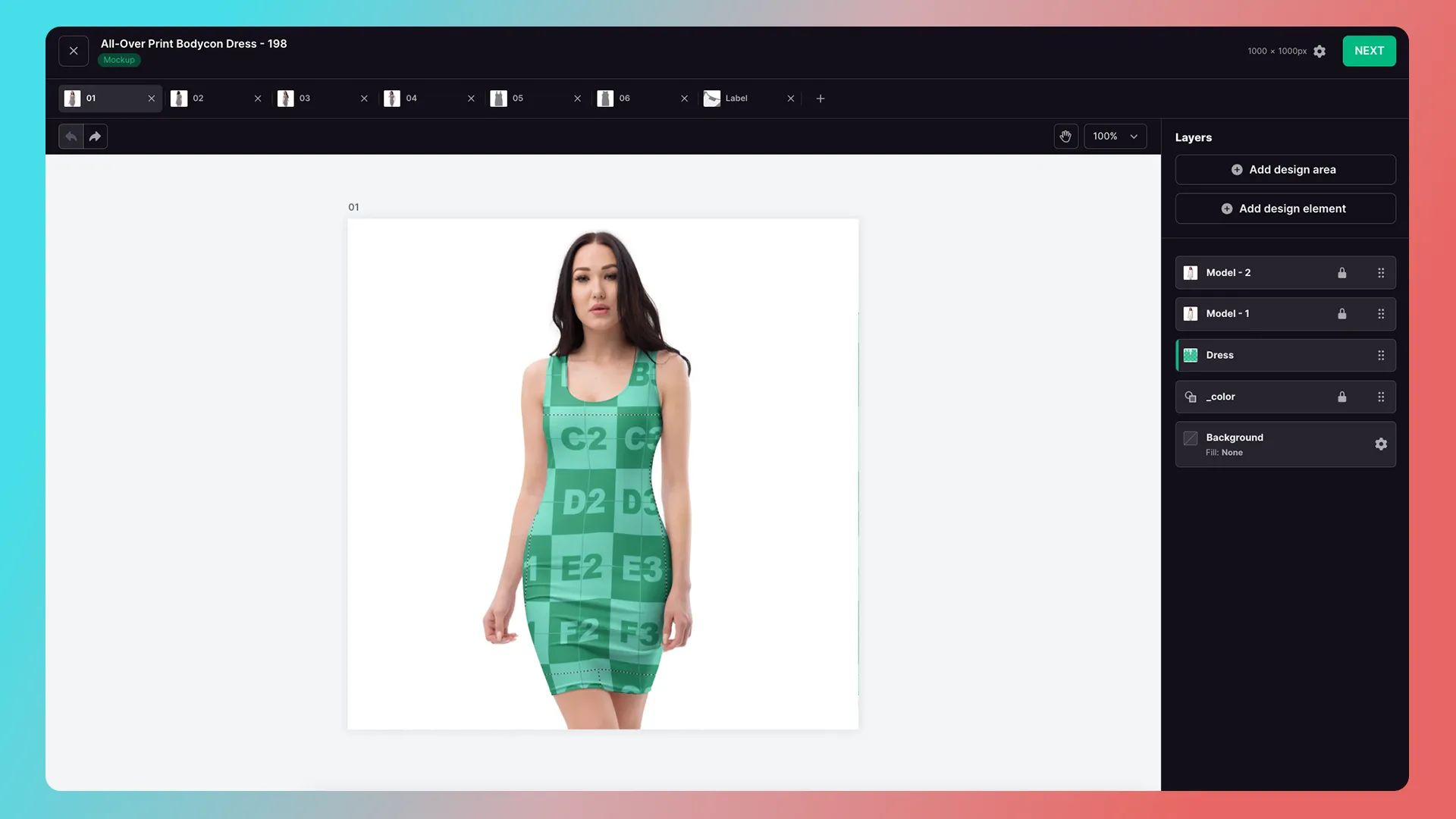
Once you’ve finished warping, click Remove to remove it.
Add Mockup Preview Images
If the Mockup has multiple preview images, click Add Image.
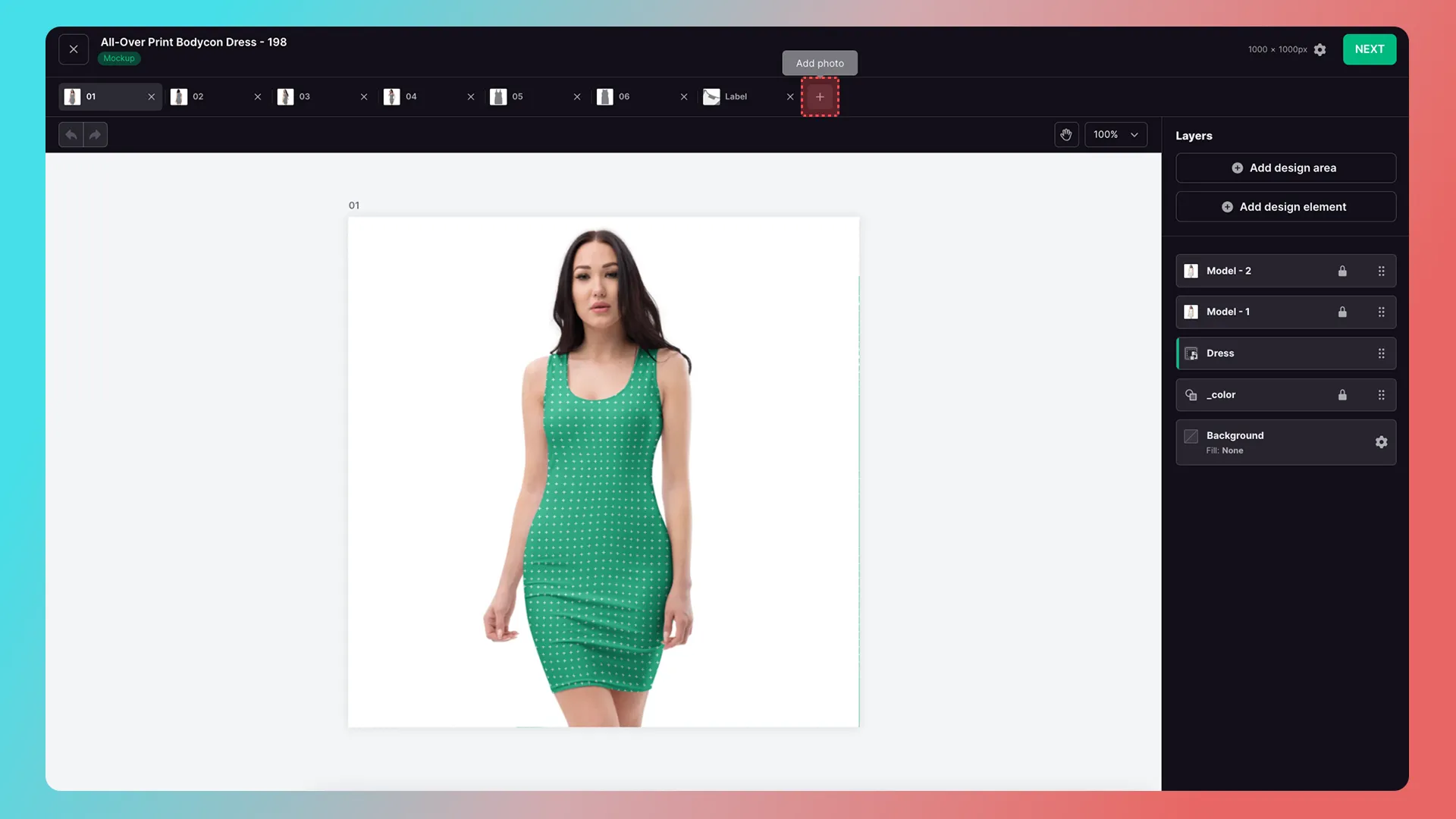
Copy a Design Area to Other Preview Images
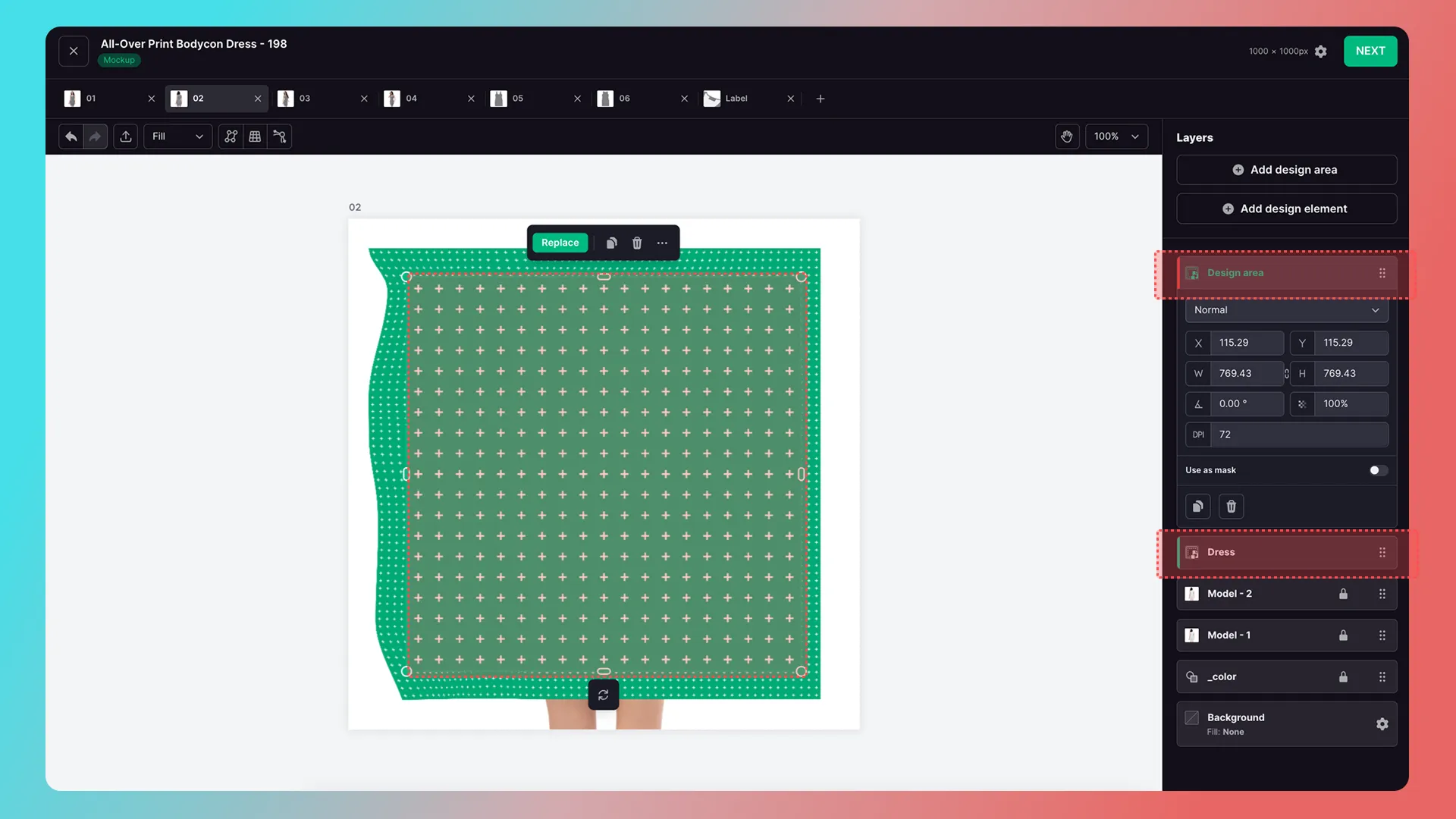
If multiple preview images share the same design area, select the configured design area and use the copy shortcut (Ctrl + C / Cmd + C) and paste shortcut (Ctrl + V / Cmd + V) to copy it to the other preview images, as shown below:
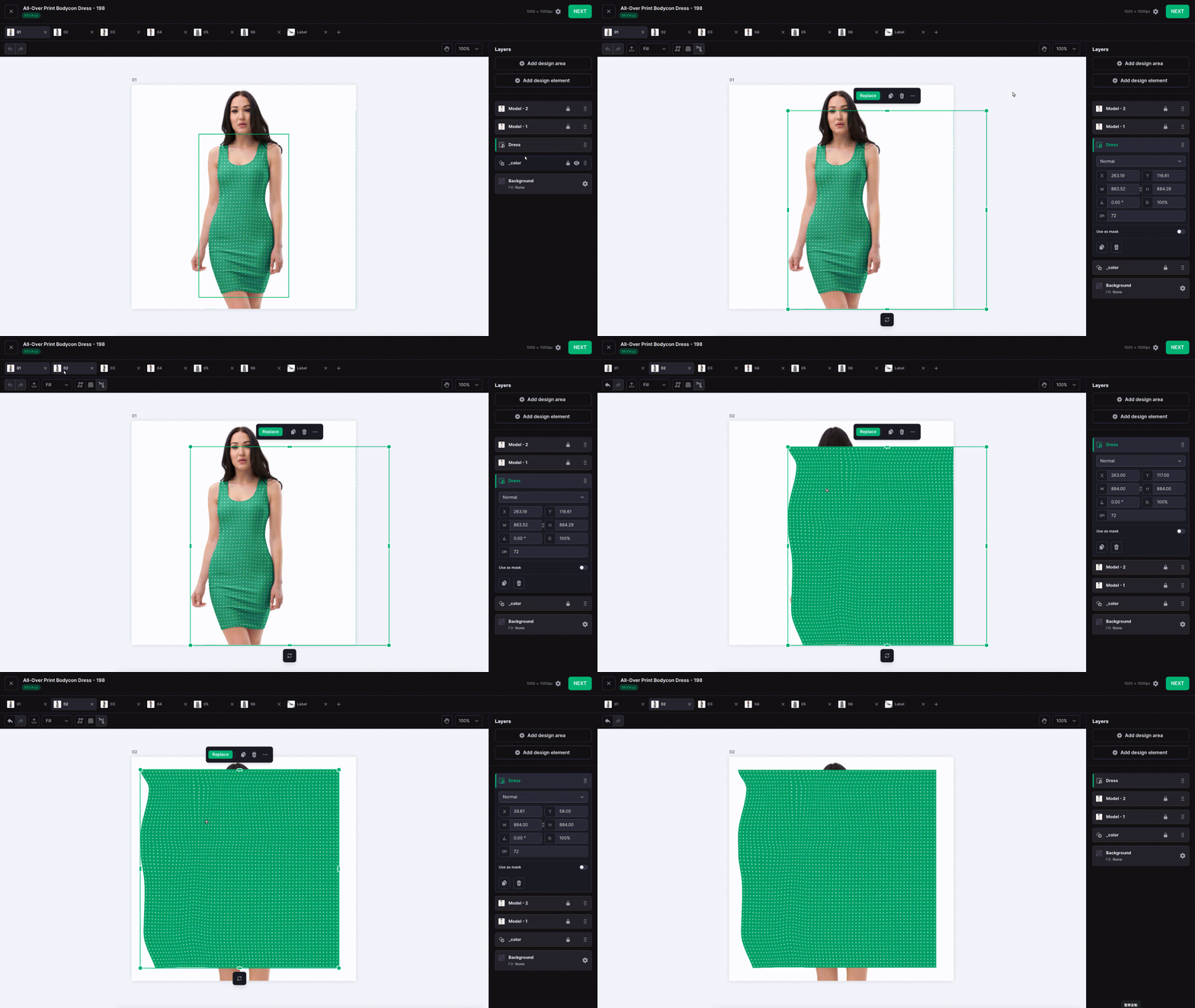
Note: Conversely, clicking Add New creates a new design area; the design-area layer on the right will appear in a different color.
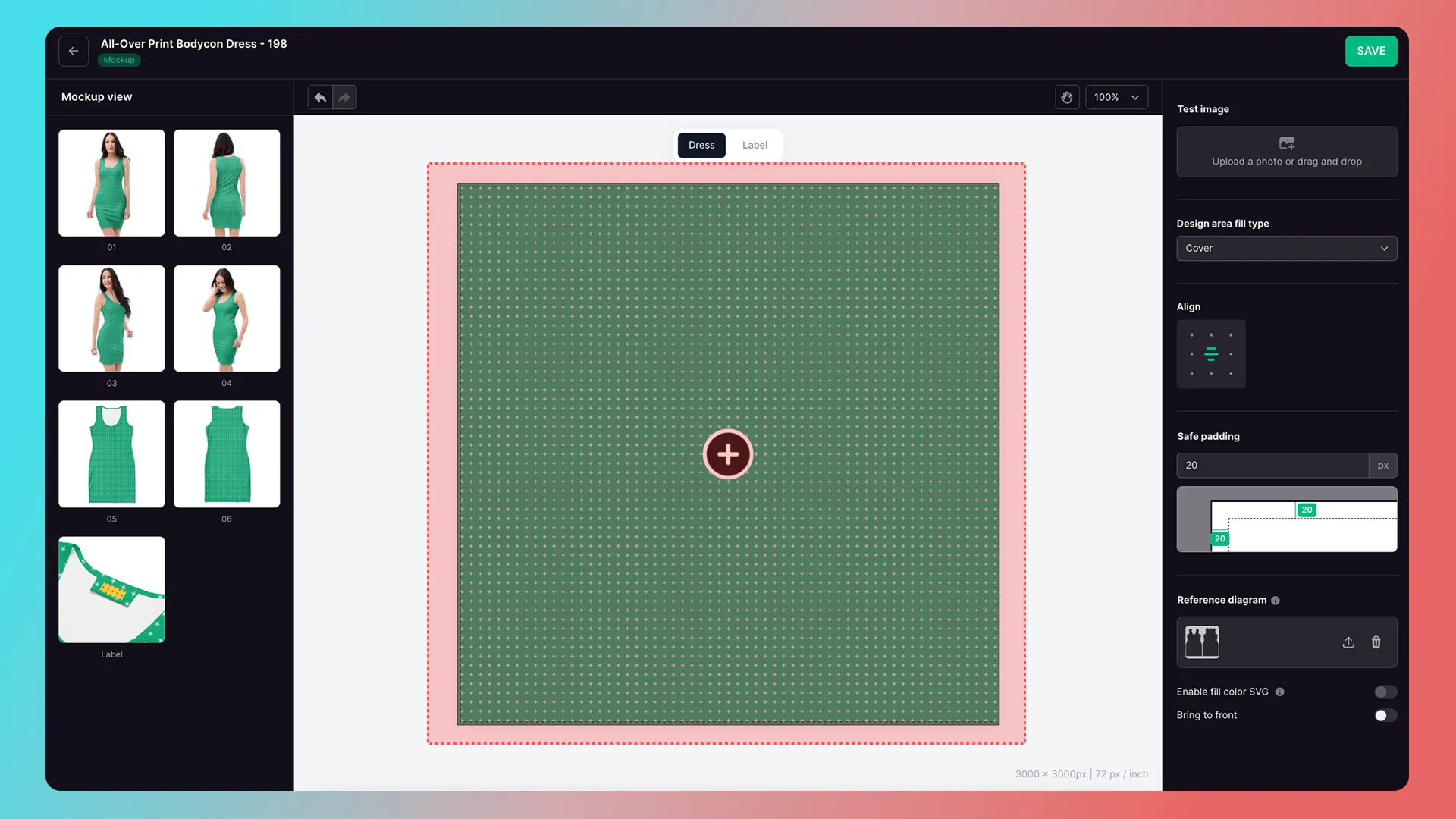
Mockup Test Image
1. Click the center canvas to upload a test image.
Test images are not shown to customers.
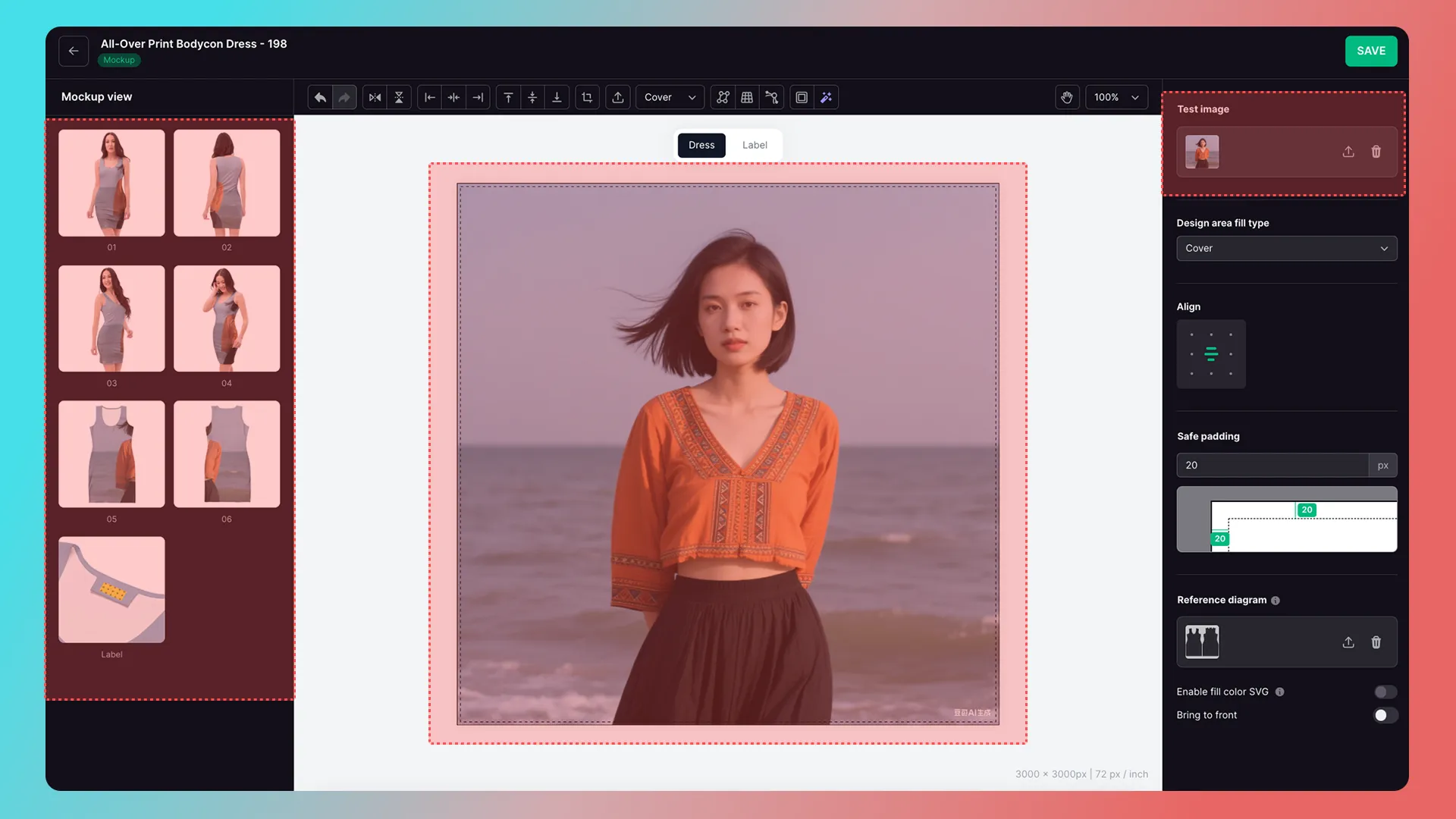
2. Check the preview.
Previews update in real time as you upload test images.
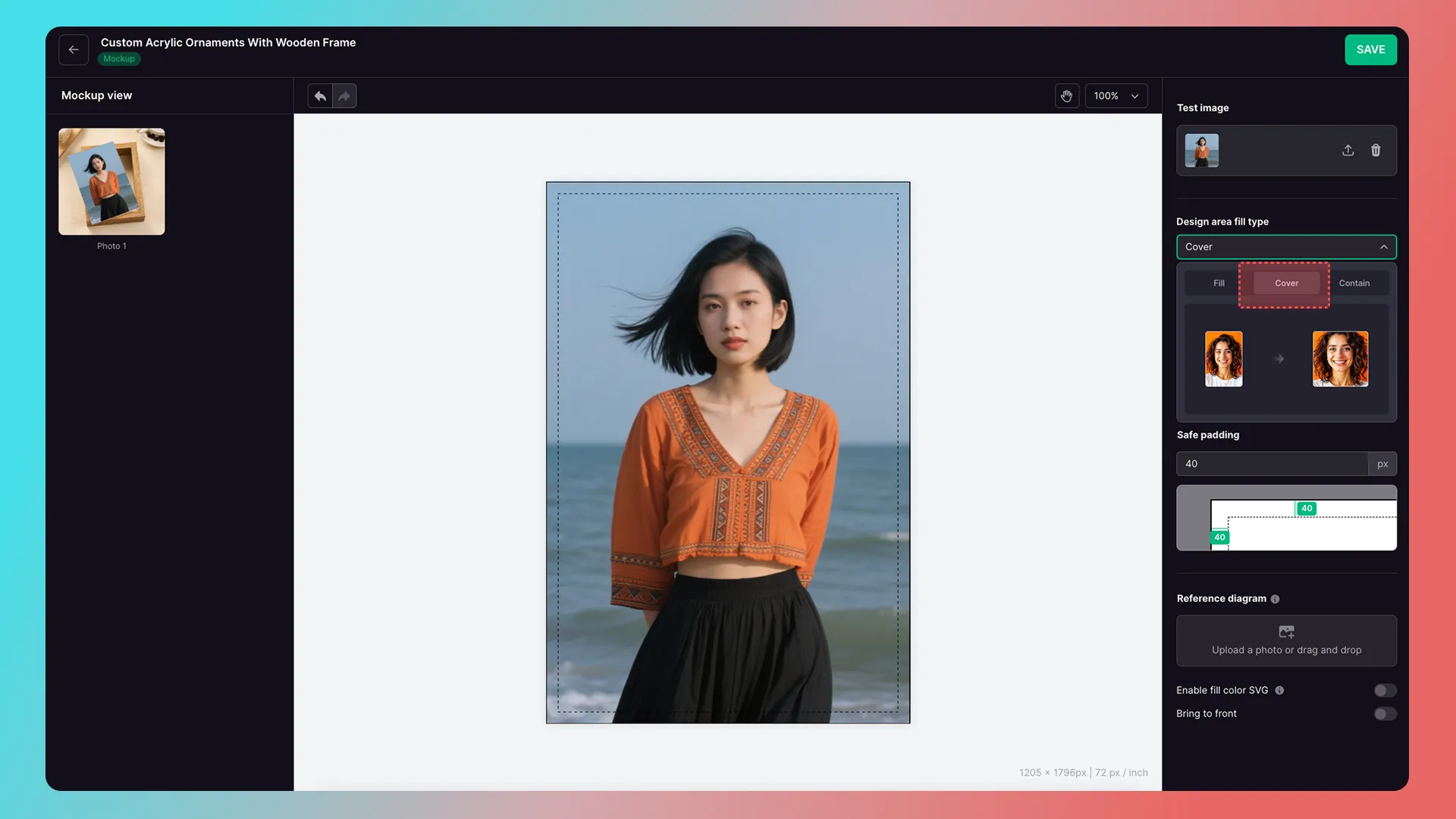
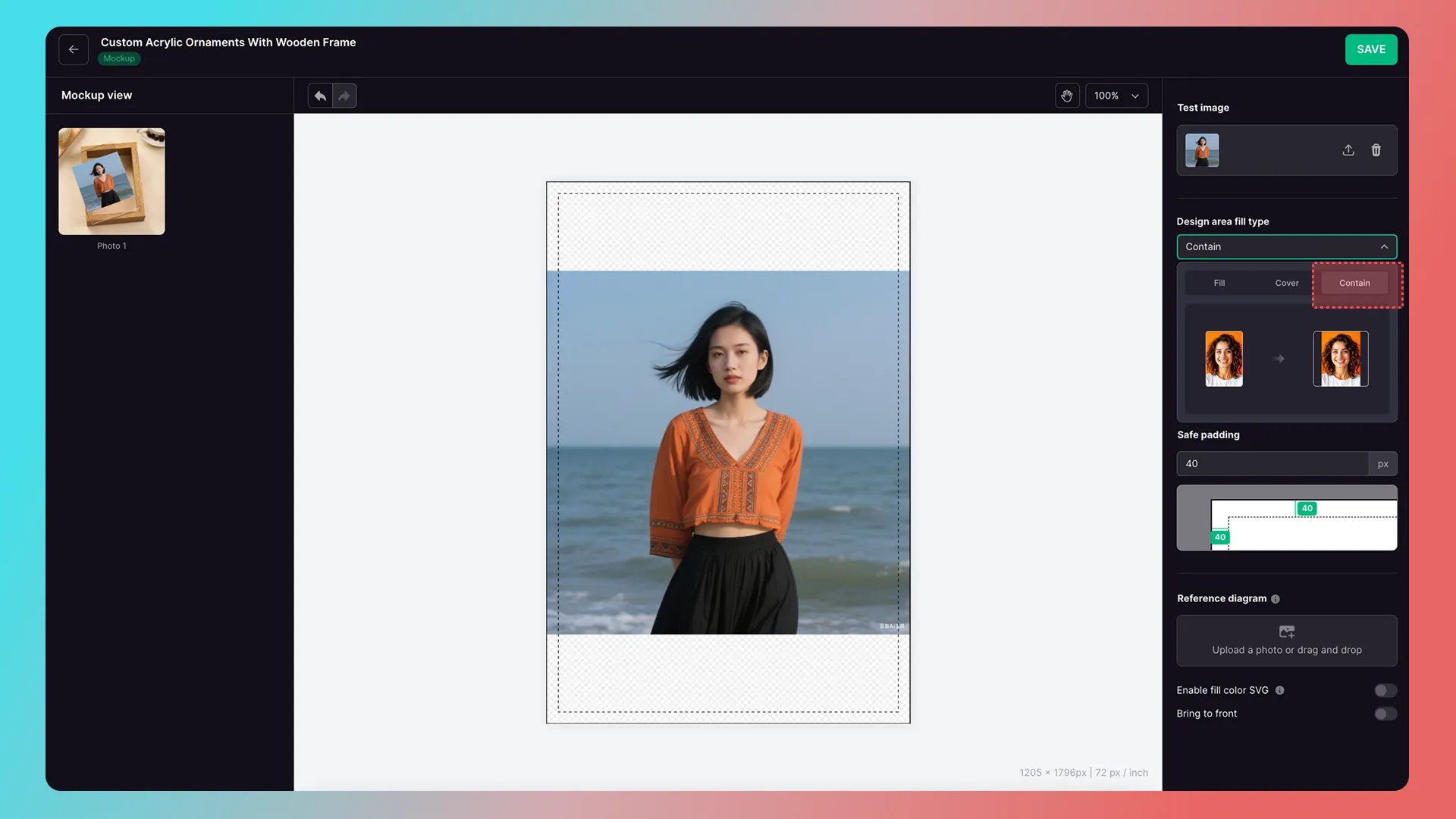
Set the Fill Mode for the Design Area
Fill
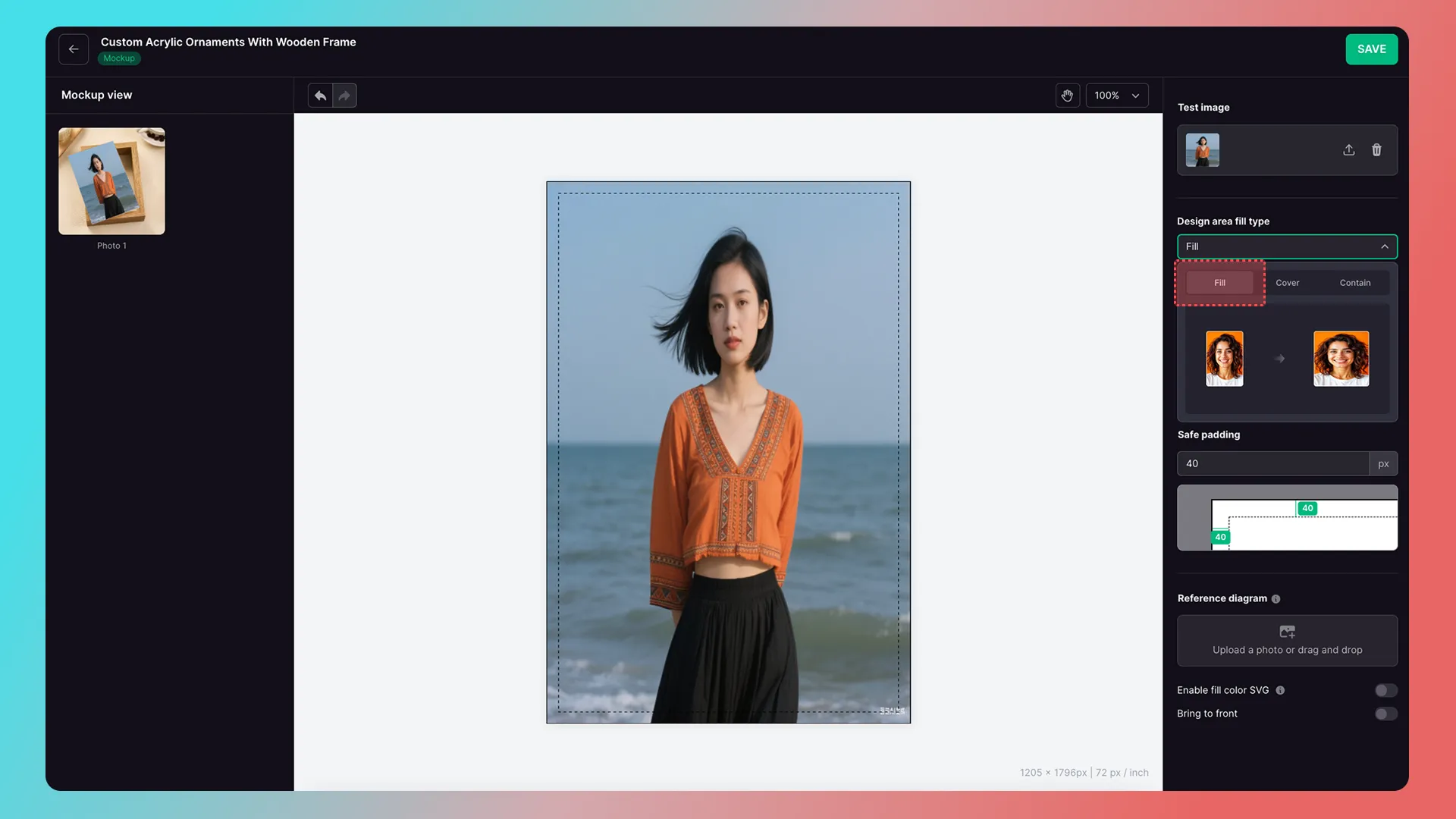
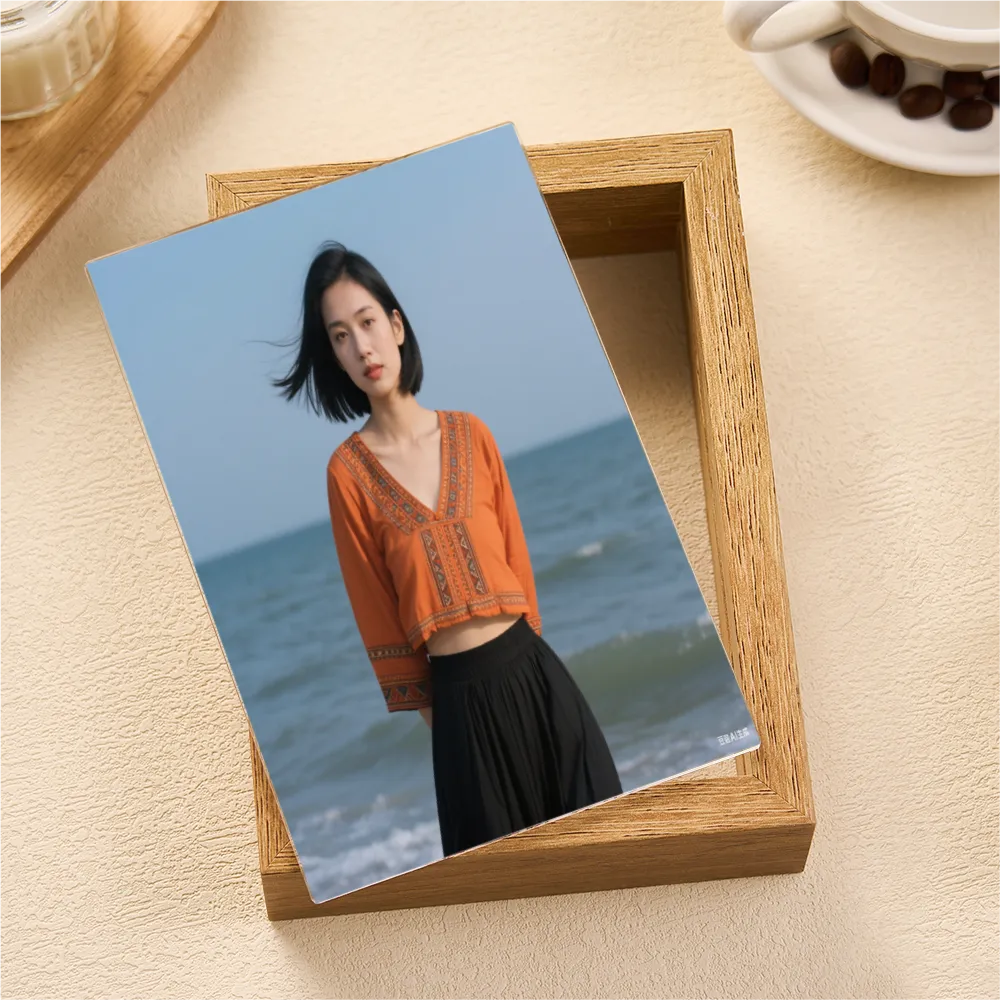
Cover
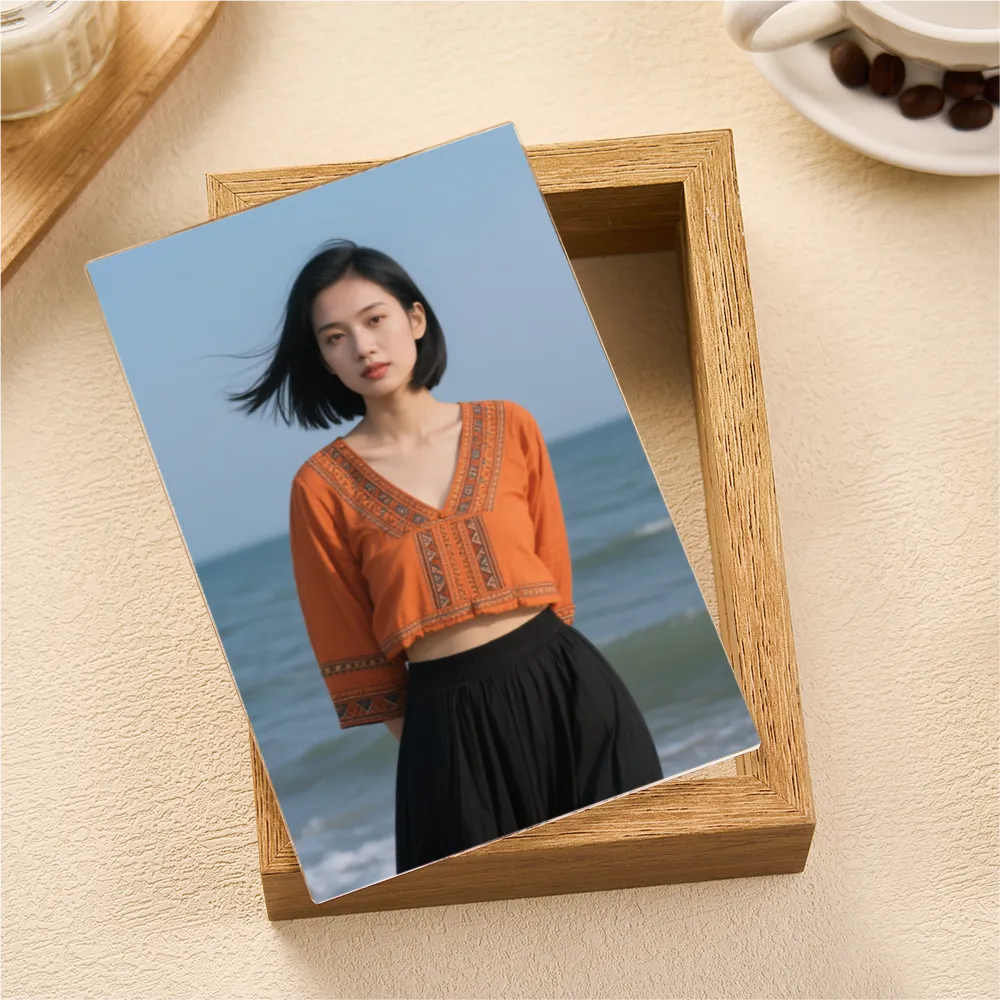
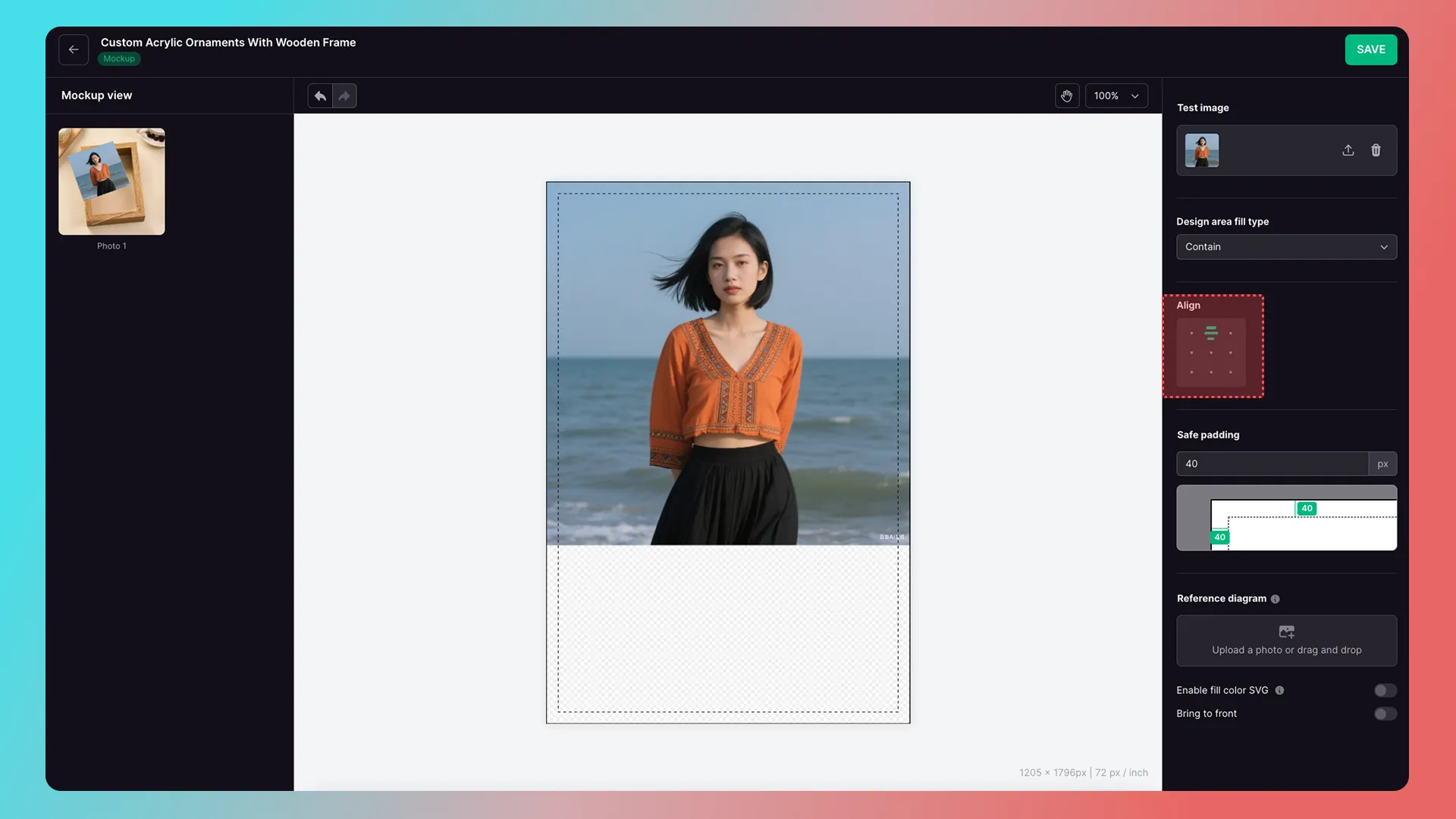
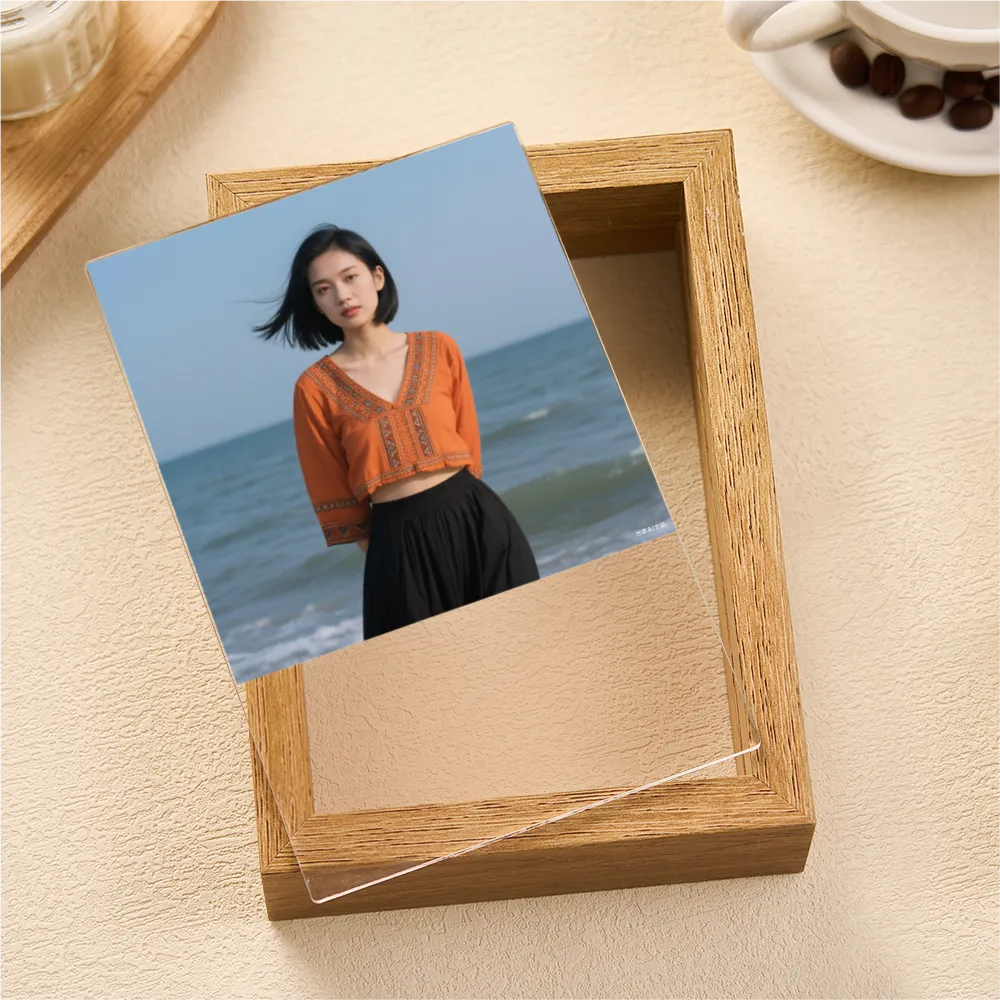
Contain
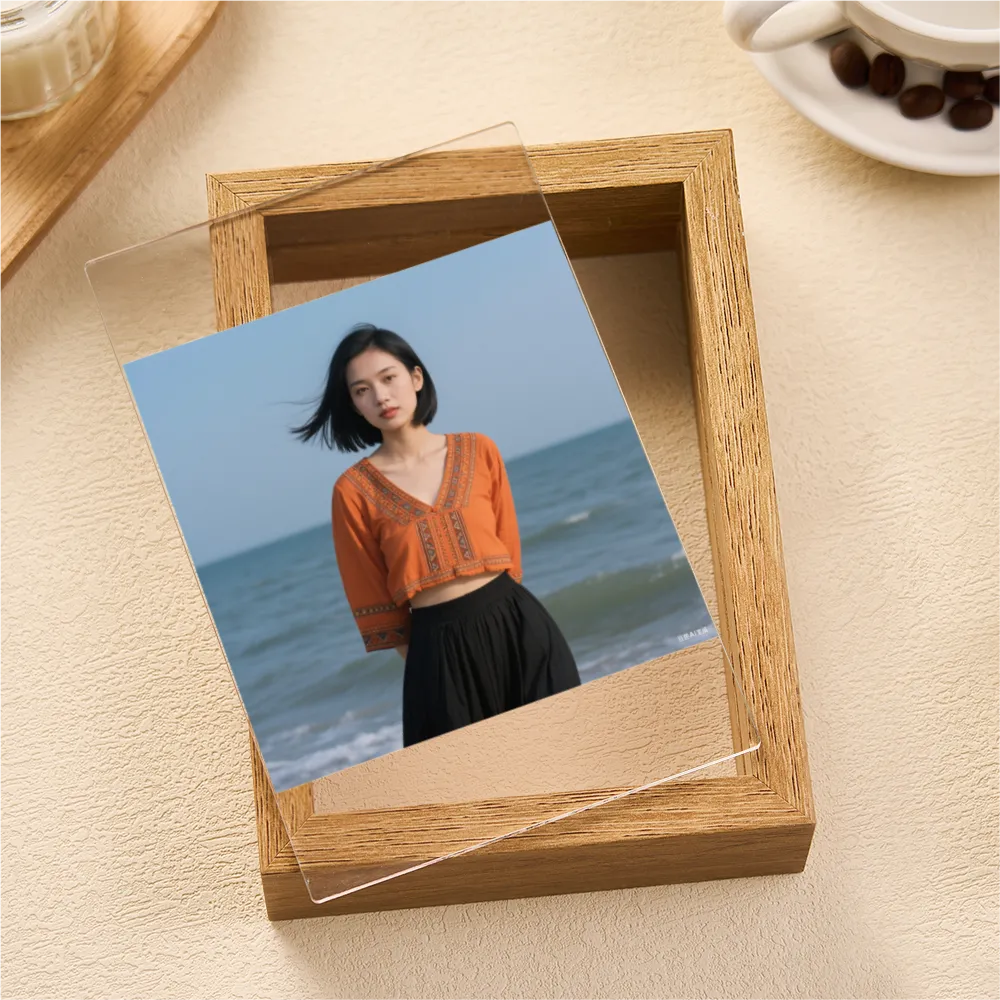
Set Image Alignment
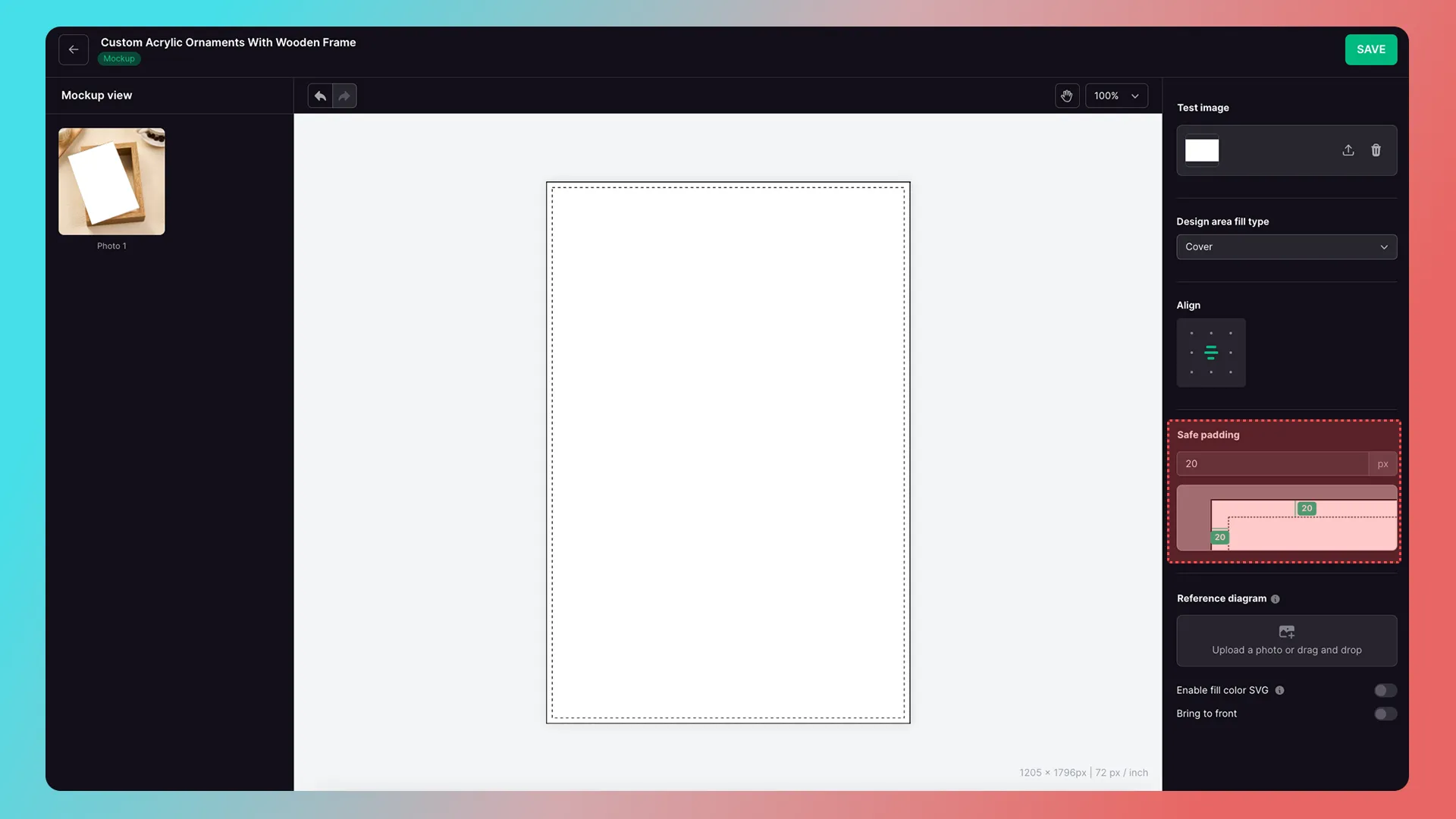
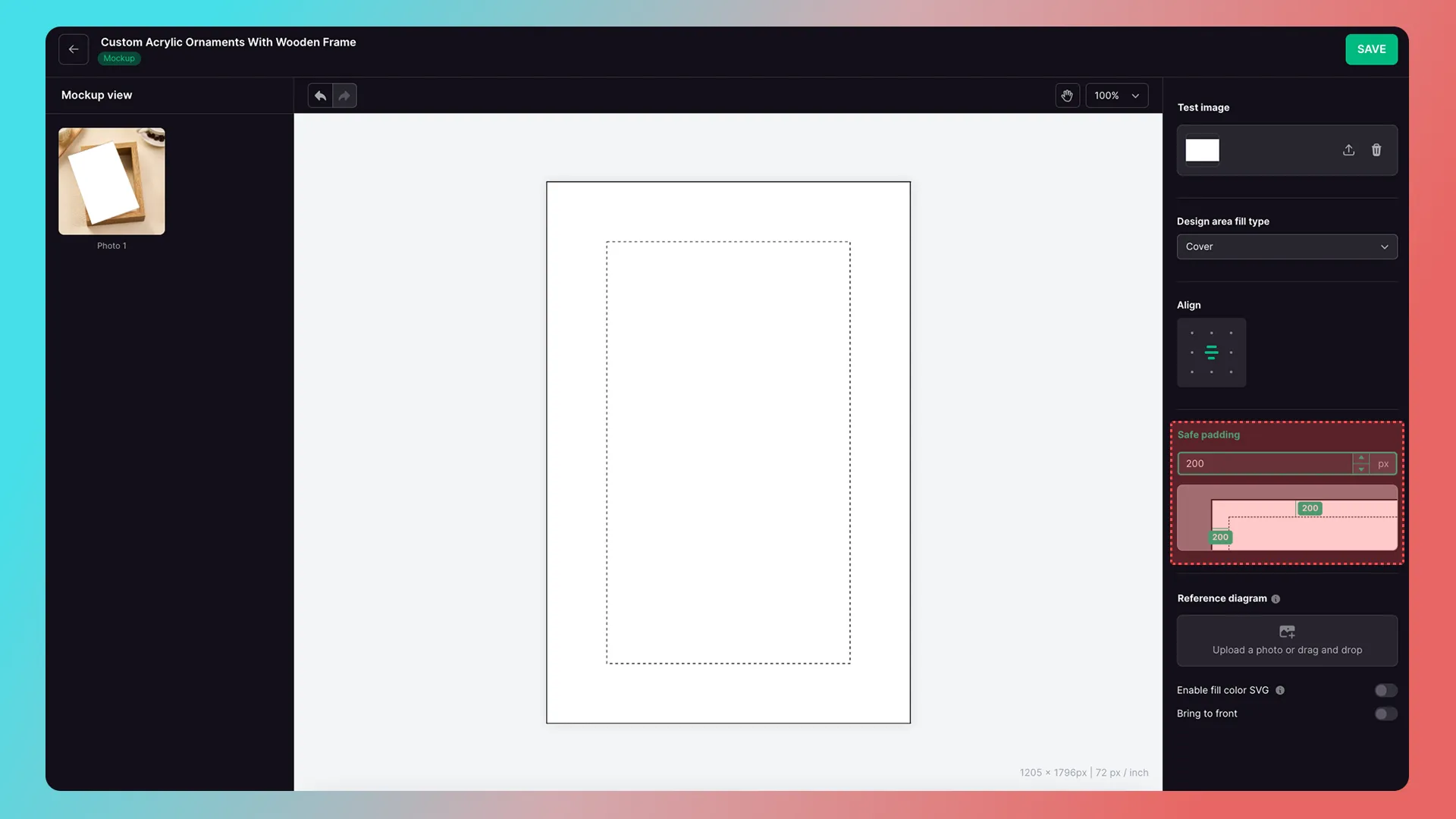
Safety line (bleed line)
The safety line (bleed line) reminds customers not to place custom content outside it. It appears only on the customer-facing canvas and does not affect preview or production output.
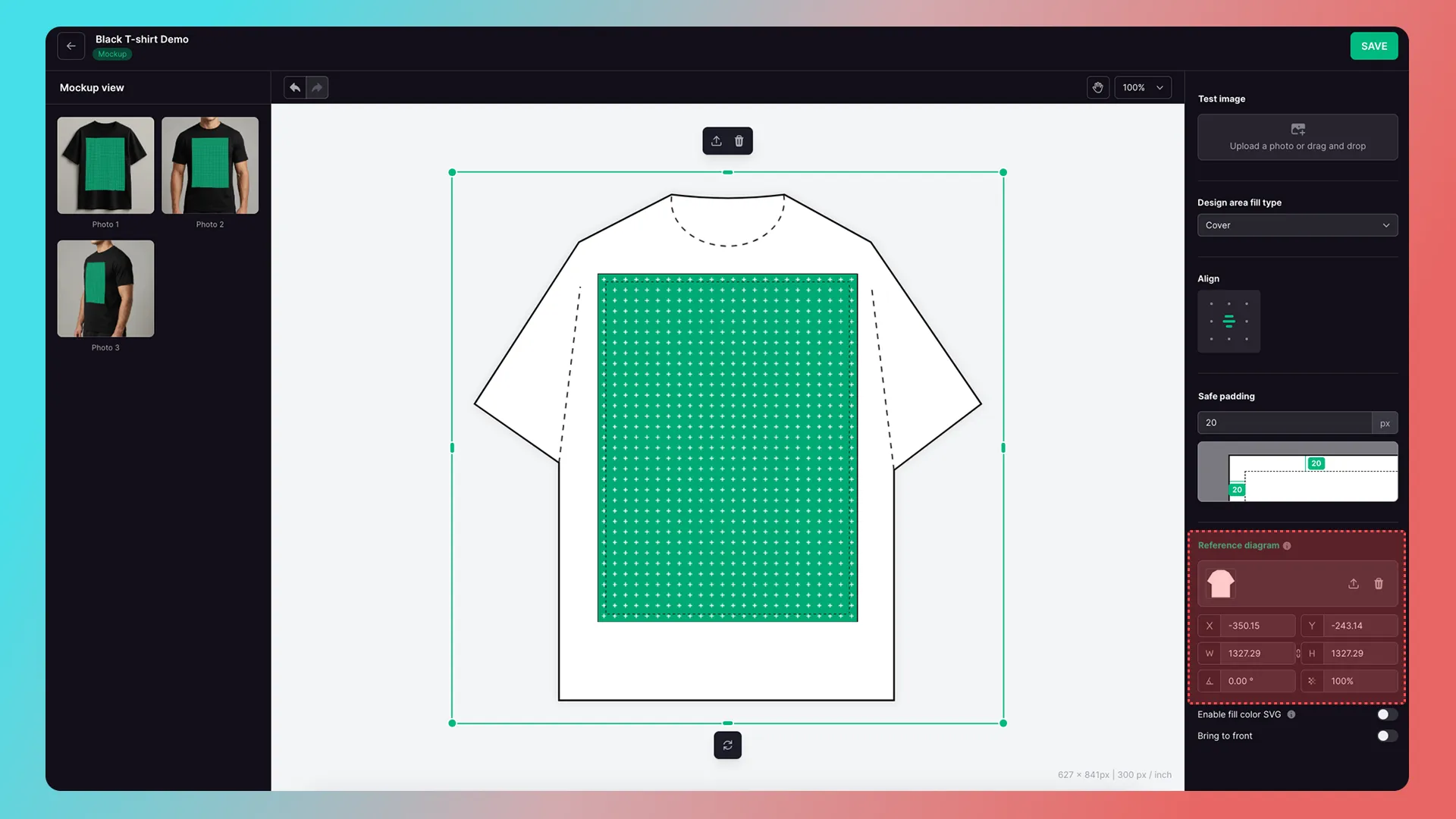
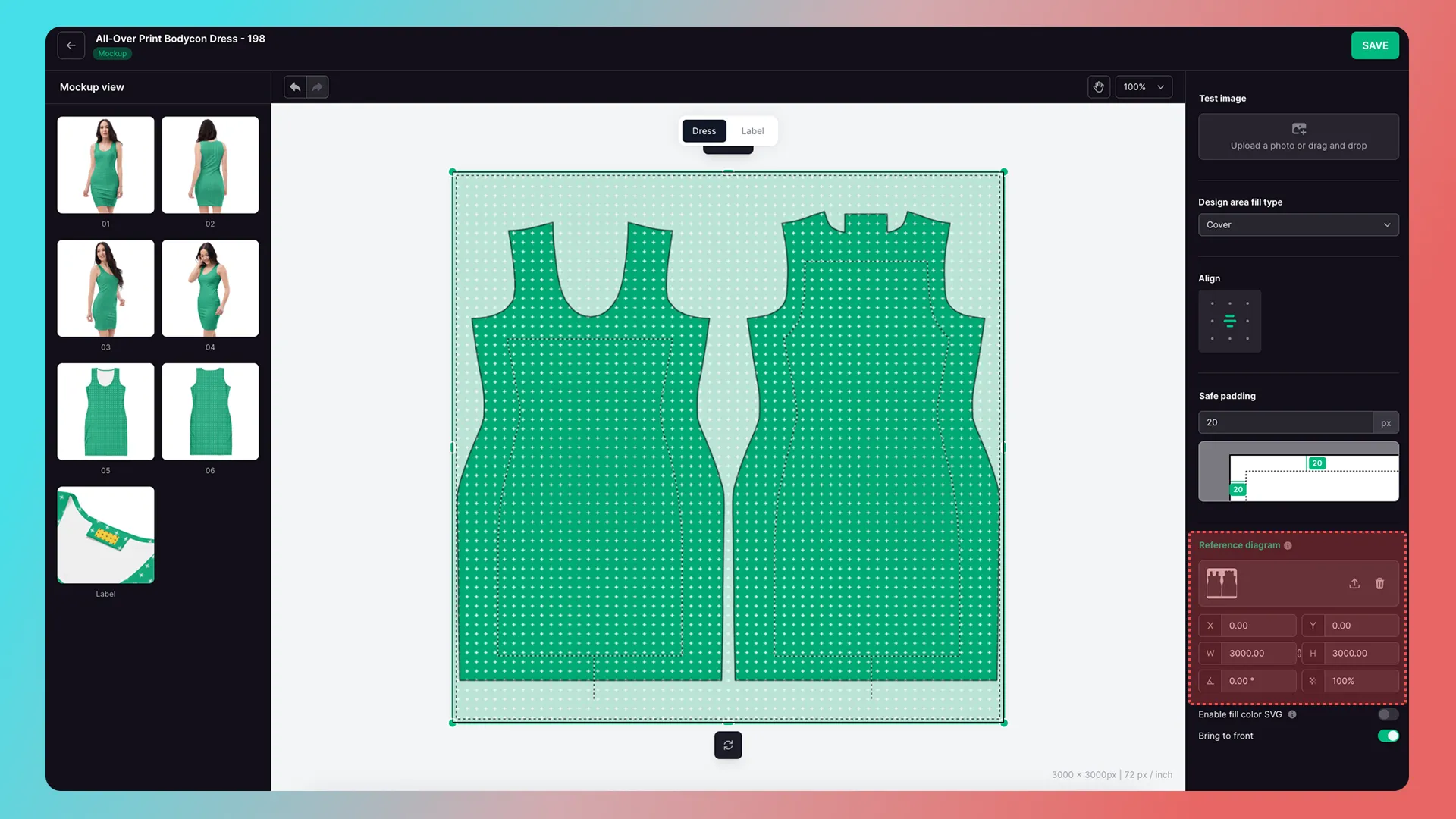
Reference diagram
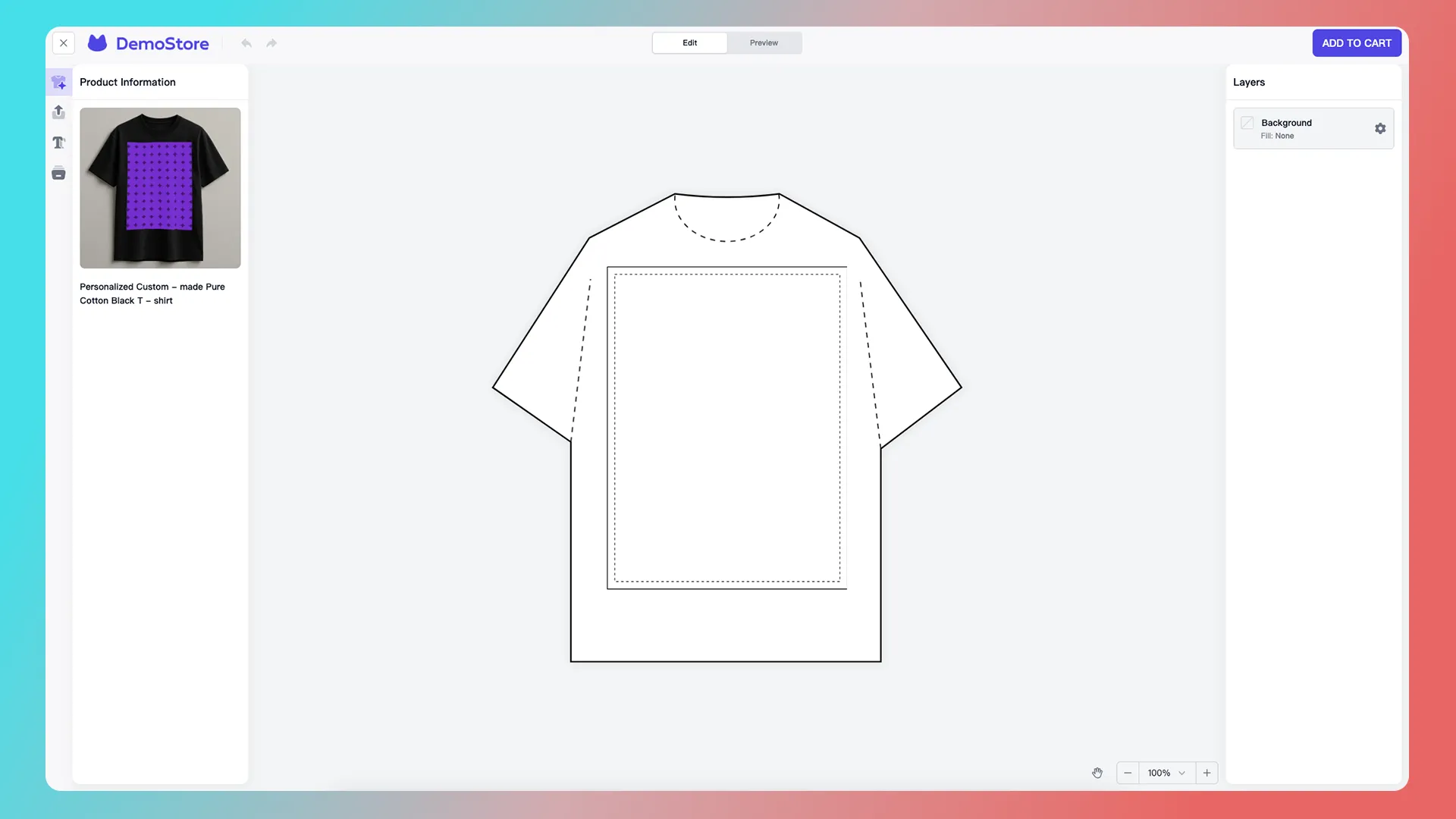
Reference diagrams guide customers on the canvas.
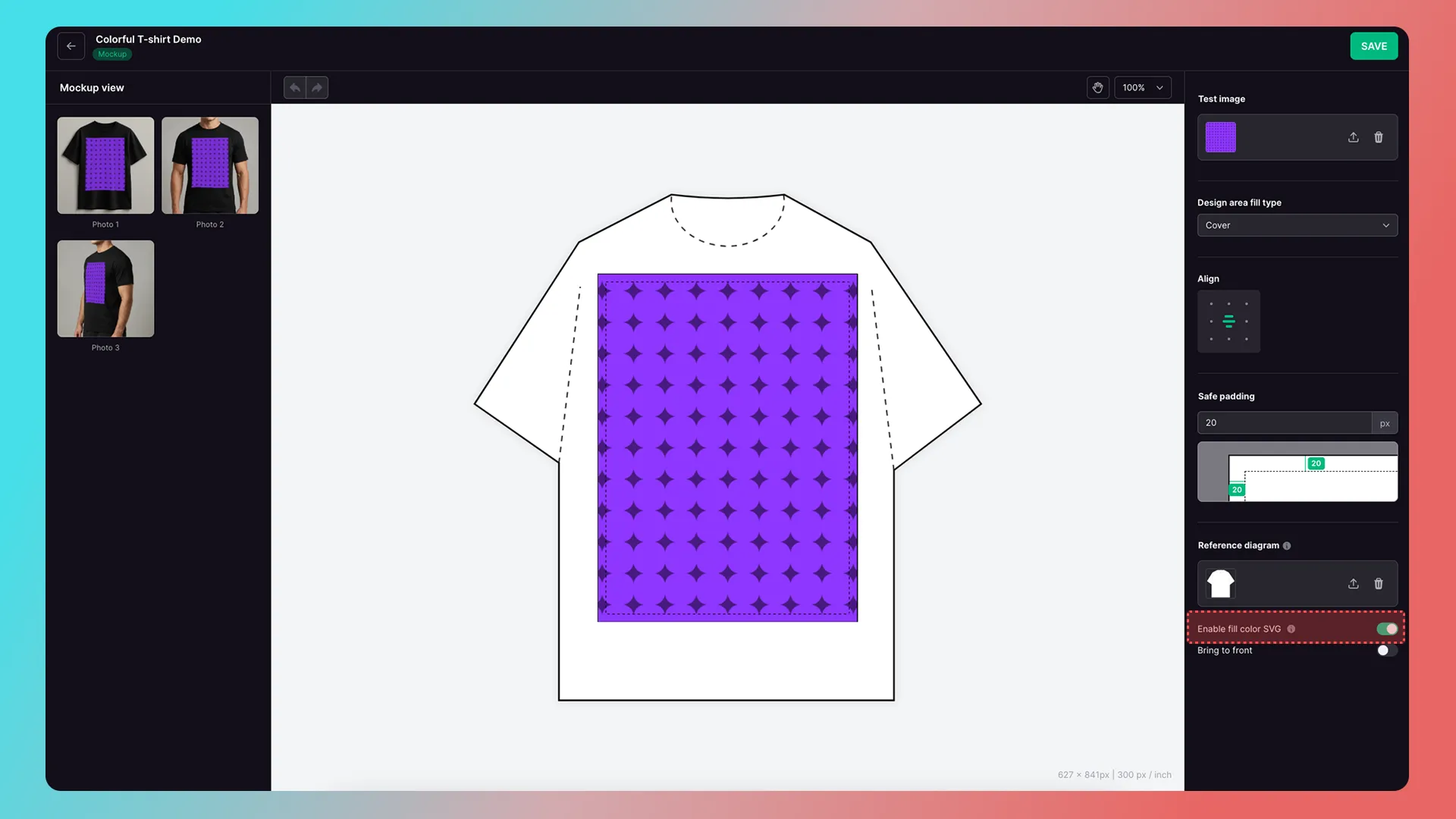
Enable fill color SVG
After enabling Enable fill color SVG, customers can choose colors on the design page, without affecting production artwork. (Upload an SVG reference diagram to enable this option.)
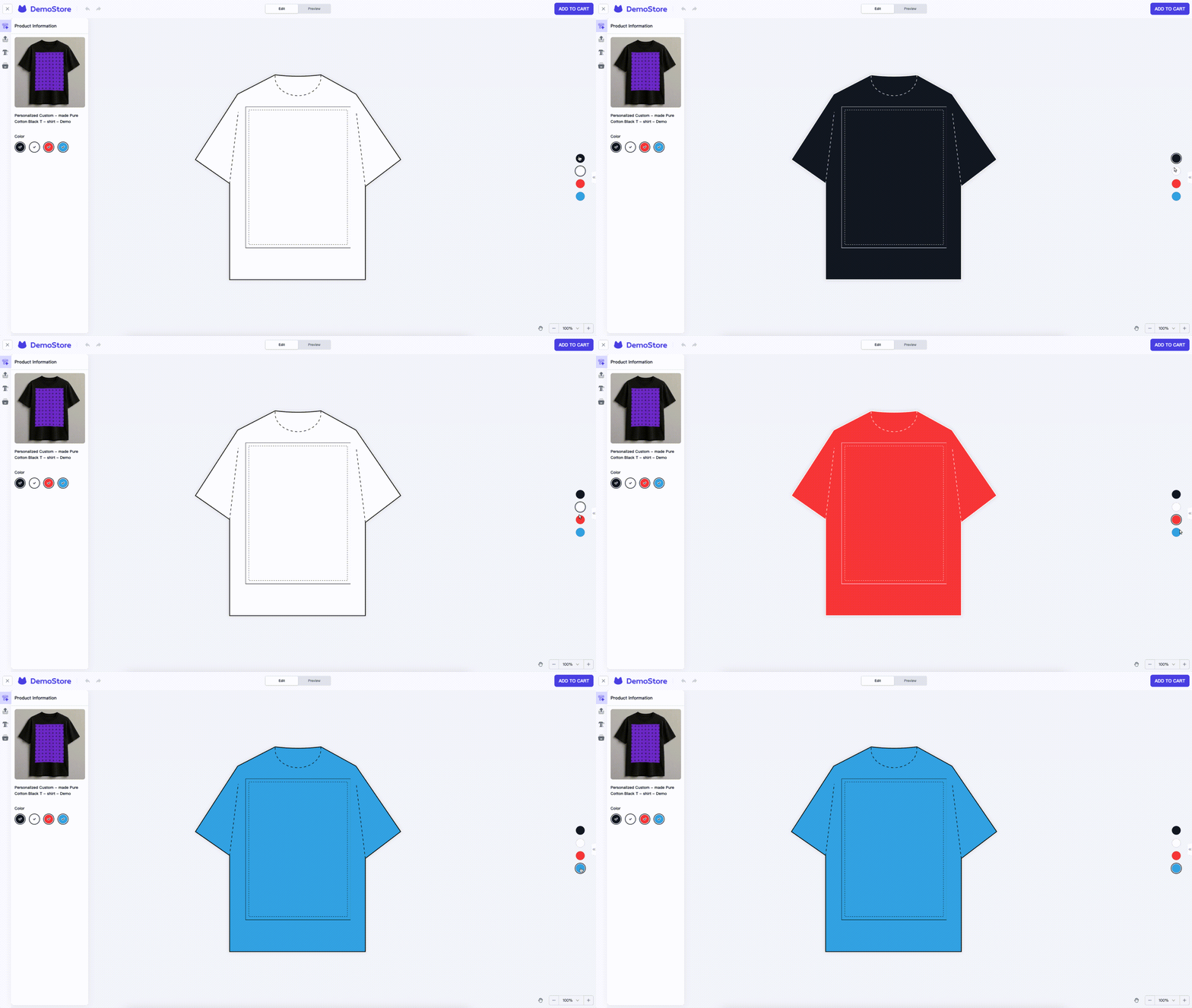
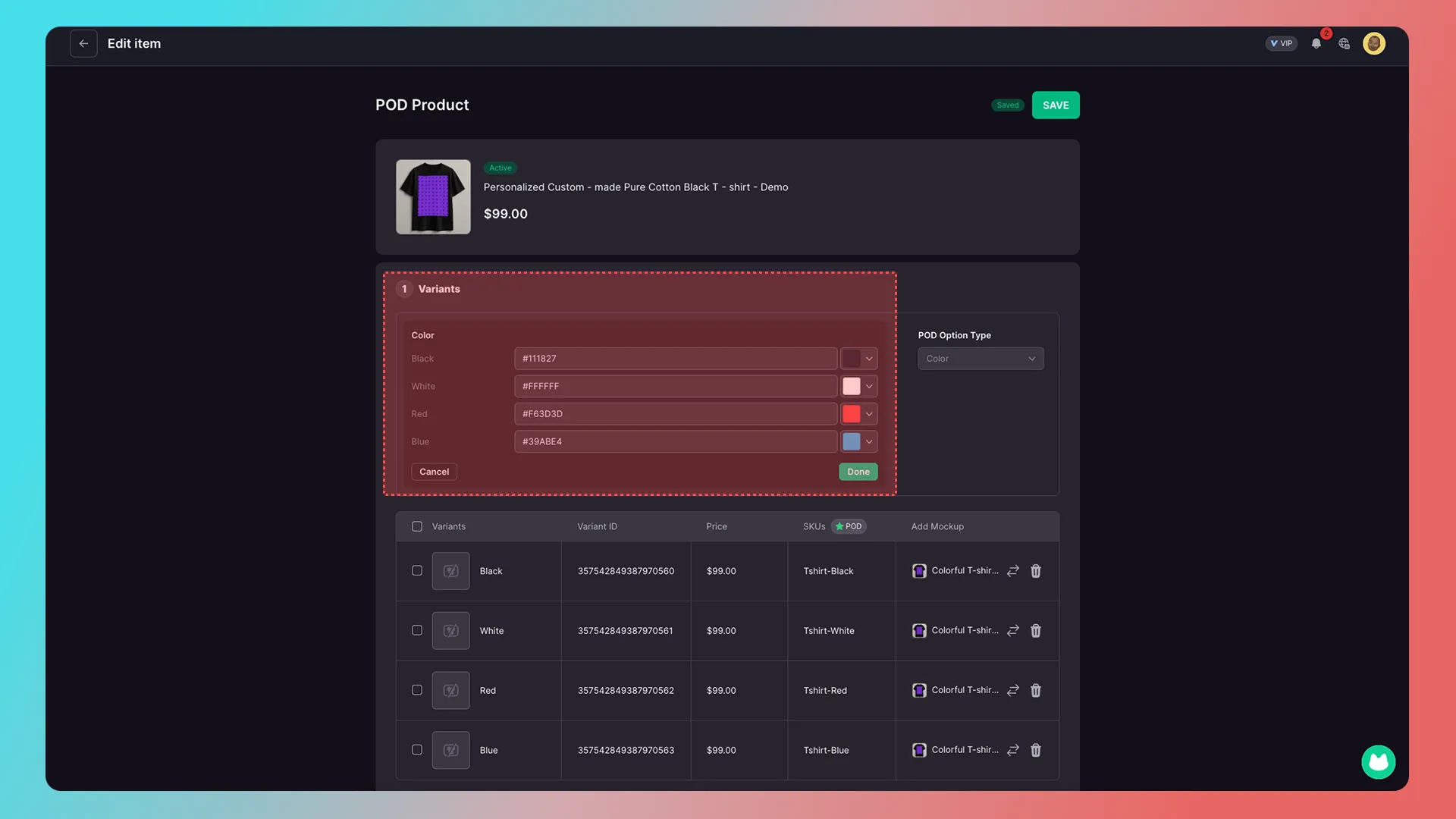
Important: Simply enabling this option is not enough. When integrating or publishing a product to your store, you must select and configure the color options.
How to Integrate a Customization Feature into a Product Detail Page (Chinese)
The linked guide covers POD product integration. Refer to it for more detail.
Bring to front
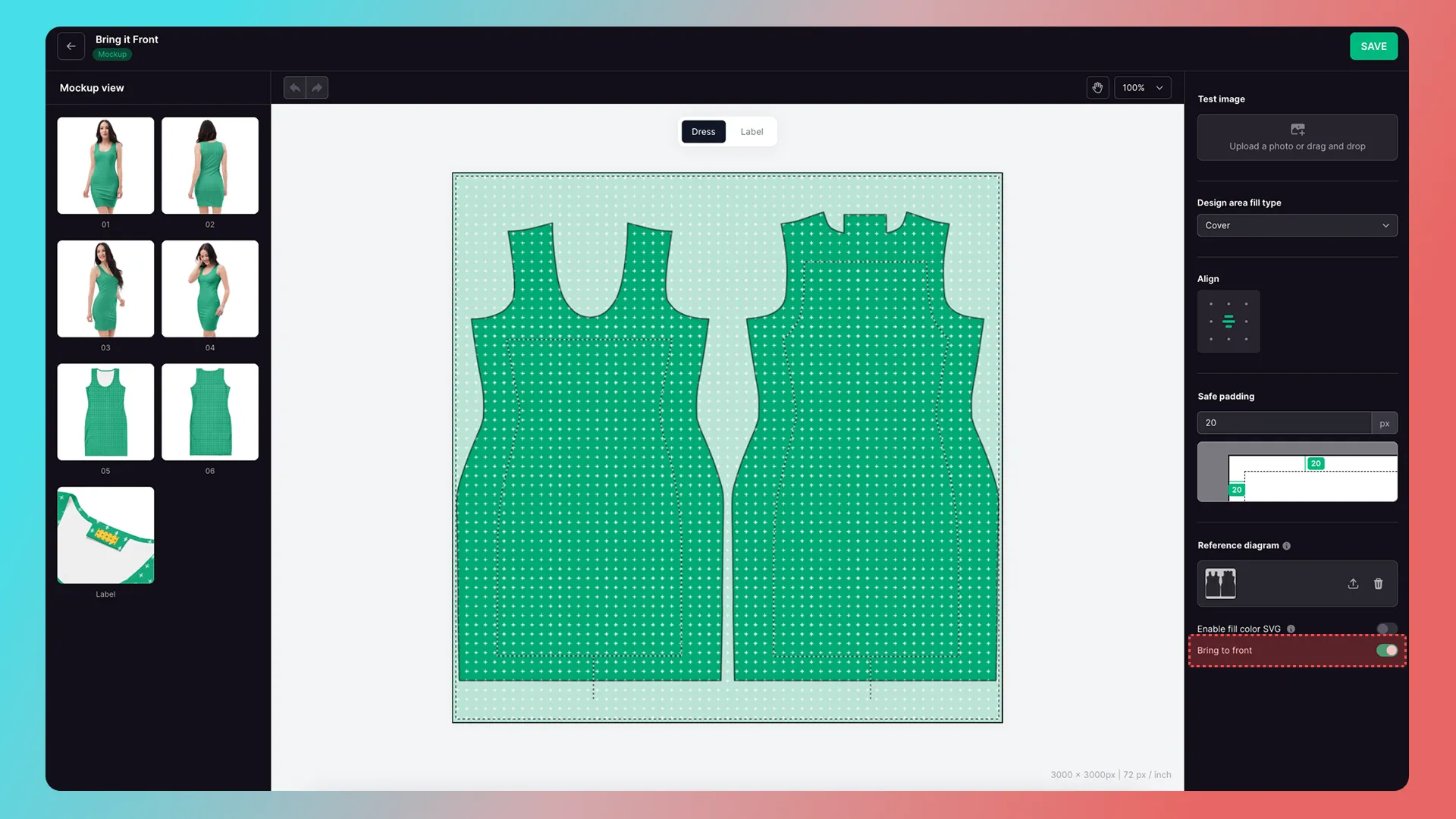
Enabling Bring to front affects only the customer-facing design canvas, not production artwork.
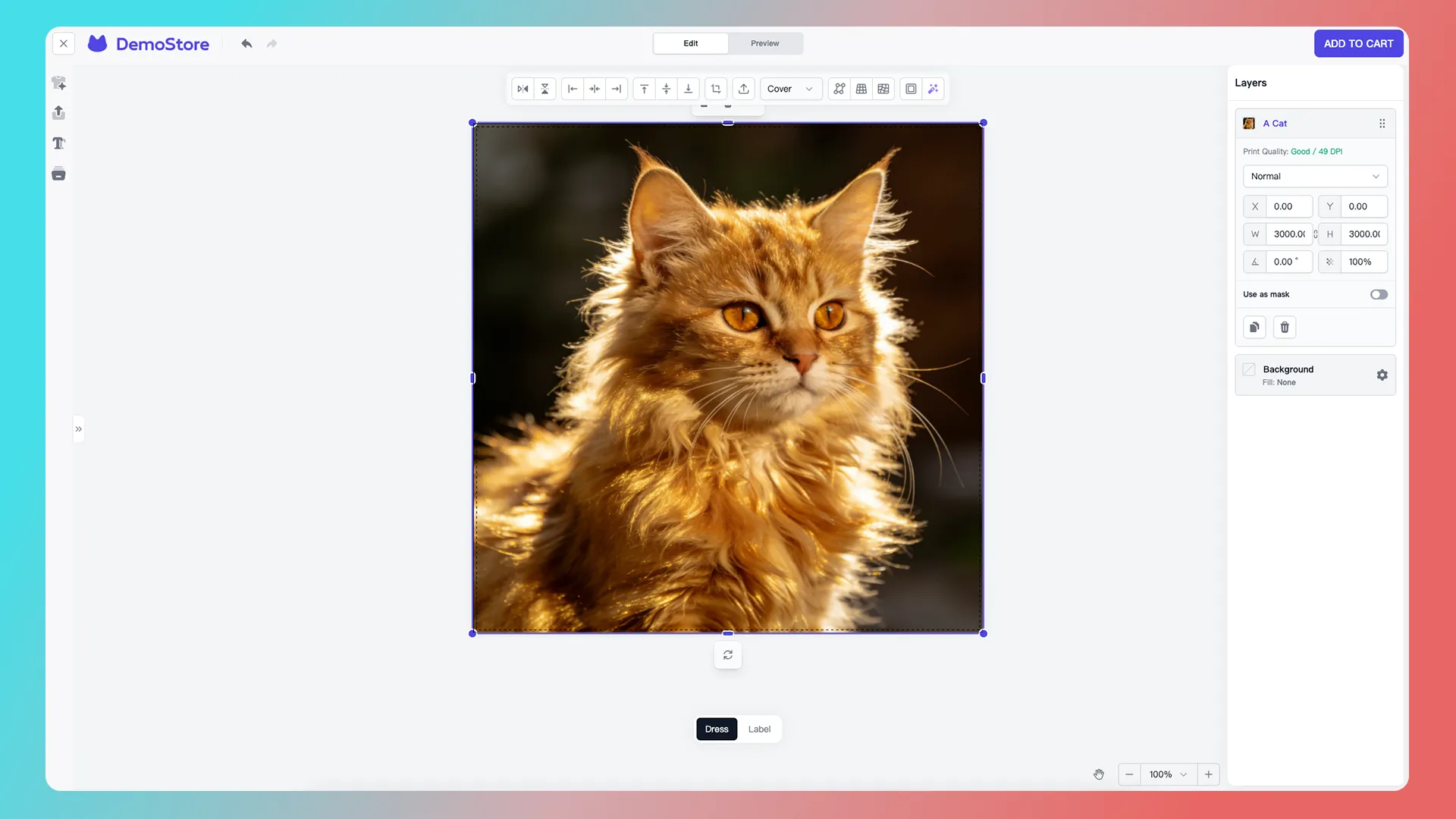
How it looks when enabled and an image is uploaded on the customer-facing page ↓
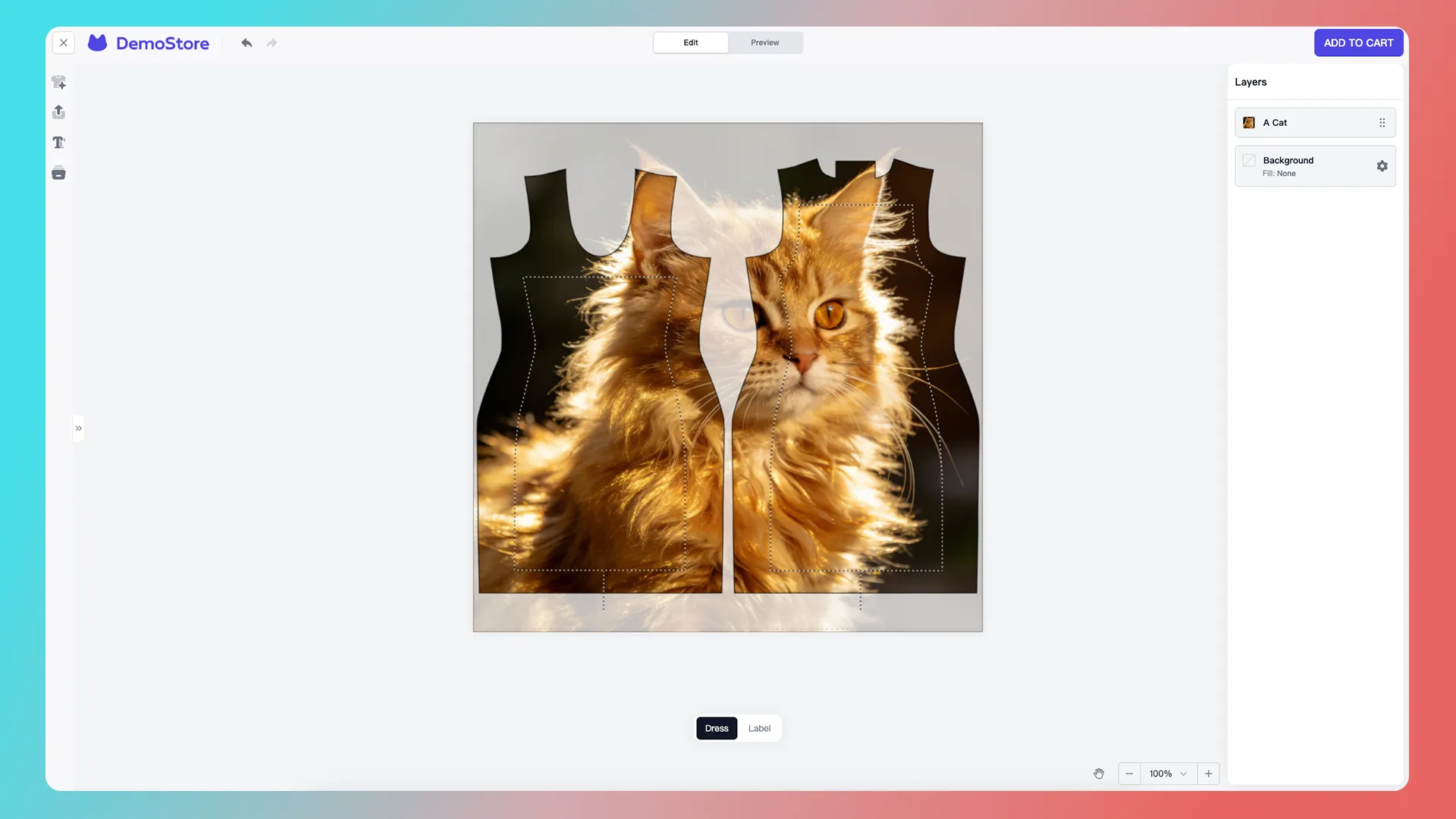
How it looks when disabled and an image is uploaded on the customer-facing page ↓
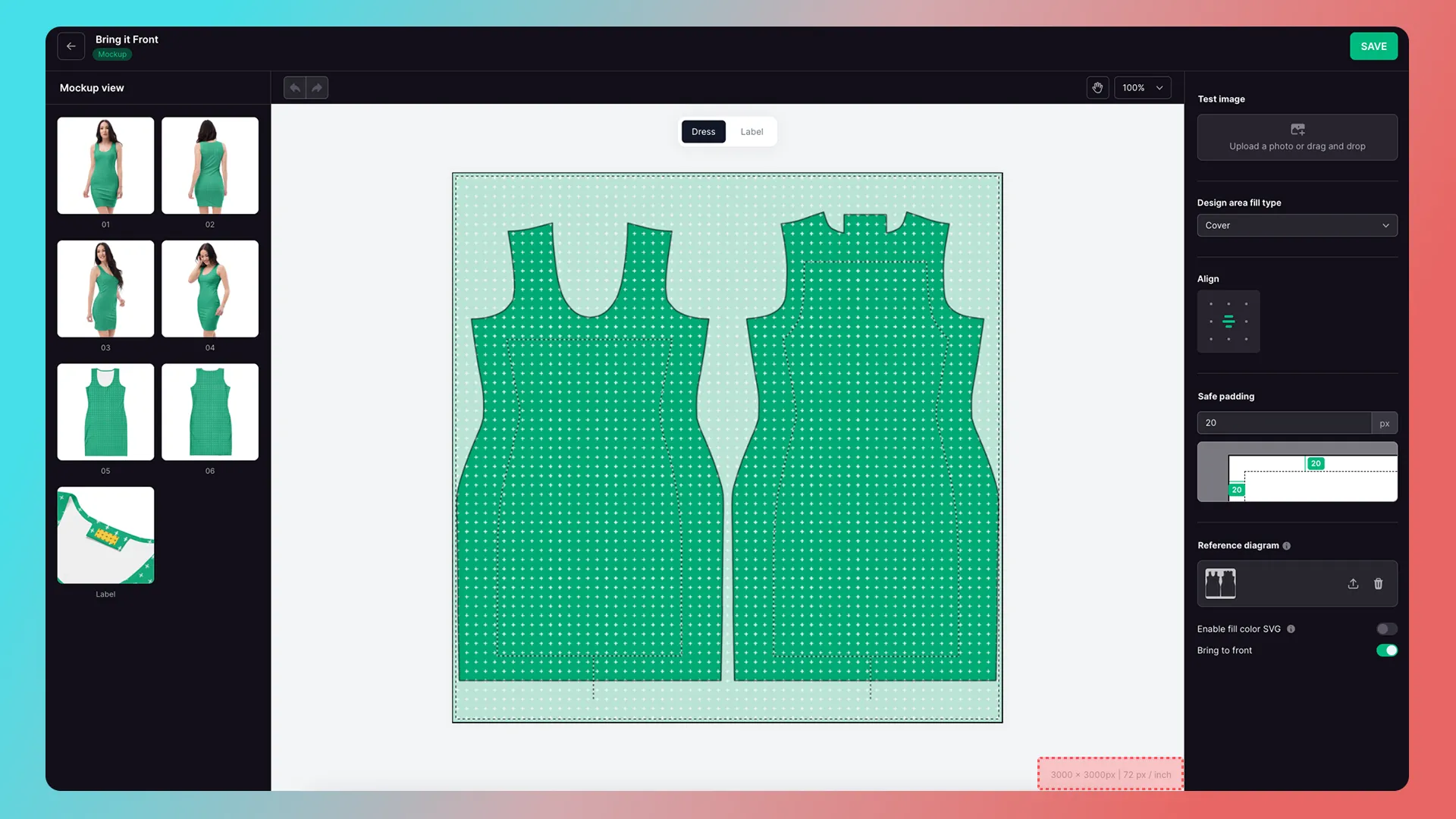
Display Design Area Parameters
How to Use It in Custom Product Mode
In Custom Product mode, Mockup Preview can use only one preview image from Mockup Design, and you must import a Production Design.
The production image is generated using the same parameters as the Production Design.
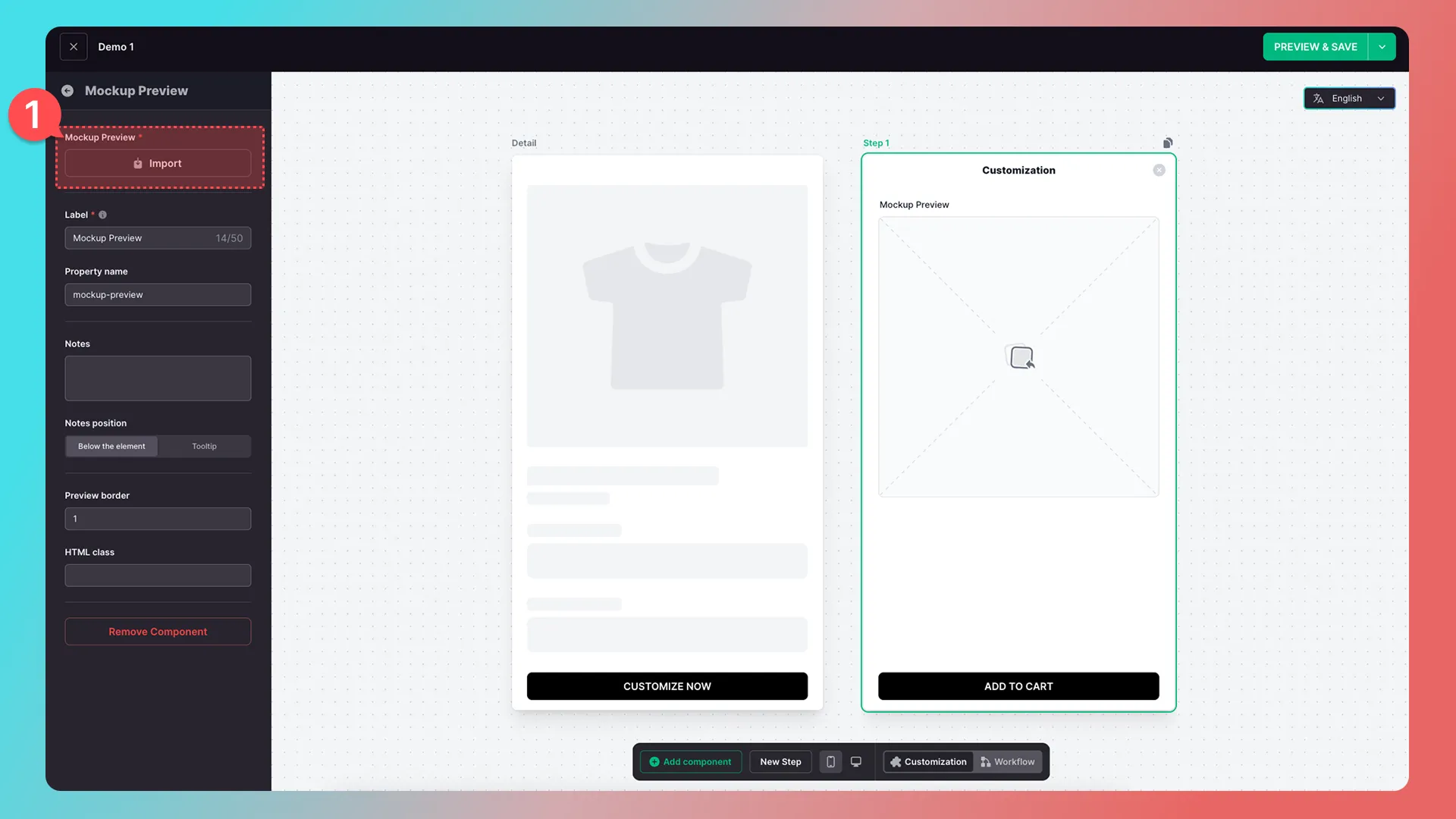
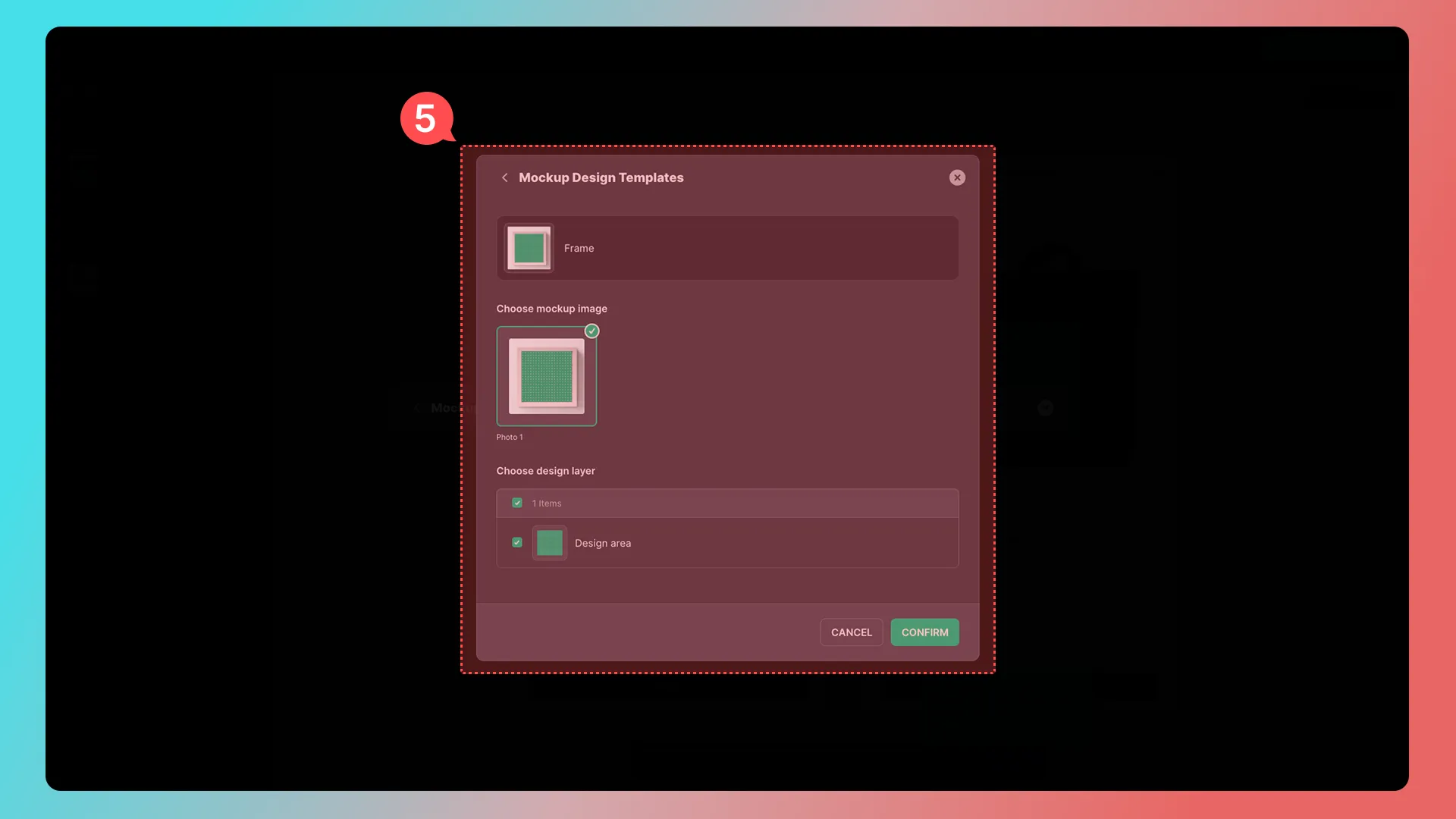
1. After adding a Mockup Preview component, select Import Mockup Design.
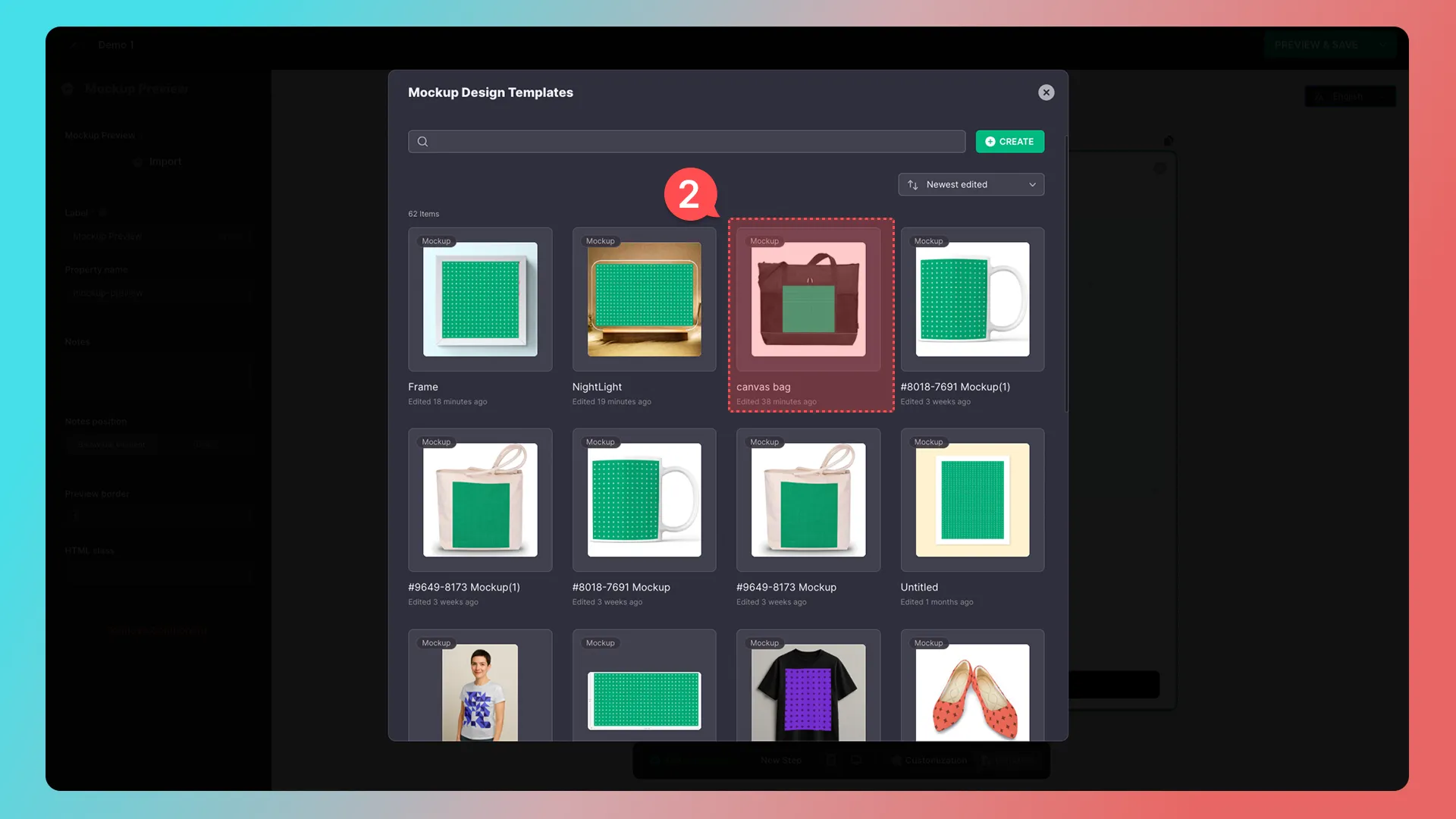
2. Select a Mockup Design.
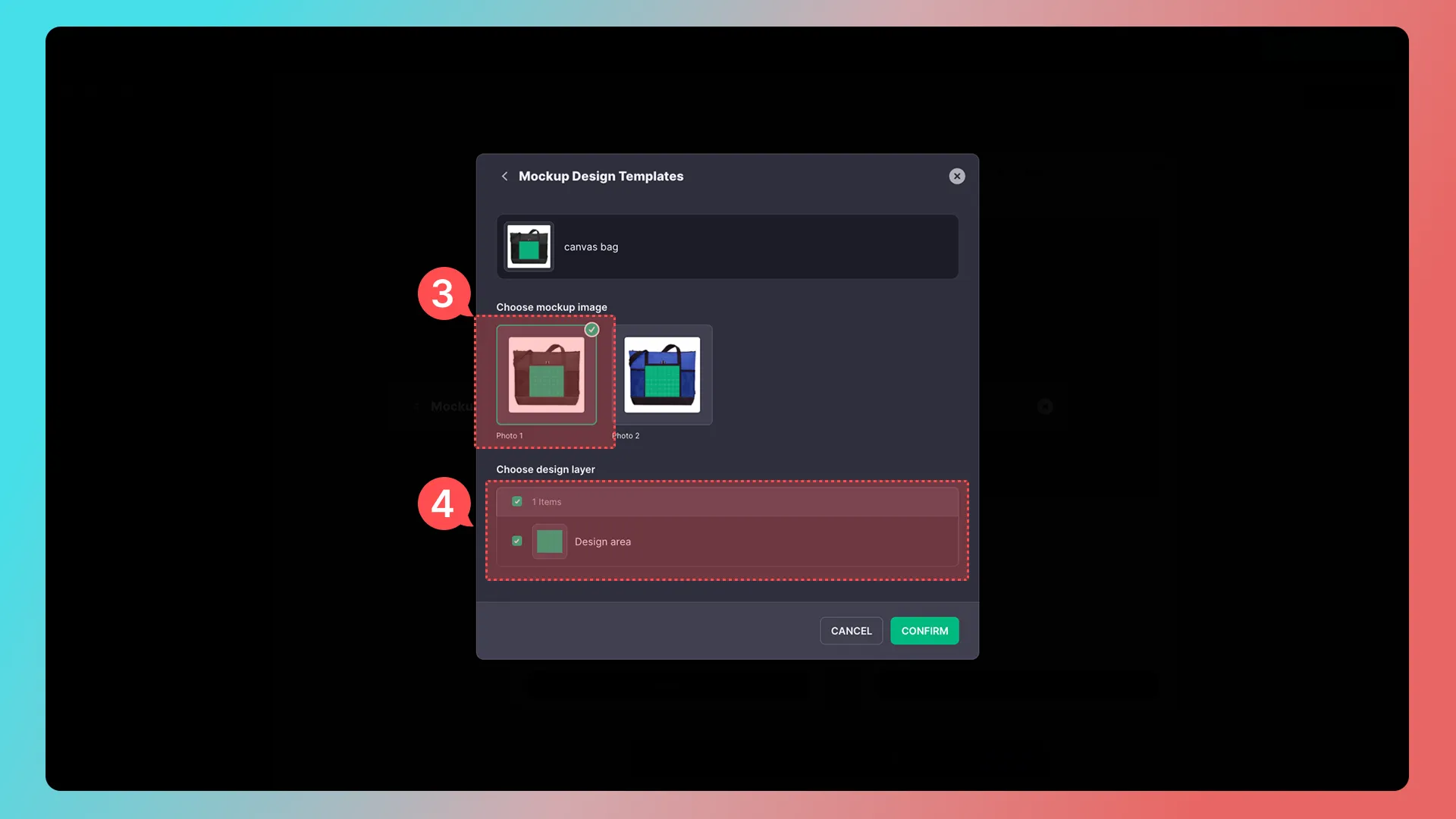
3. Select a Mockup preview image (only one can be selected).
4. Select design areas (you can select multiple if there are several).
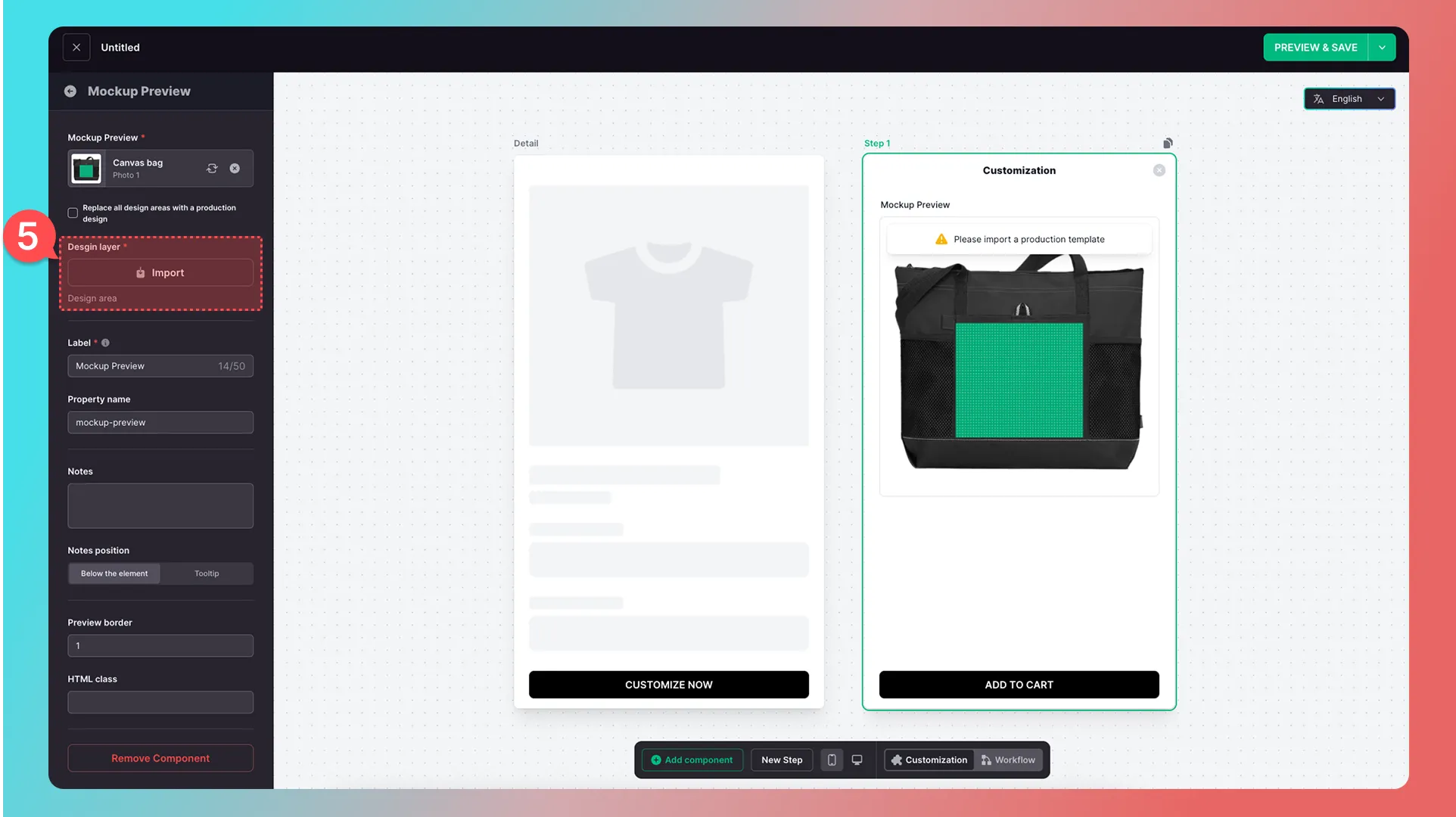
5. Import a Production Design.
If you selected multiple design areas in the previous step, add multiple Production Designs here. To use the same Production Design for multiple design areas, select Replace all design areas with a production design.
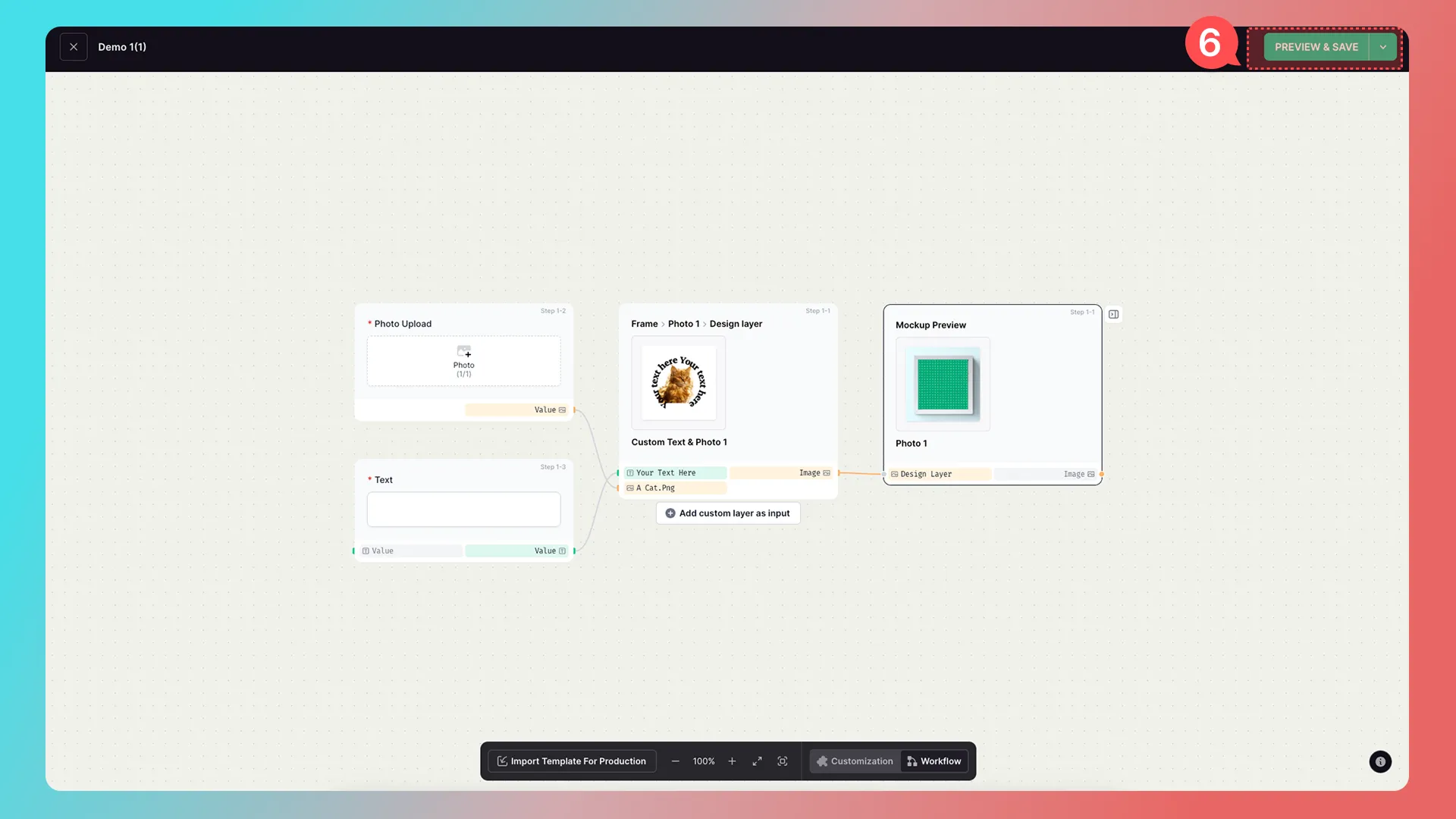
6. Click the Production Design.
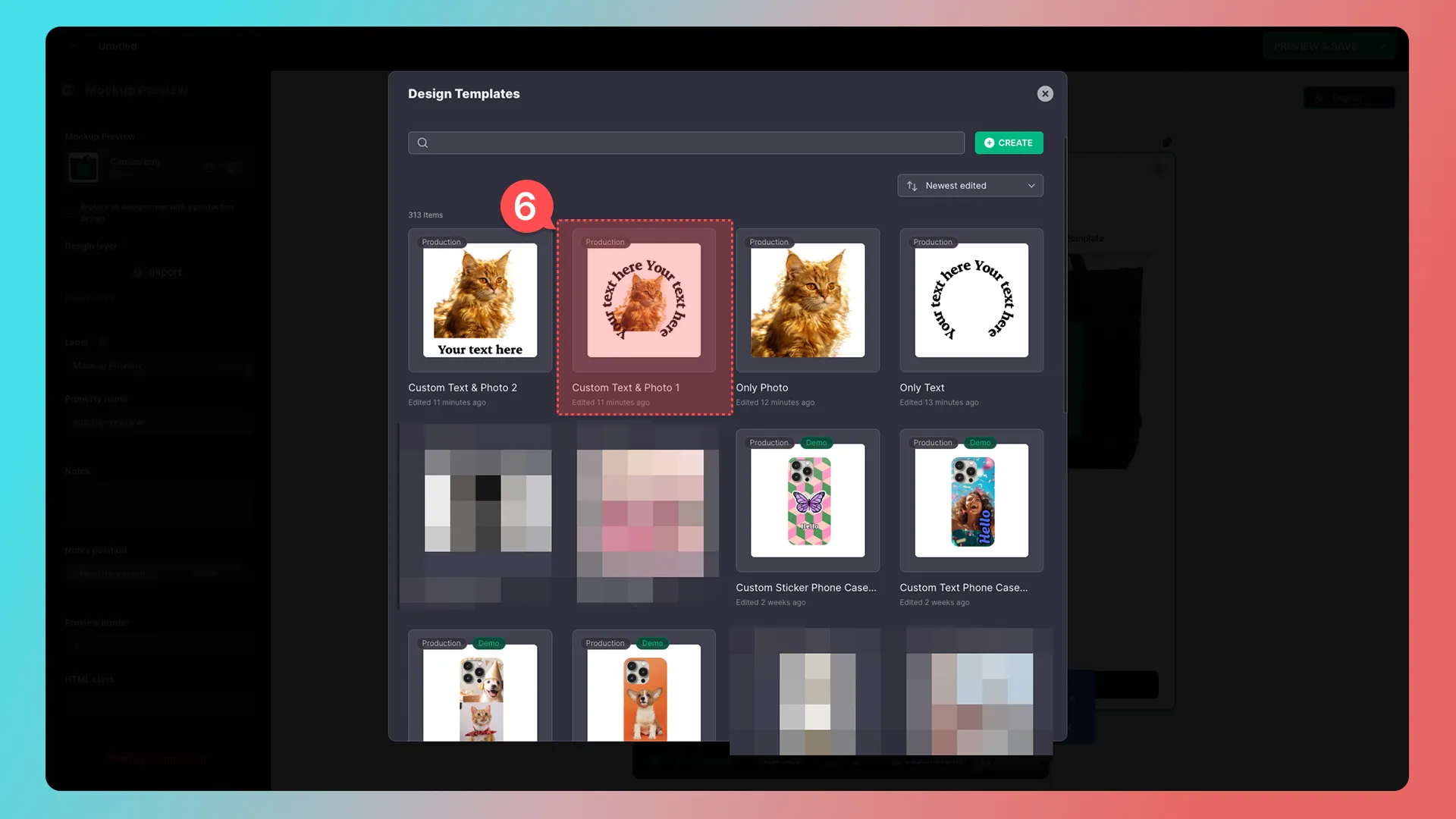
7. Connect the component data to the Production Design layers.
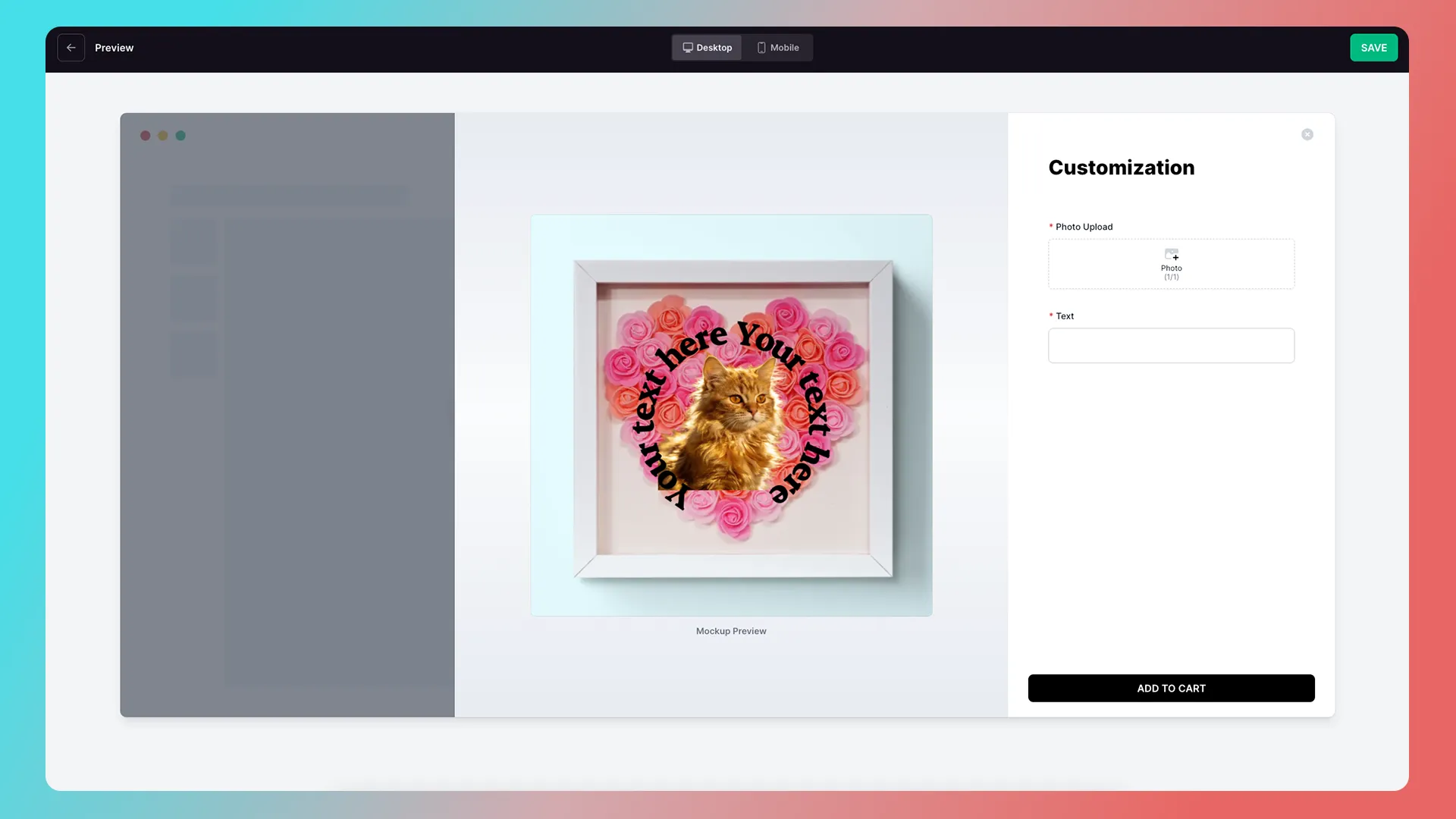
8. Save and preview.
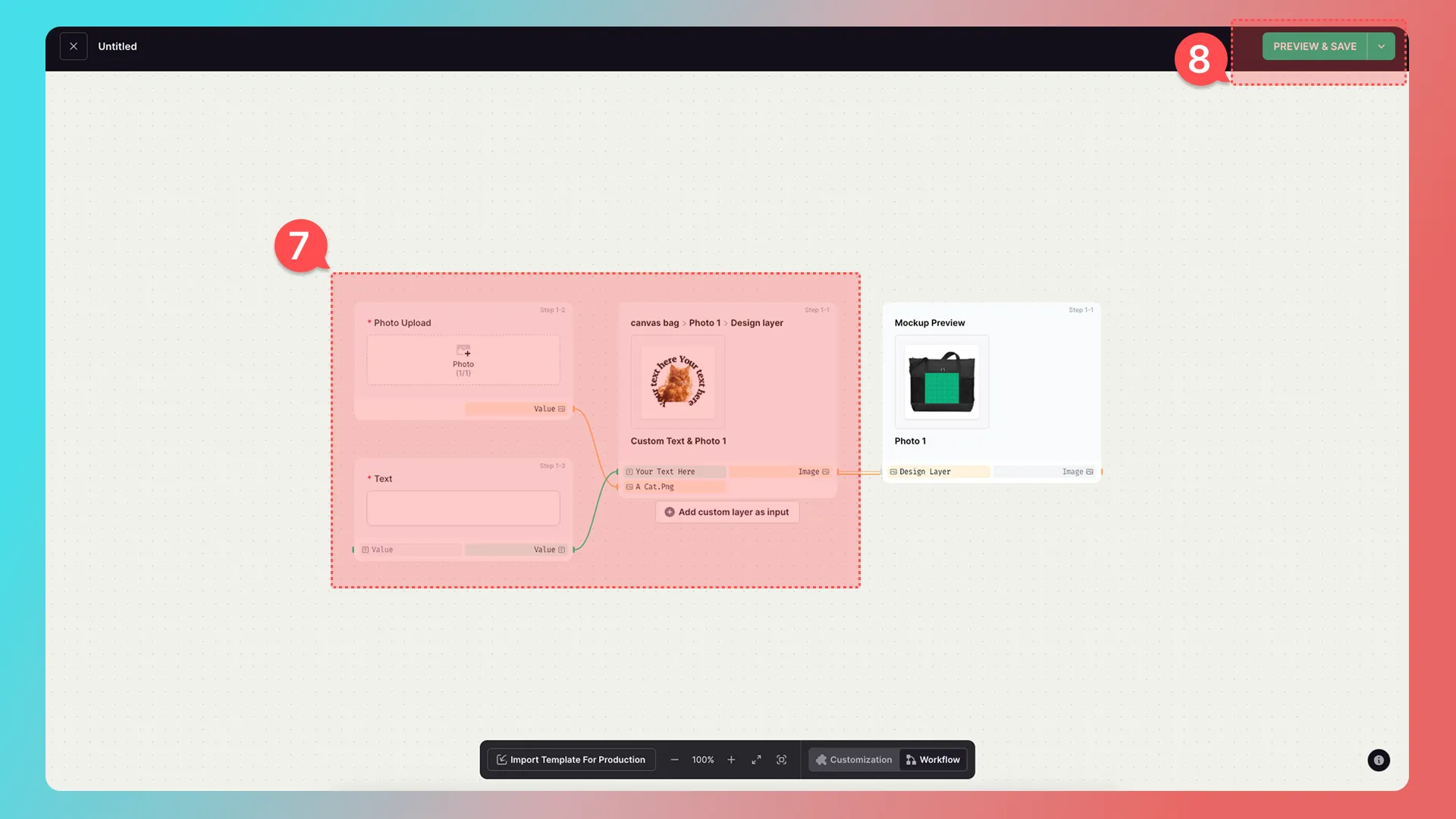
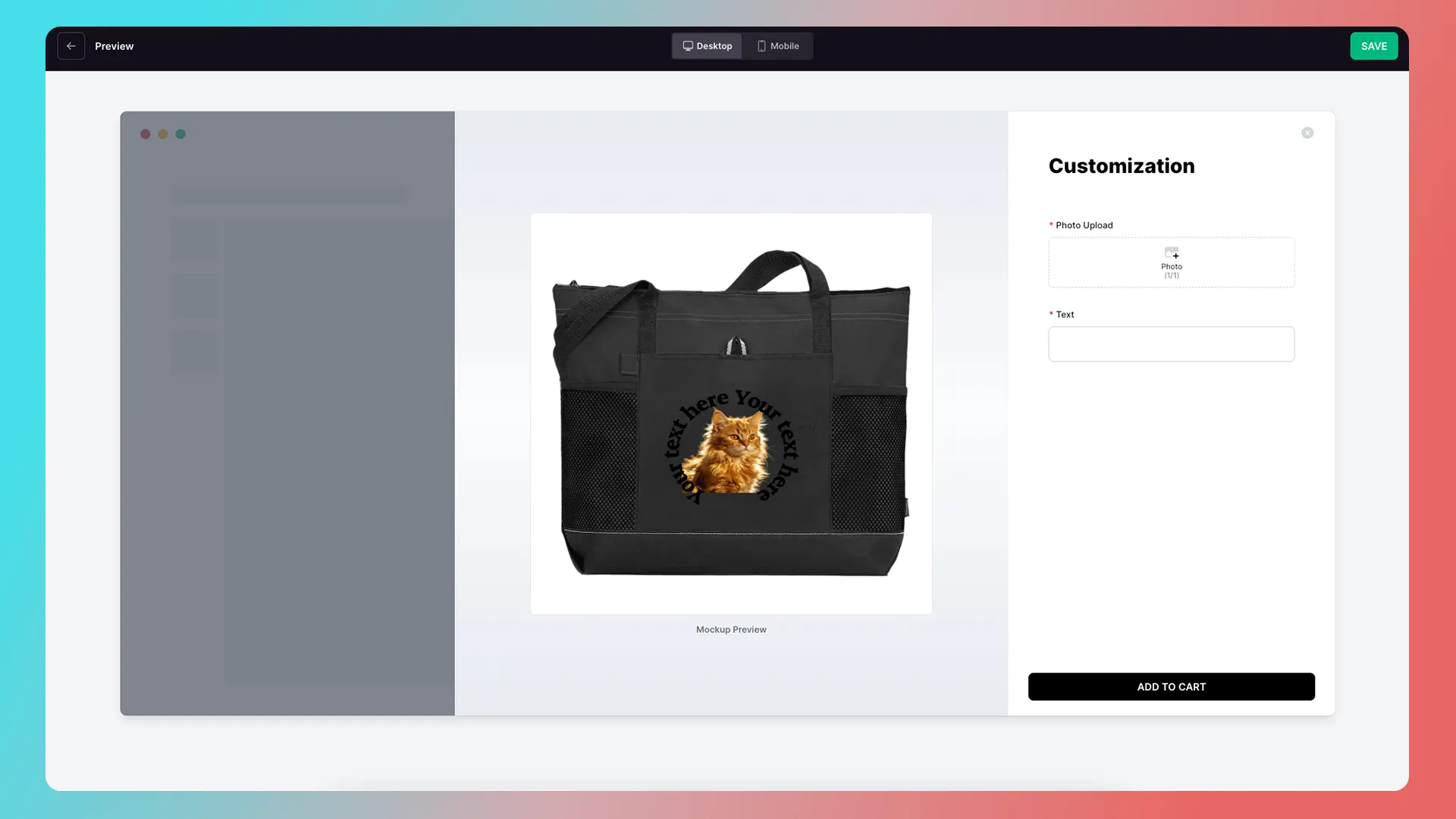
The relationship between Mockup Design and Production Design in Mockup Preview can be understood simply as follows:
One is the shell (Mockup Design), and the other is the texture (Production Design).
The texture is applied to the shell.
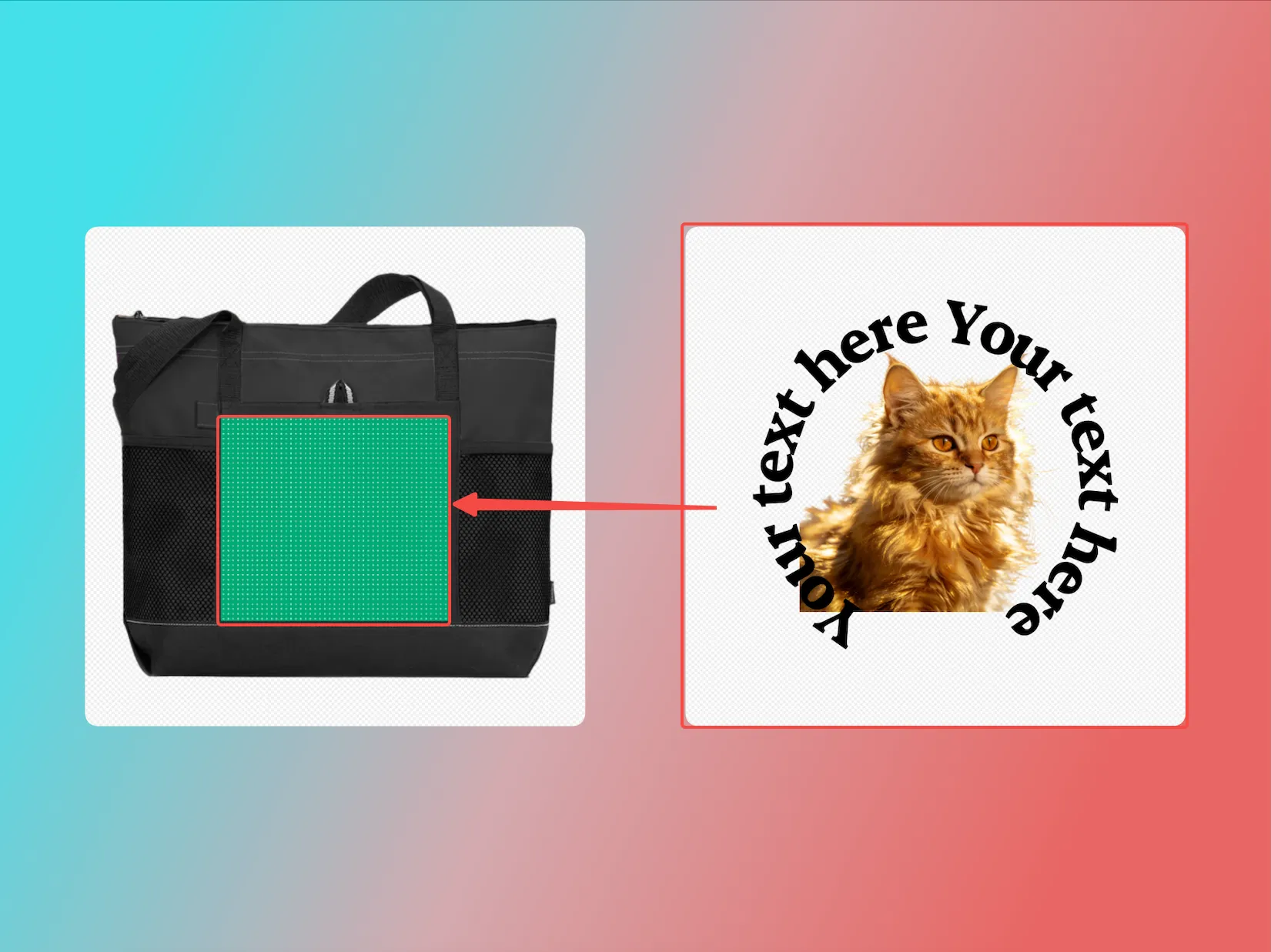
This lets you create a Mockup Design once and reuse it multiple times with different textures.
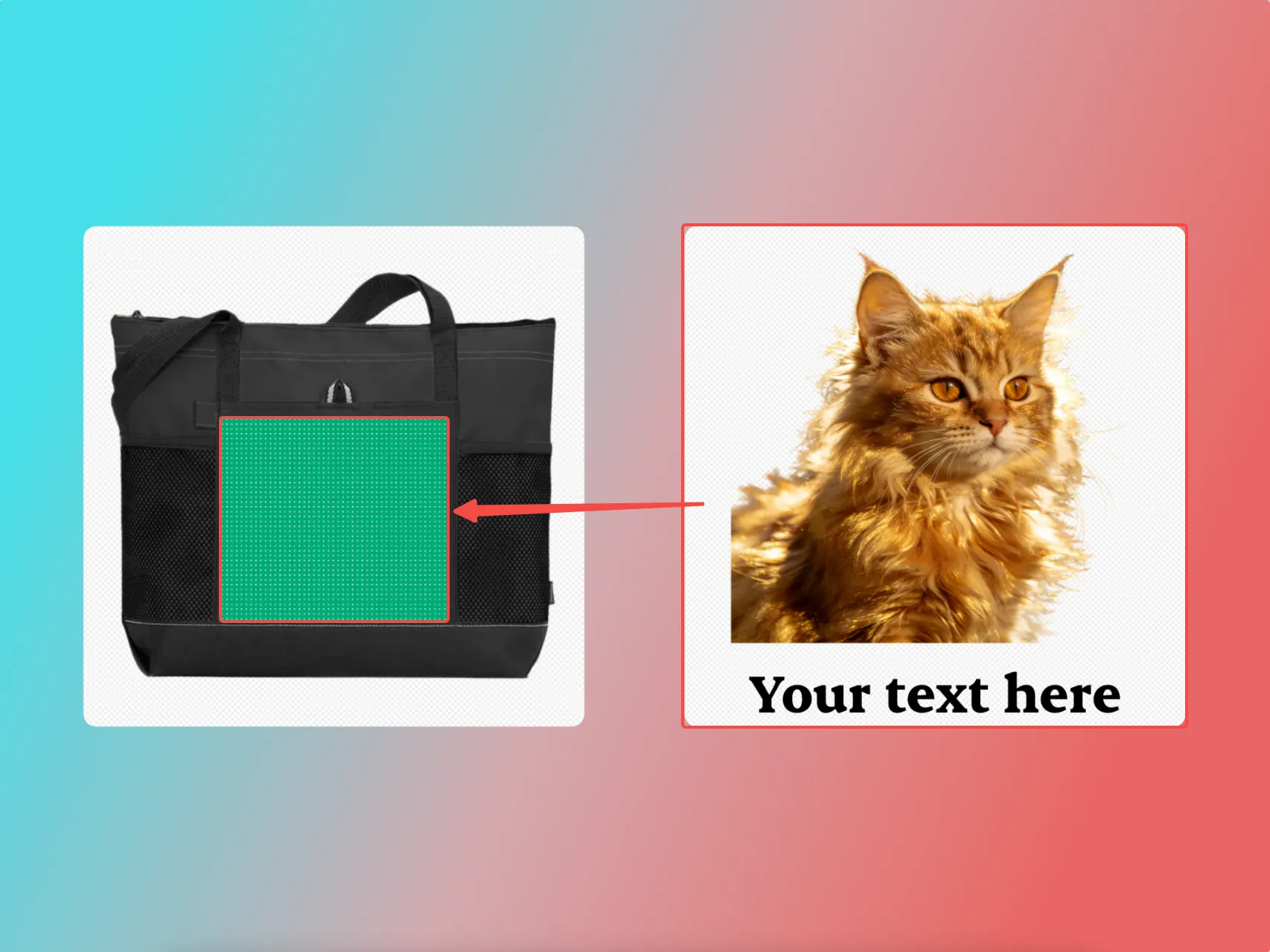
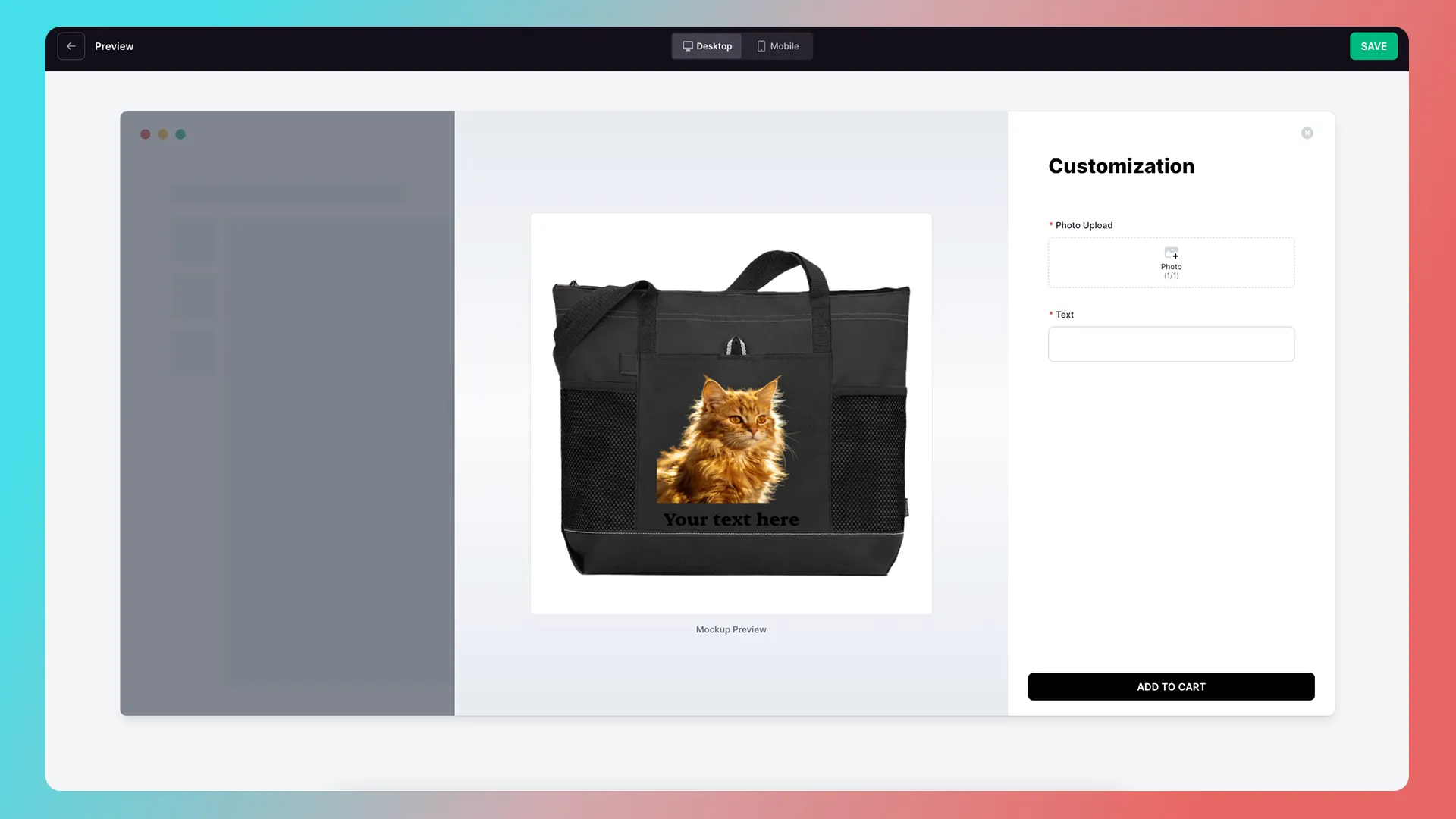
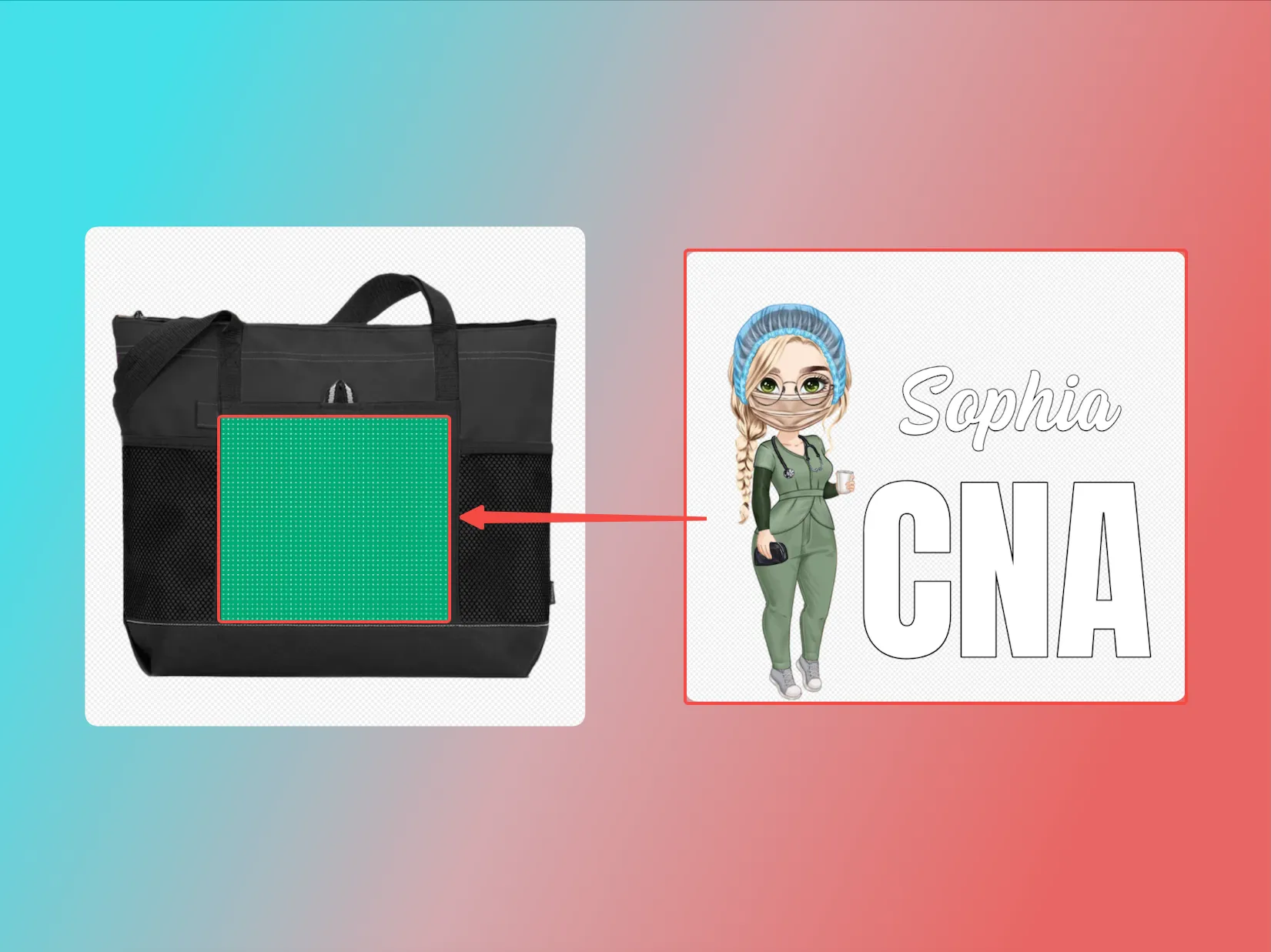
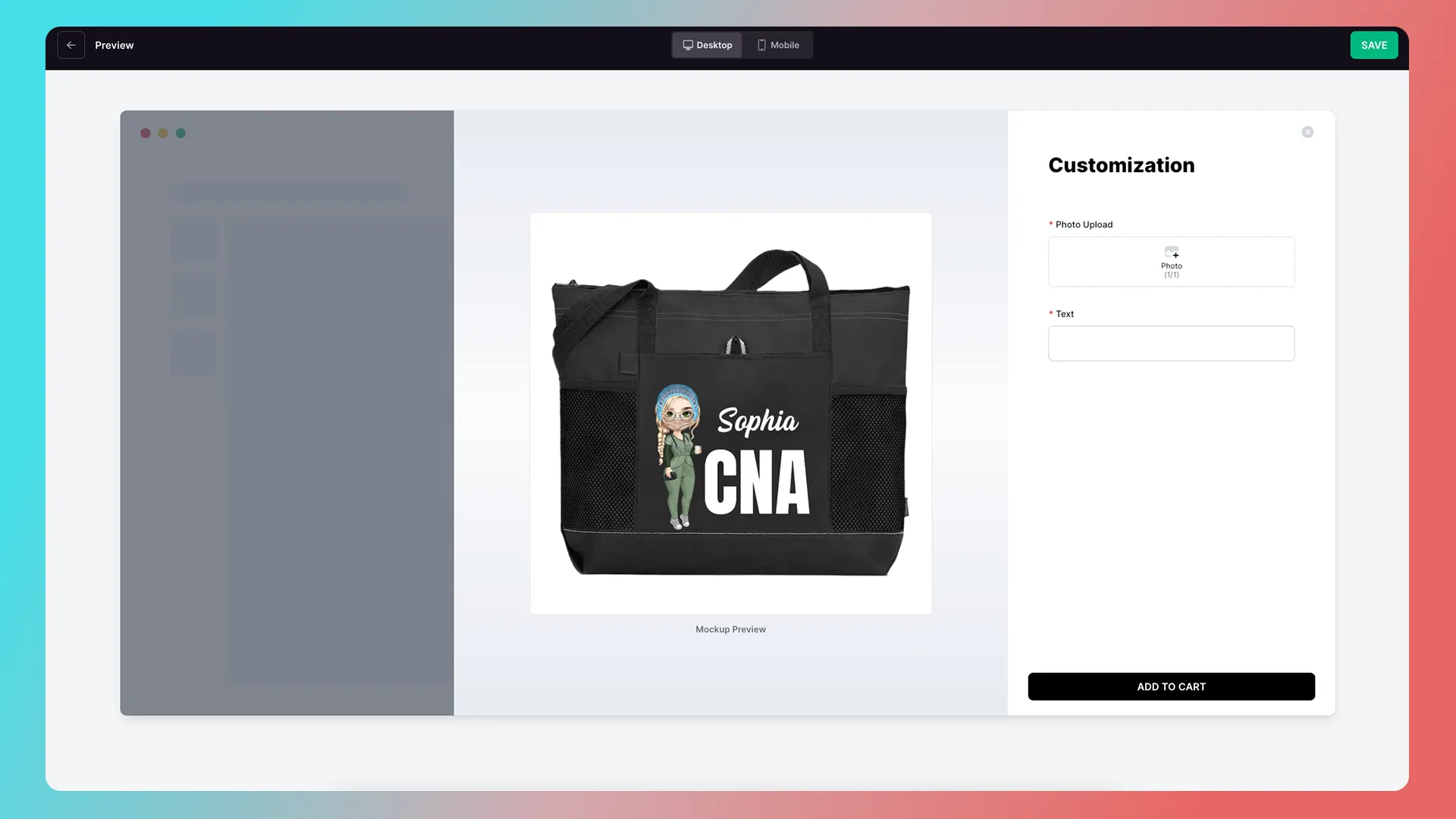
Likewise, a texture can be applied to different shells without reconnecting components and layers.
Simply duplicate the feature and replace the shell.
How to Reuse a Mockup in Custom Product Mode
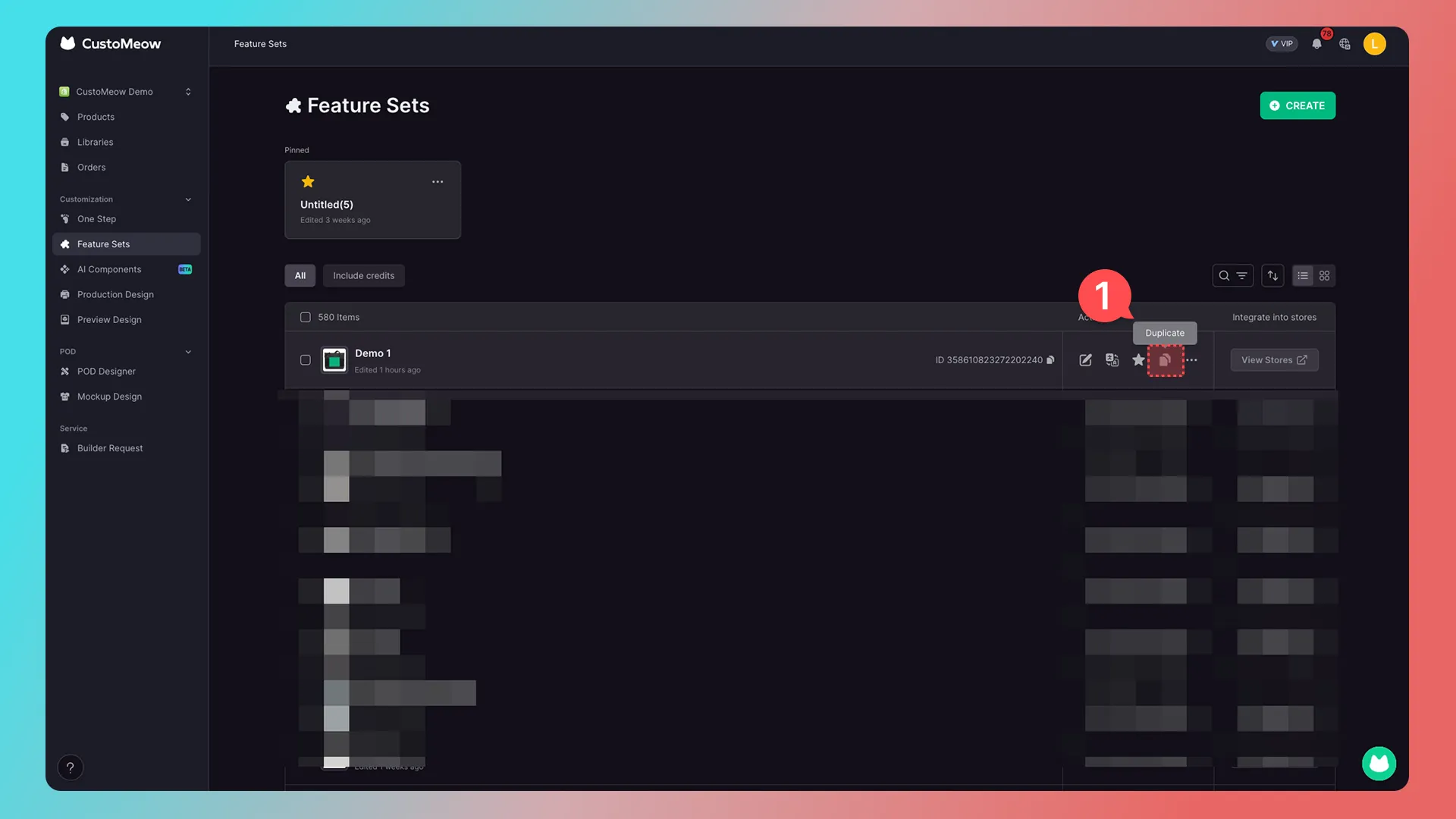
1. Duplicate the completed feature set.
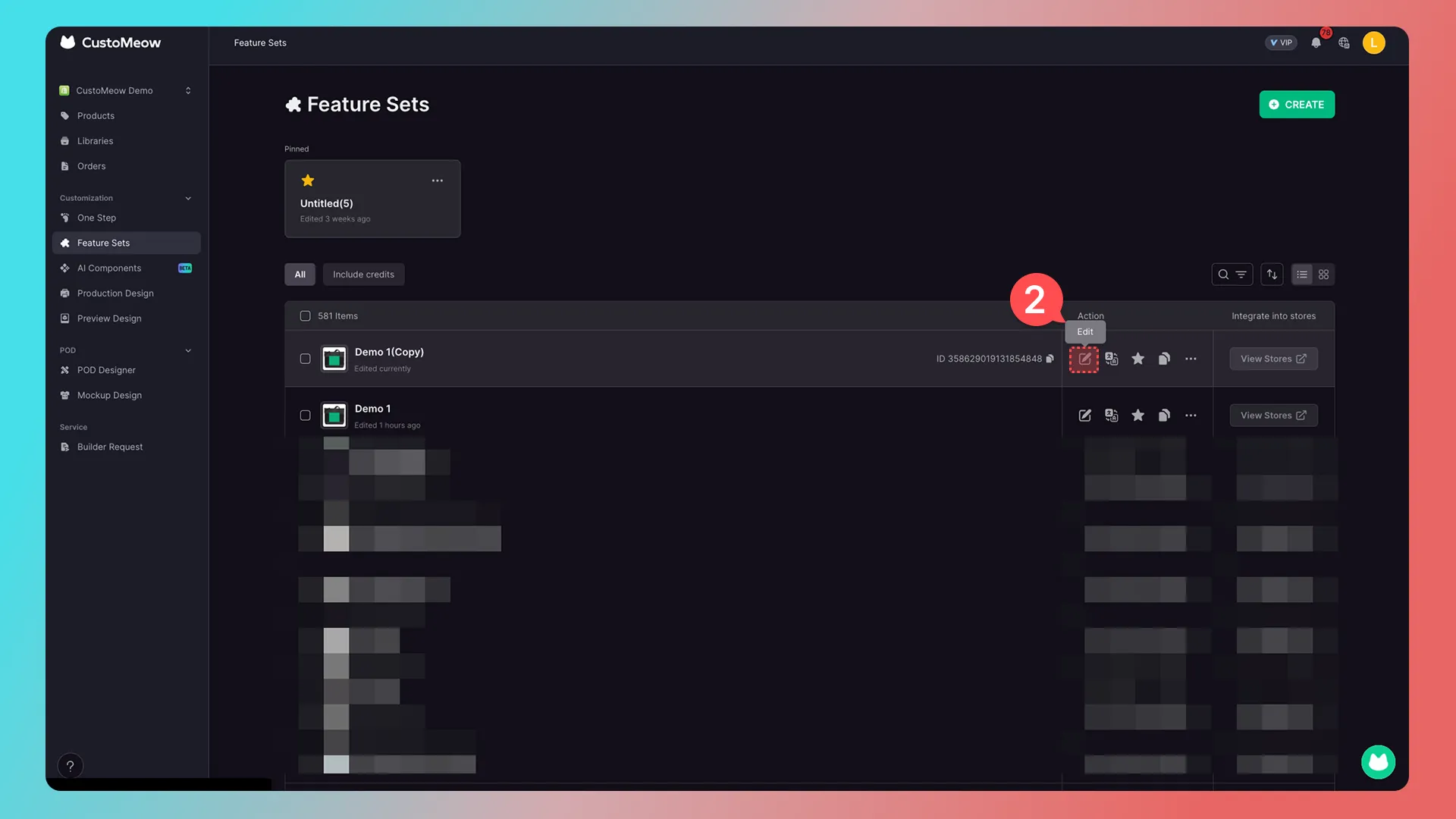
2. Edit the newly duplicated feature set.
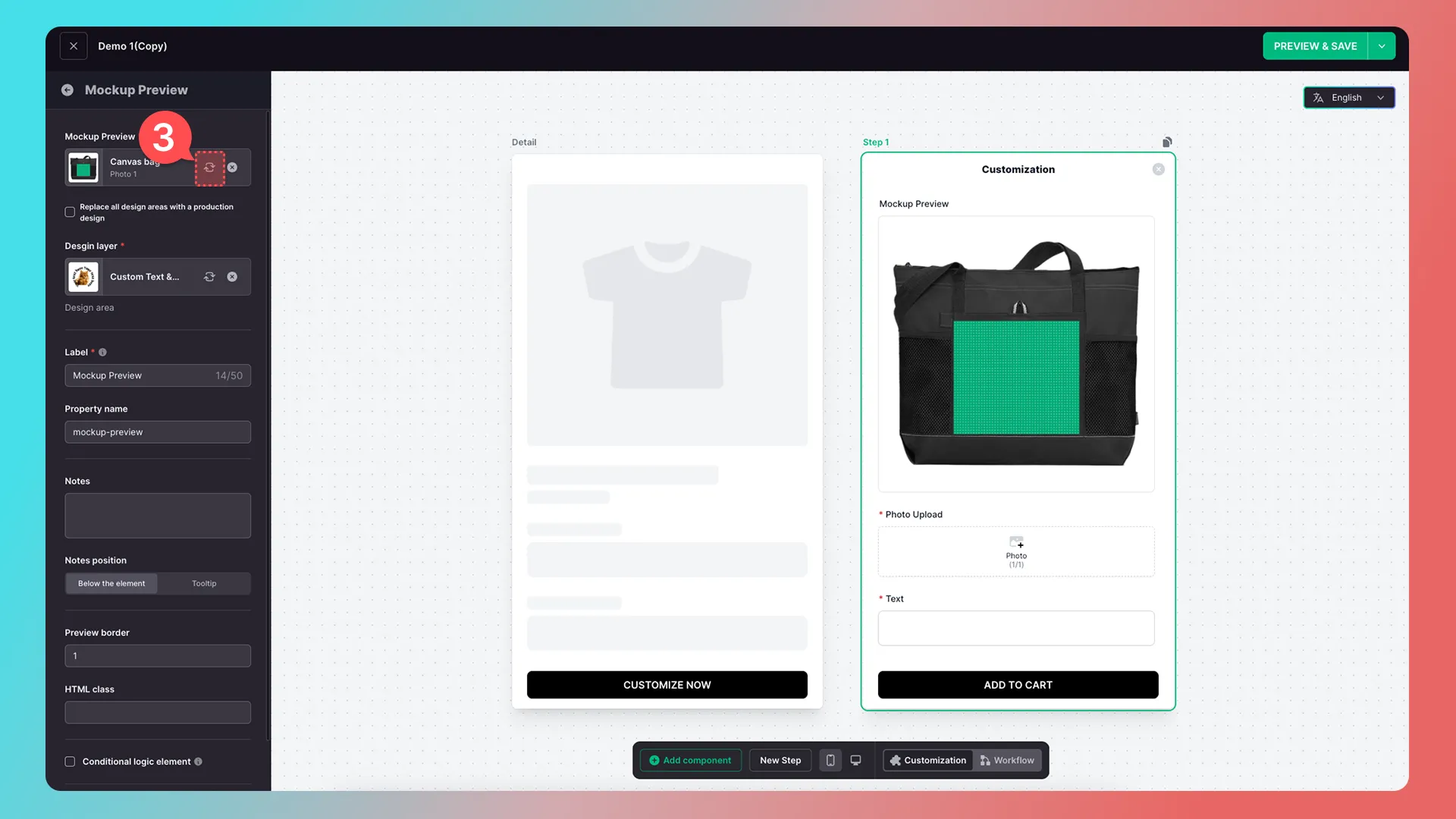
3. Click Replace (the replacement will not take effect unless you click it).
4. Select the new Mockup.
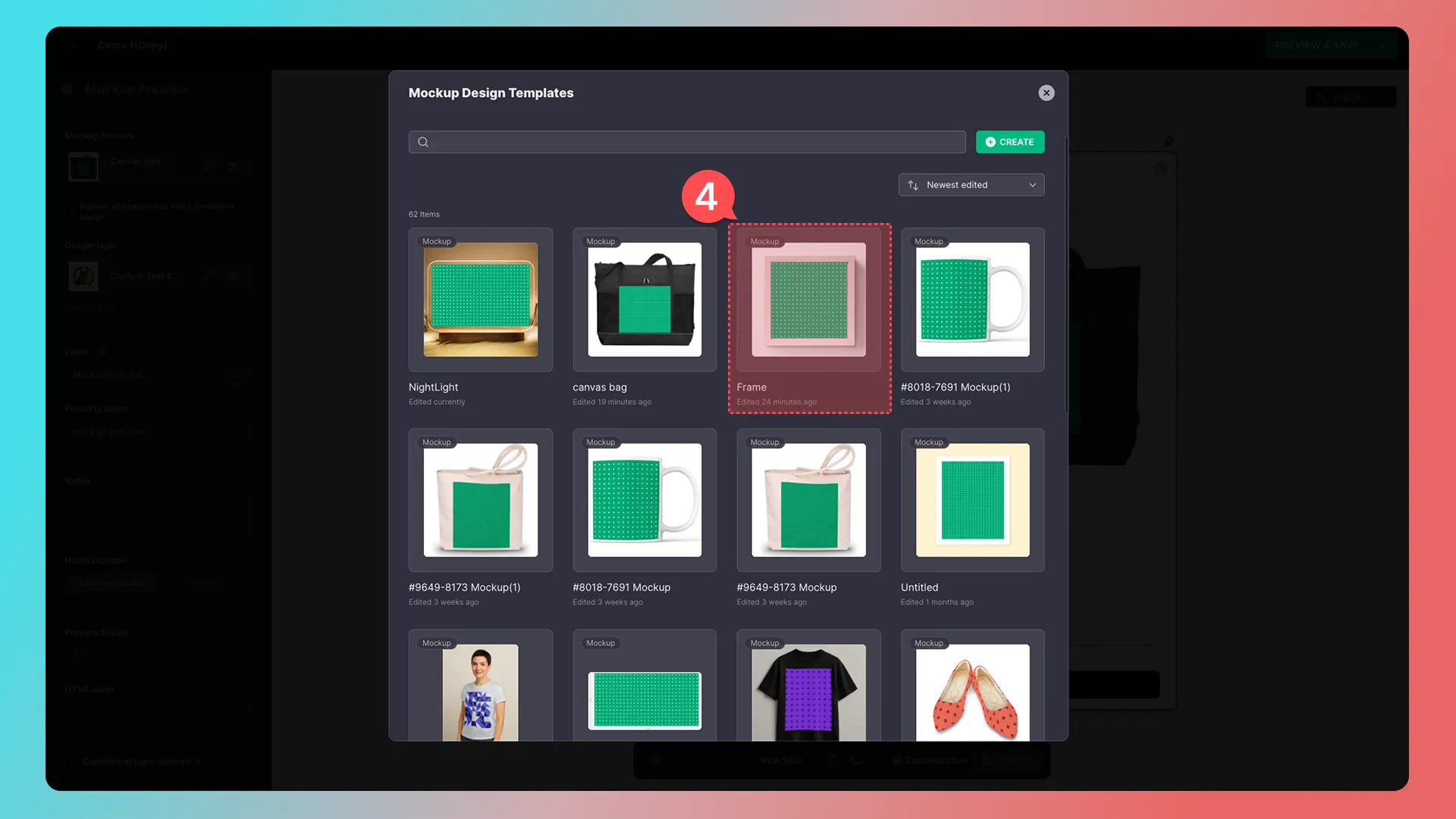
5. Select the preview image and design area.
6. After confirming, the connections between the components and Production Design layers will remain intact. Click Preview & Save to review the result.
3D Preview Design
We recommend having a 3D designer create the model and upload it to Sketchfab, then referencing it in CustoMeow.
CustoMeow only references 3D models; it does not create or edit them.
Further Reading
Getting Started
- Connect Your Store
- Beginner Guide: Create Your First Customization Feature Step by Step
- How to Integrate a Customization Feature into a Product Landing Page (Product Detail Page)
Advanced Features
Add-on Pricing and Upselling
- What Is an Add-on Price Product?
- What Is an Upsell Product?
- Cart Binding for Add-Price and Upsell Products
Updated on: 27/10/2026
Thank you!