
How to Integrate a Customization Feature into a Product Landing Page (Product Detail Page)
Online customization products
Online customization products can be integrated in two ways: by SKU or by product.
What is the difference?
Integration method | When to use it |
|---|---|
By SKU | Choose SKU-based integration if different product attributes require different customization features. For example, one product may have three colors, each requiring a different preview. |
By product | Choose product-based integration if the entire product needs only one customization feature. |
Important: Product-based integration takes priority over SKU-based integration. If a product already has a product-level feature and you add a SKU-level feature to one of its SKUs, the product-level feature will still appear on the product detail page.
API stores, Etsy, TikTok, and similar non-mainstream self-hosted platforms can only be integrated by SKU.
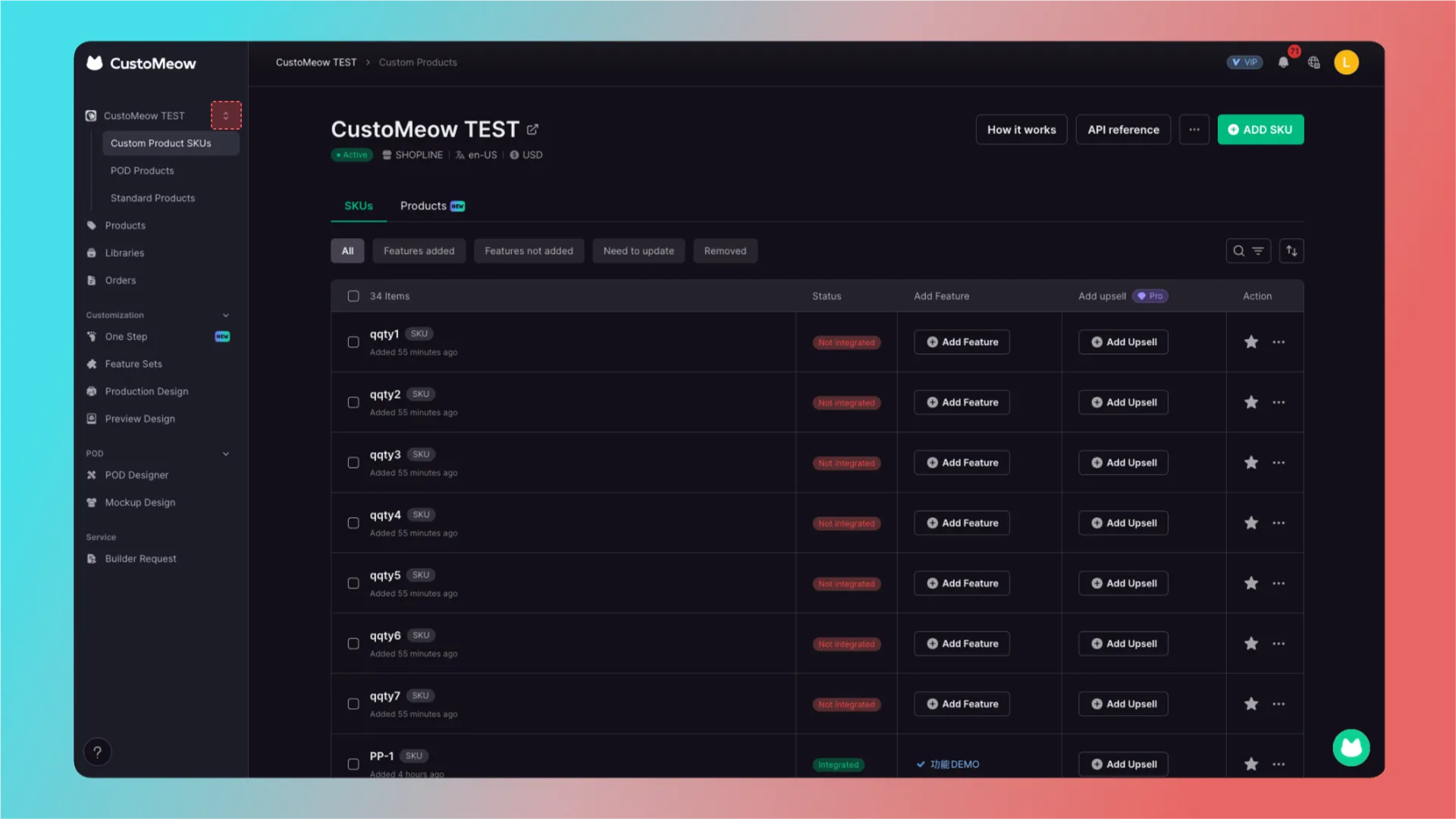
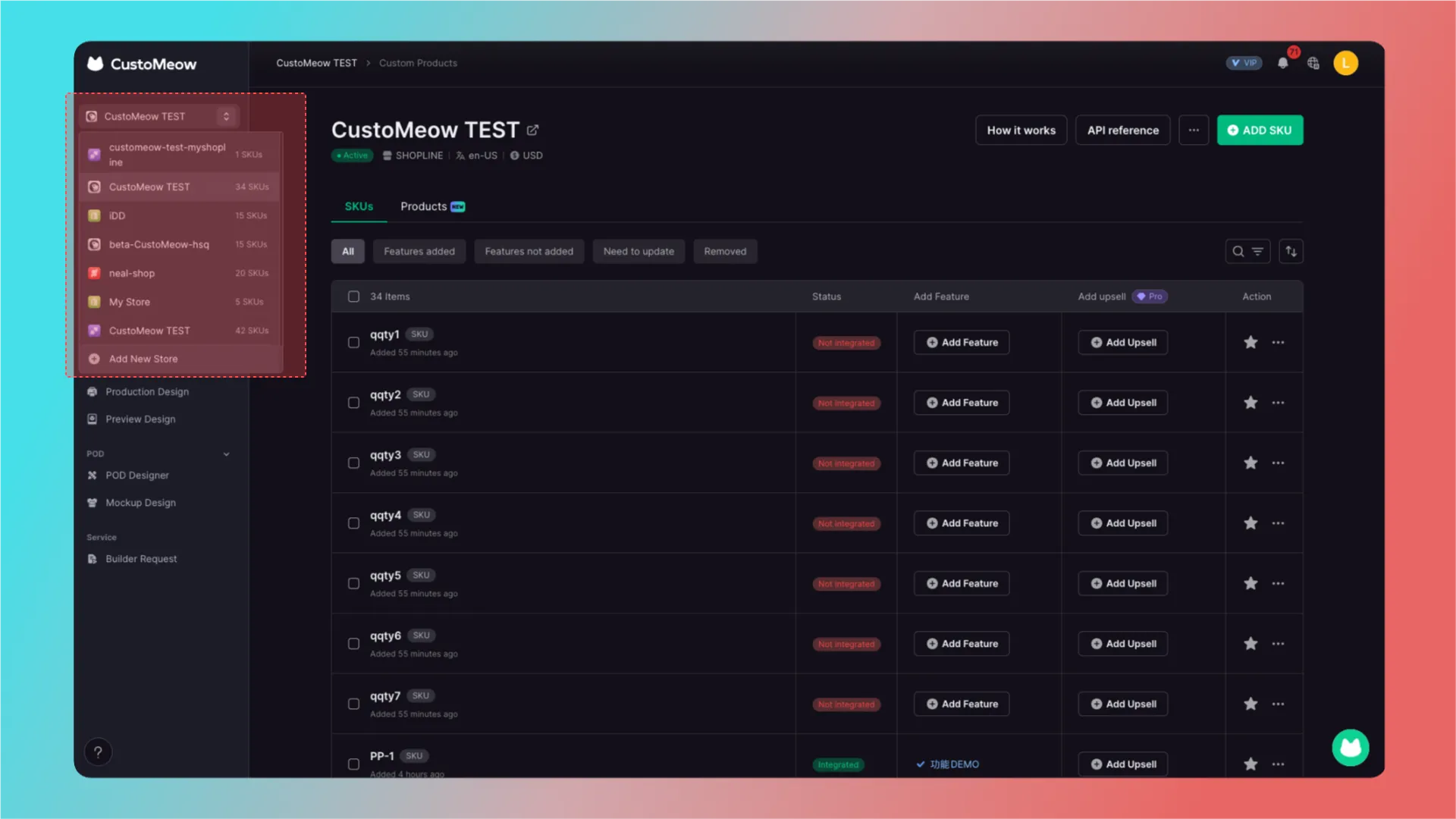
Before integrating, make sure the correct store is selected.
Integration by SKU
First, click the store in the upper-left corner.
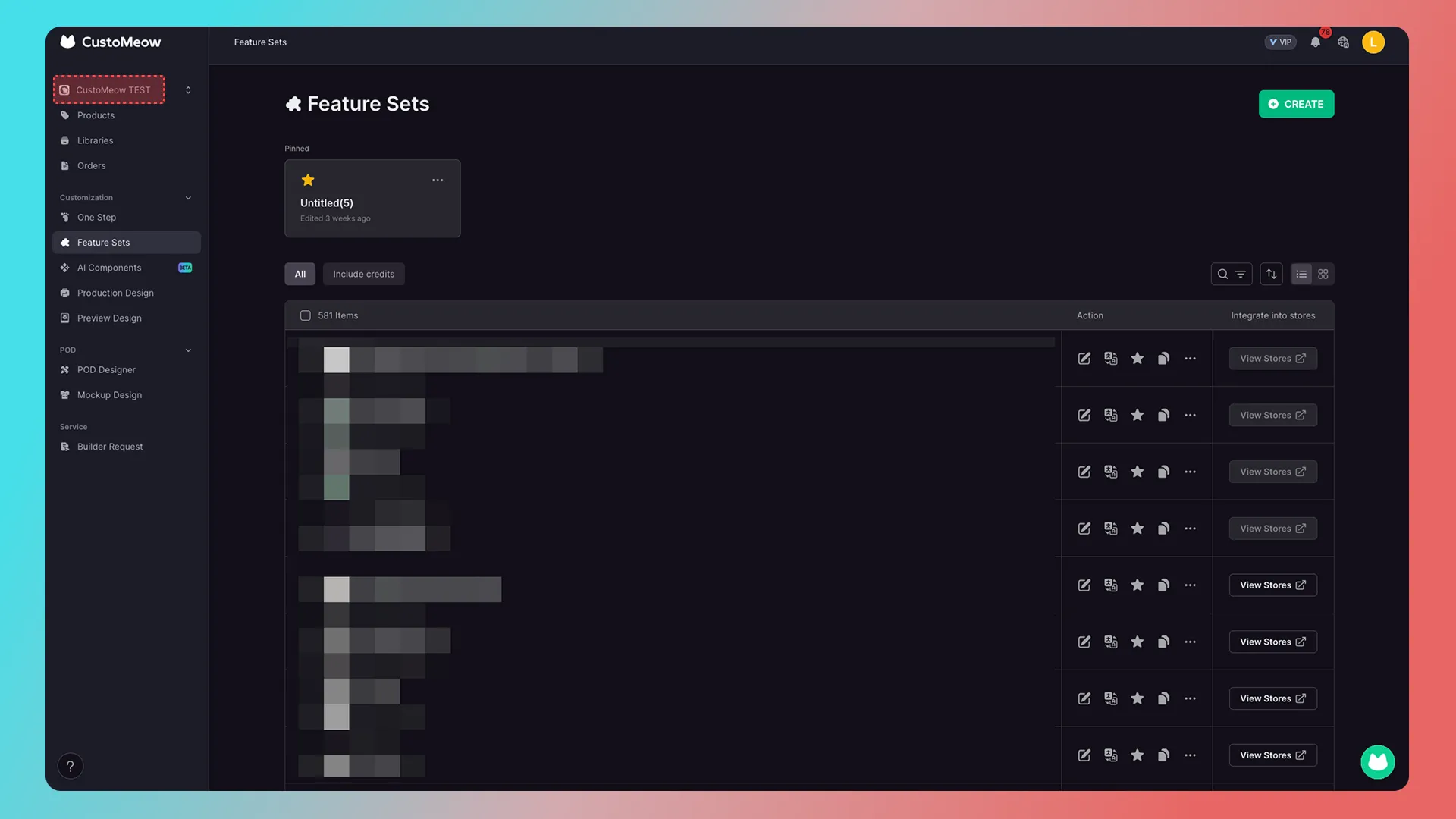
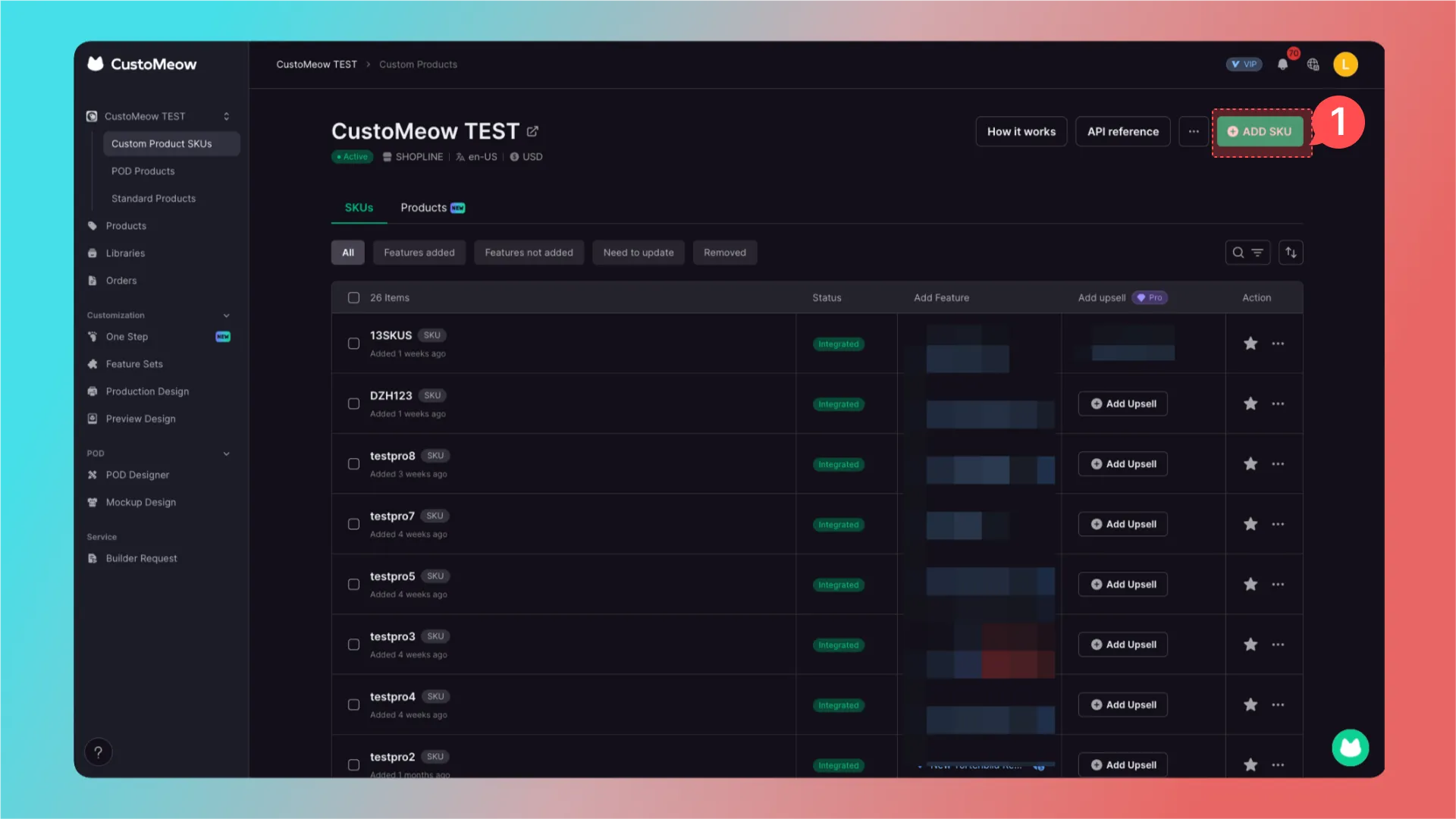
then go to Store → Custom Product SKUs → By SKU.
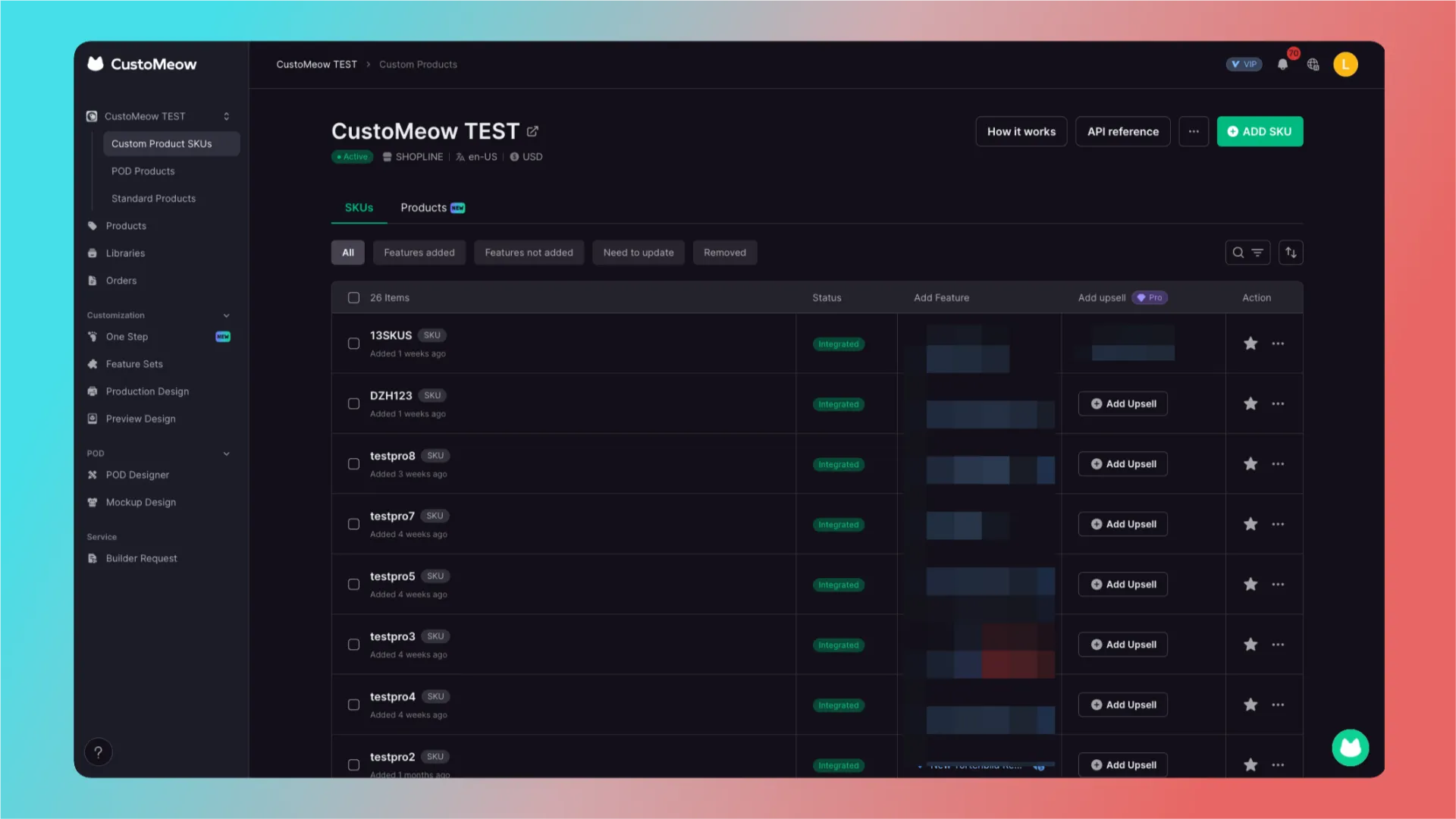
1. Add a SKU
Click ADD SKU in the upper-right corner.
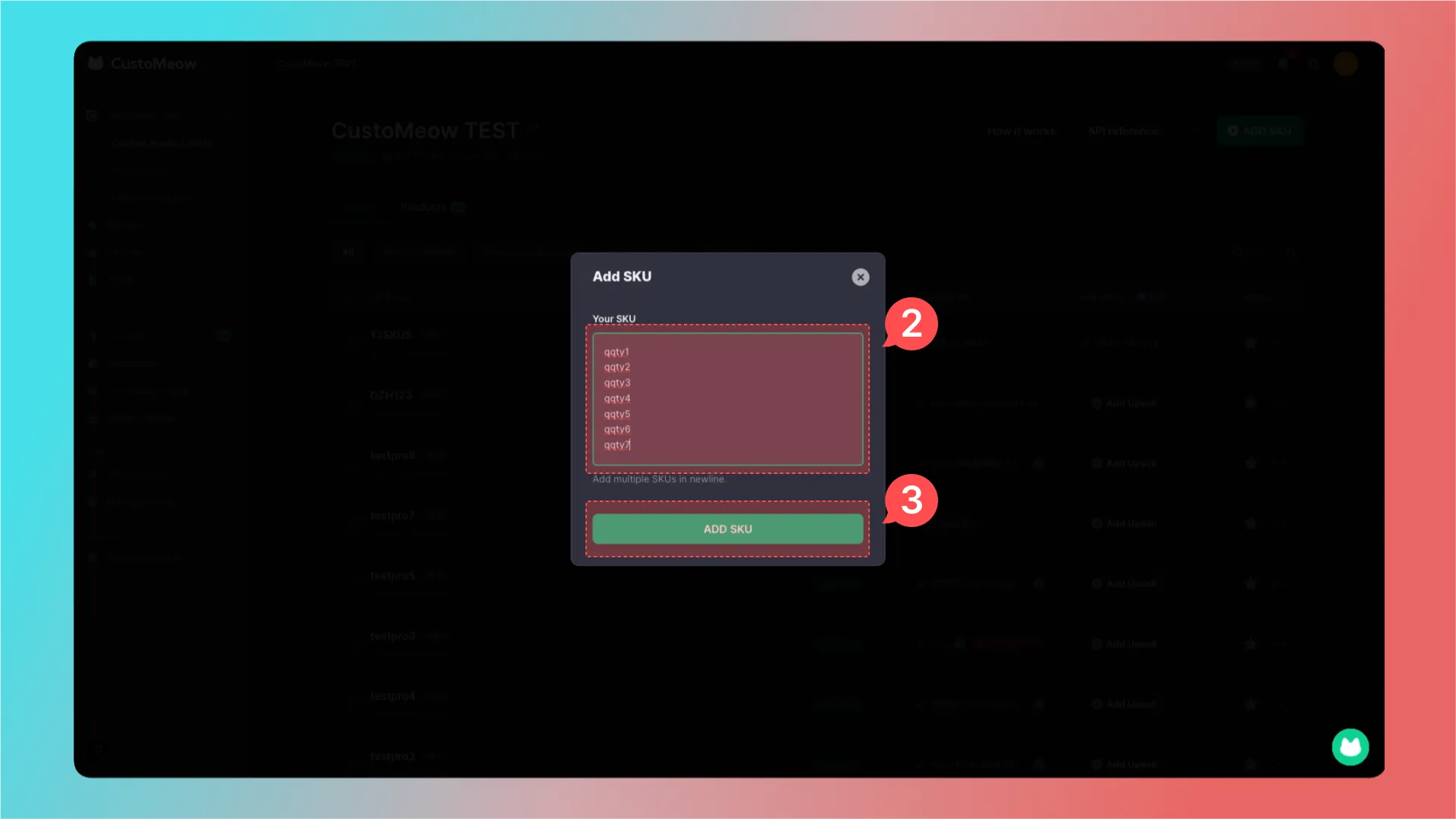
2. Enter the SKU
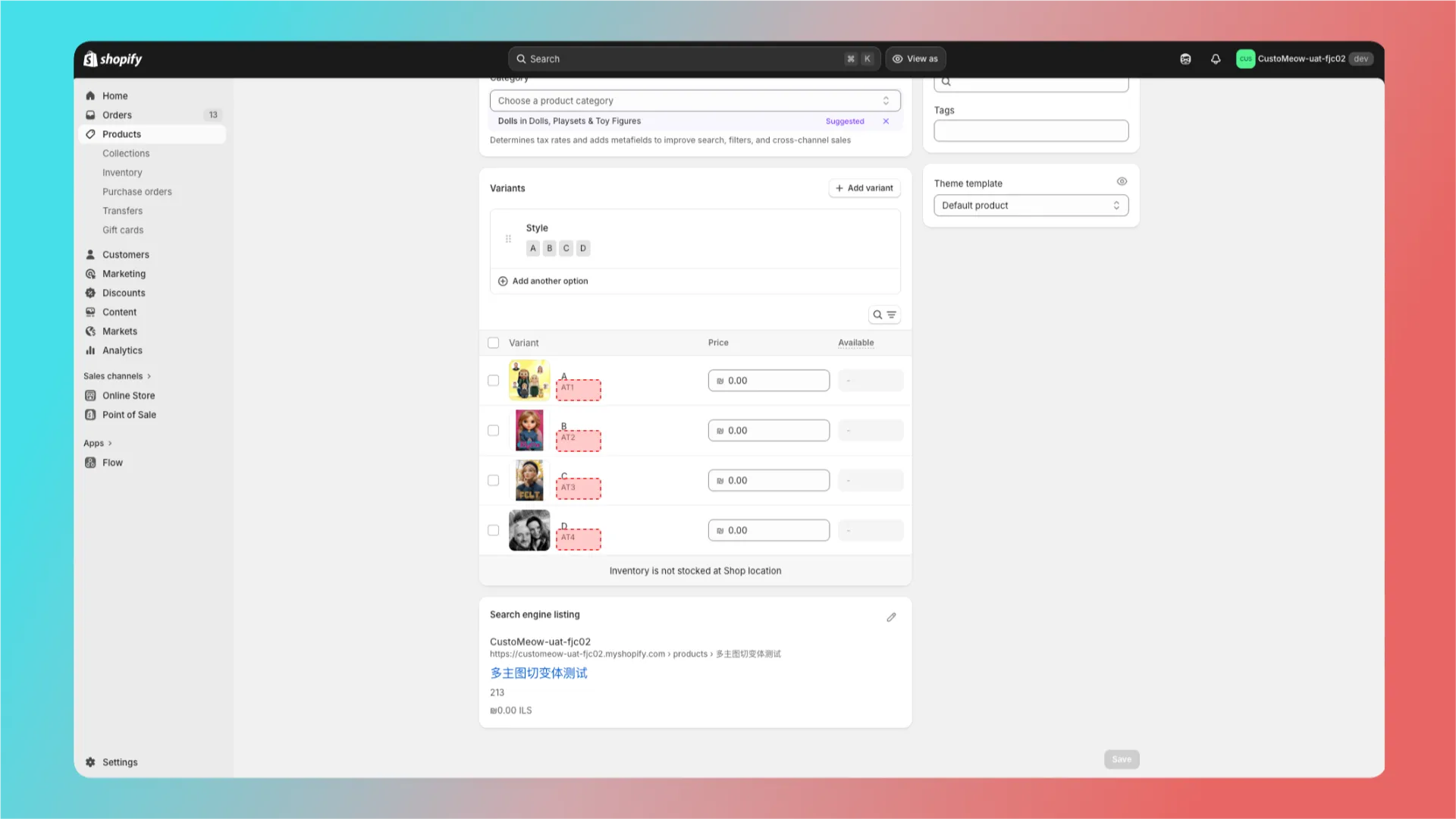
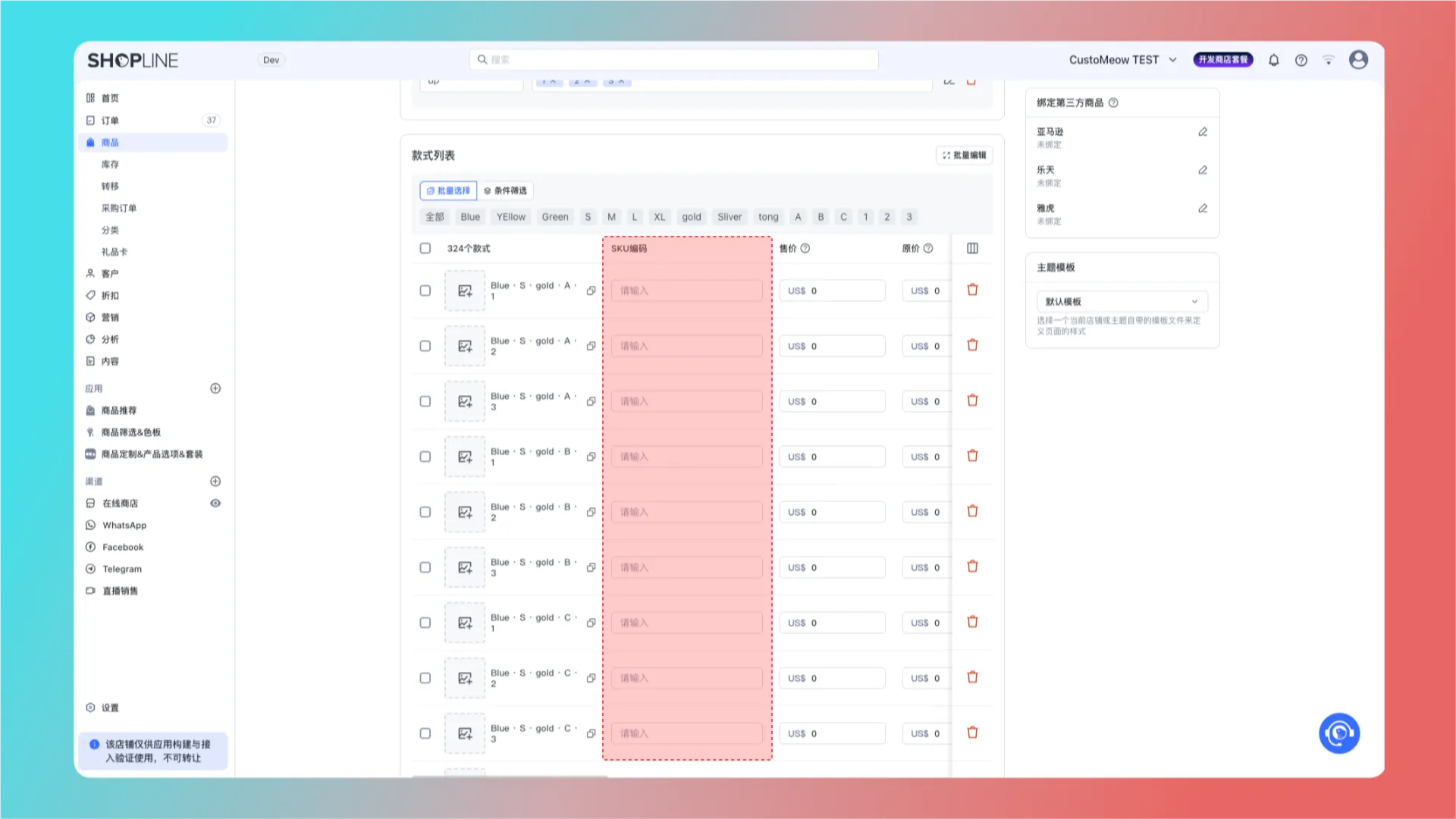
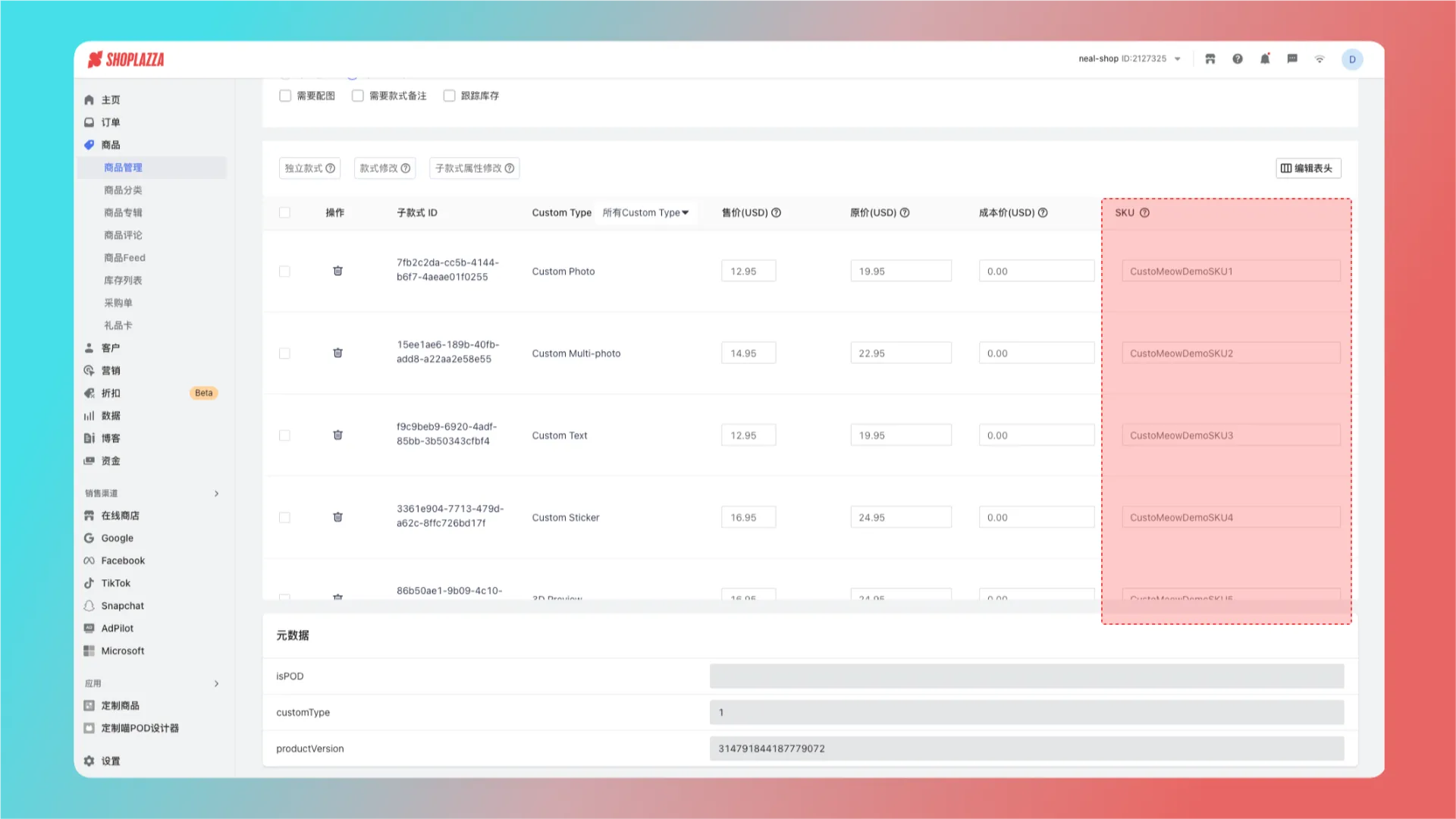
Enter the SKU.
SKU format: SKUs support only English letters, numbers, and the symbols
-,#, and_.
Where to find a product SKU in Shopify
Shopline
Shoplazza
3. Confirm the SKU
After entering it, click Add.
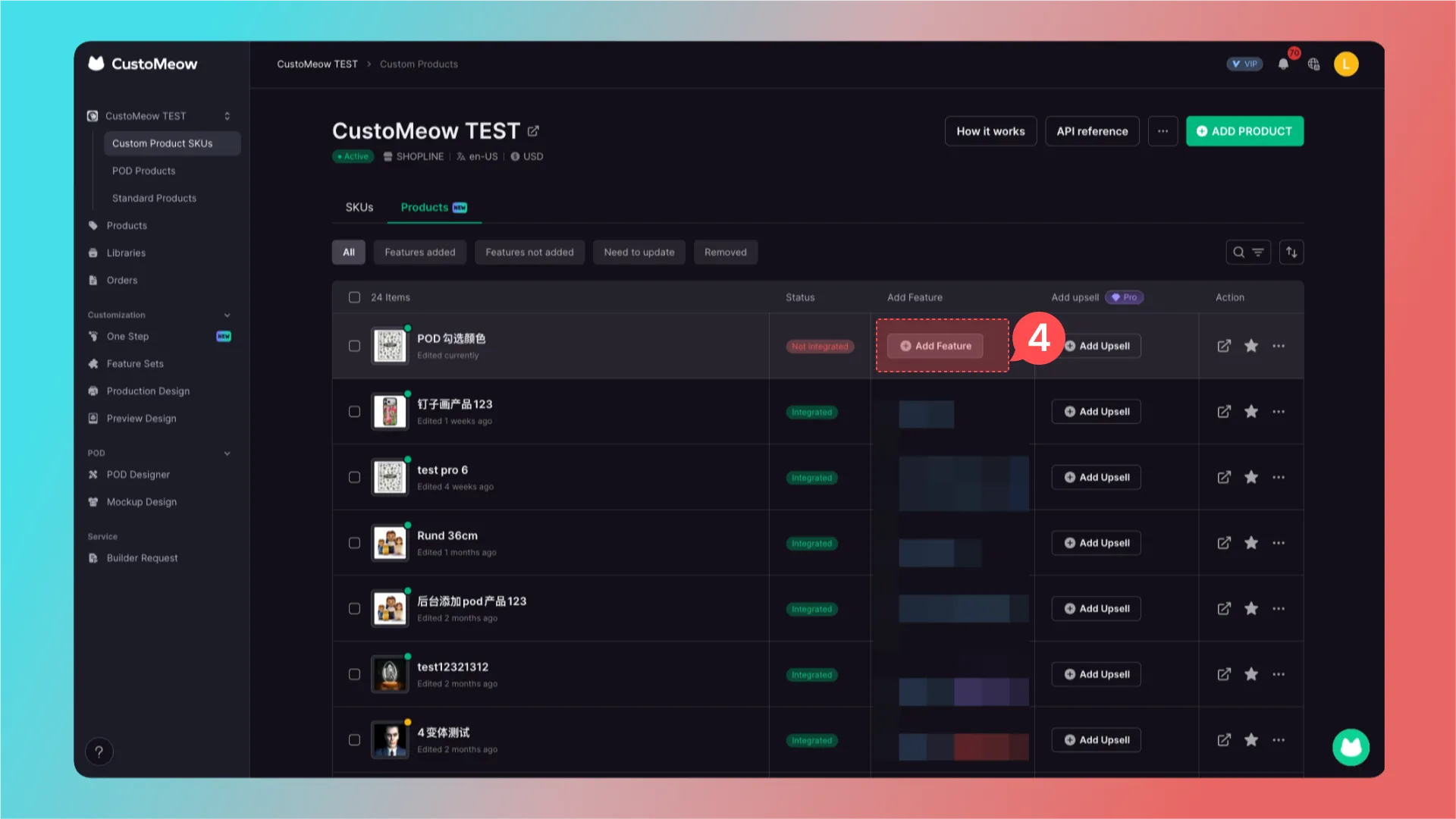
4. Add a customization feature
After adding the SKU, click Add Feature to add a customization feature.
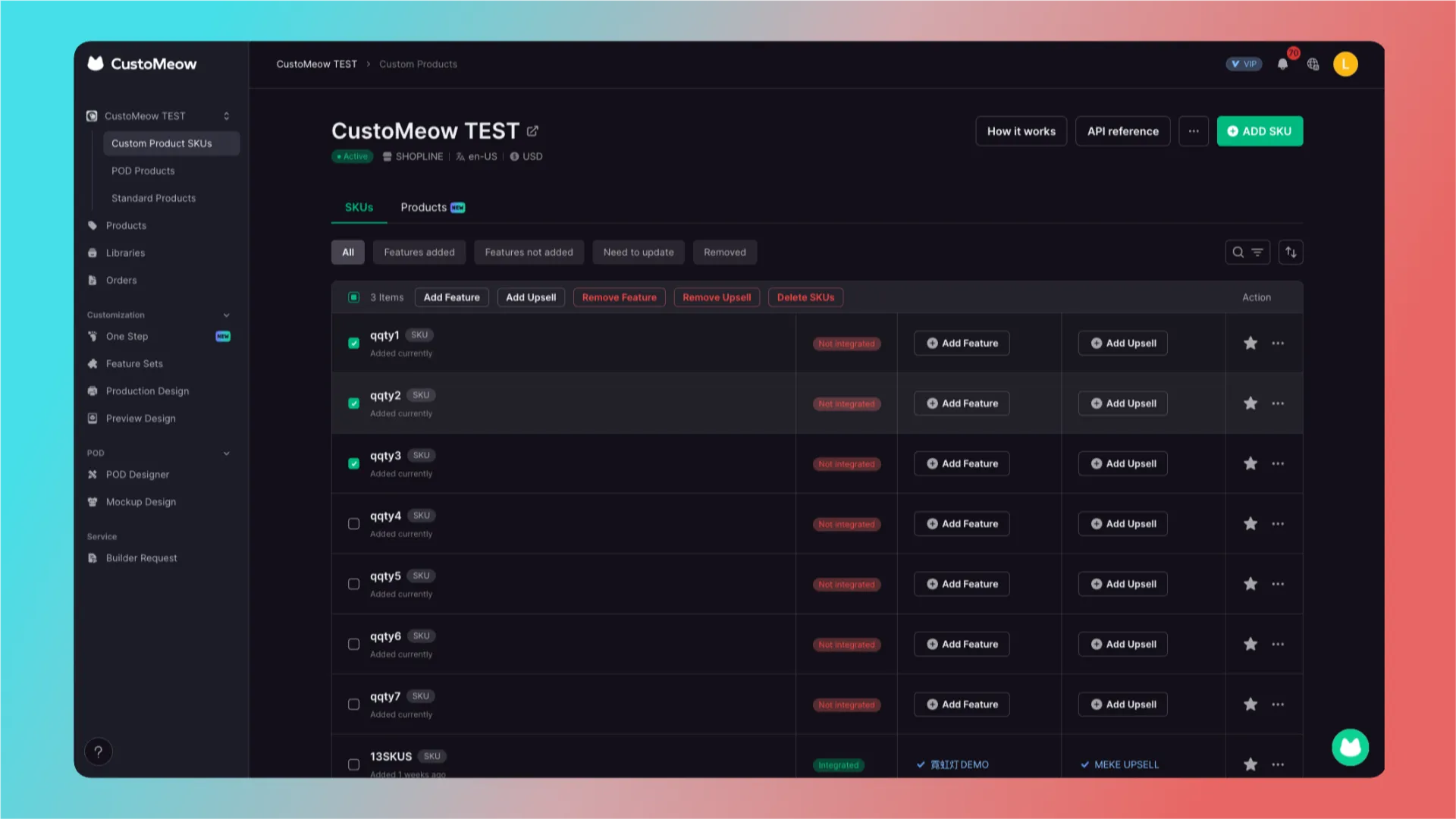
You can also select multiple SKUs on the left to batch-add, remove, or edit customization features and upsells.
- If a SKU no longer needs a customization feature, delete that SKU in CustoMeow.
Integration by product
First, click the store button in the upper-left corner.
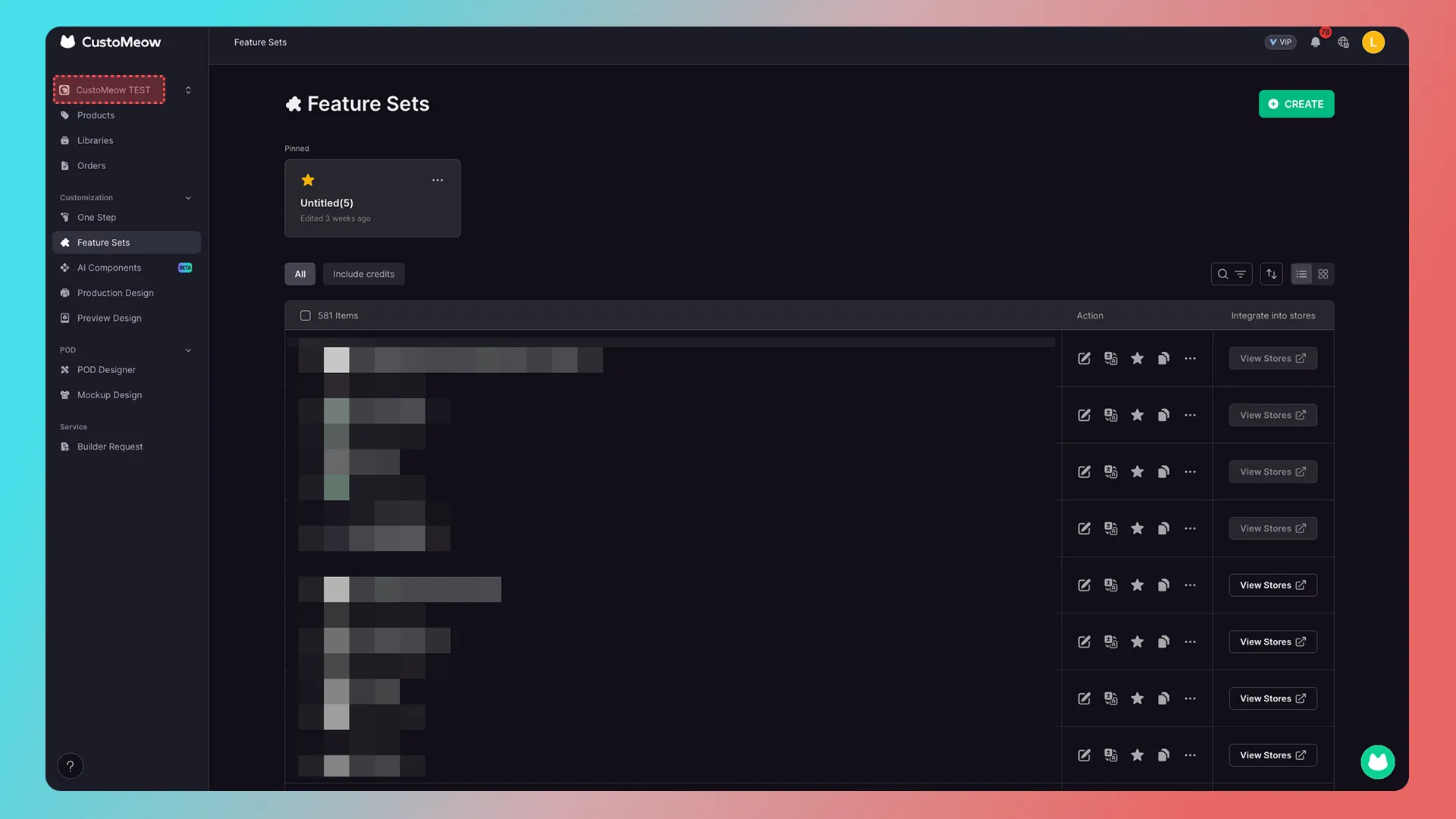
then go to Store → Custom Product SKUs → Product.
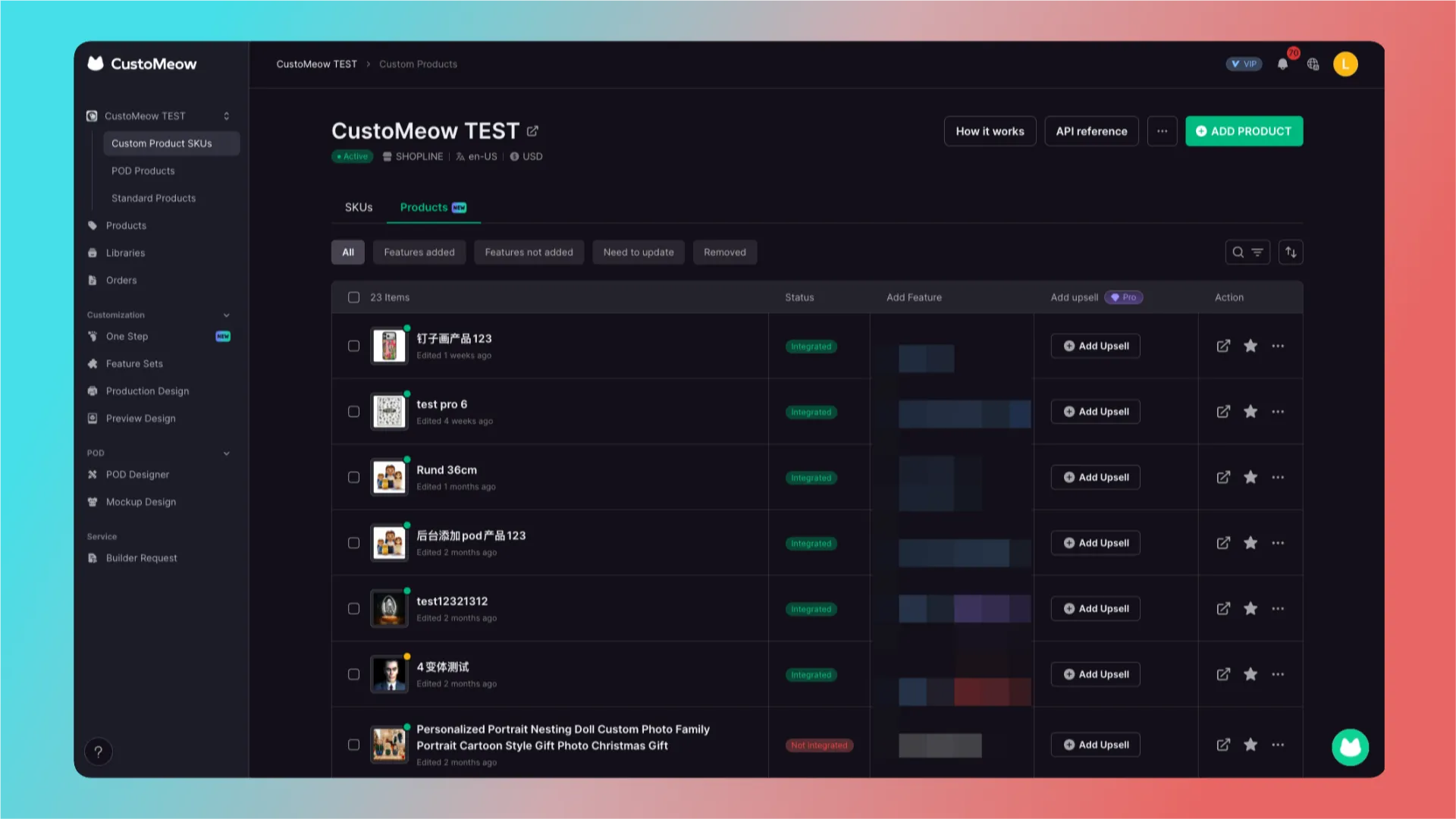
1. Add a product
Click ADD PRODUCT in the upper-right corner.
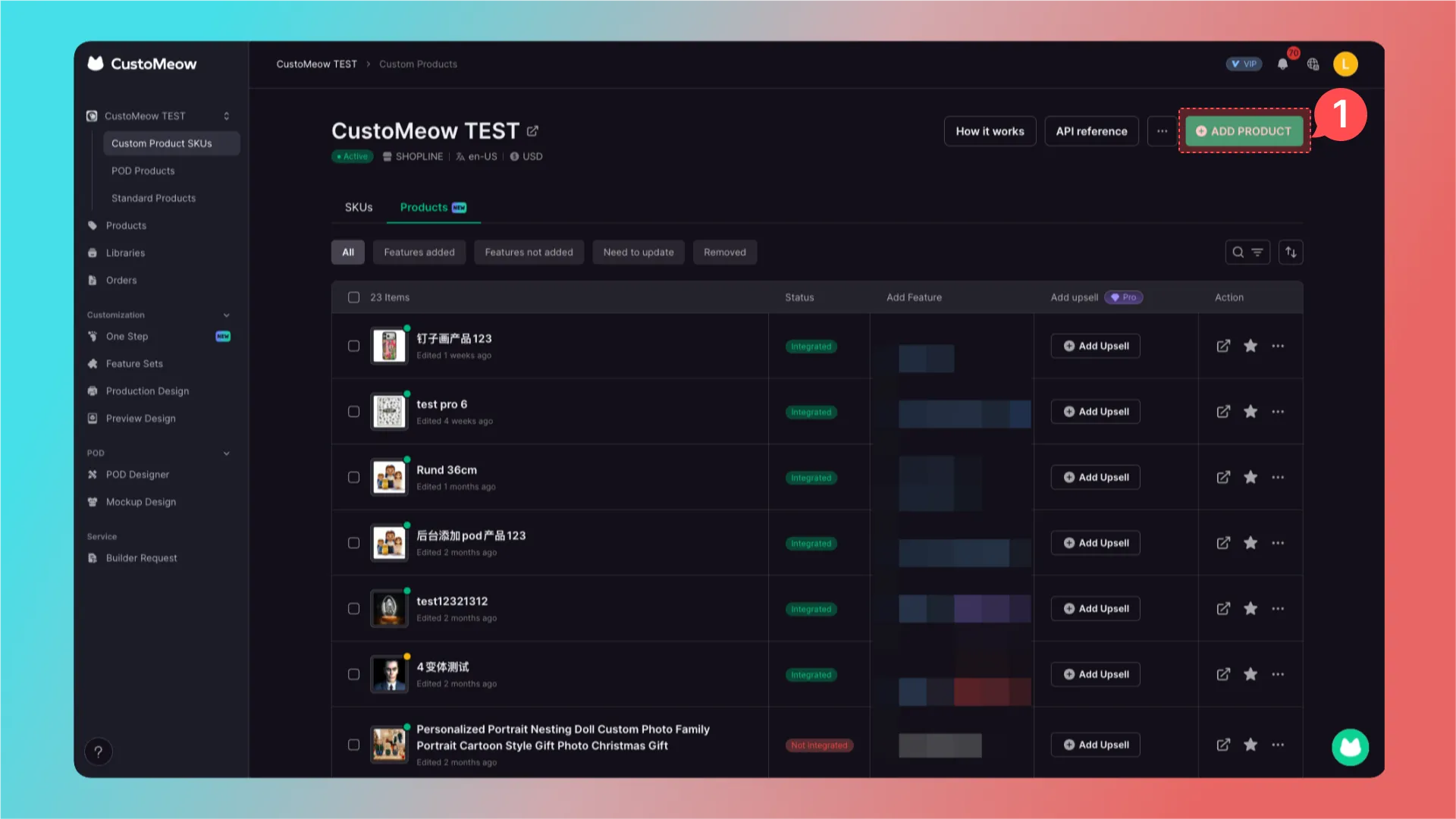
2. Select products
All products in the store will be loaded. Select the products that need the feature.
3. Confirm your selection
Click Add.
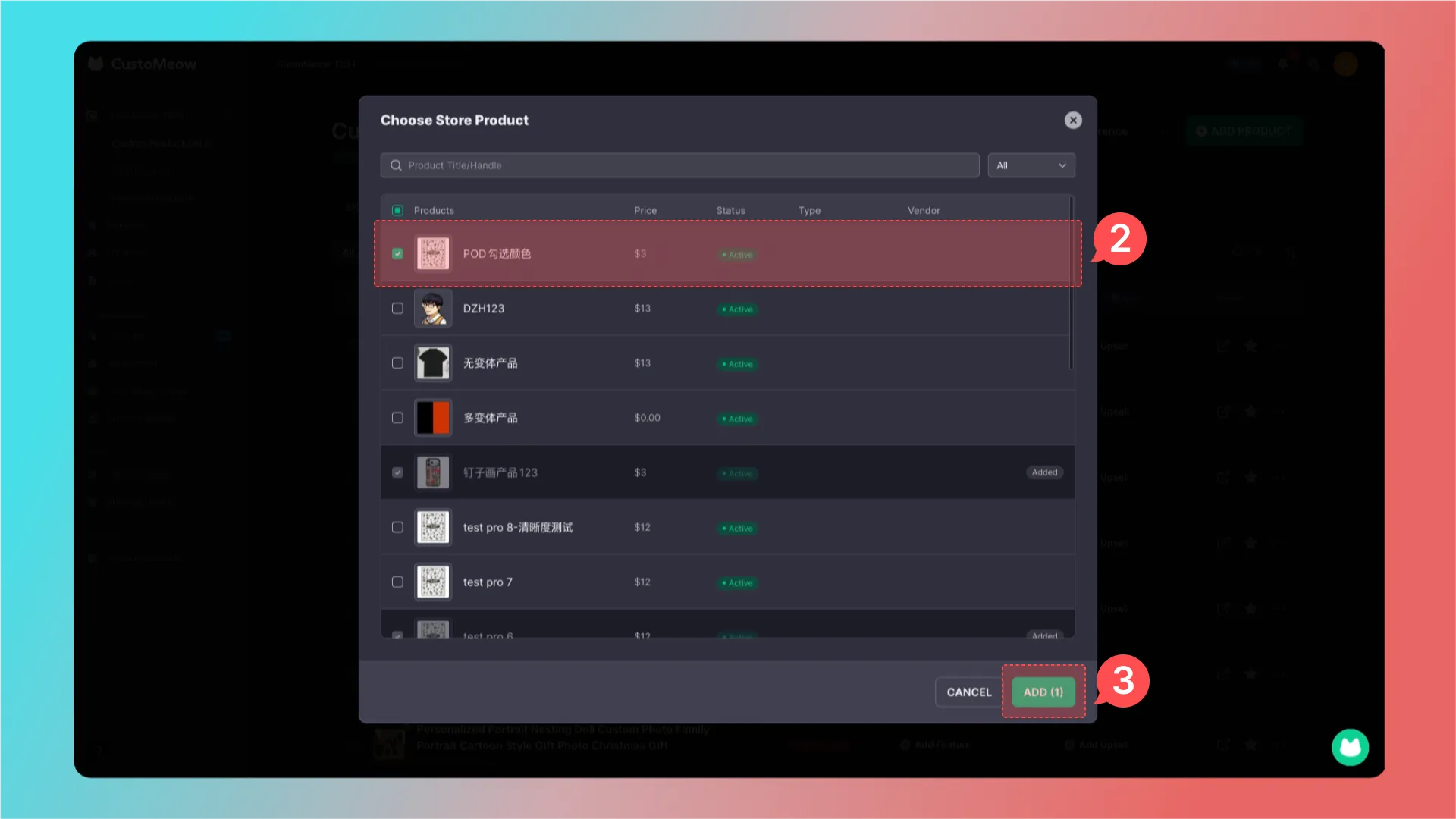
4. Add a customization feature
Click Add Feature to add a customization feature.
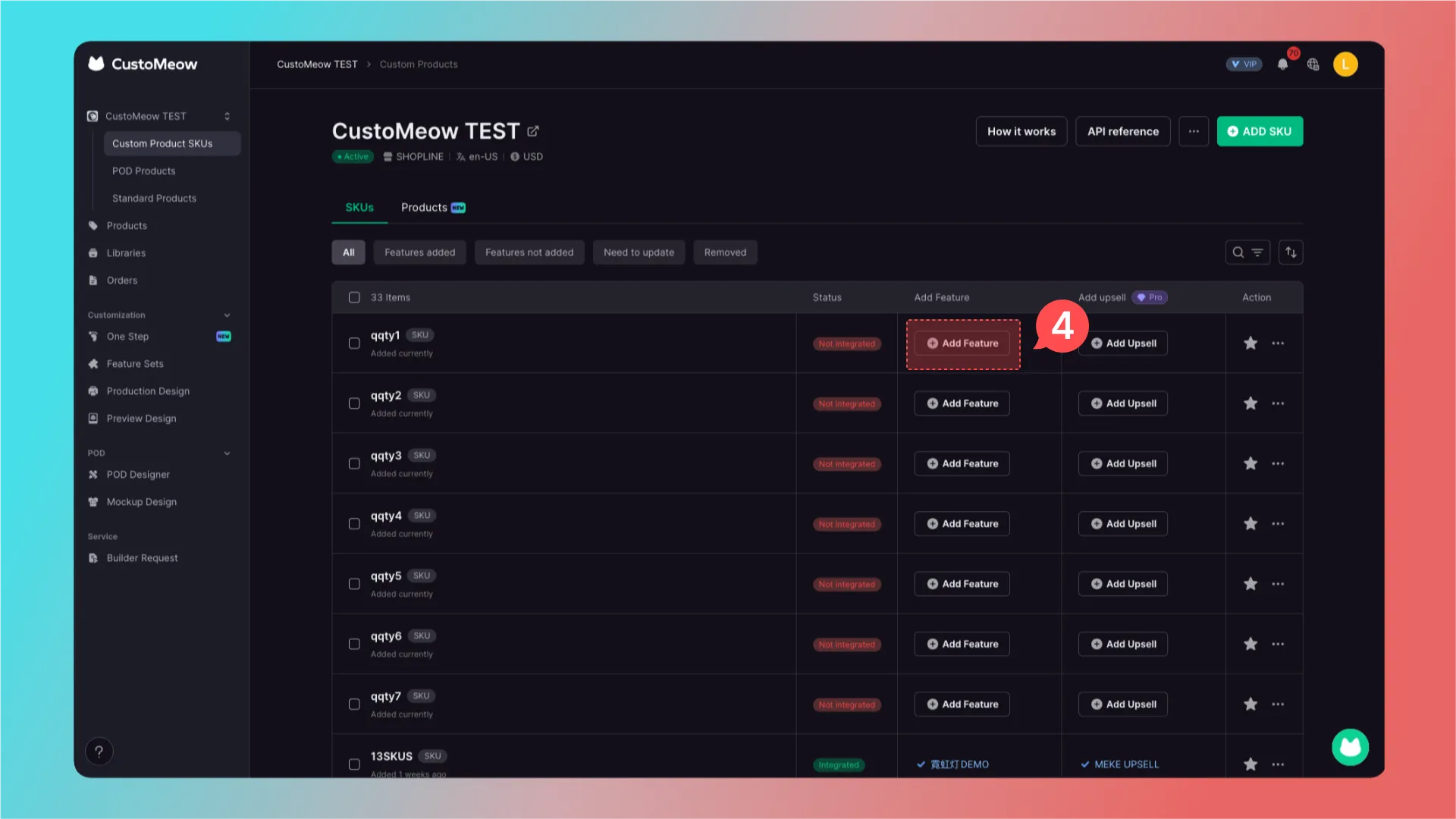
POD
Integration varies by store type:
major self-hosted platforms and WooCommerce use product-based integration;
API stores can only be integrated through Product Publish.
Integration by product
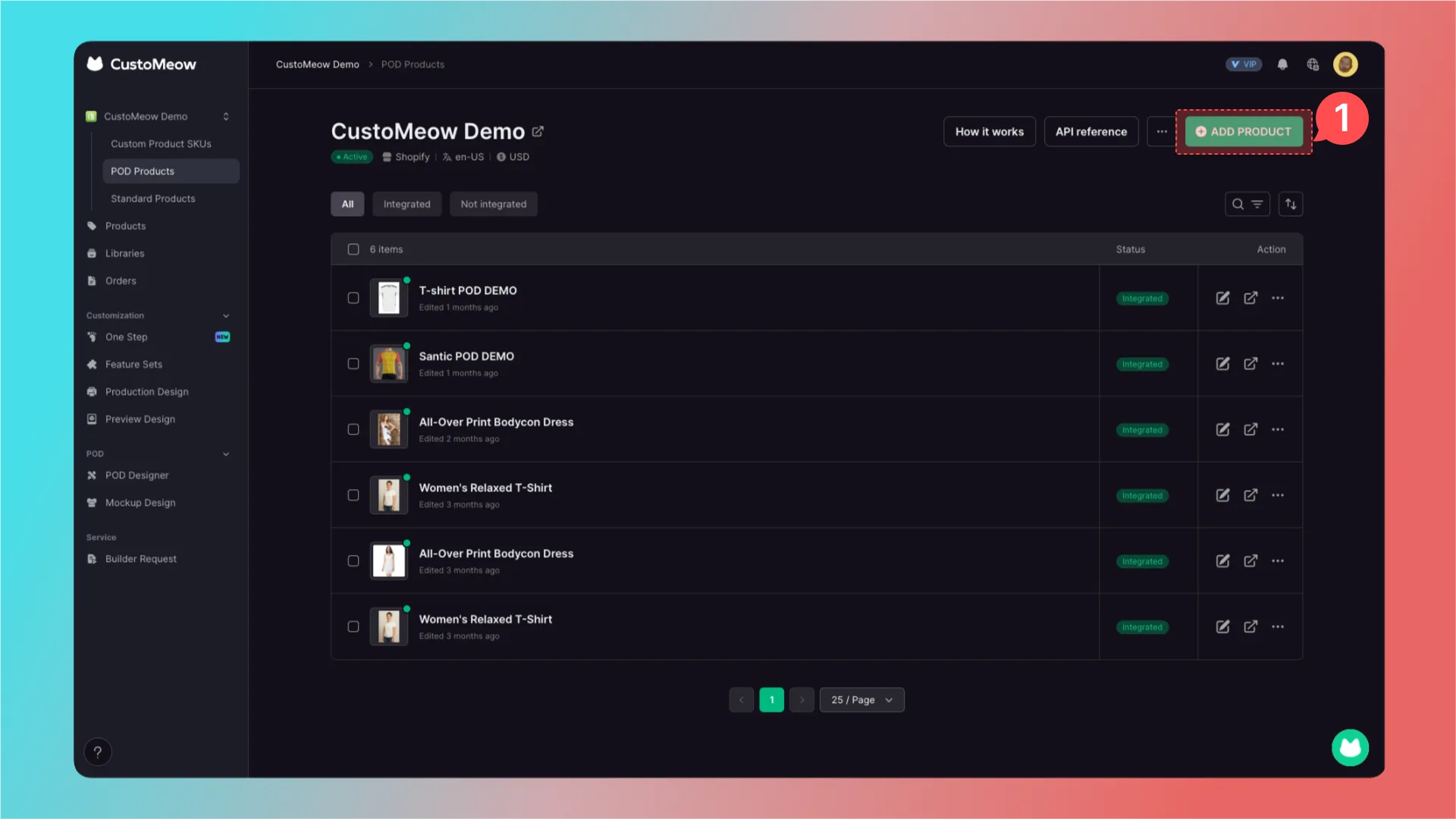
Go to CustoMeow Store → POD Products.
1. Add a product
Click ADD PRODUCT in the upper-right corner.
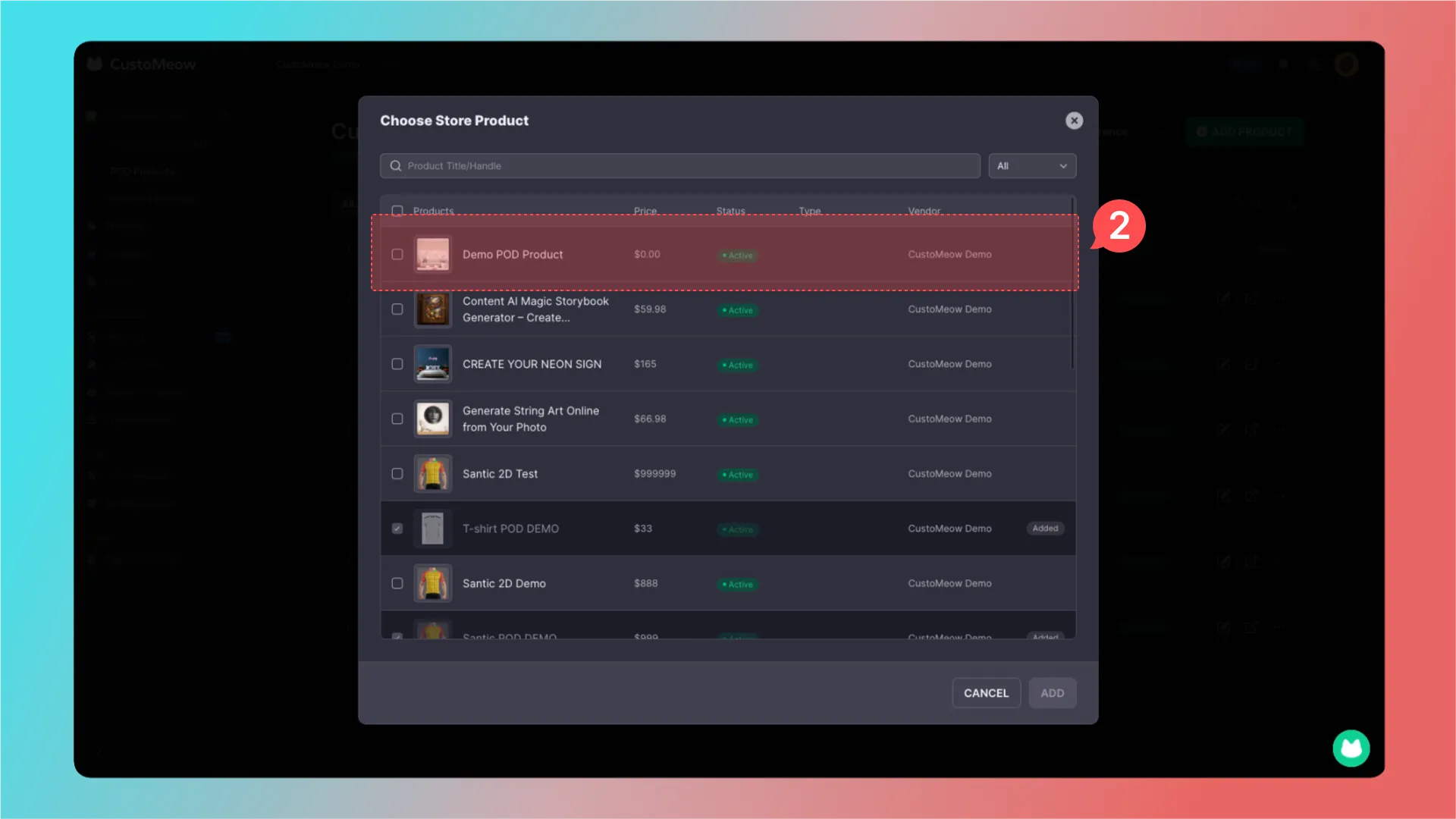
2. Select products
All store products will be loaded. Select products, then click ADD in the lower-right corner.
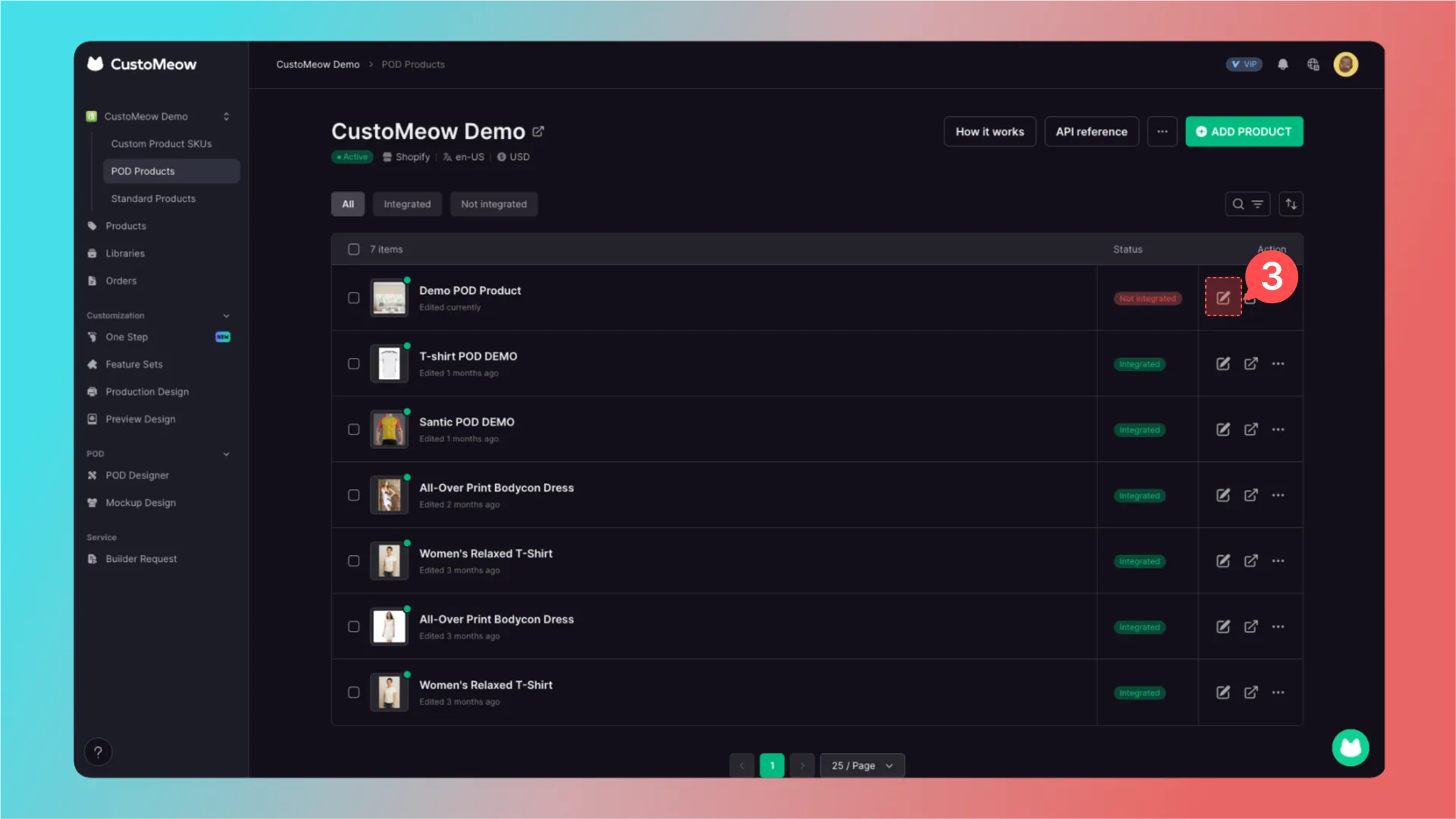
3. Edit the product
After adding a product, click Edit in the highlighted area.
4. Configure variants and Mockups
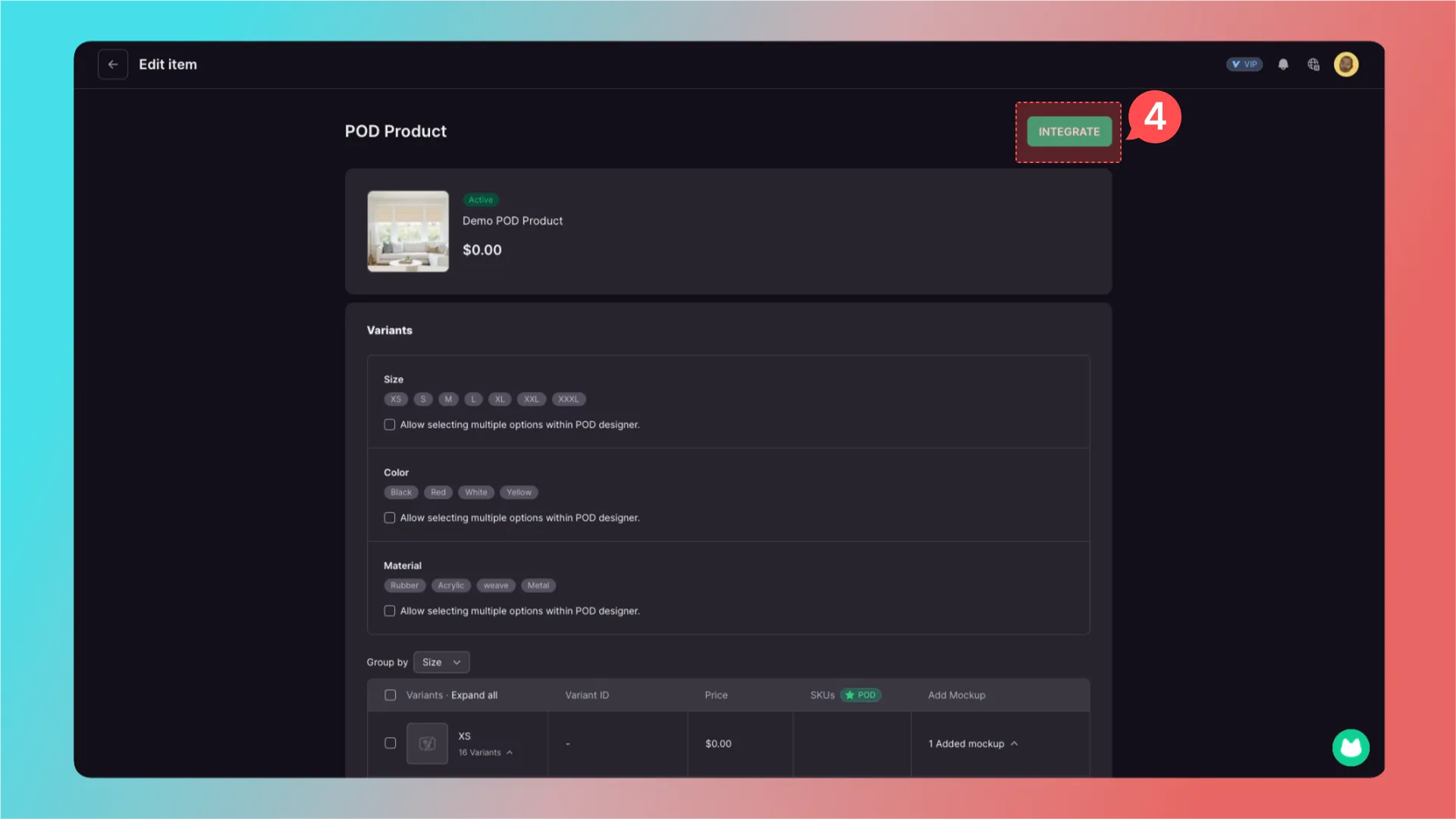
You are now on the POD product page, which displays all product variants, styles, and basic specifications.
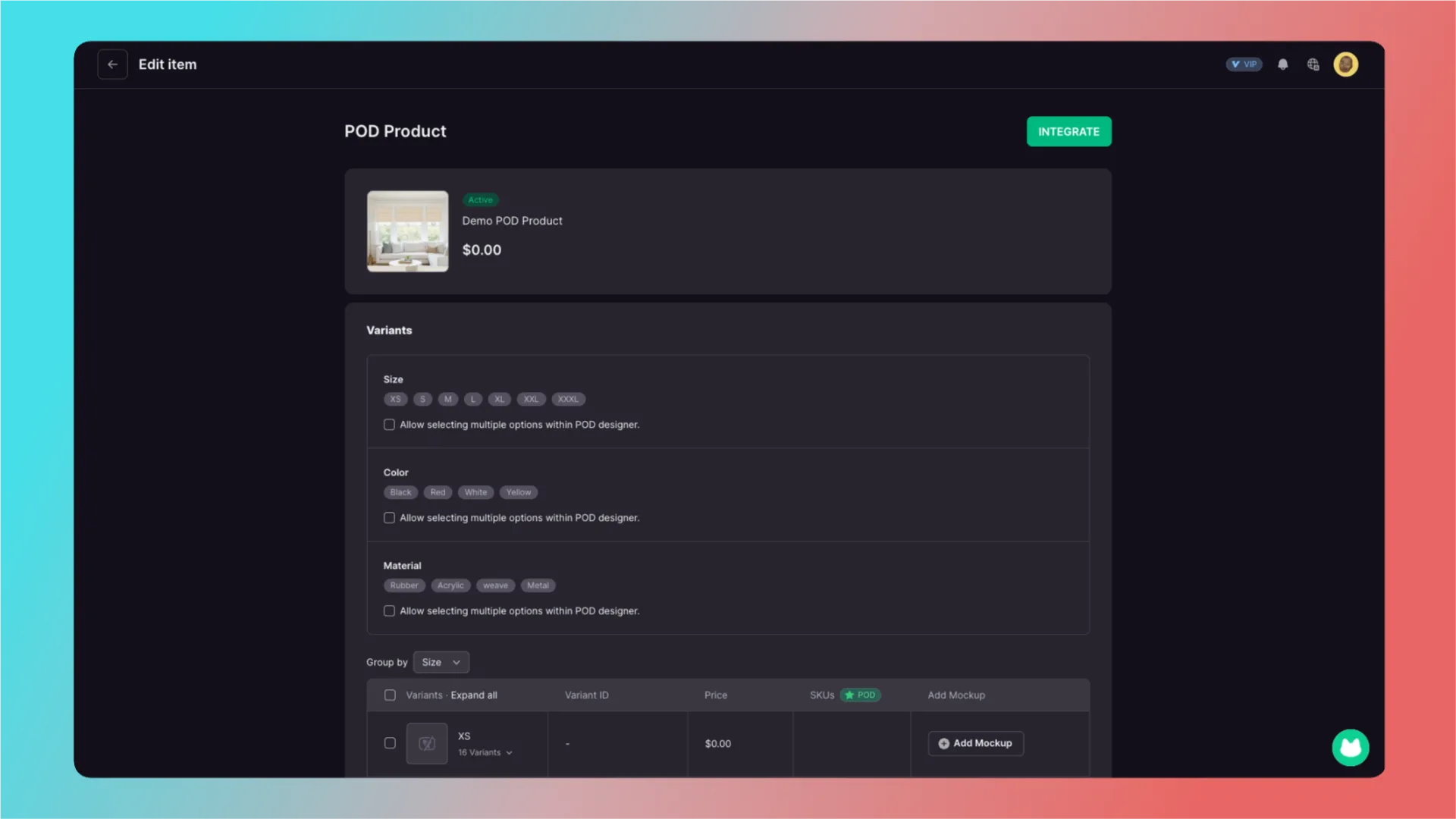
Below the variants is Allow selecting multiple options within POD designer.
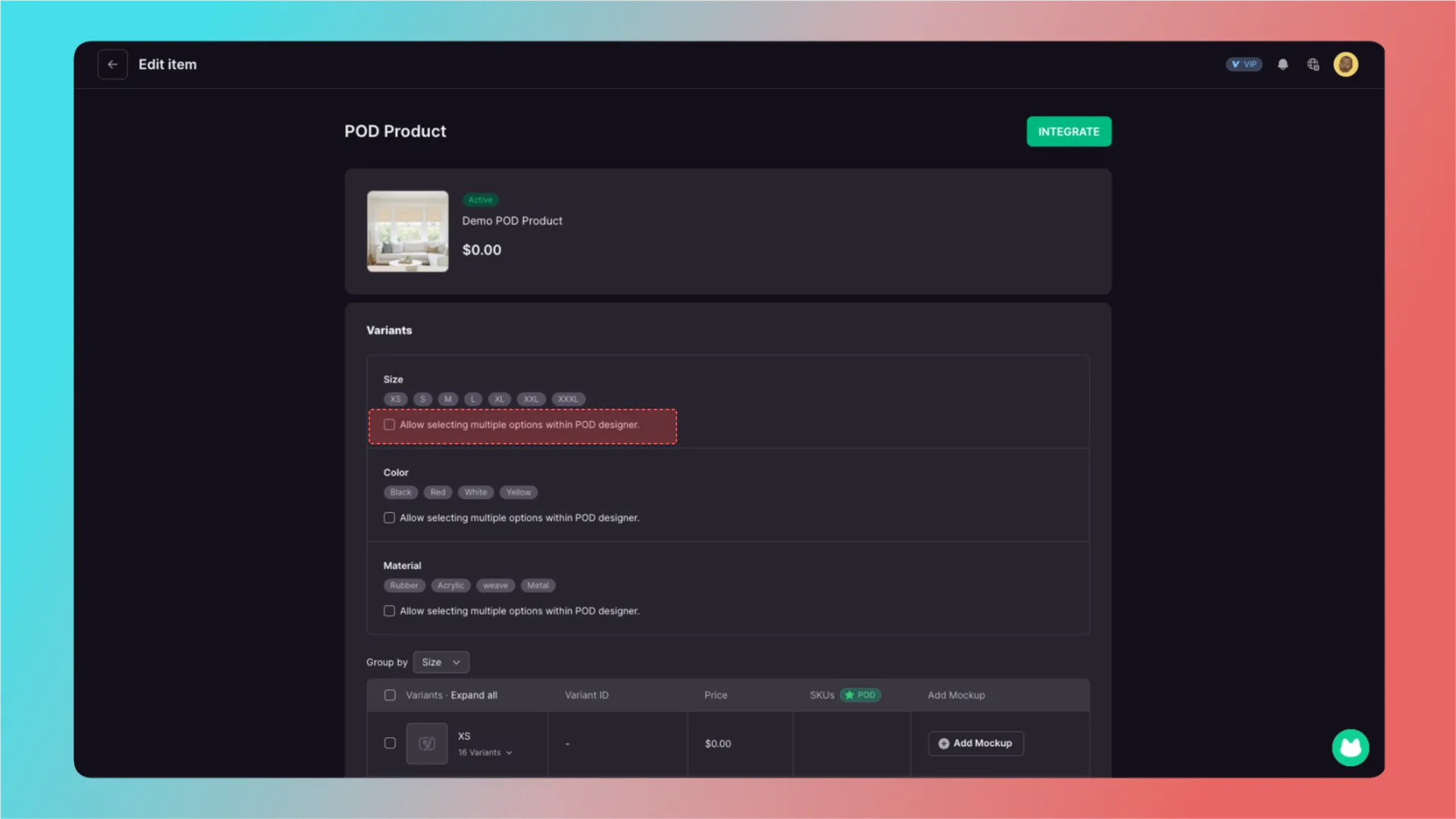
When enabled, customers can select other product variants and add them to the cart in the designer.
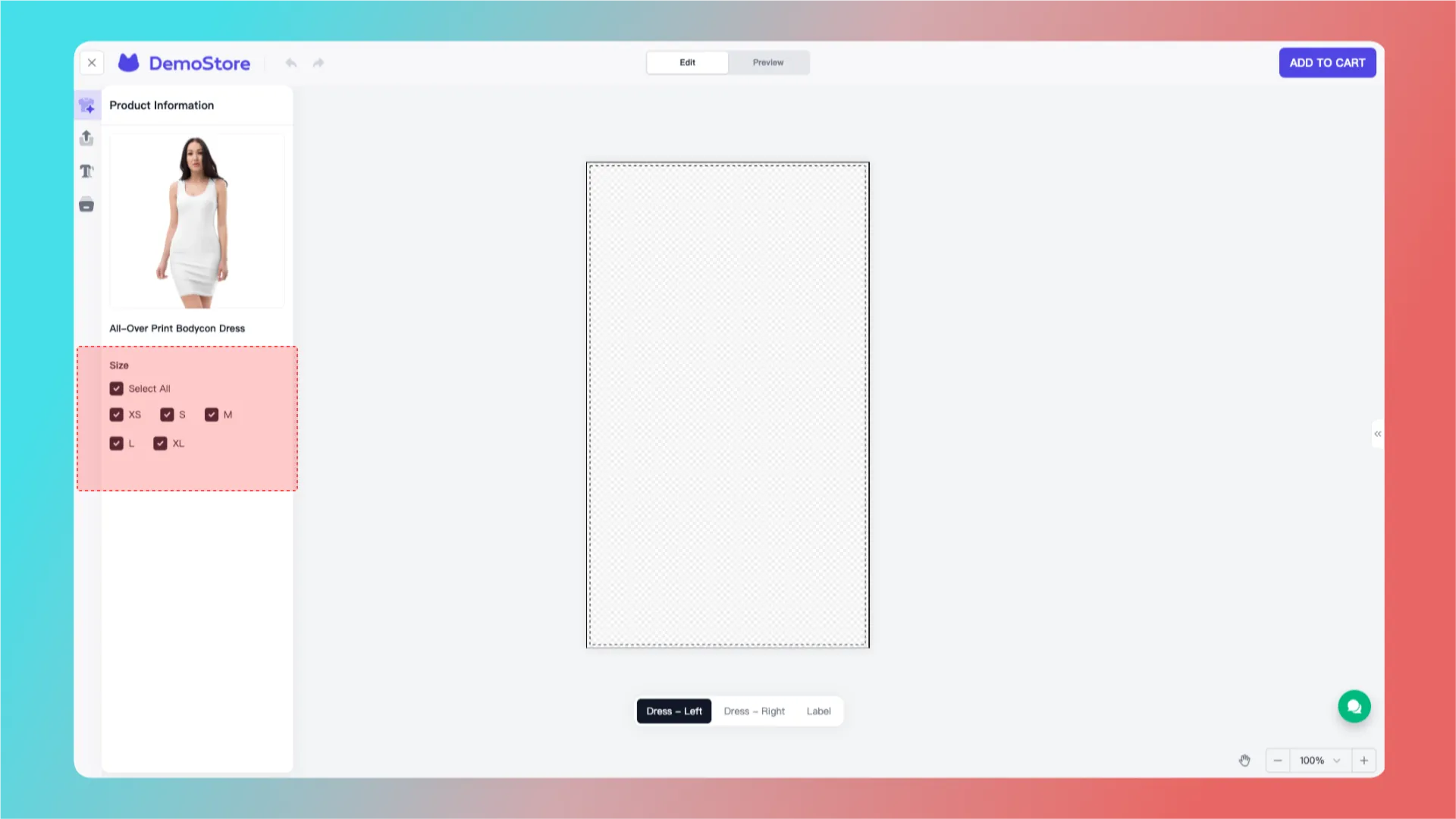
When to enable this option:
- Enable it when all sizes use one Mockup.
- It can also be enabled for different materials when the Mockup design-area settings and production result are identical.
- Do not enable it when design-area parameters differ.
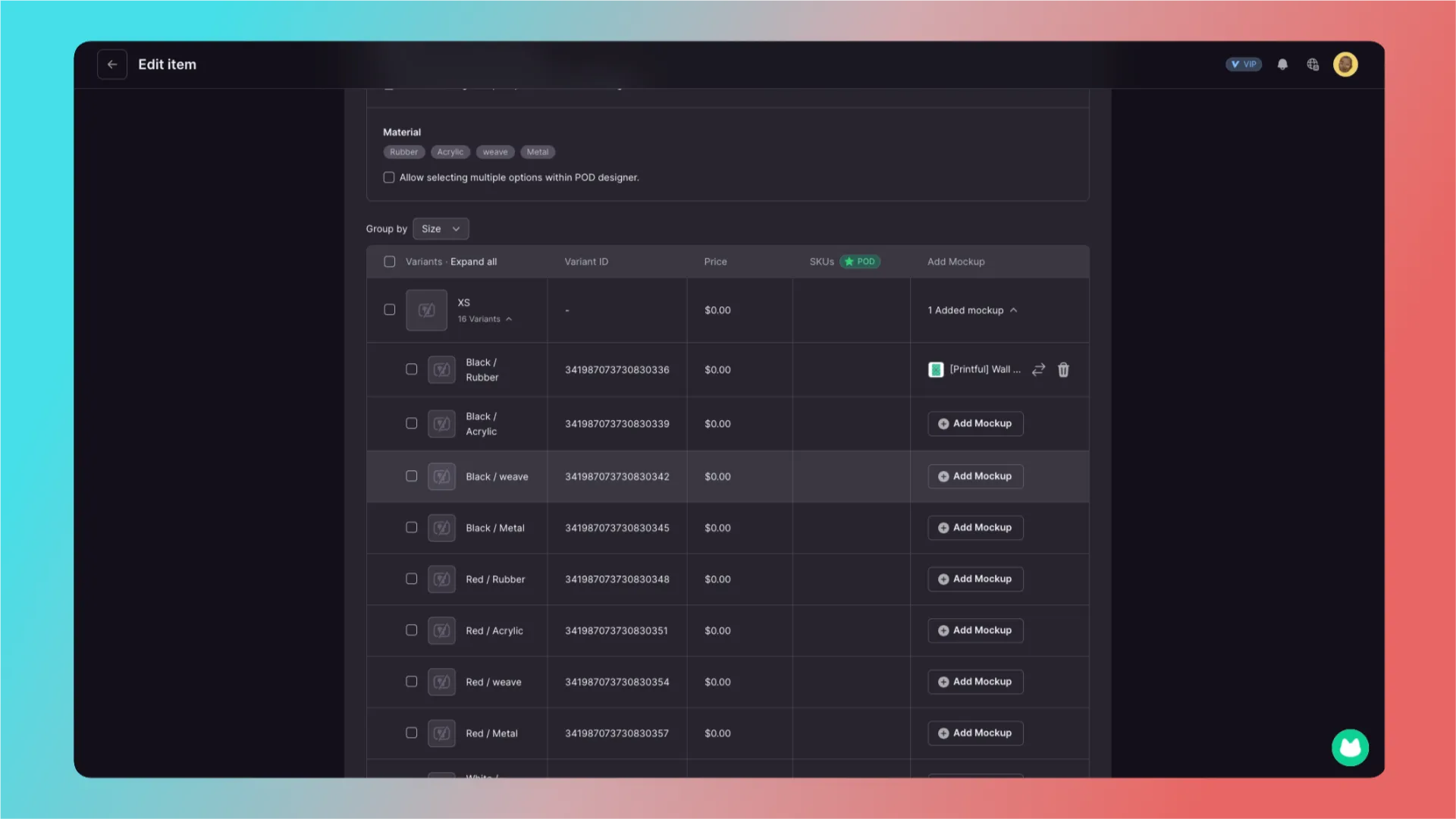
Scroll down to view more detailed variant items.
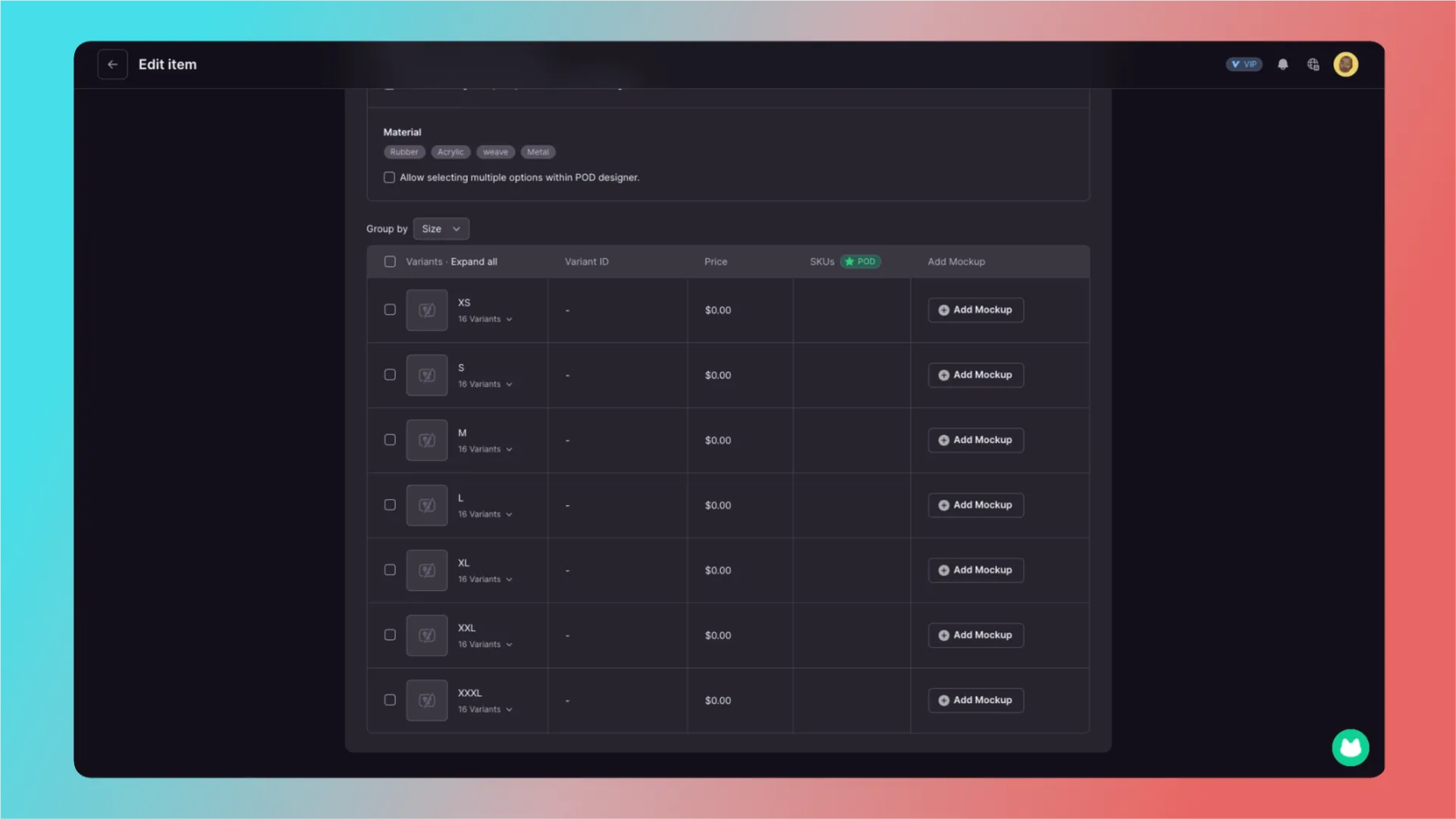
Click the highlighted area to expand more detailed variant options.
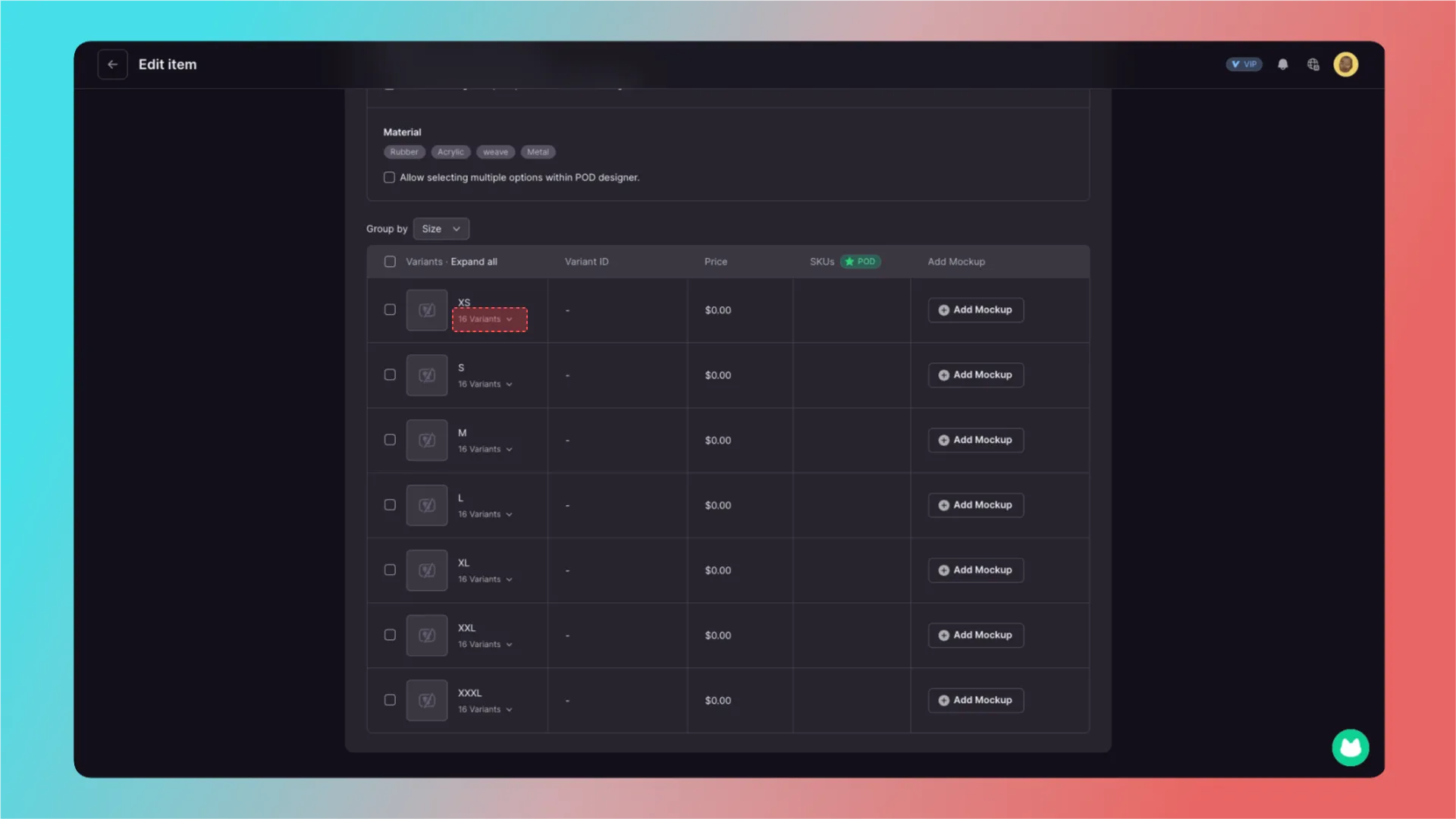
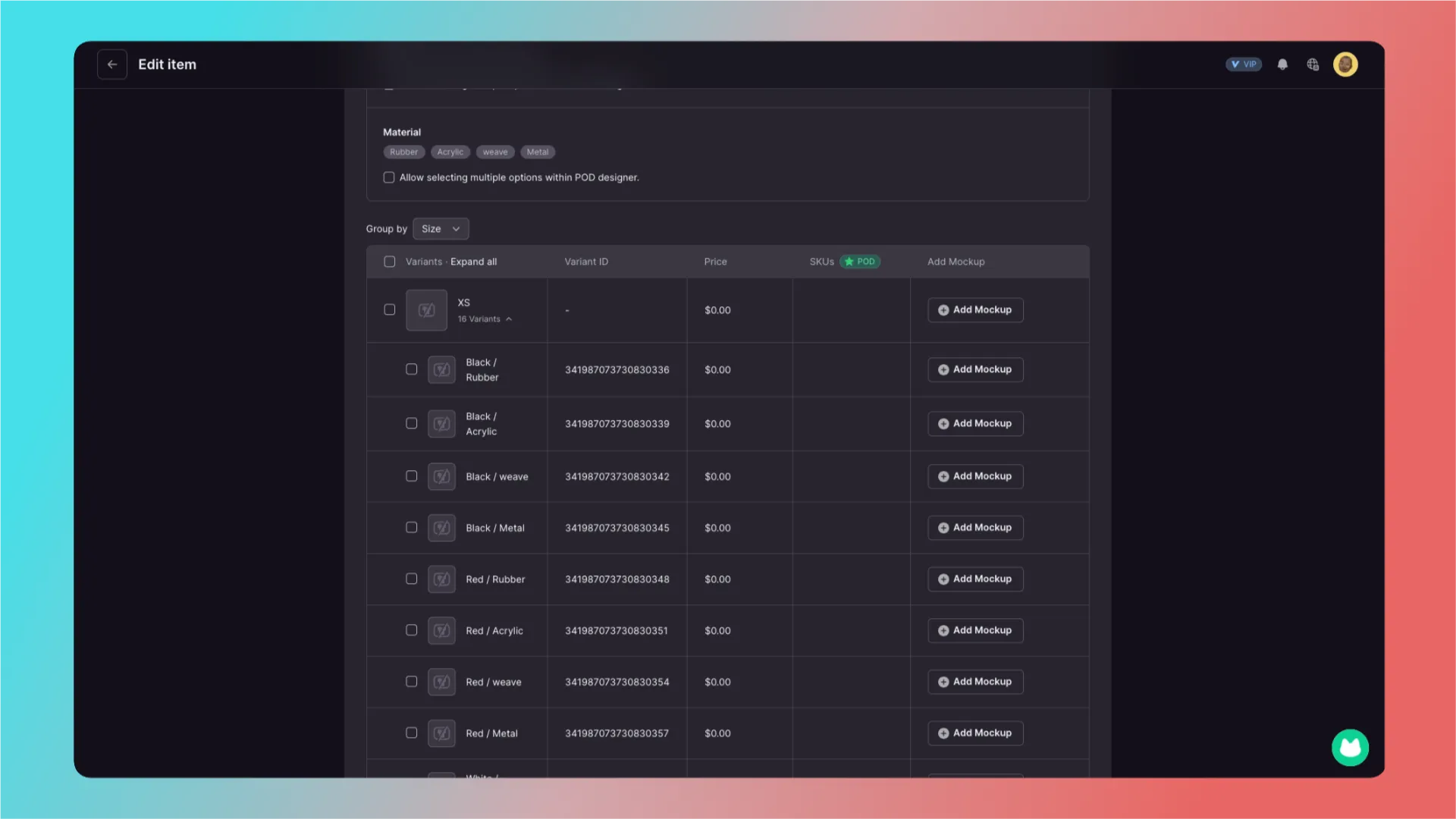
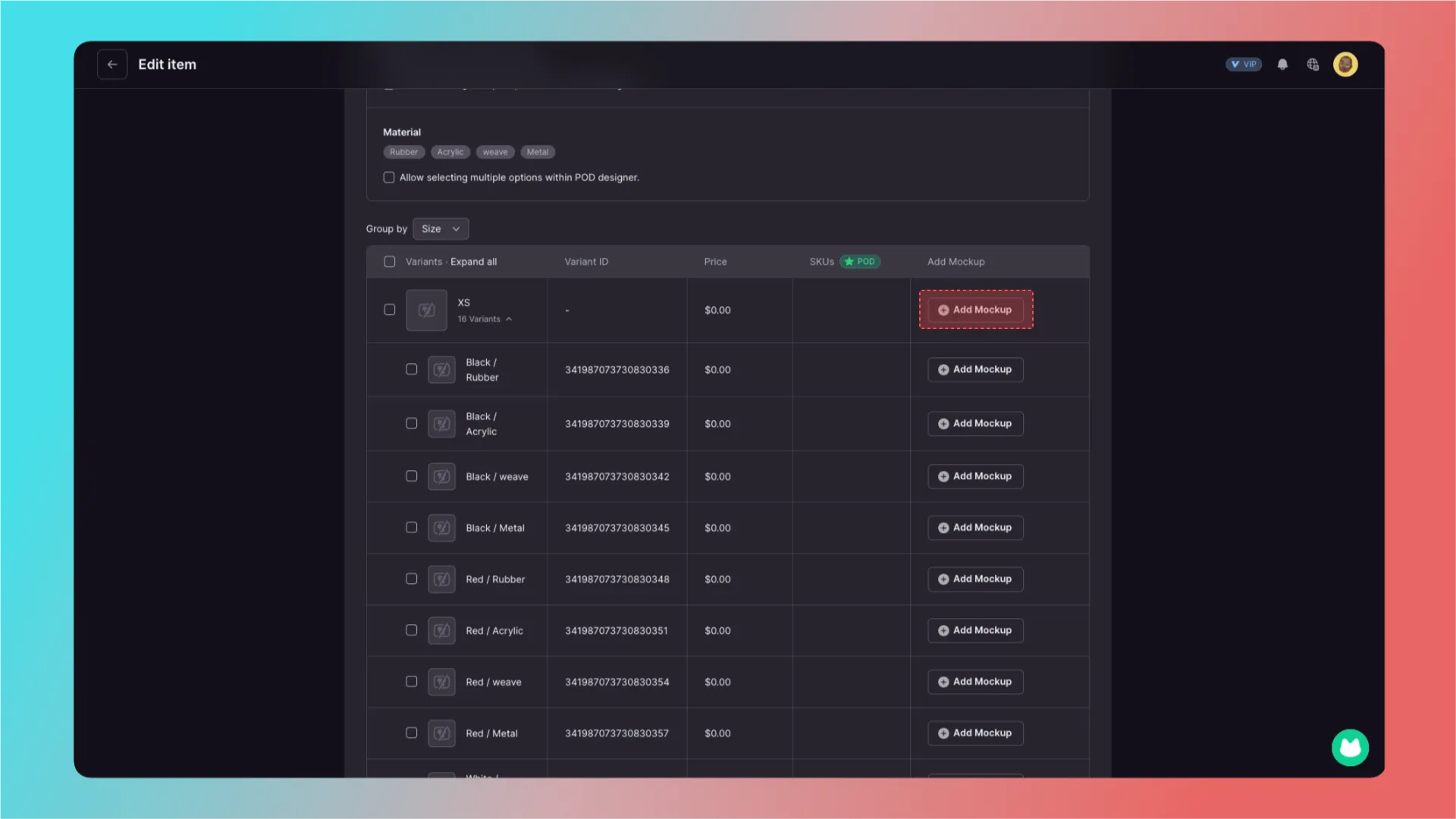
Here, you can add a Mockup to an entire variant group.
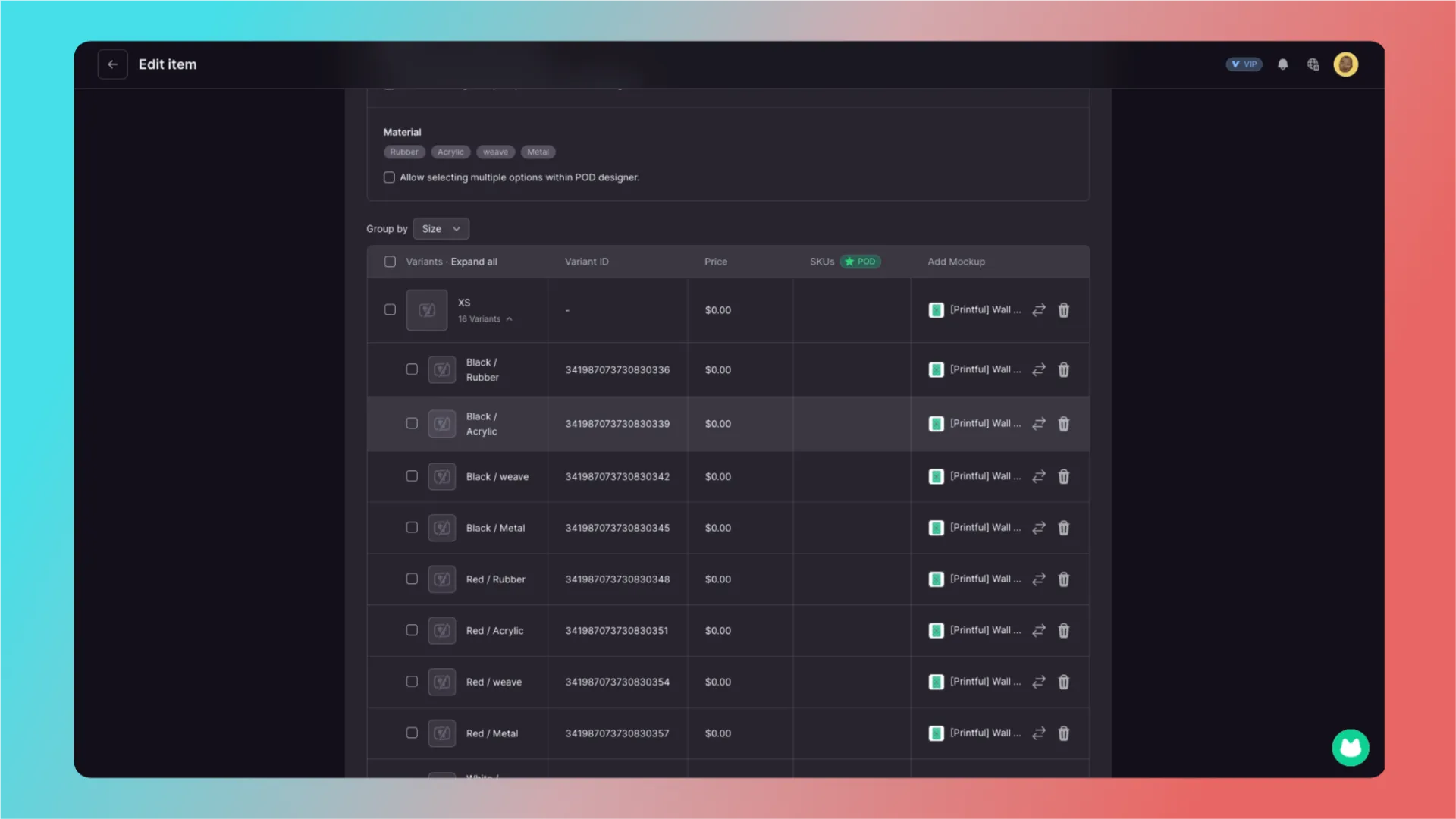
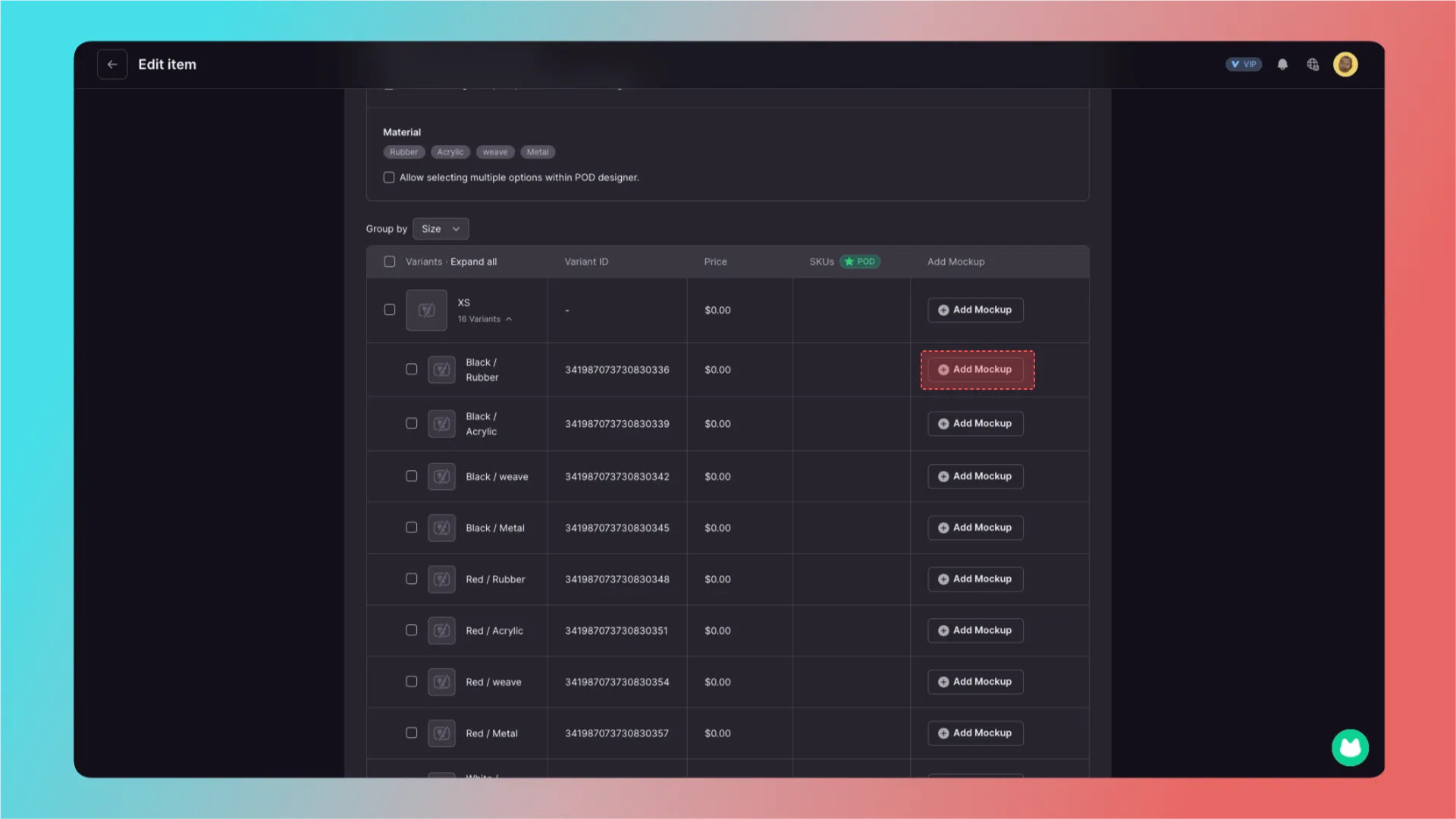
You can also add a Mockup separately to individual variants.
5. Complete the integration
After adding everything, scroll back to the top and click INTEGRATE in the upper-right corner to complete POD product integration.
Further Reading
Getting Started
Advanced Features
- Templates in CustoMeow
- Use Component Conditions to Control Whether Components Are Shown or Hidden
- What Can Workflow Do?
Add-on Pricing and Upselling
- What Is an Add-on Price Product?
- What Is an Upsell Product?
- Cart Binding for Add-Price and Upsell Products
Updated on: 27/10/2026
Thank you!