
What Is an Add-on Price Product?
About add-on price products
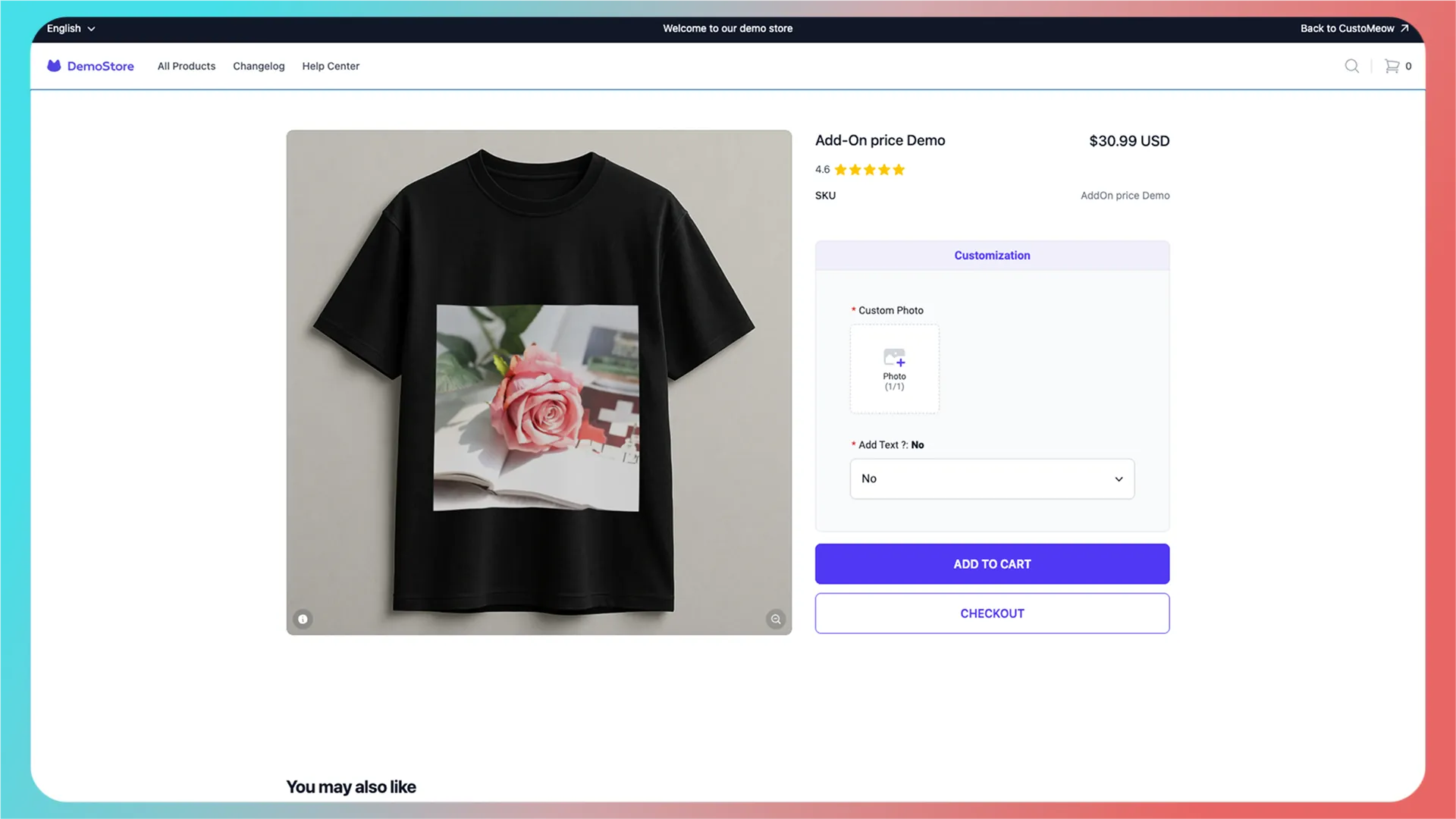
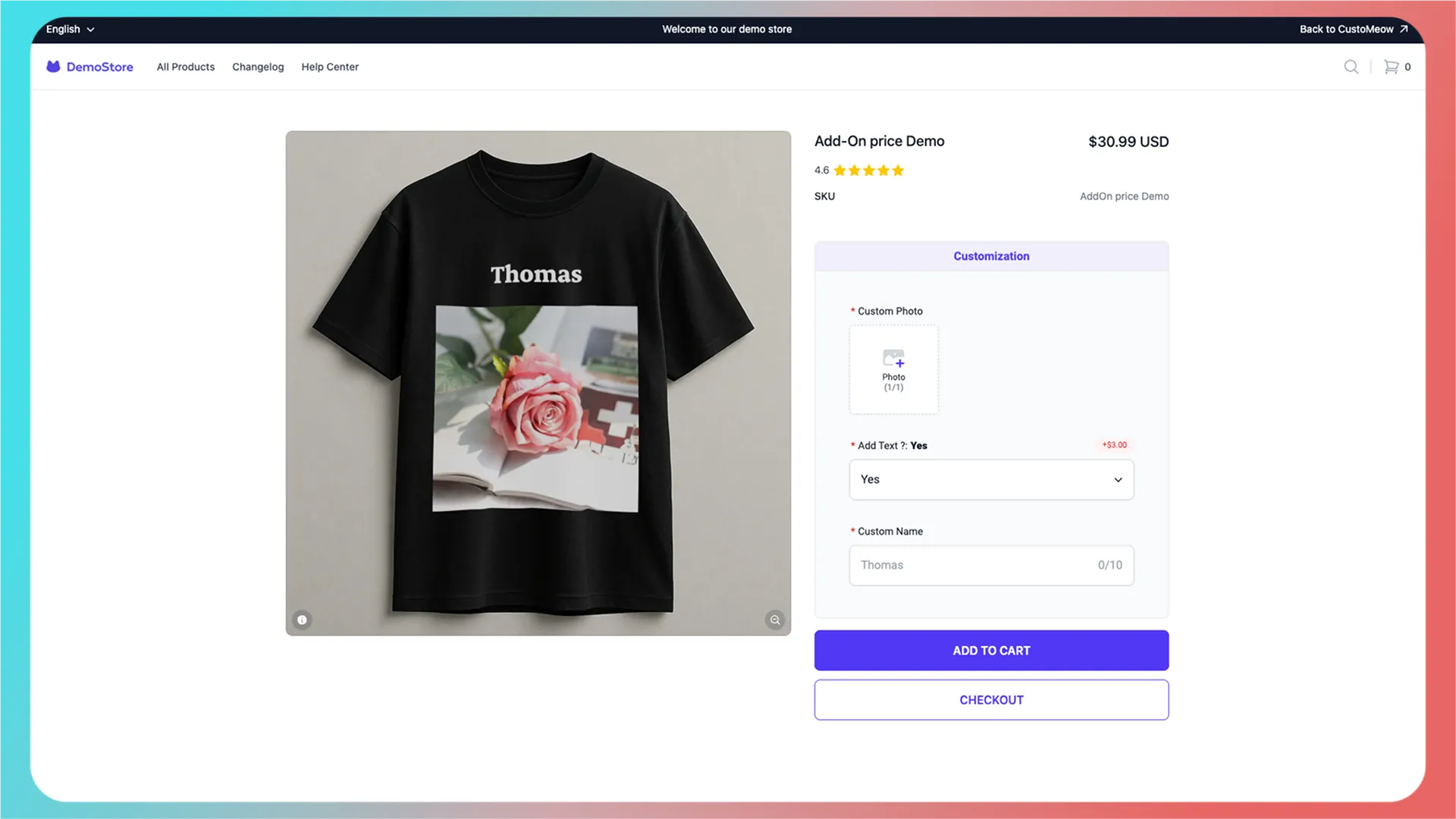
An add-on price feature lets customers voluntarily pay an extra fee during product customization for a more advanced, personalized result or an enhanced gifting experience.
For example:
- Without an add-on, a product may allow only one face cutout; with an add-on, the merchant can offer two or three.
- Without an add-on, customers may customize only the front; with an add-on, they can customize the back.
- Without an add-on, customers can only upload an image; with an add-on, they can add text.
How do I configure an add-on price product?
How it works:
- While configuring an add-on, CustoMeow guides you to create an add-on price product.
- When the customization feature is integrated, CustoMeow sends it to your store.
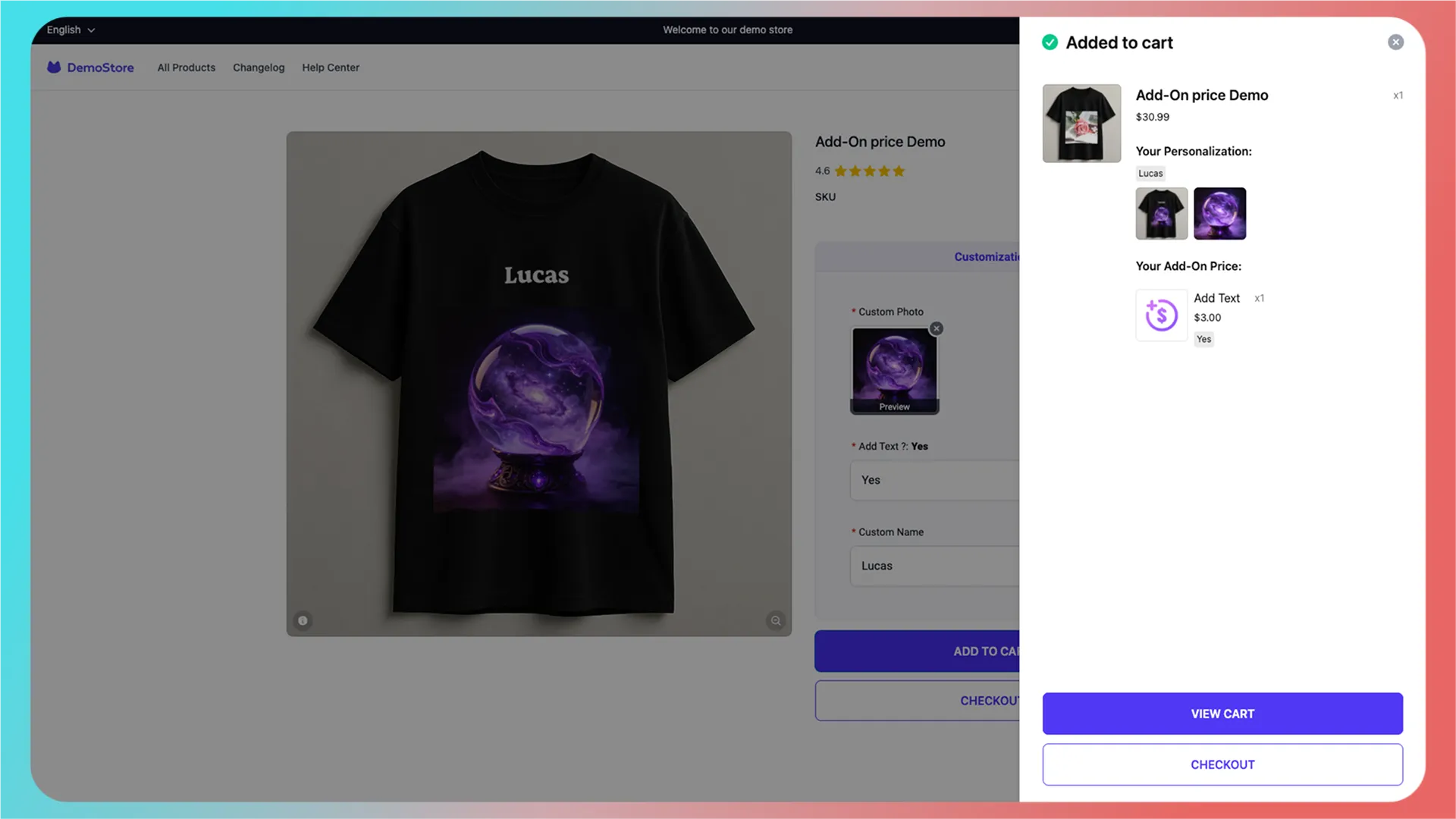
- When a customer chooses the add-on and adds to cart, both the main and add-on products are added.
In the demo, one option in the Menu Selector is configured with an add-on price product. The following steps use that example.
1. Open the component’s add-on price settings
Go to the feature set configuration page and select the component you want to configure.
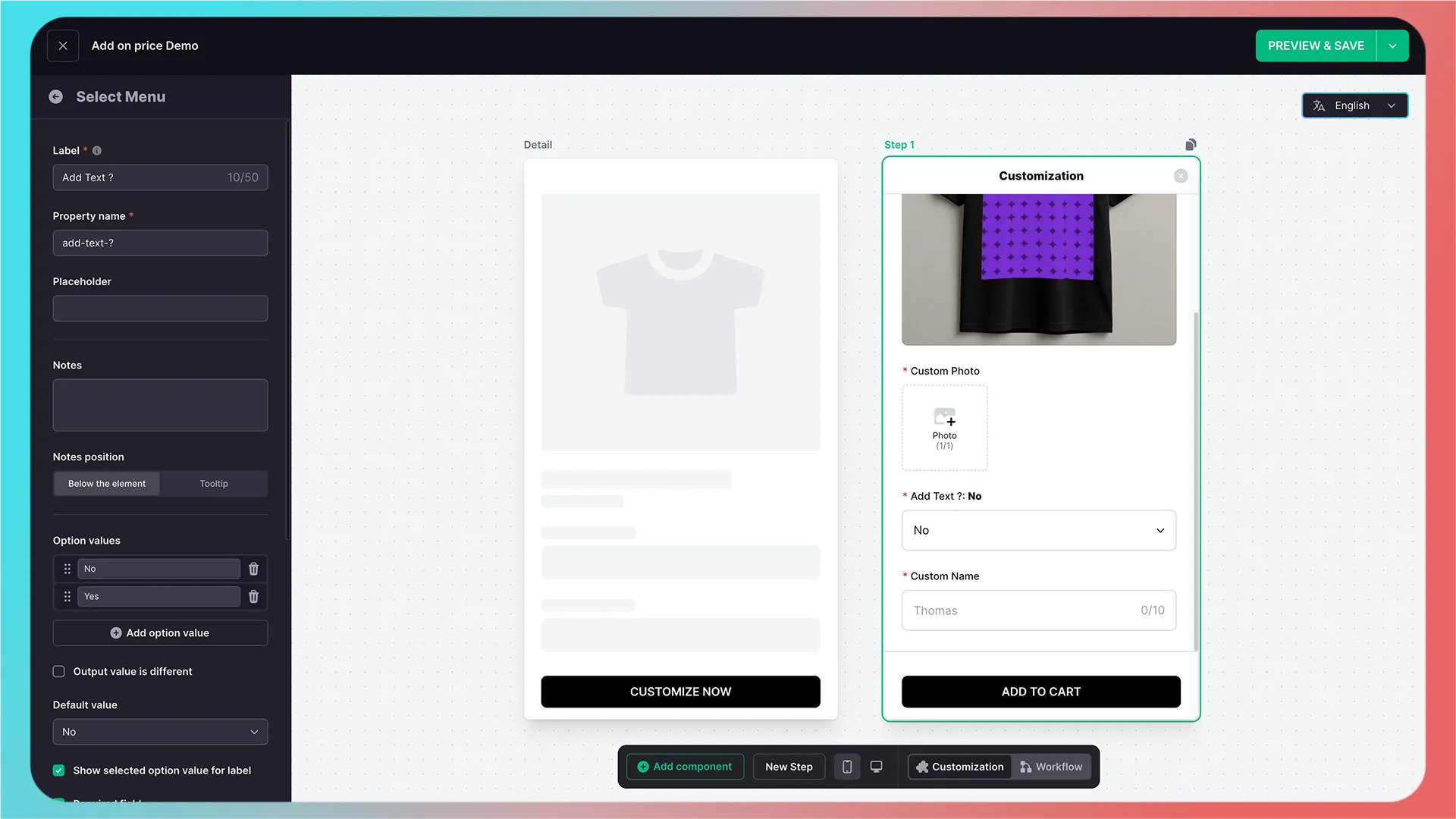
Scroll down to Add-on Price.
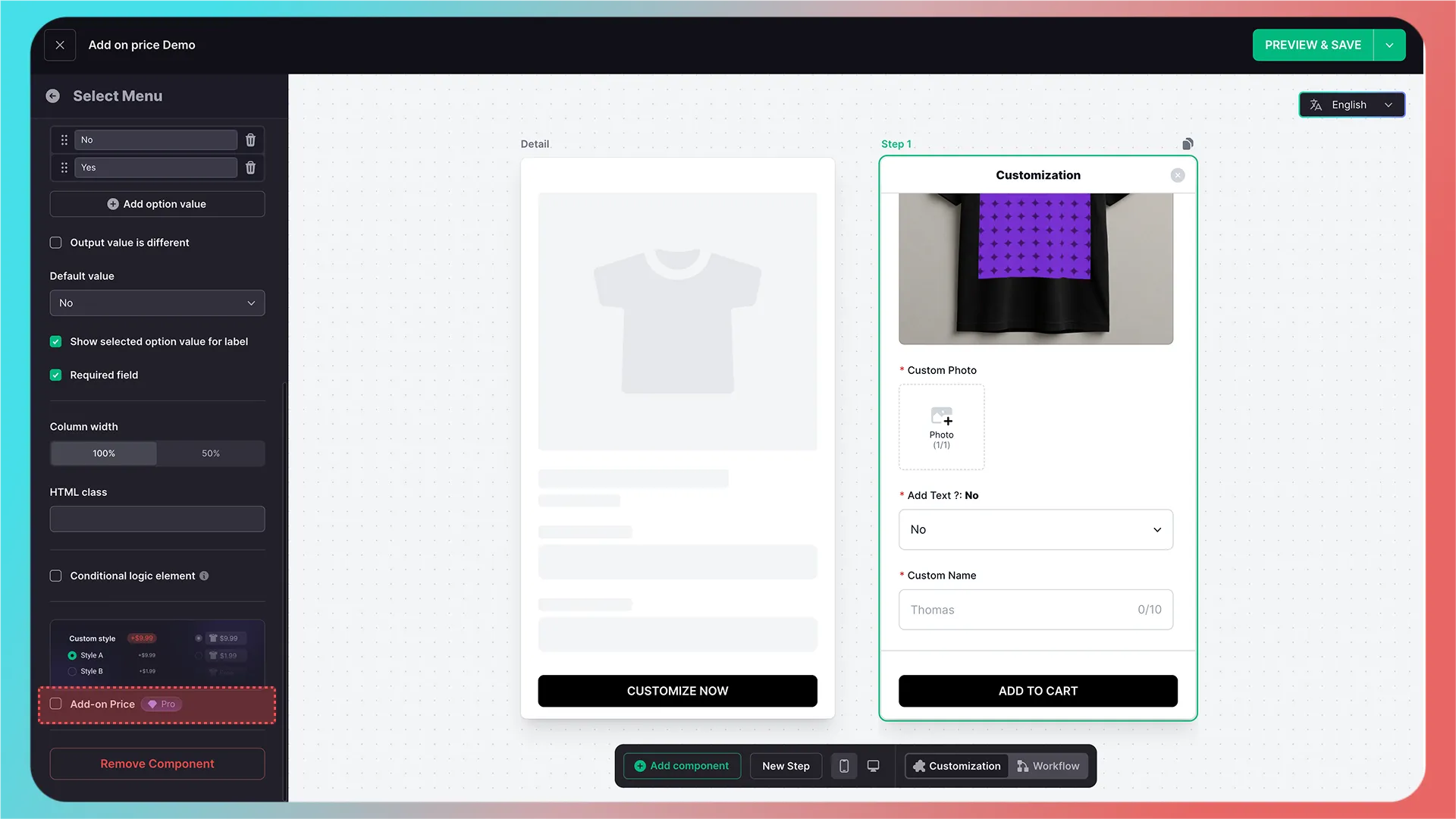
Click it to open the configuration dialog.
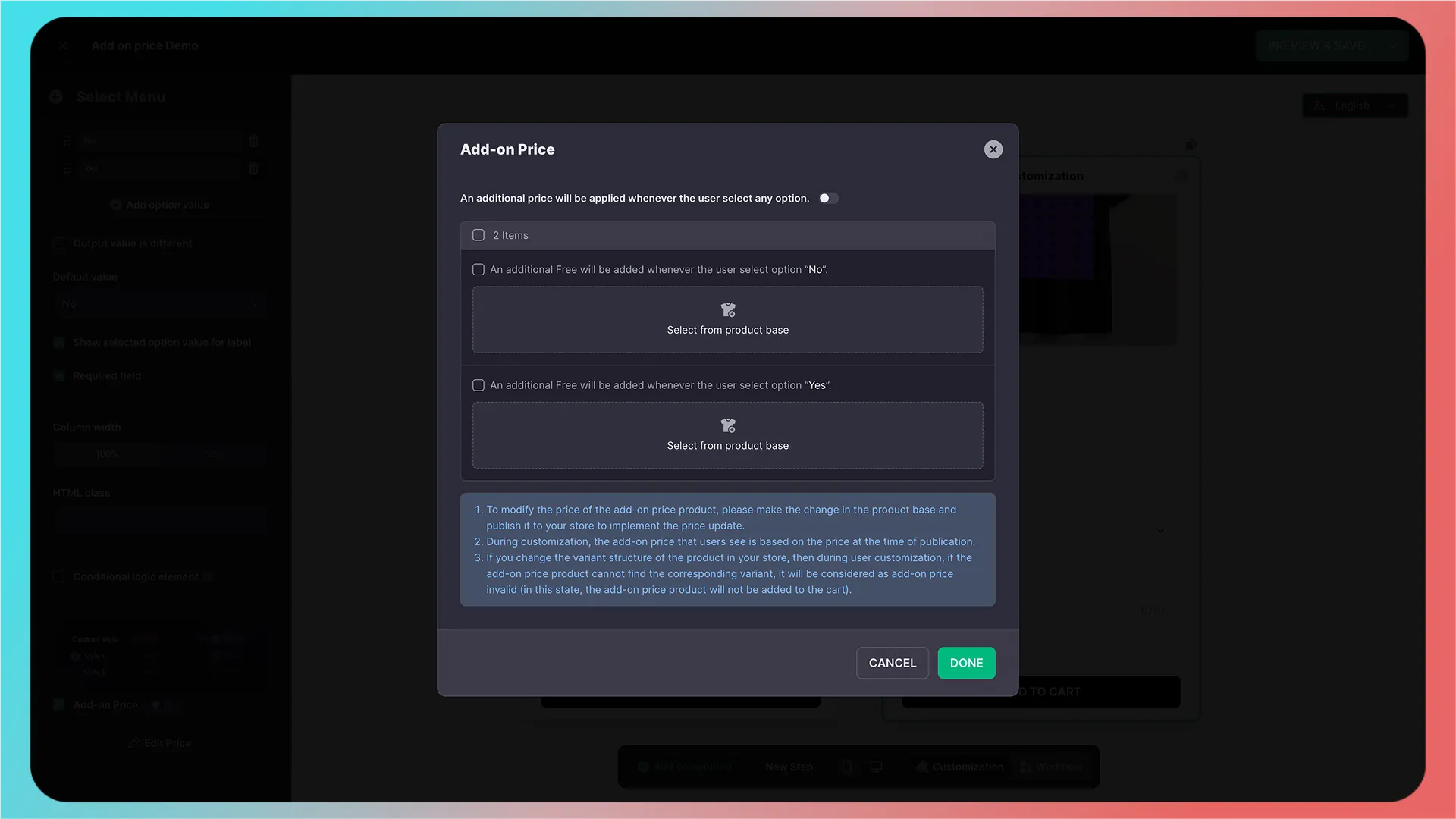
2. Explore batch configuration options
There are several key features here:
1. Use one add-on price product for all options
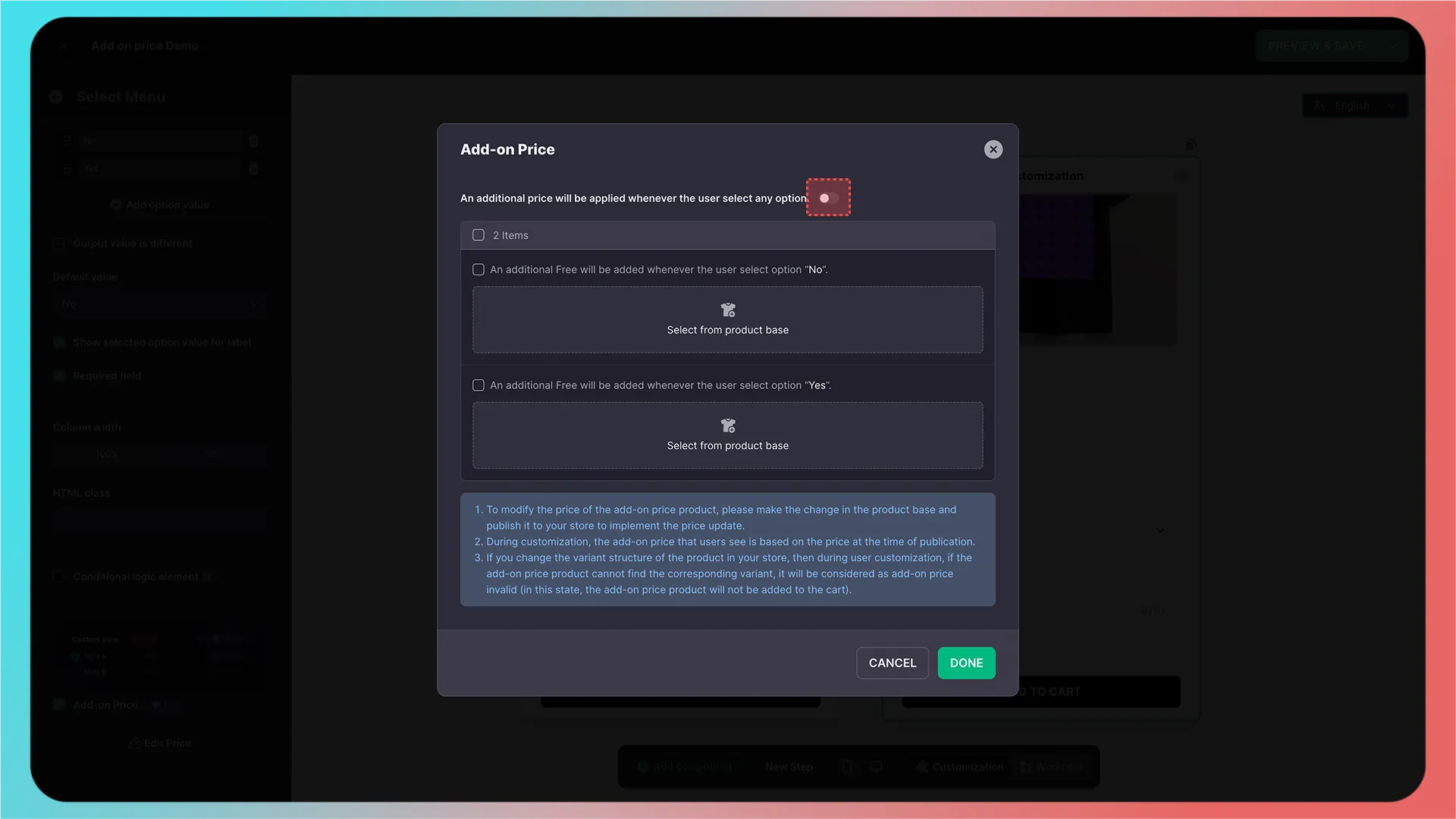
As you can see, you only need to configure one product.
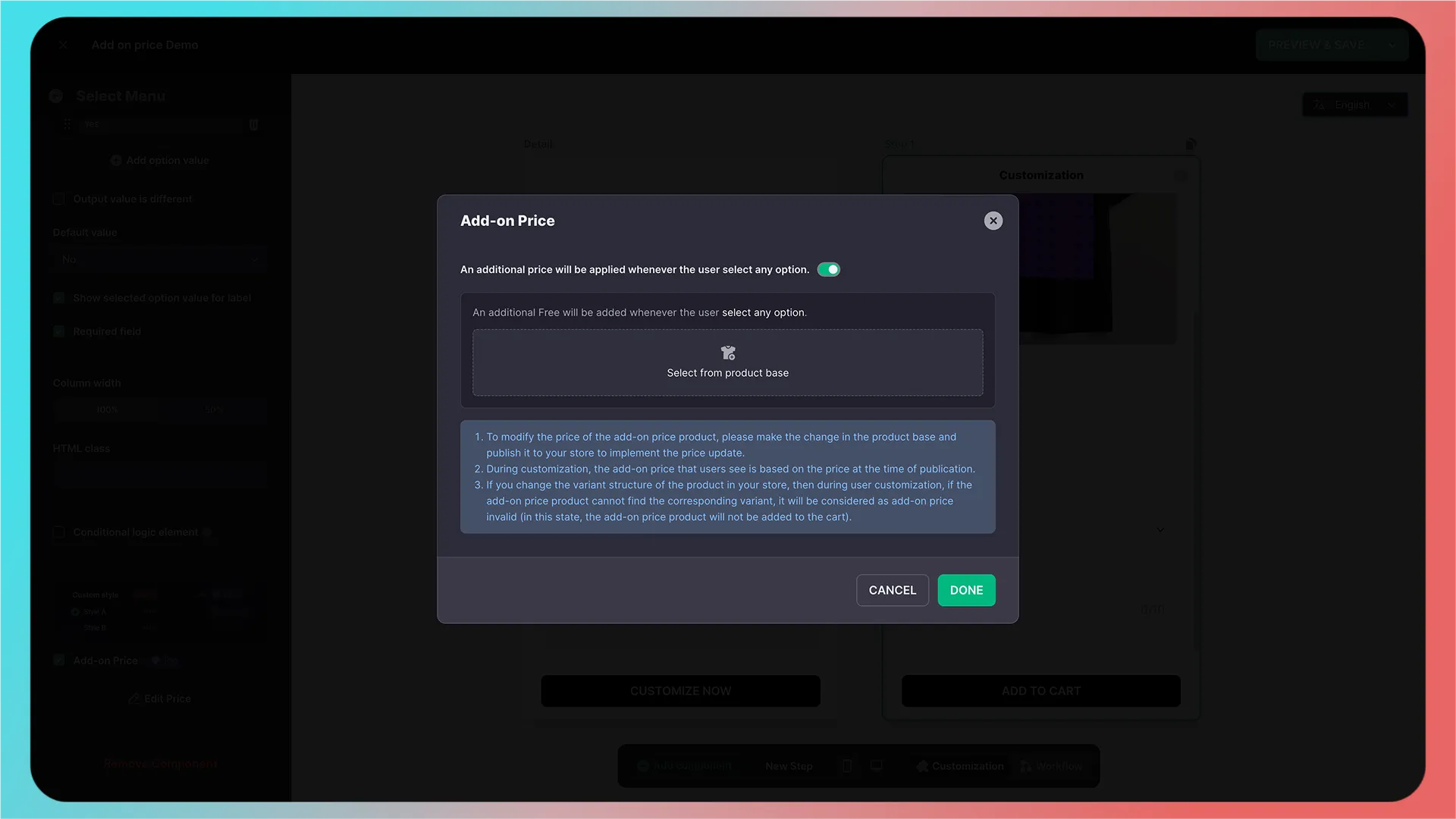
2. Batch-add add-on price products for multiple options
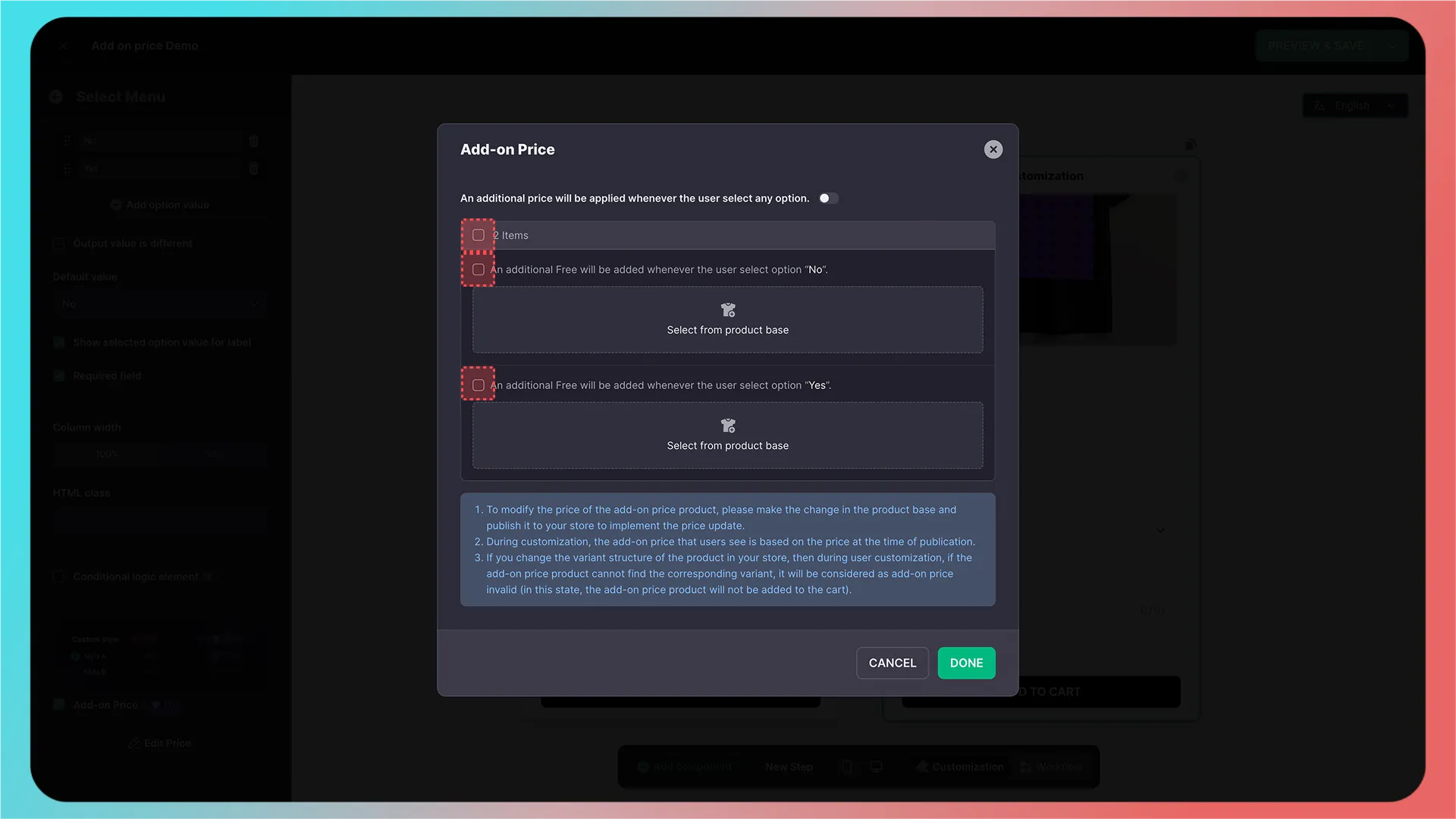
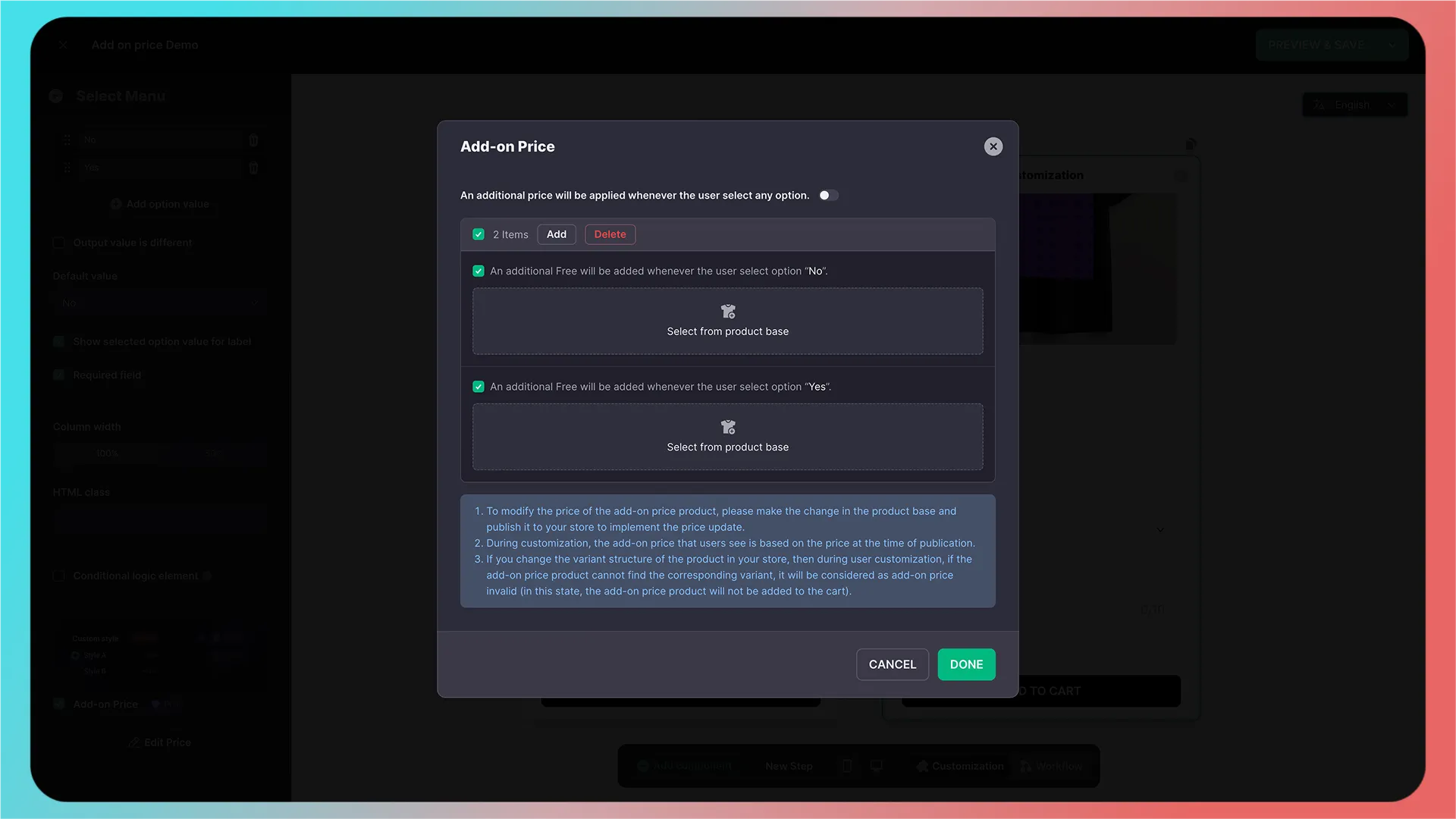
3. Select or create an add-on price product
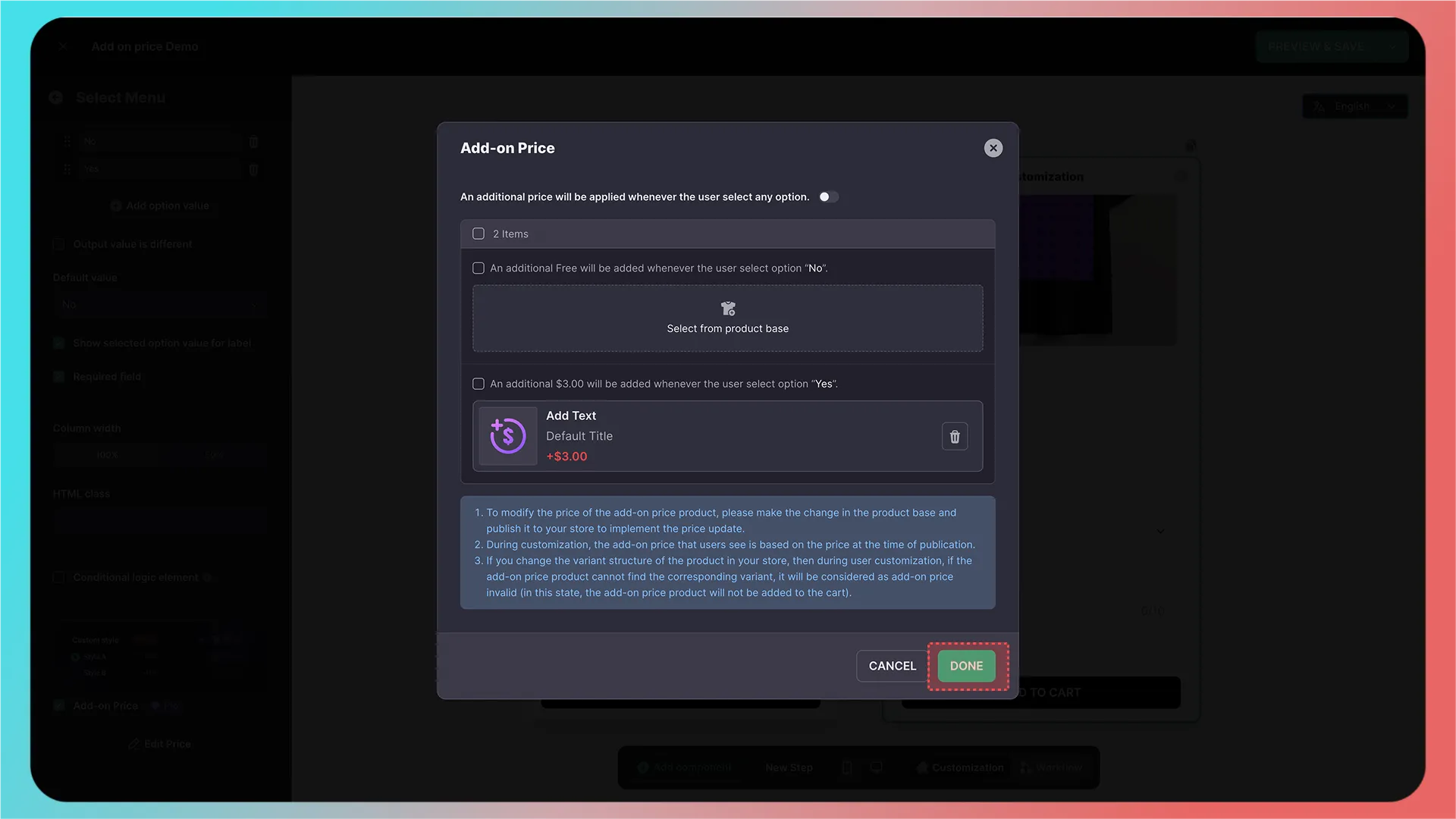
To configure an add-on price product for the Yes option, click its highlighted area.
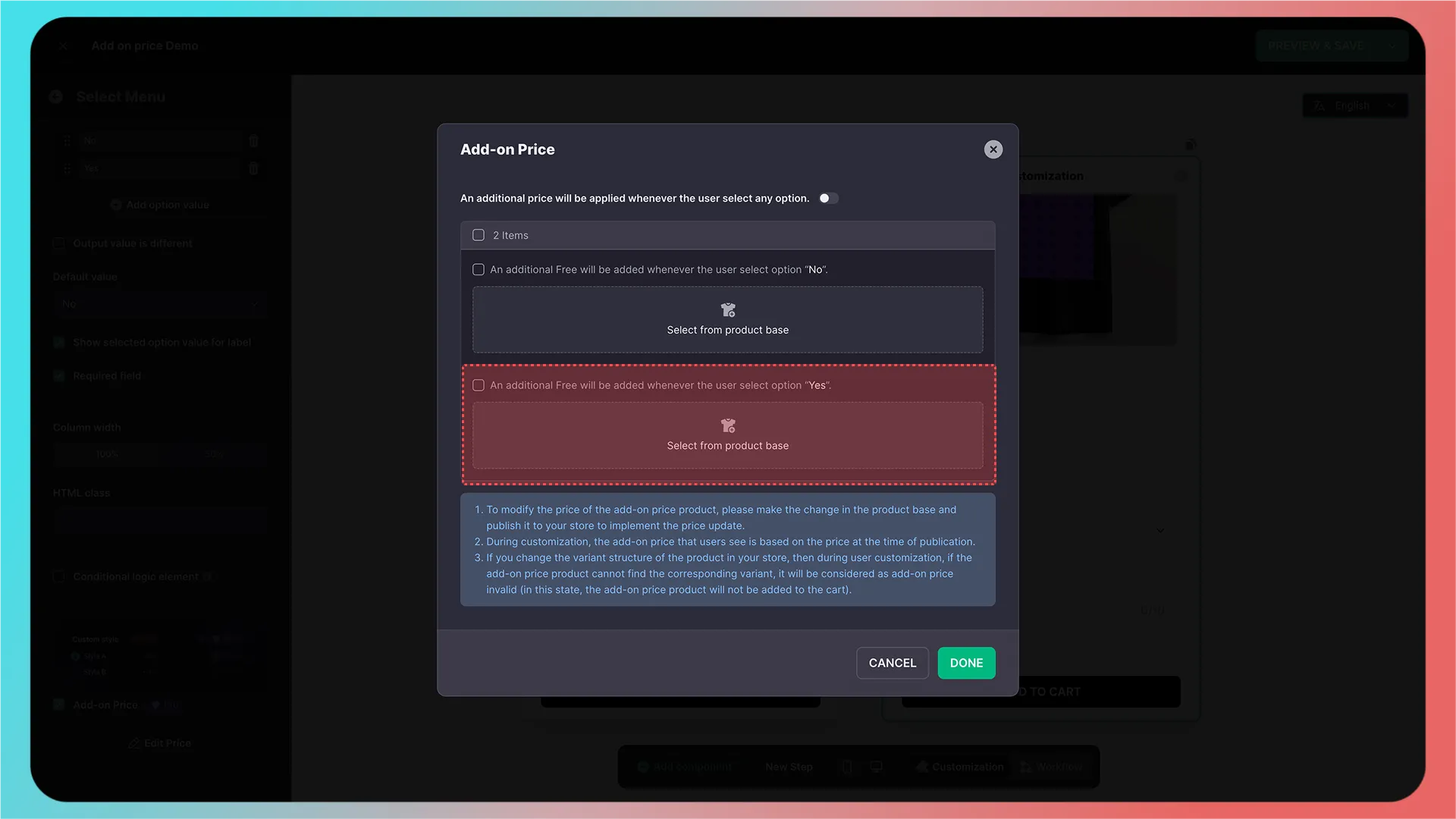
A product-selection dialog then appears, listing products from CustoMeow’s Products page. For your first configuration, create a product by clicking Create in the lower-right corner; a new browser tab opens.
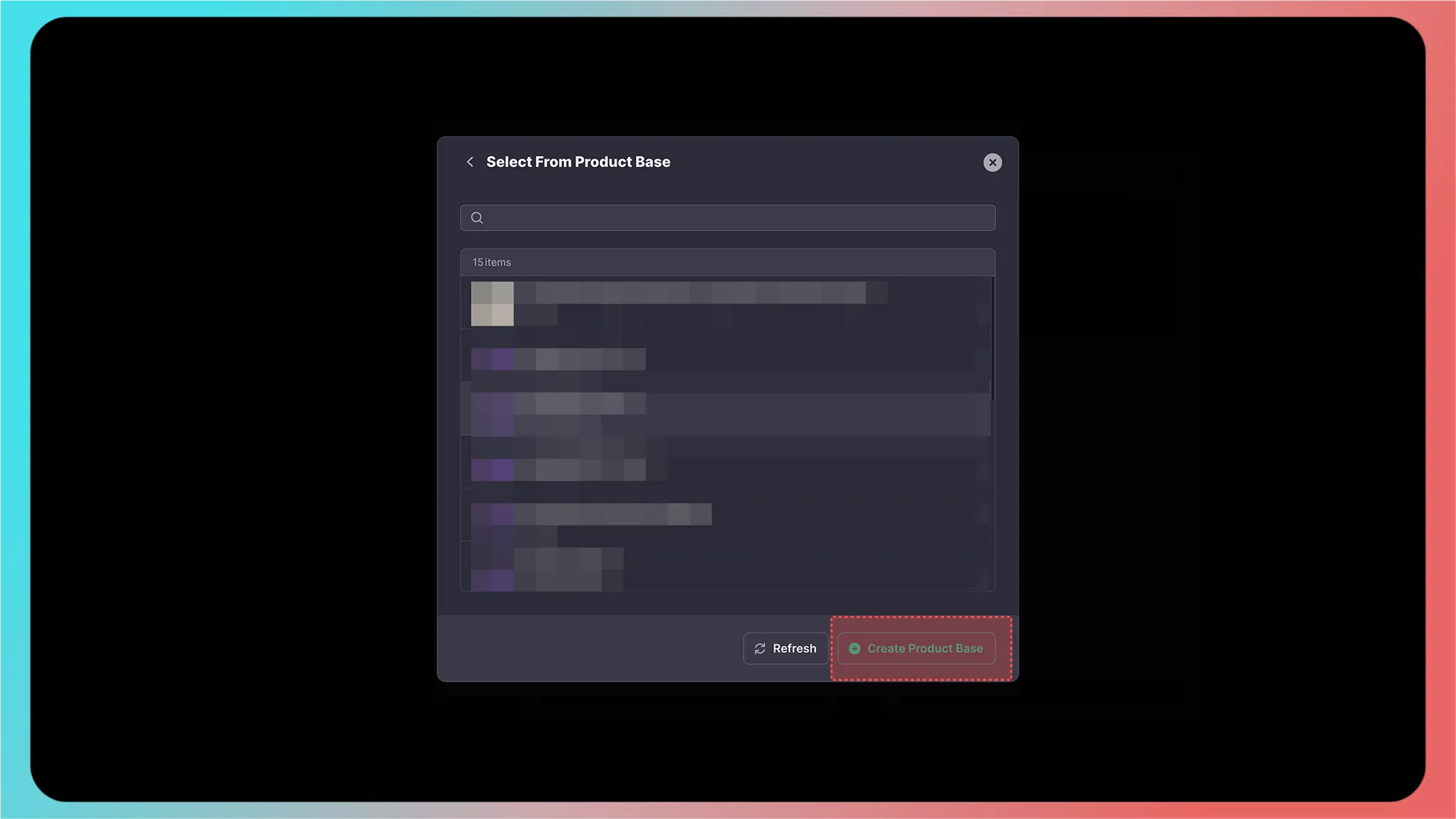
4. Enter the product details
You are now on the product-creation page.
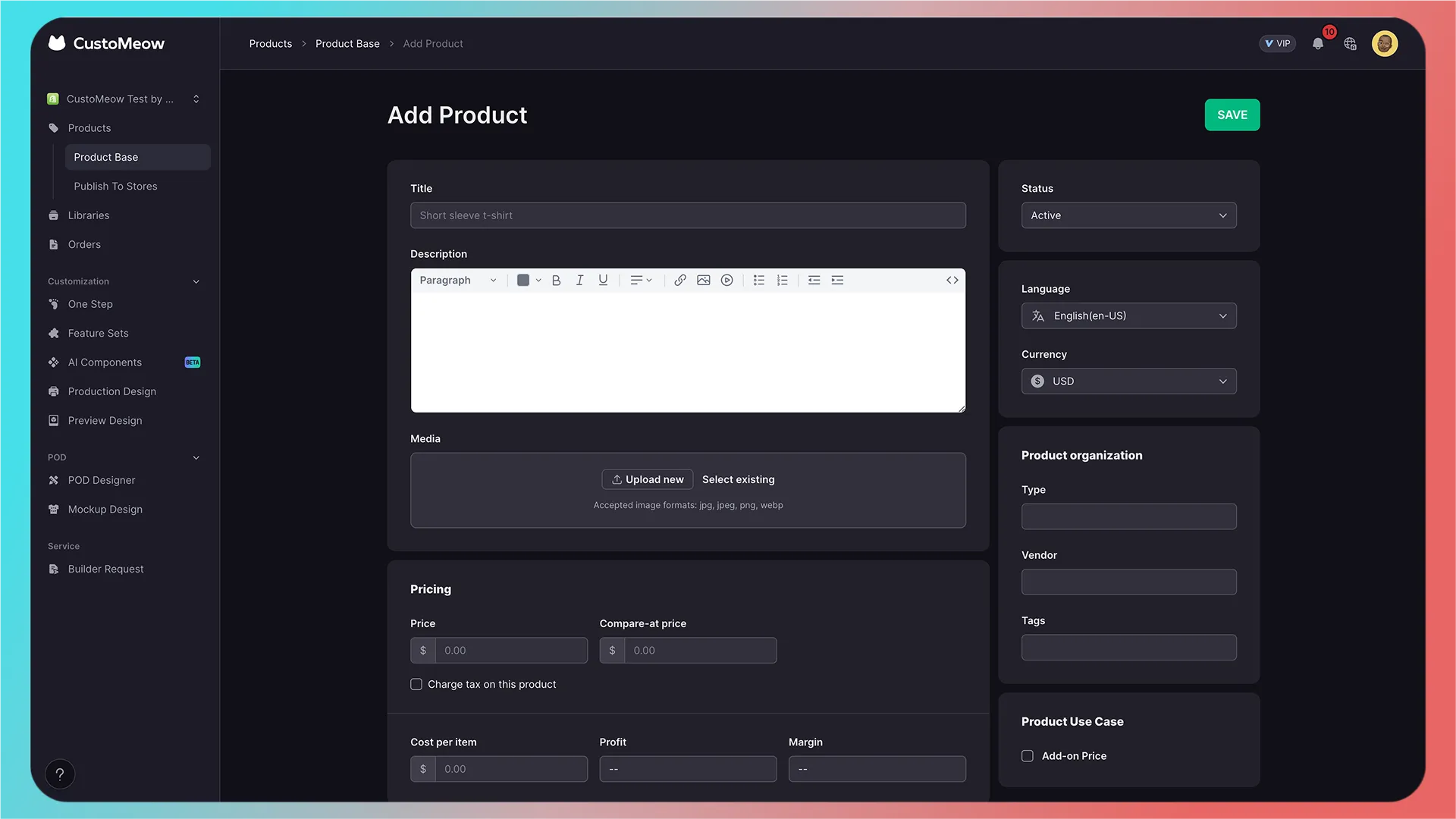
Enter a normal add-on product name, such as Add One Text, Add Two Text, or Add One Photo, so customers understand its purpose.
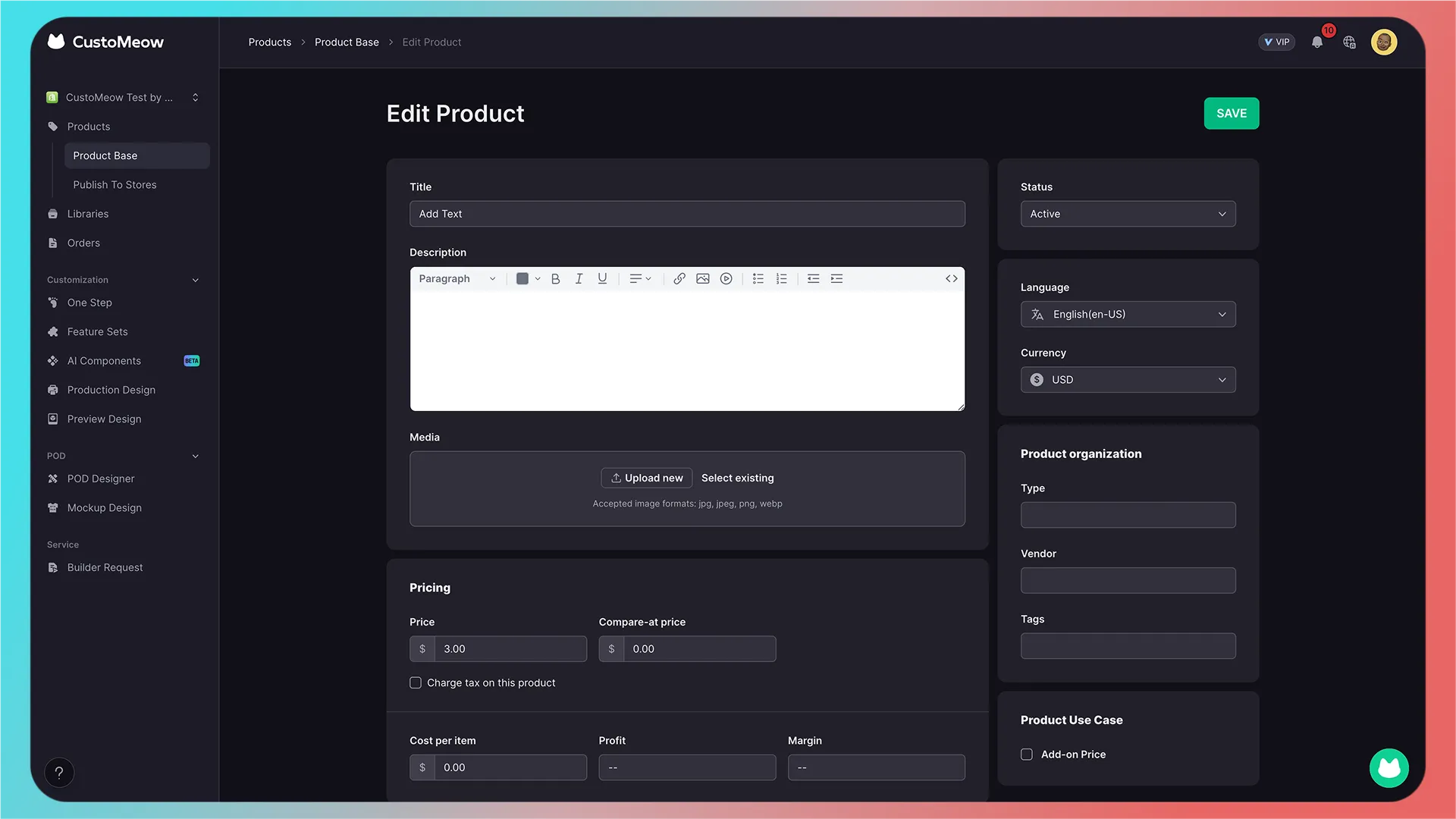
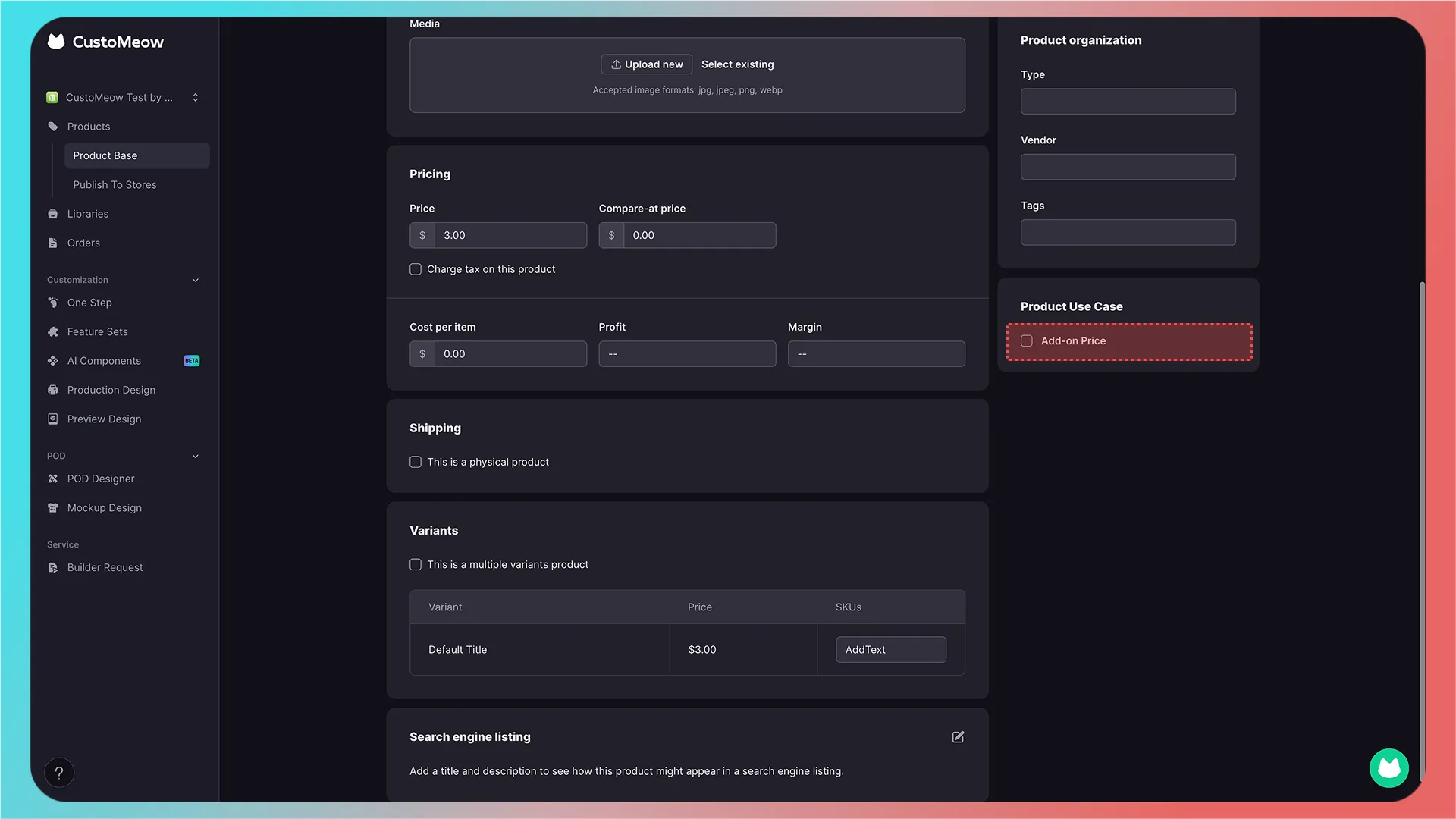
After entering product information such as price and SKU (you may skip the product image for now), find Product Use Case in the lower-right corner and select Add-on Price. This is required for the feature to work.
5. Set the product image and save
After selecting it, four images appear. Choose any one as the product’s main image.
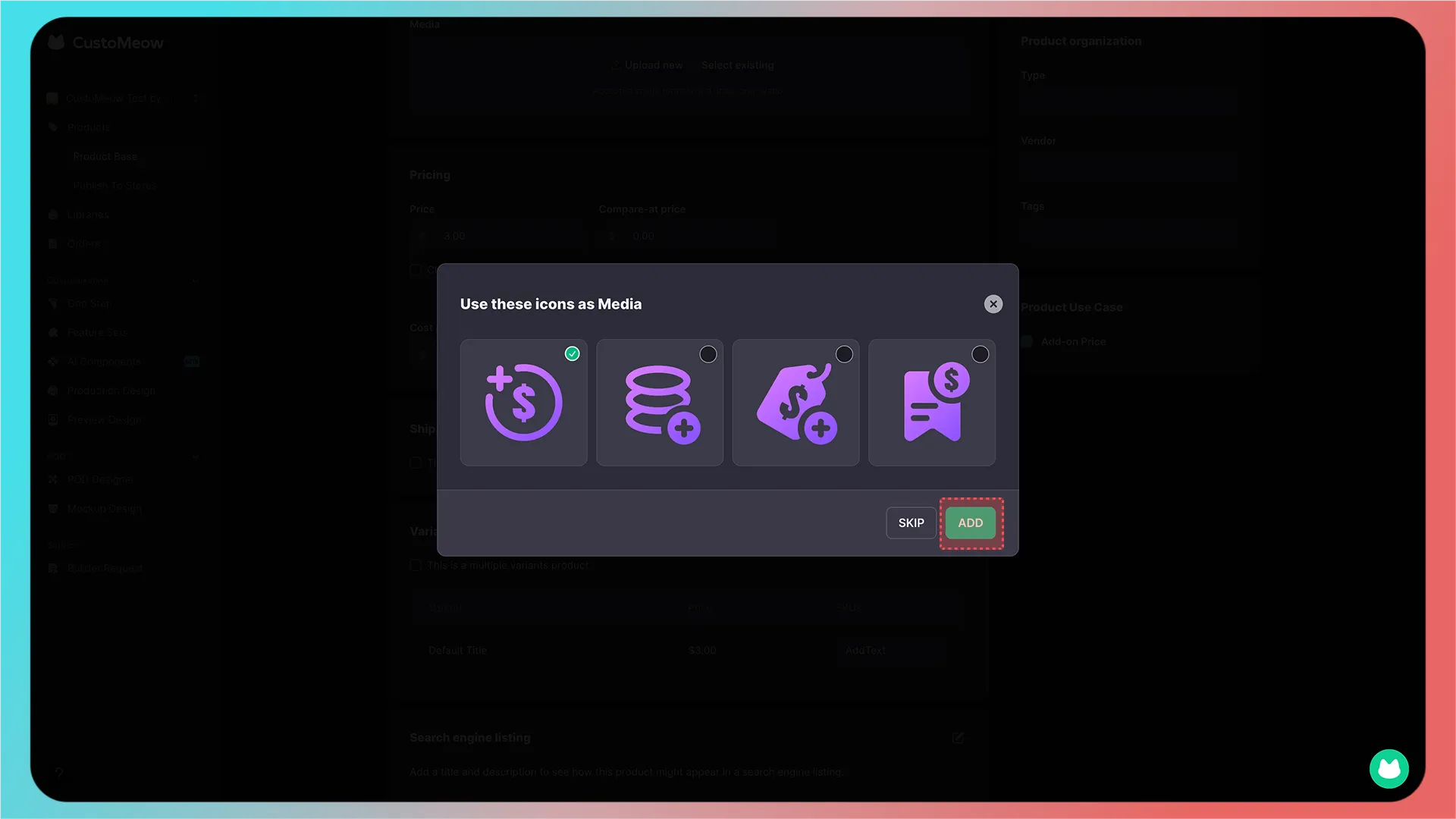
After adding it, scroll up and click Save.
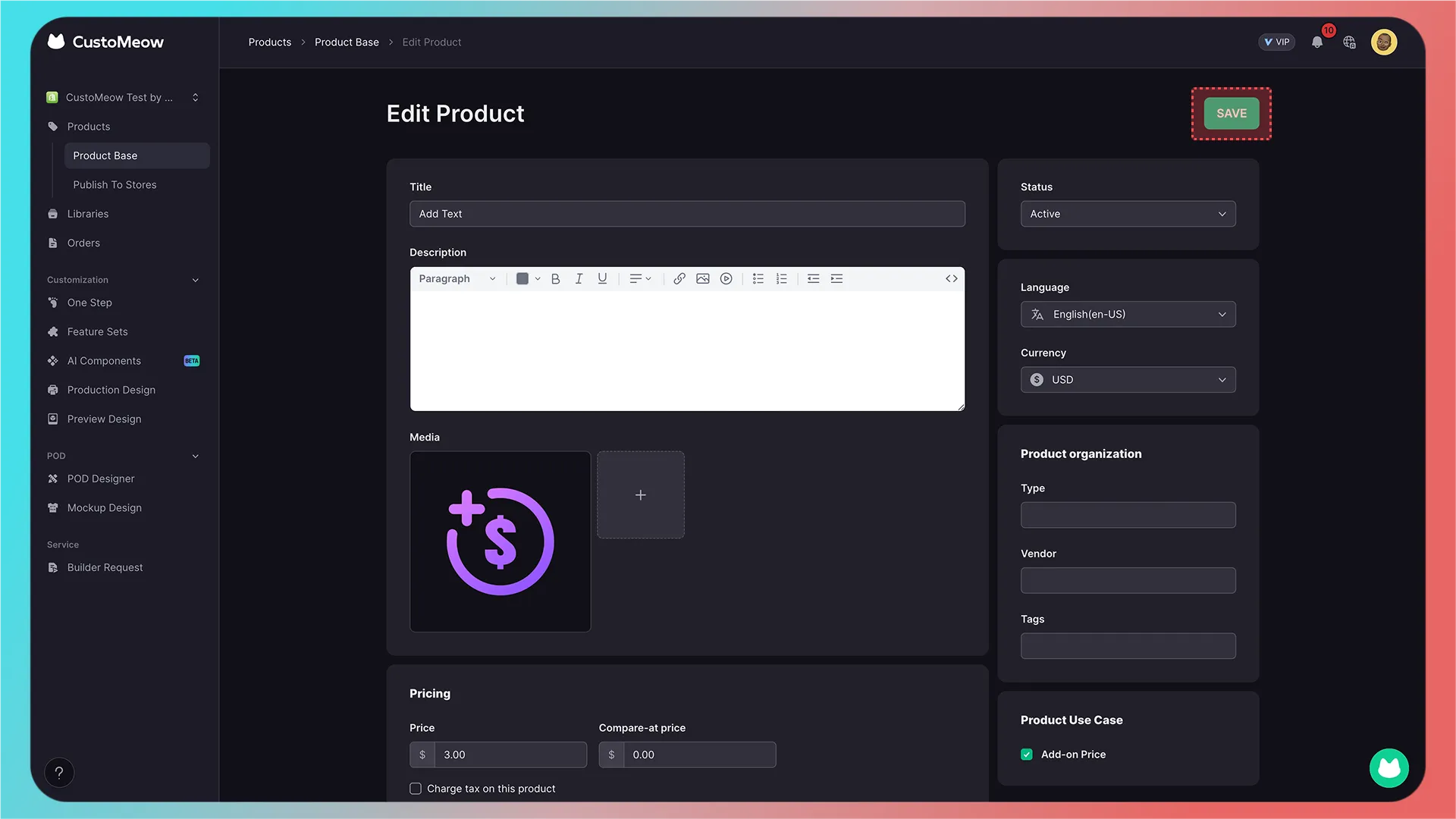
6. Return and select the product or variant
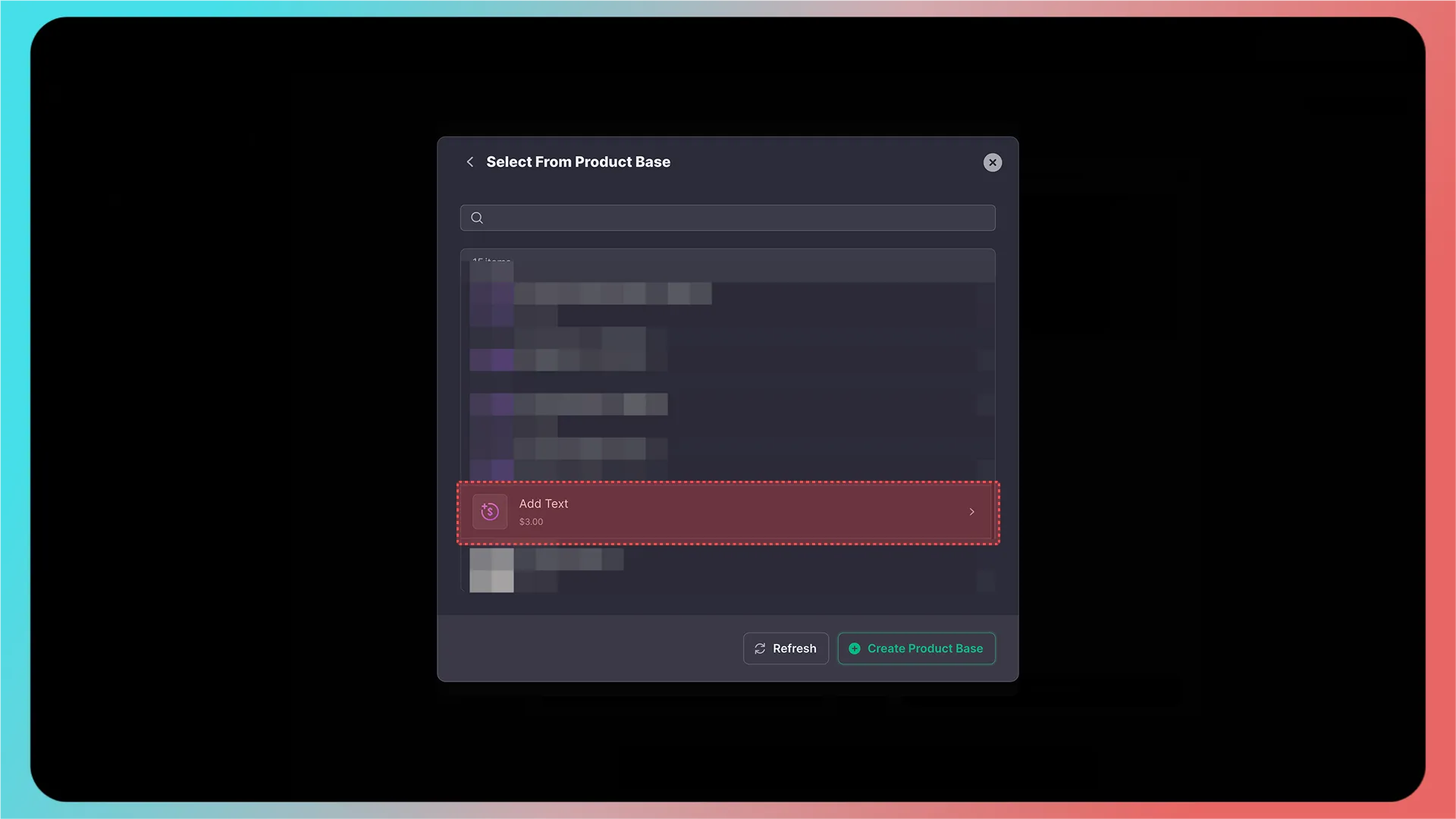
After saving, the product-creation tab closes. Return to the original page and click Refresh.
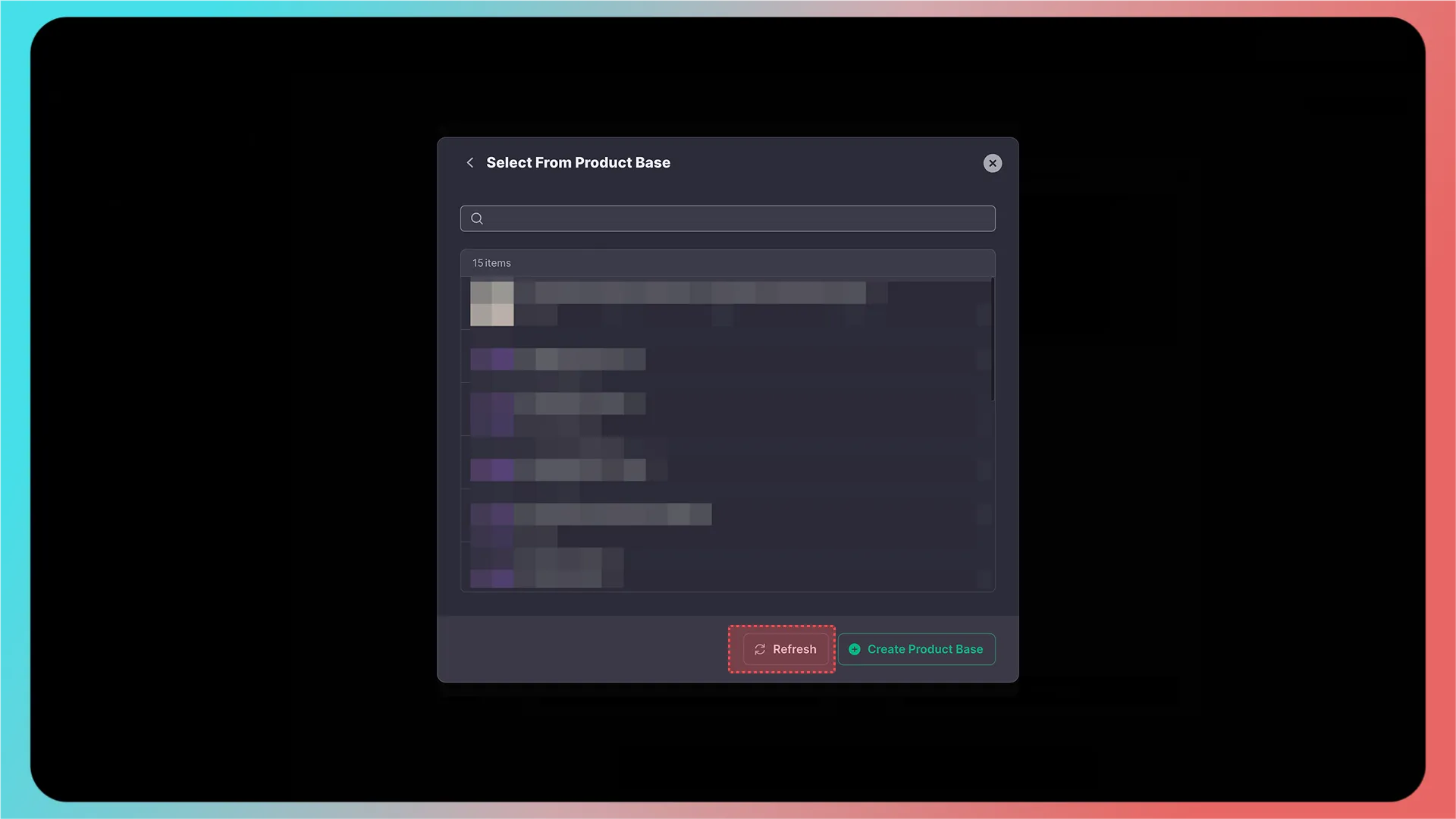
After refreshing, the newly created add-on price product appears first. Select it and click Confirm.
If you created a multi-variant product, choose the appropriate variant.
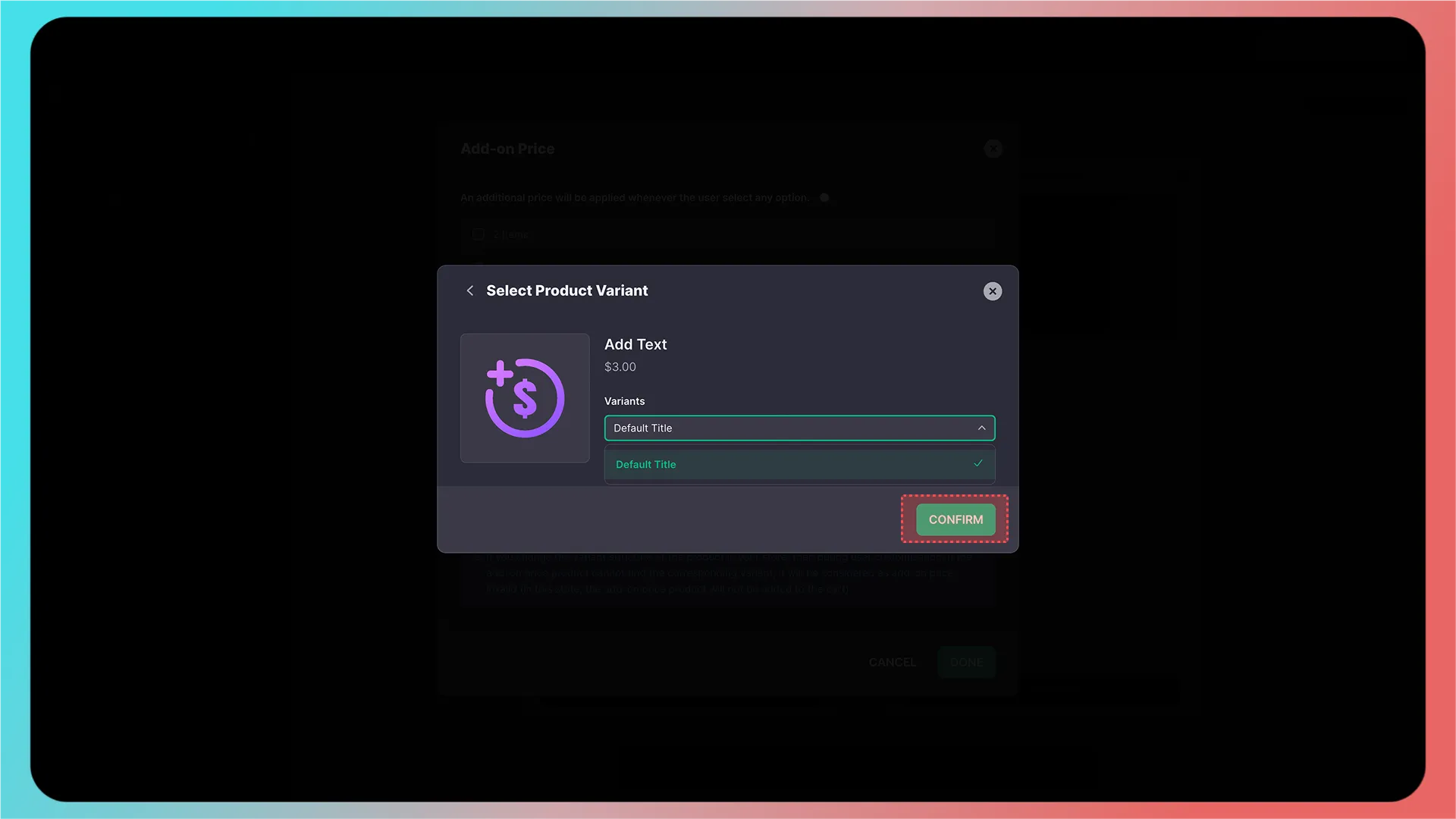
7. Complete the configuration and preview
The Yes option is now configured. Click Done in the lower-right corner.
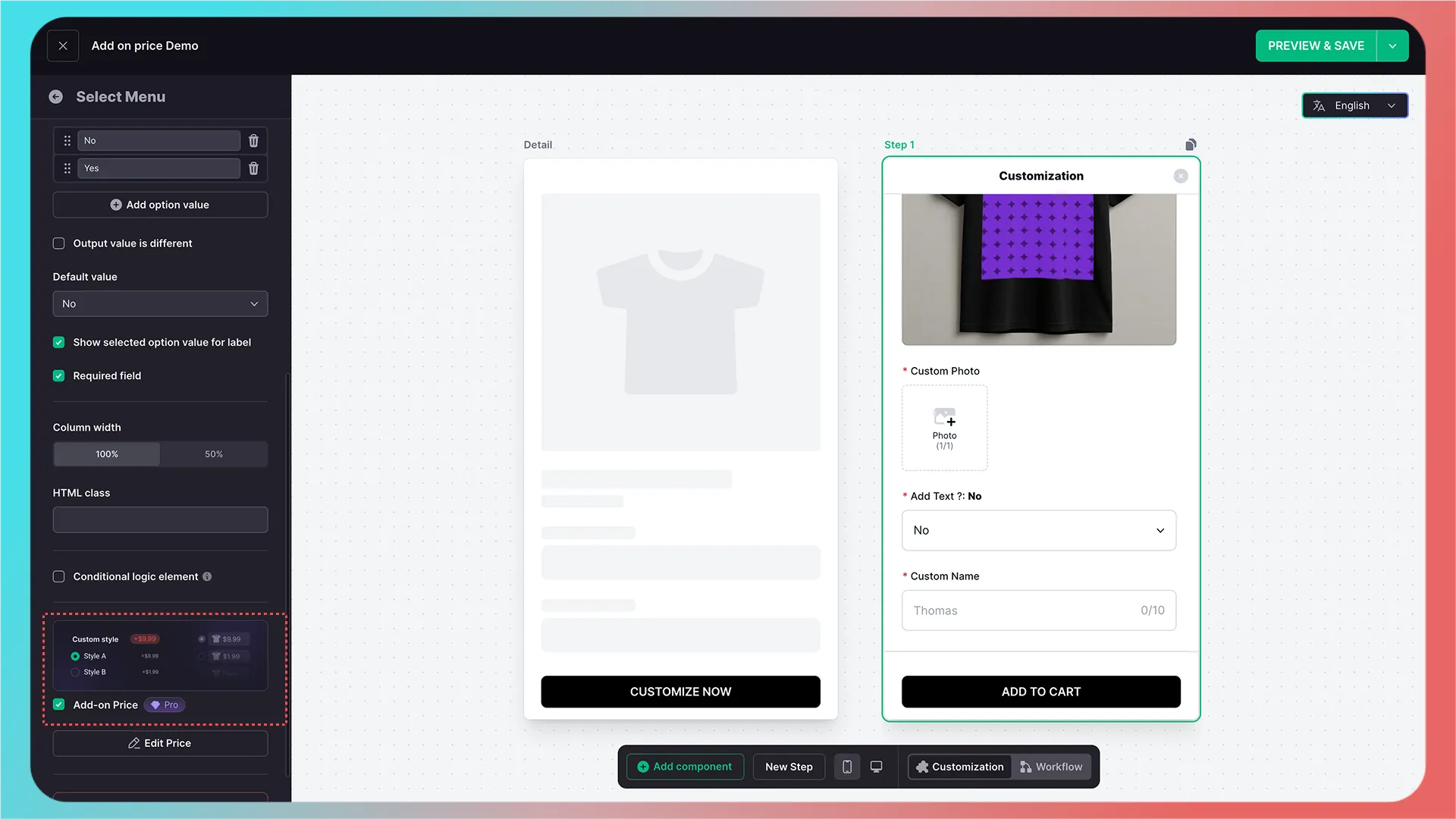
You can see that Add-on Price is selected; click Preview & Save in the upper-right corner to review the result.
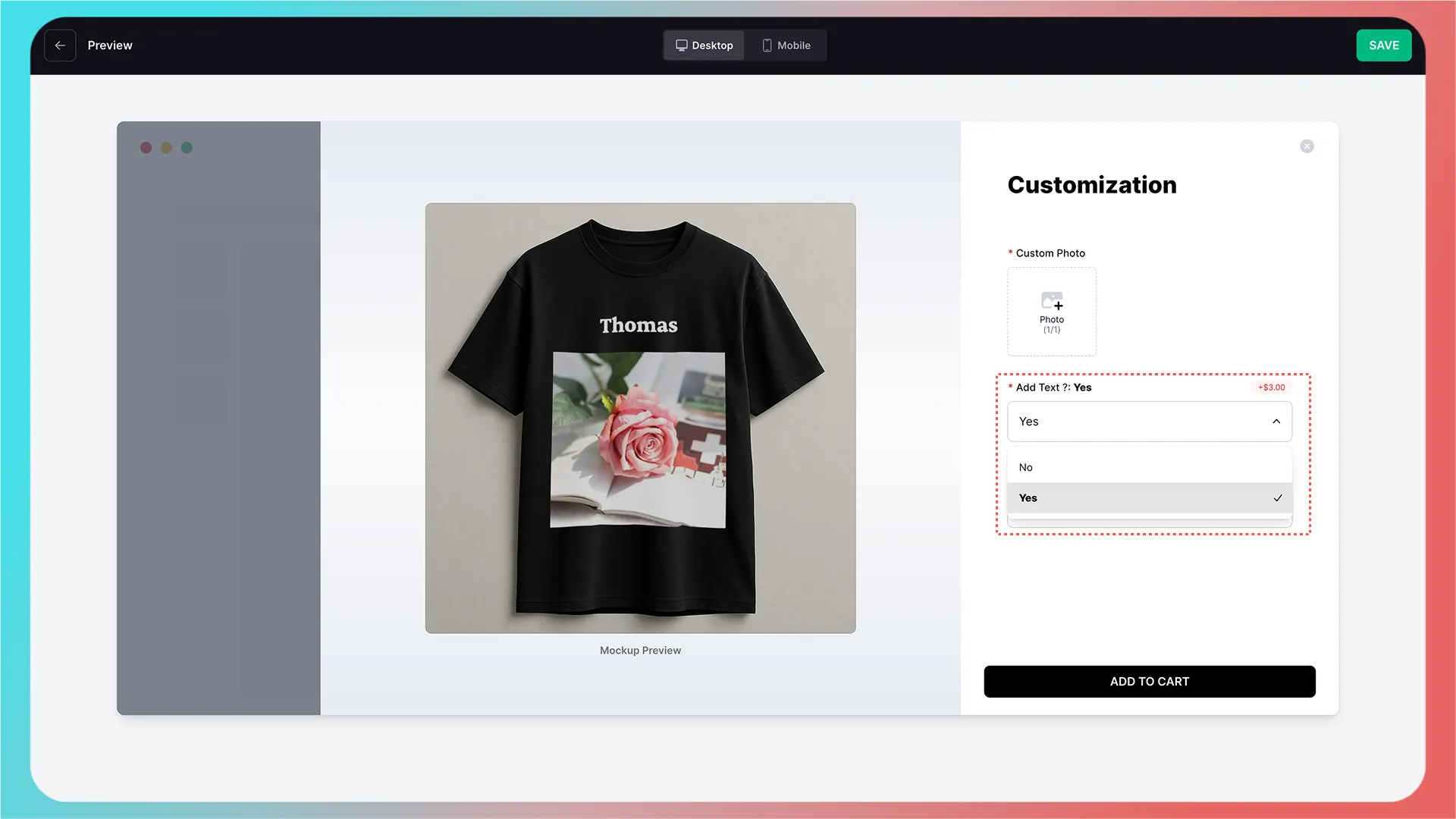
Configuration complete.
Store synchronization:
After saving, the newly configured add-on price product does not sync immediately to your connected store. It syncs automatically only when the customization feature is integrated, so do not delete it.
If the feature has already been integrated, saving the add-on configuration syncs it to the store immediately.
If you need to bind the add-on price product to the main product, you will need to modify your cart theme code.
Further Reading
Getting Started
- Connect Your Store
- Beginner Guide: Create Your First Customization Feature Step by Step
- How to Integrate a Customization Feature into a Product Landing Page (Product Detail Page)
Advanced Features
- Templates in CustoMeow
- Use Component Conditions to Control Whether Components Are Shown or Hidden
- What Can Workflow Do?
Add-on Pricing and Upselling
Updated on: 27/10/2026
Thank you!