
What Is an Upsell Product?
About upsell products
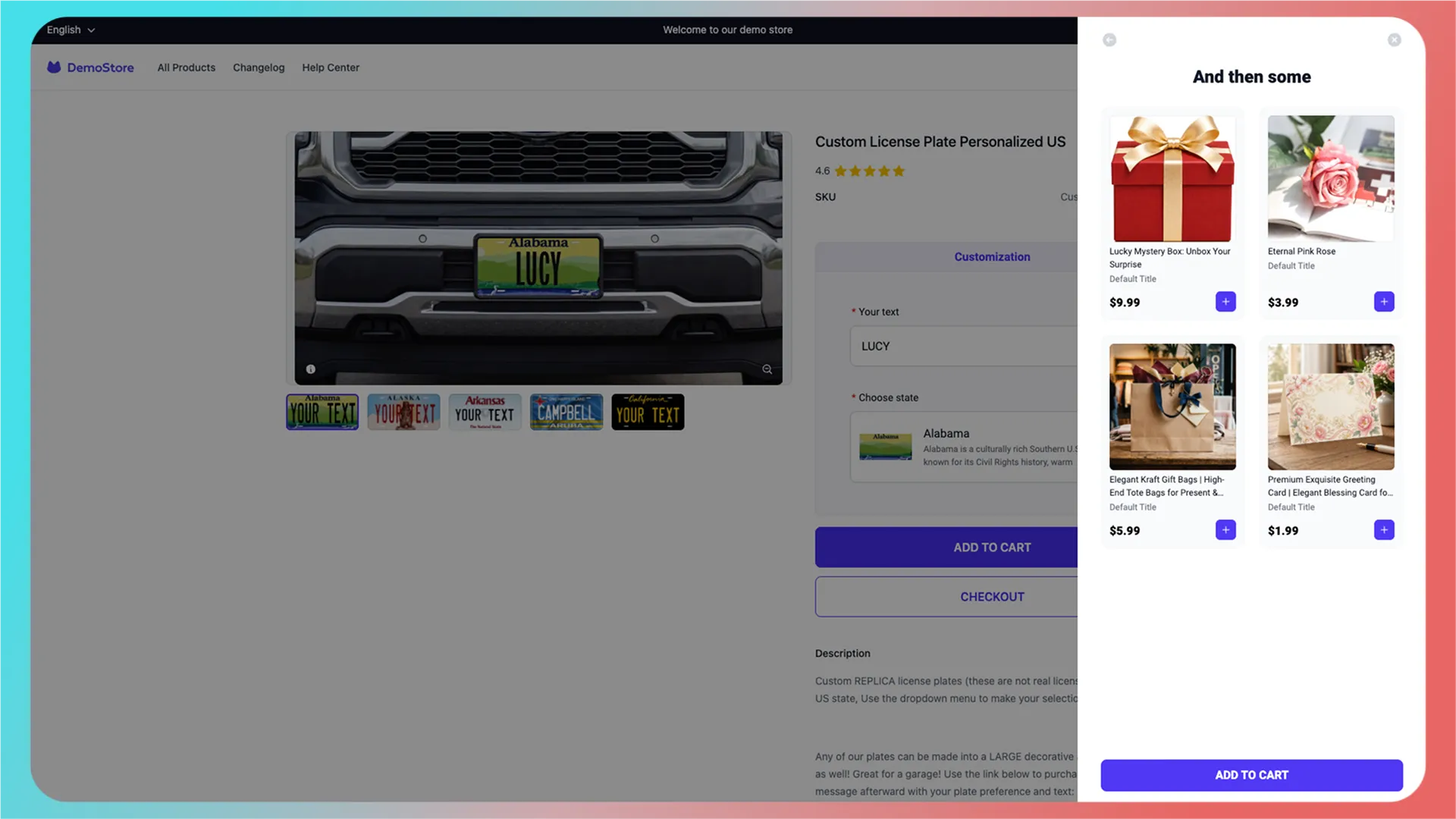
An upsell product is a merchant-recommended add-on shown in a pop-up after a customer completes customization and adds the item to the cart. It is similar to a “frequently bought together” offer.
Common upsell products include gift bags, handwritten greeting cards, and virtual membership cards.
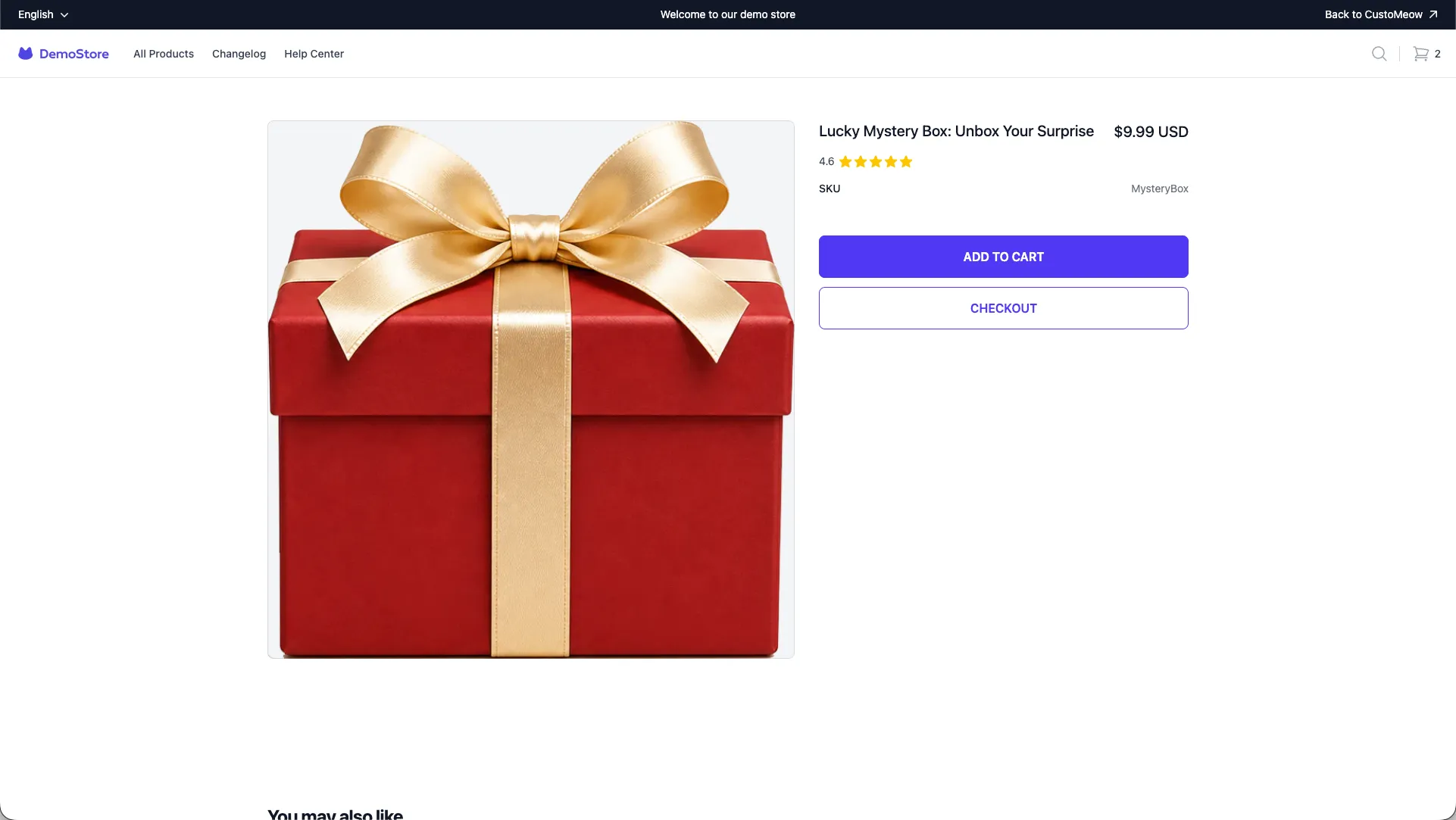
Try the upsell flow in our demo store:
How do I configure upsell products?
How it works:
CustoMeow reads and references actual products from your store, then adds them to the upsell pop-up. Selected products are added to the cart together.
1. Create the product in your store
First, create a product in your online store.
2. Open Upsell Management
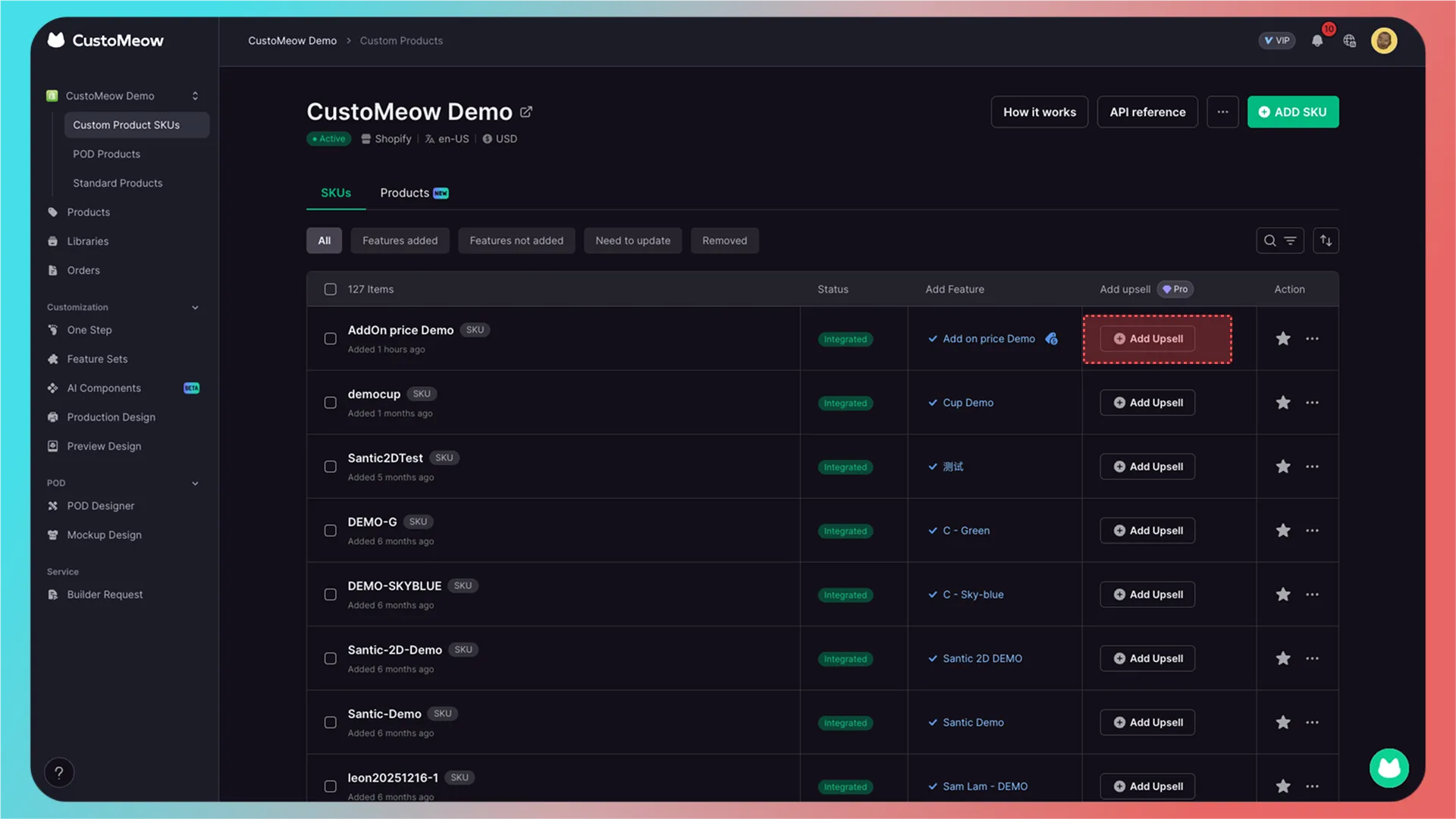
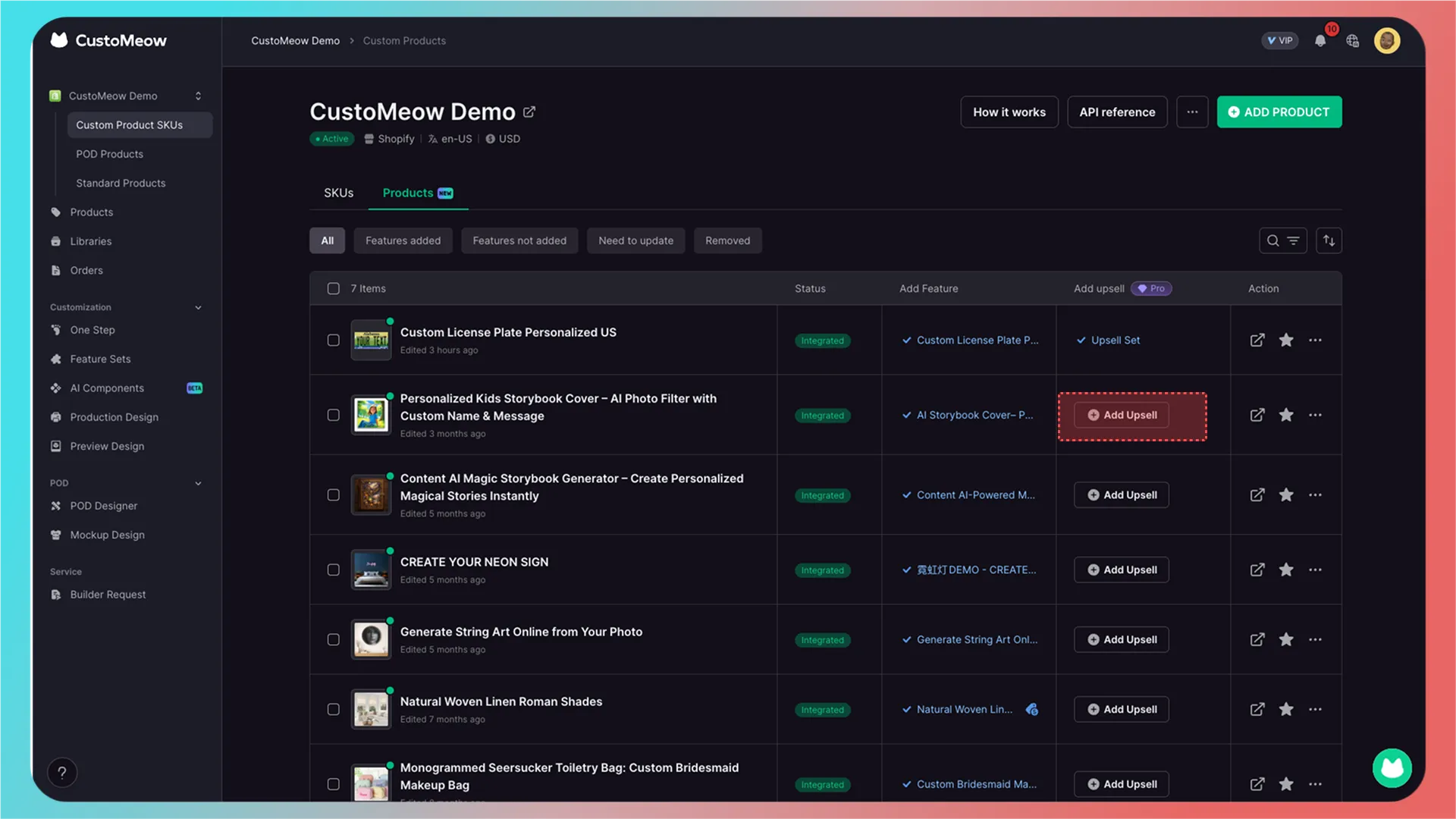
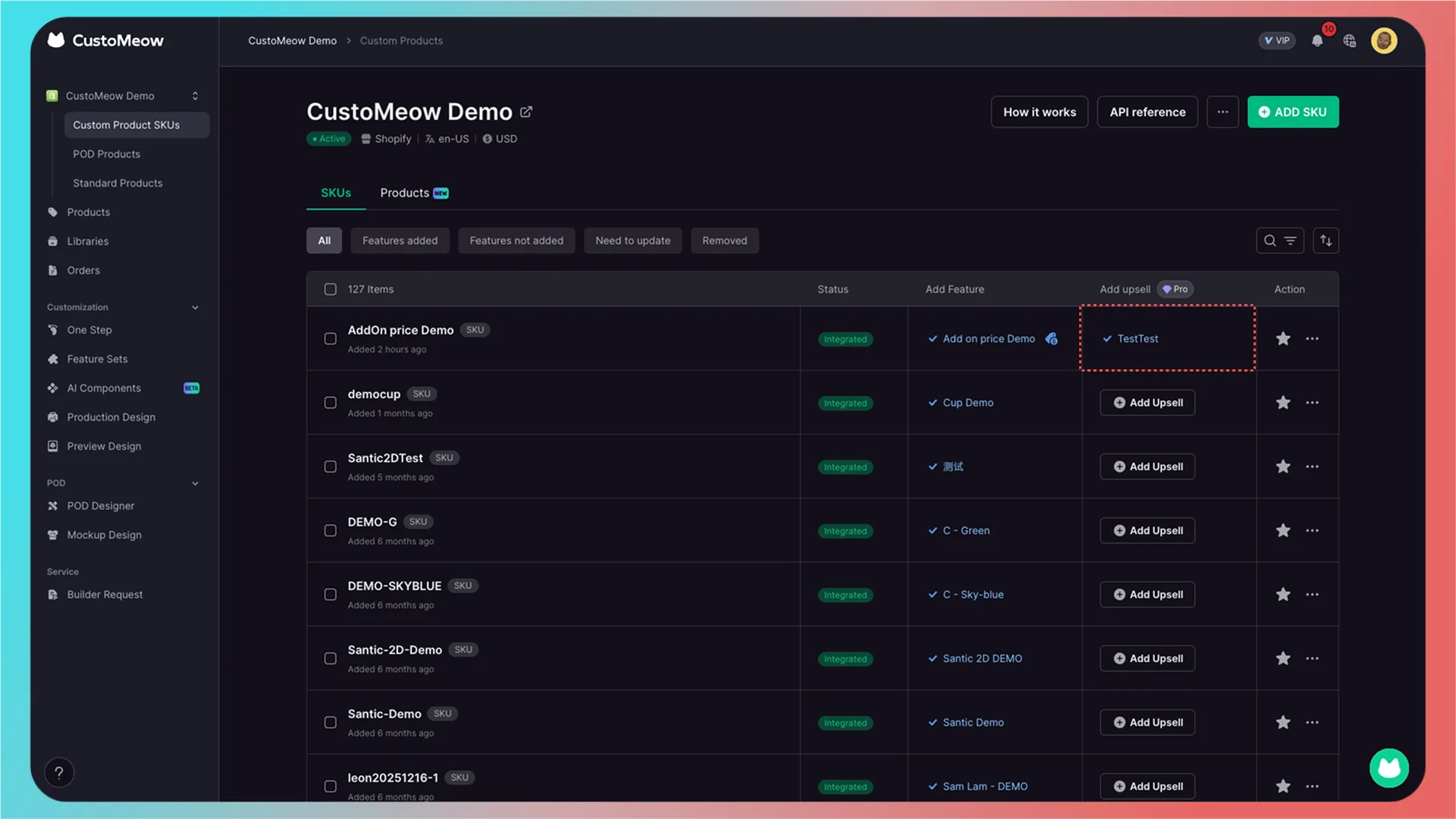
Then go to CustoMeow’s integration page and click Upsell.
Integration by SKU
Integration by product
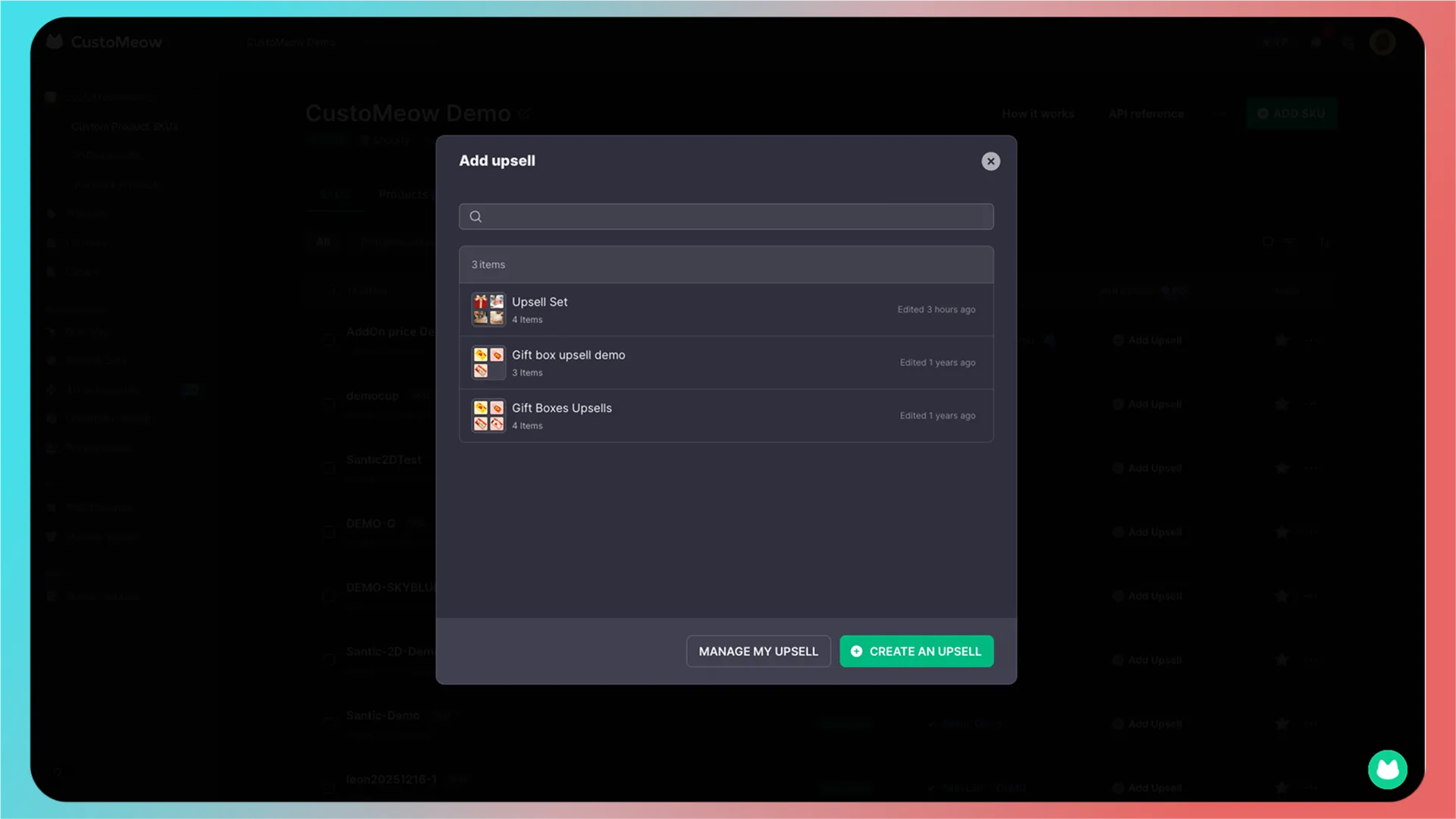
After clicking, the Upsell Management pop-up appears, showing every upsell you have created.
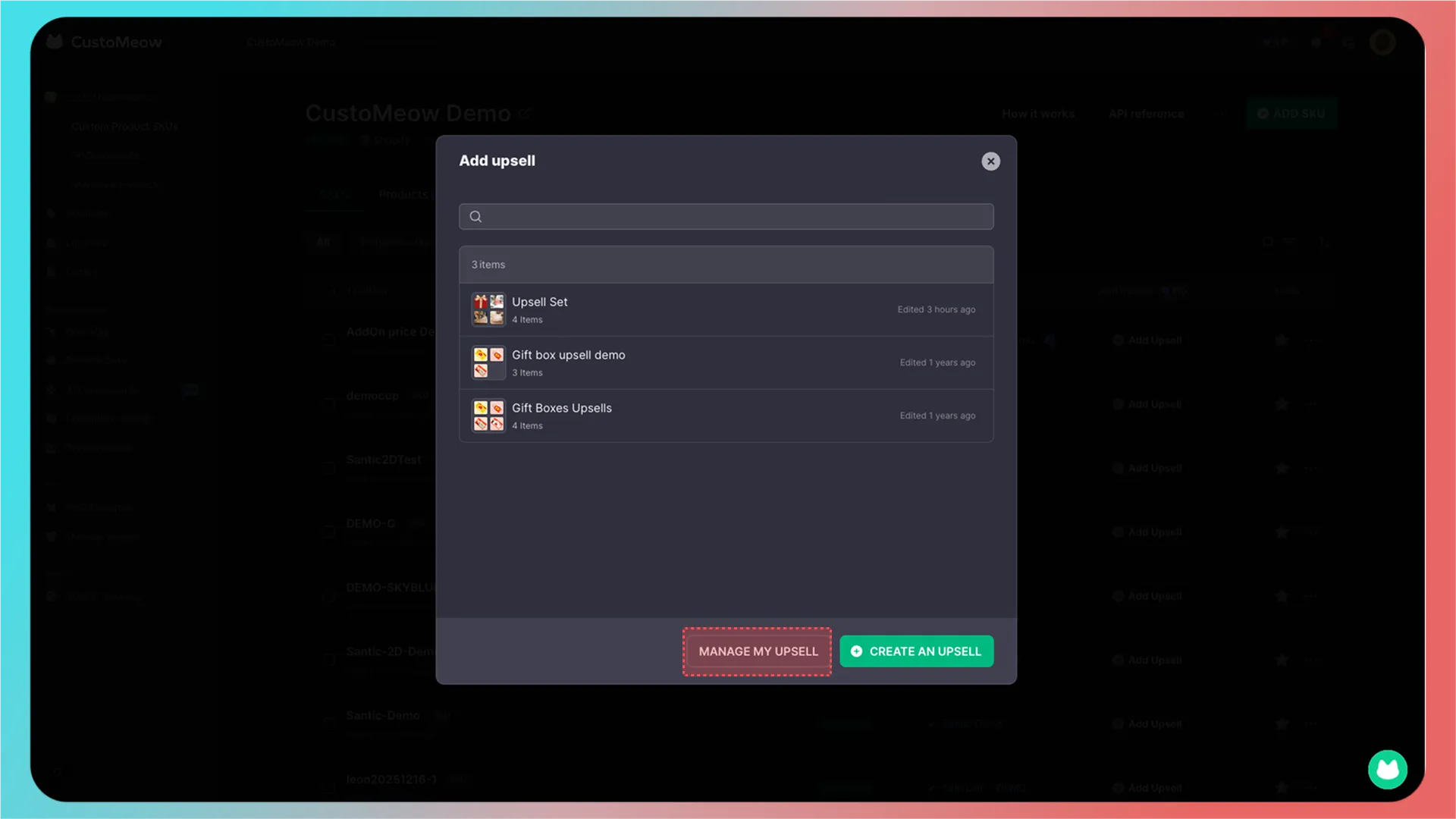
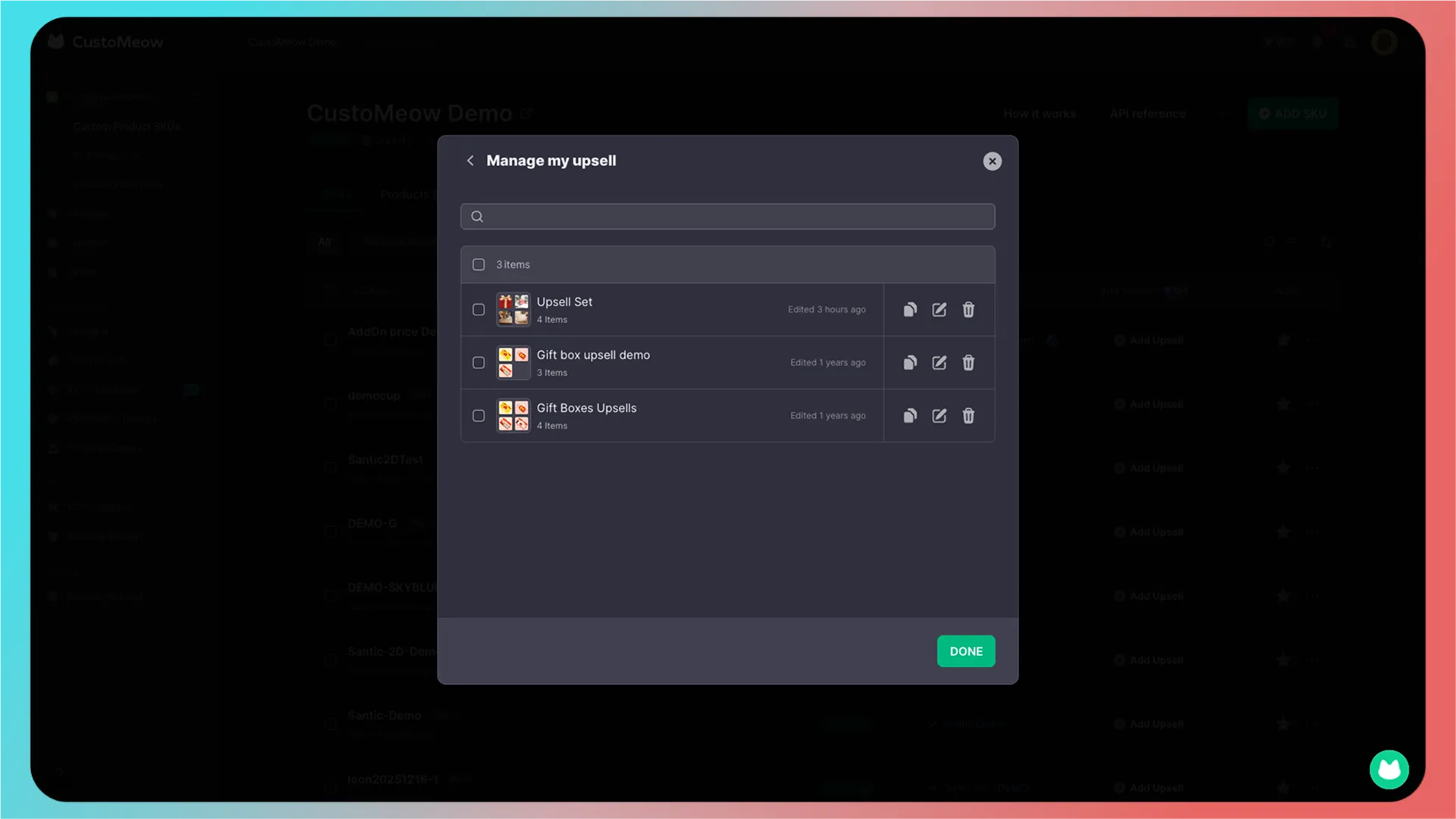
Click Manage to batch-delete, duplicate, or edit upsells.
3. Create and configure an upsell
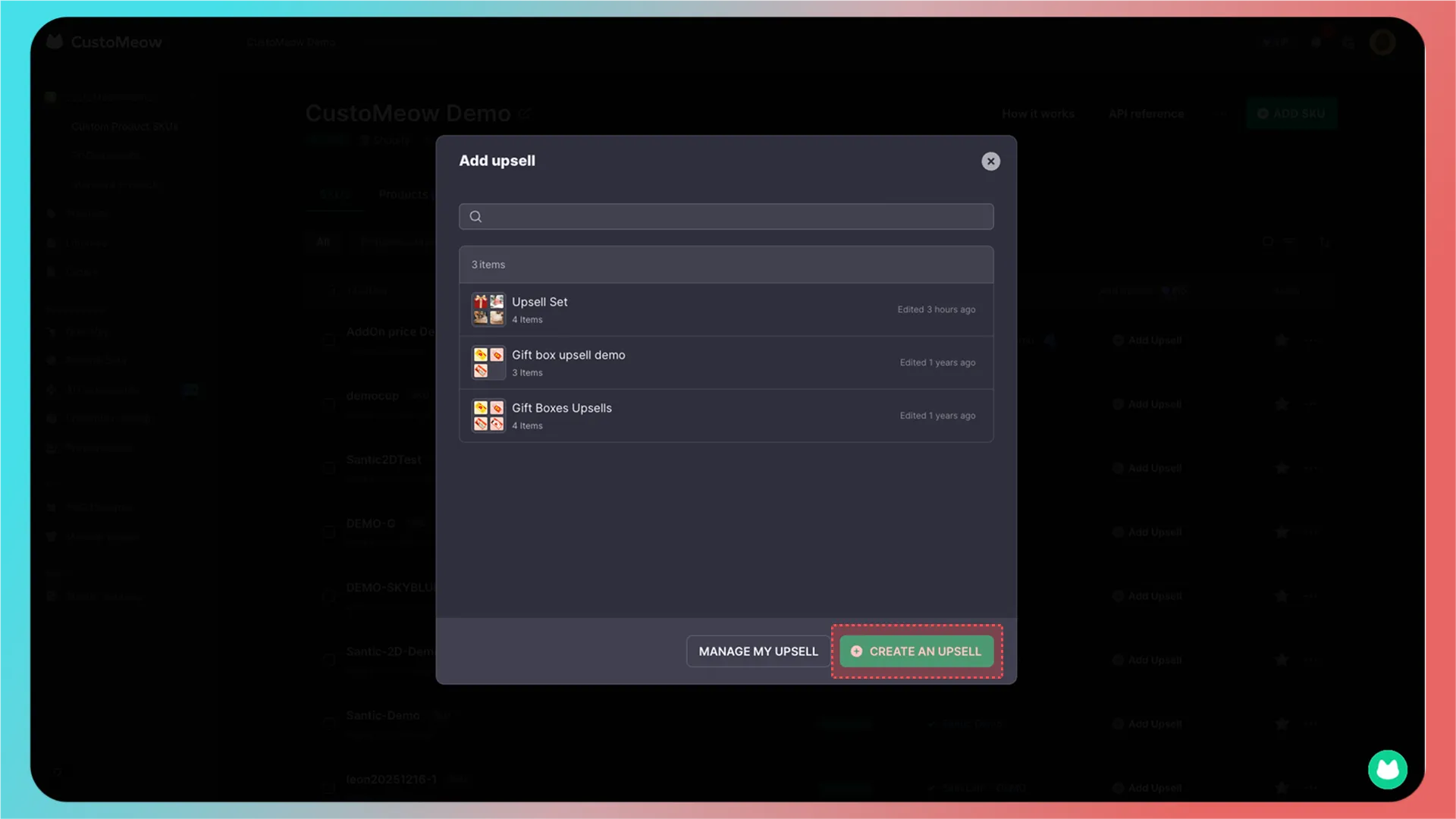
Click Create Upsell.
You are now on the upsell configuration page.
- Change the upsell name.
- Change the title of the current upsell pop-up. The change appears immediately in the preview on the right.
- Add upsell products.
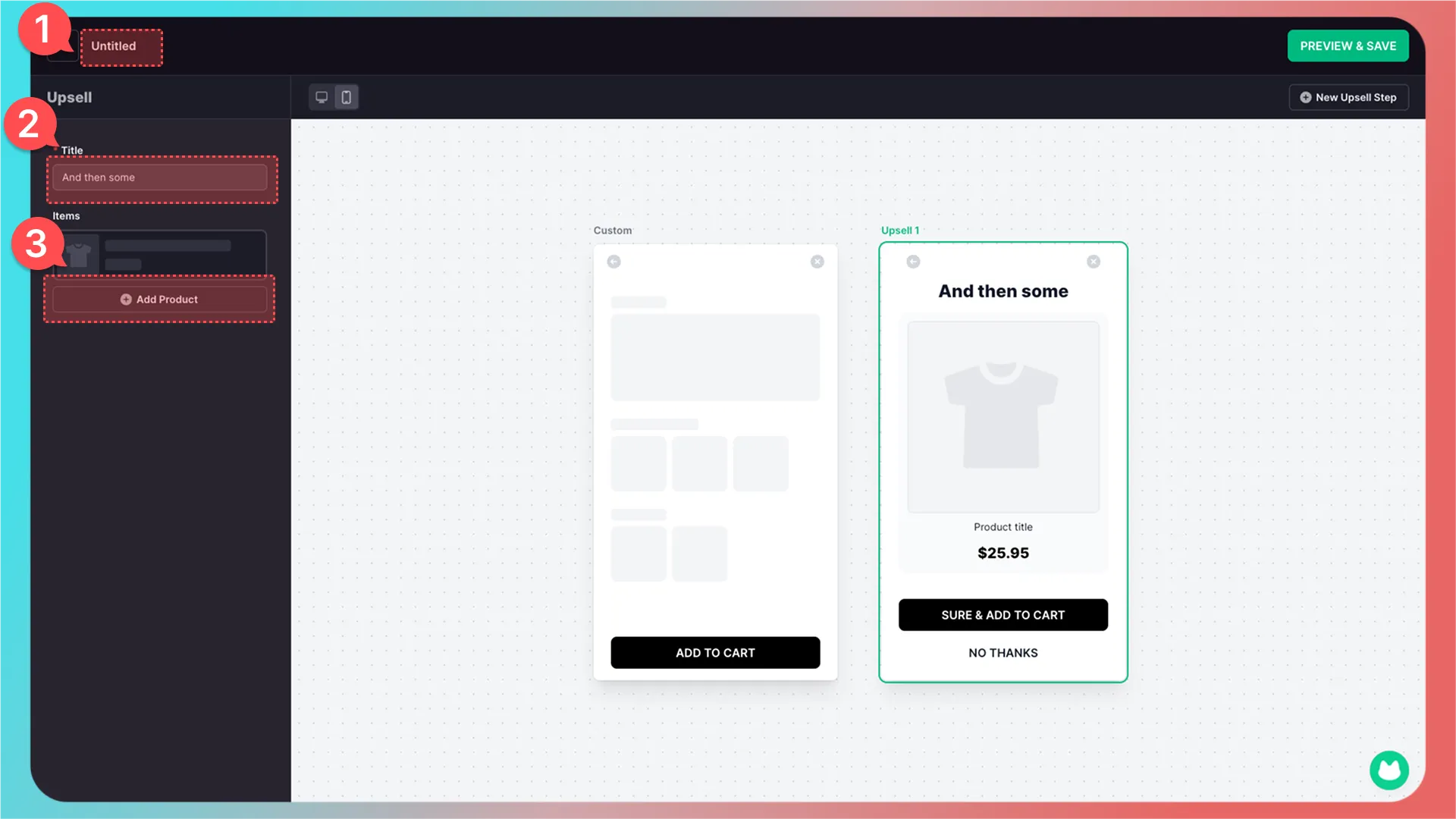
4. Add upsell products
Click Add Upsell Product. CustoMeow will load products from your store, which is why you need to create the product in your store first.
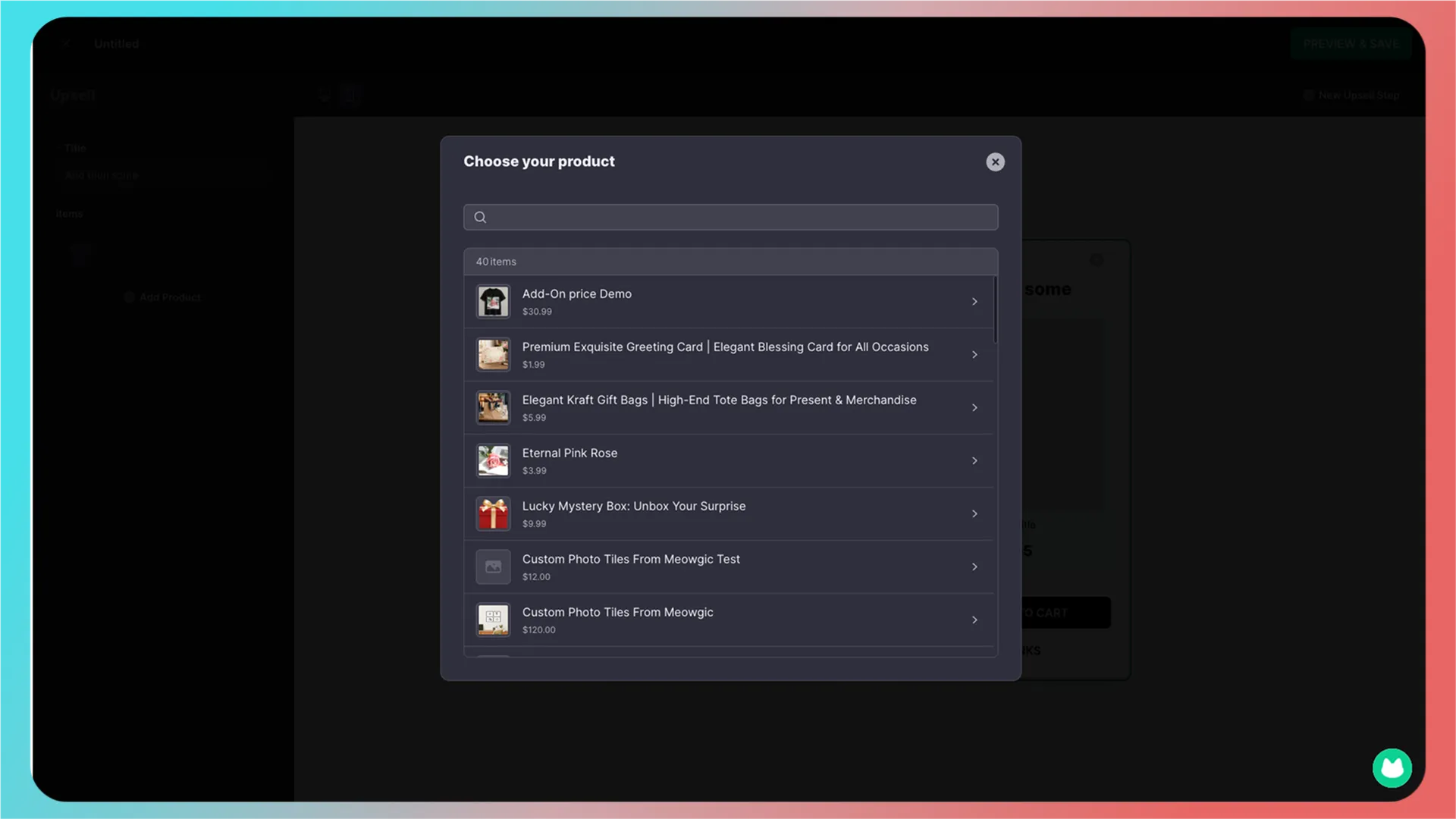
Select a product.
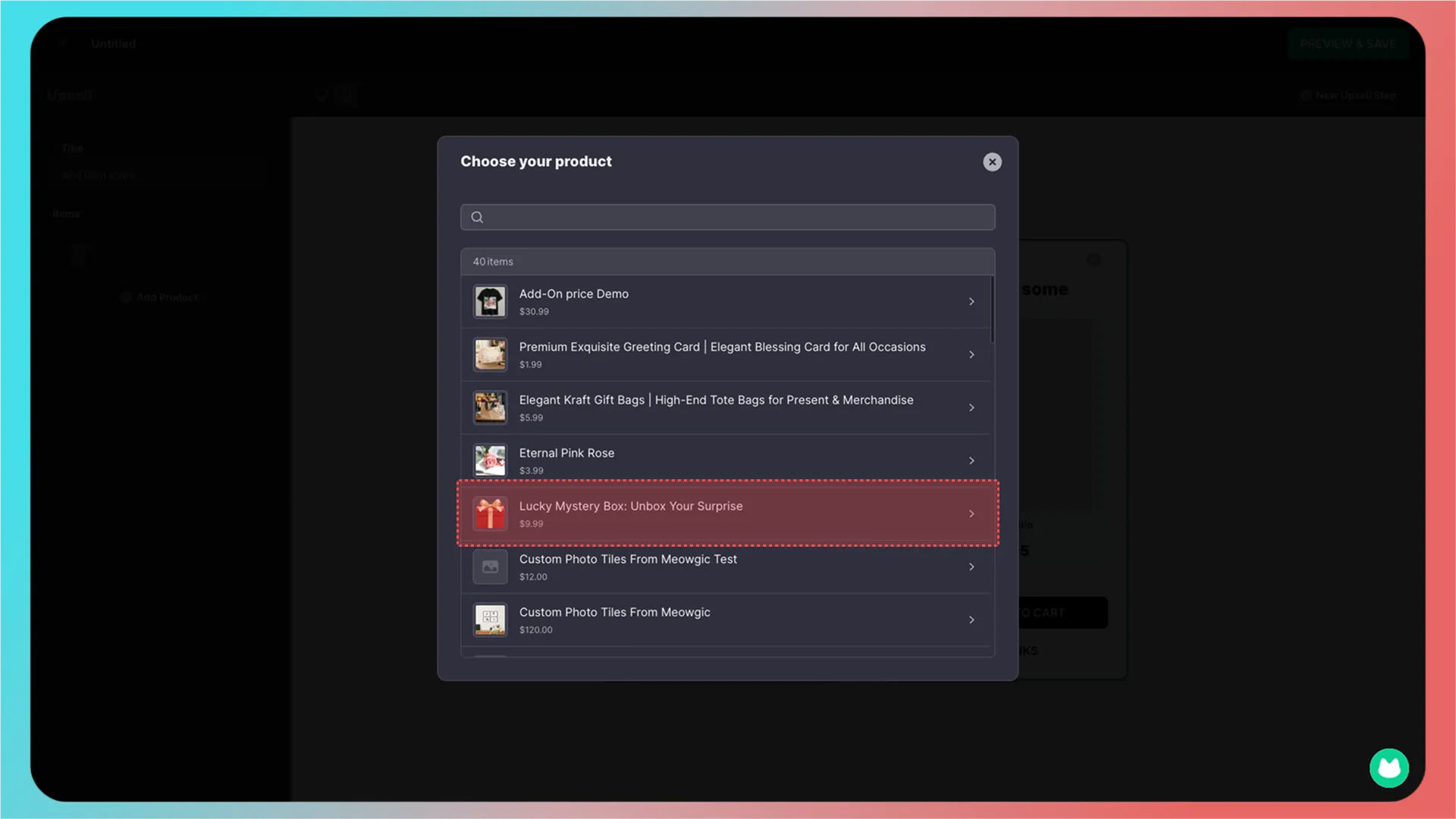
You can choose a product variant. If there are no variants, select Default Title.
Click Add.
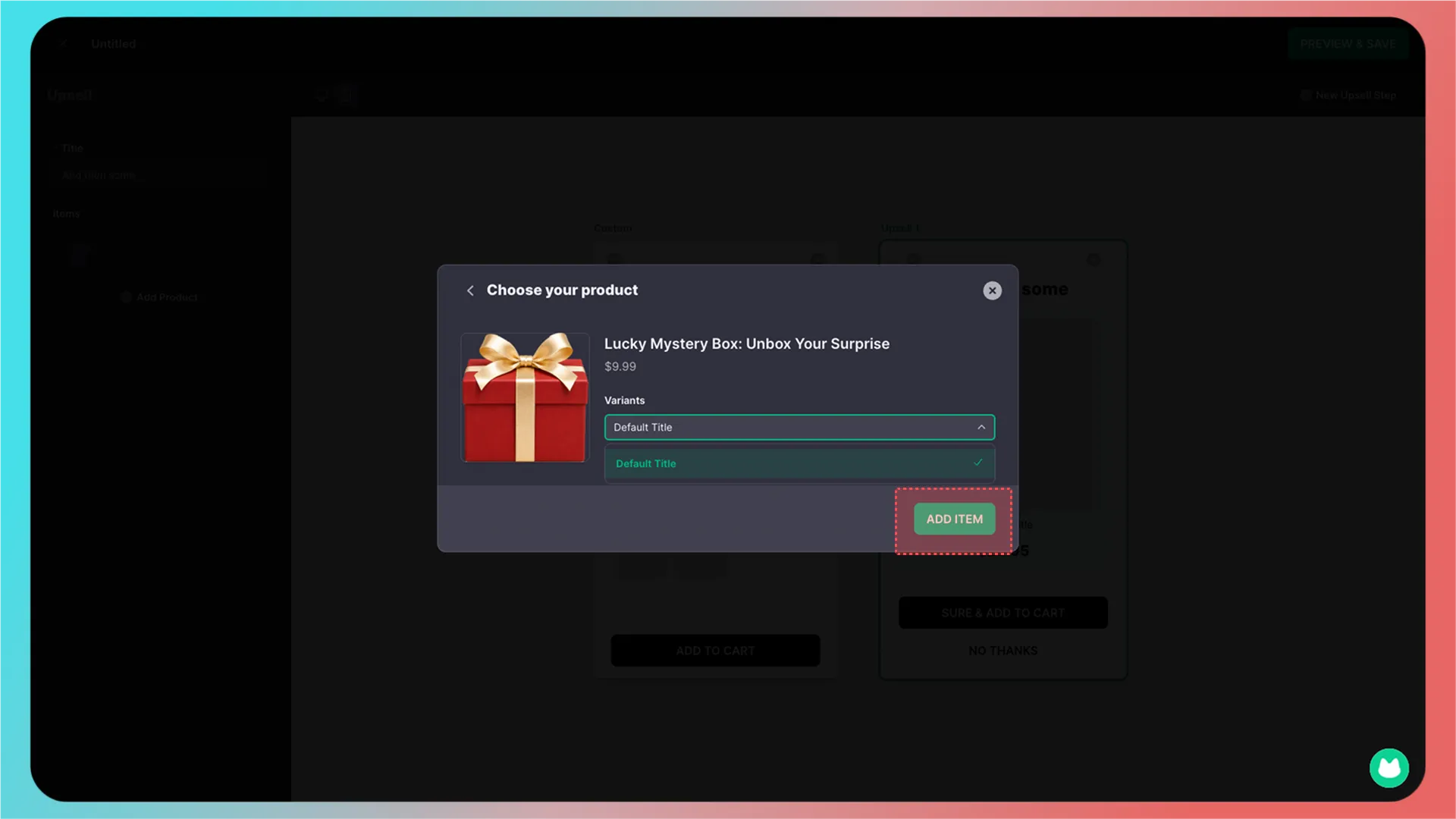
The product has been added successfully.
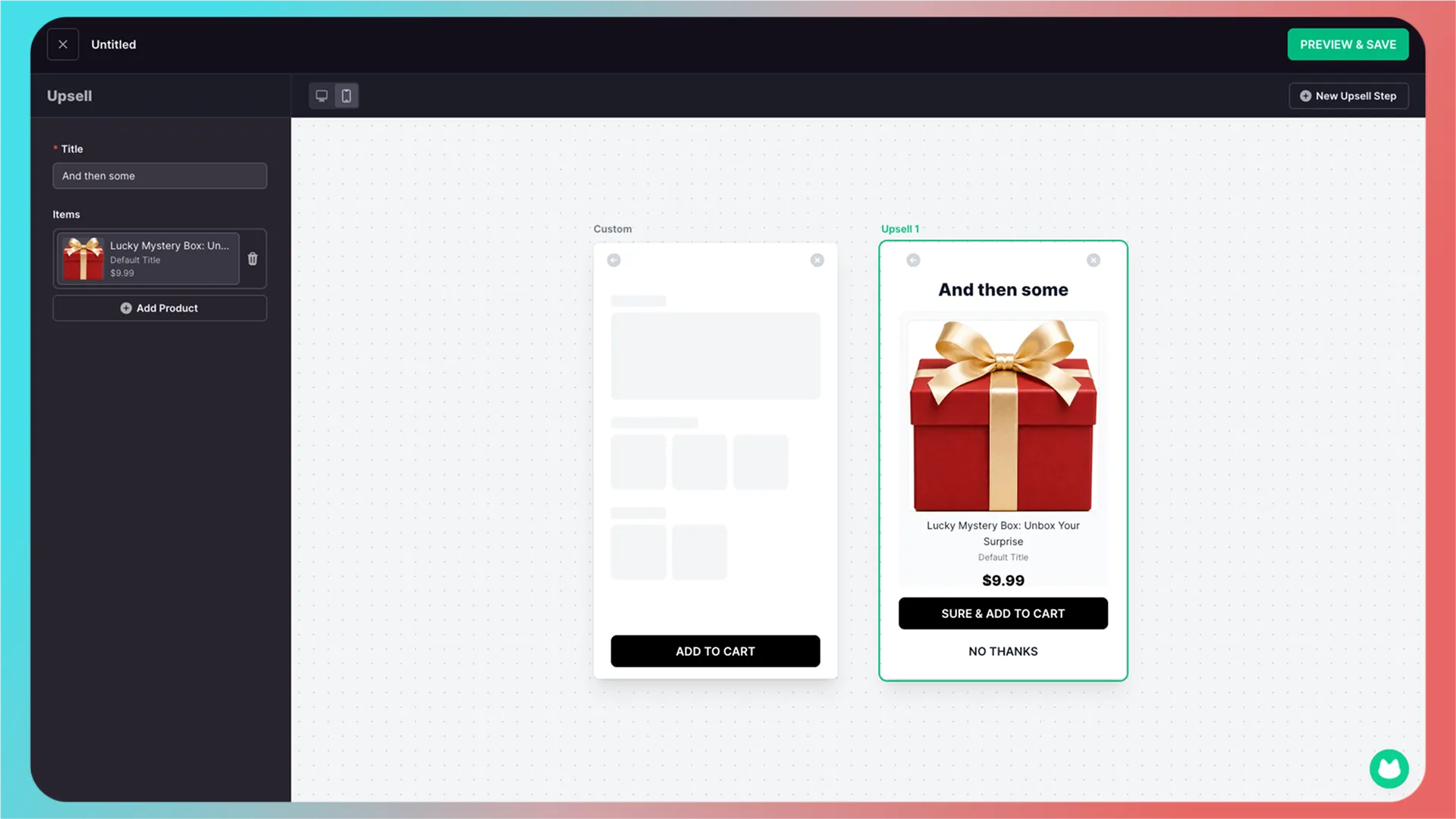
You can add multiple products.
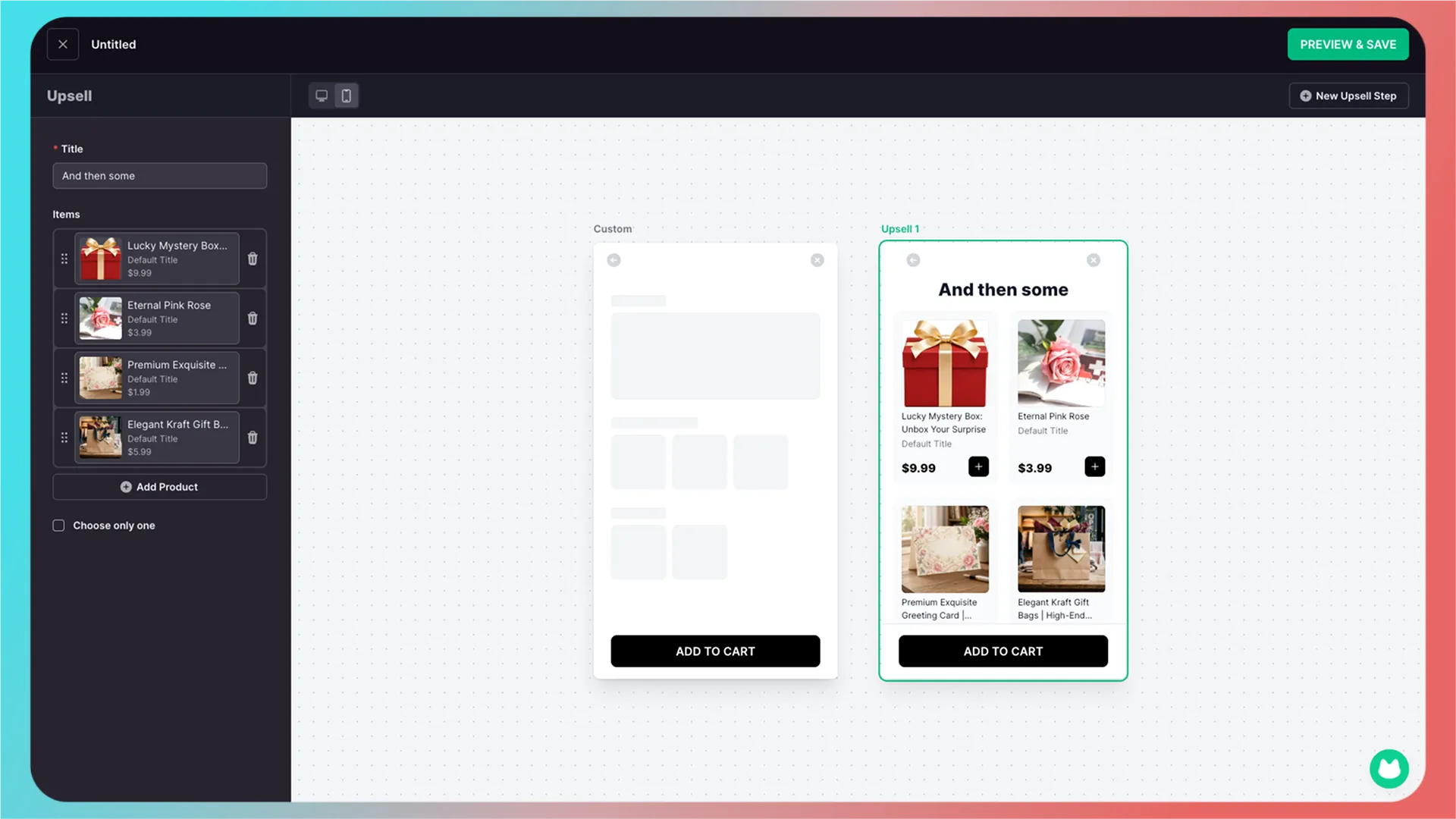
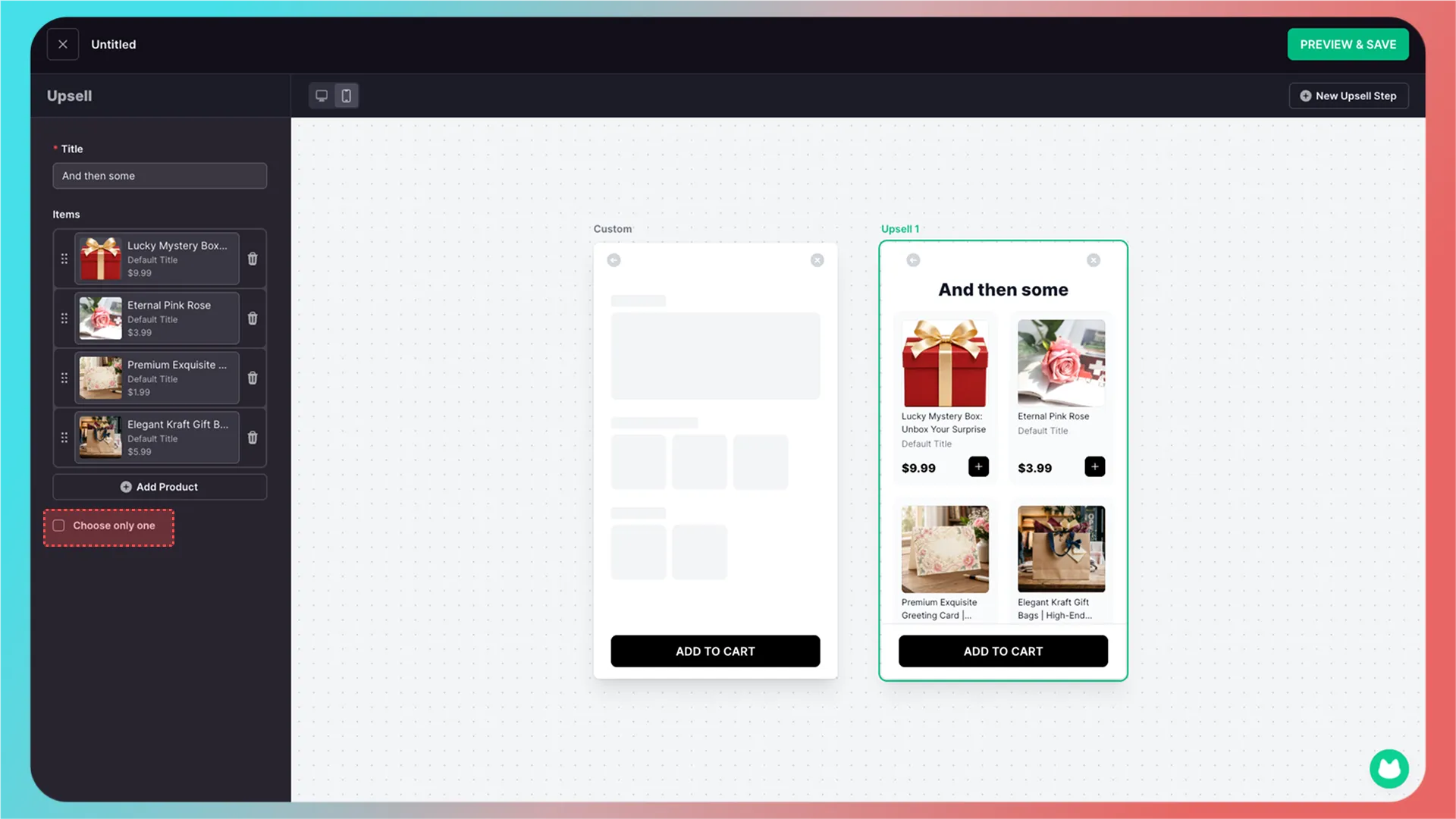
5. Configure single selection and the default product
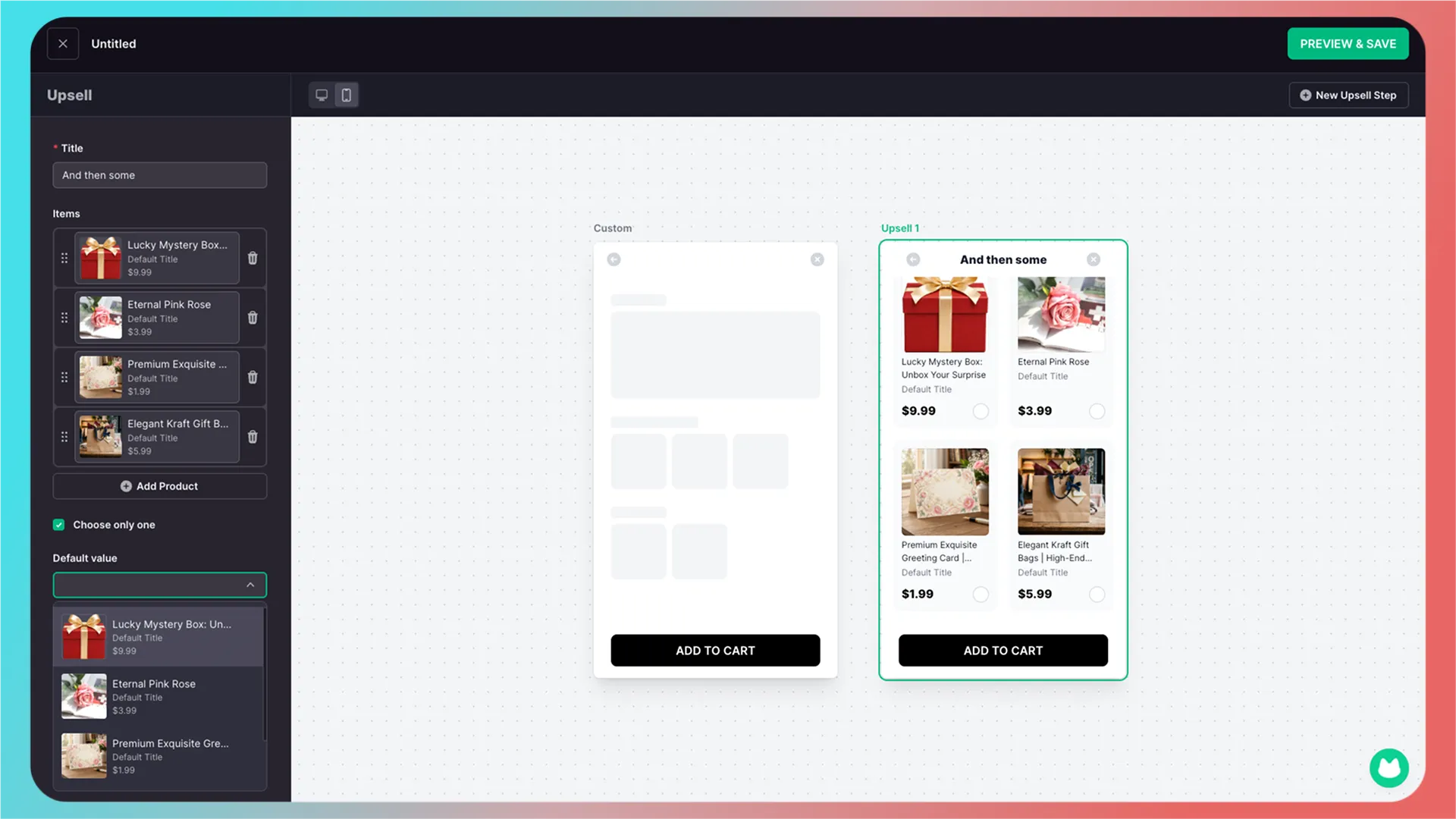
By default, customers can select multiple products in the upsell pop-up. If you want customers to select only one product, click Choose Only One.
After clicking it, you can configure the default selected product.
6. Add more upsell pop-ups
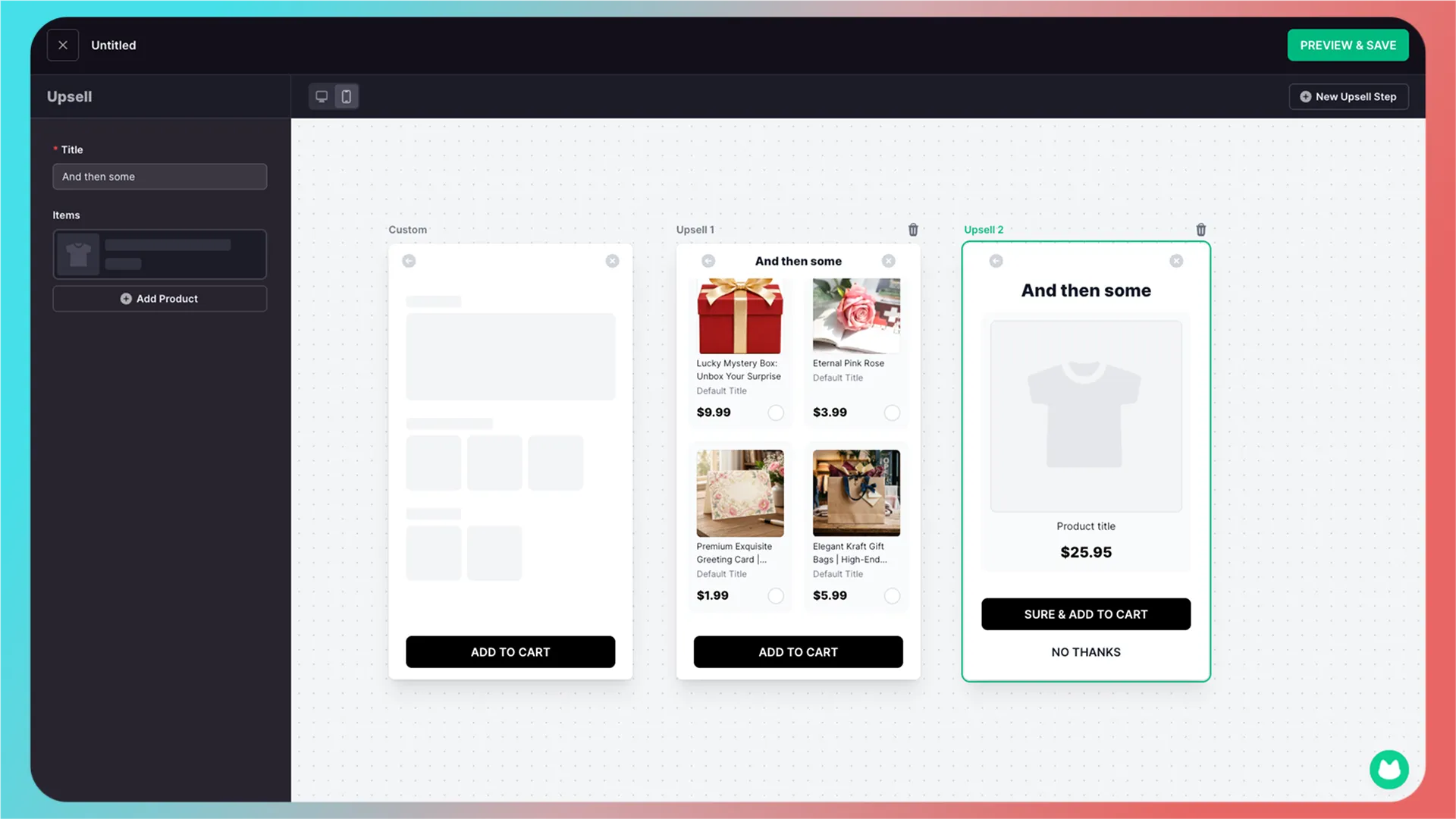
Click New Upsell Set in the upper-right corner to add another upsell pop-up.
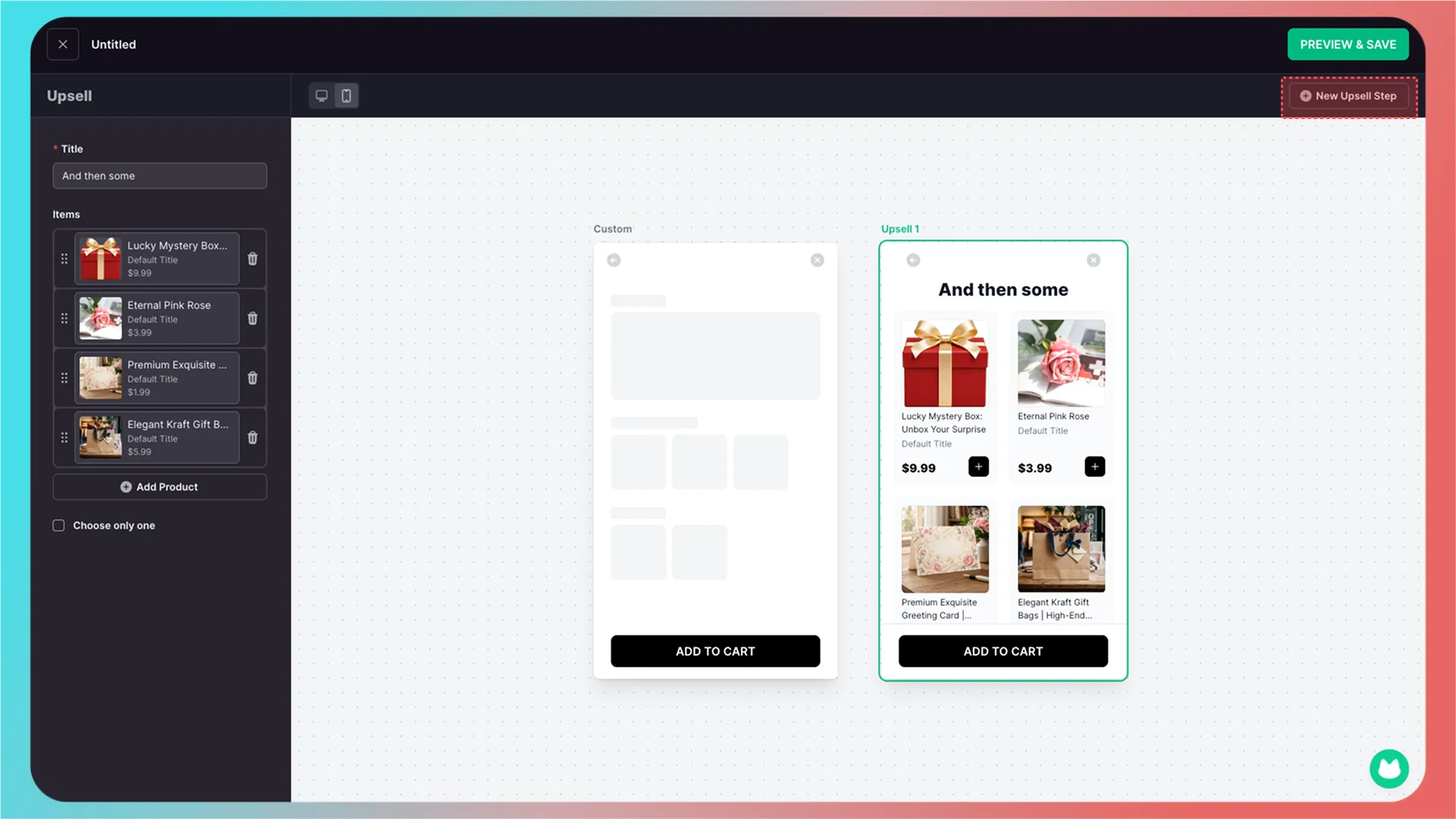
The copy and products in the new upsell pop-up can be freely edited.
7. Preview, save, and integrate
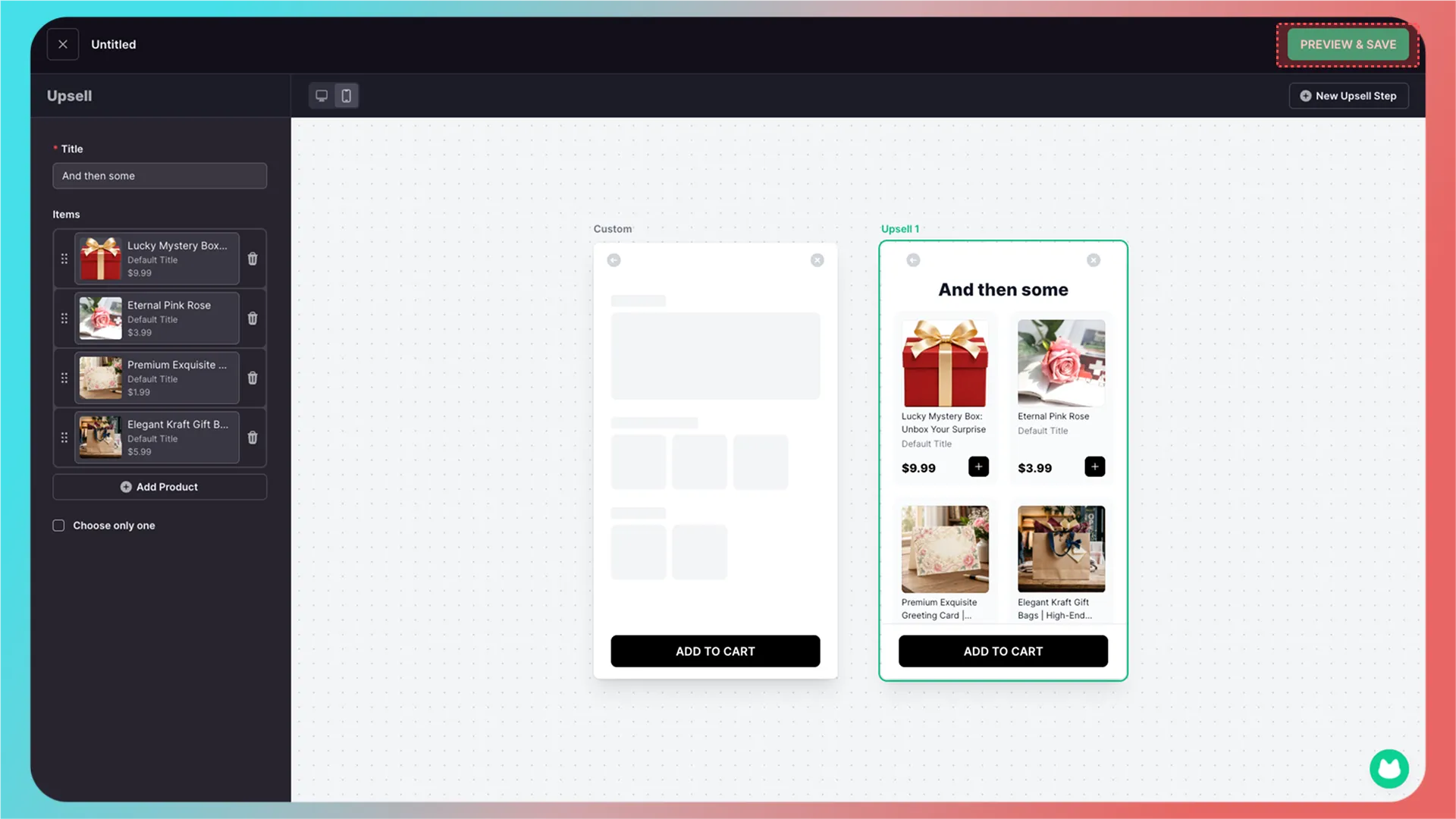
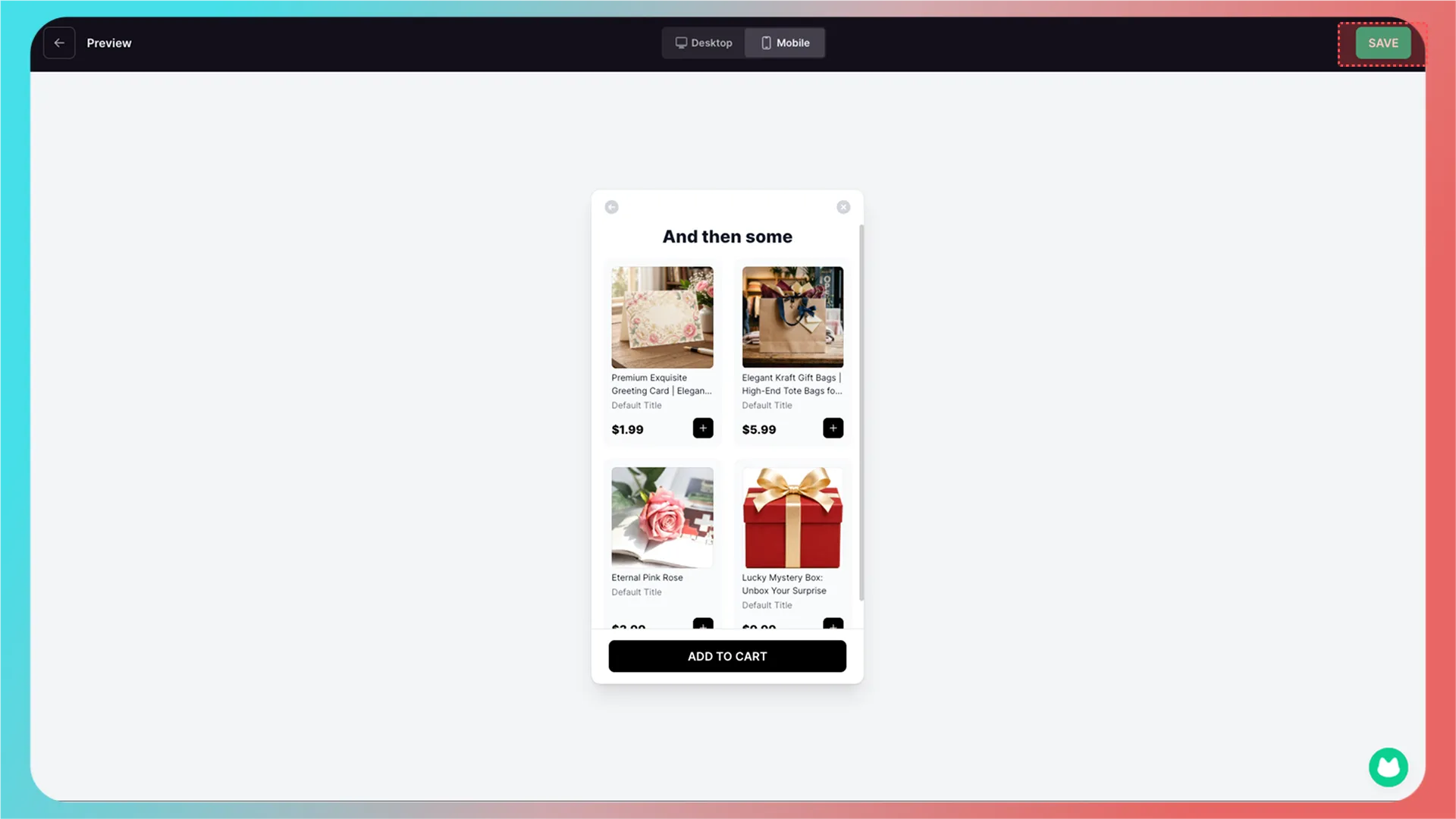
Once configuration is complete, click Preview & Save in the upper-right corner to preview the entire flow together with the customization feature.
Then click Save to integrate the upsell automatically.
Integration successful.
Further Reading
Getting Started
- Connect Your Store
- Beginner Guide: Create Your First Customization Feature Step by Step
- How to Integrate a Customization Feature into a Product Landing Page (Product Detail Page)
Advanced Features
- Templates in CustoMeow
- Use Component Conditions to Control Whether Components Are Shown or Hidden
- What Can Workflow Do?
Add-on Pricing and Upselling
Updated on: 27/10/2026
Thank you!